Your account
Manage sign-in, your profile, security, and account preferences.
1. What an account is for
An account identifies your work. Buy the Local plan immediately or start a free evaluation whenever you are ready; Tabularia asks before the days begin. Writing saves locally until you add the Cloud plan, which brings online backup, sync, sharing, and the remote AI connector. The evaluation includes Cloud until it ends. Publishing a book as a web page works on either plan and during an evaluation.
Open Account under Settings in the Document menu, beside the project name. Your Shelf and Sign out sit just below it.
The page groups its settings, and the list beside the plan card shows one group at a time. On a phone every group is stacked down the page.
2. Signing in
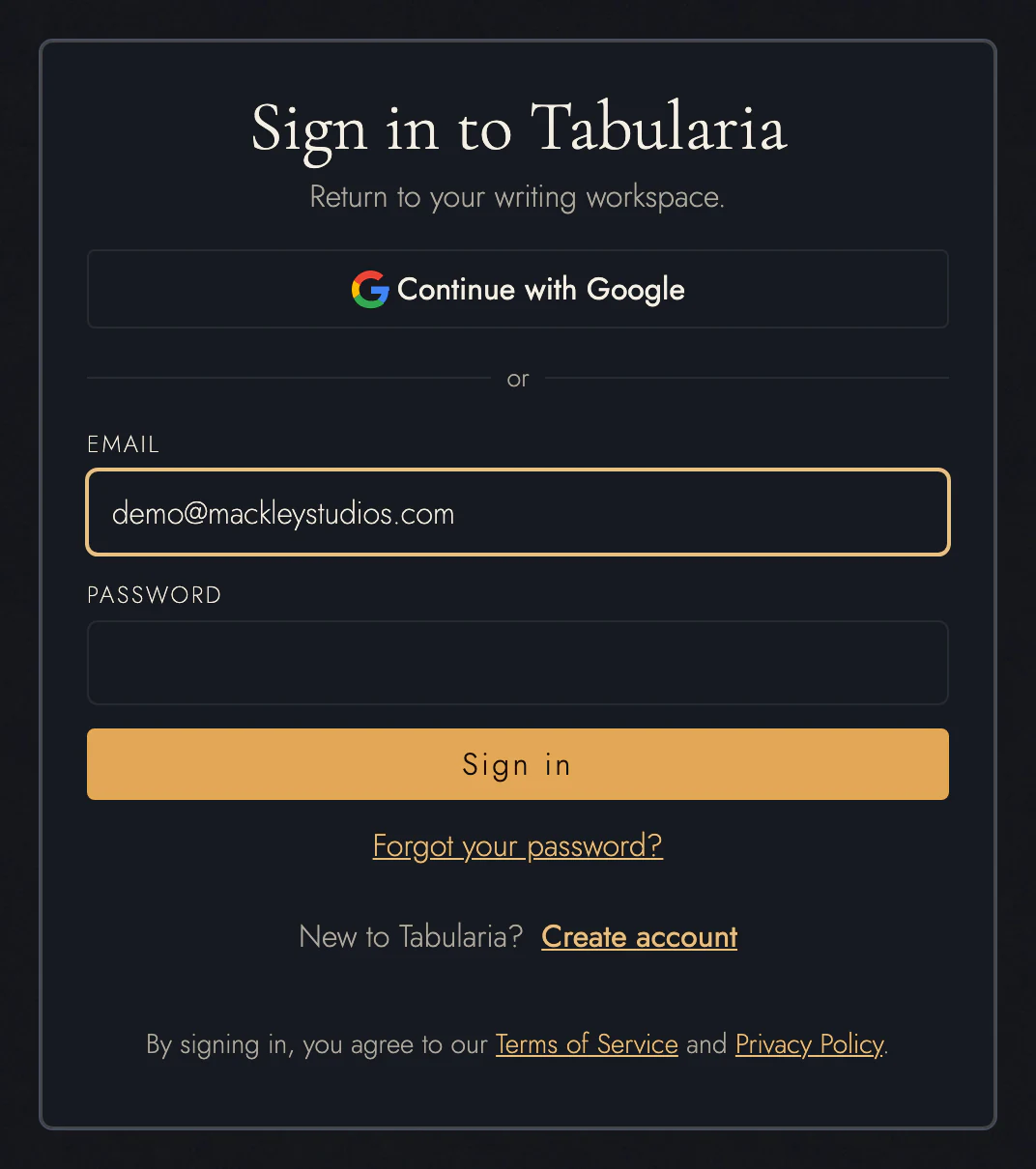
Sign in with Continue with Google, or use your name, email address, and a password. One account can support both sign-in methods.
If this browser holds writing from an earlier local workspace, signing up can offer to bring it into your account. Accept to attach that work to the account, or leave it local.
Use the sign-in form’s reset link if you forgot your password. A Google account can
add a password with Set a password. Changing it requires the current
password, signs out other sessions, and disconnects any connected assistant, and an
email tells you it changed. Common passwords such as password are refused.
3. Verifying your email address
Follow the verification link sent to your email. Until you do, the plan card on your account page asks you to verify before buying a plan, and its Resend verification email sends a fresh link without leaving the page. Cloud sync and sharing, publishing, and billing wait for verification. Local writing and exports keep working.
4. Changing your email address
Under Profile, open Change email address and enter the new one. You may be asked to sign in again first. We send a link to the new address, and nothing changes until you open it; the link works for 24 hours.
When you confirm, you sign in with the new address from then on, and receipts go there too. Your old address gets a notice, and your other devices are signed out. If you sign in with Google, keep using the same Google account; only the address we mail changes.
5. Your profile
Click your Profile picture to choose a photo, then drag and zoom it until the circle holds the part you want. It appears beside your name in shared work and on your Shelf. Google sign-in uses your Google picture initially; you can replace it.
This is not the name on your manuscripts. The author name a title page and a running head print is Author, in each project's own Project Settings, so a pen name belongs to the book rather than to the account behind it.
Published pages is where you claim the handle your published pages are served under. It is described with publishing a draft, because that is where it matters. Until you connect an assistant, Connect an assistant shows the address to give it. Once one is connected, the card becomes Connected assistants and lists each assistant you have authorized, with a Disconnect button beside it (see AI assistants).
The same Connections section contains AI privacy and permissions. You can refuse AI processing, limit particular tools, or keep built-in AI-made decorations out of your books. See AI privacy and permissions for the controls on Local, Cloud, and Team accounts.

6. Security
Sign out other devices ends every session except this one and disconnects each AI assistant you connected, which you can approve again afterwards. You may need to sign in again to confirm, and an email records the action.
Signing out does not take anything off the device you are signing out of: a manuscript already downloaded there stays in that browser's storage until the browser's site data is cleared or the account is deleted.
7. Which emails you get
Account emails include security messages and review updates. For billing, Tabularia writes only when you pause the Cloud plan and when you resume it. Stripe sends everything else about payment, from receipts and invoices to a card that was declined. An evaluation brings one more, about three days before it ends, unless you have already bought a plan. These arrive regardless of your news preference.
Under Email choices, choose Receive news about product updates. News emails also have an unsubscribe link that changes this setting.
8. Your plan
One card on your account page answers for billing. It is headed with the plan's name, such as Free evaluation or Cloud plan, and a status beside it, such as the days left, Active, or Owned. Its rows carry the dates that matter, from when an evaluation ends to how long a Local license's updates and support last.
On a Cloud subscription you bought yourself, Manage billing opens the Stripe Customer Portal and Pause sits beside it. Pause asks first and names the day Cloud stops, at the end of the period you paid for; until then Keep Cloud takes it back. Payment methods and invoices are in the portal, and so are canceling and switching between monthly and yearly. A Local license holder turns the yearly renewal of updates on, pauses it, or resumes it from the same card. Plans and what they unlock describes what each plan includes and what a pause or a lapse changes.
The card always ends with Download my manuscripts. That page lists the manuscripts stored in this browser and saves any of them as Word or Markdown without opening Tabularia, which is handy after a plan lapses or when you just want a quick copy. Those downloads carry the text only. To keep drafts, Sheets, timelines, and History as well, export a project archive from inside Tabularia.
9. Backup folder
Chrome or Edge on a computer offers a Backup folder card. Choose a folder for daily project copies, change it, resume paused backups, or stop them. Each browser keeps its own folder. Keeping backups in a folder explains the contents.
10. Partners
If you write about Tabularia on a blog, the Partners card is where you apply to the partner program: give your site's address and the name you want in your link. Once you are approved, the same card holds your link, badges to paste into your site, and what the link has earned.
11. Choosing a version
Tabularia keeps every feature release. When your plan covers more than one, your account page shows a Tabularia versions card. Pick one from its menu and press Use on this device; it takes effect the next time you open your projects here. The line under the menu names the version in use.
The choice belongs to each browser, not to your account. There is one limit. Projects saved by a newer version open only in that version or a later one, so a device that a newer release has already written to cannot move back below it. Pick the older version on another device instead.
12. Deleting your account
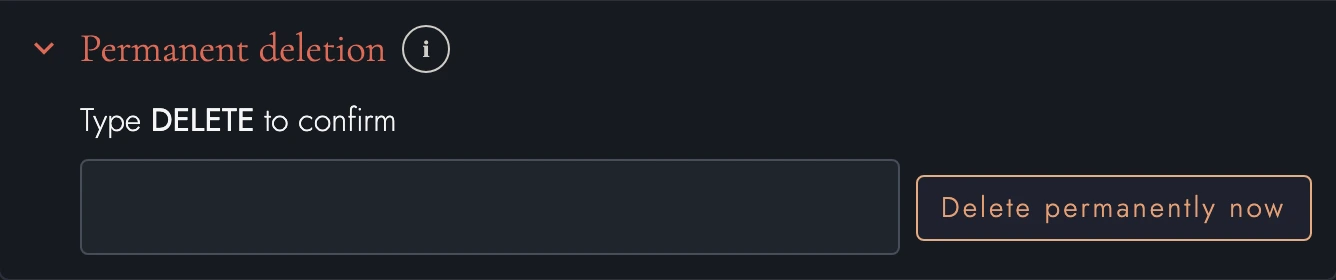
Permanent deletion, folded at the foot of Security, removes your cloud projects and account records and clears this browser’s Tabularia storage. It also deletes your customer record at Stripe, and that ends any subscription billed to it. It cannot be undone.
Deletion has two limits. If you are the only owner of a team, it is refused until another member takes ownership or the team is deleted. And the handle your published pages used is held for two years afterward, so nobody else can claim it in the meantime.
If you are a partner, your handle stays reserved and your commission records are kept. Commissions you have earned are still paid, whatever the amount, and your email is kept only while a commission may still be owed to you.
Export work you want to keep before deleting. A project archive preserves the most project data. To confirm deletion, type DELETE and sign in within the last ten minutes. An email confirms completion.
13. Continue reading
- Previous: Plans and what they unlock
- Next: Glossary
- All guide articles
Try it on your own book
Start a free evaluation. No card needed.