Markup Mode and Review Changes
Read suggestions and comments, then decide what to keep.
1. Markup Mode
Markup Mode shows a Draft’s differences from its parent, plus Review Changes and comments on the same paragraphs. Use it to read suggestions before deciding what to keep. See sharing for review.
Turn Markup on from the Draft’s row in Drafts & Sharing. Each Draft has its own switch, so choose the version whose changes you want to review.
The Draft must be showing, with any child Drafts inside it switched off. If Markup is unavailable, the control explains why. The original whole-Manuscript Draft has no parent to compare against and no Markup switch.
Hiding a draft removes its markup from the page and remembers your choice. Showing it again restores its redline where the draft is eligible for markup. Changes still waiting on a decision are the exception. Their paragraphs light up whenever the draft is showing, and an open merge keeps the markup it turned on until you finish it.
A Chapter-level Draft compares its captured passage with the parent’s current passage. A paragraph added to the parent later appears as a deletion in that comparison; one deleted from the parent appears as an addition.
Paragraph and selected-range Drafts keep their exact captured content. Sibling edits do not enter this comparison.
2. Review Changes are paragraph-scoped
Every Review Change belongs to one paragraph. It shows in place — the words that would go, the words that would come — and you accept or reject it on its own. A paragraph reworked in two places carries two changes, each with its own decision. That keeps decisions readable, since you are always judging one passage in context, not untangling a diff that crosses a page. It also means changes from different sources stay separate even when they touch neighboring text. Accept All and Reject All are on the Merge panel, where a whole draft's worth of changes arrives at once. Each asks to be confirmed before it settles a draft's worth of decisions in one press. In Markup Mode, by contrast, every mark is settled on its own. The same panel carries arrows that step to the previous and next change, which is how a long merge is walked without hunting the page for the mark you have not read yet.
Each Review Change is decided separately beside its paragraph. Previous and Next in the Merge panel step through changes. Accept All and Reject All settle the whole merge after confirmation; ordinary Draft Markup uses individual decisions.
3. What the margins tell you
The line nearest the text marks paragraphs with Markup on. Typing into a Draft edits its wording and refreshes the comparison. In paragraphs carrying a merge’s Review Changes, typing creates another Review Change. The reserved margin space keeps text from shifting when Markup is toggled.
Just outside that line runs the draft rail, in the color of the draft supplying the paragraph. The two read together: the inner line is what the paragraph is open to, the outer one is whose wording you are reading.
A change to an empty paragraph has no words to redline, so it shows as a small arrow in the margin instead: green where a blank line would be added, red where one would be taken away.
A move marks both its current and proposed positions with margin arrows. Click either to visit the other end. When both are on one page, a line connects them.
4. Comments
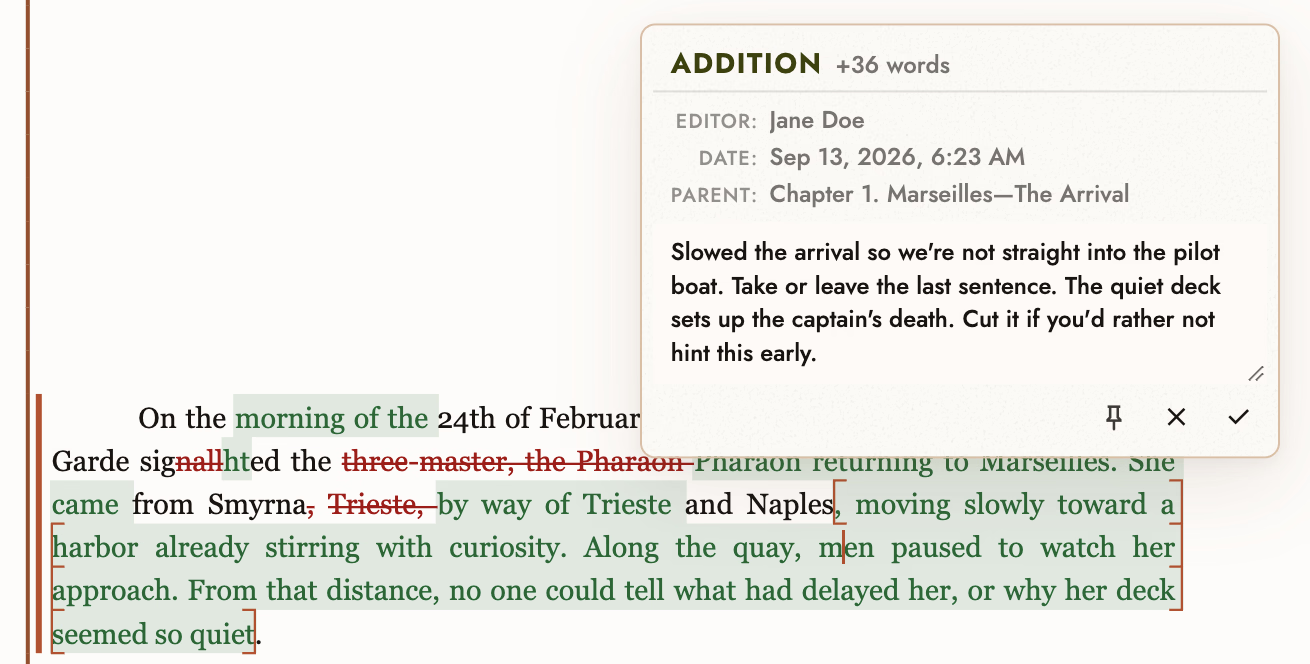
Review Comments attach a question or note to a passage without changing its words. They can sit on a Review Change or on the paragraph itself. Editors’ notes arrive this way too.
Your own comments go on a change, so that is where you leave one. In Markup mode, double-click a change to open its card and write the note there. In the Merge panel, step to the change and add it beside the wording it is about.
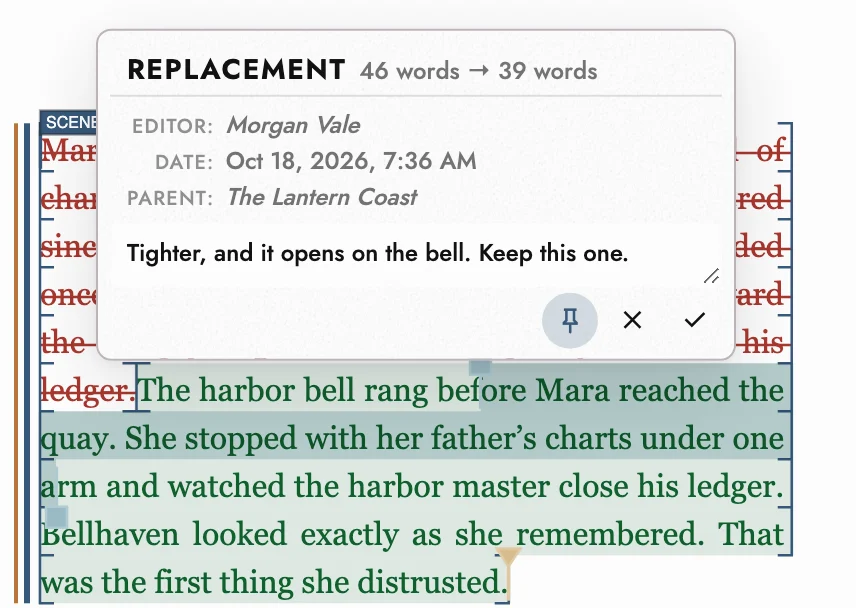
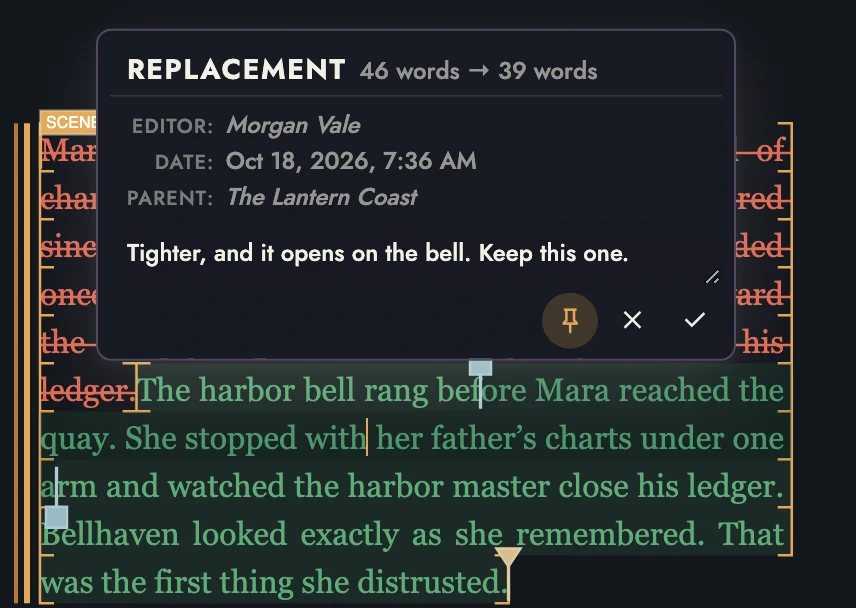
The change card names who made the change and when, and its parent: the draft the wording would merge into. Pin it open while you compare the wording, so moving the pointer away does not close it.
5. Accepting and rejecting
Accept and Reject are available on a mark and in the right-click menu. Moved passages in a Draft comparison cannot be merged yet. If the parent Draft is locked, archived, missing, or has changed since comparison, the control explains why the merge is unavailable.
For a merge’s Review Changes, Accept applies the proposed wording. Reject keeps your existing wording. Decisions save as you go, so you can resume a partly completed merge.
For a Draft’s own redline, the controls edit the two versions directly:
- Merge into the parent Draft writes the difference into the parent. Canvas Undo cannot undo that parent edit; the button is the confirmation.
- The cross replaces this Draft’s wording with its parent’s wording. That edit can be undone normally.
Once both versions agree, the mark disappears.
An Editor’s returned review becomes a child Draft of the version you shared. Show it to compare the wording, then use Merge to decide each difference. Their comments stay with the relevant marks or paragraphs.
6. What markup touches, and what it does not
Comments do not edit your writing. Pending merge changes also leave the original words in place until accepted. See what your Editors see for Editor permissions.
A Draft redline compares two existing versions. Its cross replaces wording, rather than leaving it alone. Read the controls carefully and consider a Snapshot before a long review.
7. Continue reading
- Previous: Working with Drafts
- Next: Snapshots and History
- All guide articles
Try it on your own book
Start a free 14-day evaluation. No card needed.