Sync, backup, and offline
Understand local saves, cloud copies, and writing without a connection.
1. On your device
Writing saves to this browser first. With the Local plan, it stays local. Clearing site data, deleting the browser profile, or changing browsers can remove or leave behind that copy. Persistent storage reduces automatic removal, but cannot prevent deliberate clearing.
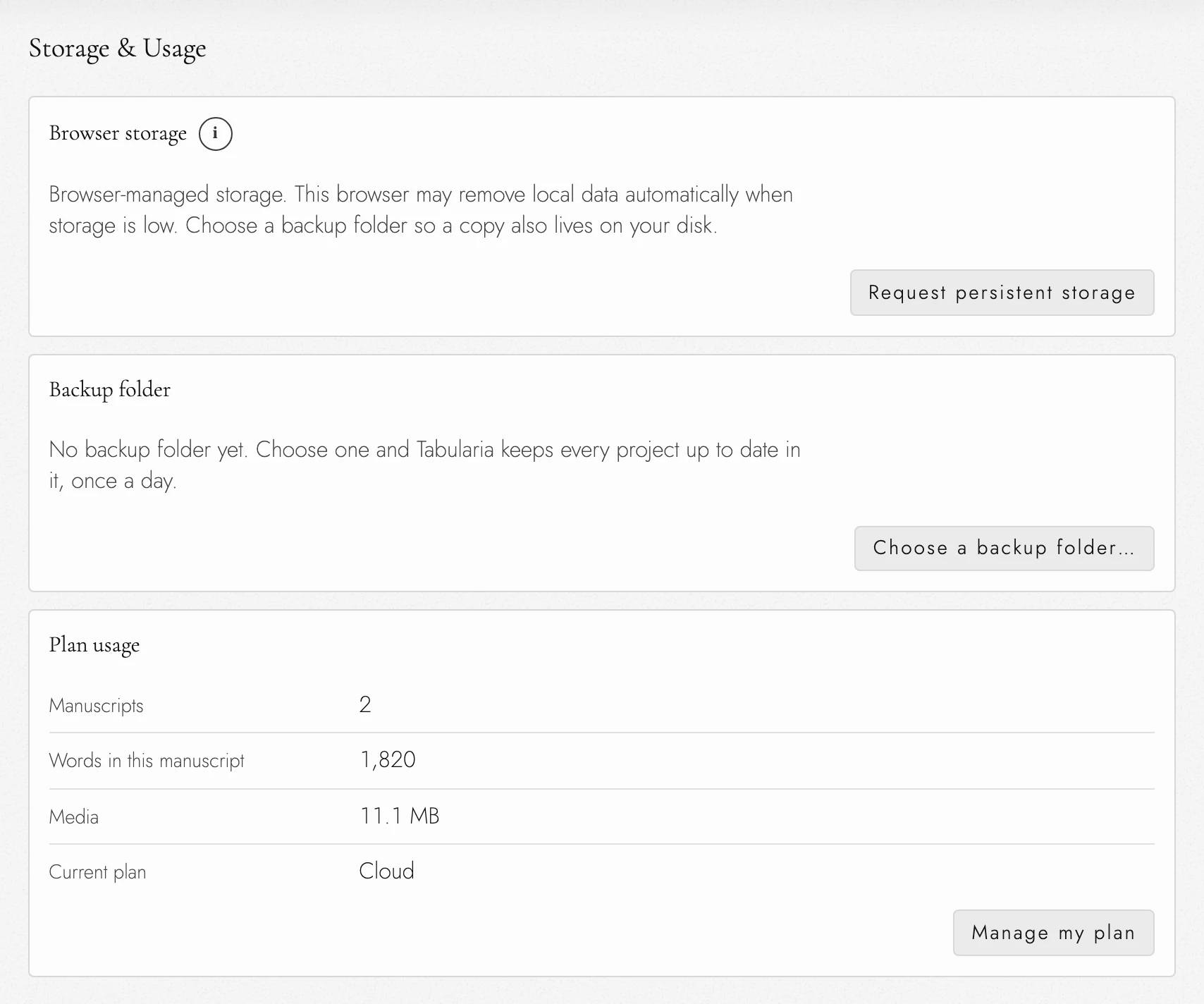
Open Storage & Usage in Project Settings to see local storage, project counts, and media usage. Request persistent storage appears if permission has not been granted. Writing is unlimited; images have an account-wide allowance. Read plan.
Chrome, Edge, and Safari decide persistent-storage requests quietly. In Firefox, choose Request persistent storage to open its permission prompt.
Storage & Usage warns when browser space is mostly full. If a save cannot fit, Tabularia reports Local save failed because browser storage is full. Persistent storage does not protect against cleared site data or closing a private window.
Two tabs in the same browser share saved changes. A tab reloads that saved copy when it has no unsaved edits. Concurrent edits to one paragraph preserve changes from both tabs.
2. A backup folder on your disk
Chrome or Edge on a computer can keep a daily copy of each project in a folder you choose. Every plan gets the whole project there, with its drafts, Sheets, and History, not just the manuscript. See Keeping backups in a folder. Other browsers and phones can use dated exports.
3. What the Cloud plan adds
Cloud sync carries your writing and project records between devices. Snapshot backups appear under In the cloud in History; use Bring it down to fetch one. Undo/Redo History stays local and transfers only in a project archive.
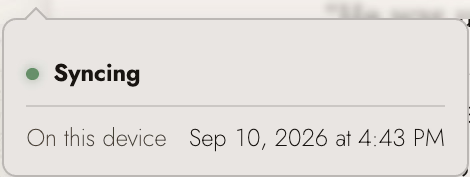
Archiving or deleting a project also reaches your other devices. The status indicator shows local saves waiting to sync. Reconnecting sends queued changes after checking app compatibility. See Snapshots or project archive for details.
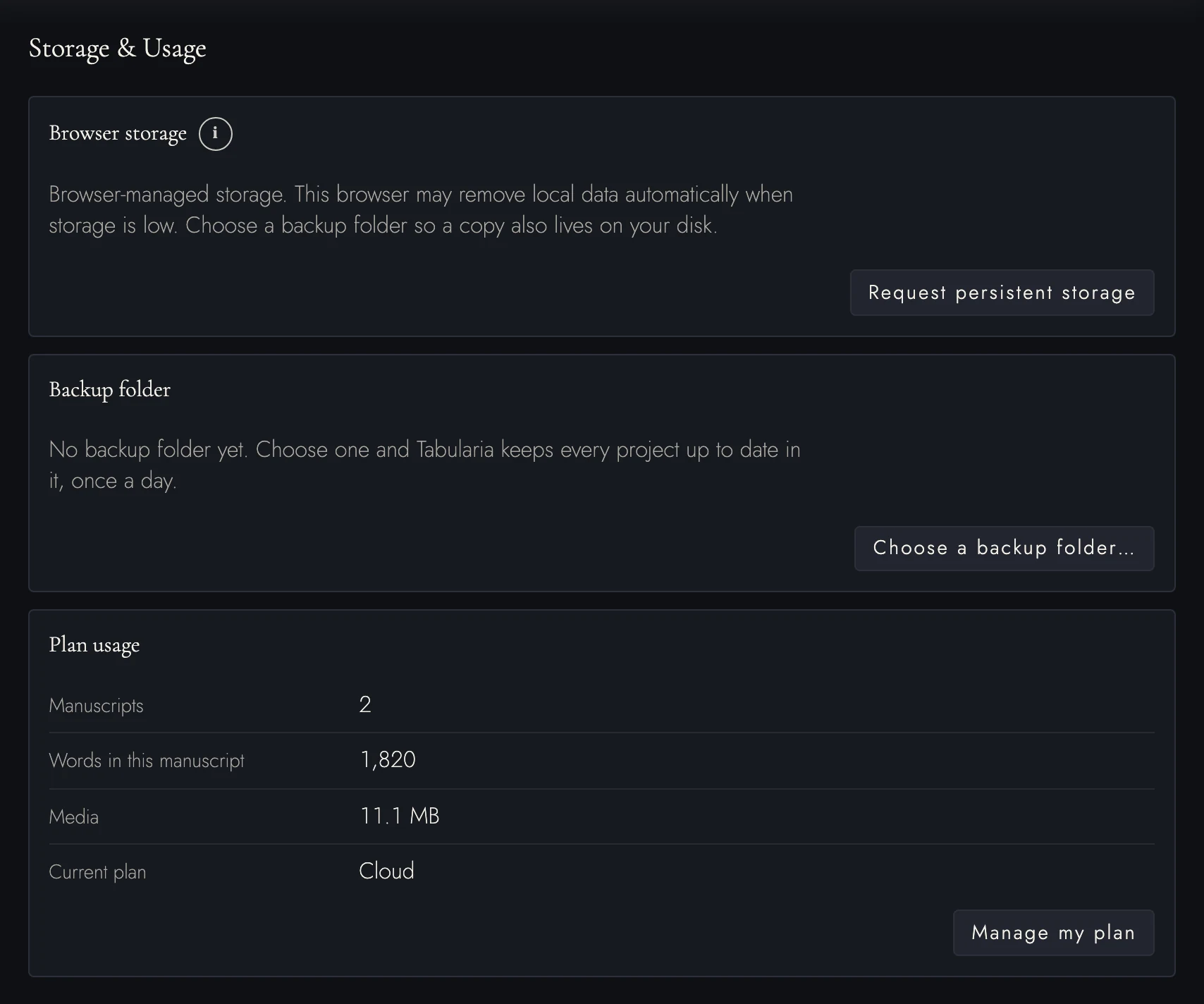
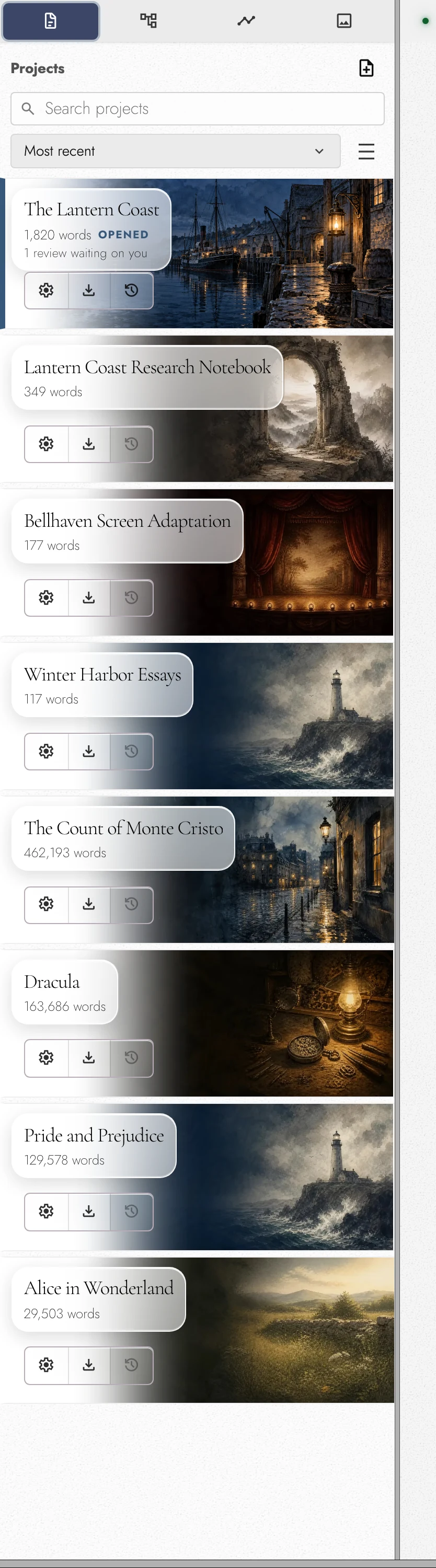
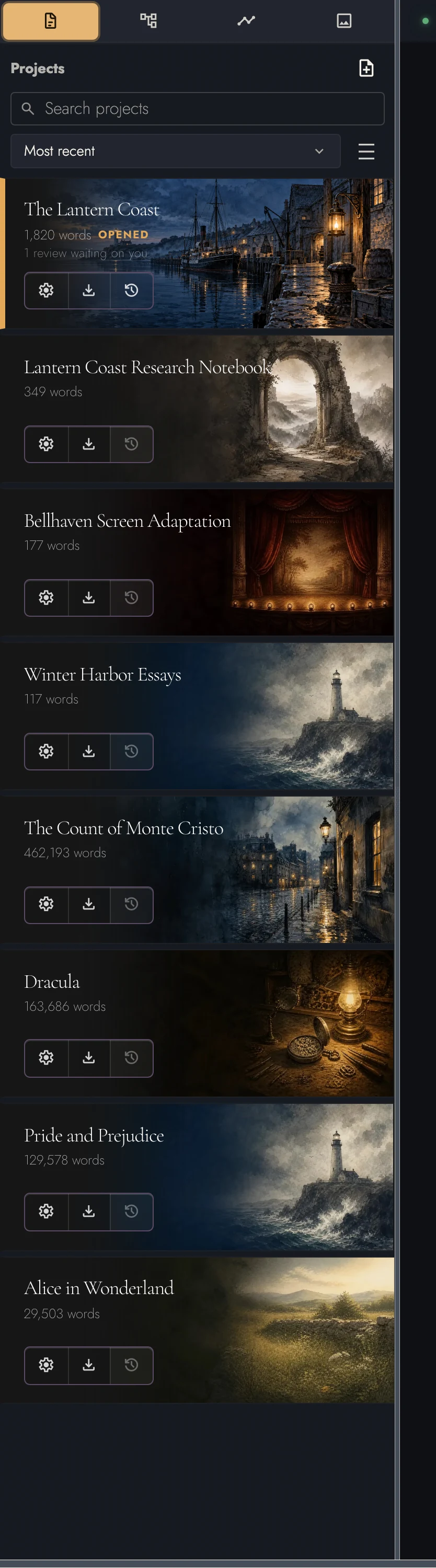
View dark appearance
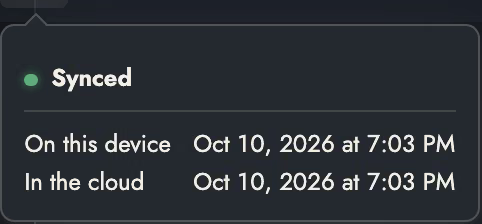
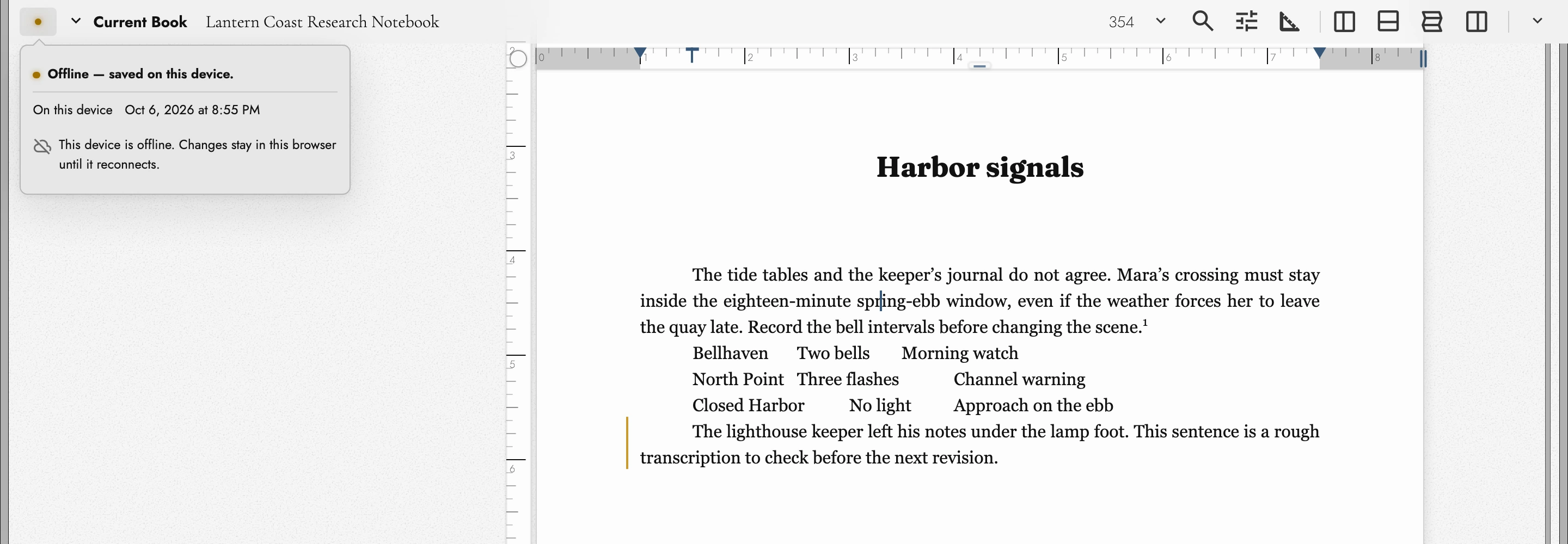
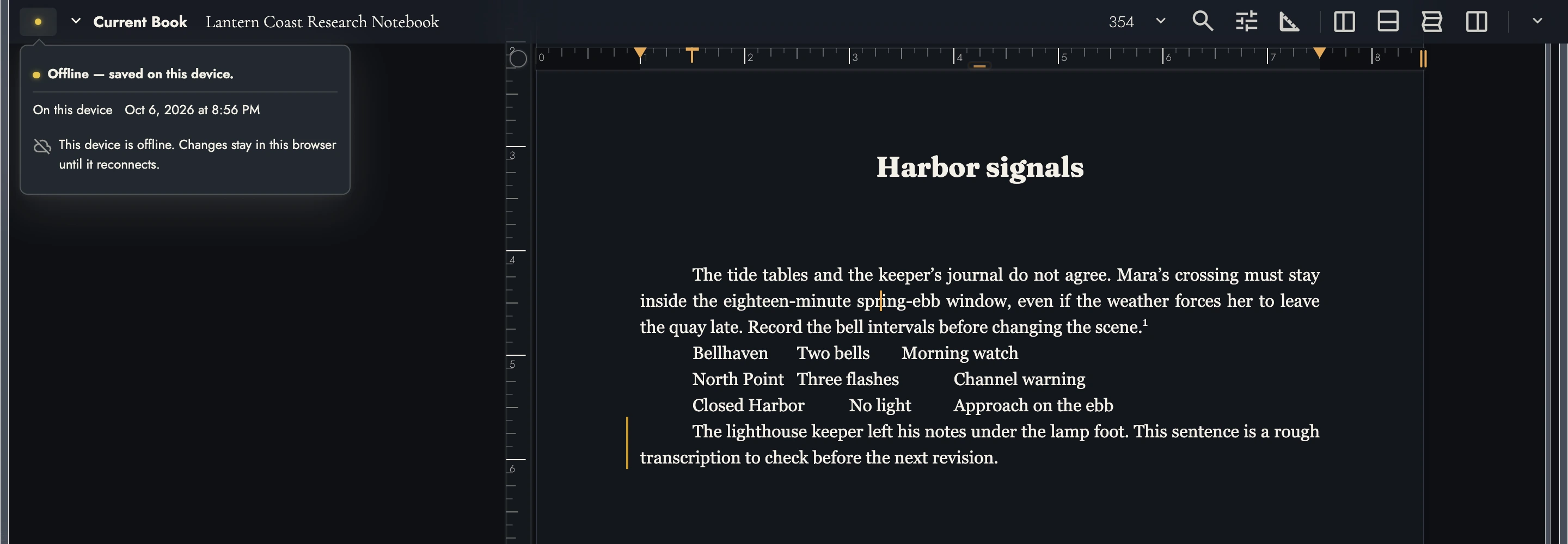
Open the saving dot in the header to check whether work is saved locally, syncing, or offline. Before closing a device, wait for cloud saving to finish if you want the next device to have those changes.
4. Writing on two devices
Online devices exchange edits automatically, including changes in different Chapters. Edits to the same passage are combined without a confirmation or conflict marker. The saving indicator reports this device’s state; it does not report disagreements between devices.
After a long absence, the cloud’s newer whole-manuscript copy may replace the older local writing and related records automatically. The caret returns to the top. Snapshots are kept separately, so an earlier local Snapshot remains available.
Let sync finish before leaving a device. Where practical, write in one device at a time and take a Snapshot before a long session on another.
5. Writing offline
After signing in and opening Tabularia on a device, you can reopen locally stored projects offline. Creating, editing, autosaving, and exporting still work. PDF font files are cached for offline use too.
The same copy opens when the network is fine but the server is not: if it answers with an error, or does not answer within about four seconds, Tabularia opens from this device and a notice says the server isn’t answering. Writing keeps saving here. It checks for the server again on its own while a network is available, and when you return to the window.
If the connection drops for only a moment while Tabularia is opening, it waits a second and tries again before it falls back to what is stored on this device. A brief hiccup, such as a laptop waking before its Wi-Fi rejoins, opens it as usual.
When the server answers again, Tabularia picks up where it left off without a reload. It checks that you are still signed in to the same account, then cloud sync starts and sends what you wrote while offline. You do not need to do anything.
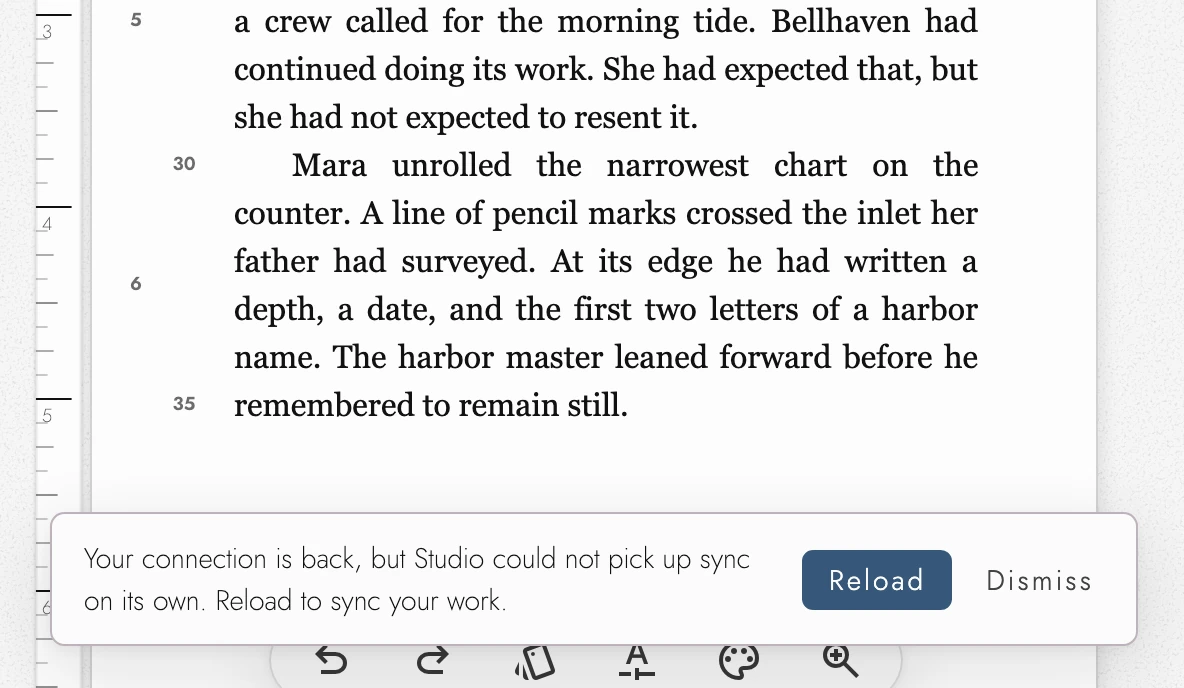
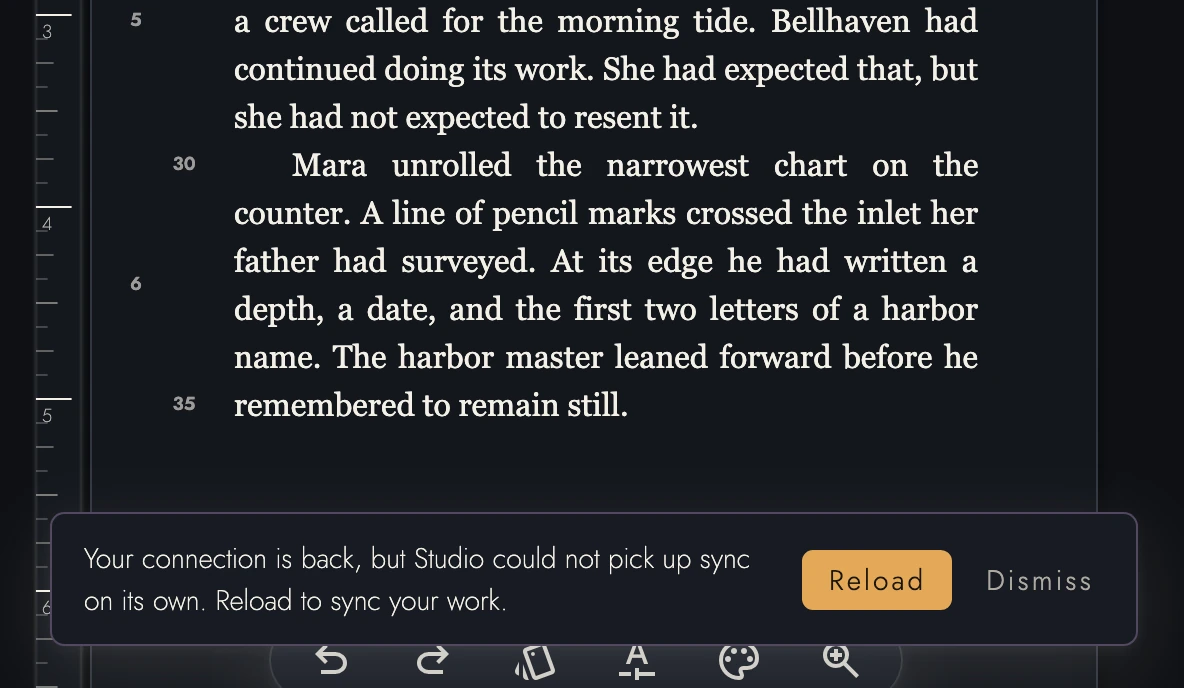
A few cases still need a reload. If you signed out elsewhere, signed in to a different account, or Tabularia was updated while you were away, a notice at the bottom of the window says so. Press Reload when it suits you. Your work is saved first, and nothing is lost by waiting.
Sign-in and cloud-only projects not downloaded here need a connection. So do sharing, billing, and account administration.
Stay signed in before going offline. Signing out keeps stored work but prevents offline reopening of that account until you sign in online again.
6. Installing it as an app
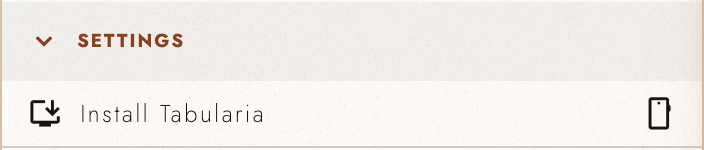
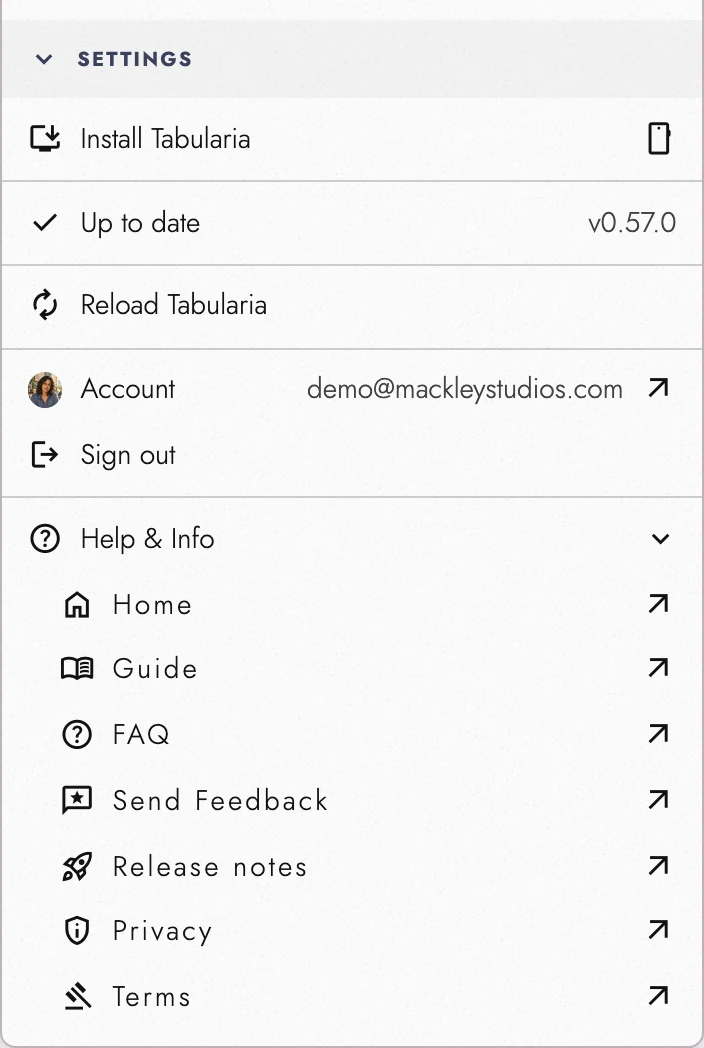
Choose Install Tabularia under Settings in the Document menu, or use the browser’s install control. It opens the same stored work in its own window, with an app icon and offline support.
Some browsers have no install button to press, and there the menu tells you where to look instead:
- On an iPhone or iPad: Share, then View More, then Add to Home Screen.
- On Android: the browser menu, then Install or Add to Home screen.
- In Safari on a Mac: the File menu, then Add to Dock.
- In Firefox on Windows: Add tab to taskbar in the address bar.
The result is the same in each: an icon of its own, and the offline shell with it. Firefox on a Mac or on Linux has no way to install a web app, and the menu says so and points to Chrome.
Some features need Chrome or Edge on a computer. Browsers, devices, and requirements compares what the app can do in each browser.
View dark appearance
When an update is ready, the Document menu shows Update Tabularia, and an Update available card appears with Save and update. The card also links to the release notes and offers Later. Updating from either place saves your work before reloading.
If saving fails or takes more than 15 seconds, Update without saving becomes available. Use Later if you want to preserve unsaved work and retry first.
Reloading
Reload Tabularia in Document menu → Settings saves before reloading. It is useful in installed windows and Home Screen apps without a browser reload button.
If that save fails or exceeds 15 seconds, Tabularia offers Reload without saving. It will not reload automatically after a failed save. Keep writing and retry, or choose that override yourself.
Where the browser has a reload of its own, it works too: ⌘R on a Mac, and Ctrl+R or F5 on Windows and Linux. A Safari app added to the Dock keeps it in the View menu as Reload Page. On an iPhone or iPad, the menu item is the way.
Leaving by accident
Panels and drawers in Tabularia take a press of Back for themselves, but one press too many would carry you to whatever site you visited before. While a project is open, the browser asks first, and the same question comes up for a stray close or reload. The browser words that question itself, and iOS Safari never asks.
The timeline drawer can take several presses. While it is open, Back first retraces its zooms and trips to items, one step a press, and only reaches the browser once the drawer has nothing left to undo.
Signing out, opening your account page, and the reloads Tabularia asks for go straight through. To stop the question altogether, turn off Ask Before Leaving Tabularia in Document menu → Settings. With it off, Back also returns to Tabularia a little faster from the next site, because the browser can keep the page ready.
7. Belt and suspenders
Keep independent exports at milestones. DOCX gives you a manuscript copy outside any browser or subscription. A complete project archive, which every signed-in account can export on any plan, carries your reference and revision material too. See project archive.
A daily backup replaces its previous copy, including deleted wording. A dated export you keep separately is never overwritten by that backup.
8. Continue reading
- Previous: Exporting and printing
- Next: Keeping backups in a folder
- All guide articles
Try it on your own book
Start a free 14-day evaluation. No card needed.