Quick start: your first project
Create a Project, write your first pages, and learn how they save.
1. Open Tabularia
Choose Buy Local plan to purchase immediately, or Try free for 14 days without a card. Create an account to continue. Tabularia opens with options to import a Manuscript, start a Book Project, or write on a blank page.
Follow the emailed verification link before using cloud sync, sharing, publishing, or billing. The Account page explains any remaining activation requirement.
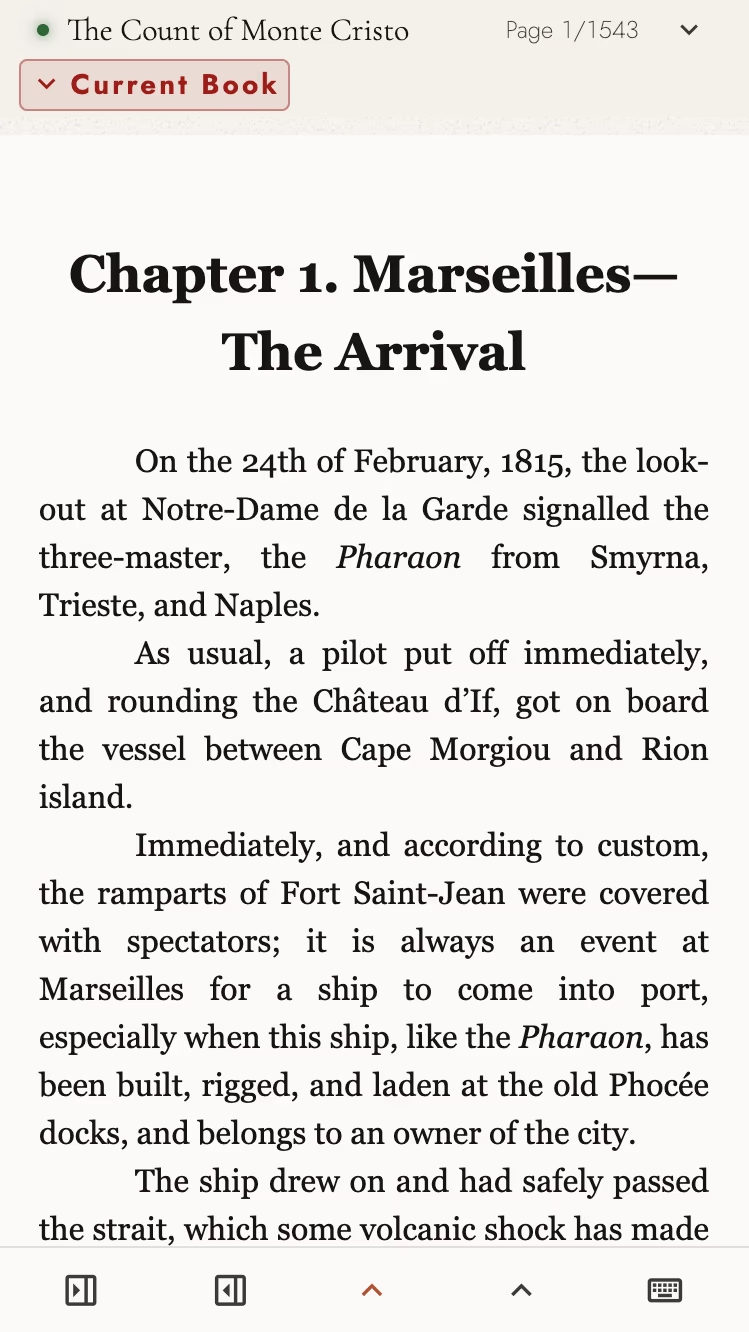
View dark appearance
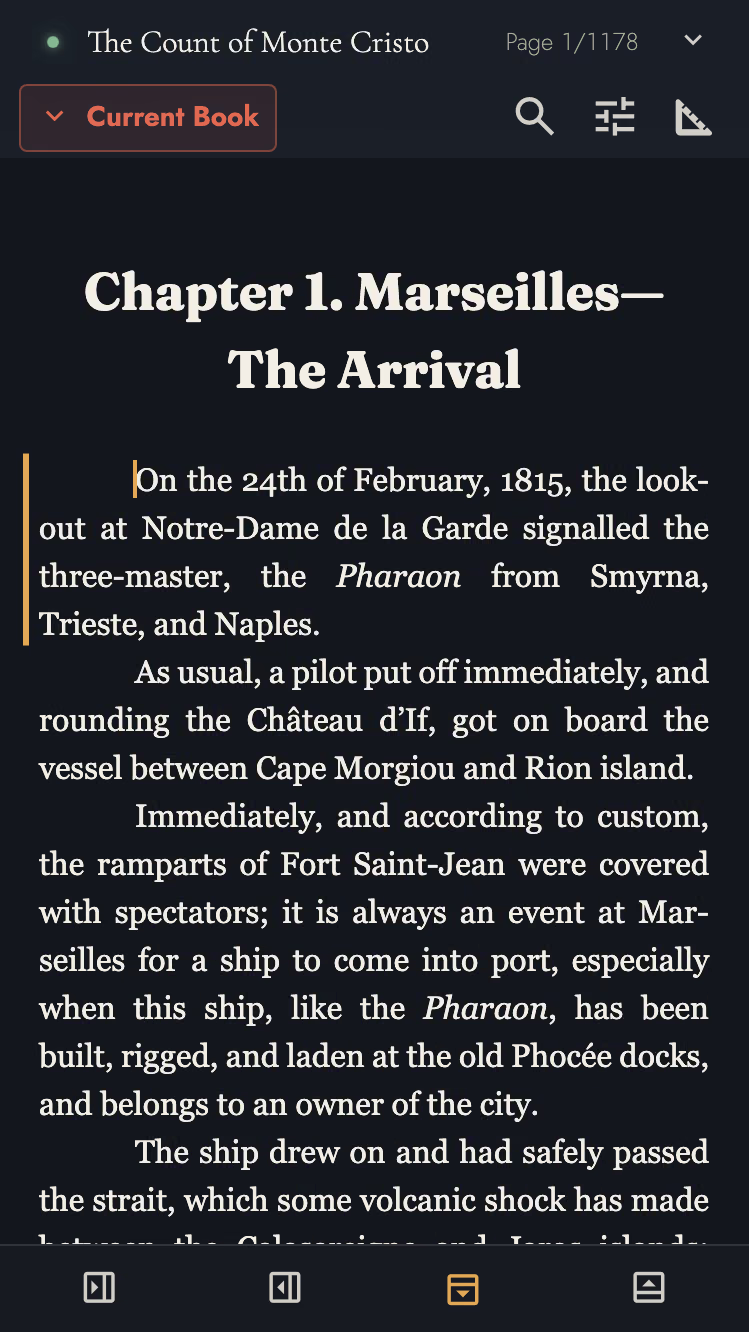
Creating an account costs nothing. Local plan access comes from a purchase, an active evaluation, or the Cloud plan: Tabularia still runs in your browser and keeps your writing on your device until you add the Cloud plan.
Any current browser opens Tabularia on a computer, a tablet, or a phone. Browsers, devices, and requirements lists the versions it needs and which browser to prefer on the machine you write on most.
2. What the first visit looks like
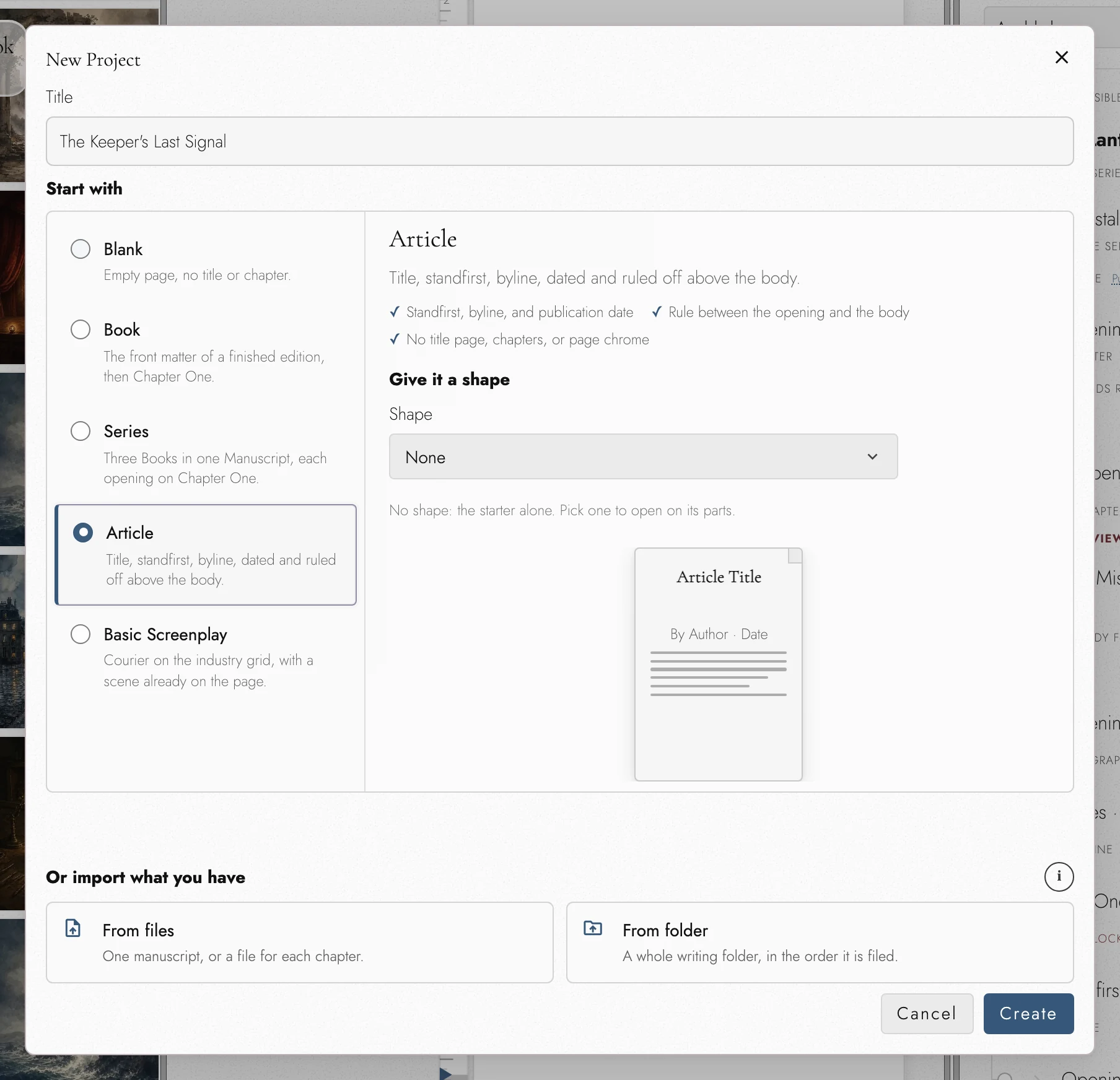
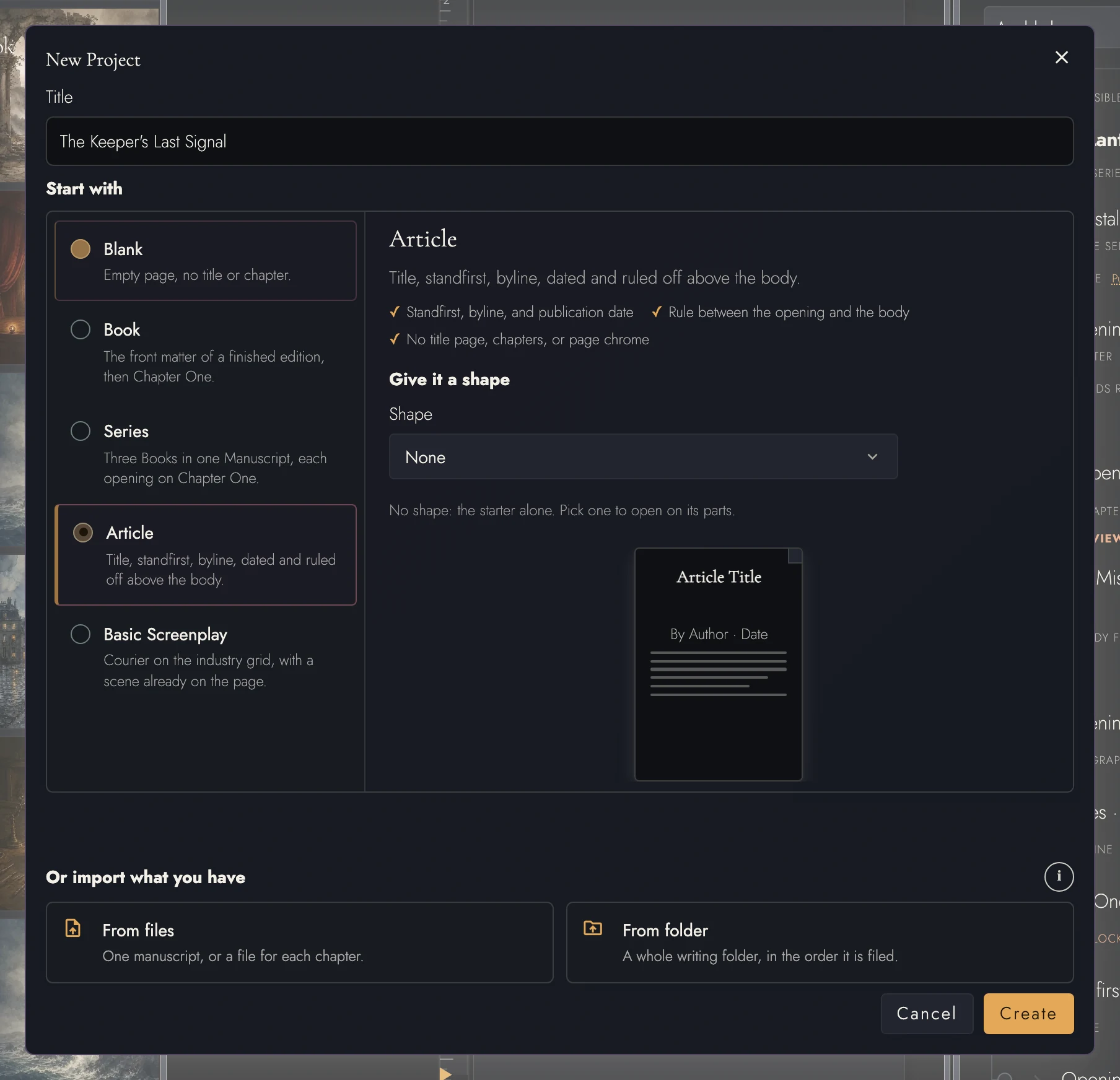
Your first visit opens the New Project form: the starters to begin from, and the two ways to import a manuscript you already have (from files, or from a folder).
Closing the New Project form creates nothing. Create and import remain available in the empty workspace. Once a Project opens, Tabularia remembers how you arrange its panels.
3. Write
Type in the central Canvas. Changes save automatically to this device. The floating toolbar provides formatting and typography; keyboard shortcuts offer another way to use the controls.
4. Give the manuscript shape
Apply Chapter Heading to start a Chapter, or insert a Scene Break to start a Scene. Both appear automatically in the Outline and Timeline Drawer. See How a manuscript is structured.
5. Name the project, and start the next one
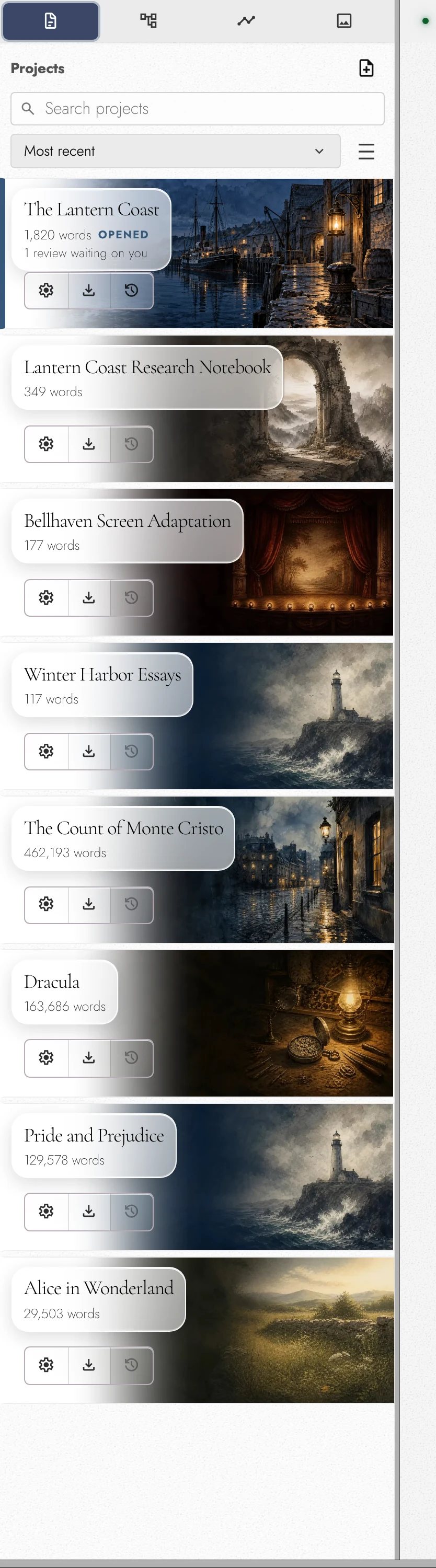
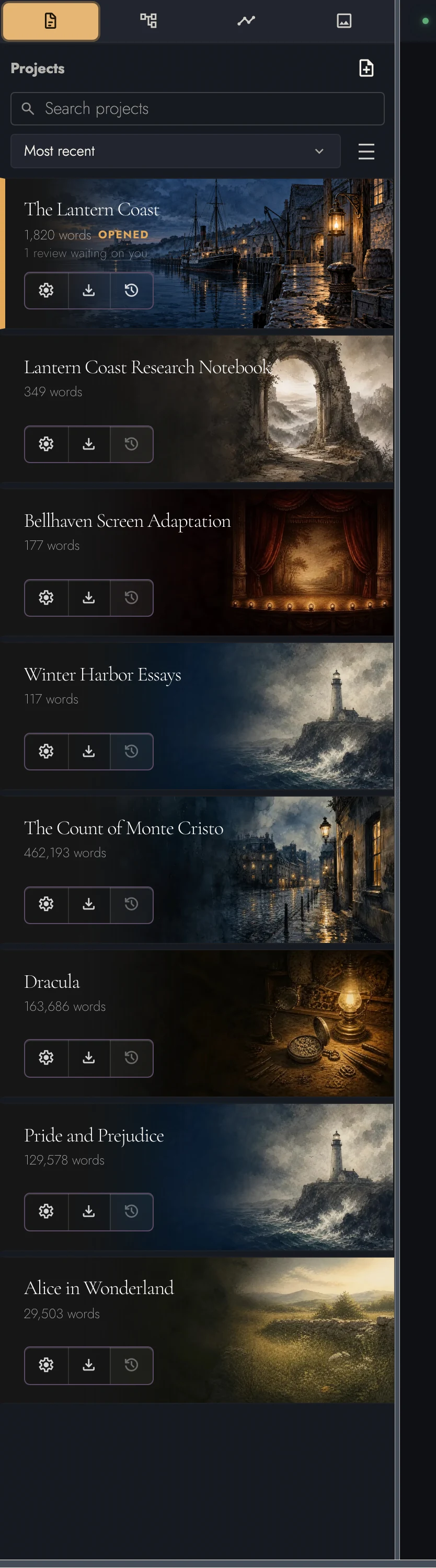
Open the Projects tab in the left sidebar. Your new project appears there, and you rename it from its row. The project row is also where you will later find Settings, Export, and History.
New project in the same tab asks for a title and a Start with choice, which decides what is on the page when it opens:
- Blank: one empty body page, no title page and no chapter heading.
- Book: Chapter One, preceded by the front matter of a finished edition (title page, copyright page with rights and ISBN, dedication, running headers and footers, and page numbers).
- Article: a title, standfirst, byline, and date ruled off above the body, with no chapters and no page chrome.
- Series: three Books in one manuscript under the name you gave the project, each opening on its own front matter and Chapter One.
- Basic Screenplay: twelve-point Courier on the industry grid, with the Scene Heading, Action, Character, Parenthetical, Dialogue, and Transition styles ready to use and a scene already on the page.
Shape optionally supplies a story structure or outline. It creates starting Acts and Chapters and, where appropriate, a Timeline of beats. Available shapes depend on the starter; Blank has none. See story shape.
Nothing about the choice is permanent. It only decides the first page. You can add front matter, change the page format, make styles of your own, or add a shape to a timeline later, at any point afterwards.
Once the list grows, the controls above it help you find one. Search projects narrows it as you type. The order menu sorts by Most recent, Alphabetical, or Word count, and the compact-rows button fits more projects on the screen.
View dark appearance
6. What your account is for
The Cloud plan adds backup and sync between devices. Without it, your writing stays in this browser. Keep occasional exports, or choose a backup folder on a computer using Chrome or Edge. Sync, backup, and offline explains your storage choices.
From here, take the tour of Tabularia to learn what every surface is called, or bring in an existing manuscript with Importing an existing manuscript.
7. Continue reading
Try it on your own book
Start a free 14-day evaluation. No card needed.