Images and Book Decorations
Place pictures and choose ornaments for your Book.
1. Images
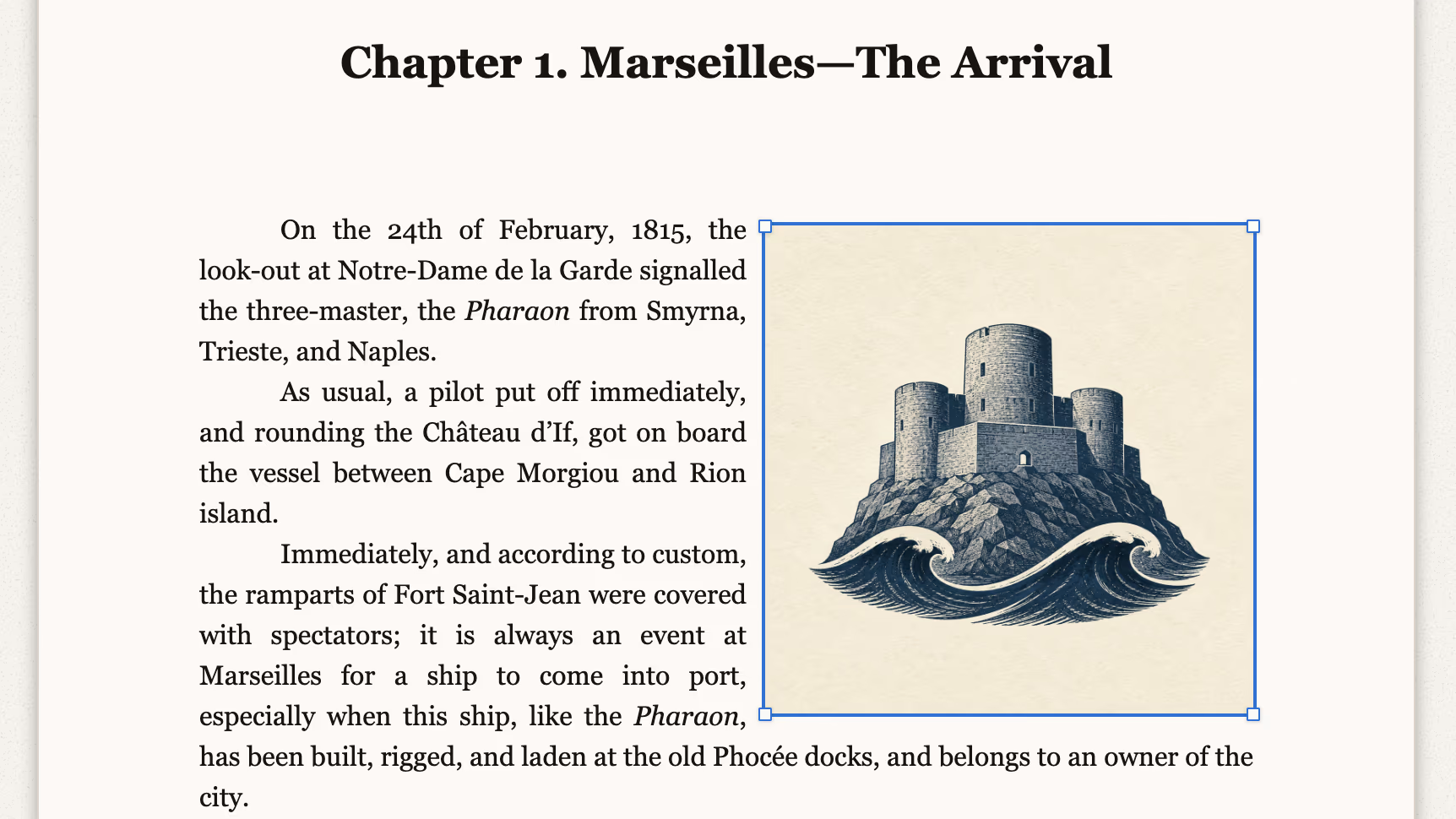
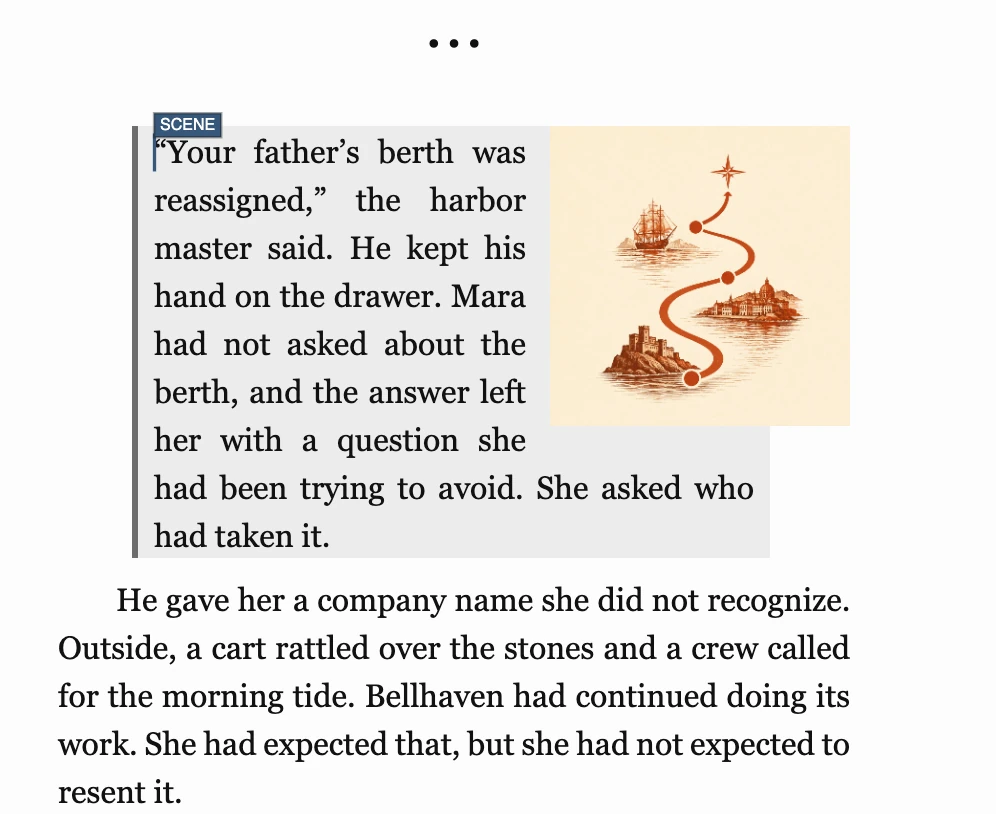
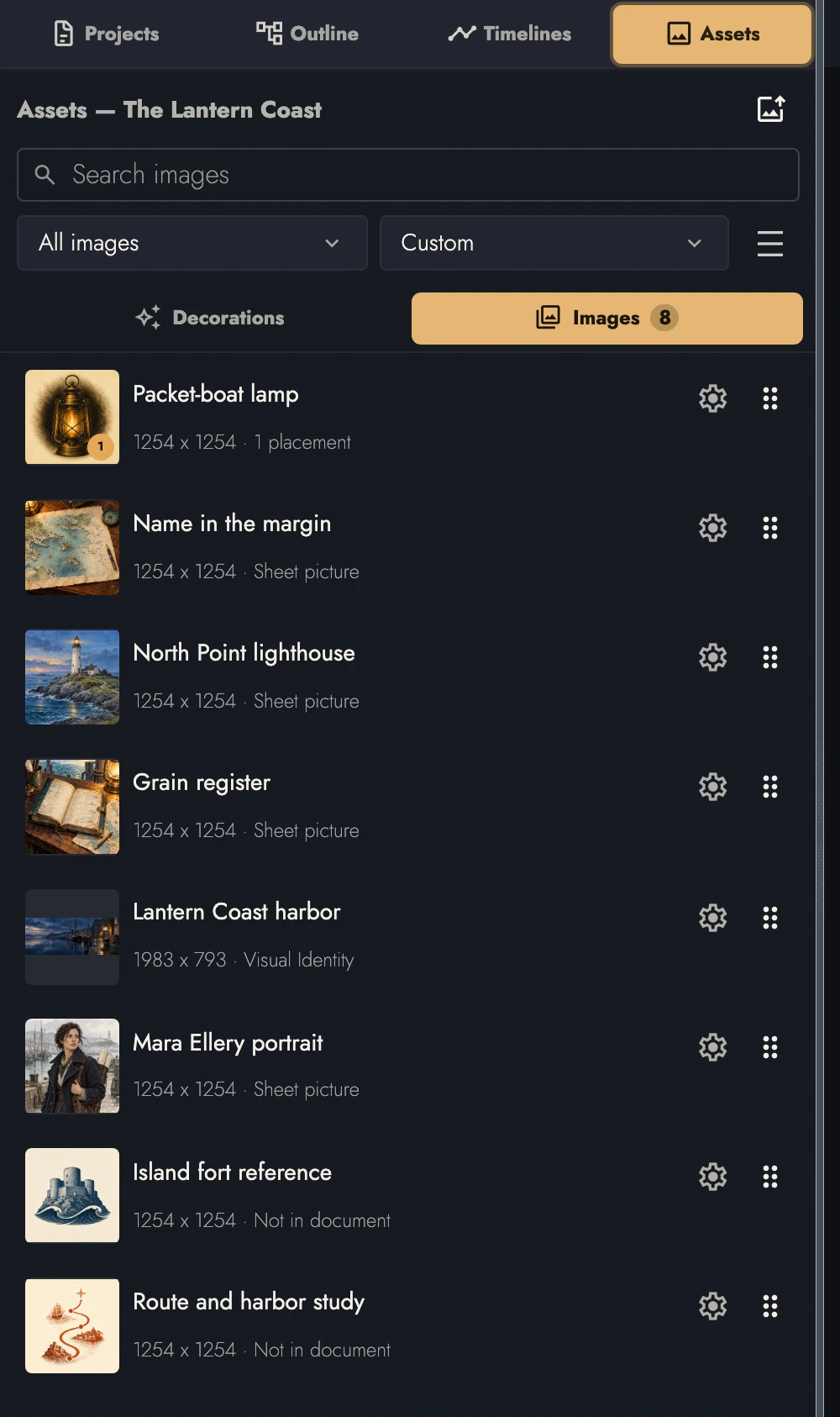
Add pictures to Assets in the left sidebar, or drop a file onto a page to upload and place it in one step. Assets is the Project’s one picture library: a picture you choose for a Sheet, a Visual Identity, or a Frontispiece lives here too, so it can be placed, described, or reused anywhere else.
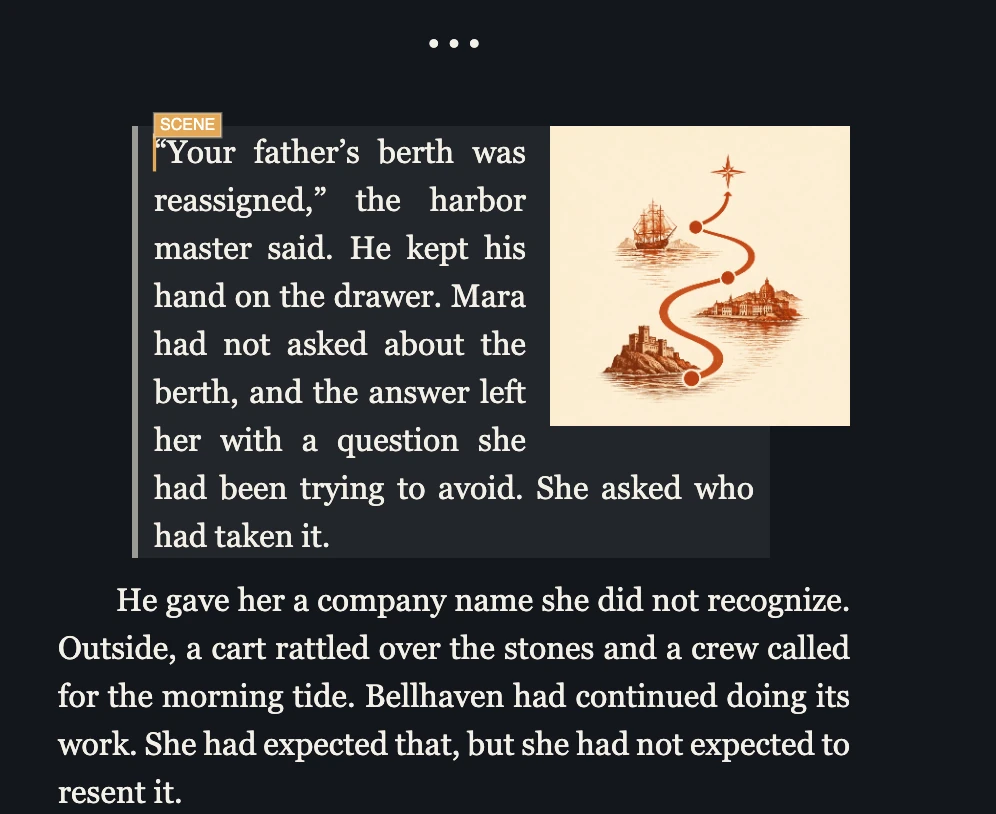
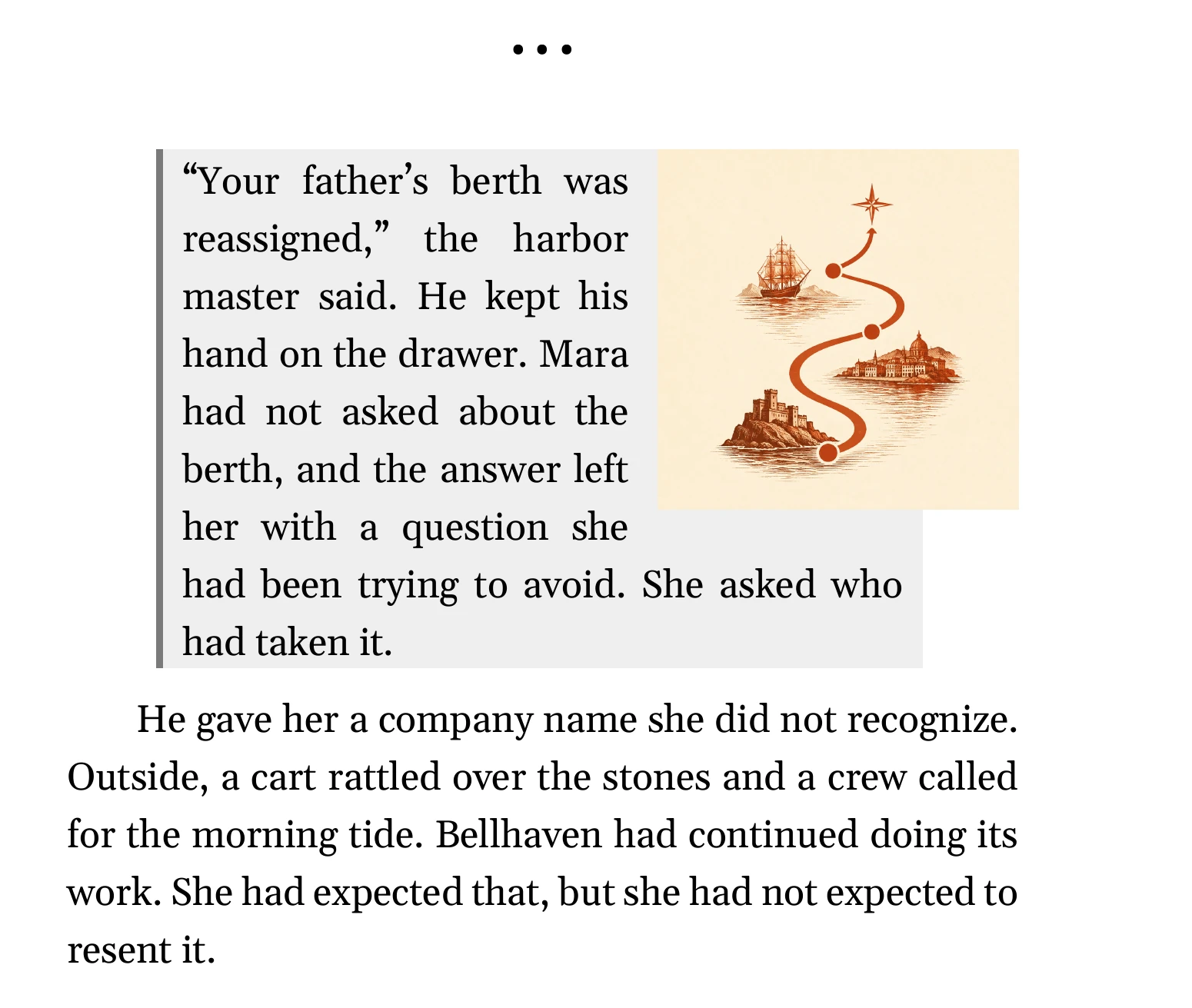
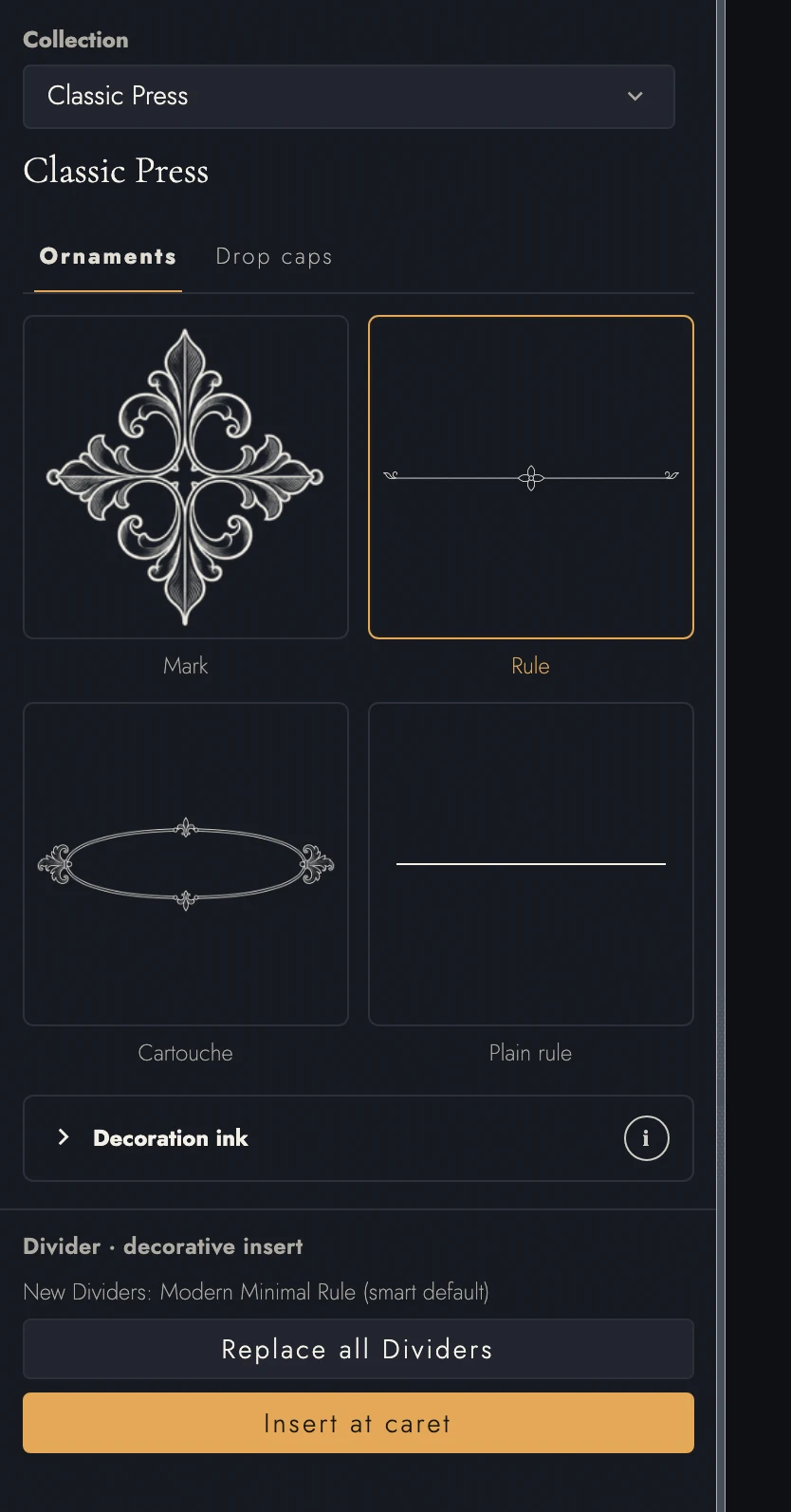
View dark appearance
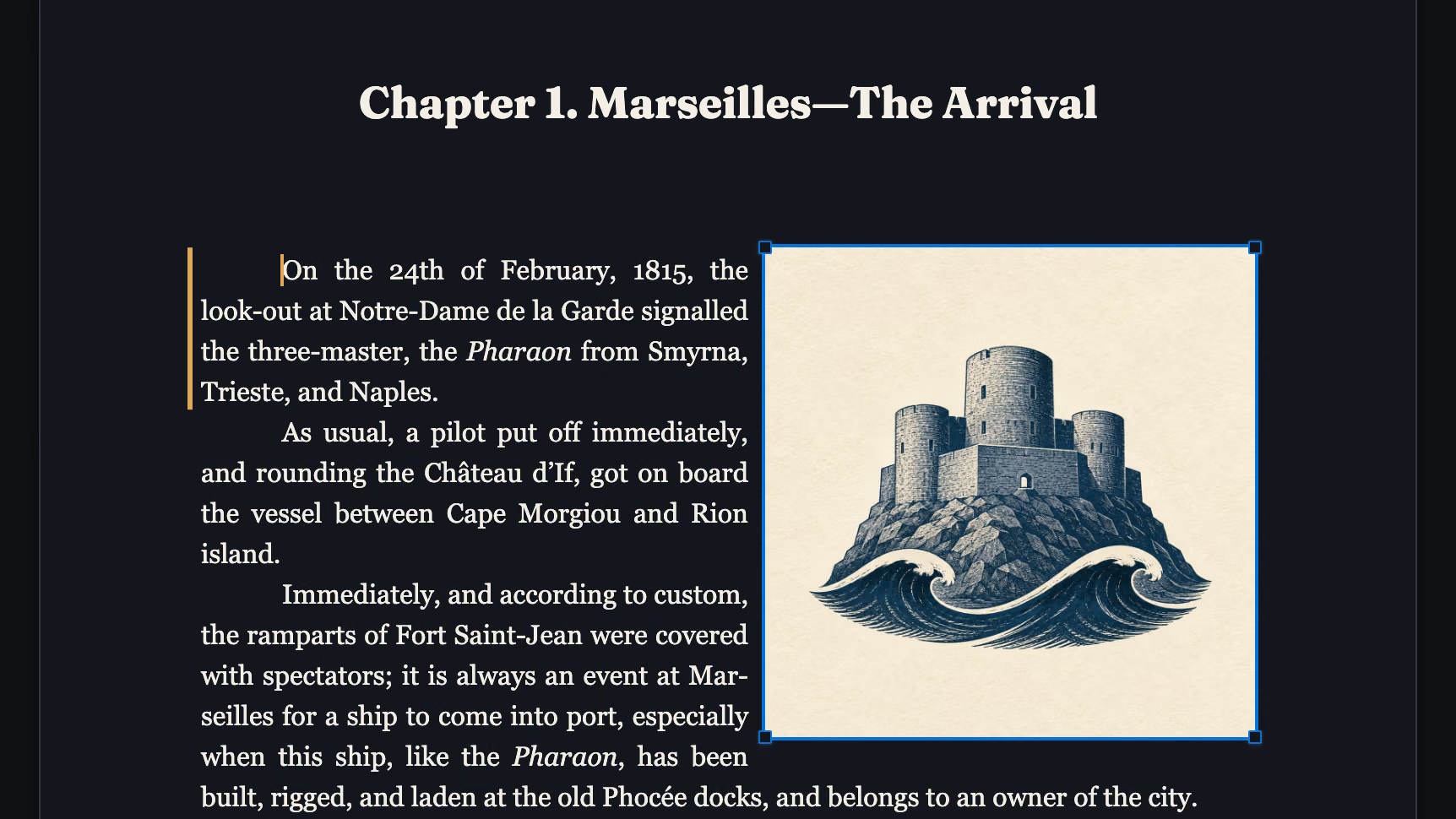
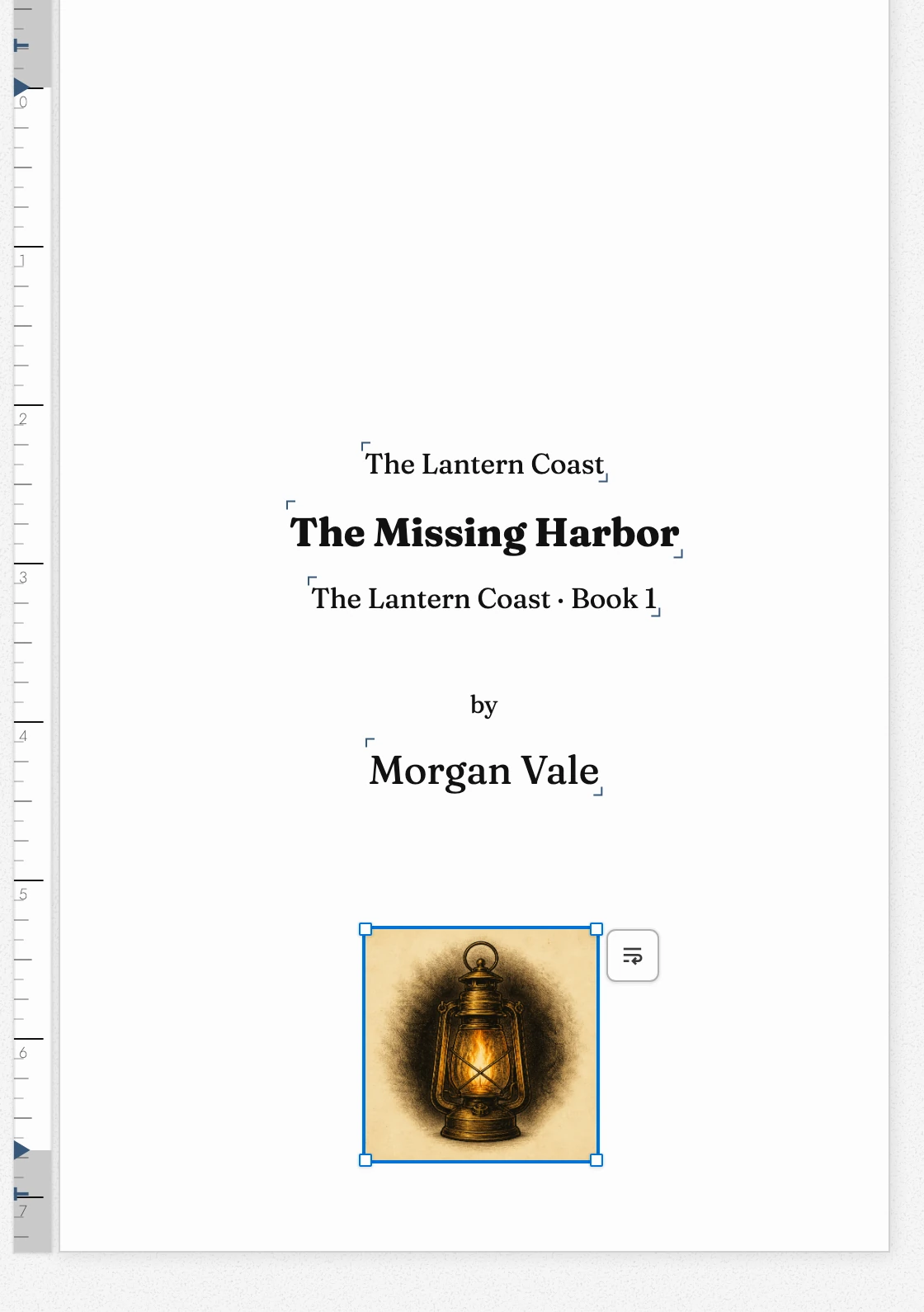
Drag a selected image to move it. Corner handles resize it proportionally; edge handles adjust the space around it. Arrow keys nudge it one pixel.
Right-click for Wrap text or Place behind text. Transparent pictures can wrap along their outline. A button on the selected image also switches between these modes. Each placement can use a different mode.
Remove image takes only that placement off the page. Delete image removes the picture from the Project.
From the keyboard, Backspace or Delete does what Remove image does, and the picture stays in Assets. Escape lets go of the image with nothing changed. Arrow keys nudge only when no modifier key is held.
An image stays on its assigned page when you type above it. Drag it to another page to move it. Changing page size keeps it within the page; restoring the old size restores its position. Mirror margins and two-page view do not move it.
Pictures at the edge of the page
A printed book is printed on a larger sheet and cut down to size. The cut is never exact. It can land about an eighth of an inch either side of where it was aimed. That eighth of an inch is what printers call bleed: art meant to run off the page is printed past the edge by that much, so wherever the knife falls, there is picture under it.
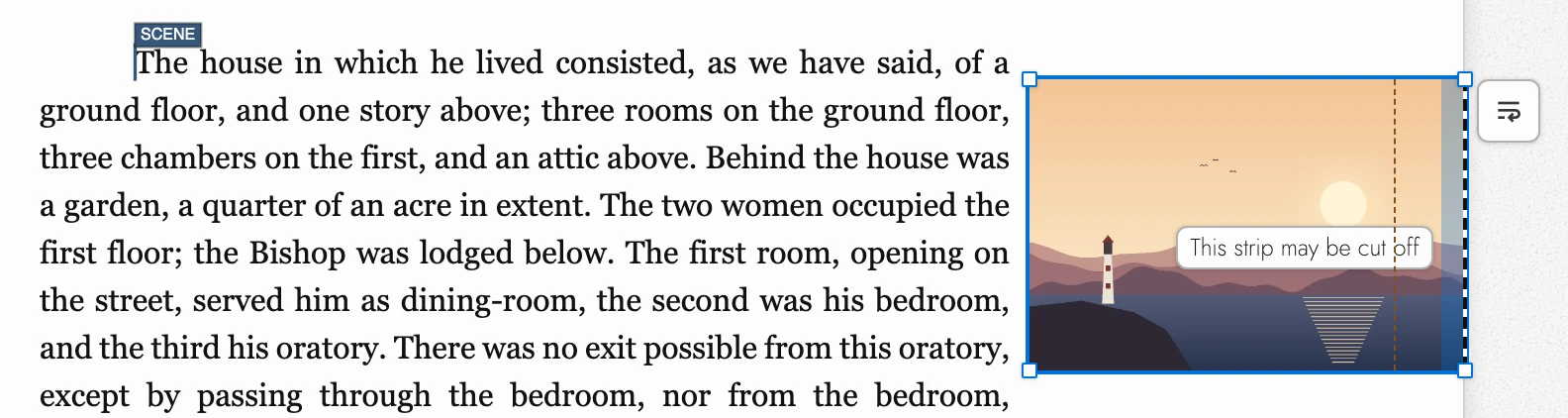
Select a picture that reaches the outside, top, or bottom edge and Tabularia shades the strip the cut may take, with a dashed line on the edge itself. Point at the shading and it reads This strip may be cut off. Keep faces and lettering out of it. The PDF carries the picture past the edge, so the page never comes back with a white sliver.
View dark appearance
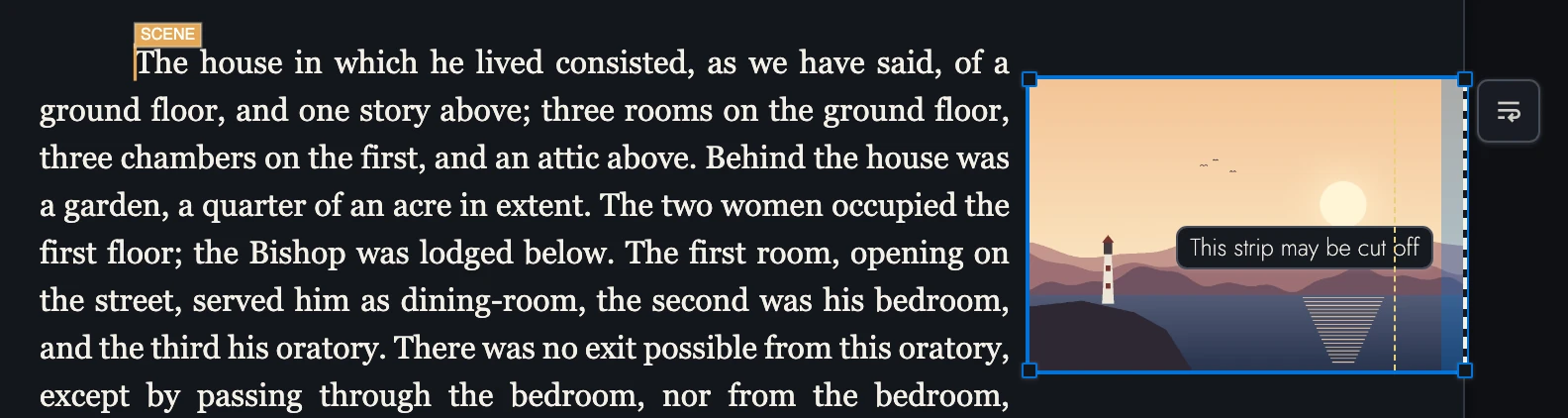
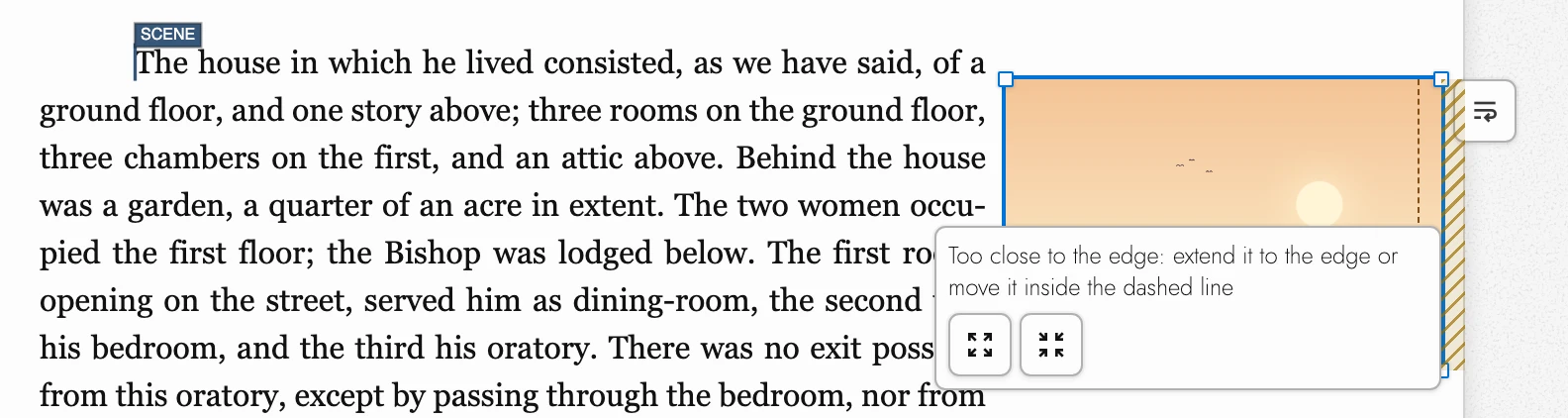
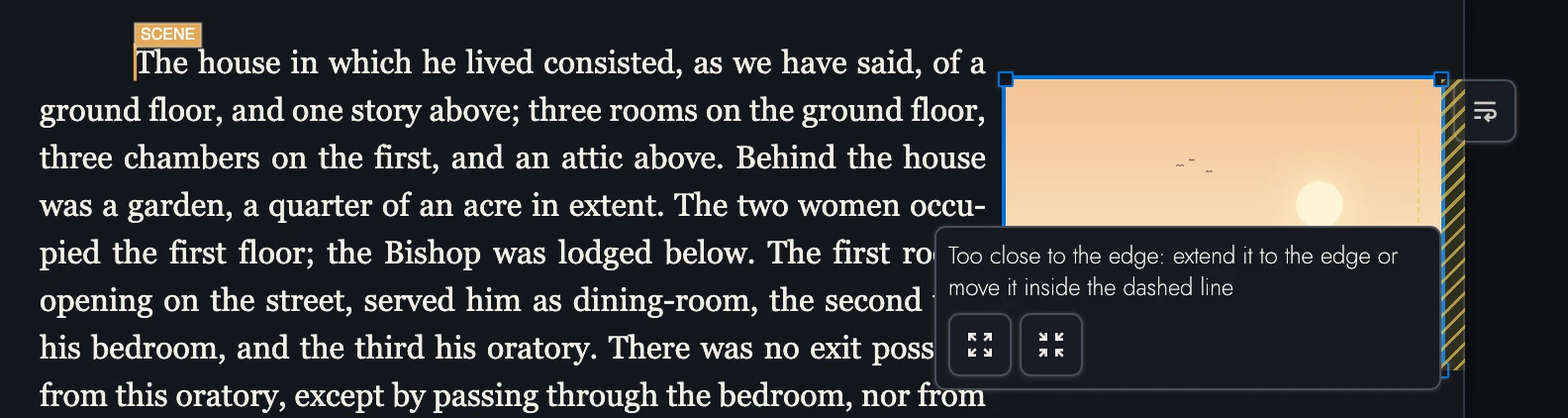
The risky place is just short of the edge. A picture that stops a little before the cut can come back with a hairline of white beside it, or with a margin that is wider on one page than on the next. So the gap is hatched, and a faint dashed line marks where the safe area begins. Rest the pointer on the hatching, tap it on a tablet, or press Tab from the text and then Enter, and the warning opens with two buttons:
- Extend to bleed carries the picture's edge out to the cut, for art that should run to the edge of the paper.
- Pull inside the safe area moves it back inside the dashed line, and shrinks it in proportion only when it is too large to move that far, so none of it can be lost.
Either one is a single Undo.
View dark appearance
How deep the safe area runs depends on who prints the book, which you set for each book as its print service:
- KDP, where every book starts: a quarter inch, or three eighths once the book bleeds, which it does as soon as any picture reaches an edge
- IngramSpark: half an inch, bleed or not
- Other: KDP's figures, the more forgiving of the two
- None: no safe area, so only the strip the cut takes is shaded
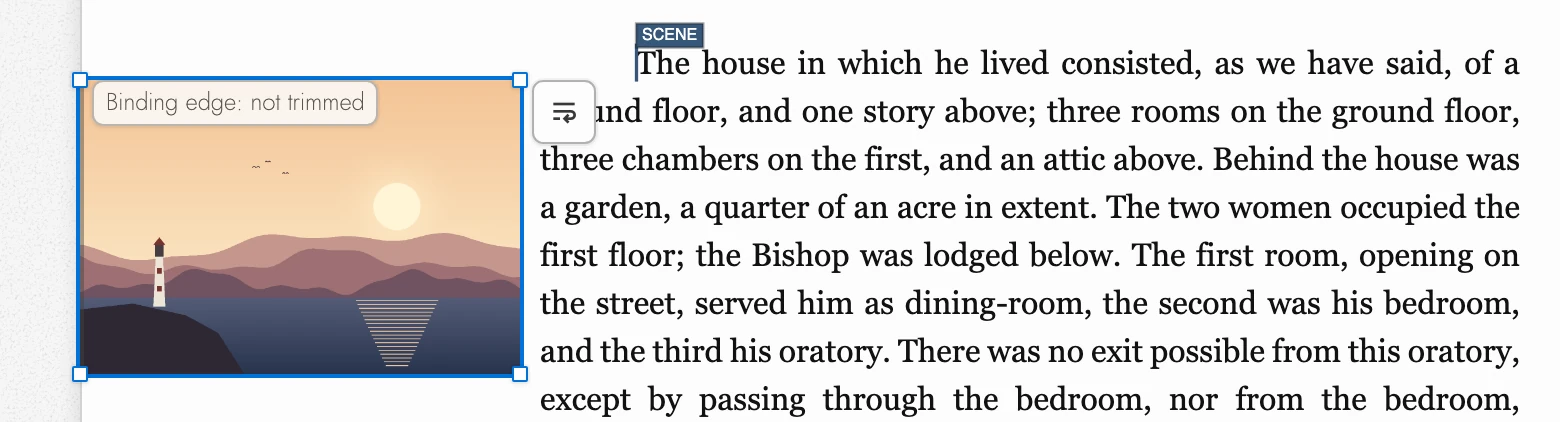
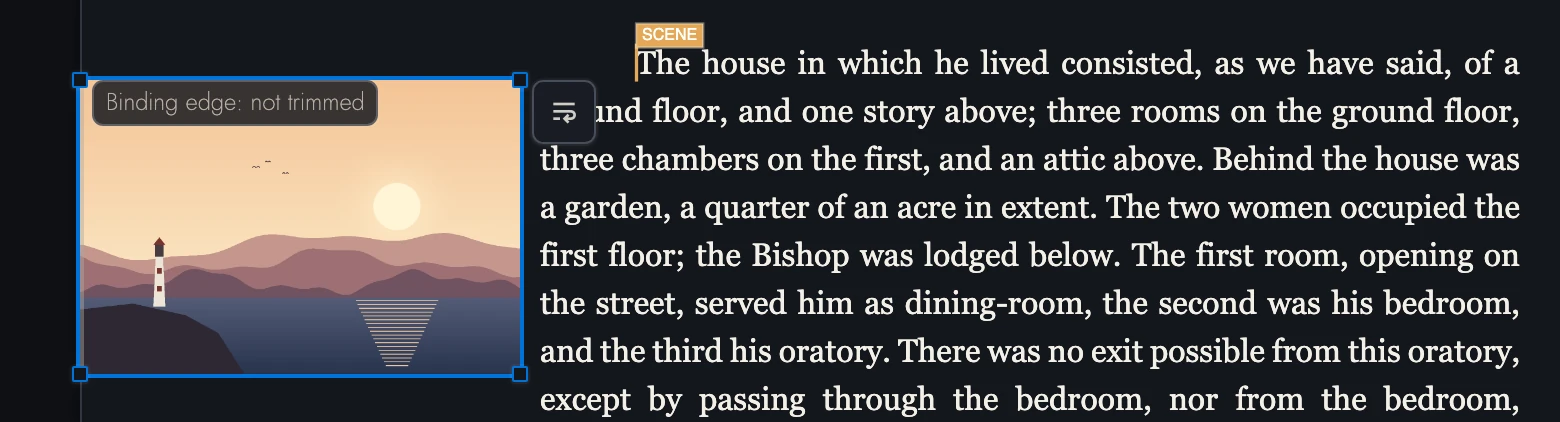
The inside edge is different. It goes into the binding and is never cut, so it is never shaded. When a picture comes near it, a quiet note along that edge says Binding edge: not trimmed, so the missing mark does not look like a mistake.
View dark appearance
A wrapped picture stops just short of the running head and foot, close enough to meet their letters but never over them. A picture behind the text can go all the way to the edge of the paper.
An ebook has none of this. EPUB and Kindle files reflow, and the reading app scales each picture to fit inside its own margins, so there is no edge to cut. Continuous view shows no page edges either, and a phone shows none of these marks, though a PDF exported from a phone is exactly the file a desktop makes.
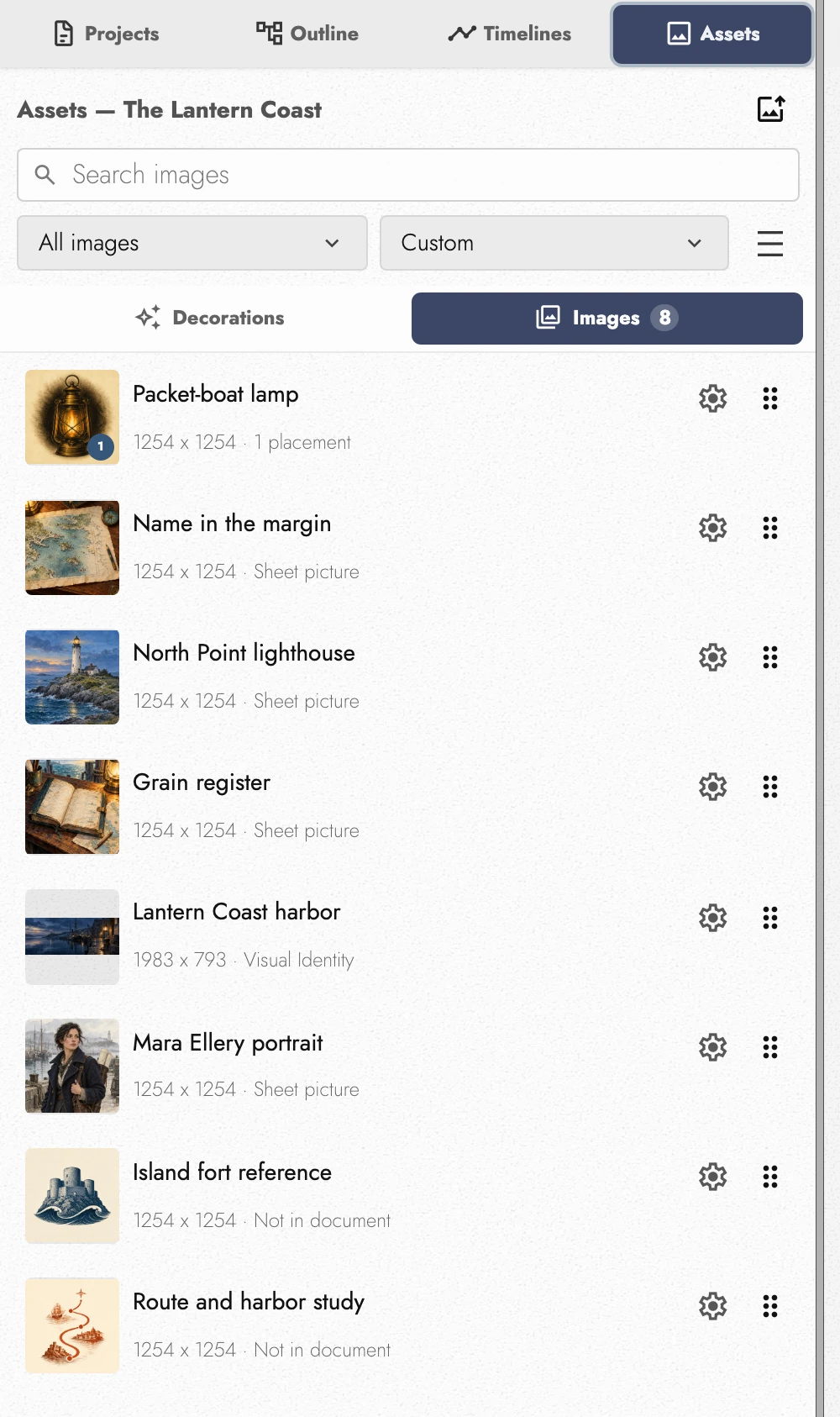
In Assets → Images, search by name or choose compact rows. Filter by All images, Placed in manuscript, or Unplaced images.
Each row shows the picture’s size and where it is used: its placements, and Frontispiece, Sheet picture, or Visual Identity when it is one. Press the picture, or the Image settings gear beside the drag handle, to open its settings.
Image settings shows the picture as large as the dialog allows, with its title at the top, where you can rename it. Under the picture, Alt text describes it for readers who cannot see it; exports and published pages give readers the alt text in place of the picture, or the title when there is none. The footer says which picture of the library this is and lists every place it appears under Used in.
Along the bottom, the trash can deletes the picture, kept at the far end from Done. The arrows step to the previous or next picture, and the Left and Right arrow keys do the same; what you typed for one picture is kept as you move on. Insert at caret and Insert on page place it, and the Frontispiece switch makes it, or stops it being, the Frontispiece of the Book you are writing in. The tooltip names that Book when there are several.
Deleting a library image removes every placement. The confirmation lists how many will disappear, and names a Frontispiece that would be left without a picture. A placed image can be restored with Undo; deletion of an unplaced image cannot be undone. A picture that is still a Sheet picture or a Visual Identity cannot be deleted here: the dialog says which, so you can choose another picture there first.
Upload JPEG, PNG, WebP, or AVIF, up to ten files at once. Each file must be at most 25 MB, 16,384 pixels per side, and 50 megapixels.
Images are stored as WebP. Safari stores PNG temporarily; opening the Project in Chrome, Edge, or Firefox converts it in the background. HEIC is unsupported, so convert iPhone photos to JPEG first.
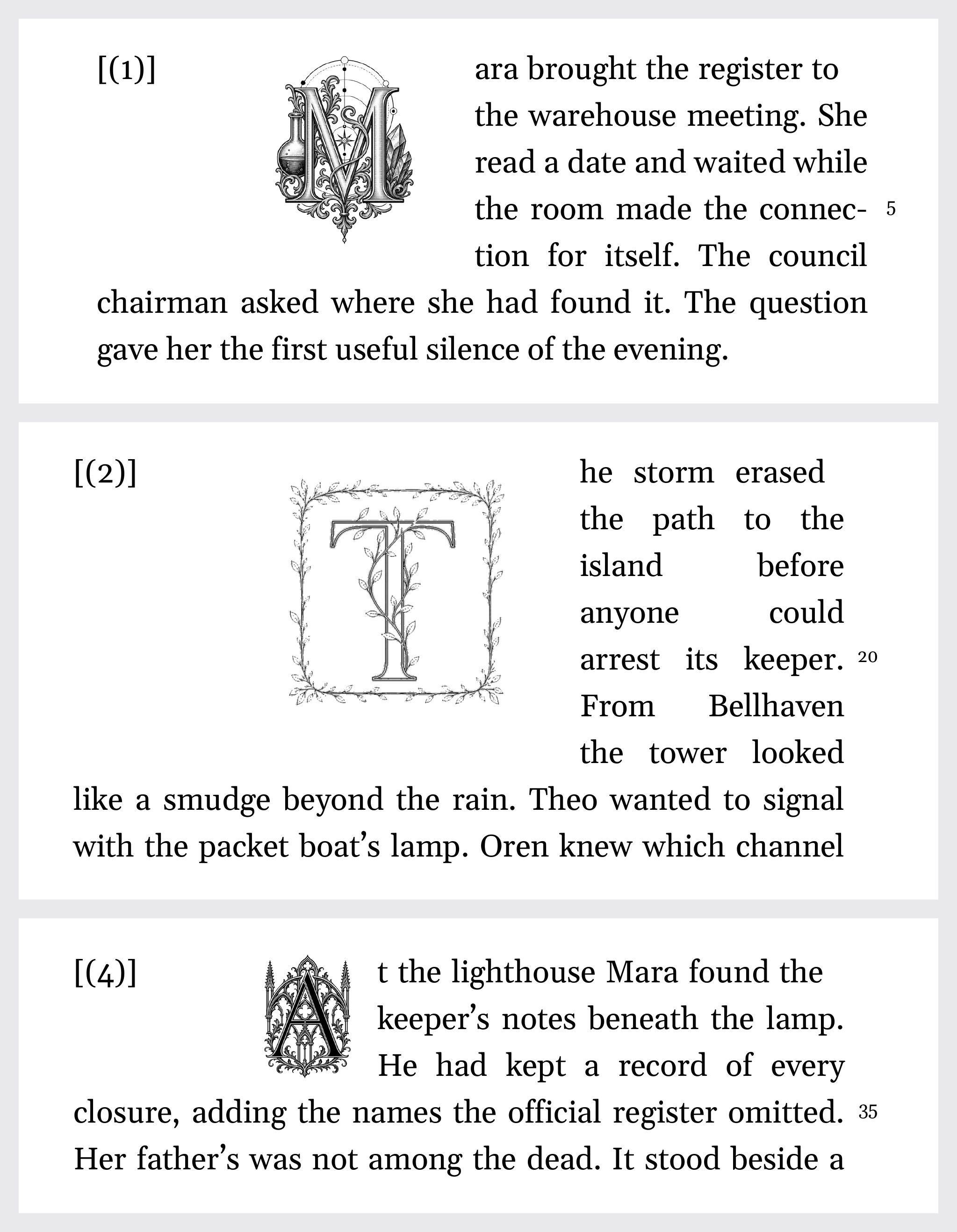
Ornaments and Drop Cap frames take hold the same way once they are selected, with corner handles of their own, but each keeps to its own place on the page and treats its padding a little differently:
- An image goes anywhere on the page and keeps clear space on all four sides. That space can shrink to nothing but never below it.
- A Drop Cap moves to another eligible paragraph’s opening letter. Its minimum height is 48 pixels. Padding can range from -48 to 48 pixels on all sides; negative padding pulls text over the frame’s whitespace.
- A body ornament moves between paragraph boundaries. It must be at least 48 pixels wide and fit within the text width. Top and bottom padding cannot be negative. New placement and dragging are unavailable in matter pages; older artwork there can be read or removed.
Arranging the page like this is not offered on a phone, where a finger landing on a picture is a finger about to scroll. See Writing on a phone or tablet.
Images travel into every export that can carry one. DOCX, EPUB, HTML and a typeset PDF
embed them. Markdown links them from an images folder beside the
document, and plain text names them. A published web page carries the pictures placed in whatever it publishes. See Exporting and printing.
View dark appearance
View dark appearance
2. Book Decorations
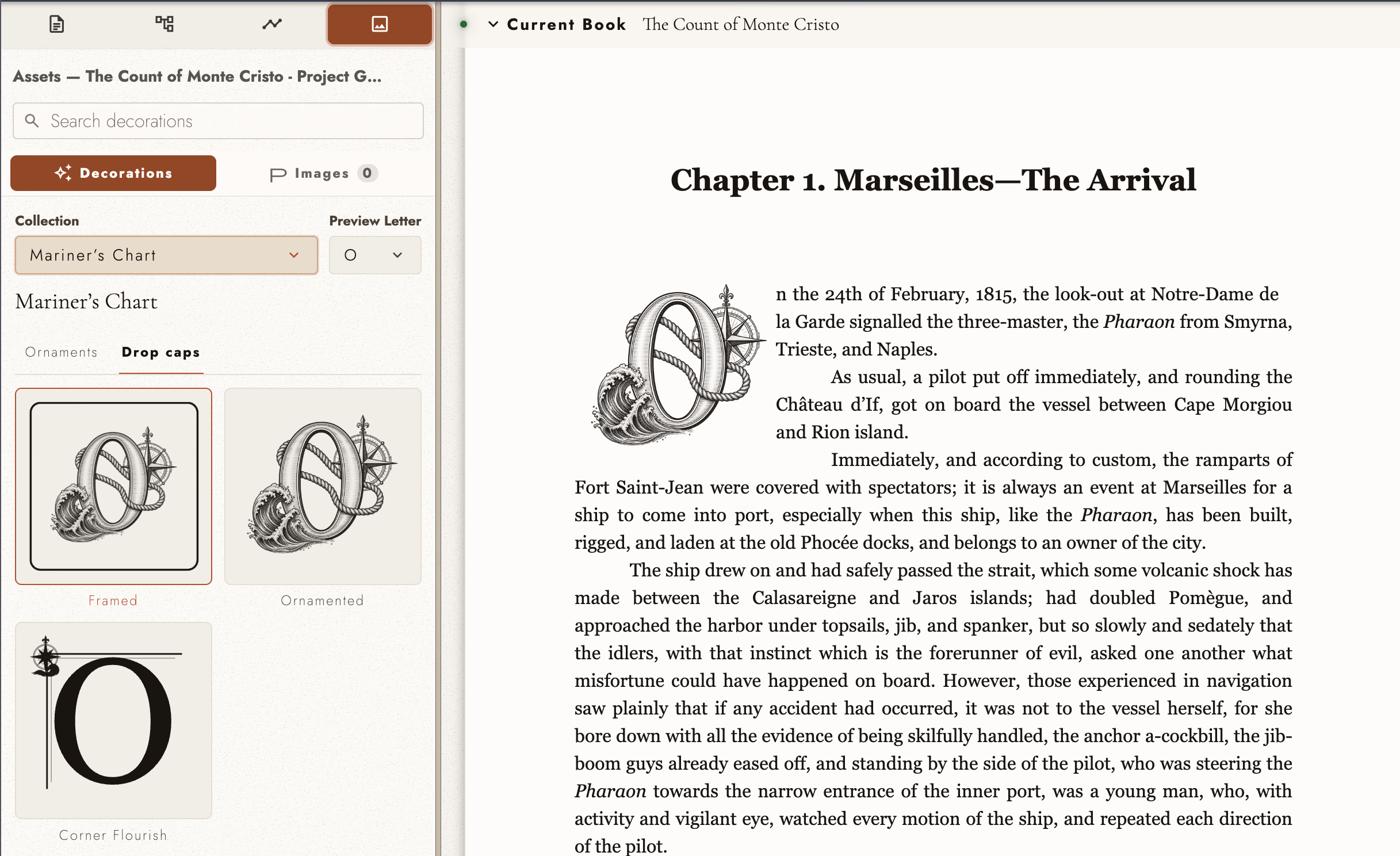
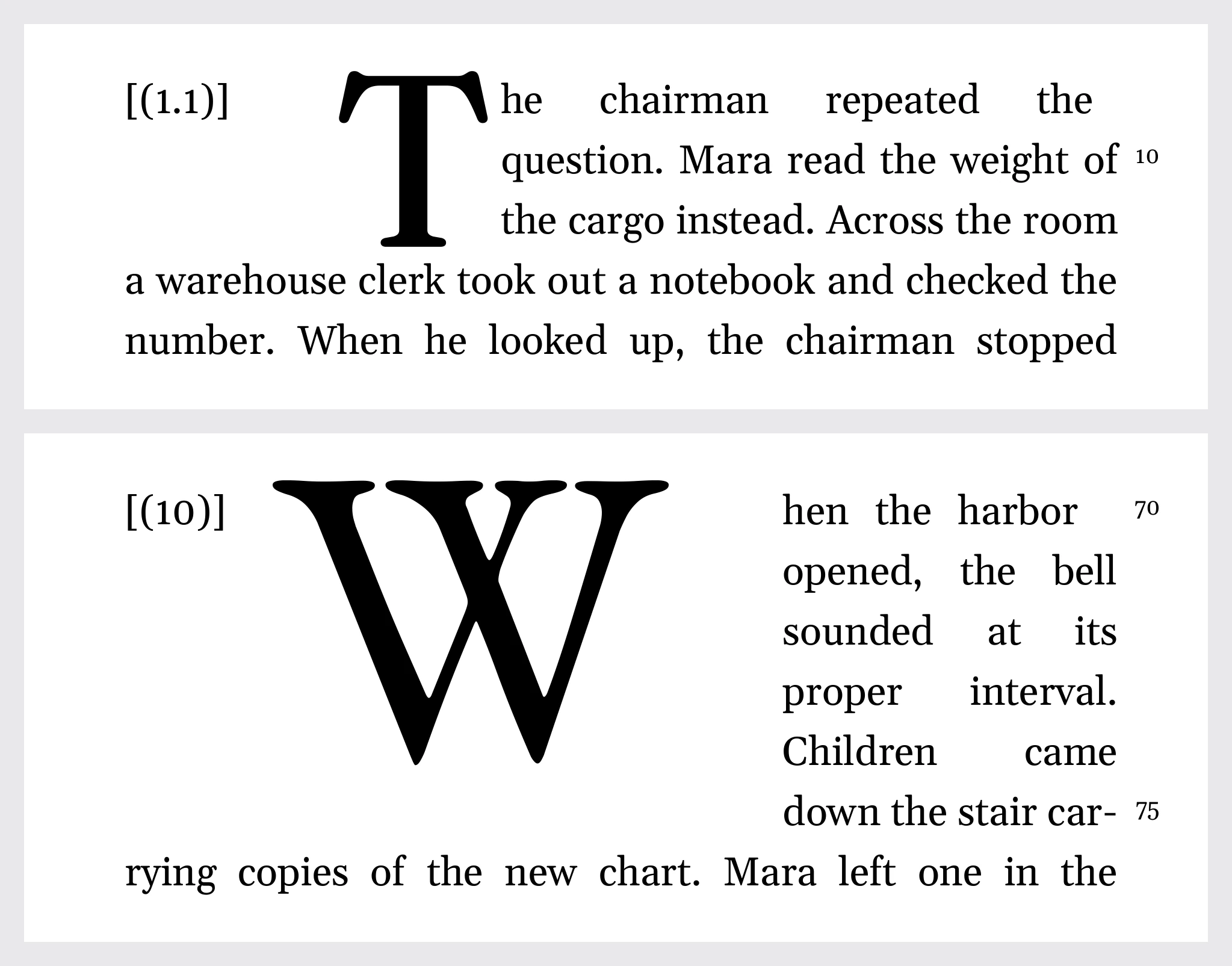
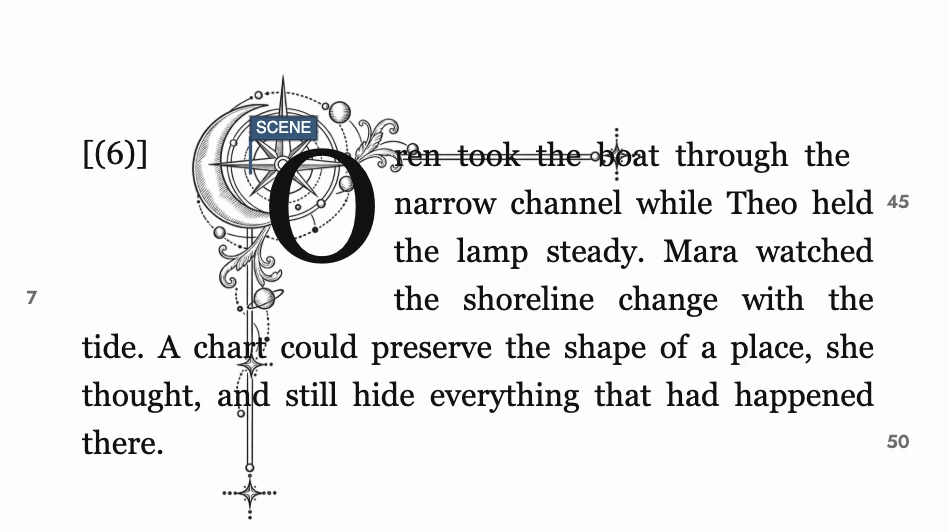
Book Decorations are the small typographic ornaments that make a book feel typeset rather than typed. They are the Decorations half of the same Assets tab, and the half it opens on:
View dark appearance
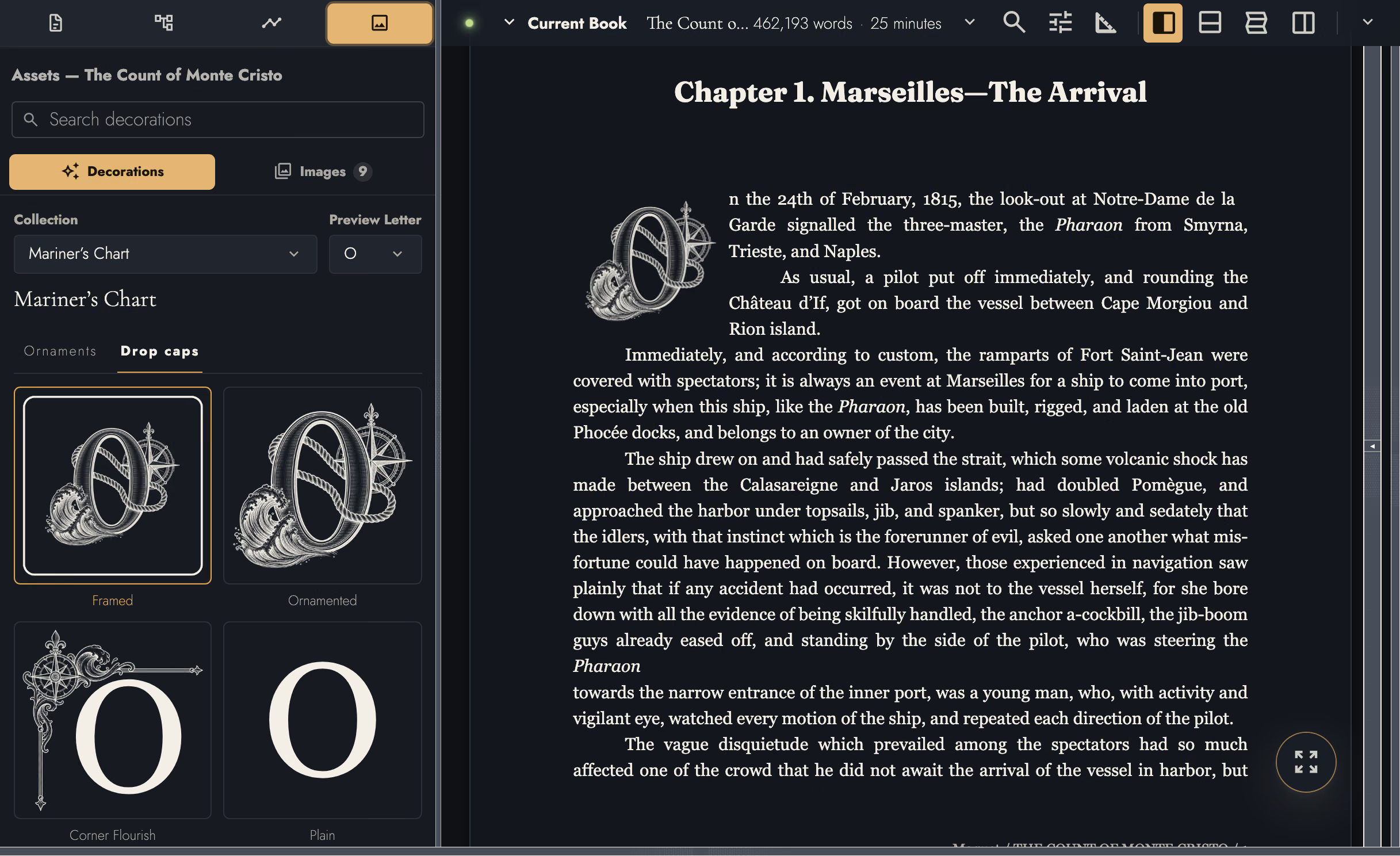
- Drop Caps: the oversized opening letter of a chapter.
- Ornaments: artwork for Scene Breaks and Dividers within Chapters. Both use the same collection choices.
Manuscripts written in earlier versions may still carry a Flourish or an End Mark. They keep drawing as they always did. Restyle one through Ornaments and it becomes a divider.
Previous Editions holds older decoration designs after a collection is redrawn. Existing Books keep their chosen artwork. Select a newer design yourself when you want to update it.
View dark appearance
3. Collections
Decorations come in collections, each one a house style rather than a pile of clip art. There are 19 of them:
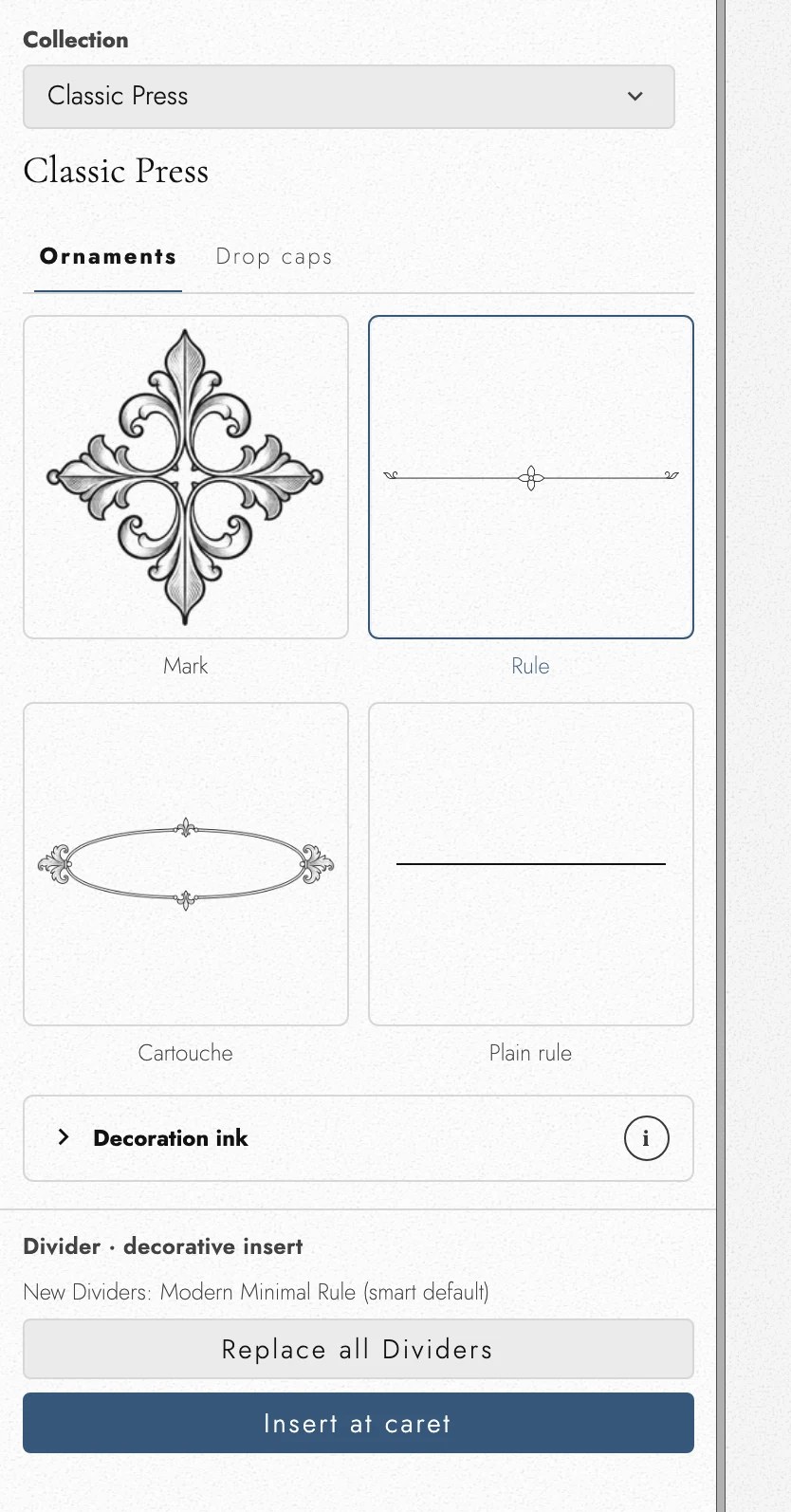
- Classic Press: Traditional rules, printer marks, and restrained literary ornament.
- Fine Line: Delicate rules and understated marks for a clean literary page.
- Modern Minimal: Quiet geometry and precise contemporary publishing details.
- Quiet Botanical: Leaves, stems, and airy botanical marks in a quiet style.
- Herbarium: Fine botanical lines inspired by leaves, stems, and small blossoms.
- Small Geometry: Compact shapes and precise marks for a measured modern page.
- Regency Romance: Ribbons, lockets, paired doves, and elegant period courtship ornament.
- Rose Garden: Layered roses, curling stems, and lush garden engraving.
- Gilded Deco: Architectural fans, stepped lines, and polished geometric ornament.
- Mystery Noir: Rain-cut shadows, city lights, clues, and hardboiled geometric detail.
- Woodland Folklore: Woodcut leaves, acorns, mushrooms, and storybook forest forms.
- Storybook Adventure: Friendly woodland companions, tiny quests, and playful storybook marks.
- Celestial Atlas: Crescents, stars, orbital lines, and observatory engraving.
- Mariner’s Chart: Compass roses, ropework, waves, and antique navigation marks.
- Epic Fantasy: Dragons, blades, crowns, and heraldic ornament for sweeping adventures.
- Sweet Whimsy: Bows, hearts, tiny stars, and cheerful keepsake illustration.
- Insular Knotwork: Interlaced bands, spirals, and illuminated manuscript knotwork.
- Alchemist’s Folio: Vessels, planetary symbols, mineral crystals, and engraved filigree.
- Cathedral Gothic: Pointed tracery, quatrefoils, and dramatic blackletter ornament.
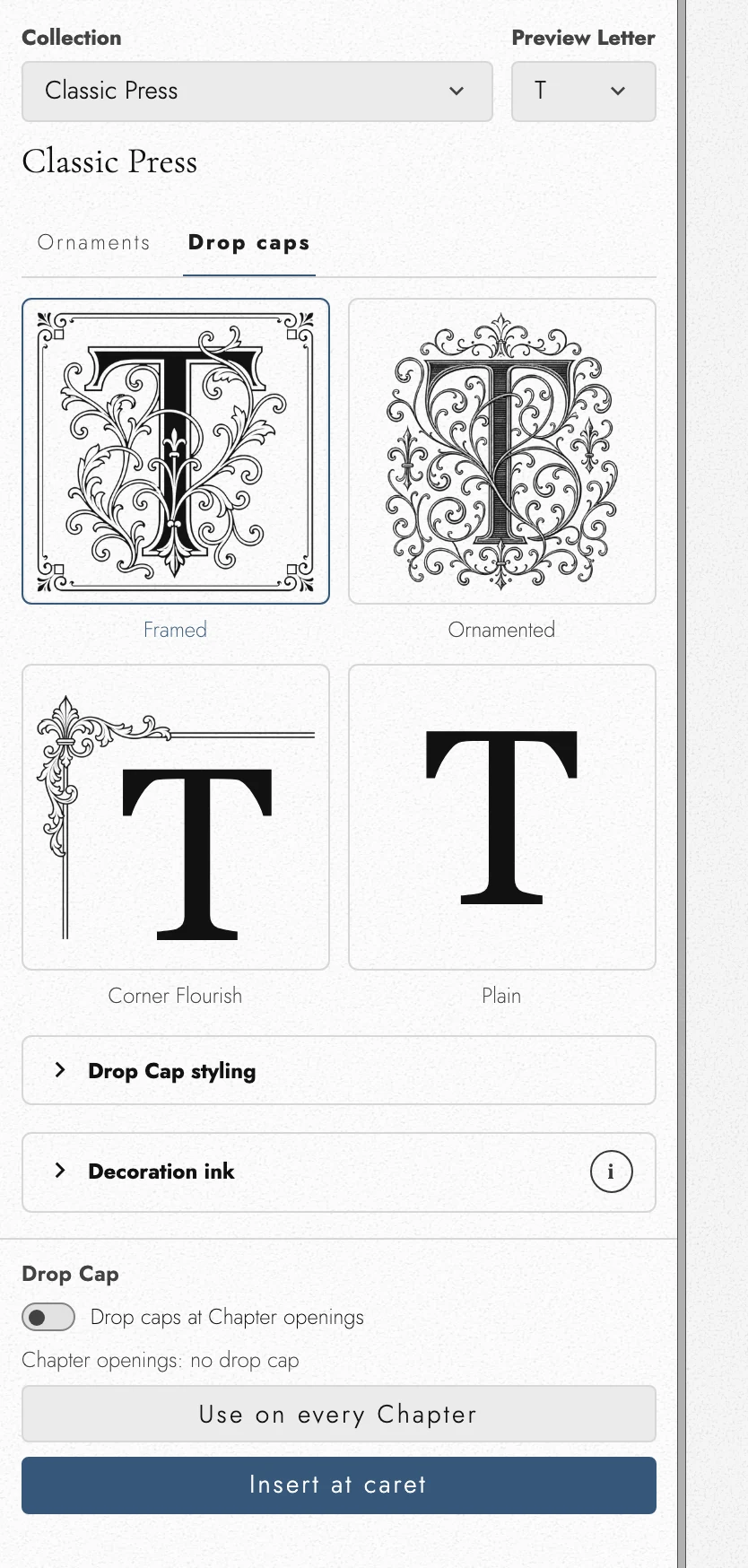
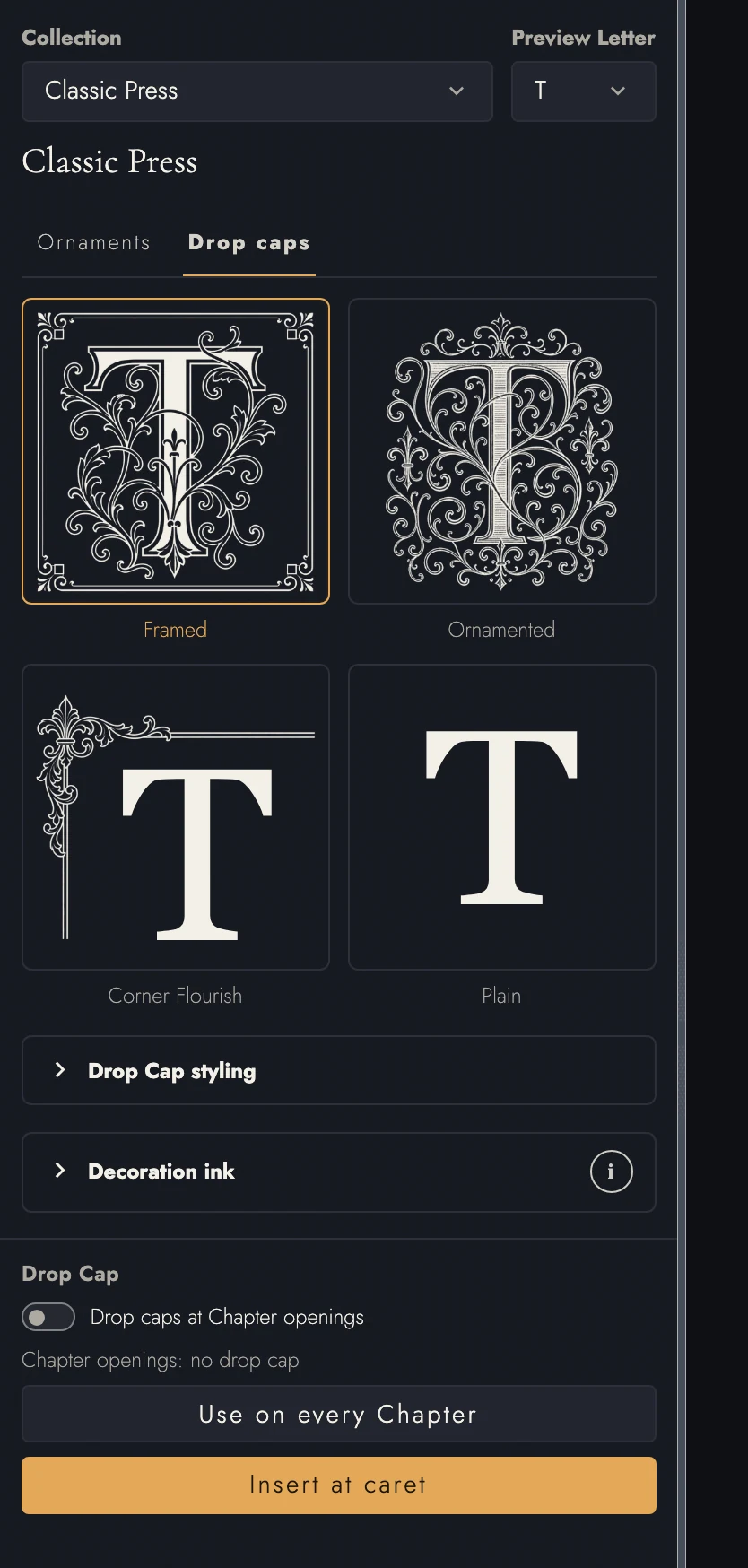
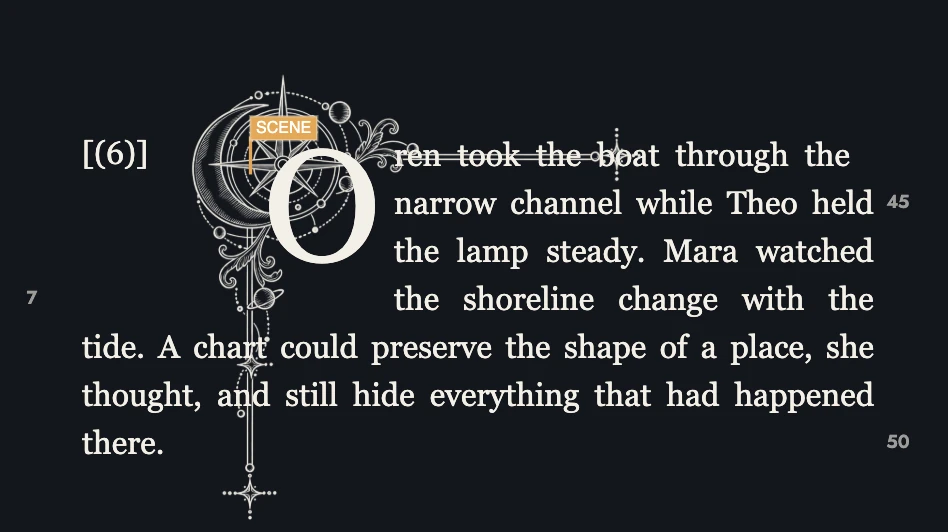
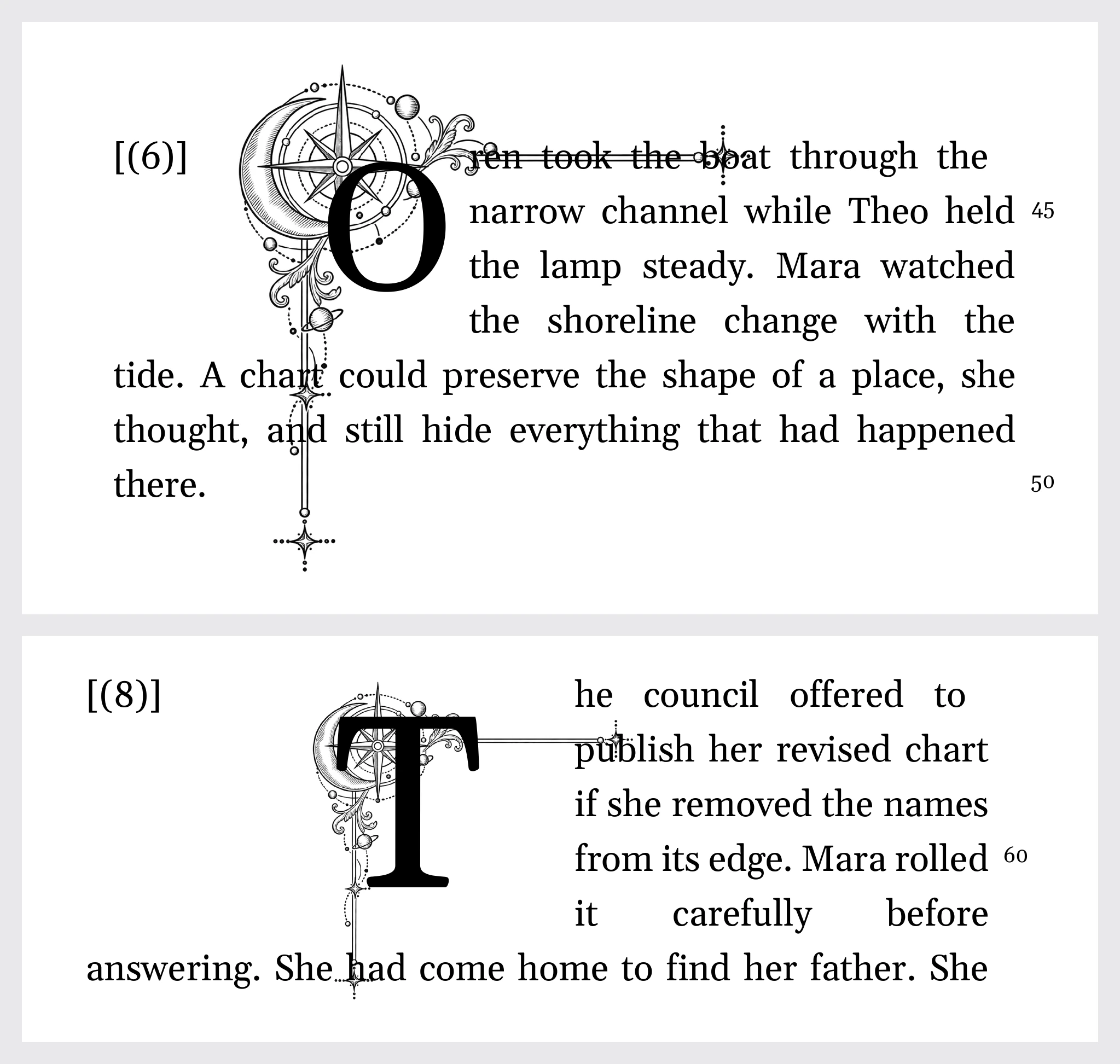
Drop Cap treatments include Framed, Ornamented, and Corner Flourish. Plain gives you an initial without artwork and is available in every collection.
Scene Breaks and Dividers offer Mark, Rule, or Cartouche. Dividers also offer Plain rule, without artwork. Use Preview Letter to check how a Drop Cap looks with your Chapter’s first letter.
The Custom collection holds decorations made for this Project alone. A connected assistant such as Claude or ChatGPT can draw one for you: a Drop Cap frame that sits around your opening letter, or an ornament for Scene Breaks and Dividers. It appears under Custom and works like any other decoration. To take one away, use its remove button in Custom; any place it was used falls back to a plain letter or rule.
4. Ink, letters, and applying it
Decoration ink offers three choices:
- Inherit text color follows the surrounding text.
- Shared Book color follows one color you set for this Book. Every decoration in that mode updates together; until you choose a color, it uses the text color.
- Custom color gives this decoration its own color.
Drop Cap styling controls the initial’s typeface. A plain initial uses the paragraph’s font unless you choose another.
New projects start with automatic chapter drop caps off. On the Drop caps tab, turn on Drop caps at Chapter openings to give the current book a rule, or apply a drop cap to just one paragraph. Existing choices stay as you set them.
Drag a decoration from the panel to see a placement preview:
- A Drop Cap goes on a paragraph’s opening letter.
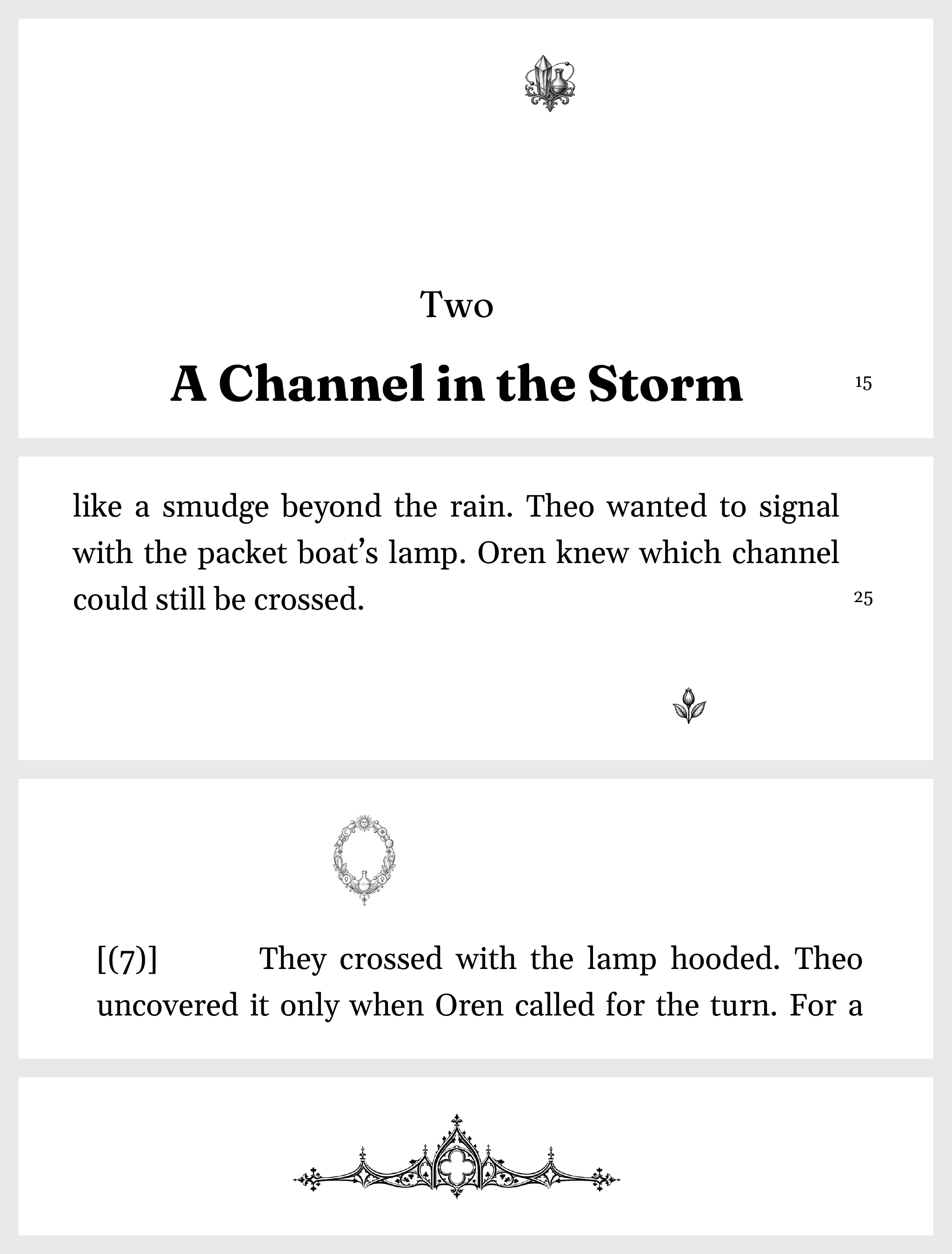
- An ornament dropped in a Chapter opening becomes opening artwork.
- Drop an ornament on a Scene Break or Divider to restyle it.
- Drop an ornament on body prose to insert a Divider at the nearest Block boundary.
Chapter openings accept artwork, but not Drop Caps or plain marks.
The action button describes what will happen at the caret, such as Insert at caret, Style Scene Break, or Change Drop Cap. Replace all Scene Breaks or Replace all Dividers applies the choice throughout the Manuscript and sets the style for new breaks. Drop Caps have no replace-all action.
Use Remove decoration to clear the selected decoration.
A connected assistant can place a Drop Cap or change a divider's size. It follows the same placement and size limits; a request outside them is refused with the allowed range.
Drop Caps and resized ornaments go into the assistant's own Draft unless you ask for them in your text. Separate decoration decisions in a merge require experimental Markup.
An ornament it adds, moves, or removes goes straight into your text, because a Draft it writes cannot hold a new Block, so ask for one only when you want it on the page. Tabularia takes a Snapshot first. The assistant can use any decoration in your library, including the ones it drew for Custom, but it cannot change the ink. See the example requests for these jobs.
Decorations appear on designed pages in Tabularia, print, PDF, and published web pages. Clear Images and decorations in Export to omit artwork.
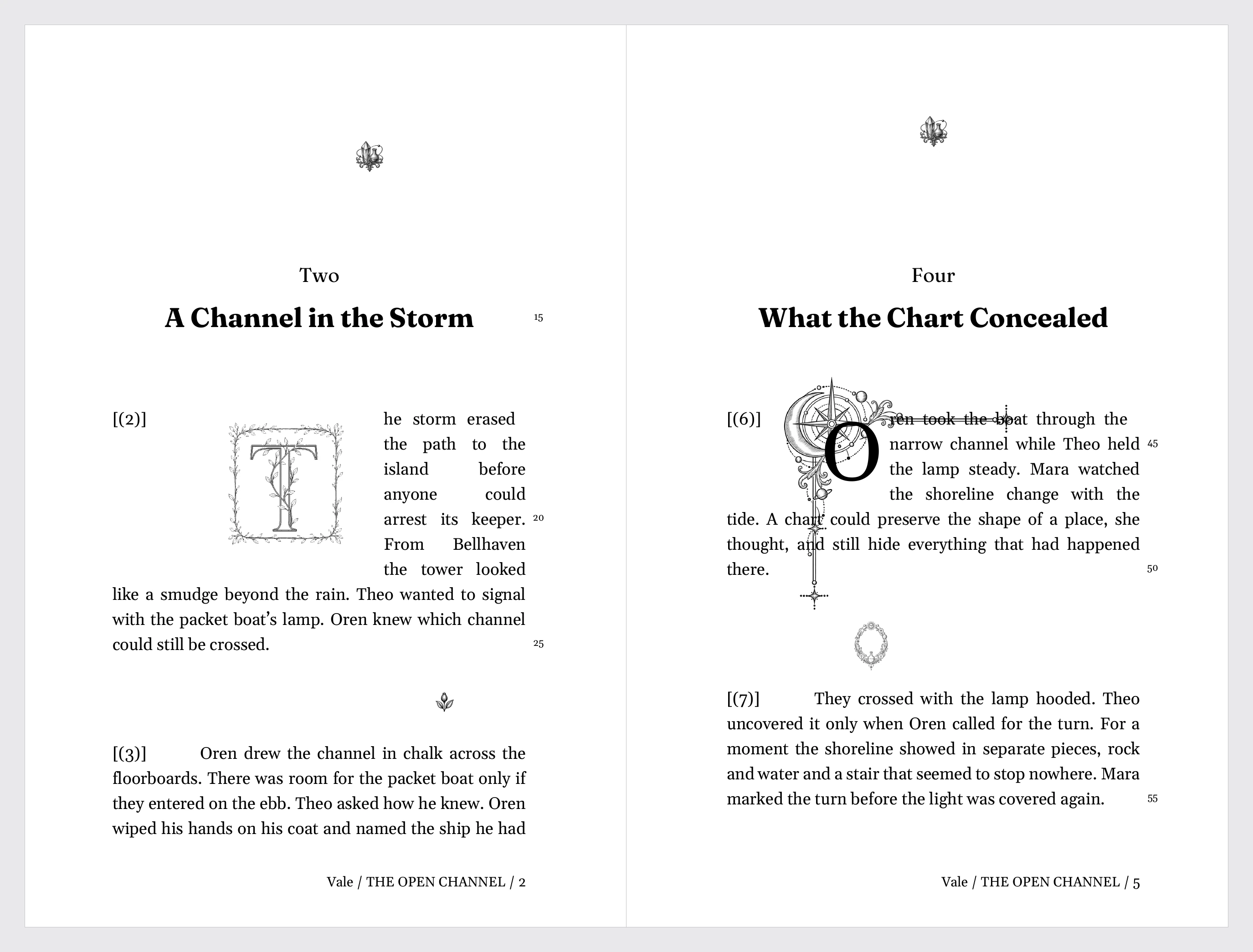
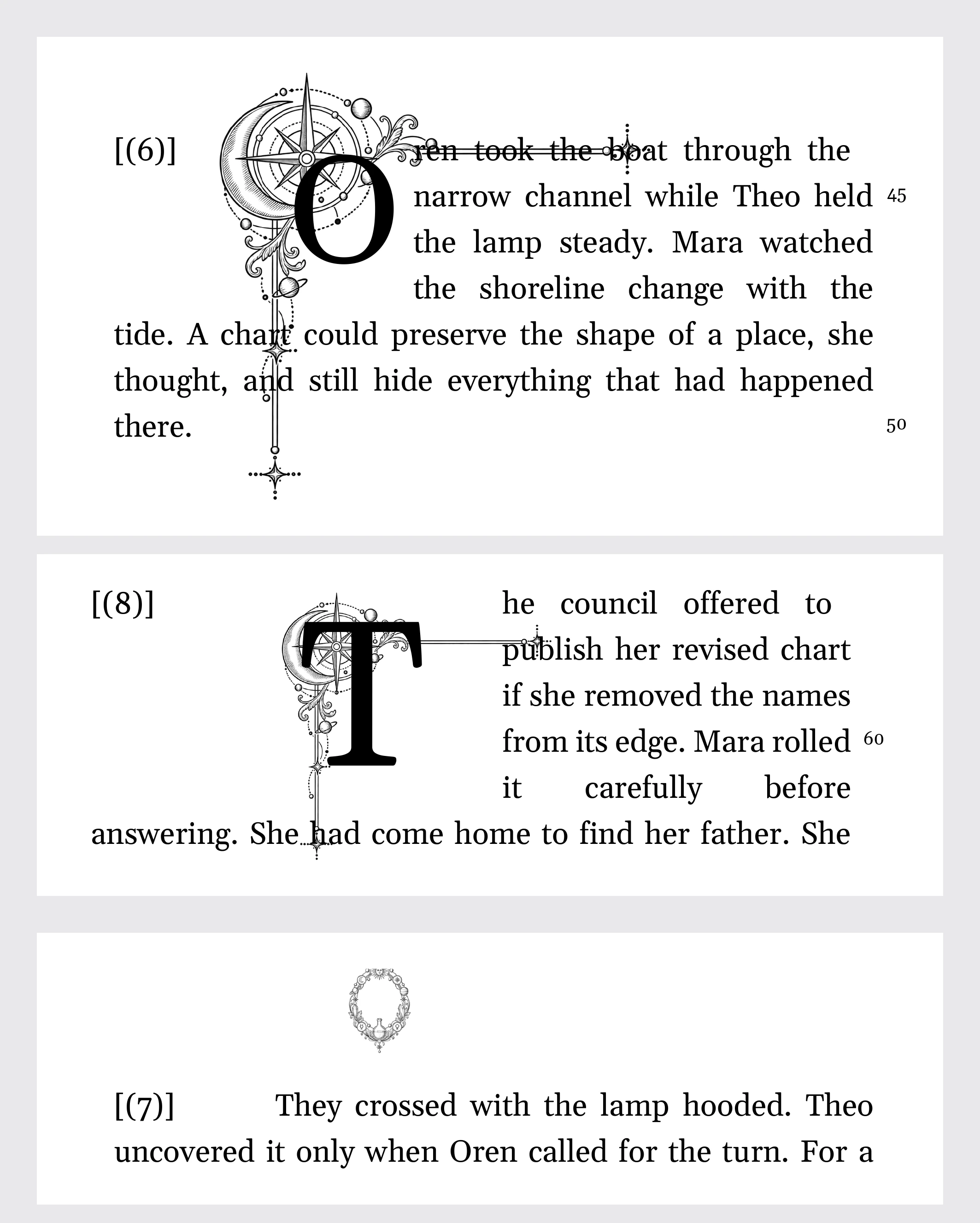
Other formats simplify the design. DOCX, EPUB, and HTML use a centered Scene Break marker; Markdown and plain text use a separate line. These formats omit ornaments and Dividers and turn Drop Caps into ordinary letters.
5. Visual Identity
Visual Identity controls how items look in the panels. Projects, Timelines, Anchors, and Sheets can have an icon or picture and an accent color. Open Visual Identity in Project Settings, or the settings gear on another item’s row.
Choose an icon, included artwork, or one of your own pictures. Choose picture… opens the picture picker on the Project’s library, where you can search and sort by Recent, Name, or Unused. Upload new adds a picture; so does dropping a file anywhere on the picker. Either way it joins Assets and is chosen. The arrow keys move between pictures and Enter takes one.
The identity keeps its own framing of the picture: use the crop preview to zoom, position, flip, fit, or fill without changing the picture in Assets or anywhere else it is used. A Project can show its artwork as a row background or as a book cover beside its title.
Choose an accent from recent colors, suggested colors, or this Project’s label colors. Matching a Timeline to a character’s label makes their passages easier to recognize.
Anchors inherit their Timeline’s identity. Change an individual Anchor’s icon or color to highlight an important event without changing the others.
6. A word on restraint
One decoration style per job, per book, is the typographic norm. A drop cap on chapter openings and one scene-break mark carry a whole novel. If a page starts to feel busy, publishers usually solve it by removing, not by adding.
7. Continue reading
- Previous: Timelines
- Next: Free writer tools
- All guide articles
Try it on your own book
Start a free 14-day evaluation. No card needed.