Writing on a phone or tablet
Find your writing controls on a smaller screen.
1. Three shapes, decided for you
Tabularia adjusts to your device and the room its screen or window gives it. A phone gets phone view held either way up. So does any space under about 768 pixels wide that is also cramped one way, under about 480 pixels across or tall. Anything roomier than that in both directions, up to roughly 1024 pixels wide, gets tablet view, and wider windows use desktop view.
So a desktop window squeezed very narrow or very short gets the phone shape too. Give it room and the page, the rulers, and the minimap come back. A folding phone opened out counts as a tablet in either orientation.
2. A phone writes in one column
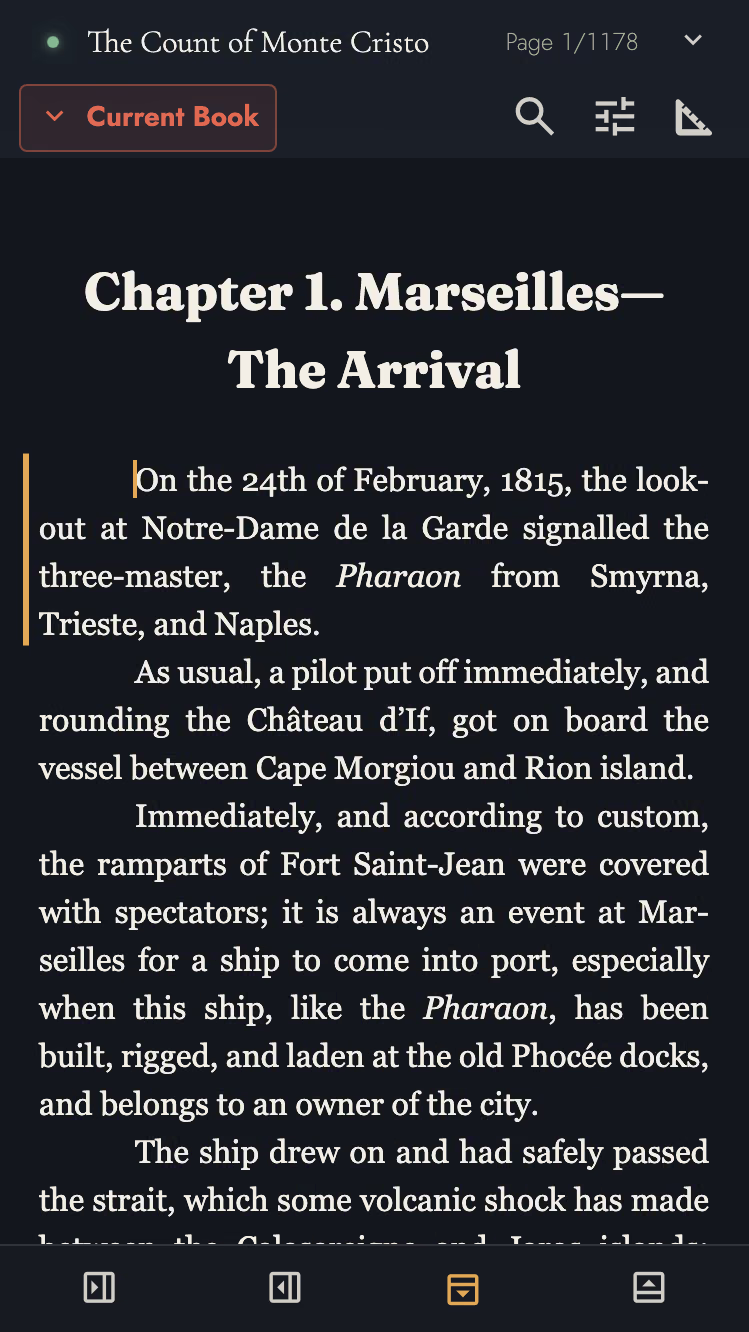
Phone view shows writing in a continuous column. Designed pages, Rulers, Minimap, and Timeline Drawer are unavailable. The prose fills the screen.
Five things a desktop offers are not on a phone, and they are the five that need a page or a pointer:
- The designed page itself.
- The rulers.
- The minimap.
- The timeline drawer.
- Arranging what stands on the page, such as a placed image, an ornament, or a Drop Cap's frame.
Press Writing statistics in the header, just before Find, for counts, goals, and the timer. They use the same controls as desktop. See counts, goals and Writing Timer.
Phone view keeps writing and formatting, plus these tools:
- Outline and search.
- Drafts & Sharing and Markup.
- Sheets and Snapshots.
- Import and export.
Phone view does not change your Book’s saved page format, margins, or styles. A larger screen, print, and export still use that design.
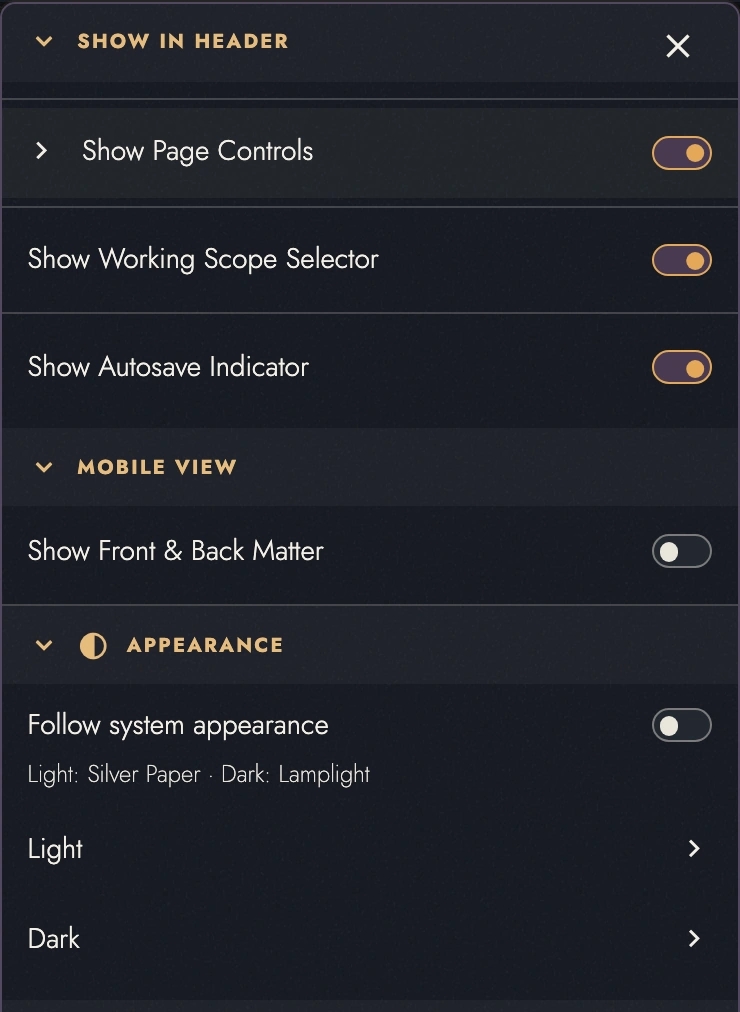
Front and back matter (title pages, dedications, and the rest) are hidden to begin with, so a phone opens on the prose rather than on the front matter. Show Front & Back Matter, in the Document menu, brings them back, and the choice is remembered.
3. Where the controls go
Panel toggles move to a dock at the bottom, so they remain accessible when the header is hidden. The dock includes:
- The sidebar: the Outline and the rest of the left panel, sliding in over the page.
- Drafts & Sharing: the right panel, with its count of reviews waiting on you.
- The keyboard button, which summons the software keyboard when you want it back without hunting for a place to tap.
- The Compass: hide the header or toolbar individually, or press Focus mode in its center to hide the surrounding controls. Press again to restore your arrangement. The dock’s separate toggles control the panels. See Focus Mode.
One panel is open at a time, and it covers the workspace rather than squeezing it. Press its toggle again to send it away.
4. The long-press menu
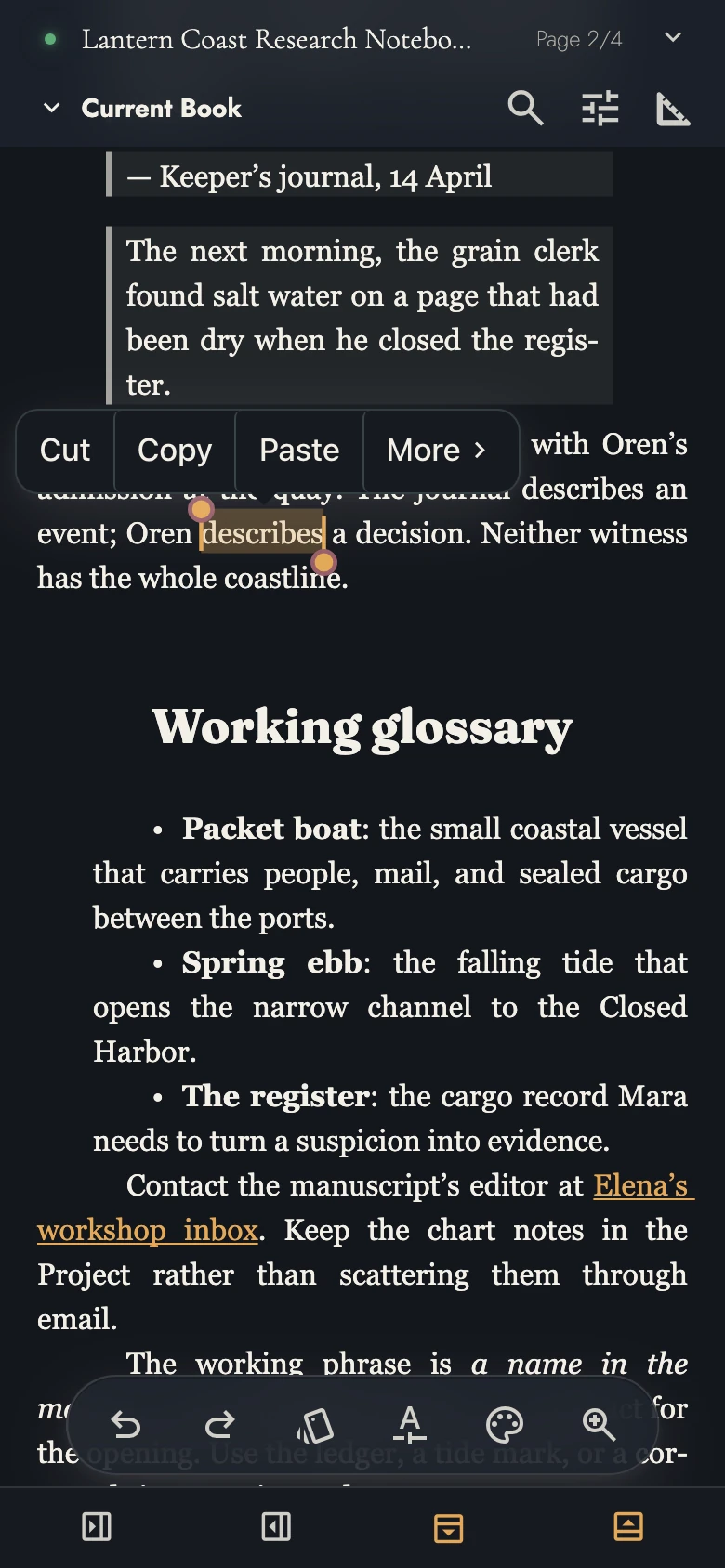
Long-press to open the touch menu. It also appears after selecting a word or paragraph, or releasing a selection handle. Its commands depend on the selected text or object. See right-click menu.
It is a shorter menu than the desktop's. Some commands stay behind:
- accepting or rejecting a Review Change
- moving or deleting an existing anchor, and deleting every anchor in a selection
- removing empty lines between paragraphs
Spelling comes along. Long-press or double-tap a misspelled word and the touch menu lists its suggestions, with the same dictionary choices a right-click gives.
Use a mouse, trackpad, or pen on a tablet or desktop for the full right-click menu. Phone view keeps the shorter menu, including when opened with Shift+F10 or the Menu key.
On a passage, the compact row across the top is Cut, Copy, and Paste. More opens the rest, in groups:
- Create Point Anchor and Create Range Anchor, then Synonyms when the press lands on one word, which opens that word's alternatives where the menu stood, and Insert Footnote wherever a note can go.
- On a chapter title, the Chapter Opening commands that apply there. They remove the ornament above or below the title, use this opening in every chapter or go back to the book's, and leave the chapter unnumbered or number it again.
- Select Paragraph and Select All, plus Select All Chapter Text, Select All Chapter Headings, or the matching Select All Heading command when you press a chapter or a heading. Find Selection and Share follow; Share hands the selected words to the device's own share sheet.
- Paste without formatting and Clear Formatting, with Link… after them, or Edit link… and Remove link when the words already are one.
- The three case commands: Sentence case, lowercase, and UPPERCASE.
Press beside text for Paste or Create Point Anchor at that position. Commands requiring a passage appear only when text is selected.
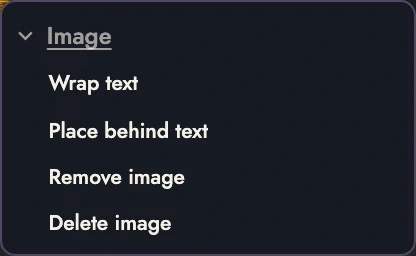
On a picture, the menu is the picture's own: Cut, Copy, and Paste in the compact row, with Delete Image, Move Up, and Move Down behind More. Select Paragraph, Find Selection and the case commands say nothing about a picture, so they are not there.
Long-press an ornament for Move Up, Move Down, or Delete Ornament. A move is unavailable at the end of its allowed area. Use this menu to delete artwork without opening the keyboard.
On a Drop Cap, the whole menu is Remove Drop Cap. A Drop Cap belongs to the paragraph it opens, so there is nowhere to move it.
5. Merging a draft on a phone
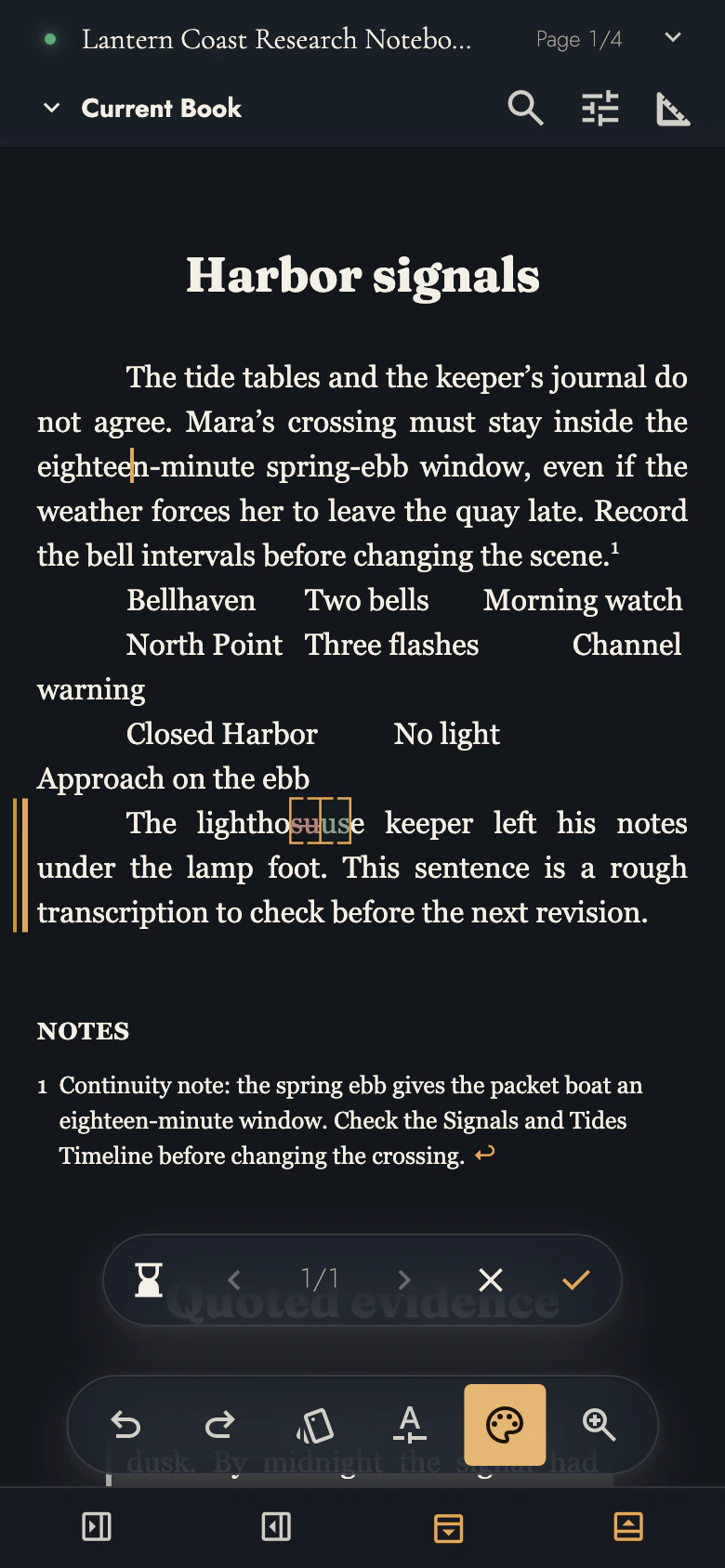
Choose Merge from a Draft’s ⋯ menu. On a phone, the panel closes and controls appear below the writing:
- Leave it for later, the hourglass.
- Previous and Next, with a count such as 2/5 between them: the change on screen out of every change in the merge.
- Reject and Accept, for the change on screen.
Decide the last change and the merge finishes by itself, with a notice to say so. Finish takes the place of Reject and Accept only when you come back to a merge that has nothing left in it.
Decisions save as you go. Leave it for later hides the controls while keeping the marks. Choose Continue merging to resume. If a save failed, the hourglass becomes Retry save.
6. What a tablet adds
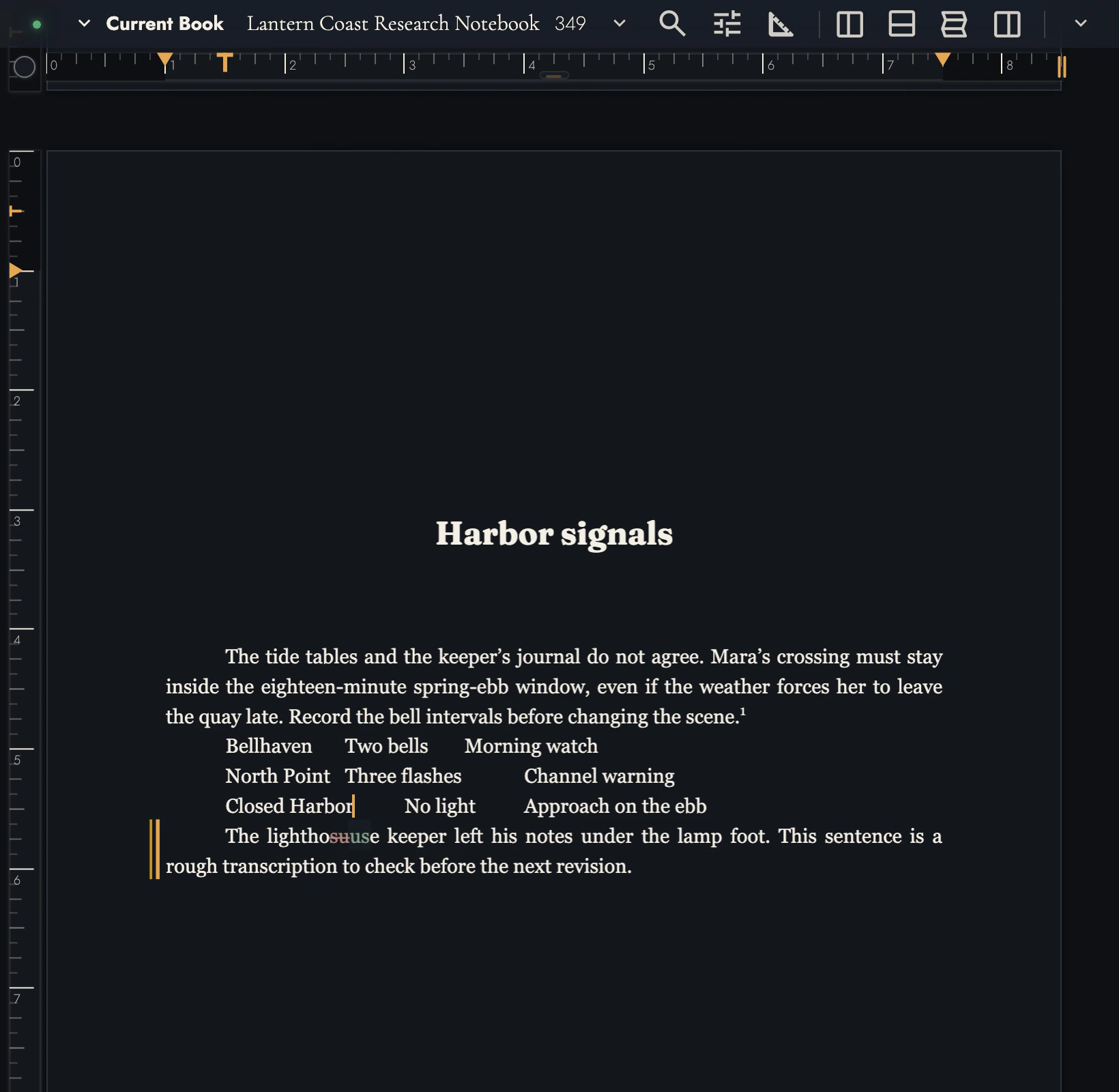
A tablet gets the designed page: pagination, margins, the rulers, and the minimap, the same as a desktop. It can also arrange the page, which a phone never offers: move and resize a placed image, an ornament, or a Drop Cap's frame.
Turning a tablet never takes the designed page away, because it has room both ways in portrait and in landscape. Only an app squeezed beside another into a slice under about 480 pixels wide drops to phone view.
For touch dragging, tap an image or decoration to select it first, then drag. This keeps ordinary swipes available for scrolling. A mouse or pen can drag on its first press.
A long press on a tablet opens the same long-press menu a phone does, and only that one. The desktop's right-click menu stays with a mouse, a trackpad, or a pen, so connect one when you want the commands the touch menu leaves out.
On tablets, the Compass stays in a corner of the workspace. Its arms toggle surrounding panels and controls; its center enters Focus Mode.
A panel’s border pill toggles it, or resizes it when dragged. A closed panel’s pill fades away. Use its Compass arrow to reopen it.
The Compass keyboard control appears on touch devices. Use it to bring back the software keyboard.
7. Keyboards
Your device’s keyboard provides autocorrect, dictation, and suggestions. External keyboards can use Tabularia shortcuts too. The touch controls remain available.
Writing offline, and installing Tabularia so it opens from the home screen like any other app, are covered in Sync, backup, and offline.
8. Continue reading
Try it on your own book
Start a free evaluation. No card needed.