Writing and formatting
Format text, create styles, and use the tools that help you revise.
1. Text formatting
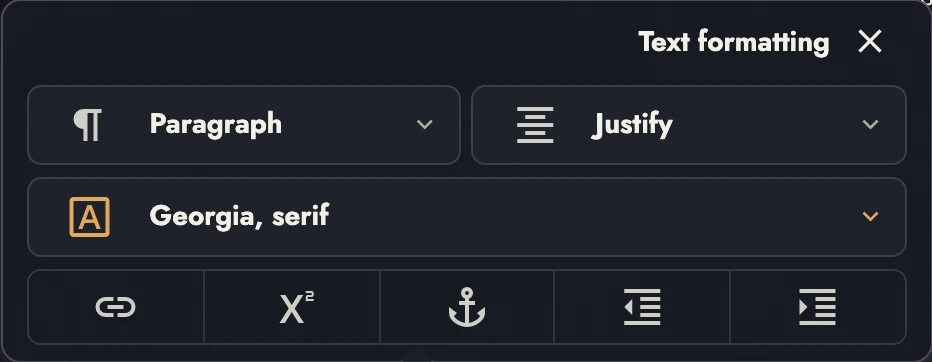
Use Typography for text styling and Text colors for color and highlights. Text formatting sets Block Styles, fonts, and alignment. Keyboard shortcuts use the appropriate keys for your platform. See keyboard shortcut.
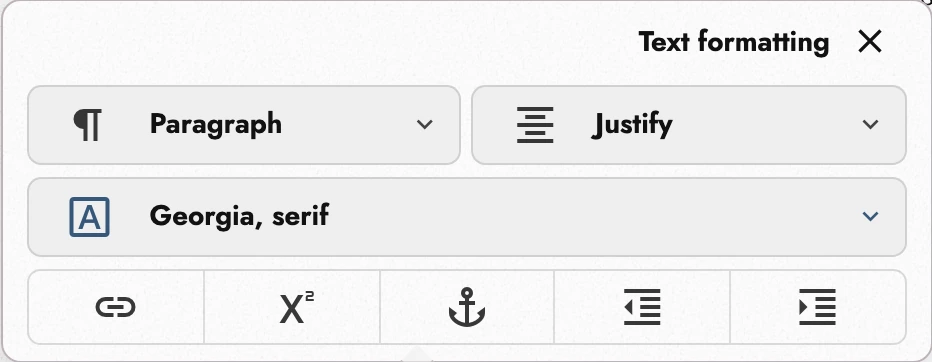
The bottom row of Text formatting includes Decrease indent and Increase indent. Bullet list and Numbered list are below the style names in the Block Style menu.
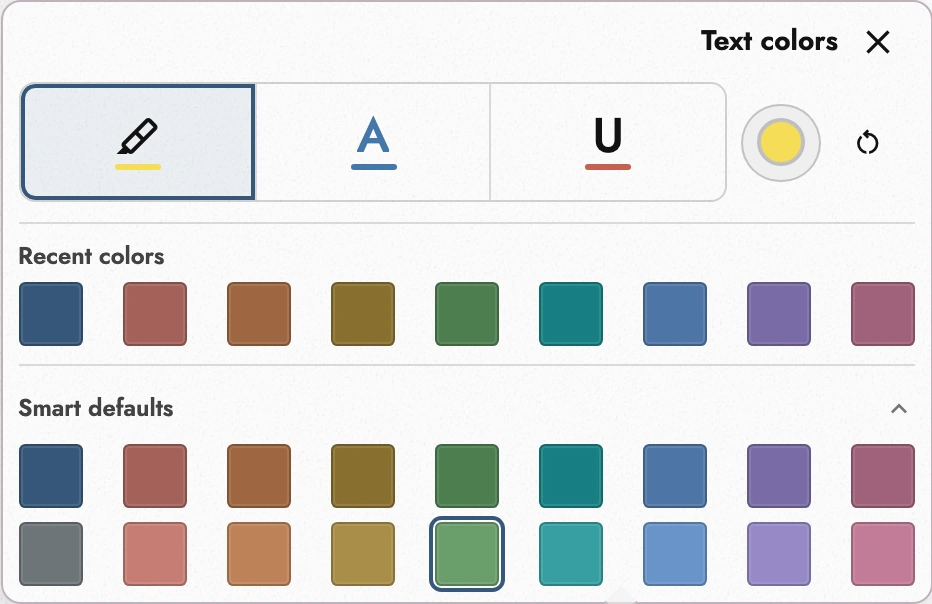
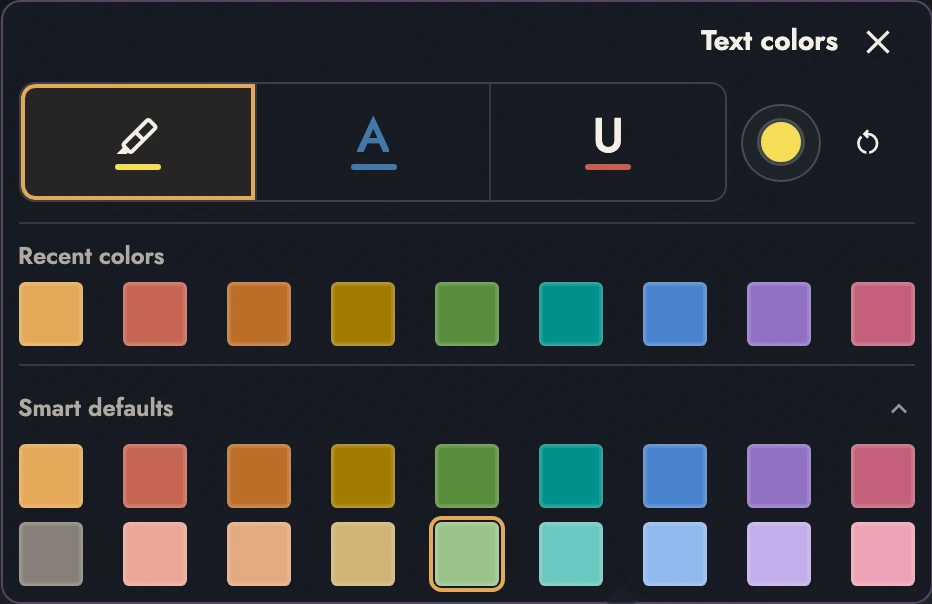
In Text colors, choose the target first: highlight, text, or underline. Then choose a suggested color, a recent color, or the picker.
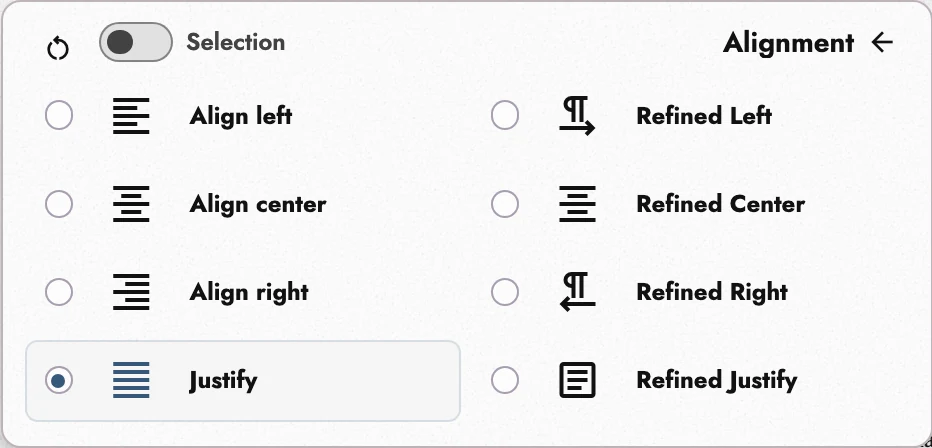
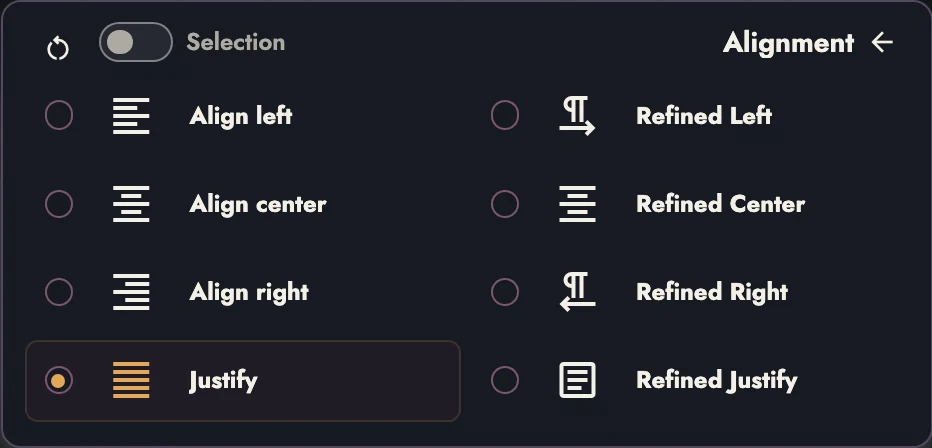
Alignment pairs four ordinary settings with four refined ones. The left column offers Left, Center, Right, and Justify; the right column follows the same order:
- Refined Left shapes a gentler right edge.
- Refined Center favors a rhythm of shorter and longer centered lines.
- Refined Right shapes a gentler left edge.
- Refined Justify fills both edges of interior lines while choosing breaks across the paragraph to improve spacing and hyphenation.
Refined modes can adjust tracking within a two-percent line-width limit. They favor readable spacing and avoid awkward short endings where the words allow it. A paragraph's final line stays natural; refinement does not stretch it across the page.
A new Manuscript sets Body Text in Refined Justify, and its block quotes follow until you style them. A new screenplay keeps its flush-left Body Text. A Manuscript made before that default keeps ordinary Justify, so its lines break where they always have.
At a caret, Bold, Italic, and Underline apply to what you type next. Move the caret or press again to stop. With text selected, they apply immediately. Bold on a heading is different: it changes the whole heading line.
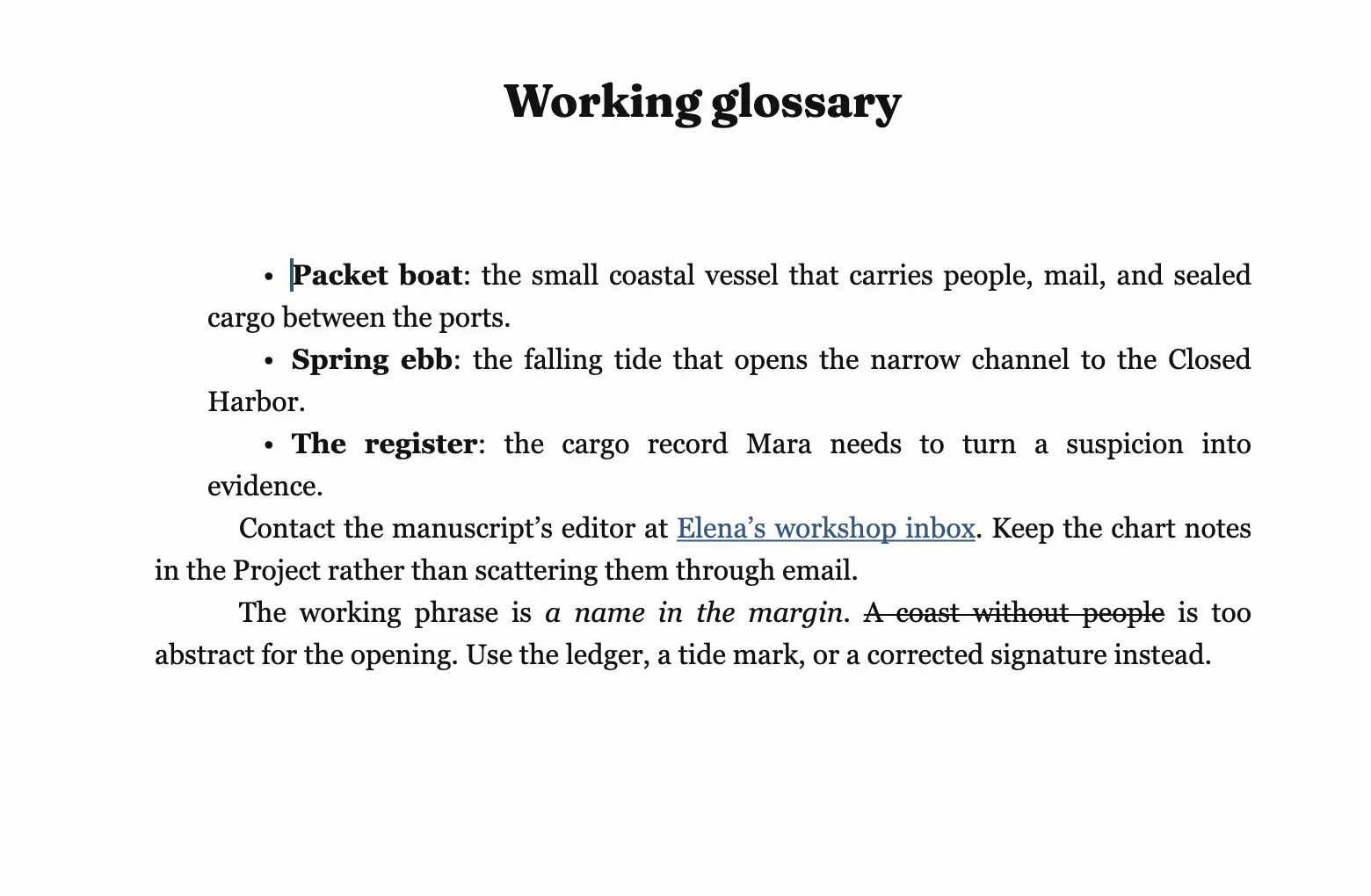
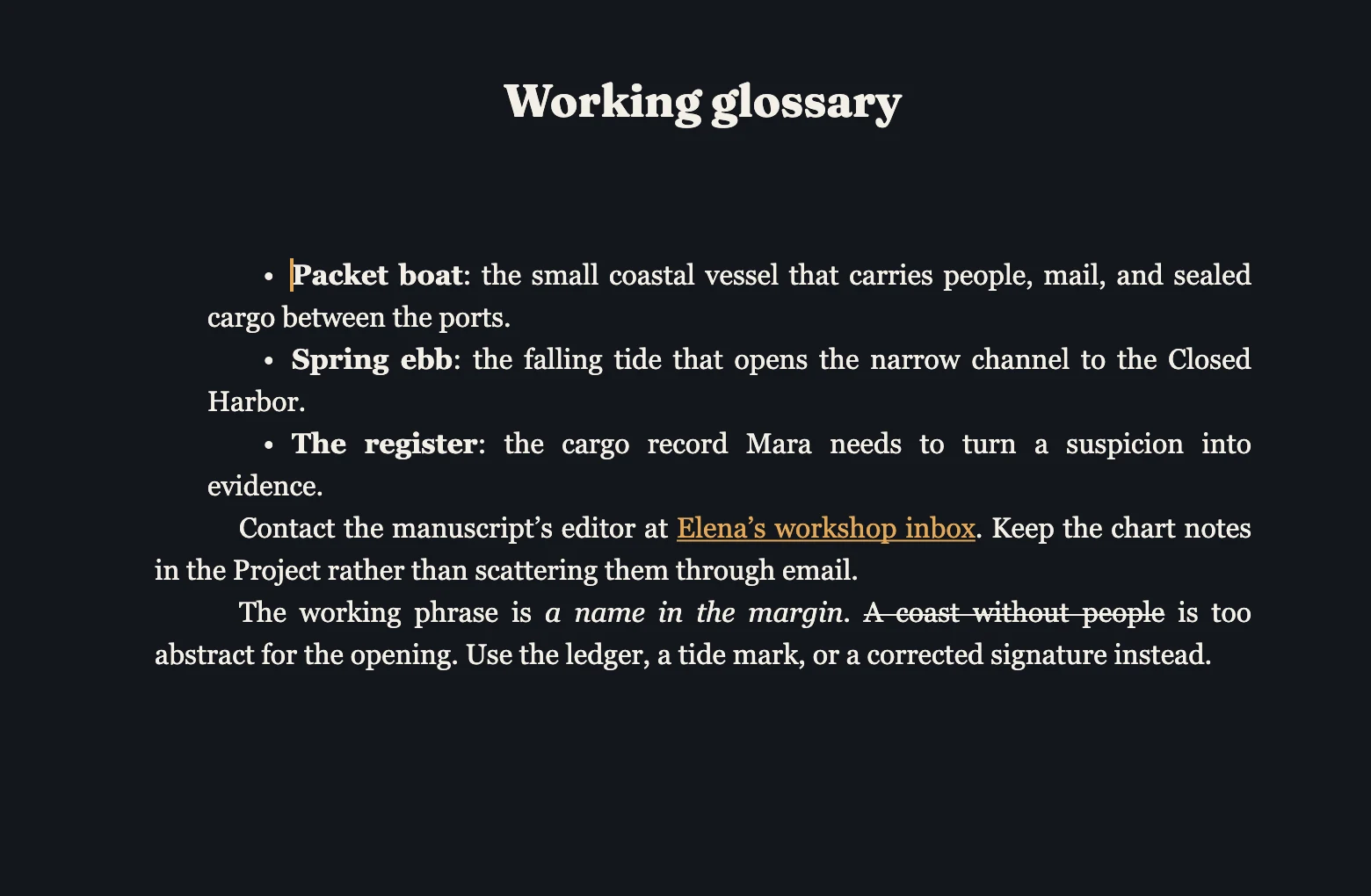
2. Links
Select words, then press Link or its shortcut: ⌘K on Mac, Ctrl K elsewhere. Enter a website or email address and press Return or Apply.
The same command is Link… in the Formatting part of the right-click menu, and it waits behind More in the menu that rises over a selection on a phone. With nothing selected it asks you to select the words first.
You can type a short address: maraellison.com becomes a website link, and
mara@example.com becomes an email link. Local file paths and other
address types are refused.
Click linked words to place the caret and open their card. Open follows the link in a new tab; Edit changes the address; Remove keeps the words without the link. The toolbar and right-click menu also let you edit an existing link.
A link leaves each export as that format allows:
- EPUB and HTML: a link a reader can follow.
- DOCX: a real Word hyperlink.
- PDF: clickable words. A PDF made for a press (PDF/X-1a, or with bleed) prints them as plain words instead, since nobody clicks paper.
- Markdown:
[words](address). - Plain text and Fountain: the words alone.
On a published page, readers can follow your links. A web link opens in a new tab, because it leads away from the book. An email link opens their mail app.
Links come in, too. A DOCX, Markdown, HTML, or EPUB file keeps its links to web pages and email addresses. One that points inside the file it came from, to a bookmark or the next chapter or a relative path, arrives as its words without an address. Importing goes through each format. Pasting from a browser or another app follows the same rule.
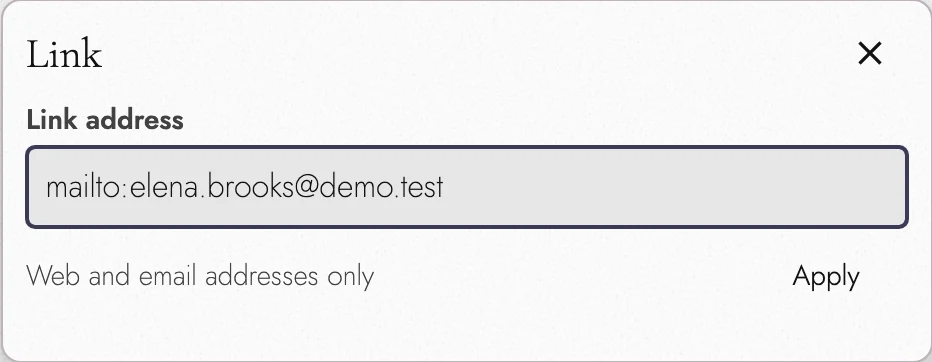
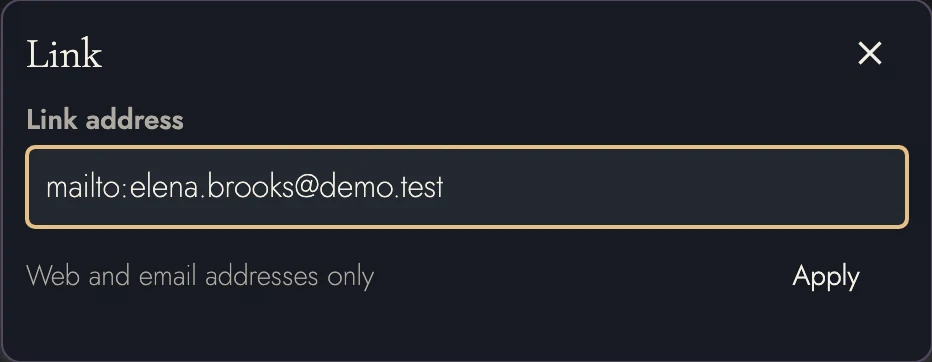
3. Footnotes
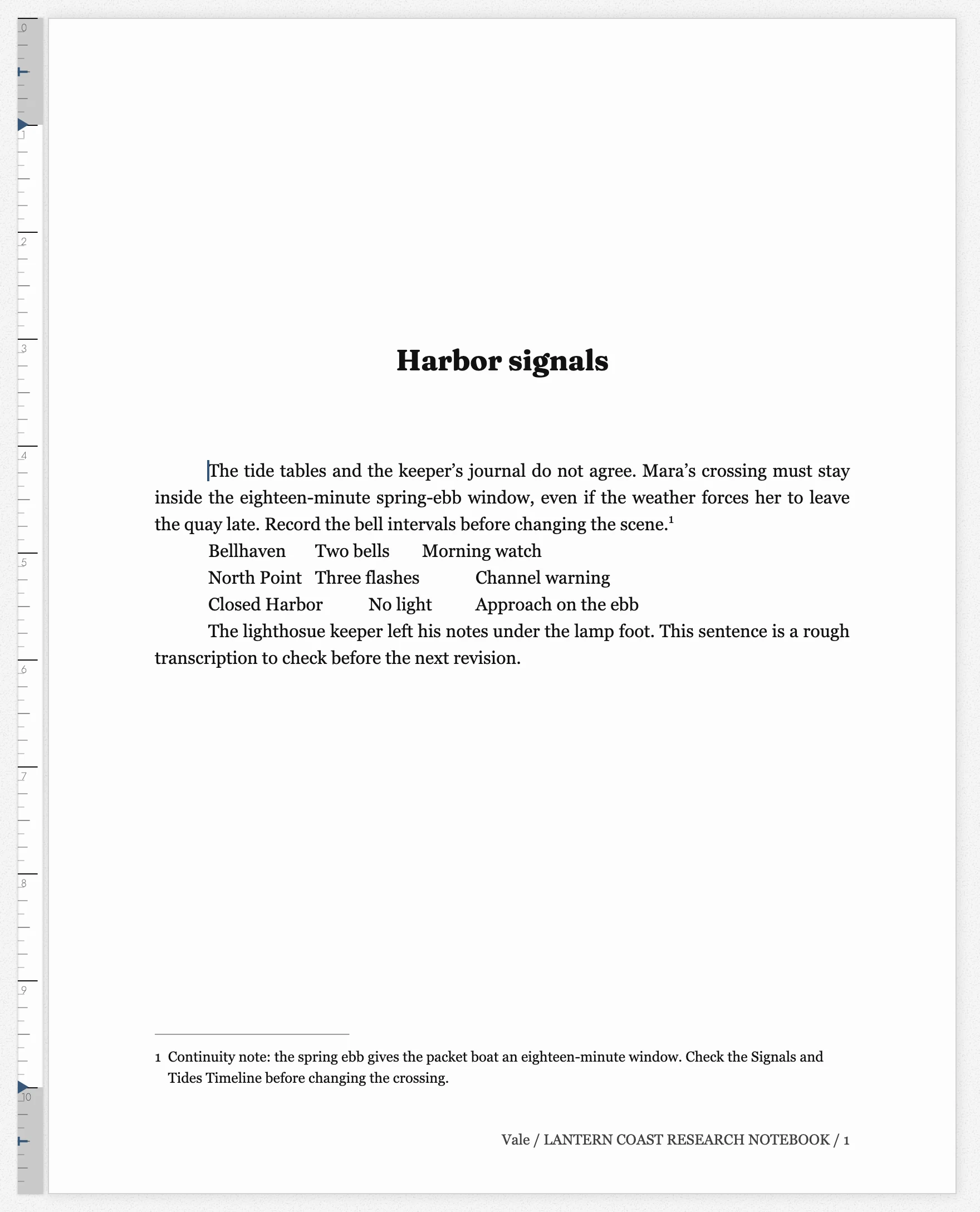
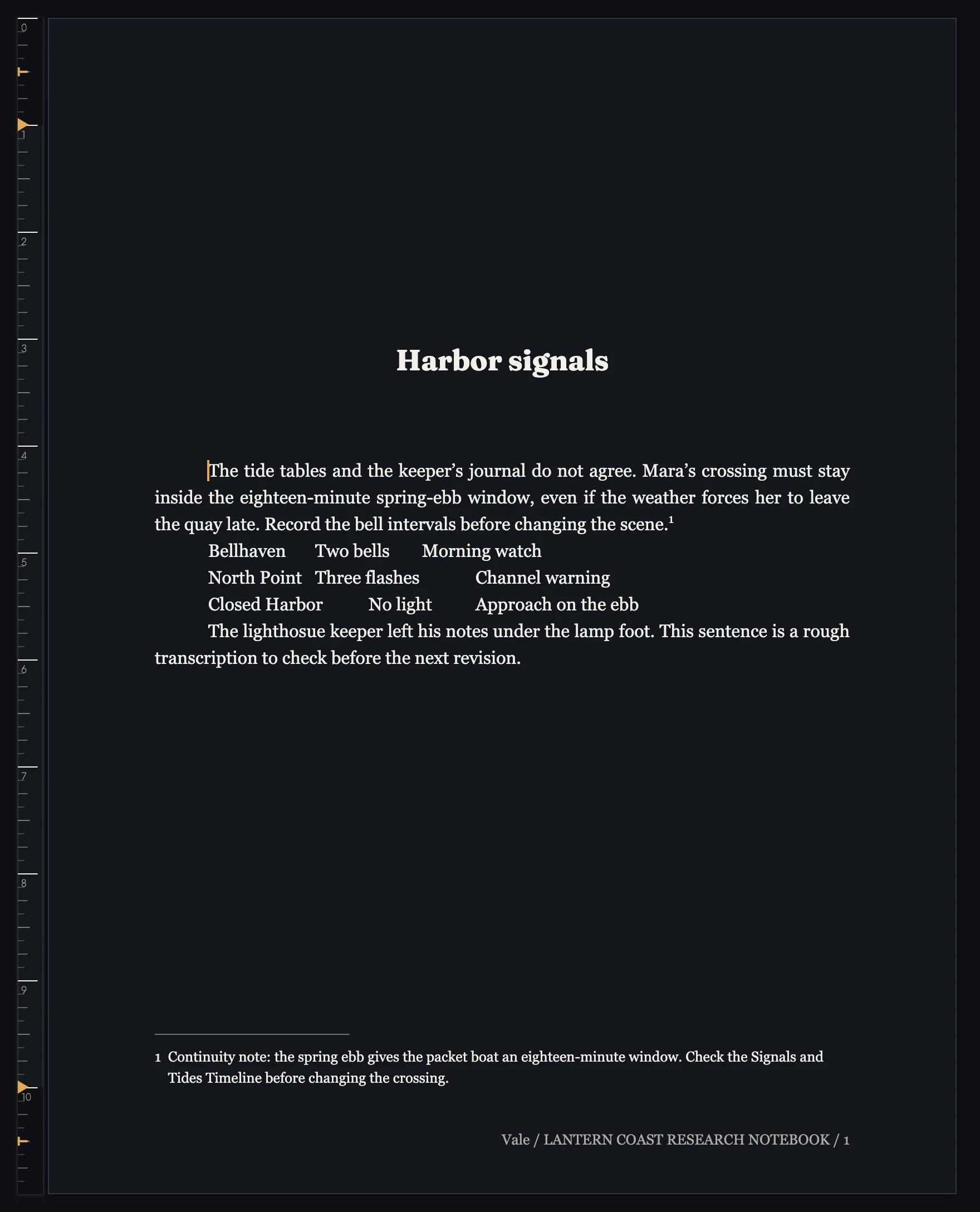
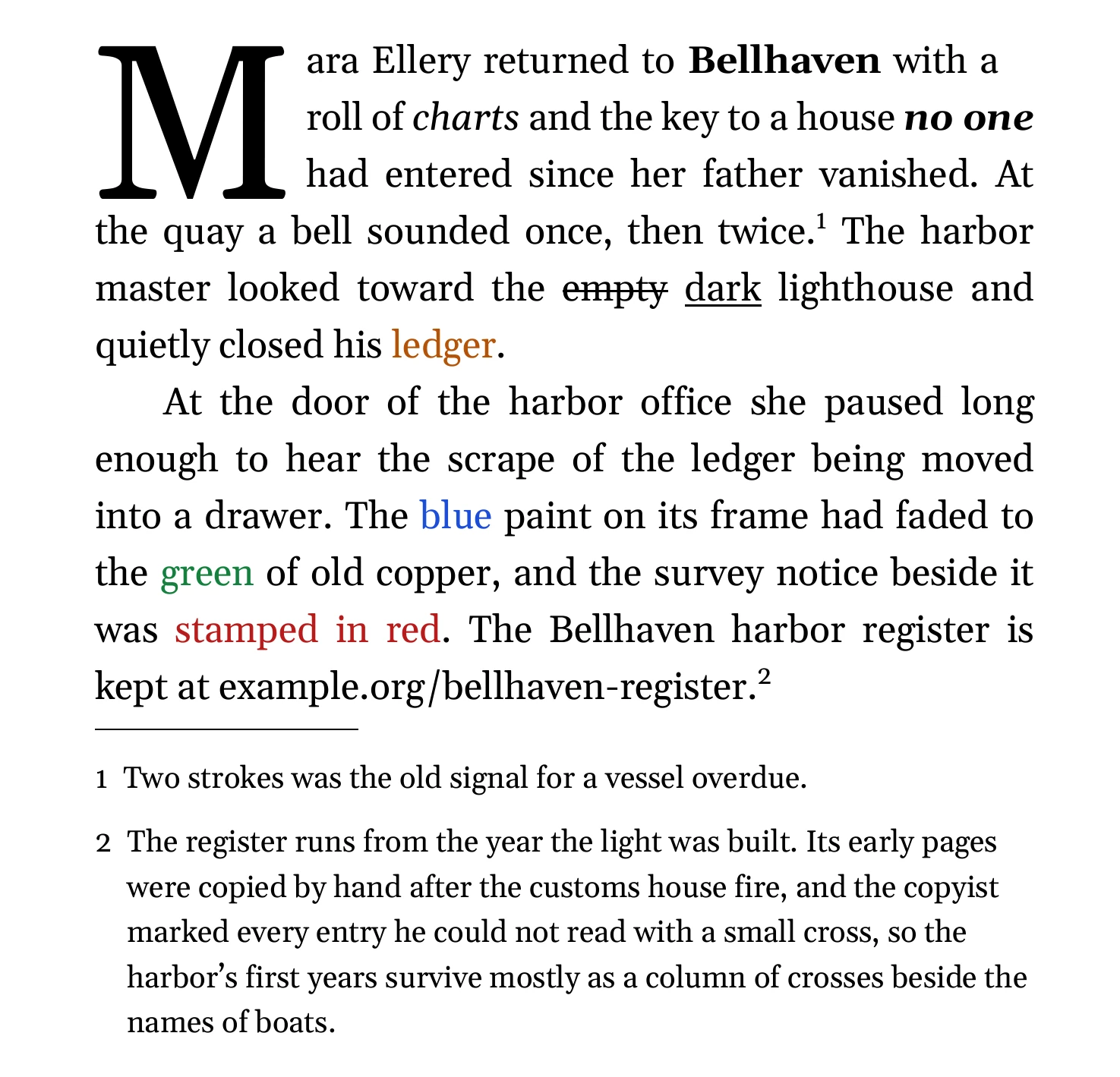
Place the caret in a paragraph or Block Quote and choose Insert Footnote in Text formatting or the right-click menu. You can also use Command + Option + F on Mac, or Control + Alt + F on Windows and Linux. With words selected, the note goes at the start of the selection and the words stay put.
Headings, Scene Breaks, ornaments, and matter pages cannot hold Footnotes.
The caret moves straight into the new note at the foot of the page, and you type it there, under the text it belongs to. Return starts another paragraph of the same note. A note takes bold, italic, underline, and links to web addresses; Tabularia refuses other formatting and says so.
To get back to the prose, press Escape or click the note’s own number, and the caret lands just after its reference. Clicking a reference does the reverse, putting the caret at the end of its note. Footnotes cannot contain other Footnotes.
Footnotes number themselves in reading order, including after cut and paste. On designed pages, a note appears below its reference’s page and continues to the next page if needed.
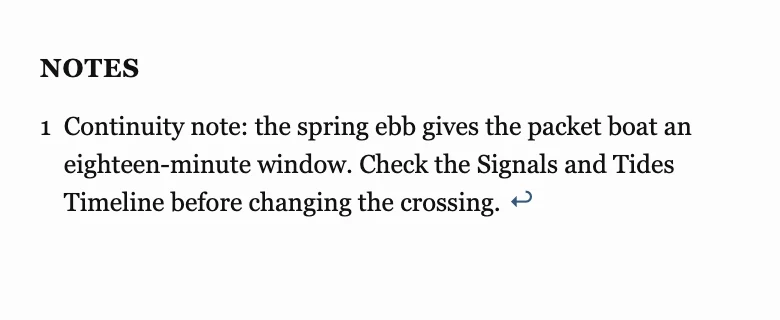
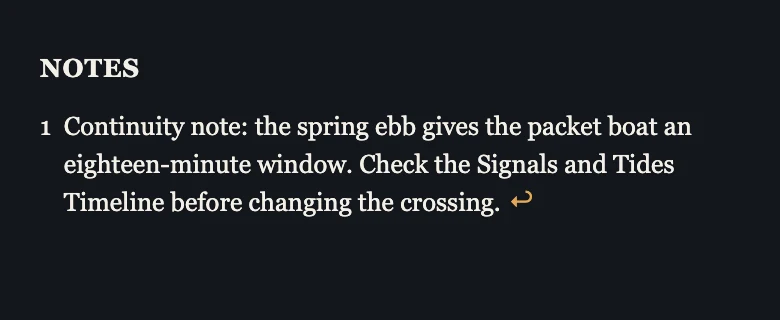
In phone or unpaginated view, Notes follows each Chapter. Tap a reference to visit its note, then ↩ to return. Tap the note’s words to edit them.
Backspace or Delete beside a note number selects it first. Press again to delete the reference and note; Undo restores both. Empty notes delete on the first press, and Backspace inside an empty note removes it and its reference together.
In review, an added Footnote is a tracked insertion. Accept keeps it; Reject removes it. A reference marked for deletion is temporarily excluded from numbering until that deletion is rejected. See Review.
How notes look is a choice each Book makes once, in Project Settings, in the Footnotes part of Headers & Margins:
- Marker: Arabic numerals, lowercase Roman numerals, or the symbols *, †, and ‡.
- Start counting again: at each Book (which is where a Book starts), at each Chapter, or never, for one count through the whole Manuscript.
- Line above the notes: a short rule, a rule the full width of the text, or none.
- Space between notes and Note text size, the second a share of the body text's size from 55 to 100 percent.
Each export writes notes in the form its readers expect, and Exporting sets that out format by format. Notes in a file you import come in as Footnotes, from Word and Markdown to EPUB, as Importing describes.
4. Block styles
Block styles are how prose becomes structure. Alongside paragraphs, four heading levels, and the block quote, two styles matter more than they look:
- Chapter Heading starts a chapter. The chapter then exists everywhere Tabularia shows structure: the Outline, the timeline drawer, navigation, and exports.
- Scene break ends one scene and starts the next, and can carry a decoration from your Book Decorations.
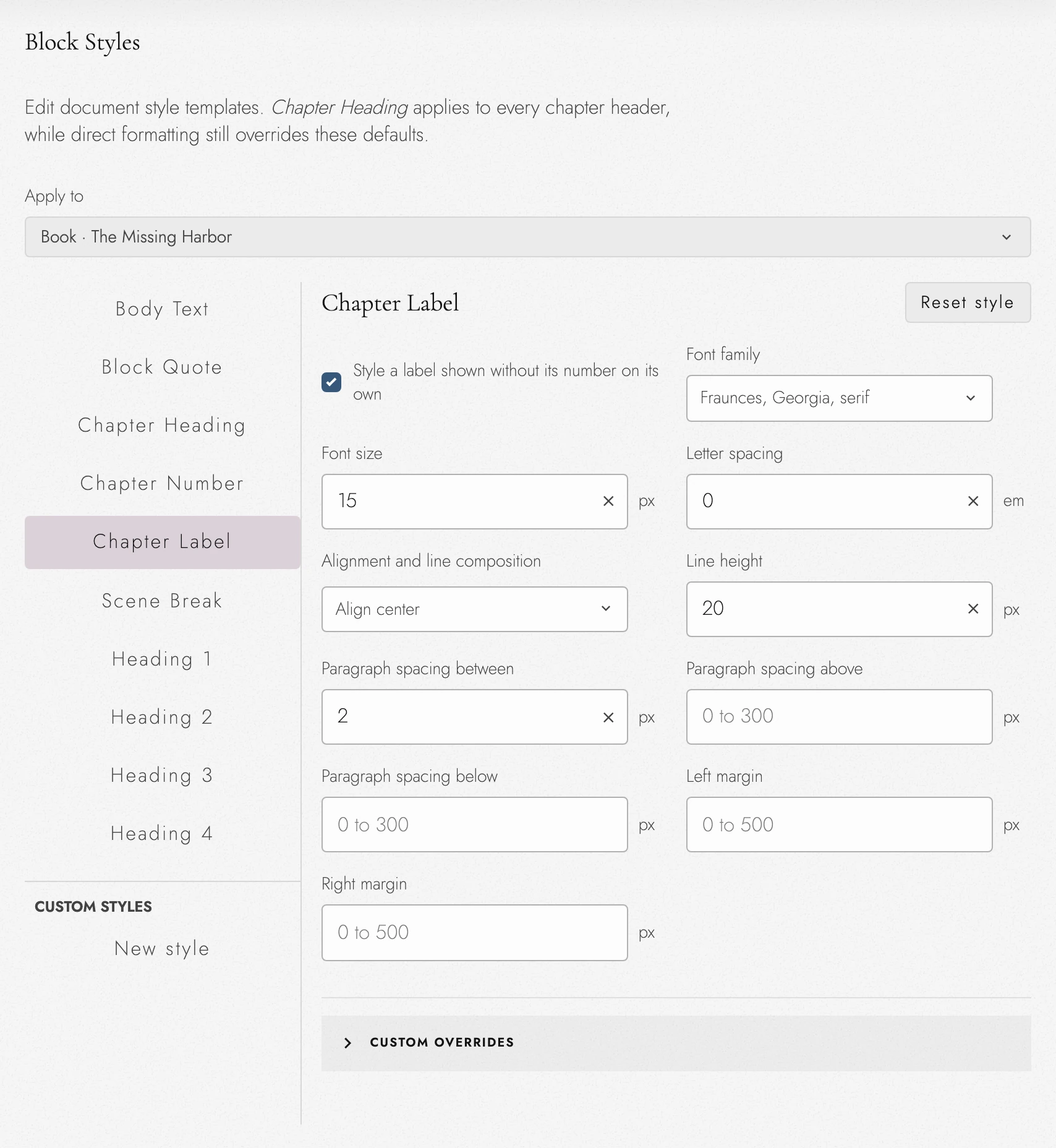
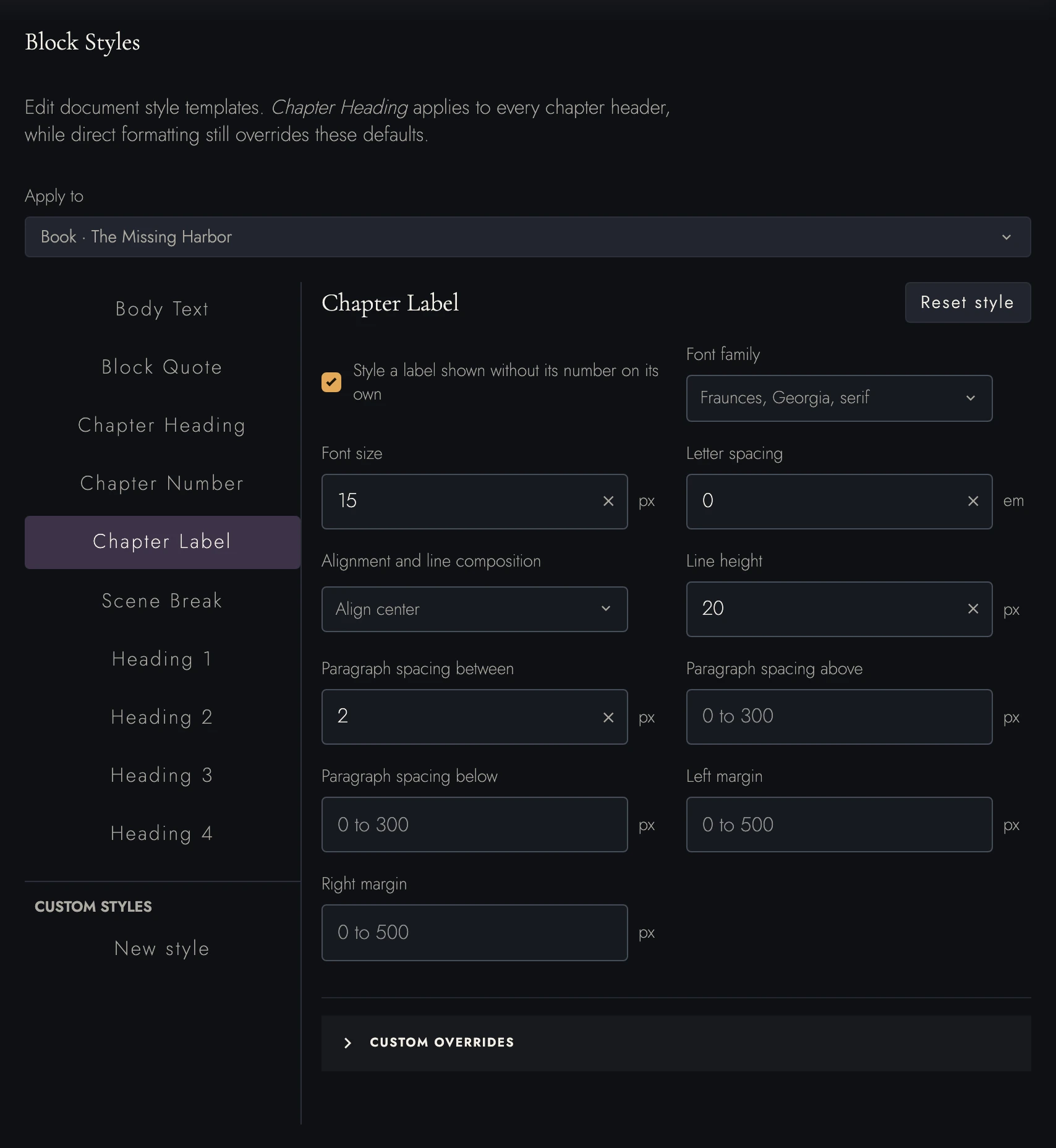
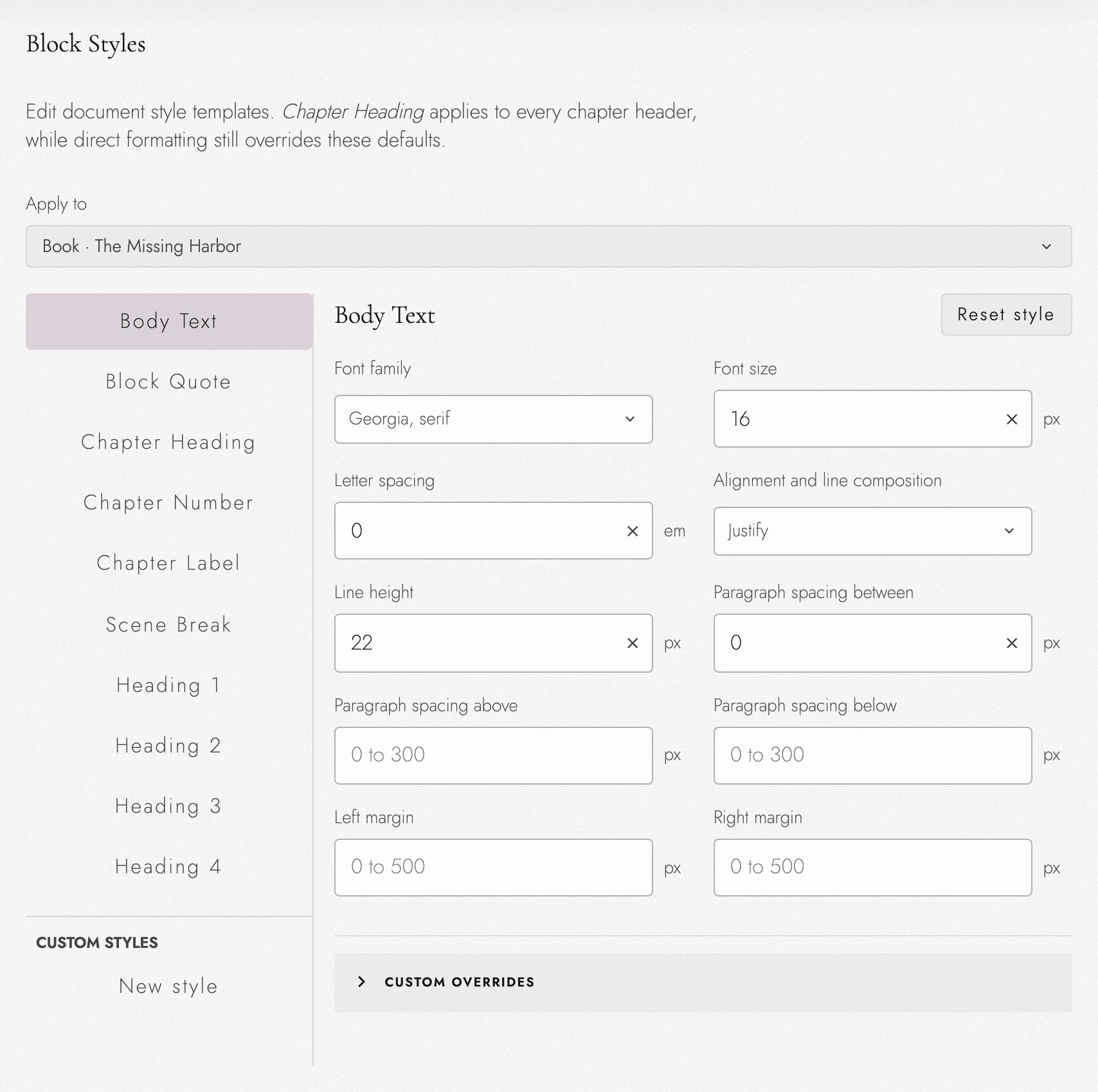
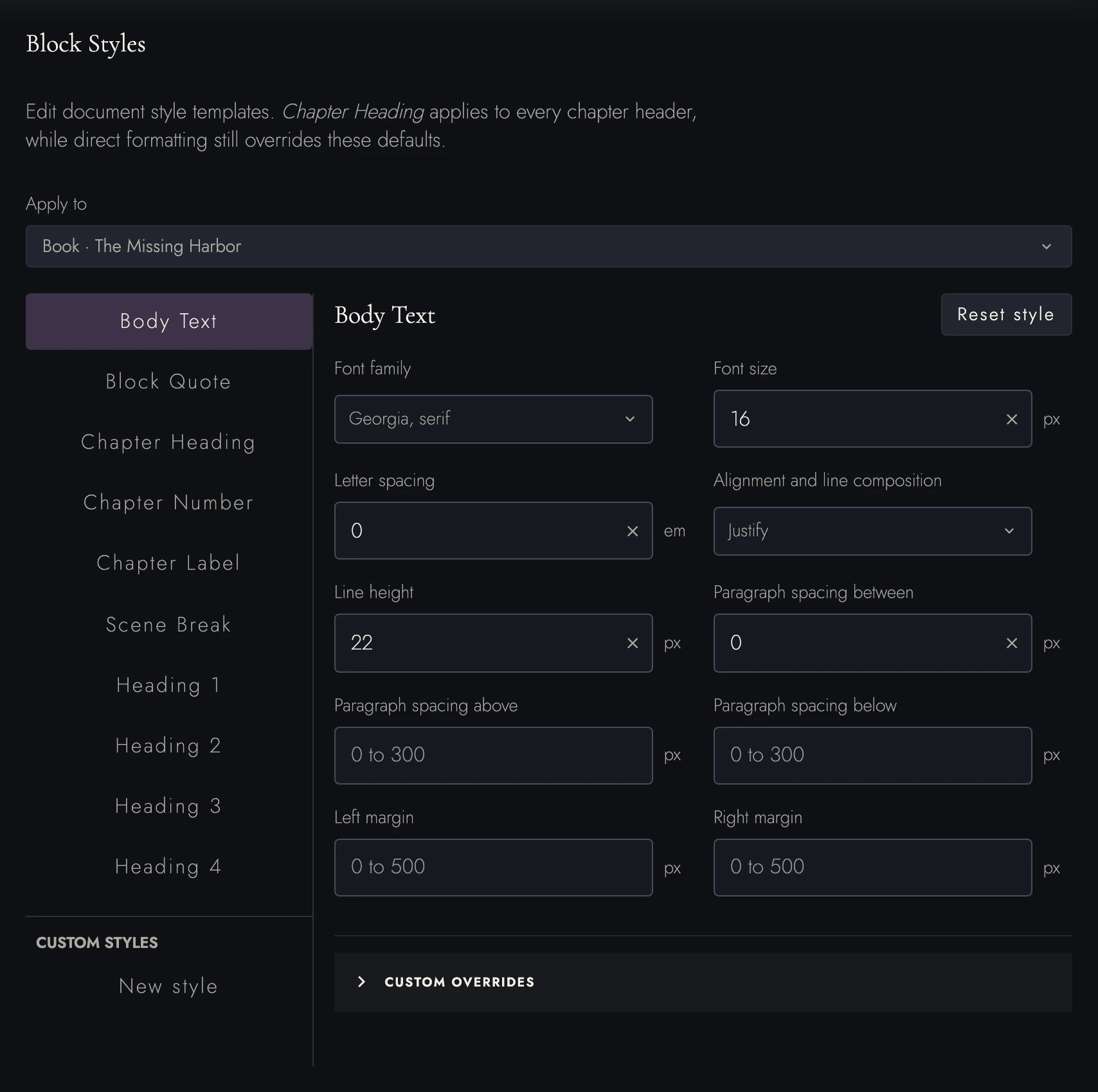
Set built-in style defaults in Project Settings → Block Styles. In a Series, check Apply to: the current Book is selected first, or you can choose shared Manuscript defaults. Books with their own style keep it until you choose Use this style in every Book.
Custom named styles are shared within the Project. See Block Styles settings for reset and formatting-cleanup scope.
Bold with the caret in a Chapter heading changes the whole line. Press again to remove it. That weight is preserved in exports and published pages.
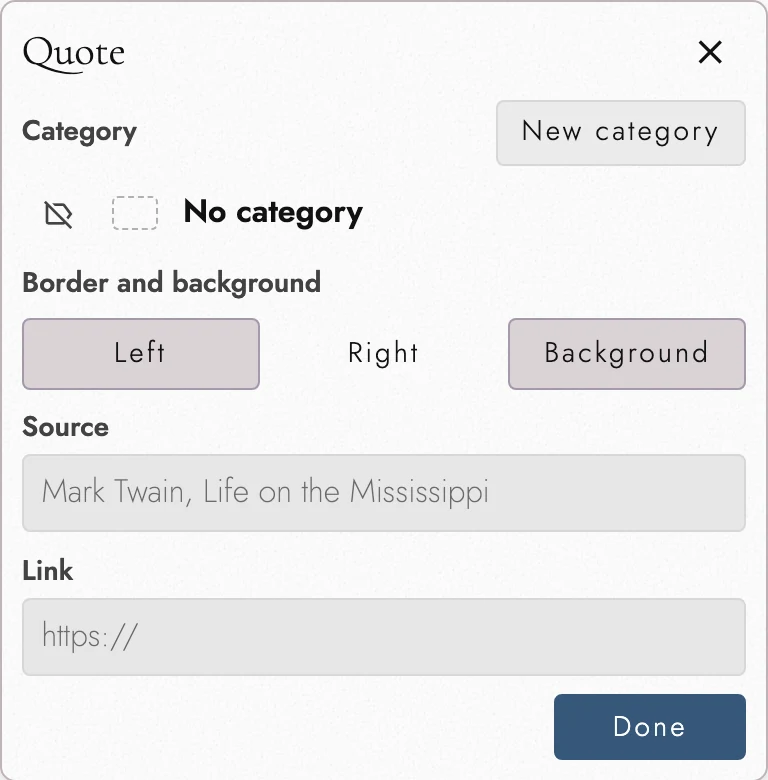
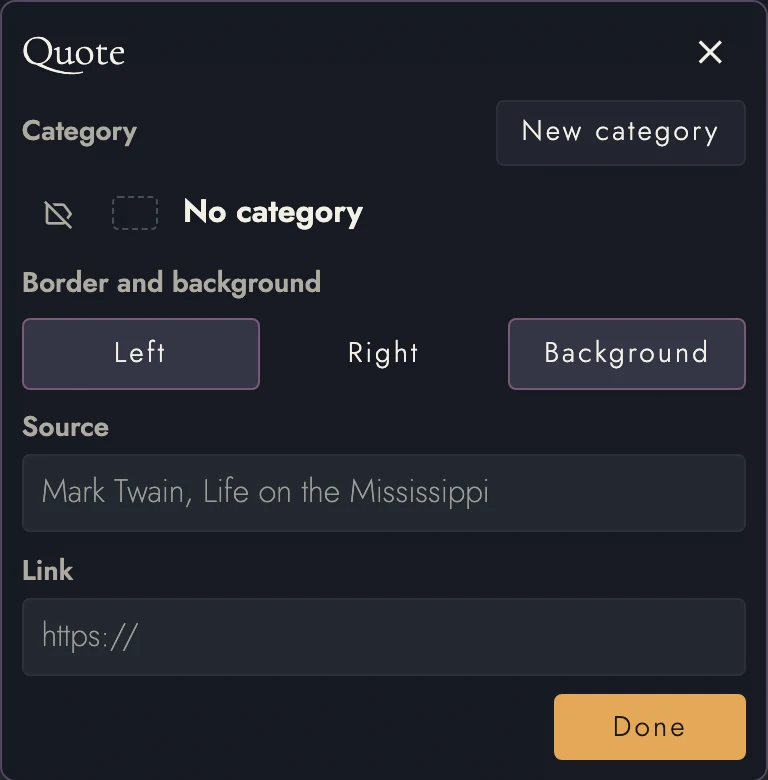
A Block Quote can span several paragraphs. Open Quote settings from its margin button, border, or right-click menu. Changes save immediately; Done closes the menu. Its settings are:
-
Categories say what kind of source this is: scripture, a critic you are
answering, a friendly authority. A category covers every paragraph of the quote at once.
Click a name to file the quote under it, or No category to take it out. The same list is
where the categories themselves are kept:
- Press New category, beside the Category heading, to add one, its name ready to type over.
- Double-click a name, or press F2, to rename it in place.
- Click its swatch to recolor it.
- Drag a row up or down to reorder.
- Delete it, which leaves its quotes standing, just uncategorized.
- Left and Right toggle colored borders independently. Background adds a wash using the category’s color, with or without borders. Turn the wash off for printing.
- Source is who or what is quoted: an author, a book, an article. It becomes the quote's last line, set right after a dash, and it is ordinary text from then on. You can edit it in place, and it counts and publishes like the rest.
-
Link is optional and comes into play once there is a Source. Type the
address as you would for any link:
example.com/essayis taken ashttps://, and a typedhttp://is kept. The Source line is then underlined as a link on the Canvas, and it is the link wherever the quote is published.
5. Selection or Block Style
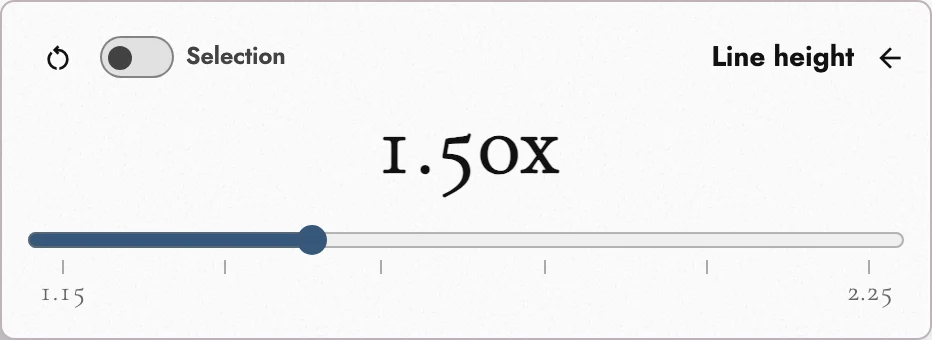
Formatting menus have a scope switch: Selection or the current Block Style. Check it before changing a font, alignment, or spacing.
Selection changes only selected text. Style · Body Text, for example, changes the style default. The switch names its target and is shared across formatting menus. Tabularia remembers your choice.
The button beside the switch changes meaning with it. On Selection it clears that formatting off the passage. On Style it returns the style to what Tabularia ships. It steps aside entirely for a style of your own, which has no shipped default to go back to.
Select All selects the Book section containing the caret, not the whole Manuscript. Matter and body sections are separate.
To clear paragraph formatting overrides, open Project Settings → Block Styles. Set Apply to, then clear overrides for the selected style or all styles. The confirmation names the scope before removing formatting.
6. Styles of your own
Create from paragraph… saves the caret paragraph’s formatting as a named style. It then appears in the Block Style menu. Use Manage styles… to rename or remove custom styles.
Create custom styles for writing that needs them, such as verse or screenplay dialogue. Basic Screenplay already includes the screenplay styles.
7. Writing a script from the keyboard
In a screenplay you rarely need the style menu. Return and Tab choose the next element for you, the way dedicated screenwriting apps do.
Press Return at the end of a line and the new line becomes:
- Action after a Scene Heading, and after Dialogue.
- Dialogue after a Character cue, and after a Parenthetical.
- Scene Heading after a Transition.
- More Action after Action.
Tab on an empty line changes what it is. It moves from Action to Character to Transition, then back to Action. In a speech, Tab at the end of a Dialogue line opens a Parenthetical below it, and Return after the Parenthetical goes back to Dialogue. Tab never indents a script line, since each element already sets its own margins.
Scene Headings, Character cues, and Transitions are typed in capitals whether or not Caps Lock is on. Text you paste, or a line you restyle from the menu, keeps the case it had. Undo right after Return or Tab gives back the element the line had before.
As you type a Character cue, a short list under the cursor offers the names your script already uses as cues, most frequent first. A Scene Heading offers INT., EXT., and INT./EXT. for its first word, then DAY, NIGHT, CONTINUOUS, and the other times of day once you type a space, a hyphen, and another space. Tab or Return takes the highlighted suggestion and leaves you on the same line, so press Return again to move on. The Up and Down arrows pick a different one, and Escape puts the list away until you type again. Once you have typed a whole name, Return simply ends the line.
8. Typography and layout
Typography sets text size and spacing. Text formatting sets styles, fonts, and alignment. Zoom changes only screen size. Page presets changes the paper format used for layout, print, and export. See exports.
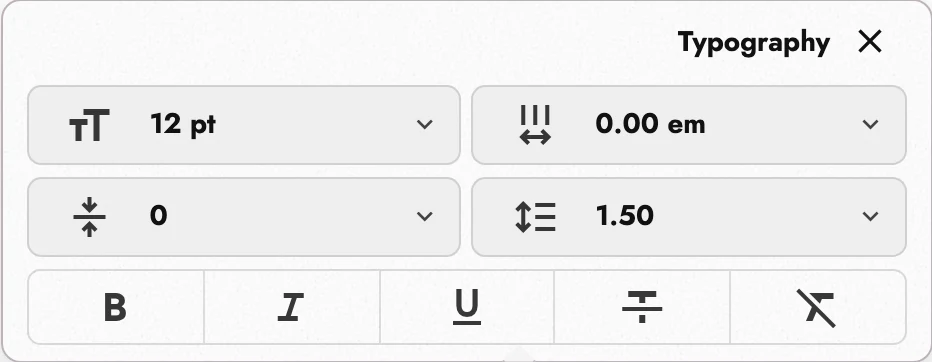
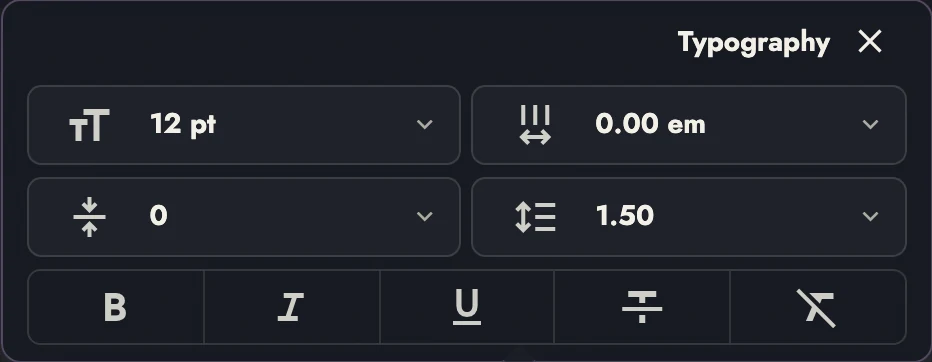
In Typography you will find:
- Font size, in points.
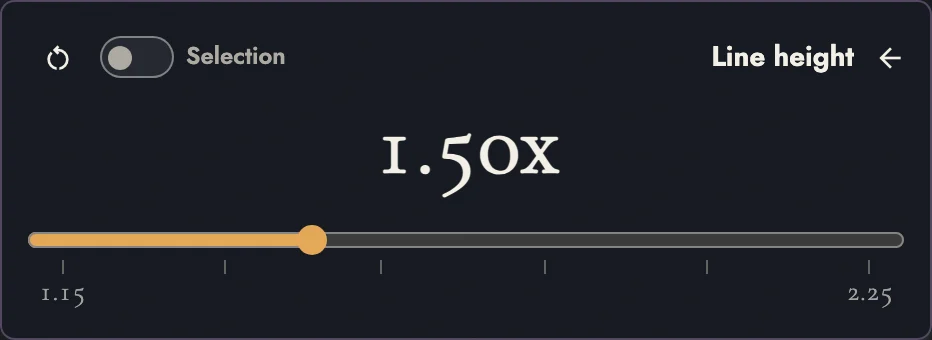
- Line height, from 1.15 to 2.25 times the type size.
- Paragraph spacing, the extra space between paragraphs, from none to 2.
- Letter spacing, from a touch tighter than normal to wide, which suits display lines and small capitals.
- Bold, Italic, Underline, and Strikethrough.
- Clear inline styles, which takes the formatting you added off the selection and leaves its Block Style as it was.
The three spacing sliders obey the Selection or Block Style switch, so a drag can reach one passage or every paragraph in that style.
Opening quotation marks hang into a paragraph’s indent automatically, keeping dialogue aligned with other text. Flush paragraphs and Drop Caps do not change. Print and PDF preserve this placement.
9. Typefaces on every device
Included fonts keep layout consistent across devices. Georgia and Cambria use your installed copies where available. Otherwise Tabularia uses Gelasio or Caladea, whose matching widths preserve line and page breaks.
Four faces that usually arrive with an imported manuscript now travel the same way. Each is drawn from your device where it is installed, and from a look-alike on the same widths where it is not:
- Times New Roman is backed by Liberation Serif.
- Arial is backed by Liberation Sans.
- Courier New and Courier are backed by Courier Prime.
A few things follow from that, and they are worth knowing before a project moves between machines:
- A handful of rarely used characters (µ, a cedilla on its own, and fractions like ½) are a hair wider or narrower in the open faces, and Gelasio lacks some accented letters Georgia has. A line carrying them can break differently on a device without Georgia.
- Cabin takes the place of Gill Sans, which has no open equivalent on its widths. A manuscript set in Gill Sans before the change is now set in Cabin everywhere, and its lines break a little differently than they used to.
Some fonts, including Helvetica and Palatino, have no matching-width substitute. A device without them uses another font, which can change pagination. Tabularia explains the substitution:
- In the font menu, a face like that is marked Only on this device.
- When a manuscript opens on a device that lacks the face, a notice names it and says what is drawn in its place. It appears once for each project on that device.
- The notice carries a button (Replace with Arial for Helvetica, Replace with Lora for Palatino) that sets the whole manuscript in the nearest face that does travel, chapter openings and drop caps included. One Undo puts the old face back.
- A PDF cannot carry the face either. Before the file downloads, the export dialog lists each face it replaced and the one that text is set in instead.
View dark appearance
10. Page presets
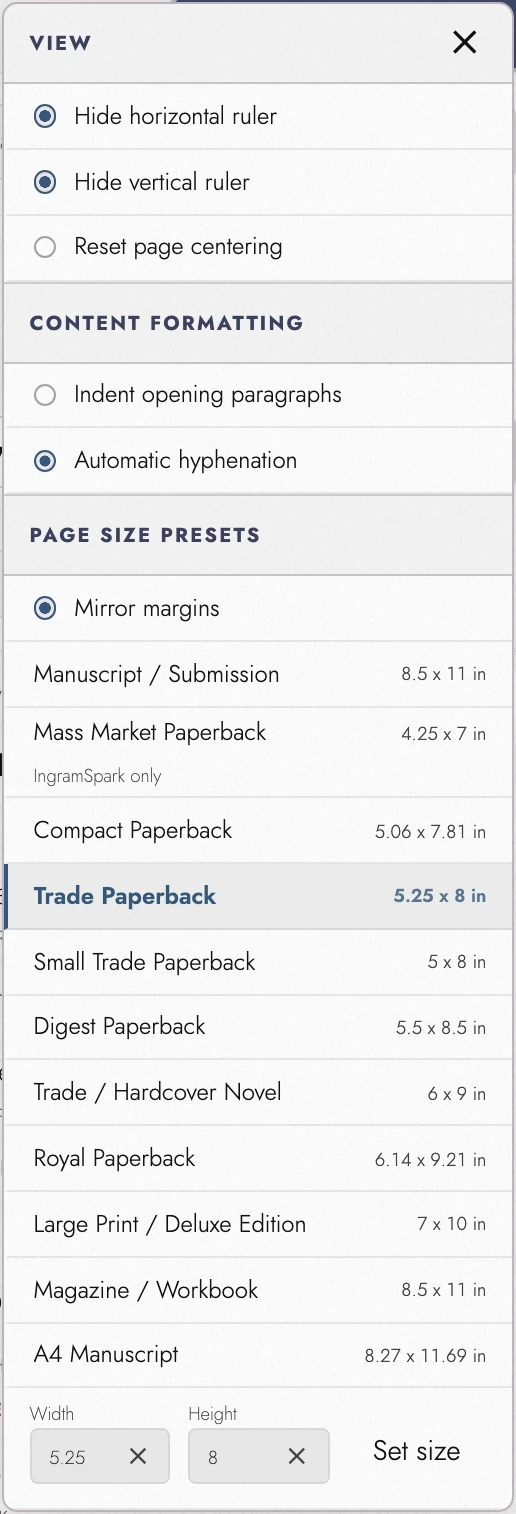
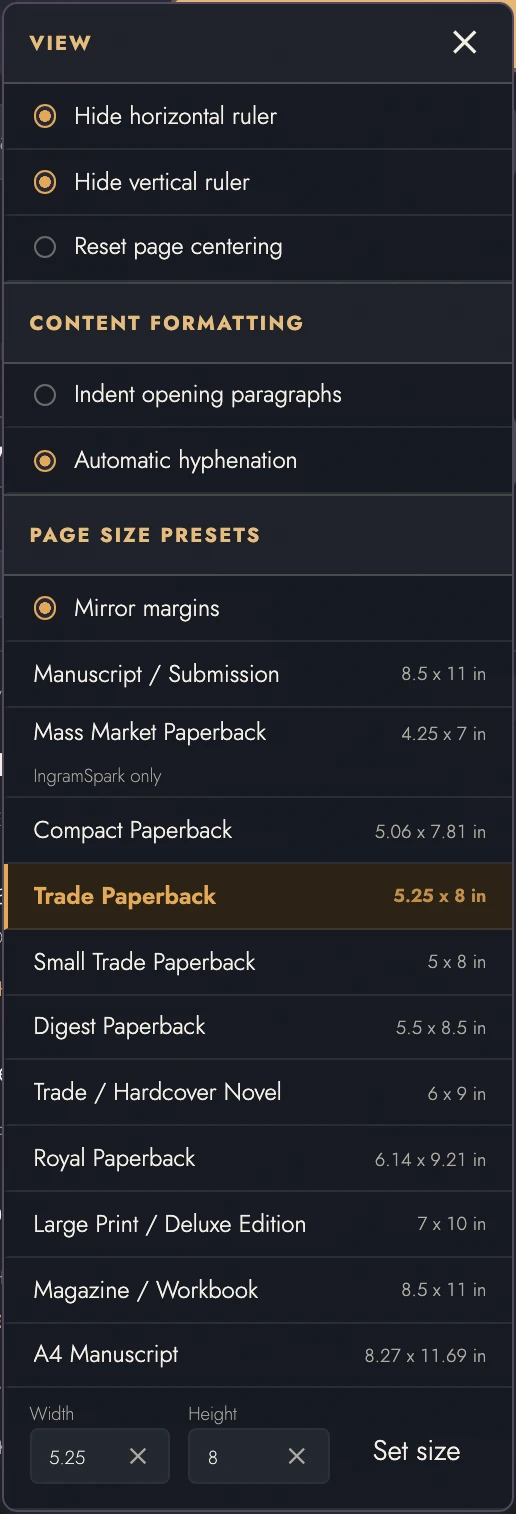
Page presets, from the button in the bar above the page, is where the page format is set in one press. Manuscript / Submission and A4 Manuscript are the two submission shapes, and Magazine / Workbook is a wide page. The rest are book trims, each carrying the margins that go with it:
- Mass Market Paperback, 4.25 by 7 inches
- Compact Paperback, 5.06 by 7.81
- Small Trade Paperback, 5 by 8
- Trade Paperback, 5.25 by 8
- Digest Paperback, 5.5 by 8.5
- Trade / Hardcover Novel, 6 by 9
- Royal Paperback, 6.14 by 9.21
- Large Print / Deluxe Edition, 7 by 10
For a custom size, enter Width and Height and press Set size. Width can run from 4 to 12 inches and height from 7 to 18. Existing margins stay. A ruler drag creates a Custom entry showing the new measurements.
Content formatting controls two Book choices:
- Indent opening paragraphs applies or removes the body indent at the opening and after Chapter headings or Scene Breaks. Book trims default to flush; submission presets indent.
- Automatic hyphenation breaks long words across lines to reduce spacing gaps. The setting travels into print, PDF, and publication.
View, at the top of the menu, is the screen-only part: hide either ruler, and put the page back in the middle when you have slid it aside. The size list comes last, since it is the longest.
11. The rulers
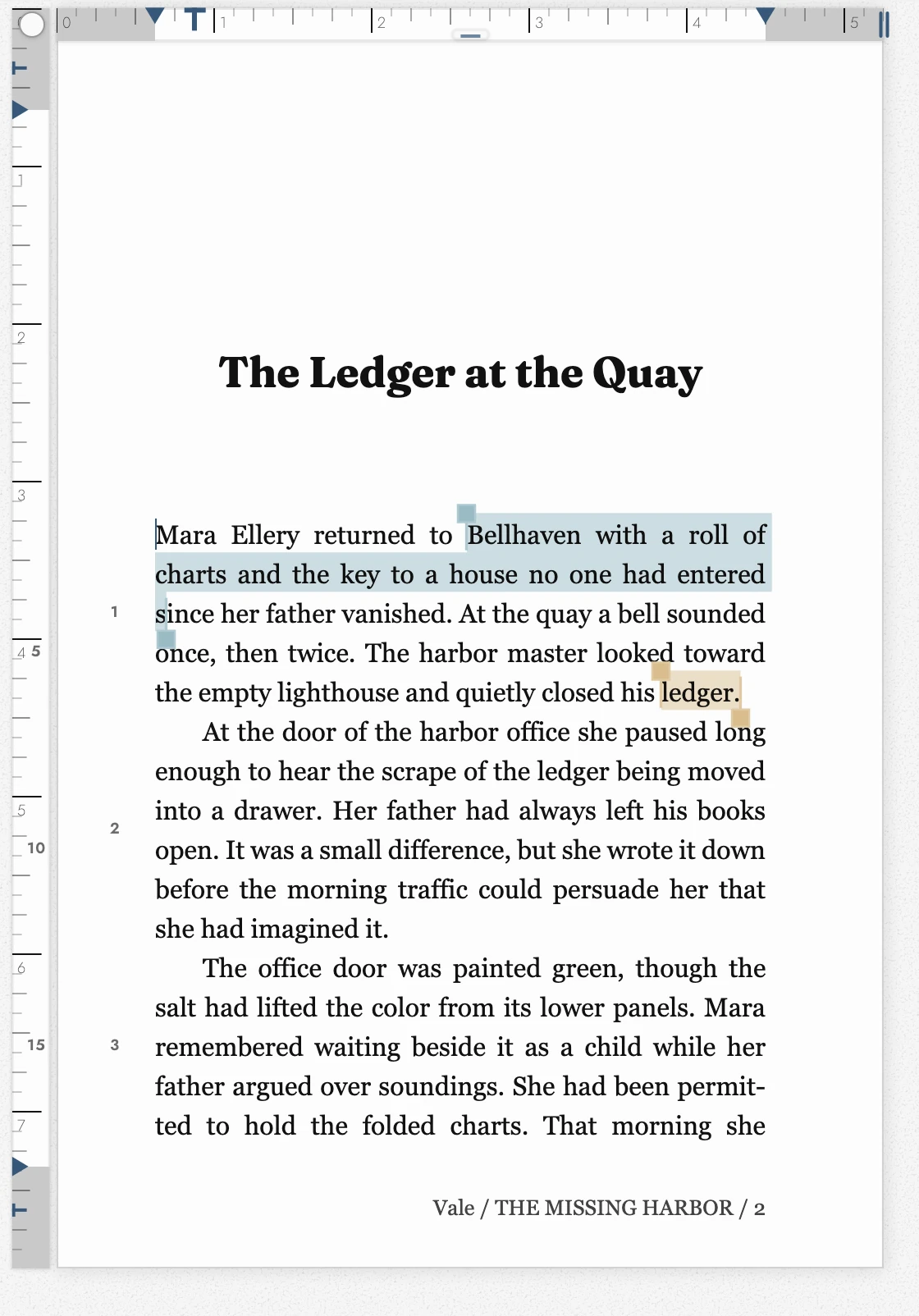
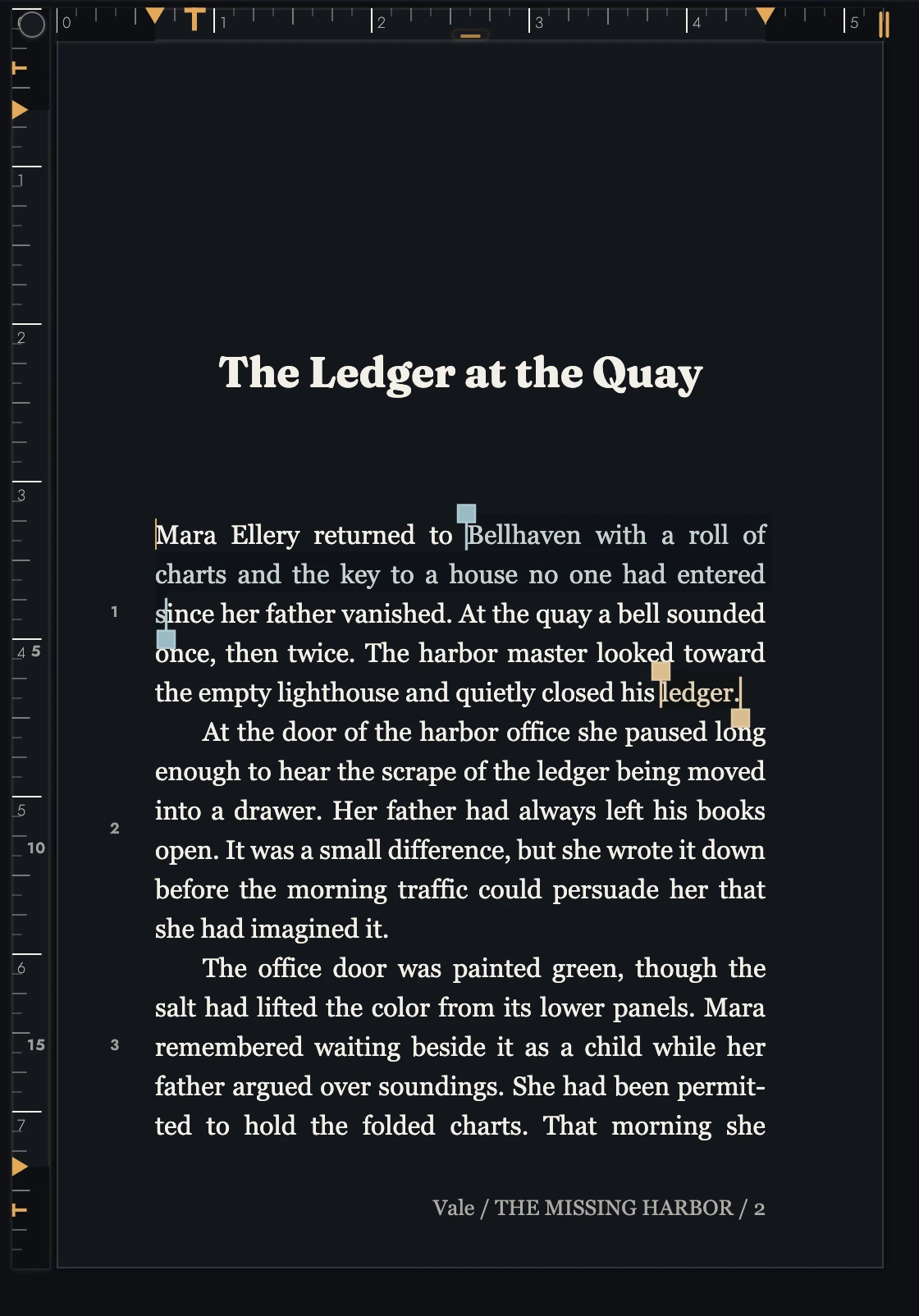
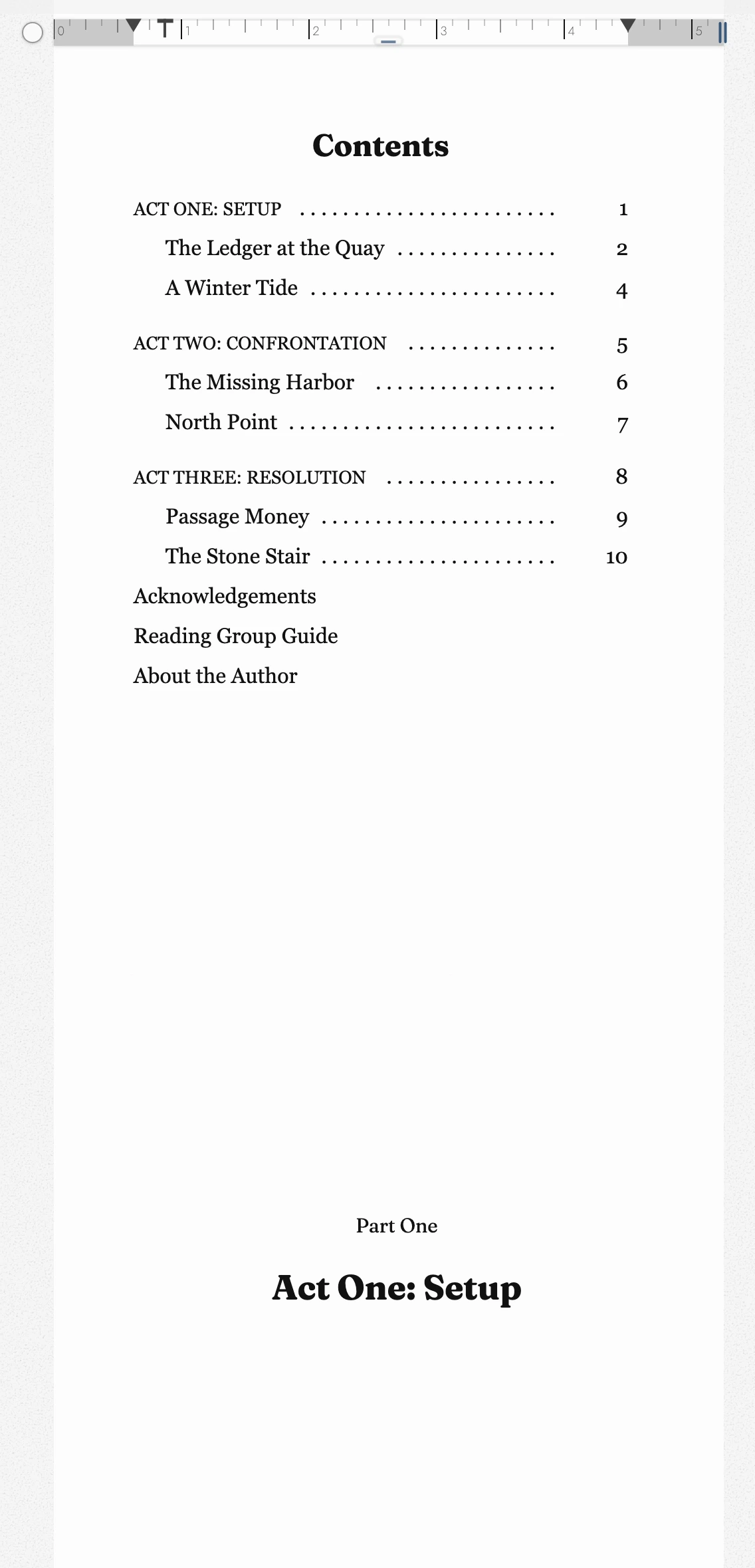
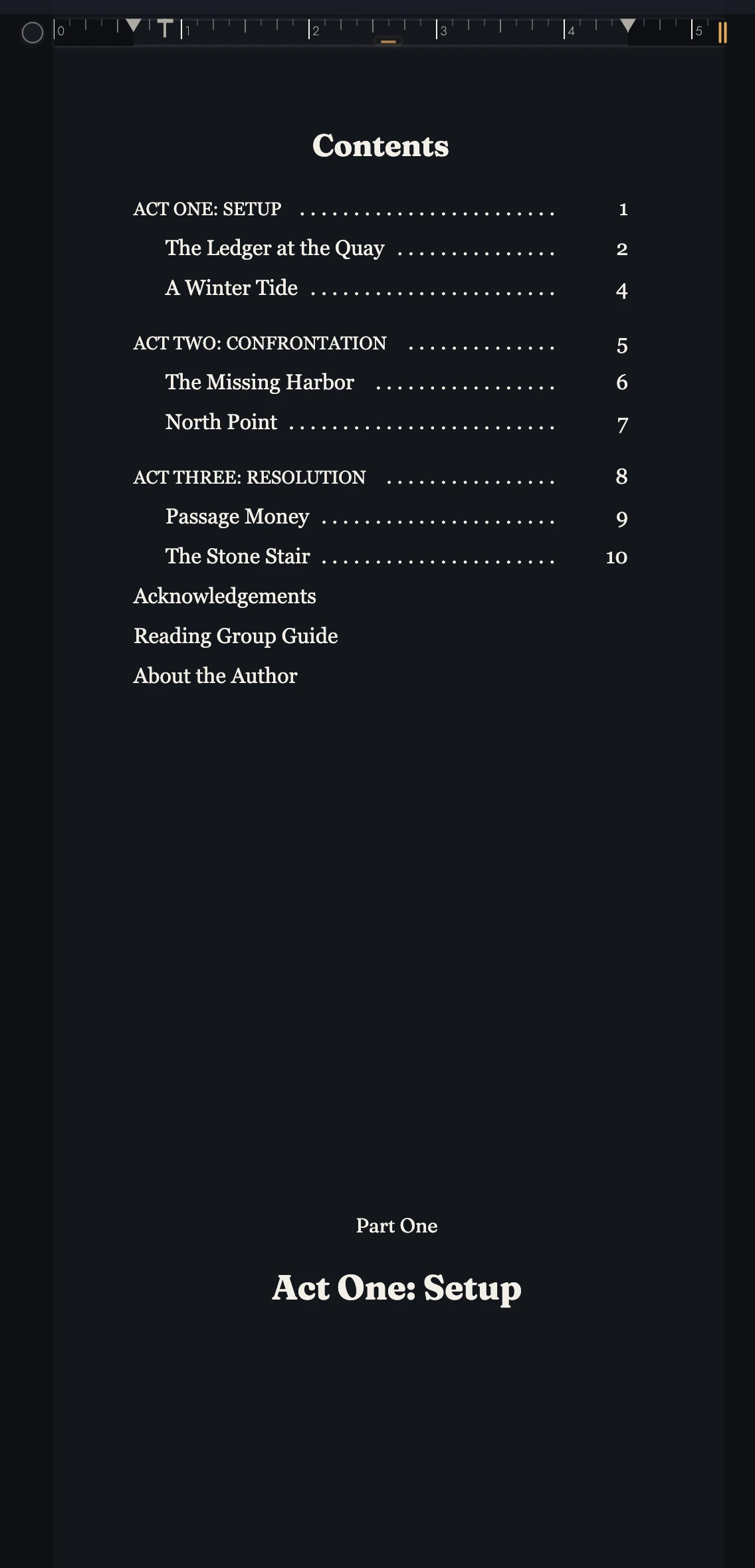
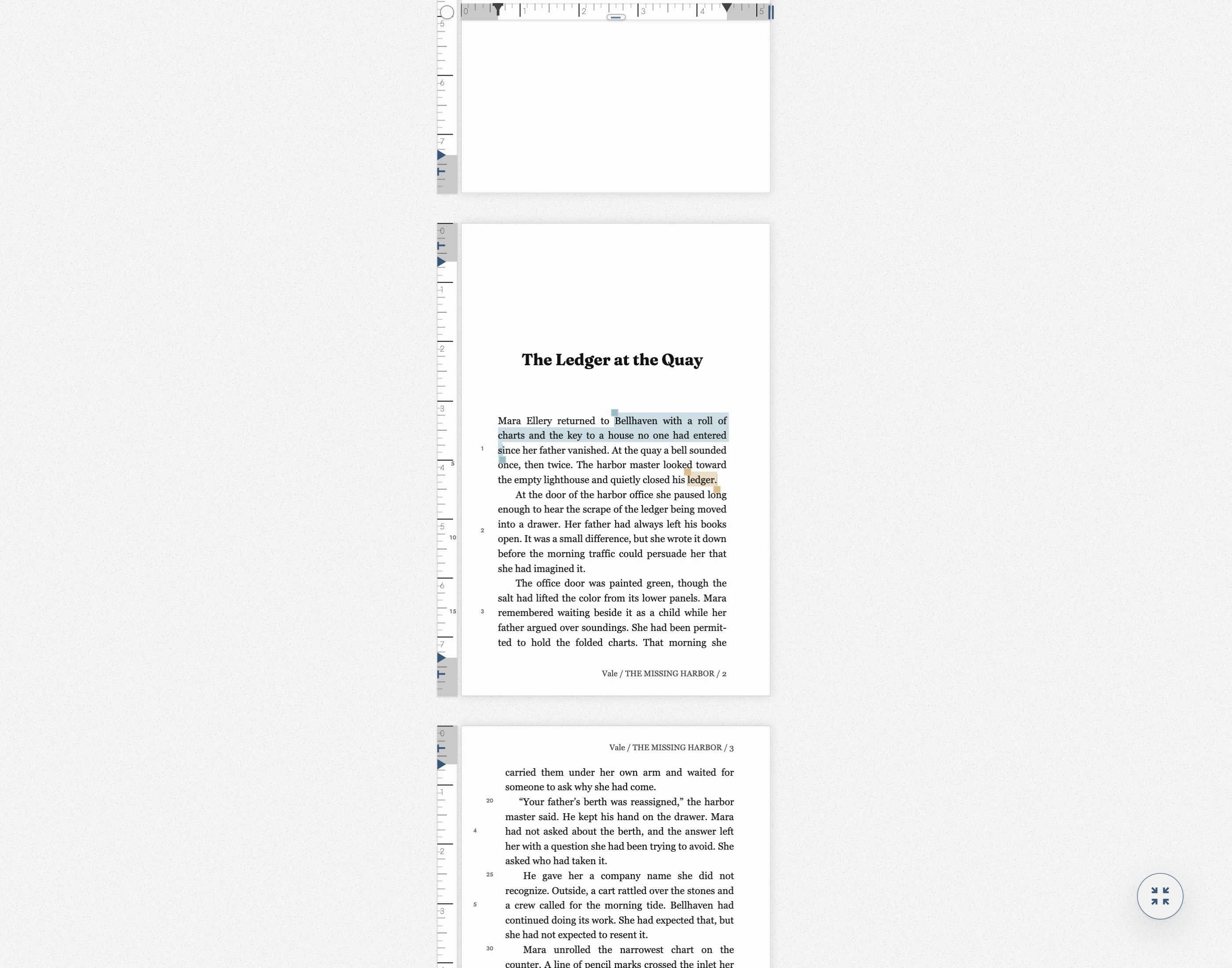
The horizontal Ruler controls side margins, first-line indent, and page width. Its end handle moves the page on screen only. The vertical Ruler controls top and bottom margins, header/footer positions, and the active paragraph’s vertical padding.
The horizontal Ruler’s scope switch decides what a drag changes. Off, the default, edits the caret paragraph or selection; vertical handles edit their page. On, it changes the page format used throughout the Project and in exports.
That is worth knowing the first time a drag appears to do nothing. In local scope the handle is editing the caret's paragraph, so if the caret is somewhere else in the book, the paragraph you are watching will not move. Put the caret in the paragraph you mean first.
If the caret paragraph is off-screen, its margin and indent handles appear muted. They still edit that paragraph; the tooltip names it. In page-format scope, the handles apply to the whole layout instead.
The rulers belong to the designed page, so they are there when pages are — and gone on a phone, where the manuscript is a single continuous column. That, and what else changes, is in Writing on a phone or tablet.
View dark appearance
12. Tabs and tab stops
At the start of a paragraph that already has words in it, Tab works the way it does in Word: it indents the first line one step further and types nothing. A first line goes no further in than half the line, so Tab adds no step past that. Increase indent and Decrease indent take the same step from anywhere in the paragraph, which is how a phone keyboard without a Tab key indents, and each grays out when it can go no further. Because a step is indentation rather than a character, Show invisibles has no arrow for it.
At the start of a body paragraph, Backspace removes indentation before joining it to the previous paragraph. It removes Tab steps first, then the base first-line indent. Each press can be undone. Headings, quotes, and list items keep their usual behavior.
Decrease indent and Increase indent in Text formatting take the same steps wherever the caret stands in a body paragraph, including an empty line. They also work on a phone keyboard without a Tab key. For a left-aligned or justified body paragraph, Return restores the format's usual indent after a flush line.
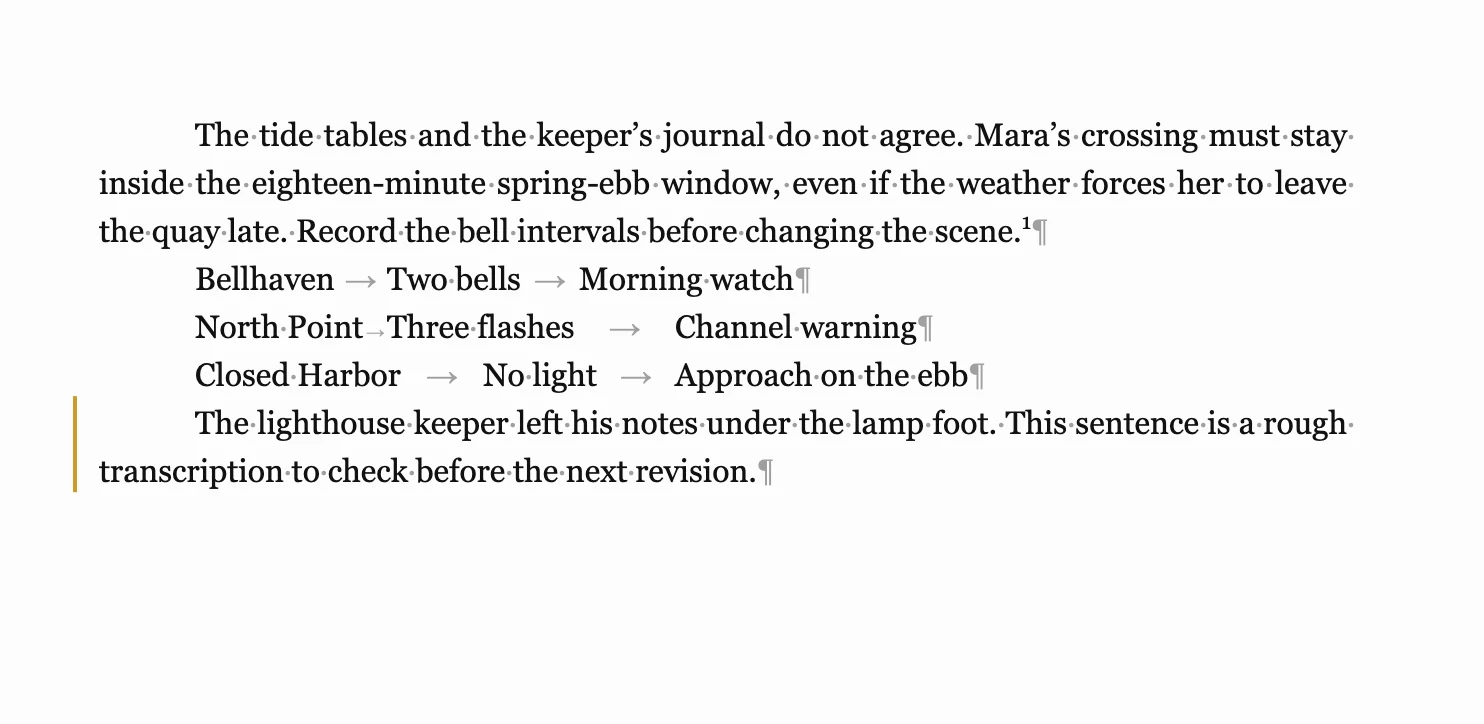
Everywhere else Tab types a tab, an empty paragraph included, and that tab does show its arrow.
Tab stops are every half inch from the paragraph’s left edge. A tab advances to the next stop beyond the indent or preceding text. If the stop is too close, it uses the next one; if none fits on the line, the following words start a new line.
On a justified line with tabs, only words after the last tab stretch to the margin. Earlier text keeps normal spacing. Repeated spaces still collapse visually; tabs preserve a gap.
Every way out of Tabularia keeps the tabs where you set them:
- Print, PDF, and the published page set each word after a tab at the same stop the page shows.
- Word gets real tabs, with the document's default stops set to half an inch.
- HTML and EPUB keep each tab and ask the reader's browser for half-inch stops, which most reading systems honor.
-
Markdown and plain text keep the tab character itself. In Markdown, a tab
that opens a paragraph is written as
	, because a bare one there would turn the paragraph into a code block.
13. Mirror margins
Mirror margins reserves extra space for binding. Right-hand pages have an inner margin on the left; left-hand pages have it on the right. Two Page view starts with a single right-hand page. Text width stays the same on both sides.
Book trim presets enable Mirror margins. Submission and Magazine / Workbook presets use even margins. Turn it on or off yourself with the switch in Page presets, just above the list of sizes; the first page supplies the margin values.
With Mirror margins on and page-format scope selected, Ruler handles control inner and outer margins. A drag updates both facing sides together. In local scope, the handles still edit the caret paragraph’s margins.
Print and PDF follow Mirror margins regardless of your editing view. The PDF printer check uses the inner margin. Continuous-flow Manuscripts have no paired-page margins.
14. When the page is wider than the panel
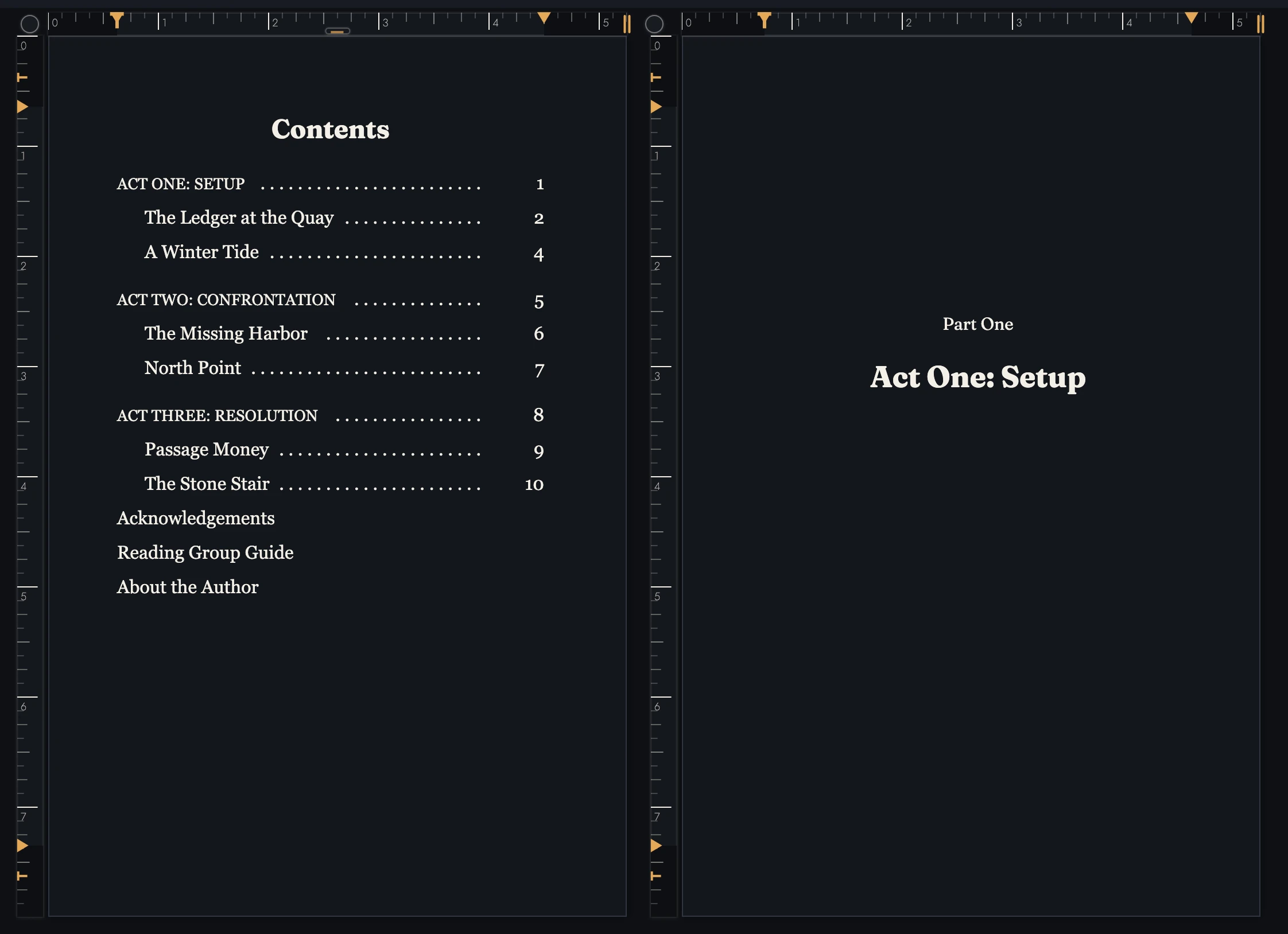
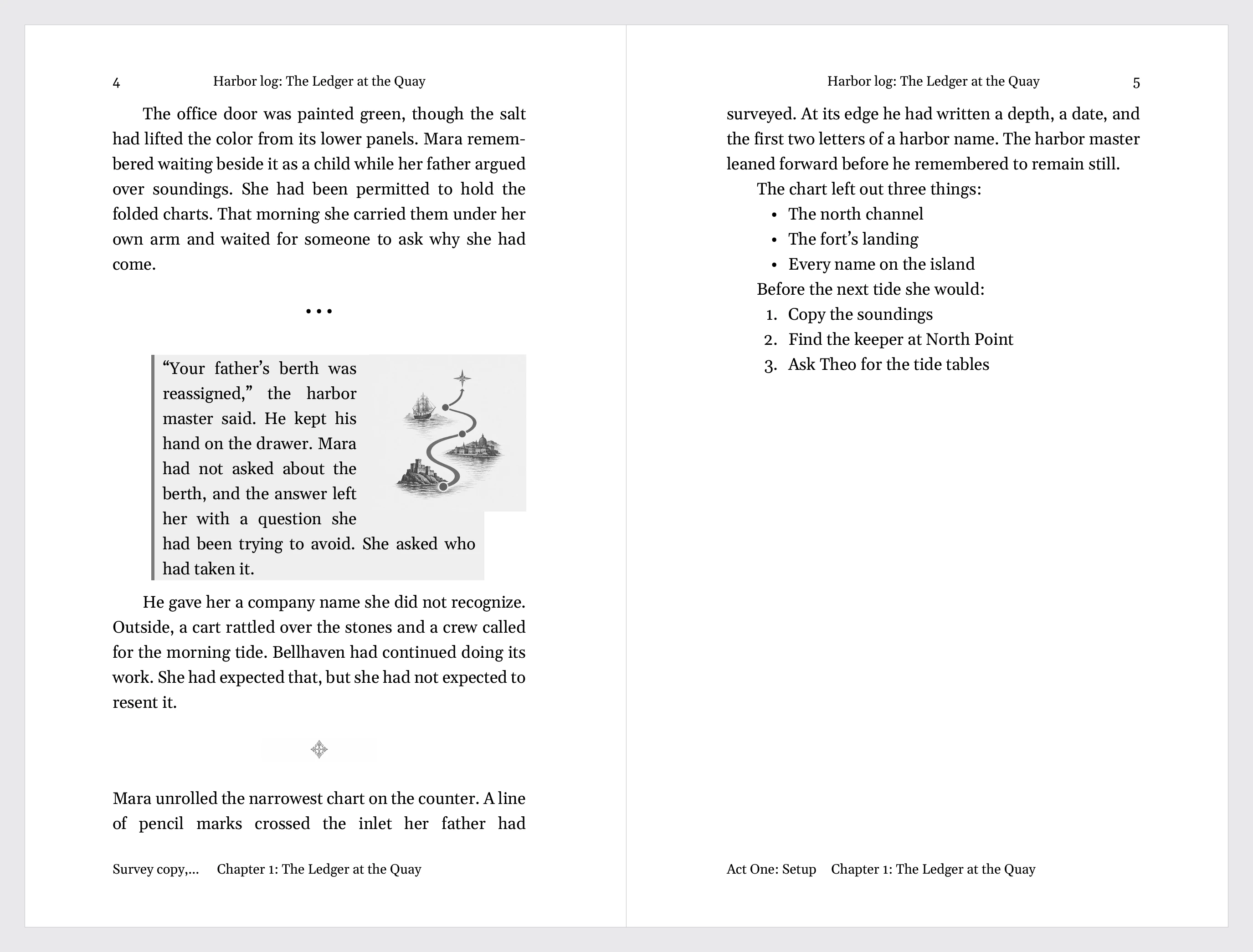
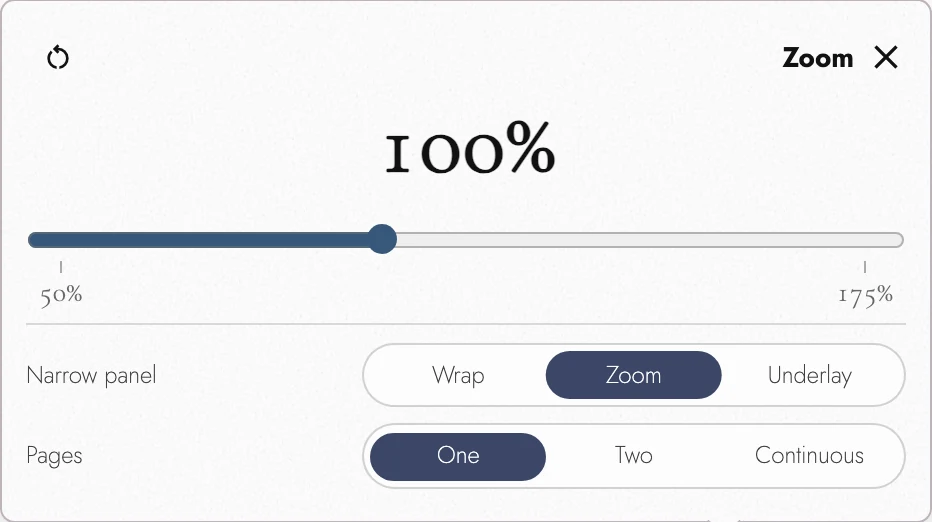
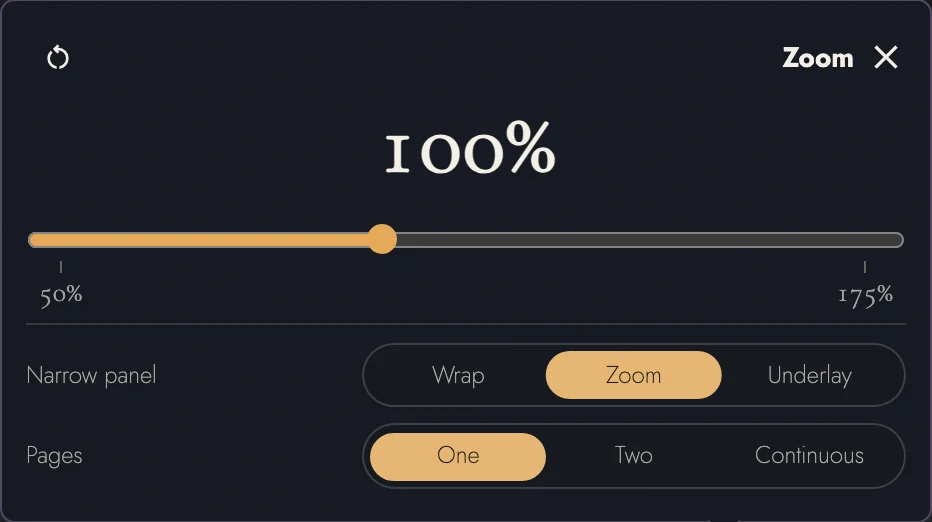
Open the Outline on one side and Drafts & Sharing on the other, and the room left in the middle is often narrower than the page. What happens then is yours to decide. Press the zoom button at the end of the canvas toolbar. Its slider moves in steps of five from 50 to 175 percent, and Reset zoom, beside the title, puts it back at 100. Under the slider, the row labeled Narrow panel holds three answers:
- Wrap keeps the text at full size. The page narrows to fit and its lines break again to suit the new width, so nothing runs off the edge. The line breaks and the page count are then this panel's, not the book's.
- Zoom, the default, shrinks the displayed page without rewrapping. The card reports its fitted size, such as Fit 72%. Your chosen zoom is the maximum: widening the panel grows the page up to that size.
- Underlay leaves the page alone entirely: full width, at your zoom. Whatever does not fit is cut off at the panel's edge, and you scroll sideways to reach it.
Zoom refits the page as available space changes, without rewrapping text. It stops at 25%; if that still does not fit, scroll horizontally.
Any time the page runs wider than the panel, the horizontal ruler scrolls sideways along with it. Each handle stays over the margin it sets.
Narrow panel is a device preference. It changes screen display without changing print or export. Phones always wrap their writing column.
15. Two pages side by side
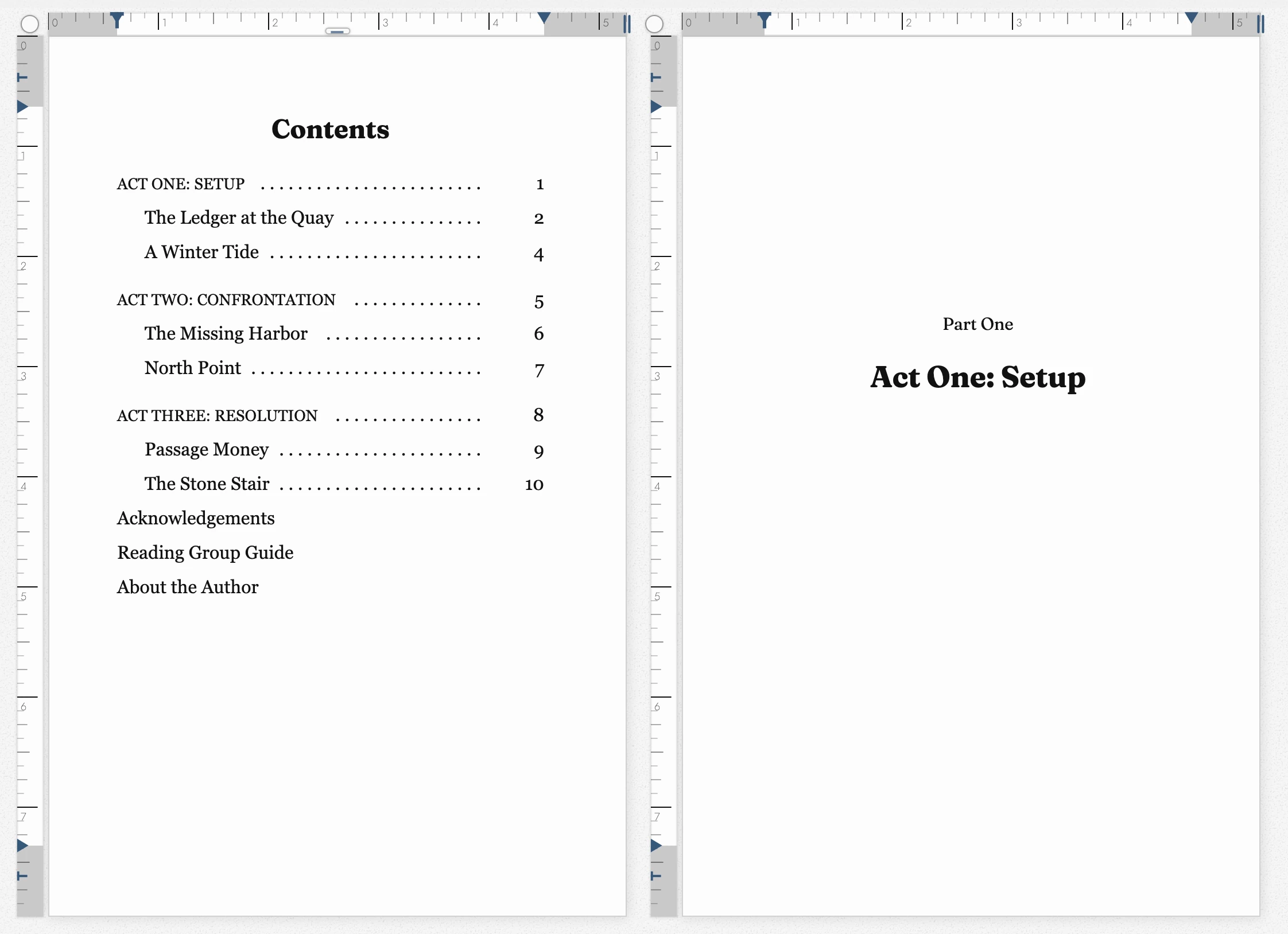
Pages offers One, Two, and Continuous. Two shows facing pages. This choice is saved with the Manuscript’s page format, while Narrow panel stays on this device.
Wrap is unavailable in Two Page view. Zoom fits the pair instead, or Underlay keeps full size with horizontal scrolling. Returning to One restores your Wrap choice.
Each facing page has its own Ruler track and handles. Both copies of the scope switch control the same setting.
16. Continuous pages
Continuous hides page edges, shadows, running headers, and page numbers, joining the writing into a scrolling flow.
Continuous keeps the same line breaks and side margins. Switching back restores pages without changing the text layout or reading position.
The header still reports the page at the top of the view, and pictures keep their assigned pages. The vertical Ruler returns when pages do. Print always uses the saved page format, with its margins and running content.
17. Markdown shortcuts
Enable Markdown shortcuts in Writing Tools to turn typed markers into formatting. The markers disappear after conversion. This browser setting starts off.
-
#to####and a space at the start of a line give Heading 1 to Heading 4.>and a space give a block quote. -
-or*and a space start a bullet list, once you type the first word after it.1.or1)and a space start a numbered list. -
**bold**or__bold__,*italic*or_italic_,~~struck through~~take effect when you close the pair. -
A line of
***or* * *makes a scene break. A line of---,- - -,___, or****makes a divider. Both are converted when you press Return. -
^[a note]creates a Footnote when its closing bracket is typed. A reference such as[^harbor]waits for a paragraph beginning[^harbor]:with its wording. Either may be typed first. Unmatched halves stay literal.
When you want the characters themselves, put a backslash in front of the opening
marker: \*not italic* leaves the asterisks on the page and takes the
backslash away. How the same syntax reads when you import a file, paste, or export is
in Markdown in
Tabularia.
Smart punctuation starts on independently of Markdown shortcuts. It converts -- to an em dash, spaced hyphens to en dashes, and ... to an ellipsis. Undo restores the typed characters.
It leaves pasted text and unspaced hyphens unchanged. With Markdown shortcuts on, opening hyphens wait to see whether you are typing a Divider.
A hyphen with no space around it stays a hyphen, since it may join a compound word. For an en dash in a closed range such as 1914–1918, use your keyboard: Option and hyphen on a Mac, a long press on the hyphen key on an iPhone or iPad, and Alt with 0150 on the number pad in Windows.
18. Writing Tools
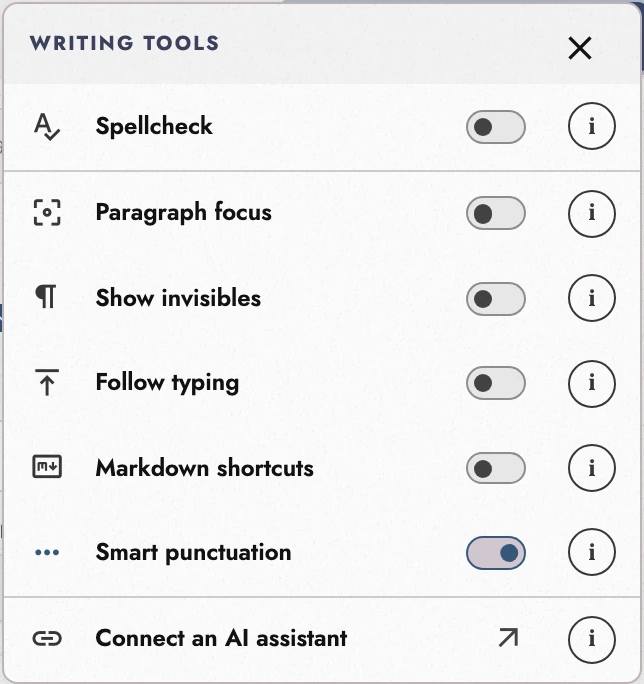
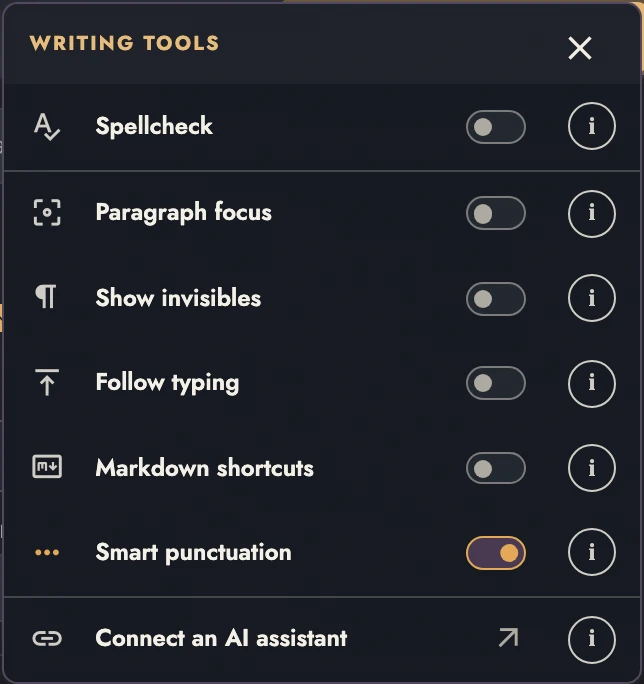
Writing Tools is the panel behind the button above the canvas, and it holds the switches that change how the page behaves while you draft rather than how it looks when it is printed:
- Spellcheck underlines possible spelling errors. On its own shortcut too, if you would rather draft without the underlines and check later.
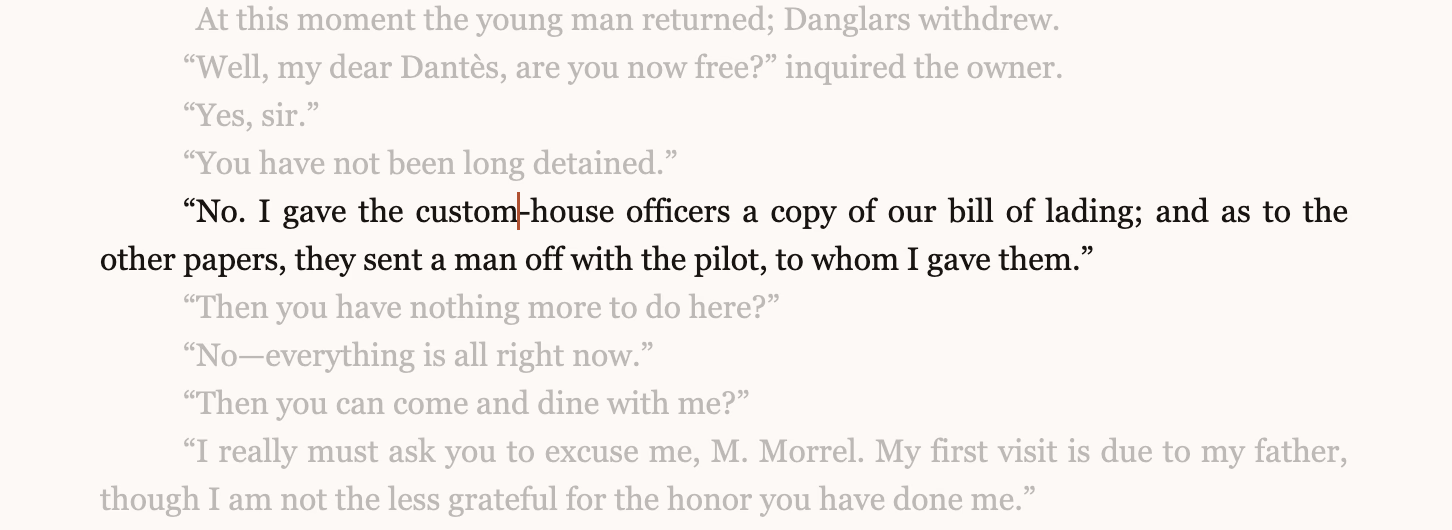
- Paragraph focus dims every paragraph away from the caret, so the one you are writing is the one that is lit.
- Show invisibles marks the spaces, breaks, and paragraph ends you cannot otherwise see, described just below.
- Follow typing keeps the caret a third of the way down the editor instead of letting it walk to the bottom edge, so there is always page ahead of you.
- Markdown shortcuts turns on the markers above.
- Smart punctuation, on from the start, swaps typed hyphens and periods for dashes and an ellipsis.
- On a paid plan, Connect an AI assistant opens the connection instructions in a new tab.
Use Insert from file… in the right-click menu or its shortcut to add file text. Importing an existing manuscript explains formats and placement.
View dark appearance
View dark appearance
19. Showing invisible characters
Show invisibles reveals characters that are hard to distinguish on the page, useful after an import:
- ¶ marks the end of a paragraph, an empty one included.
- · marks a space.
- ° marks a no-break space, which keeps adjoining words on one line. Type it with Option + Space on Mac, or Control + Shift + Space on Windows and Linux.
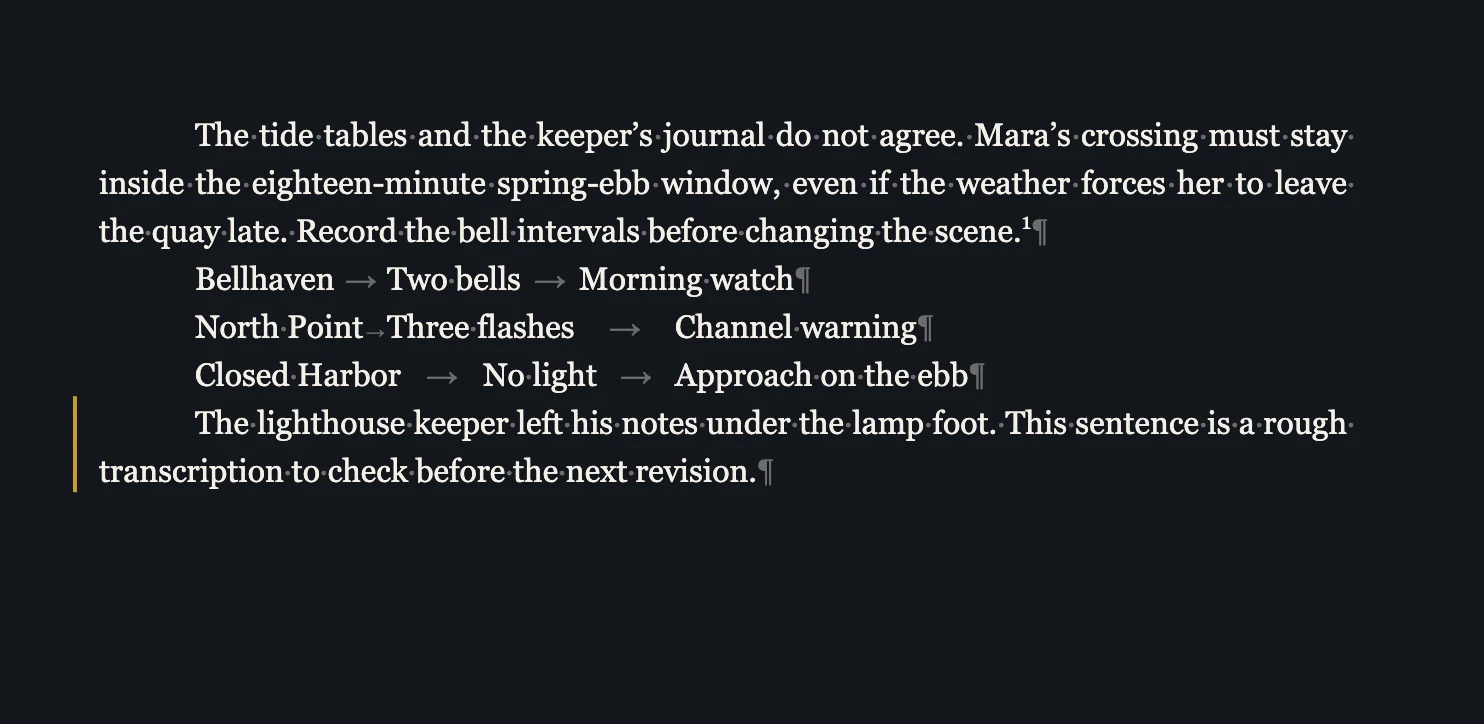
- → marks a tab, centered in the room it takes to reach its stop. An indent Tab made at the start of a paragraph is not a character and has no mark.
- ↵ marks a line break inside a paragraph, the kind Shift + Return makes.
- ¬, raised above the letters, marks an optional hyphen, a place a word may break. Where the line really does break there, you see the hyphen itself instead.
- A short dotted bar marks an invisible character that may disrupt search or spellcheck. Imports remove accidental characters. Remaining joiners may be needed for emoji or languages such as Persian and Arabic, so check before deleting them.
These marks take no space and appear only on screen in Tabularia. They never print or export. The device setting starts off and has a Keyboard shortcuts entry.
20. Focus Mode
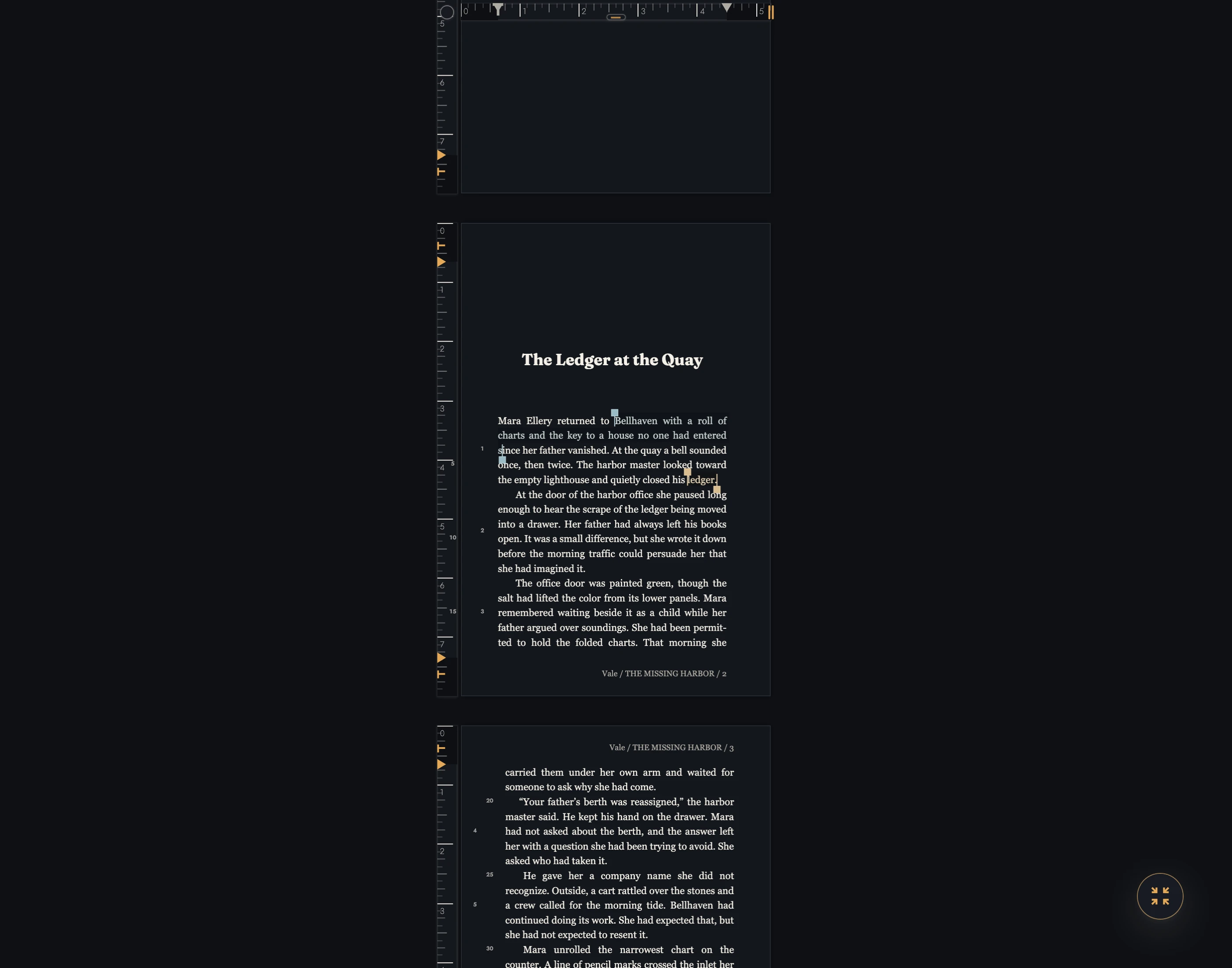
Focus Mode hides the panels and bars around the page. Use the Compass’s center or its shortcut to enter and leave. Your previous arrangement returns. Compass arms toggle individual surfaces.
21. The right-click menu
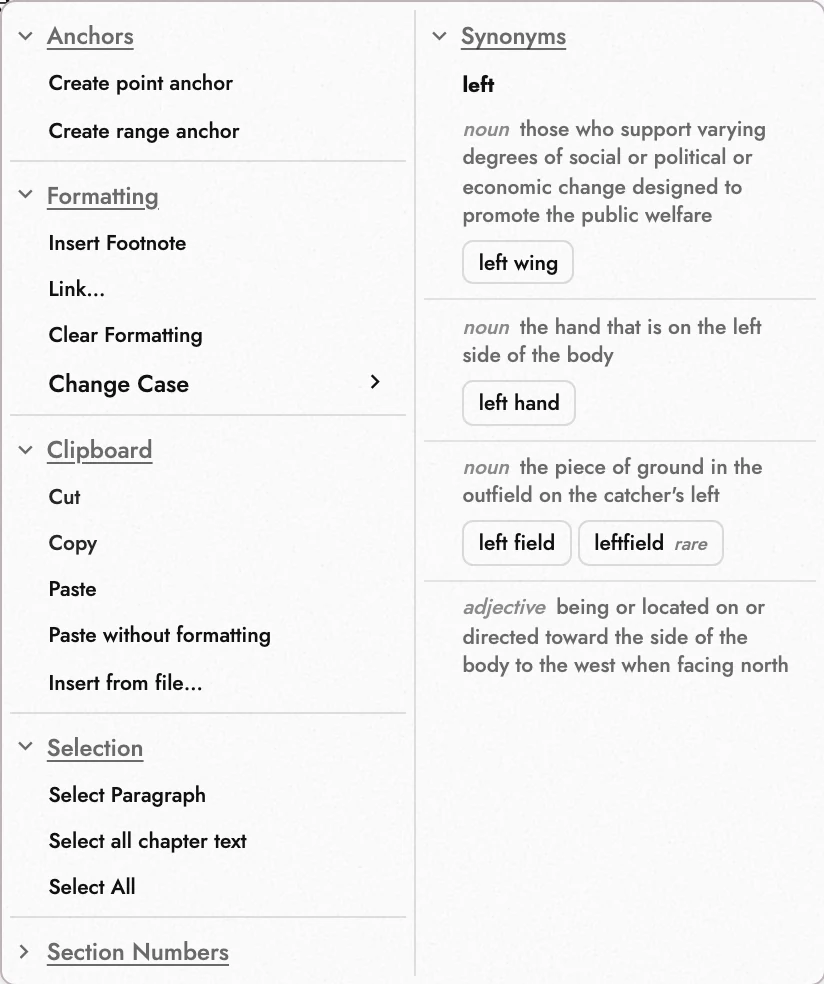
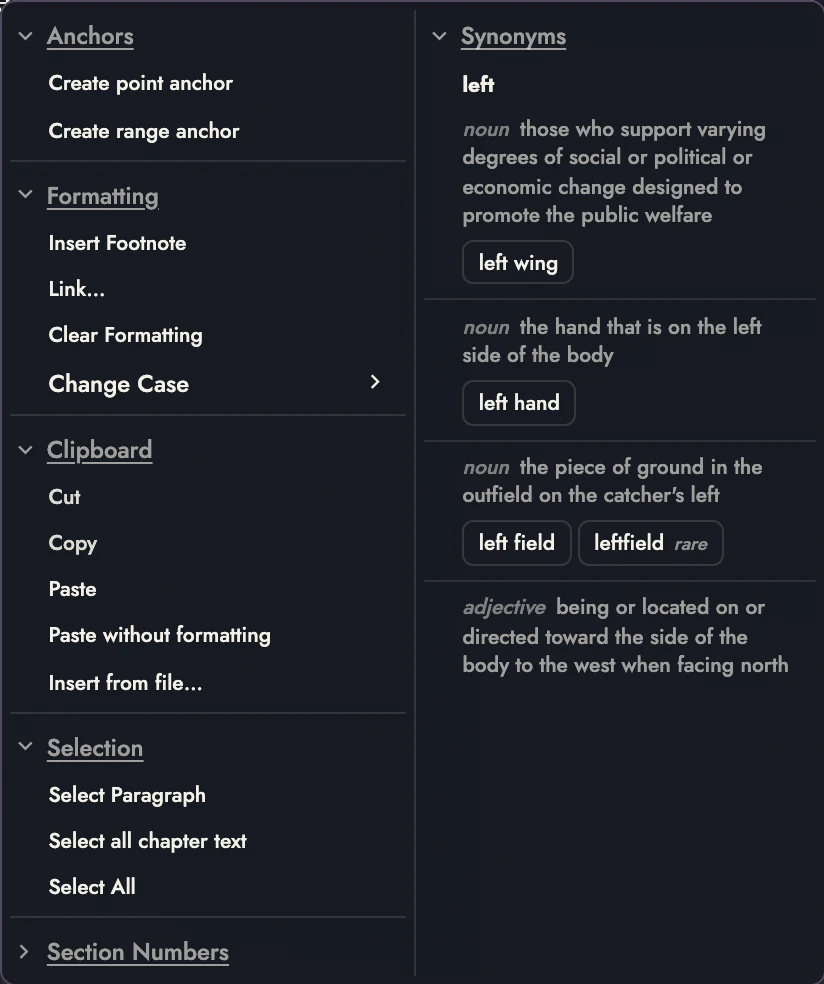
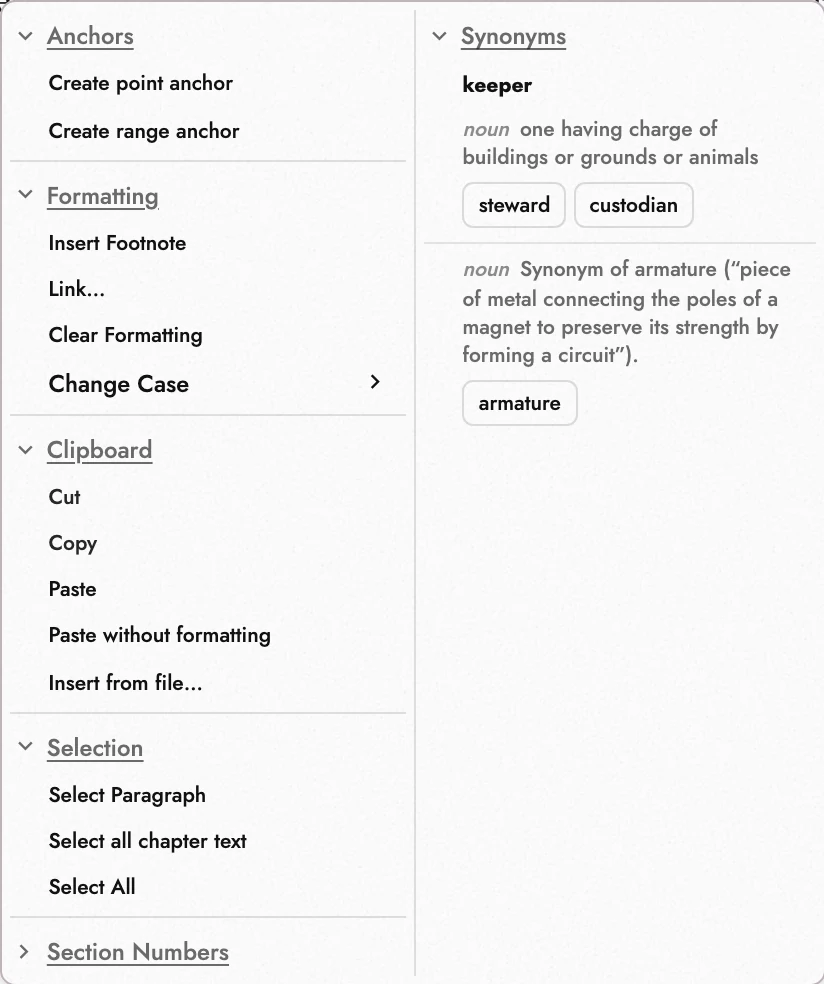
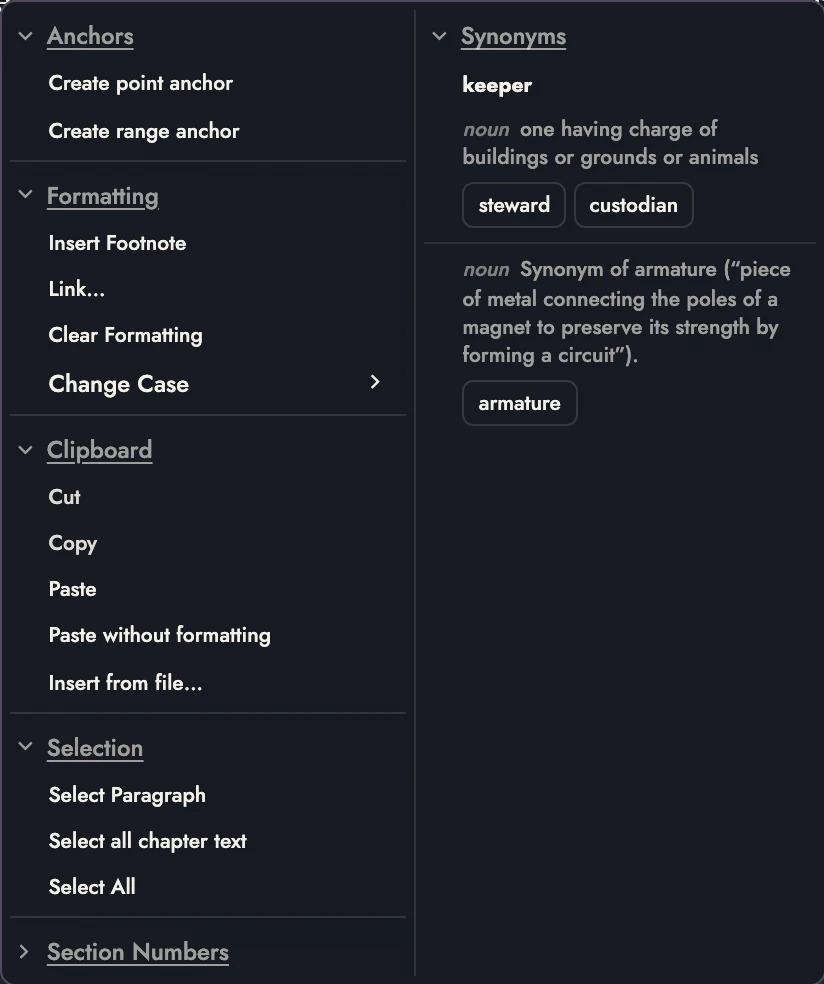
Right-click for commands relevant to the text or object beneath the pointer. Shift + F10 or the Menu key opens it at the caret.
Images offer placement actions; Review Changes offer decisions. Chapter headings offer numbering and Chapter Opening actions. Misspelled words offer suggestions. See image commands and Book Decoration for object actions. Common commands include:
- Anchors: create Point or Range Anchors, or move and delete existing ones. With a Custom Timeline open, Add point to and Add range to place markers on that Timeline.
- Formatting: Remove empty lines between paragraphs clears extra blank lines. Clear Formatting removes selected text and paragraph overrides; without a selection, it resets the clicked paragraph’s formatting. Link… and Insert Footnote are explained in Links and Footnotes.
- Clipboard: cut, copy, paste, or Paste without formatting. See Copying and pasting for what survives. Insert from file… preselects At caret at the clicked position.
- Selection: select a paragraph, remove Anchors from a selection, or select the current Book section. Additional commands select Chapter text or matching heading levels. Heading selections span from the first to the last match, including intervening prose.
- Change Case: sentence case, lowercase, UPPERCASE.
- Section Numbers add paragraph references such as § 1. Add section number enables the lane throughout the Manuscript. Remove section number joins that paragraph to the preceding section. Add subsection and Remove subsection change its level, such as § 3.1.
Right-click a page margin, header, or footer for Configure margin numbering under Headers & Margins. This command is not shown over body text.
22. Margin references for editing and citation
Section numbers identify passages for citation. Structure markers locate Chapters and other boundaries; paragraph and line numbers help an editor name an exact place. Each lane has its own position and print/PDF choice.
Open Project Settings → Headers & Margins → Margin numbers, or right-click the page margin and choose Configure margin numbering. The margin-numbering guide explains the controls.
23. Copying and pasting
A copy puts several versions of the selection on the clipboard at once, and whatever you paste into picks the one it understands:
- Tabularia's own format, which only Tabularia reads, and which keeps everything the selection carries.
- HTML, for a word processor or an email. It carries a second copy of Tabularia's format tucked inside, which is how formatting survives a trip from one browser to another.
- Markdown, for the apps that ask for it.
- Plain text, for everything else.
What you copy is the passage as it will read once its Review Changes are accepted: words a change would remove are left behind, and words it would add come along as ordinary text.
Copied Footnotes become numbered references with their notes after the passage in
other apps. Plain text and Markdown use [1]; HTML uses superscript
numbers. Each copy starts its note count at one.
Pasting within Tabularia, including between Projects or browsers, preserves formatting and quotation details. Copied Footnotes become separate notes at their new positions. Pasted paragraphs join their destination Chapter and Book.
Markdown paste applies its syntax; see Pasting Markdown. Other external text normally uses the destination paragraph’s style. HTML is used when no plain copy exists, or when Word or Google Docs includes Footnotes.
Paste without formatting forces plain text. Hidden content and scripts are excluded.
A very long selection, past about 120,000 characters, is copied without its styling for other apps: they get plain paragraphs, and there is no Markdown version. Pasted back into Tabularia, it still keeps its formatting.
Large pastes show preparation or progress. They cannot be canceled halfway. One Undo reverses the complete paste.
One paste takes up to about eight million characters or 100,000 paragraphs, which is room for a whole million-word manuscript. Past that, Tabularia says the clipboard holds too much and pastes nothing. Bring the text across in parts.
24. Find and replace
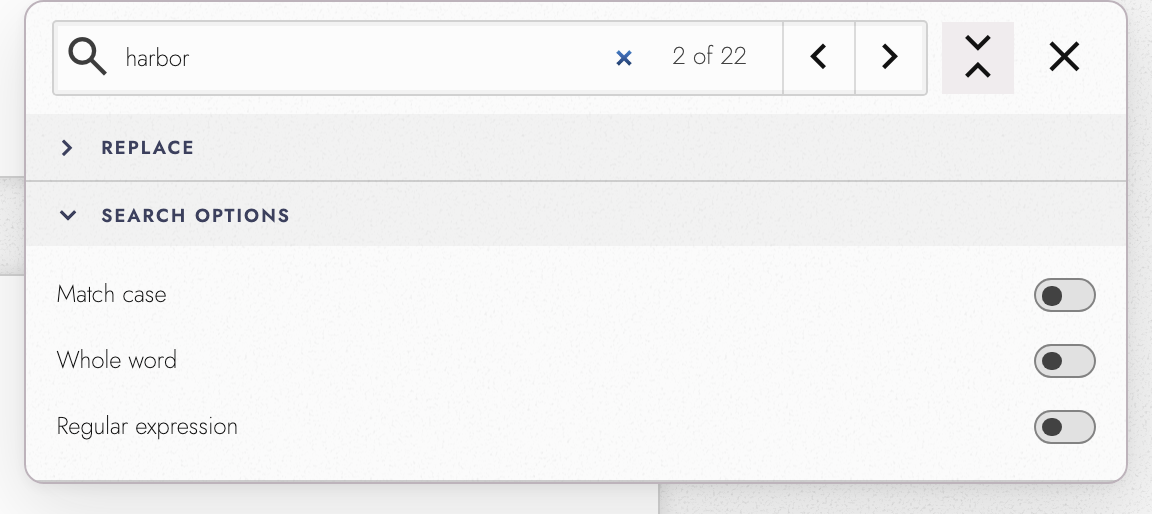
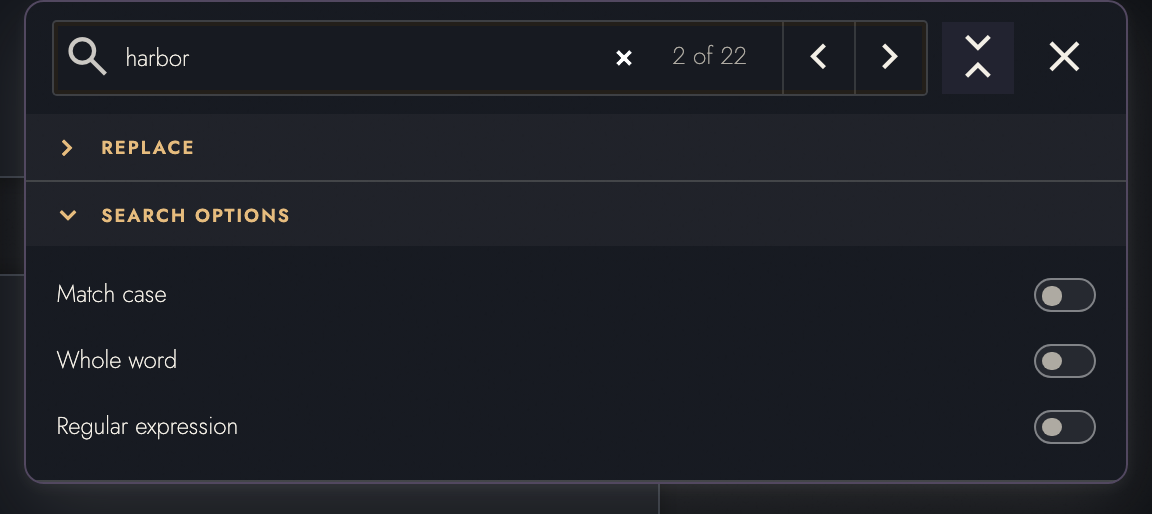
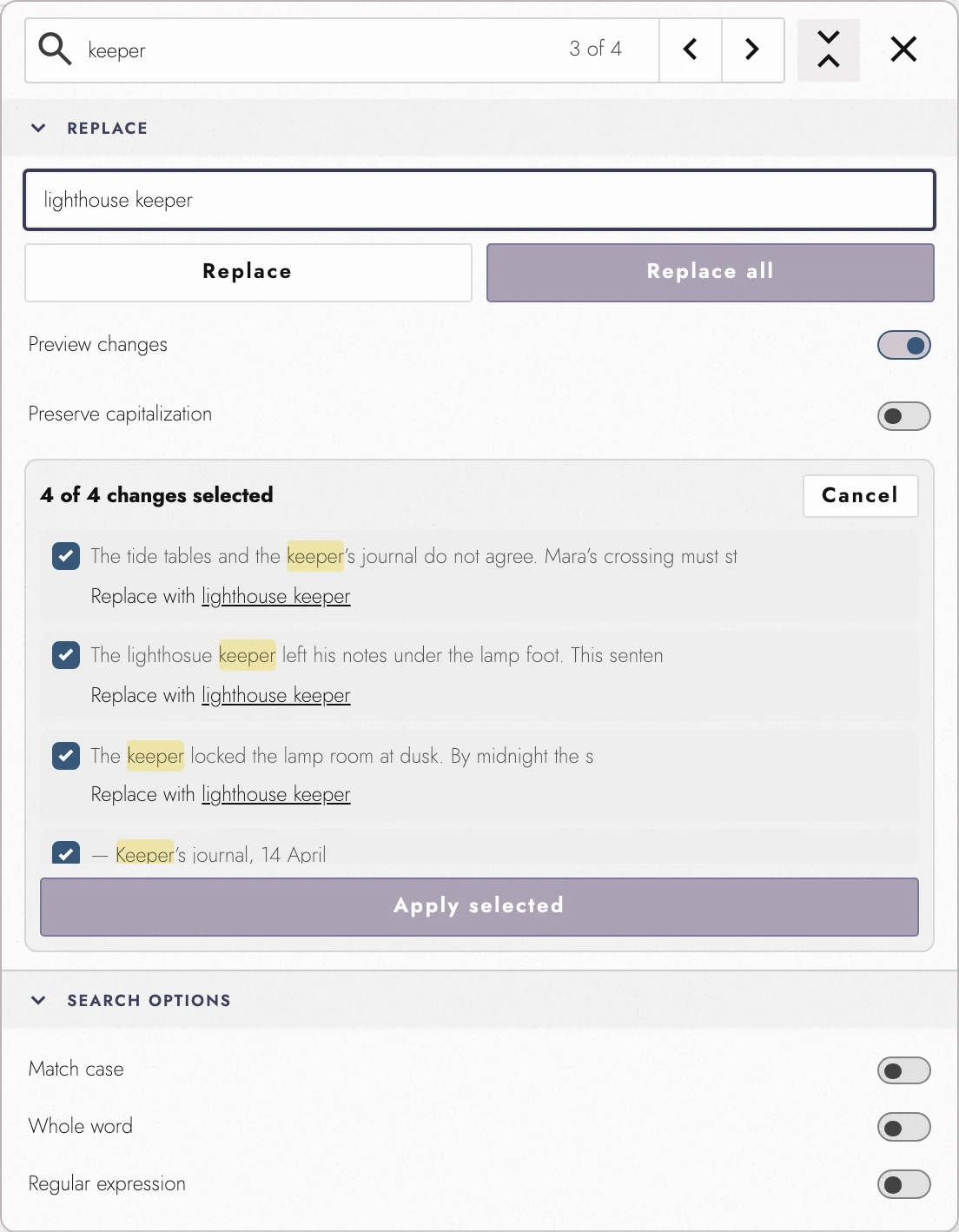
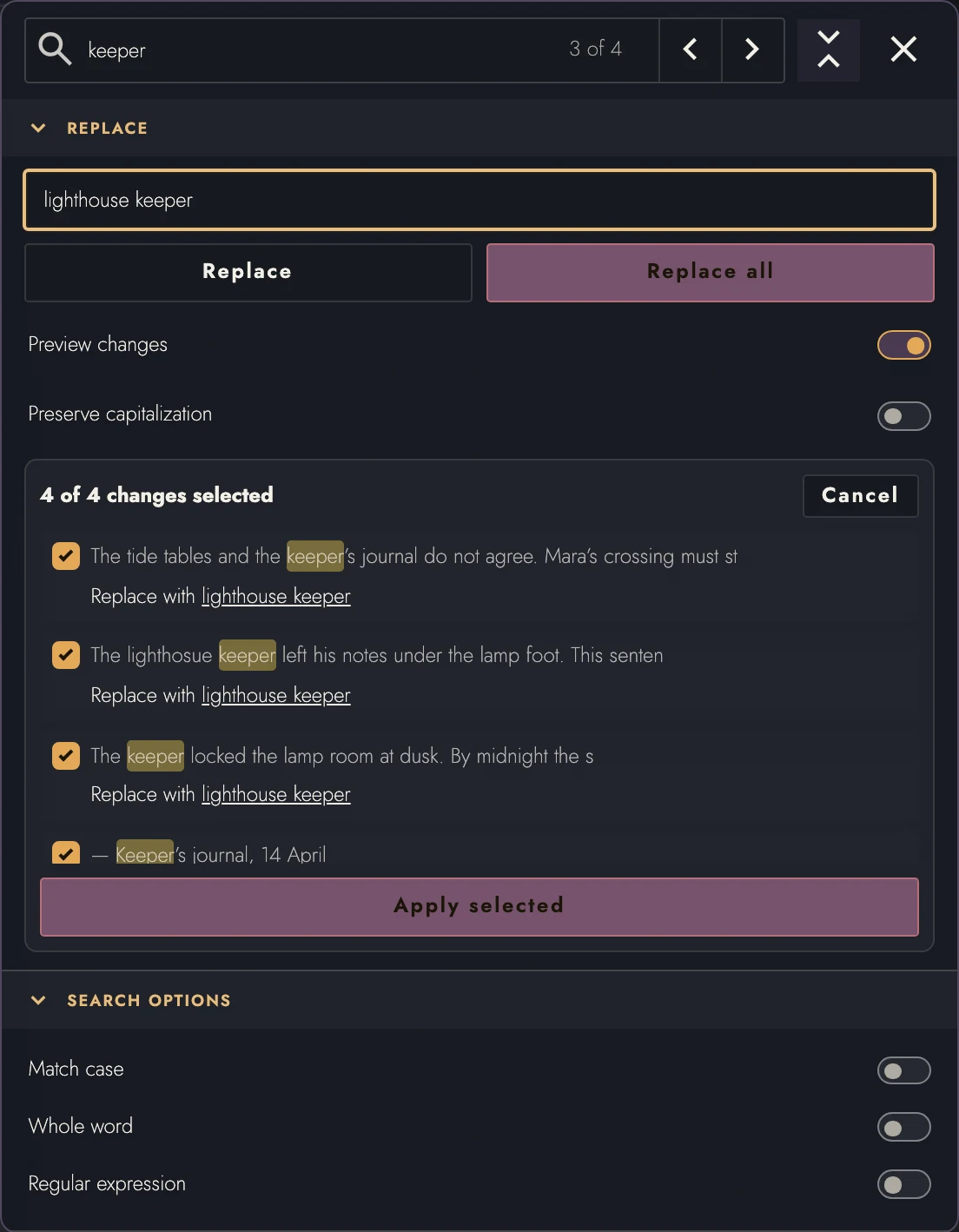
Find searches the Working Scope. Change the scope to widen or narrow it. Use Next and Previous to visit matches. Replace changes one match or all matches; Preview changes starts on so you can approve replacements.
Search options offers Match case, Whole word, and Regular expression. Preserve capitalization matches the replacement to the original word’s case; it is unavailable with a regular expression.
View dark appearance
25. Spelling
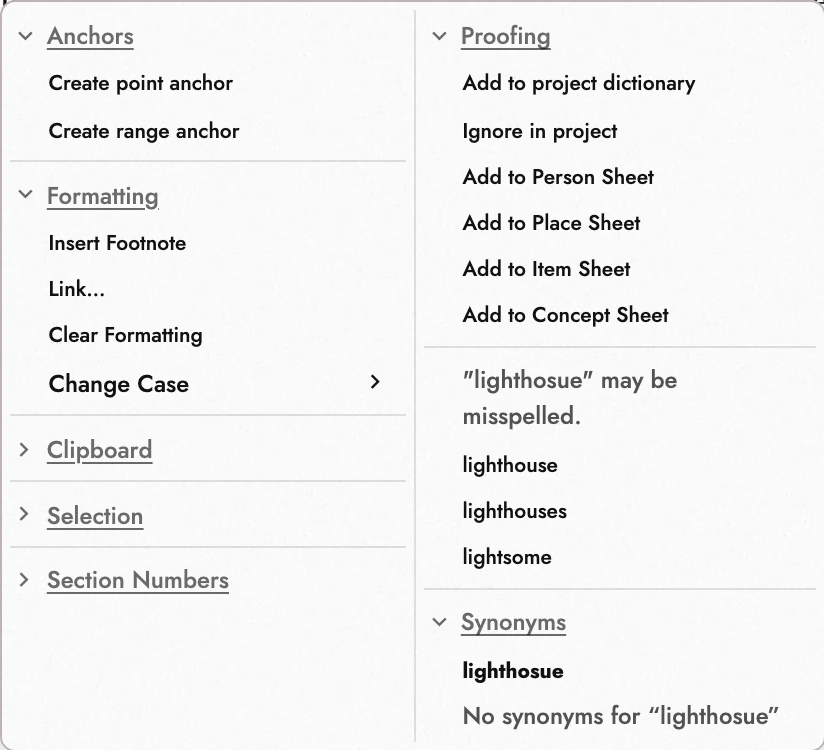
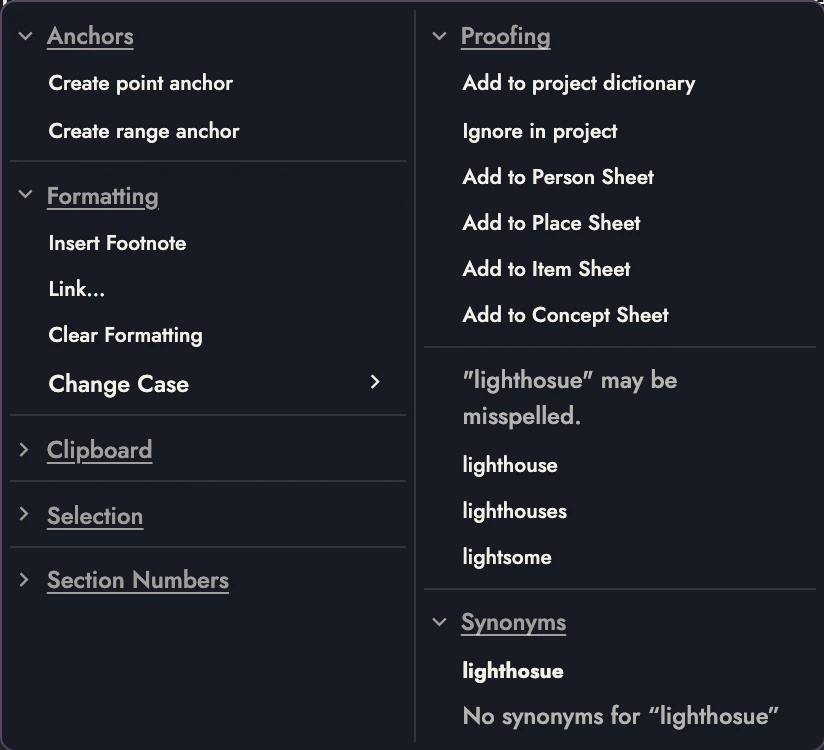
With spellcheck on, right-clicking an underlined word offers its suggestions, along with Add to project dictionary and Ignore in project.
For a character or place name, use Add to Person Sheet or Add to Place Sheet. Items and Concepts have matching actions. The new Sheet opens for notes, and its name becomes accepted by spellcheck.
The Sheet takes the plain form of the word you clicked. A possessive is dropped, so “Velmora’s” makes a Velmora Sheet, and an Item or Concept loses a plural ending, so “lanterns” makes a lantern Sheet. Many single names end in s, so a Person or Place keeps its s unless the form without it is also underlined somewhere in the book. Spellcheck then accepts the name with ’s, with a plural ending, or with both.
A people named after a place, such as the Velmorans of Velmora, need no Sheet of their own. Add “Velmoran” to the Place Sheet under Also known as, and spellcheck accepts Velmorans and Velmoran’s too. Give the people a Concept Sheet if they need notes of their own. Spellcheck cannot work out these names by itself, because English forms them unevenly: Paris gives Parisian, and Athens gives Athenian. Build the plural from the singular, Velmoran and Velmorans, so a reader does not take the change for a typo.
Deleting the Sheet removes that spelling allowance. Other invented words can use the Project dictionary, which stays in this browser; Sheets sync with the Project.
26. Synonyms
Open Synonyms from a selected or right-clicked word. Alternatives are grouped by meaning and labeled where informal or archaic. Choosing one preserves capitalization and, when known, the word ending. Undo restores the original.
On a phone, long-press the word and look under More. The thesaurus is fetched the first time you ask and kept on the device, so a word you have looked up before still has its synonyms offline.
27. Continue reading
- Previous: Keeping backups in a folder
- Next: Designing a Book
- All guide articles
Try it on your own book
Start a free 14-day evaluation. No card needed.