Snapshots and History
Save a restore point and revisit earlier writing.
1. What a Snapshot is
A Snapshot is a restore point you take before an important change. Autosave keeps the latest wording; a Snapshot lets you return to an earlier version.
2. Taking one
Use the snapshot keyboard shortcut, or open History on the Project row. Take one before a large cut, a Draft merge, or sending work for review. See draft.
Give the Snapshot a useful name, such as “Before cutting the prologue.” It will be easier to find later.
3. The History view
History opens from the project's row and takes over the left sidebar. It has no tab of its own, because it is a view of one project rather than somewhere you navigate to.
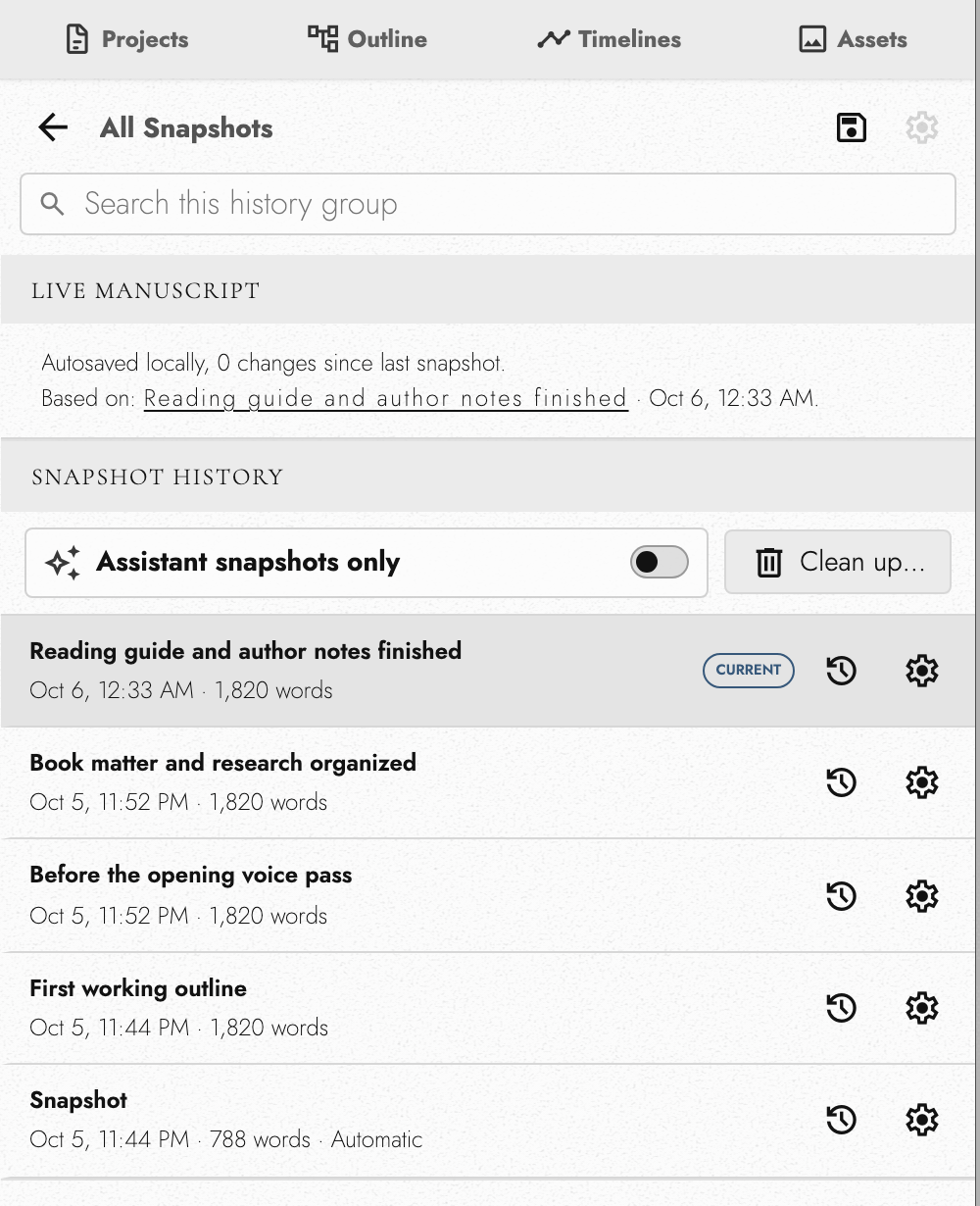
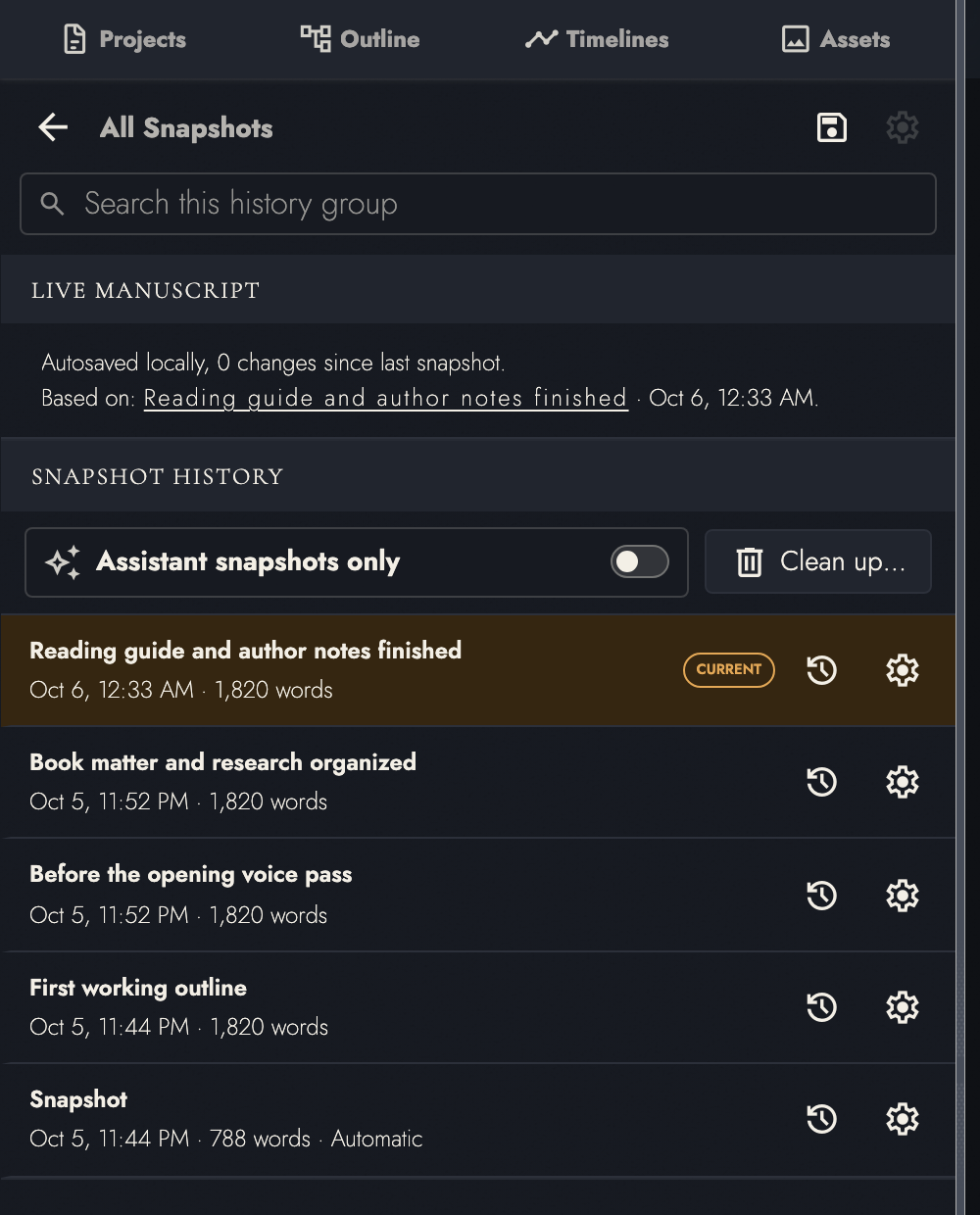
View dark appearance
Live Manuscript shows your current wording and how many changes followed its starting Snapshot. Choose Return to the live manuscript after previewing an older version.
Snapshot History lists names, dates, and word counts. Click a row or Preview to view it without changing your writing. Restore snapshot returns the Manuscript to that version.
Inside a group, the save button at the top of History takes a Snapshot of the live manuscript and files it there. At the group list, the same spot offers New snapshot group. The keyboard shortcut creates an ungrouped Snapshot.
The settings button on a Snapshot's row renames or deletes it; the one your manuscript currently rests on cannot be deleted. Snapshots cannot move between groups. Deleting a group leaves its Snapshots in All Snapshots. The search field above the list matches by name, and inside a group it looks only there.
A Snapshot captures the Drafts showing at that moment, not the whole Draft inventory. Create new Drafts in the Drafts panel. See drafts.
Before restoring, Tabularia saves a Before Snapshot restore Snapshot. If that fails, the restore does not proceed.
The confirmation lists review work that will be discarded: unresolved Review Changes and comments added or changed since the Snapshot. It also names deleted Drafts that cannot be recovered.
Choose Undo/Redo History to view edits by Today, Last 7 days, or an earlier day. Rows show their word-count changes. All Snapshots returns to the Snapshot list.
4. Clearing snapshots out
Not every snapshot in the list is one you took. Tabularia takes one before each restore, and an assistant working through the connector takes its own before it changes your wording. Those rows say so after the word count, with Automatic or Assistant. The switch above the list, Assistant snapshots only, narrows it to the assistant's.
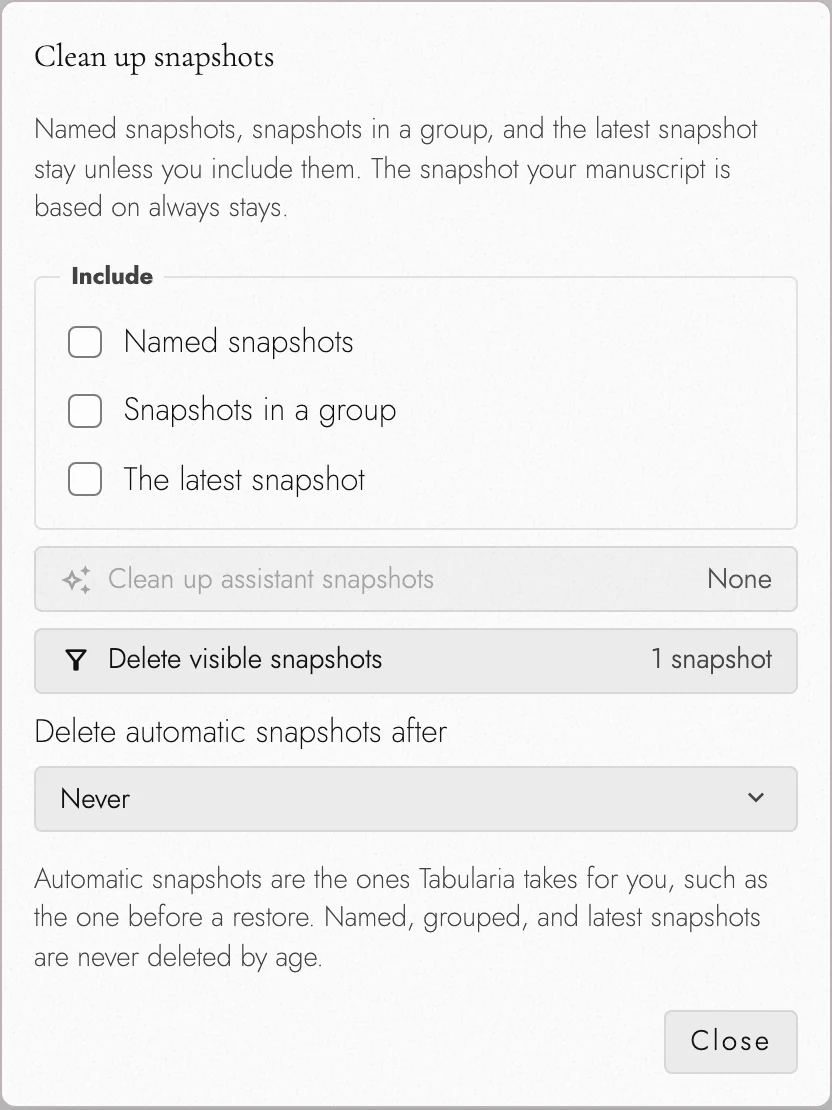
Clean up… beside that switch opens three ways to thin the list:
- Clean up assistant snapshots deletes the ones an assistant took.
- Delete visible snapshots deletes whatever the list is showing, after the group you chose, the search, and the switch have narrowed it.
- Delete automatic snapshots after sets an age past which the automatic ones go by themselves: a week, a month, three months, or a year. It starts at Never. Once set, it is applied on its own each time a project opens and each time a snapshot is saved.
Cleanup protects named, grouped, and latest Snapshots unless you include them. The Snapshot the Manuscript is based on is always kept. Each action shows a count and asks for confirmation.
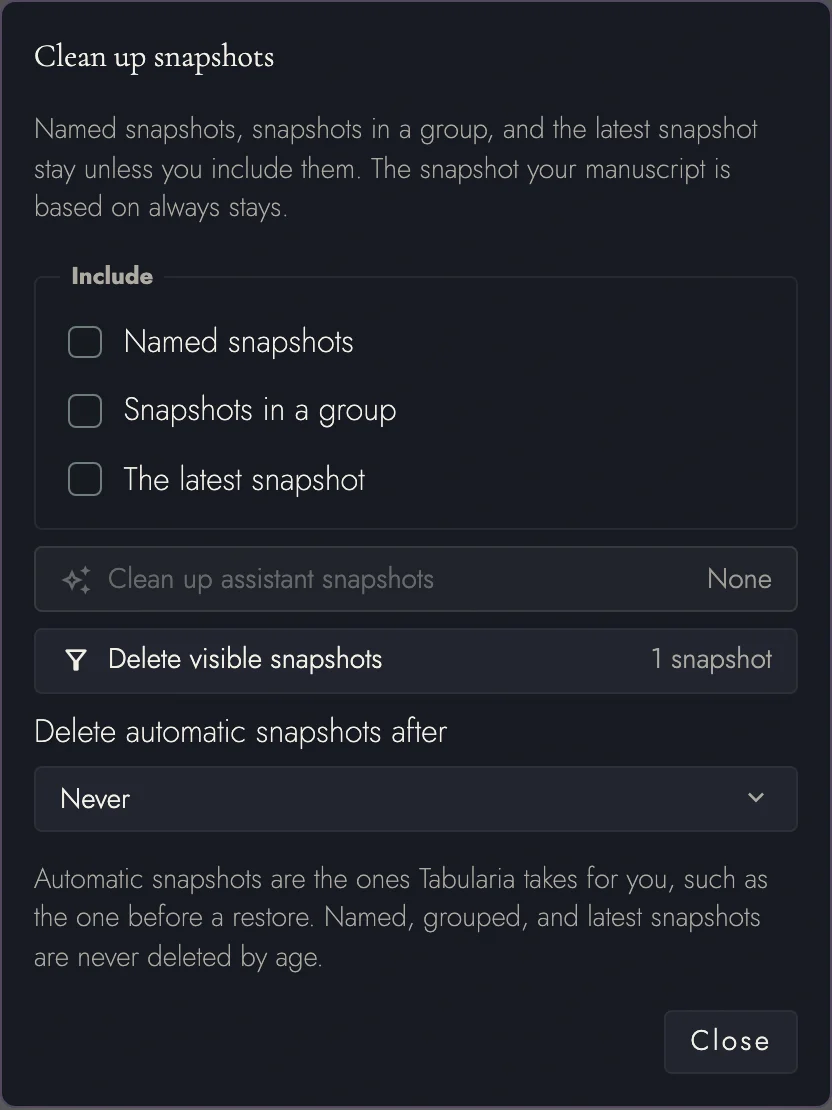
Deleting a Snapshot also removes its cloud copy on the Cloud plan. Cleanup can remove cloud-only Snapshots without downloading them first. Offline deletions wait until sync resumes.
5. How much history is kept
Open Undo/Redo History settings for History Settings. The default limit is 250 steps and the maximum is 500. Lowering it deletes older steps beyond the limit after warning you. Snapshots are unaffected.
6. Where snapshots live
The Local plan keeps Snapshots and Undo/Redo History locally. The Cloud plan backs up Snapshots; a second device lists them under In the cloud. Use Bring it down to download one.
Undo/Redo History stays on the device. See what the Cloud plan adds for its limits. Keep independent exports at milestones too.
A project archive carries snapshot history with it when History snapshots is checked, and each snapshot comes back with the wording needed to preview and restore it rather than as a label with nothing behind it.
7. Continue reading
Try it on your own book
Start a free 14-day evaluation. No card needed.