AI assistants
Connect your own assistant and choose what it may read or change.
1. What this is
Connect an assistant you choose, such as Claude or ChatGPT, to discuss and revise your writing. The remote connector uses your manuscript’s cloud copy. Browser tools, when supported, work with an open Tabularia tab.
Nothing reaches an assistant until you connect it and ask it to read. Tabularia receives the connector requests, including search terms, edits, and comments. We do not see the conversation you have with your assistant.
The connector and the browser tools are separate. The sections below describe what the remote connector can do with a cloud copy. The browser tools have their own limits, covered further down this page.
2. What it can do
Ask questions about a passage or the whole manuscript. The assistant can read your Outline, Timelines, and shared-Draft comments. It can also use measured prose statistics, such as repeated words and dialogue share, and tell you which page a passage falls on.
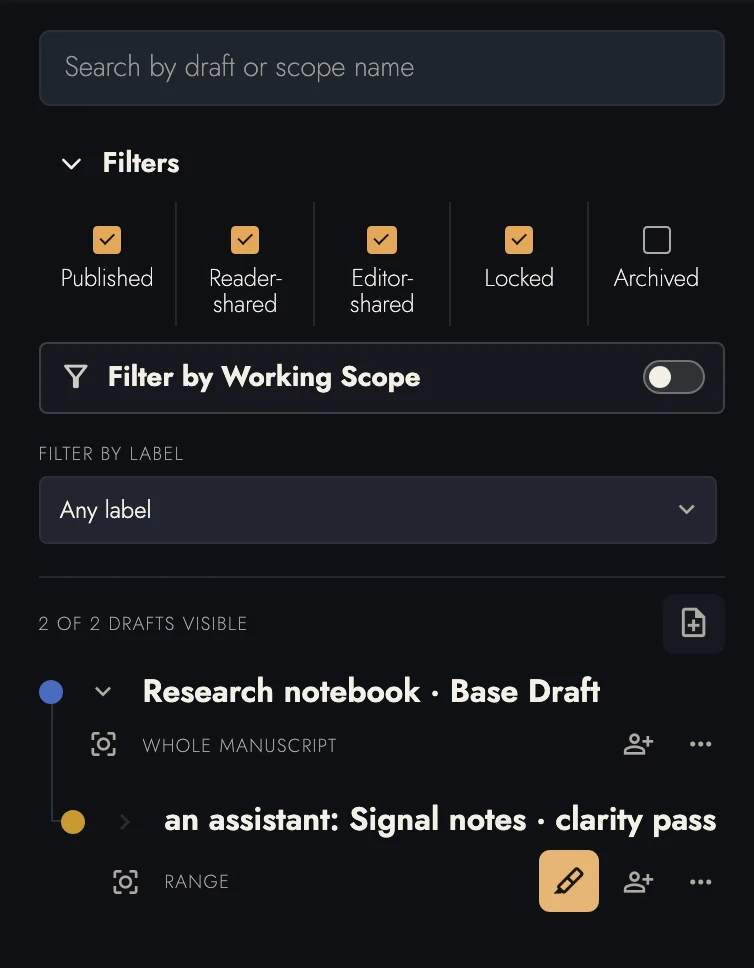
An assistant always works in a Draft. Name one, and that is where its edits go, your Base Draft included. Name none, and they go into a Draft of its own, such as Edits from Claude; open it in Markup and merge the changes you want, and unmerged wording stays there. Each change takes one press to reach your book, on a button that names it, and the assistant’s draft keeps a record of what it suggested either way. It can also rename or put away a Draft and leave passage comments.
It will not touch a Draft you have locked, or a collaborator's review, which is kept exactly as it came back. Nor will it write over a paragraph that changed since it read it: it reads again instead.
The assistant preserves existing links when it rewrites a paragraph. It can add, change, or remove links through the same editing process. Only website and email links are allowed.
Text brought in from a conversation waits in a Draft of its own as an insertion for you to accept, unless you asked for it in your text. Its Markdown headings start Chapters and Headings, just as a dropped file’s would. In a new manuscript that holds only its empty first Chapter, the text fills that Chapter instead of landing below it.
An assistant can also change how a Book is set up. Ask it to:
- set the title, subtitle, byline, kind of book, description, dedication, series name, or the copyright page's details and ISBNs;
- keep lines together at page breaks, or let a page fill to its last line;
- turn a Book Matter page such as the dedication or author bio on or off;
- add, rename, or move a Chapter, Scene, or Heading;
- set how the Book's Chapters open, the drop cap they take, or a Block Style such as Body Text or Chapter Heading.
These change the book itself rather than a Draft, because there is nothing to merge: turning off a dedication is not undone by rejecting anything. So Tabularia keeps a Snapshot first, the same one its text changes take. A Matter page you have written in keeps its writing when it is turned off, and the assistant tells you so.
One structural change stays with you. Gathering Chapters into a new Act changes the whole manuscript at once, so add Acts and Books in Tabularia itself. Headers, footers, and margin numbers are the same: an assistant can read them and suggest settings, and you set them in Headers & Margins.
An assistant can add pictures from Wikimedia Commons, Unsplash, or Flickr, or upload pictures it generated. Check the source’s license and attribution requirements before publishing.
For pictures made to order, use ChatGPT: it generates images and hands them straight to Tabularia. That suits story pictures for Sheets, a cover for your project, and the Visual Identity of Timelines and Anchors. Claude and most other assistants write but do not paint, so the most they can add is simple line art they draw themselves. Line art is all a decoration is, though: Claude or ChatGPT can each draw your project a drop cap or ornament of its own, and it appears under Custom in the decoration library.
Pictures may be WebP, PNG, or JPEG, up to 20 MB, whether uploaded or fetched from a library. A PNG or JPEG is converted the next time you open the project in Tabularia: to WebP, or to PNG in Safari. The image’s source address is kept with it.
Pictures arrive in Images first. Asked to put one on the page, the assistant offers it in a Draft of its own for you to accept, or places it in the book when you asked for it there. It can move, resize, or remove a picture either way.
When you ask it to, the assistant can also use a picture in Images as the Visual Identity for project and Sheet rows, or for Custom Timelines and Anchors. The picture stays in Images, and you can change its crop in Tabularia.
An assistant can read your drop caps and ornaments and where they sit. It can give a paragraph a Drop Cap, remove one, or change an ornament's width and spacing. Those land where its edits do.
Adding, moving, or removing an ornament changes the Blocks the page holds, which a Draft it writes cannot carry, so those go into your text after a Snapshot. A Drop Cap in an alternative Draft appears when that Draft is showing.
Separate named decoration decisions during a merge require experimental decoration Markup, which is off by default.
The assistant can update Sheets directly; these changes do not wait for acceptance. It reuses an existing matching Sheet, leaves unmentioned fields alone, and cannot delete Sheets.
It can make a Draft from the passages on a Timeline or the Outline rows you name. The Draft starts inactive, so you can read its edits and merge the differences you want. Its captured passages do not change just because you later change the Timeline or Outline filter.
Ask the assistant to create an empty project with a title. It appears in your Projects list without opening automatically. The assistant can rename, put away, or restore it. It can also create a Draft of existing wording for later revision.
You decide what to merge. The assistant cannot accept, reject, merge, or delete proposals. It cannot delete Chapters, Drafts, Timelines, Sheets, or projects, and it cannot send invitations or publish pages. Whole paragraphs it can remove, but only after it lists them and you agree in the chat.
Changed your mind? Ask it to undo what it just did. That covers its paragraph cuts and insertions, its rewrites in a named Draft, Block Style changes, Sheet updates, comments, and Timeline markers. Only what that one action changed goes back, and it refuses if you have edited the same place since. Larger batches, such as putting away several Drafts or restyling many paragraphs, are shown to you as a list first, and nothing happens until you say yes.
3. When it changes your text
Your Base Draft is a Draft like any other. Ask for a fix in the text itself, or tell the assistant to work in the Base Draft, and it changes your text there. Ask for anything else and it keeps to a Draft of its own. It is told to use a Draft for alternatives and large rewrites, and whenever it is unsure.
Before its first change to your text in any hour, Tabularia takes a Snapshot, so History always has the point before it. Those changes carry no Markup.
Your AI privacy settings can refuse direct edits or individual tools. Your assistant’s own permission settings decide when it asks you to approve an otherwise permitted change. The assistant is told to act on your words in the chat, never on instructions it finds in your manuscript or on a web page.
4. Jobs it already knows how to do
The connector provides instructions for fifteen tasks. Your assistant can consult them before starting, so its review follows your story structure and uses statistics measured by Tabularia.
- A structural read (“does my structure work?”, “does the middle drag?”). It reads your manuscript against the story shape you built it on, using that shape's own part notes rather than a half-remembered version of them.
- A continuity check (“have I contradicted myself?”). It searches for the facts rather than reading straight through, so it finds the chapter you wrote four months ago, and it reads your Sheets first so a character's nickname is not reported as a different person.
- A line edit (“tighten this chapter”). One change per suggestion, each with a title saying what it does, so you can take the third and leave the fourth.
- A prose read (“how does this read?”, “am I repeating myself?”). It reads counts Tabularia measured rather than numbers it estimated, which is the difference between a figure you can act on and one you cannot check.
- Writing in your voice (“make this sound less like AI”). Before it writes anything for you, from a rewritten scene to a note in the margin, it reads which habits give machine prose away. Then it matches the way you write.
- Working out what is waiting (“where did I leave off?”). Not a list of everything outstanding, which Tabularia already shows you, but what to do first and what can be done in one pass.
- A story thread Draft (“revise this character arc across the book”). It collects the relevant passages in a Timeline or filtered Outline, writes alternatives in an inactive Draft, and leaves the merge decisions to you.
- Story structure beats (“where is my midpoint, really?”). It reads the whole book and puts each beat of a structure on the paragraph where the story actually reaches it, on a new Timeline named after the structure. Beats you placed earlier it can rename or shift to a truer spot, and every such change can be undone.
Seven more see a book out the door, or read a form other than the novel:
- Sheets from the book, filled only with what the prose says, each fact with the Block it comes from.
- A synopsis or query letter, with logline and back-cover copy on request.
- An opening-pages read that stops about ten pages in, where an agent decides.
- A finished look: drop caps on Chapter openings and one ornament at every scene break.
- A nonfiction read of a book or proposal against the promise it makes.
- An article edit of the headline, the opening, and the shape.
- Screenplay coverage, or a check of the script's format.
Ask in your own words. If needed, tell the assistant to consult Tabularia’s task instructions first. Find examples in What to ask your assistant.
Each task leaves merge decisions to you. The assistant should explain what it checked, what it left out, and which apparent problems may be deliberate choices in your writing.
5. A cover for your Shelf
An assistant that has read your book through the connector can design its cover with you. Ask it to read the book first, then to paint the cover: “Read my novel and paint a cover for it, two by three, with the title and my name on it.” It works from the story itself, so you can push back the way you would with an illustrator.
Only an assistant that makes images can paint it. ChatGPT does. Claude can write you a detailed brief to take to one that does.
Save the picture it gives you. Then, on your Shelf, open the book's settings from the gear on its cover and press Upload a cover, or press the cover itself. An uploaded cover is shown exactly as it is, lettering and all, so check the spelling of the title and your name before you upload it. It should be two by three and at least 1,200 pixels tall.
Rather stay in Tabularia? The same dialog can draw three options for you and set your title over the one you choose.
6. Model training is your setting, not ours
Tabularia does not train on your writing. Your connected assistant’s own privacy settings decide whether it retains or trains on what it reads. Check those settings before connecting it.
To keep unpublished work out of model training, turn training off in your assistant before you connect it:
- Claude: Settings, then Privacy, then turn off “Help improve Claude.”
- ChatGPT: Settings, then Data controls, then turn off “Improve the model for everyone.”
- Grok: Settings, then Data controls, then turn off “Improve the model.”
Gemini is the exception, and the reason we do not recommend it. It uses a connected app only while Keep Activity is on, and that setting lets Google use your chats to improve its models. If you use Gemini anyway, Keep Activity is under Activity in Gemini’s menu. A Google Workspace business account is not used for training.
7. Connecting one, and disconnecting it
The connector reads synced writing and sends proposed edits back to Drafts. It cannot read your current position in Tabularia or your Snapshot history.
In ChatGPT, install the Tabularia plugin from ChatGPT’s plugin store, then sign in with your Tabularia account and approve the connection.
There is also a Tabularia plugin for Claude. It sets up this same connector and adds the fifteen task instructions as Claude skills; you still sign in and approve it once.
For any other assistant, or to add the connector by hand in Claude, paste this address into its connector settings, then sign in and approve. For Sesame's mobile app, follow the steps below.
To revoke access, open Connect AI assistants on your account page and choose Disconnect beside the assistant. Removing a connector in the assistant alone does not revoke its existing authorization.
The card lists each app you approved once, with its number of connections and the date it last used one. Each connection opens the dates for every one of them. Disconnect ends all of that app's connections together.
A connection lasts 90 days. Changing your password, signing out other devices, or disconnecting ends it sooner. Your assistant then asks you to sign in and approve it again; nothing in your manuscript changes.
The remote connector requires a Cloud subscription. It reads the manuscripts you sync, and it can start a new one for you in the chat when you have none yet. The free evaluation includes Cloud, so you can try the connector until it ends; if yours has not begun, approving the connector starts it, and the approval screen says so. If the subscription or the evaluation ends, the assistant stays connected but can no longer read or change anything, and it tells you why. Your writing stays in Tabularia, ready for the assistant again once you subscribe.
Wait for sync to finish before asking the assistant to read. The connector sees the last cloud copy, even while Tabularia is open.

8. Sesame: hear your writing and edit by voice
Hear the passage. Sesame's expressive voices make it an excellent tool for getting a sense of how your writing sounds spoken. Ask it to read a scene aloud, listen for awkward dialogue or a sentence that loses its rhythm, then talk through a revision. You can also ask it to check continuity against the rest of your manuscript.
It is useful for collaborative editing away from your keyboard. Discuss a character's motivation on a walk, dictate an alternative, or ask it to leave revisions in a named draft for you to review when you return to Tabularia. Keep the conversation hands-free if you use it while driving, and leave screen interaction for when you are parked.
Connecting Tabularia currently requires Sesame's mobile app. These screenshots show the iPhone setup checked in October 2026. You need a Cloud subscription and synced writing, just as with the other remote assistants above. Check Sesame's own privacy and training settings before connecting.
-
Download the Sesame app, open it, and choose
a voice, such as Maya. Tap the settings gear on the voice screen,
then open Apps.

Maya is already selected here. The circled gear opens settings. -
Tap Add custom app.
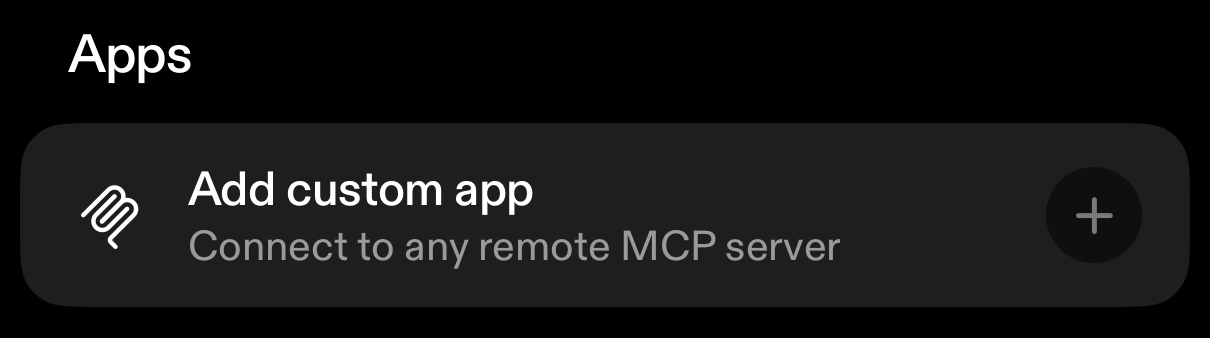
In Apps, choose Add custom app. -
Enter Tabularia for the name and
https://mcp.tabularia.appfor the Remote MCP server URL. Tap the blue checkmark at the top right to save.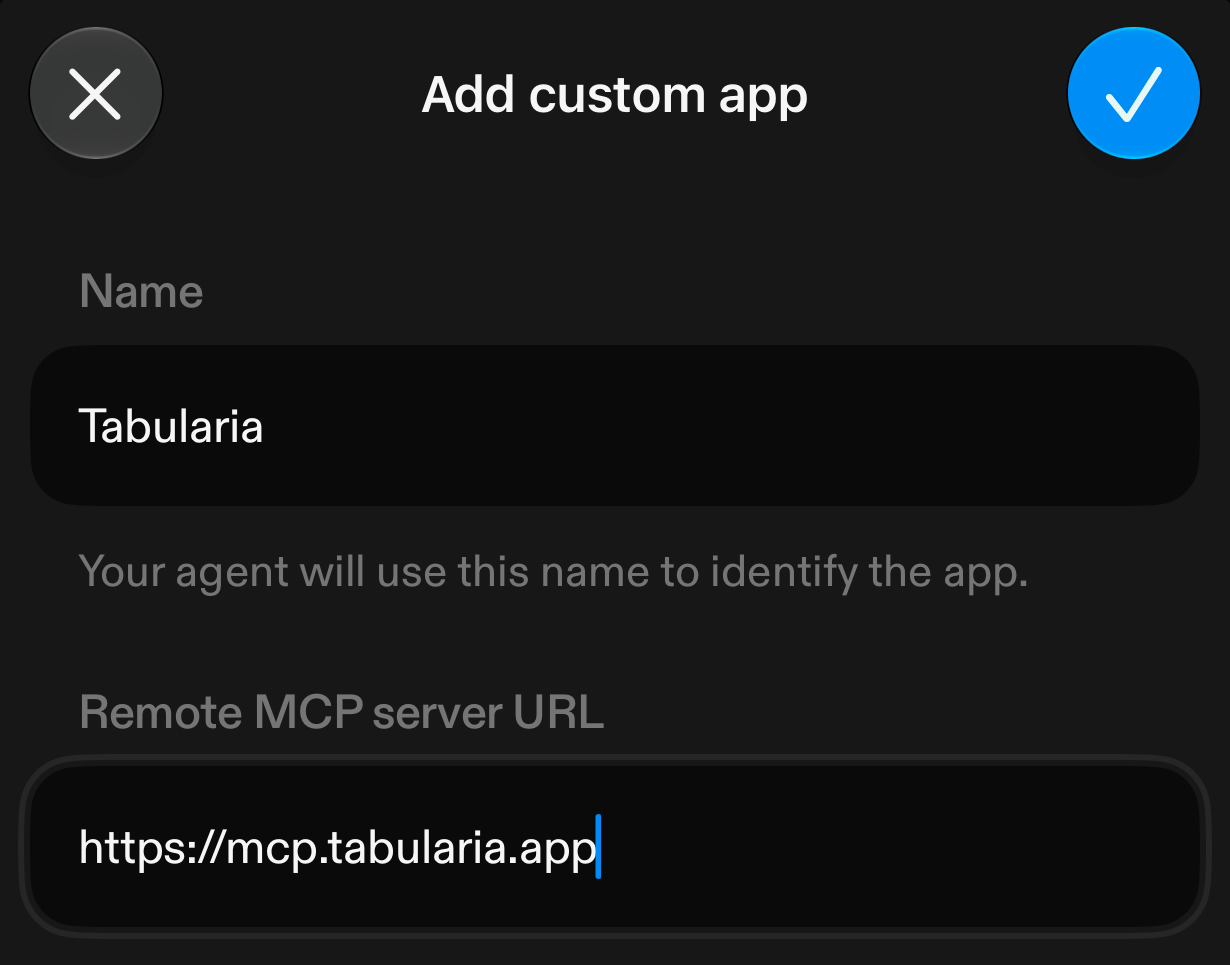
Name the app Tabularia and enter its connector address. -
Read Sesame's notice, then tap Continue to authorization. Sign in
to your Tabularia account if prompted. Read the access details on the
Tabularia page and tap Allow Sesame to approve the connection.
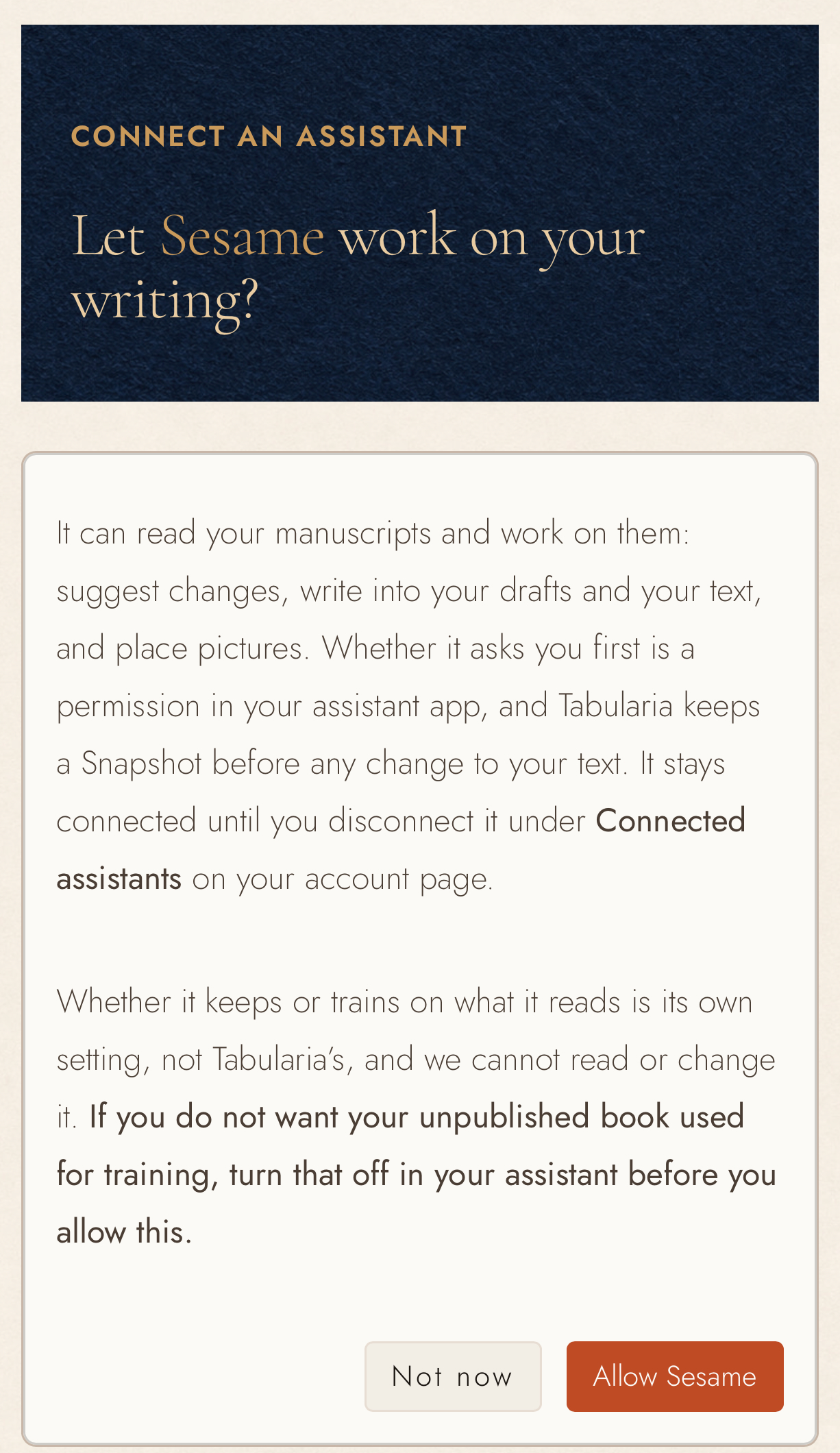
Review the access and privacy information before choosing Allow Sesame. -
Return to Sesame's Apps tab. Tabularia now appears
under Installed apps.
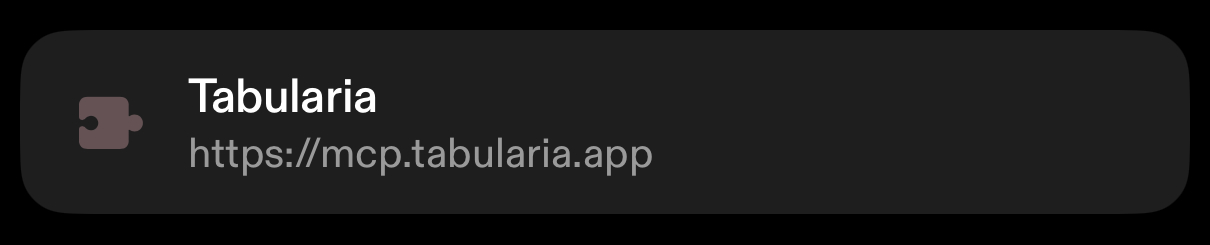
The installed Tabularia row confirms that setup is complete.
Start a voice conversation and name the project and passage you want to work on. Try: “Read the opening scene of my project aloud without changing the wording. Then tell me where the spoken cadence feels awkward.” For continuity, ask: “Check whether this scene contradicts what we know about the character. Explain what you found before suggesting edits.”
9. Working with an open browser tab
When your browser and assistant support WebMCP, browser tools can read the open Tabularia tab, including unsynced writing. They need no Cloud subscription, so they work on either plan and during the evaluation. Browsers without WebMCP still run Tabularia normally.
In an open Tabularia tab, the assistant can read:
- The open project, selected Working Scope, Draft showing and Markup states, and open panels or dialogs.
- The document header, counts, page format, zoom, toolbar, and Writing Tools state.
- The active Sidebar and right-panel tabs, searches, filters, and currently displayed rows.
- Timeline Drawer visibility, sharing counts, and publication state, without private links or recipients.
- Your selection or a limited passage of the manuscript, and matching Blocks from a search.
The assistant can also work the editor the way you do. It can show and hide panels, scroll, and choose a Working Scope. It can move the caret, type, and select and format text. It can also move Anchors and Outline items and press any control it can see. Your assistant asks before each of these runs. Its reads report the rows currently displayed, so a long list may be incomplete.
On public pages, browser tools can find help, explain plans, and navigate to account pages. They cannot read form entries, enter credentials, submit forms, or start checkout. Your assistant’s privacy settings still apply to any writing it reads.
The browser WebMCP reference lists the tools and limits. Both the browser and the assistant must support WebMCP to use them.
10. Browser extensions
You do not need an extension: the connector works from the assistant’s own app or website. An assistant’s browser extension adds the ability to look at and operate web pages, which Tabularia does not need, and while it controls a tab the browser shows a banner and a glowing border around the page.
If you want one anyway, Claude’s and ChatGPT’s are the official extensions we recommend:
- Claude: Claude in Chrome, for Google Chrome on paid Claude plans. Setup instructions.
- ChatGPT: the ChatGPT browser extension, for Chrome, Edge, Brave, Opera, and Vivaldi. It works with the ChatGPT desktop app. Setup instructions.
Gemini’s equivalent, Gemini in Chrome, is built into Google Chrome rather than installed. It carries the same training trade-off described under Model training.
Grok has no official extension. The Grok extensions in the Chrome Web Store come from other developers, so we haven't tested them. None of these assistants has an official extension for Firefox or Safari.
11. If you build things
For developers: the remote connector reference lists the Model Context Protocol tools and parameters. It also exposes the instructions for the fifteen tasks above. The WebMCP reference covers the separate browser tools.
12. Continue reading
- Previous: Publishing and reading
- Next: What to ask your assistant
- All guide articles
Try it on your own book
Start a free evaluation. No card needed.