AI privacy and permissions
Choose what may receive your writing and which artwork your books may use.
1. Local, Cloud, and Team accounts
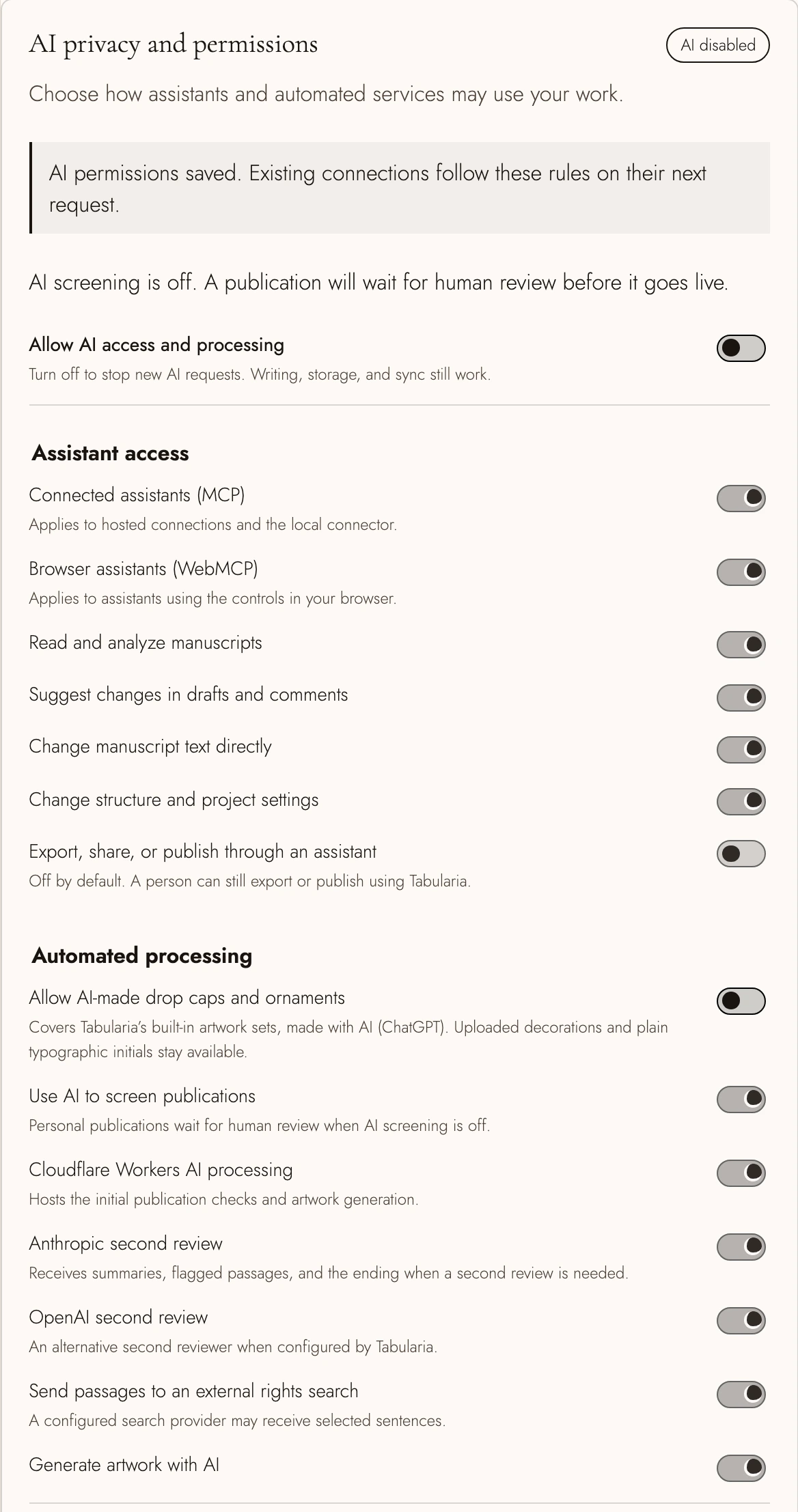
You choose whether an assistant can read your writing and whether automated services can process it. Open AI privacy and permissions under Connections on your account page. Save with Save AI permissions.
| Account | What you control |
|---|---|
| Local | Your personal AI permissions, individual tools, and built-in artwork. Browser assistants work with your open tab when the browser supports them. A Local license alone does not provide a cloud copy for the remote connector. |
| Cloud | The same personal controls, including permission for assistants to use your synced projects through the remote connector. A subscription does not override a restriction you have saved. |
| Team | Your own personal controls still apply. An administrator with permission to manage policy also sets rules for team-owned projects, approves members for AI use, and can accept responsibility for publication review. |
A paid seat is not permission to use AI. A team member can read the team policy, but changing it requires manage-policy; billing access alone is not enough. Your plan and project permissions still apply.
2. Stop AI requests or permit a narrower task
Turn off Allow AI access and processing to stop subsequent AI requests. Keep writing. Cloud storage and sync continue if your plan includes them; switching off AI does not move your projects off the server.
With AI enabled, set the permissions you want an assistant to have:
- Connected assistants (MCP) controls the hosted connector and local connector.
- Browser assistants (WebMCP) controls assistants operating an open Tabularia tab.
- Read and analyze manuscripts permits reading your work.
- Suggest changes in drafts and comments permits suggestions you can review.
- Change manuscript text directly permits edits in the text itself.
- Change structure and project settings permits changes to the book’s organization and design.
- Export, share, or publish through an assistant permits distribution where the tool supports it. This is off by default; you can still use those controls yourself.
Under Individual tools and approved connections, turn off a particular tool without disconnecting every assistant. A tool’s switch cannot grant a broader permission you have disabled above it. New tools follow those rules.
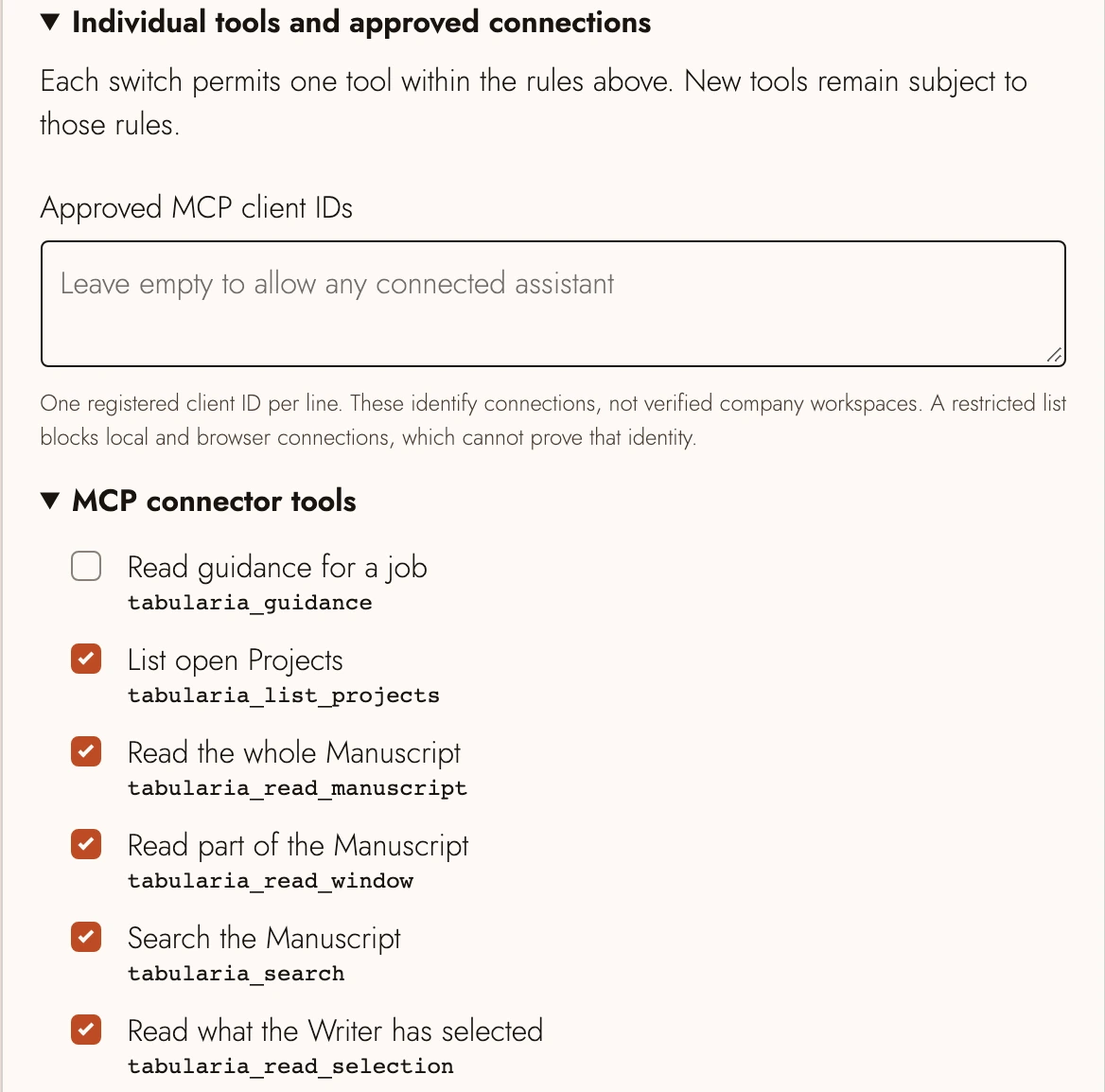
Approved MCP client IDs accepts one registered client ID per line. Leave it empty to allow any otherwise permitted connection. An ID identifies an app connection, not a verified company workspace or its training settings. A restricted list also blocks local and browser connections that cannot prove that identity. Broad browser controls need broader editing permissions; use an allowed MCP tool when you need a narrower action.
3. Set the team’s rules
Open your team’s settings and find AI privacy and permissions. The rules cover team-owned projects. An administrator can turn off AI access for guests and outside editors while leaving approved staff able to use an assistant.
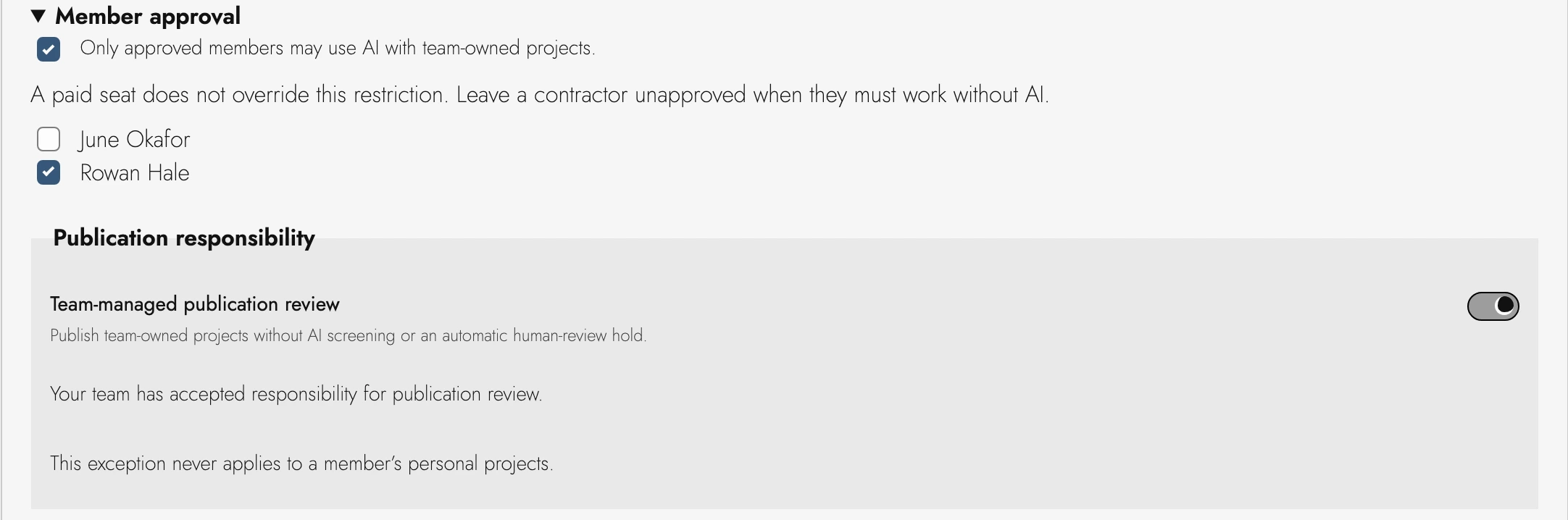
Expand Member approval and select Only approved members may use AI with team-owned projects to require an explicit approval for each member. Choose the people who may use AI, then save. A contractor can hold a paid seat and still be required to work without AI.
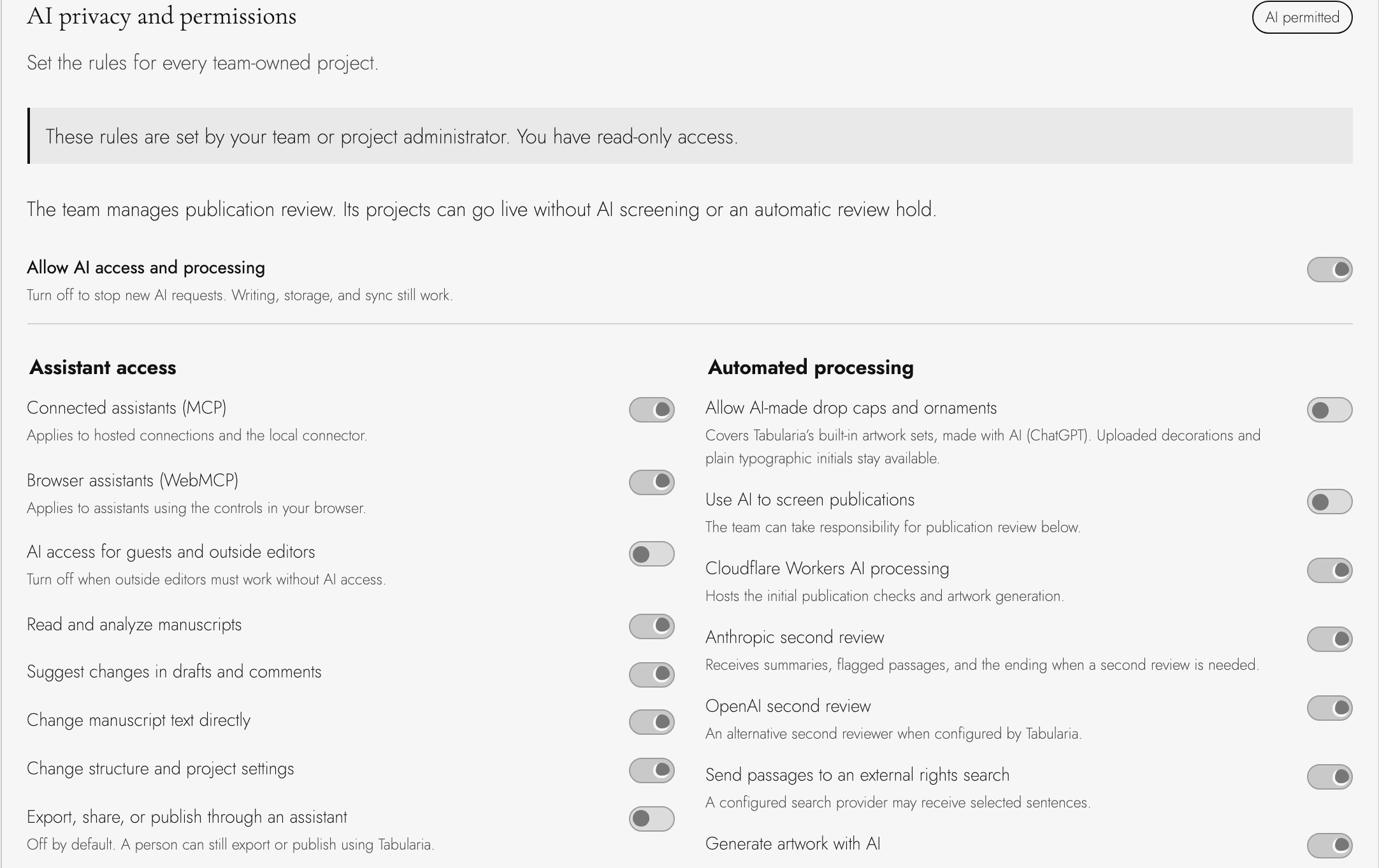
A project can be stricter. Open its Settings, then AI Privacy. Your account rules combine with the project owner’s rules and the project’s own restrictions. If any applicable rule refuses an action, a more permissive project setting cannot allow it. Sharing or joining another team does not lift that restriction or grant access to writing you could not otherwise read.
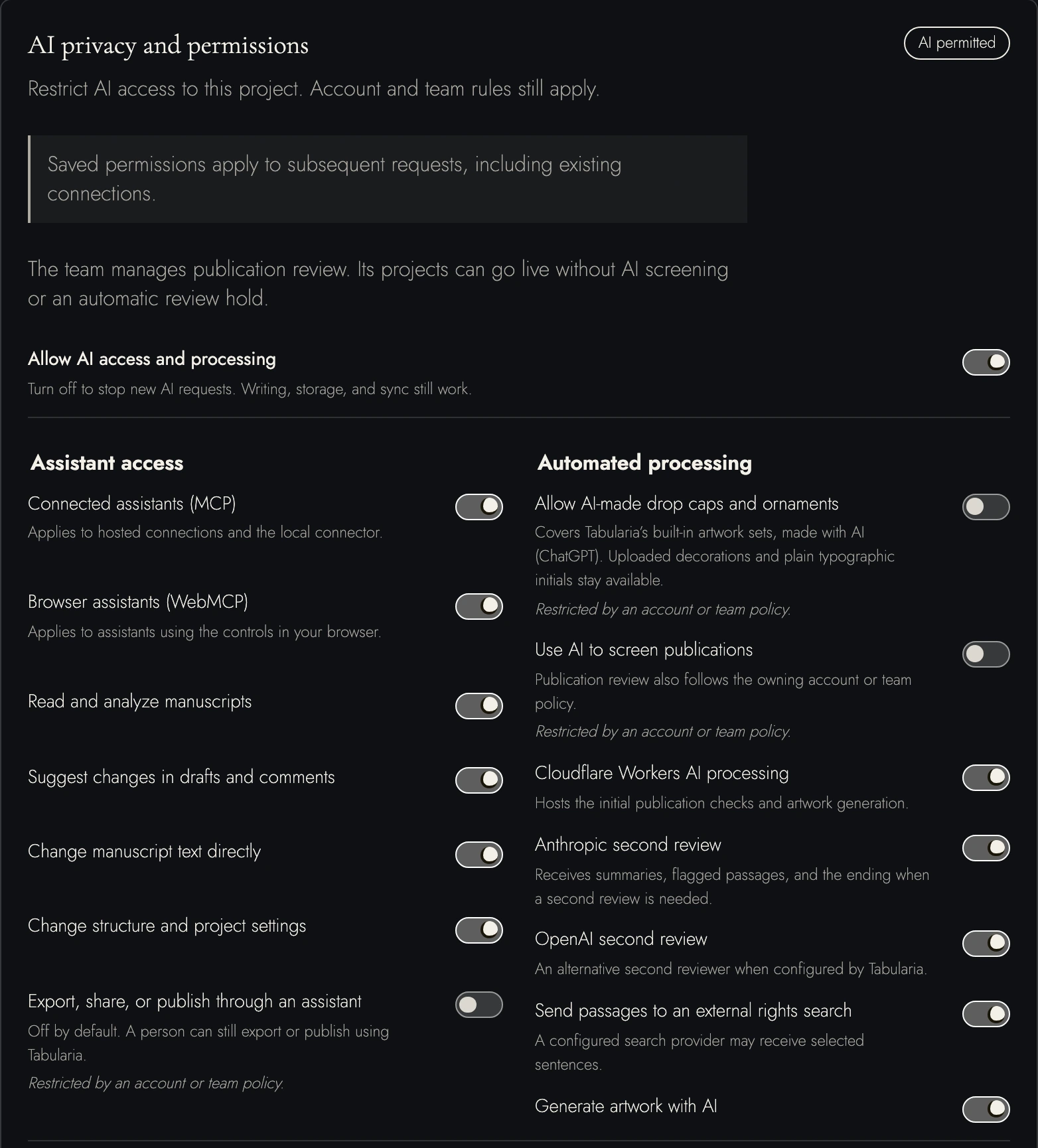
4. Choose which automated services may receive work
Publishing checks start with Cloudflare Workers AI processing. An enabled second reviewer may receive selected material if further review is needed. The provider controls let you restrict that processing:
- Use AI to screen publications controls automated publication screening.
- Cloudflare Workers AI processing controls the initial checks and permitted artwork generation.
- Anthropic second review and OpenAI second review control those external reviewers.
- Send passages to an external rights search permits selected sentences to reach a configured search provider.
- Generate artwork with AI controls artwork generation through Tabularia’s automated services.
A background job checks permission again before each later provider request, so turning off a provider stops subsequent requests even if the job was queued while that provider was still allowed. This includes retries. A request already sent cannot be recalled.
Cloudflare says Workers AI does not use your content to train models. Its data policy describes retention, stateful features, and legal exceptions. That promise concerns Workers AI; stored cloud copies and requests sent to another service have their own storage and retention rules. Expand Where your data goes for provider links and the limits of these controls.
Your connected assistant has its own privacy settings. Tabularia cannot verify whether your assistant’s account allows training or erase material it already received. Check its settings before connecting. The assistant guide explains where to start.
5. Publishing without AI screening
For personal projects, including Local and Cloud accounts, switching off AI screening means a publication waits for human review before going live. The same distinction applies when using the free online publishing tool. Turning screening off does not turn review off.
Teams have another option. A policy administrator can enable Team-managed publication review and explicitly accept responsibility for rights and compliance with Tabularia’s terms. The team’s projects can then publish without AI screening or an automatic human-review hold. Reports and takedown rules still apply. A member’s personal projects do not gain this exception.
This choice concerns publication screening. It does not allow artwork prohibited by the team’s decoration policy.
6. Keep AI-made built-in artwork out of your books
Tabularia’s built-in illustrated drop caps and ornaments were made with ChatGPT. Allow AI-made drop caps and ornaments covers those sets, including earlier editions. It starts on. Turn it off at account or team level if your publishing policy excludes that artwork; a project may also impose the restriction for itself.
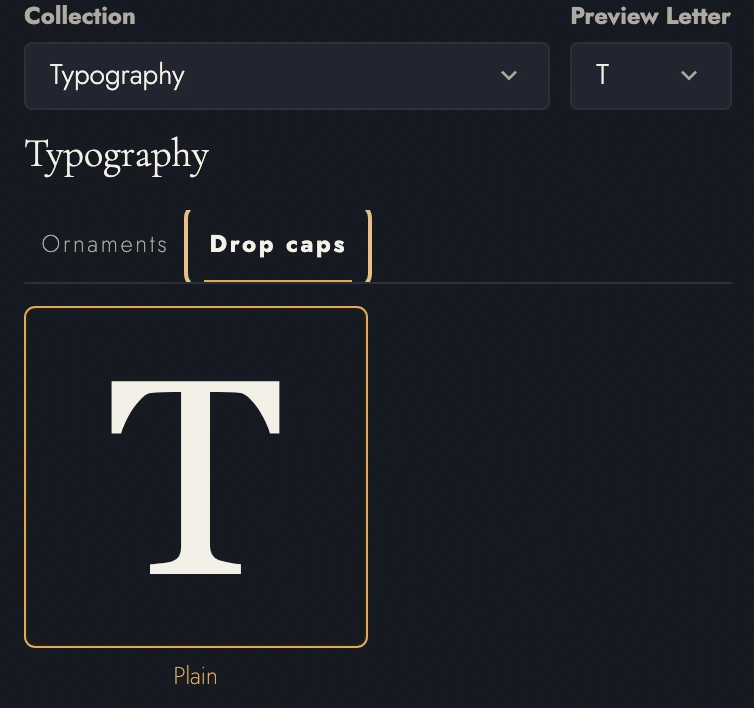
The illustrated collections disappear from decoration pickers and chapter-opening controls. Assistants and older versions of Tabularia cannot save new uses of them. Plain typographic initials remain, set in your book’s typeface, along with native separators and your own uploaded decorations.
The setting governs the built-in sets. It does not determine whether an uploaded picture was AI-generated; you remain responsible for the artwork you upload. Turning off AI processing alone does not remove or prohibit the built-in sets, because selecting an existing drawing does not make an AI request.
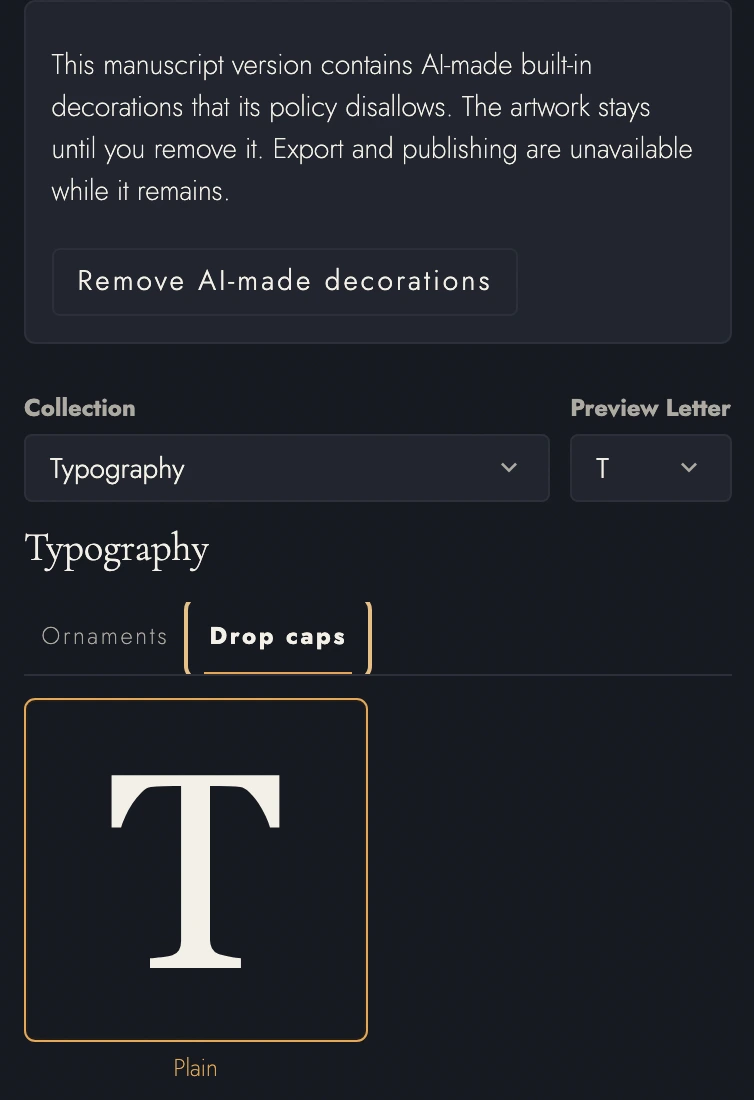
Your book stays intact. In Assets, open Decorations and choose Remove AI-made decorations. The action replaces illustrated initials with plain ones and removes built-in ornaments without changing your words or uploaded artwork. It applies across the current manuscript composition and can be undone.
Export, printing, and publishing refuse active prohibited artwork until you remove it. Inactive drafts and historical Snapshots stay intact; choosing one for output checks that version separately. A policy change does not automatically withdraw a page that was already published. Publishing it again must follow the current rules.
7. Check activity and the limits of revocation
Expand Recent AI activity to inspect policy changes and AI requests, including refusals. Policy records identify who changed the rules and which permissions they saved. These audit records do not copy prompts, manuscript passages, or model answers. Reading team activity requires audit permission separately from permission to change policy.

Save changes before leaving. Existing connections must follow the new rules on their next request, but revoking access cannot recall an earlier disclosure or stop someone from uploading a copied or exported file elsewhere. An approved app connection is still subject to your assistant provider’s terms and your organization’s own policy.
8. Continue reading
- Previous: What to ask your assistant
- Next: Plans and what they unlock
- All guide articles
Try it on your own book
Start a free evaluation. No card needed.