Writing goals and statistics
Track counts, set word goals, and time a writing session.
1. Counts
The writing-statistics menu is behind the chevron labeled Writing statistics, beside the counts in the document header. It has no keyboard shortcut.
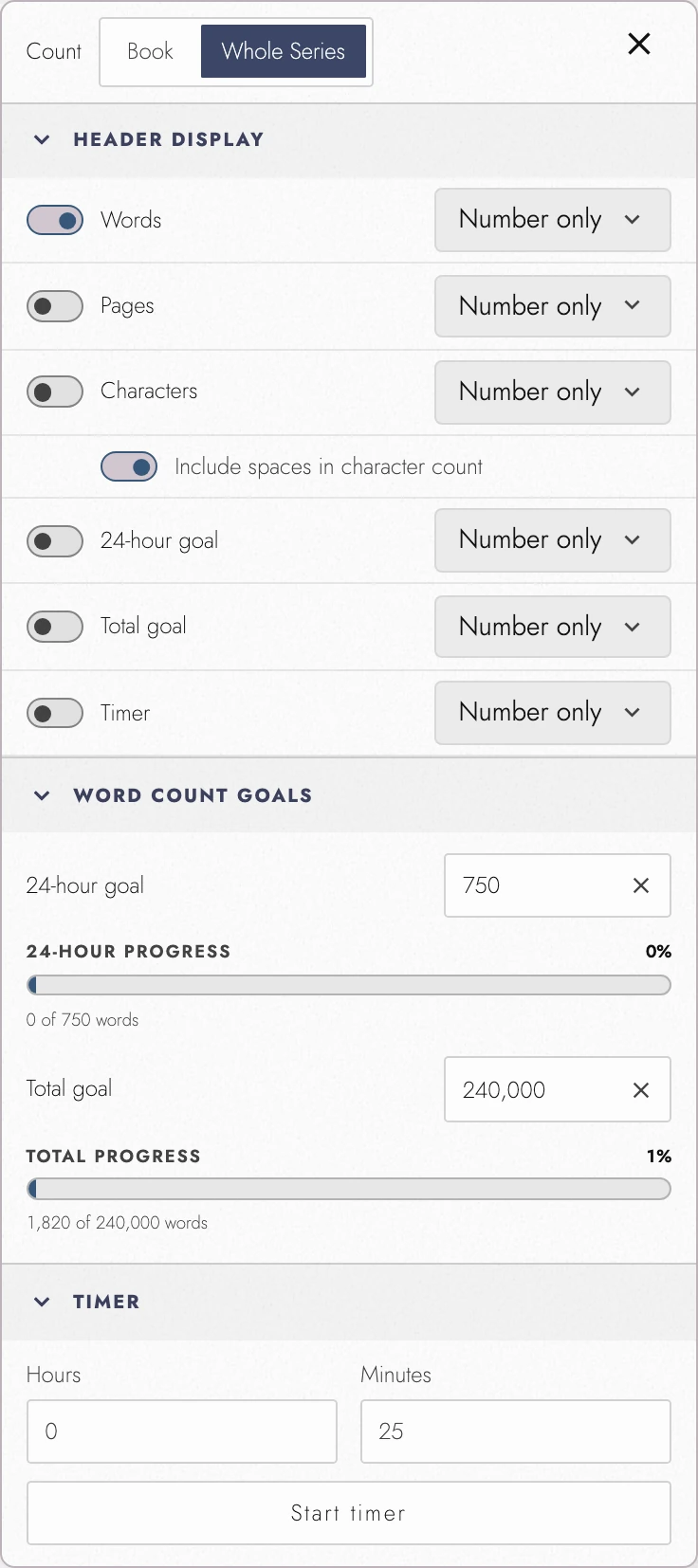
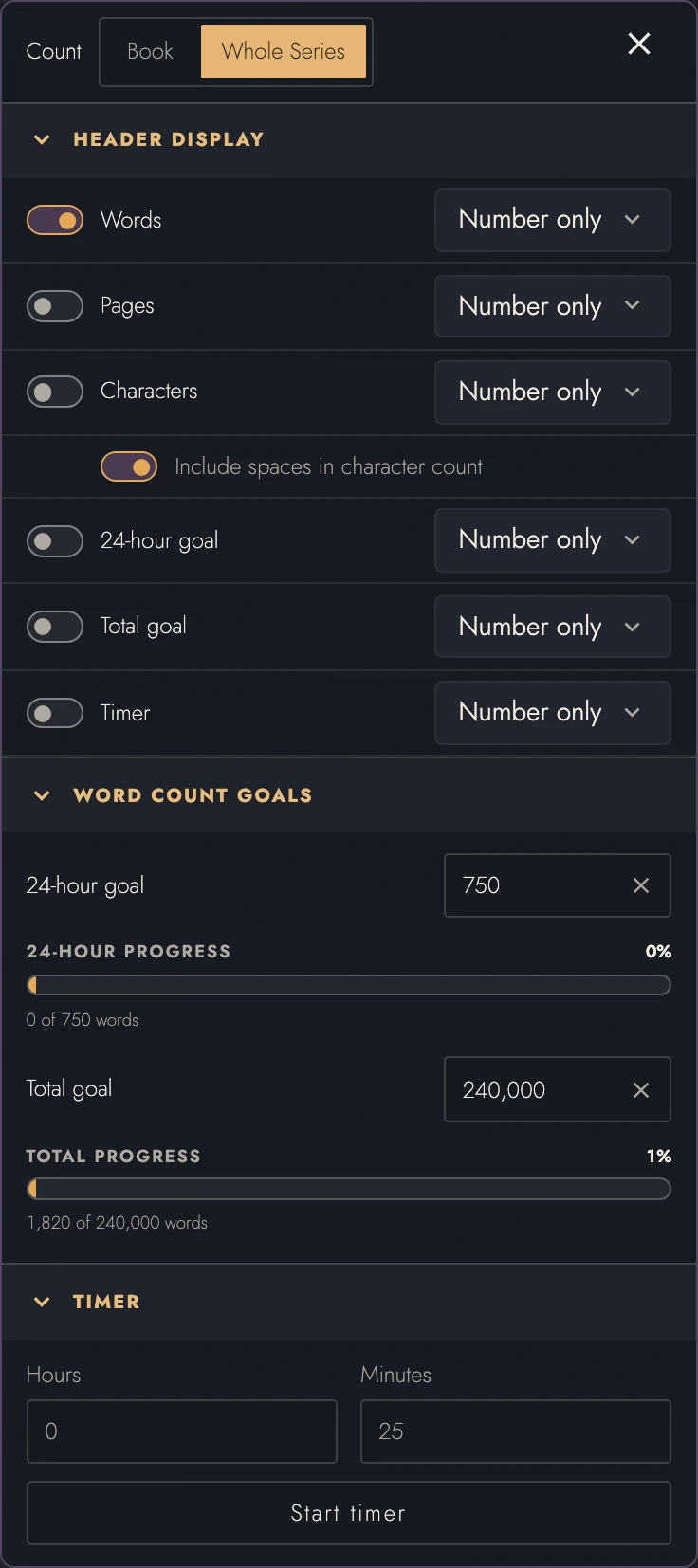
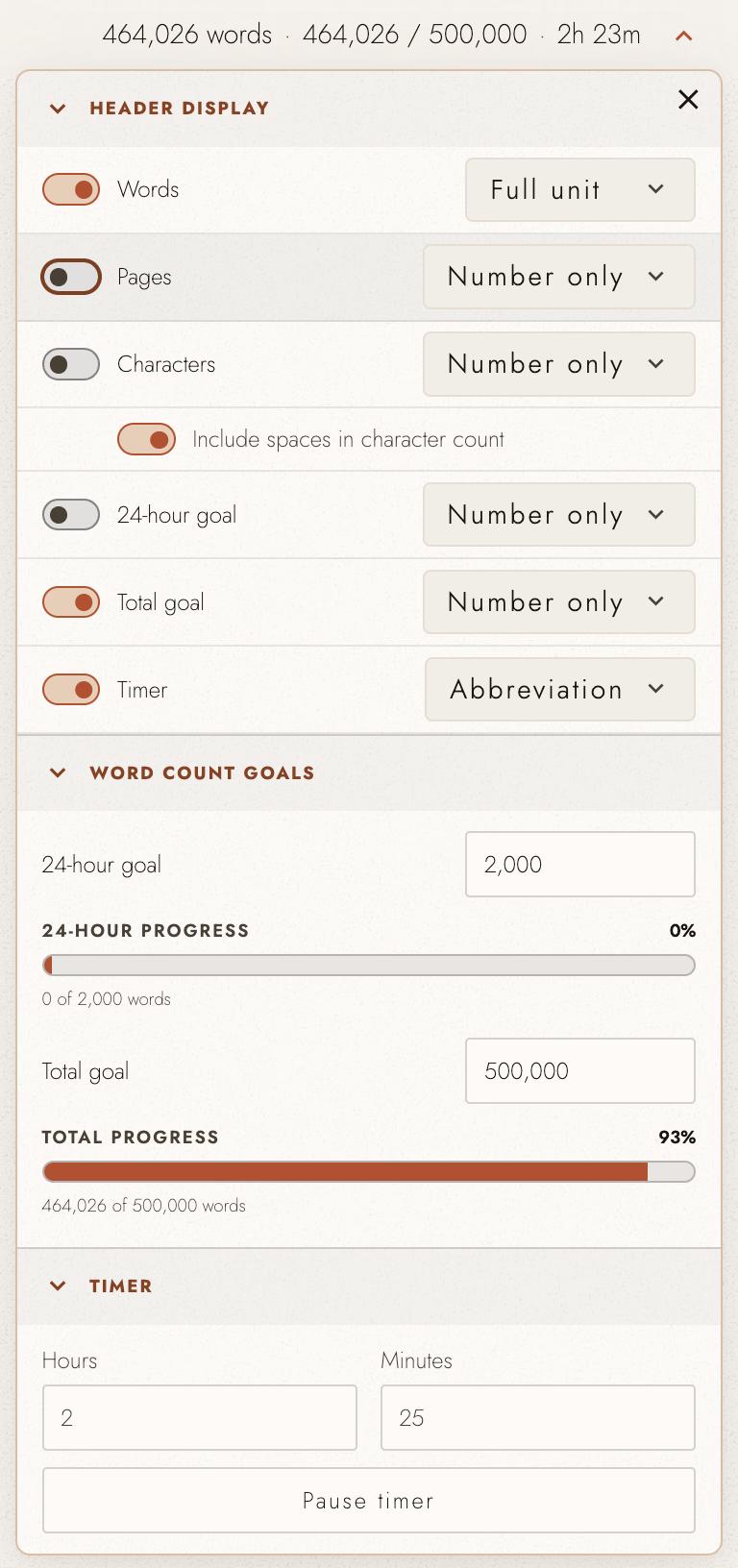
Use Header Display to choose the counts and timer shown beside the title. Counts can show a number alone, a full unit, or an abbreviation. Character counts can include or exclude spaces.
Counts follow your Working Scope and the wording shown on the Canvas. Select Current Chapter to see that Chapter’s word, character, and page counts. These rules explain how they match the page:
- Whole paragraphs. The canvas never shows half a paragraph, so neither do the counts: an anchor or selection that starts or stops partway through one counts all of it, and a point anchor counts the paragraph it marks.
- Only what is kept. A pinned timeline or filtered Outline counts the passages it holds and nothing between them: the words in one character's thread, not in the chapters that thread passes through.
- Pages too. The page count is the pages the scope occupies, by the same rules, so it moves with the words rather than reporting the whole book.
Page counts use the Book’s saved page format. Wrap is the exception: in a narrow panel, it counts the pages of the rewrapped column. Zoom changes only the display size.
For a Series, choose Book or Whole Series in the statistics menu. Whole Series, the default, uses combined counts and goals; Book reports the Book containing the caret and its goals. When Working Scope is Entire Series, this choice controls the header counts.
A phone's header has no room for any of this, so the way in moves. Open the document menu and choose Writing Statistics, under Mobile view: it opens this same menu, with the counts you have switched on read out along its top, since the header cannot show them. Goals and the Timer are set there as they are anywhere else. See Writing on a phone or tablet.
2. Goals
Under Word Count Goals, set a 24-hour goal or Total goal. The 24-hour window starts at your current count and resets after a full day. Starting the Writing Timer also opens a window if needed. Raising a target keeps progress already made.
Goal progress counts the whole Manuscript, regardless of Working Scope or the Book containing the caret. Narrowing the view changes header counts but leaves goal progress unchanged.
View dark appearance
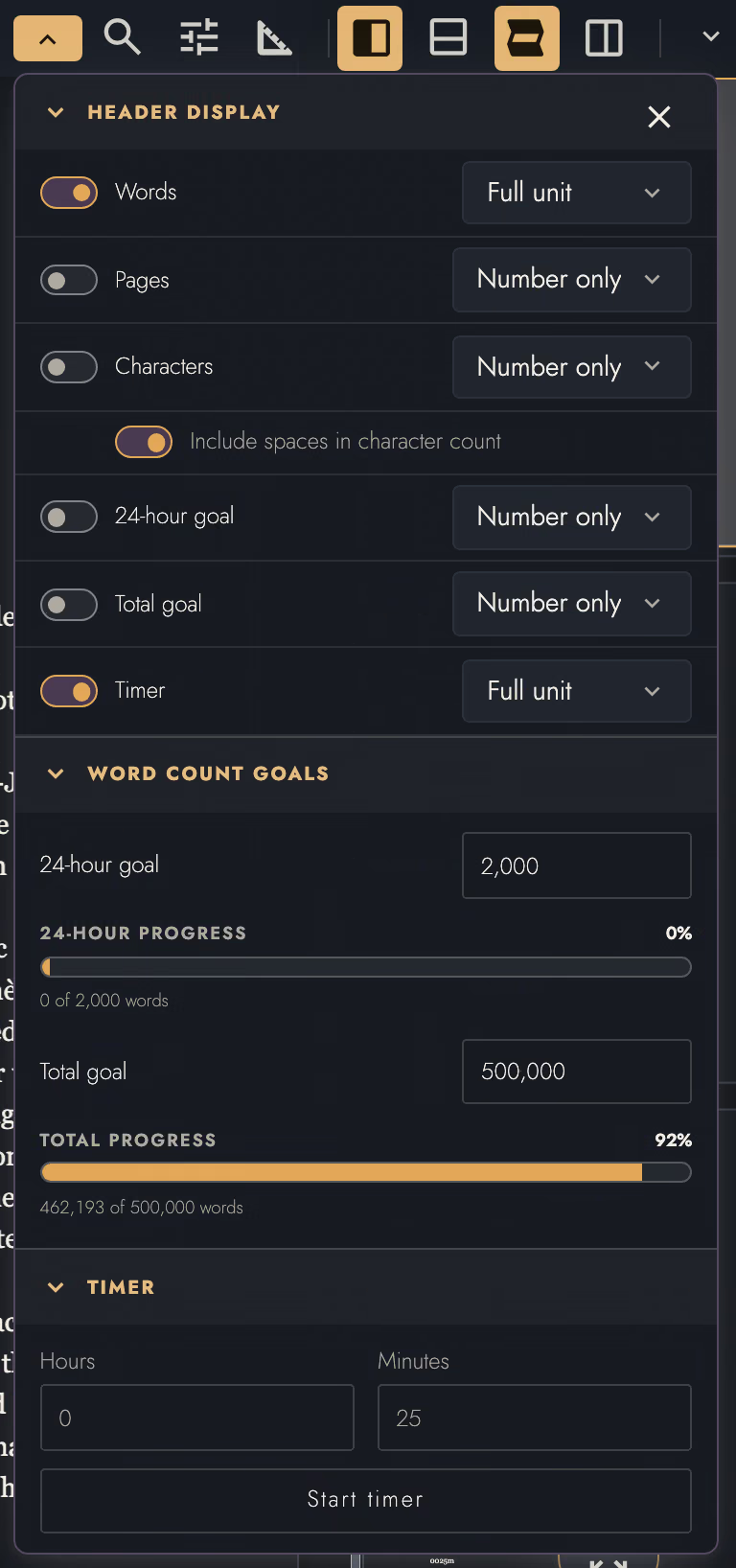
Either goal can also ride in the document header: switch 24-hour goal or Total goal on under Header Display and it reads as a pair, such as 120 / 500, in whichever display choice you pick. Leave both off and the goals stay in the statistics menu, not on the page.
A plan worked out on the Writing Pace Calculator or the November Novel Calculator can arrive already set. Press Set these goals in Tabularia there, and the 24-hour goal and Total goal are filled in for the project that opens. This menu then opens so you can see the change. A reload will not apply them twice.
Goals, the Timer, and your Header Display choices are saved with the project, so they travel with it. Each Book in a series keeps its own Timer. While your plan locks a project, its counts keep moving but its goals and Timer stay as they were.
3. The Writing Timer
Under Timer, set hours and minutes, then press Start timer. The default is 25 minutes. Pause and resume keep the remaining time. Enable Timer in Header Display to show the countdown while you write. Focus Mode can hide the surrounding interface.
4. Continue reading
Try it on your own book
Start a free 14-day evaluation. No card needed.