Timelines
Trace a character, subplot, or other thread through its passages.
1. What a Timeline is
Use a Timeline to follow one story strand, such as a character arc or subplot. It lists the points and passages where that strand appears. Create as many as you need.
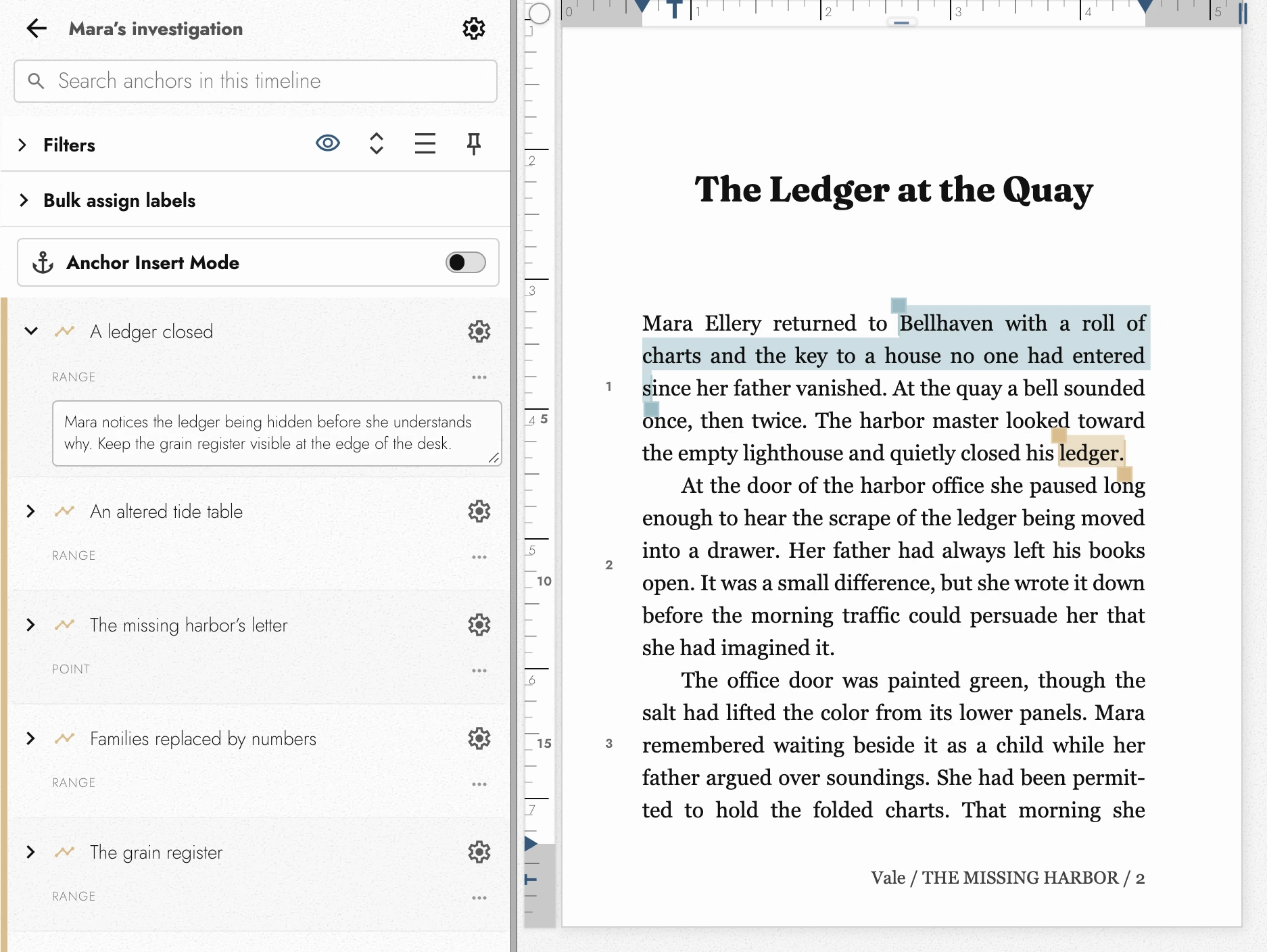
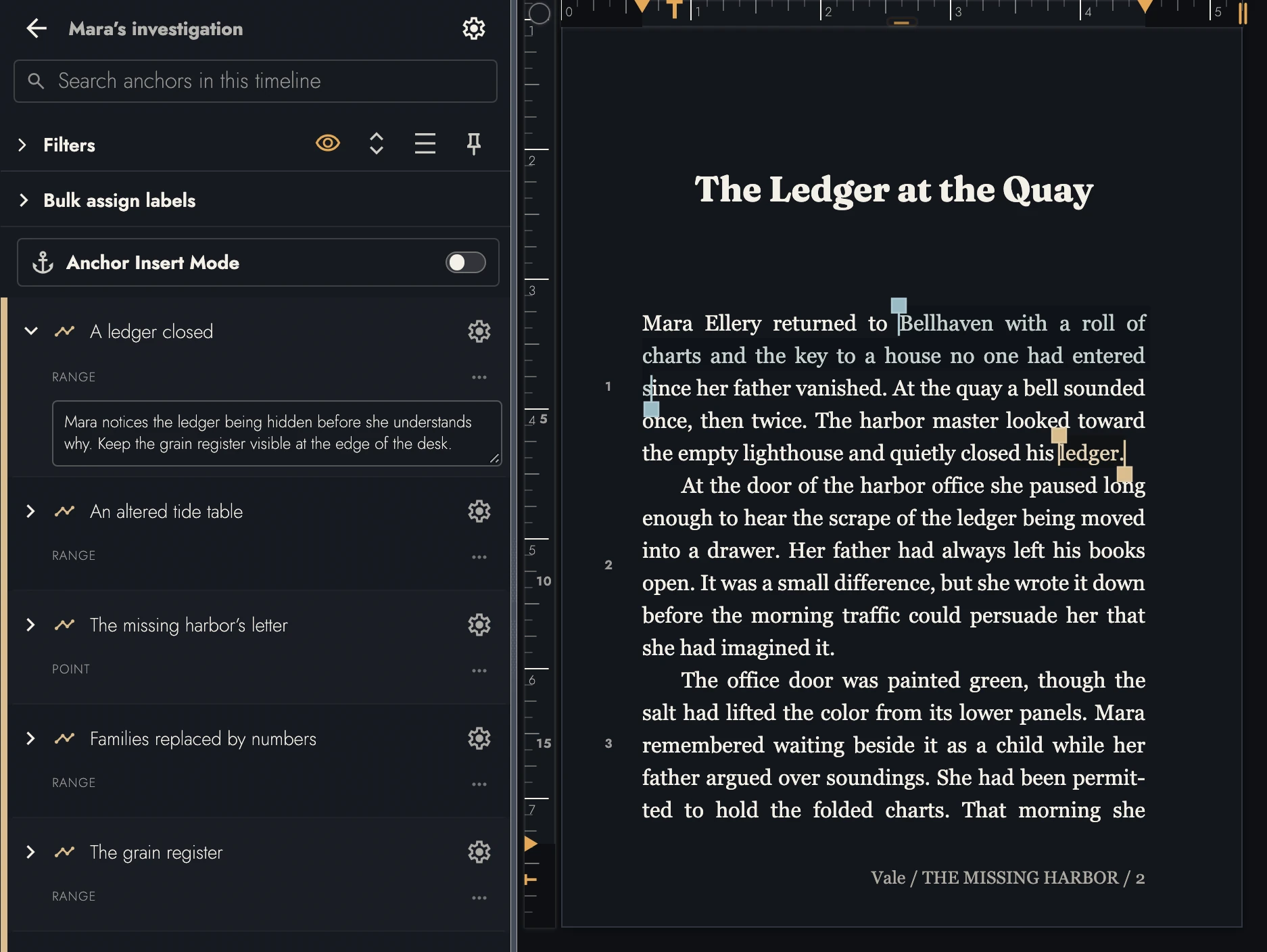
View dark appearance
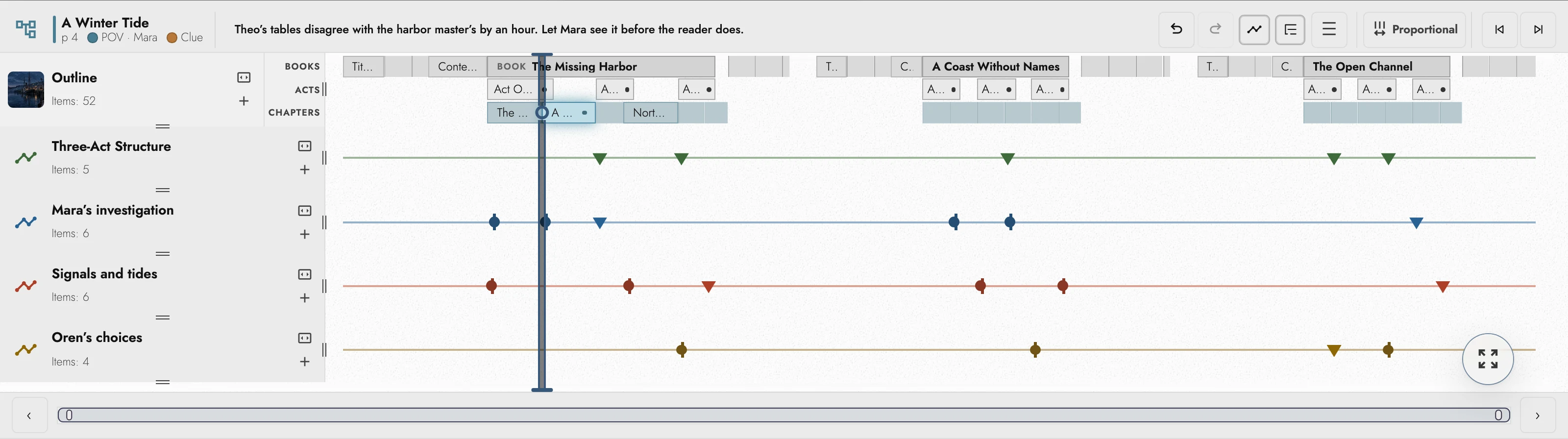
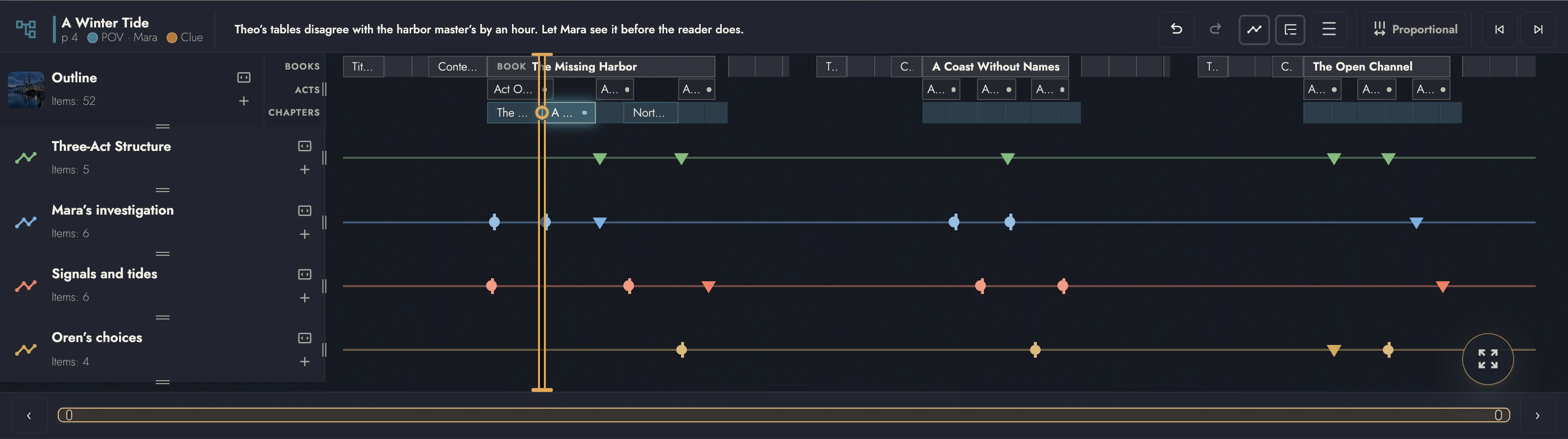
Timeline spacing follows the amount of writing before each marker. It shows where a strand appears in the Manuscript, rather than calendar dates. Use it to find long absences or crowded stretches.
2. Markers
A marker uses a Point or Range Anchor to connect an event to the writing. Give it a title and an optional comment, such as what the reader should know here. Select it to visit the passage. See anchors.
Open a Timeline in the Timelines tab, enable Anchor Insert Mode, then mark a position or select a passage. The marker appears in its list and drawer lane. Range markers show their passage’s word count; Point markers show a page.
The right-click menu does the same without the mode. With your timeline open in the sidebar, its anchor commands name it (Add point to or Add range to followed by the timeline's title), and the marker goes straight onto it.
A row in that list carries the marker's own controls. Add a comment writes the note without opening the page, and the toolbar above can hold every comment open at once. Create draft cuts a draft of the passage the marker points at. The settings gear gives it a label and a Visual Identity of its own, or hands it back to the timeline's, which the button offers by name.
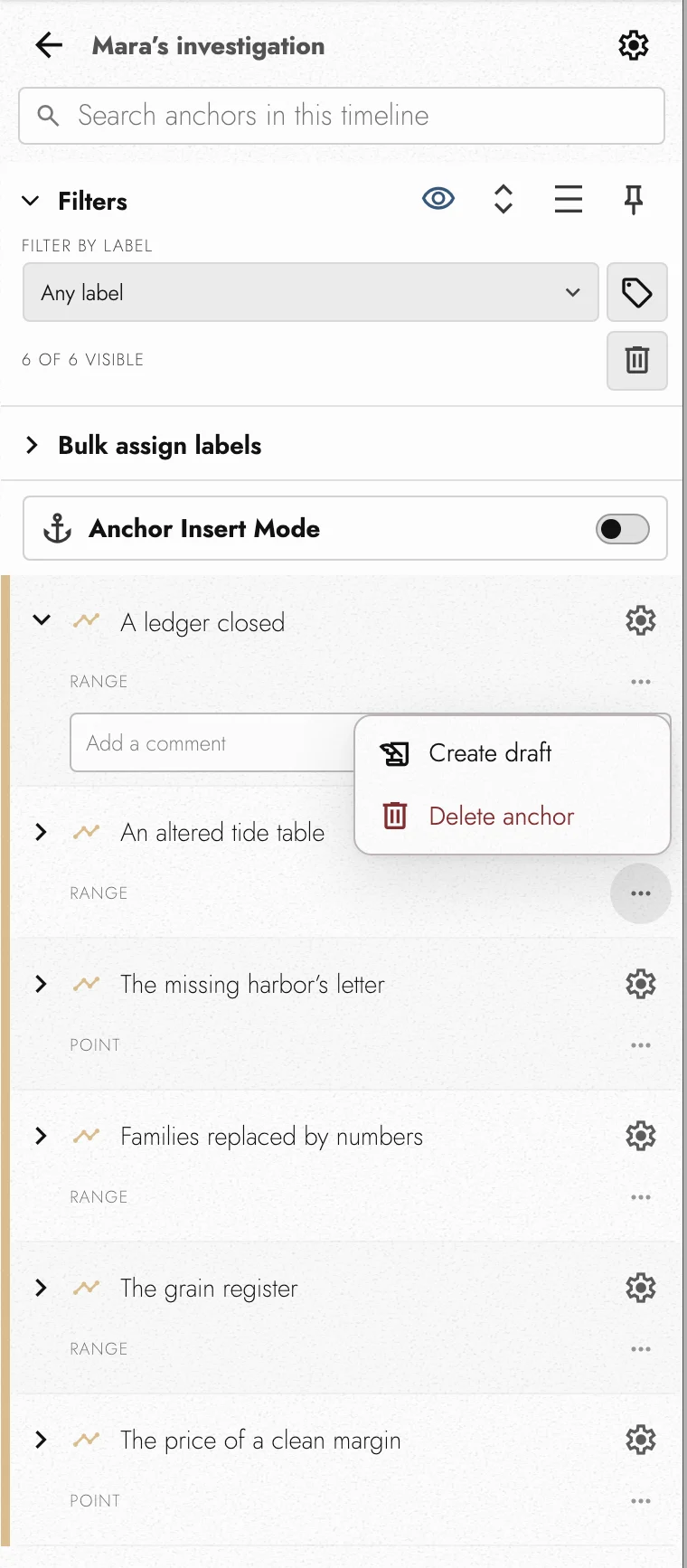
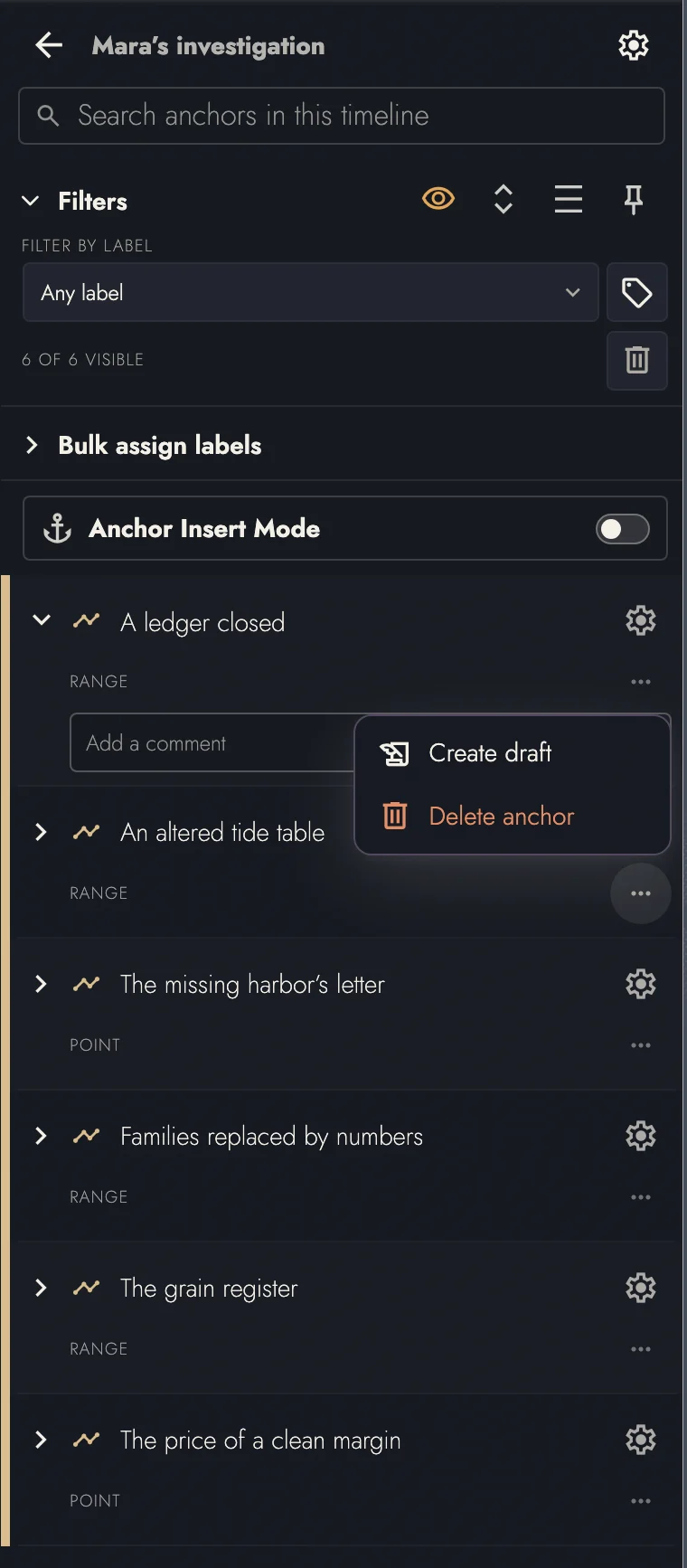
Use level, label, and search filters to narrow the list. Delete visible Anchors removes those markers after confirming a count, without deleting prose. The Outline’s matching action also deletes contents, so check its label carefully.
Markers inside a hidden draft are hidden from its Custom Timeline too. The filter band counts the missing markers in a small chip and names the drafts holding them. Pressing it opens Drafts & Sharing on those drafts.
3. Where timelines live
Choose New timeline in the Timelines tab. Each Timeline’s settings can rename it or set its color and artwork. Deleting it removes its markers but leaves their Anchors in the Manuscript. The automatic Outline cannot be renamed or deleted.
The drawer’s Outline lane stays above Custom Timelines. Hide lanes or drag them taller. Use Move Timeline up or Move Timeline down to reorder Custom Timelines. Resizing a lane switches compact spacing to comfortable spacing.
Each lane’s label starts with its swatch, and pressing the swatch opens that Timeline’s Visual Identity. The Outline’s swatch wears the manuscript’s own identity and opens it in the manuscript’s settings. Under the title, Items counts what the lane holds. Compact spacing fits a Timeline’s label onto a single row beside its Fit and plus buttons, leaving the count out.
A drawer you have not set up yet shows every Outline level, Books through Headings, with Follow Zoom off. Each level’s eye button in Outline depth shows or hides it. Turn Follow Zoom on instead and the depth follows the zoom: Books when you see the whole series, finer levels as you close in.
Proportional spacing shows actual passage lengths. Structural spacing gives Chapters and their markers equal room, making crowded areas easier to read at the cost of true proportions. Either way, a line runs the length of each Timeline’s lane for its markers to sit on.
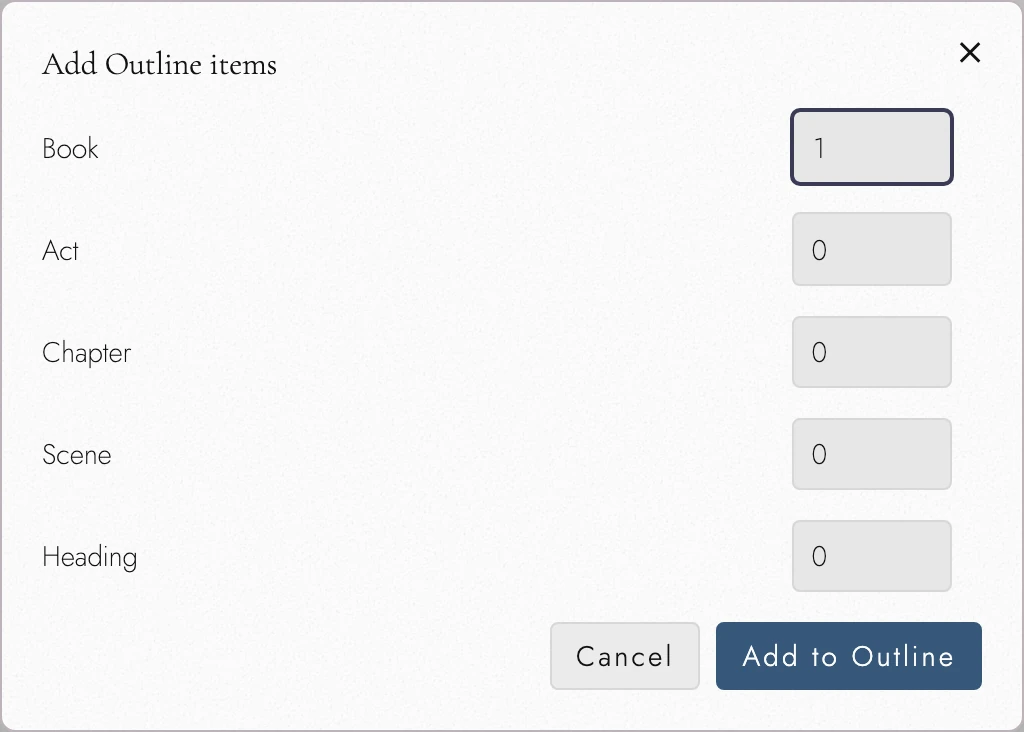
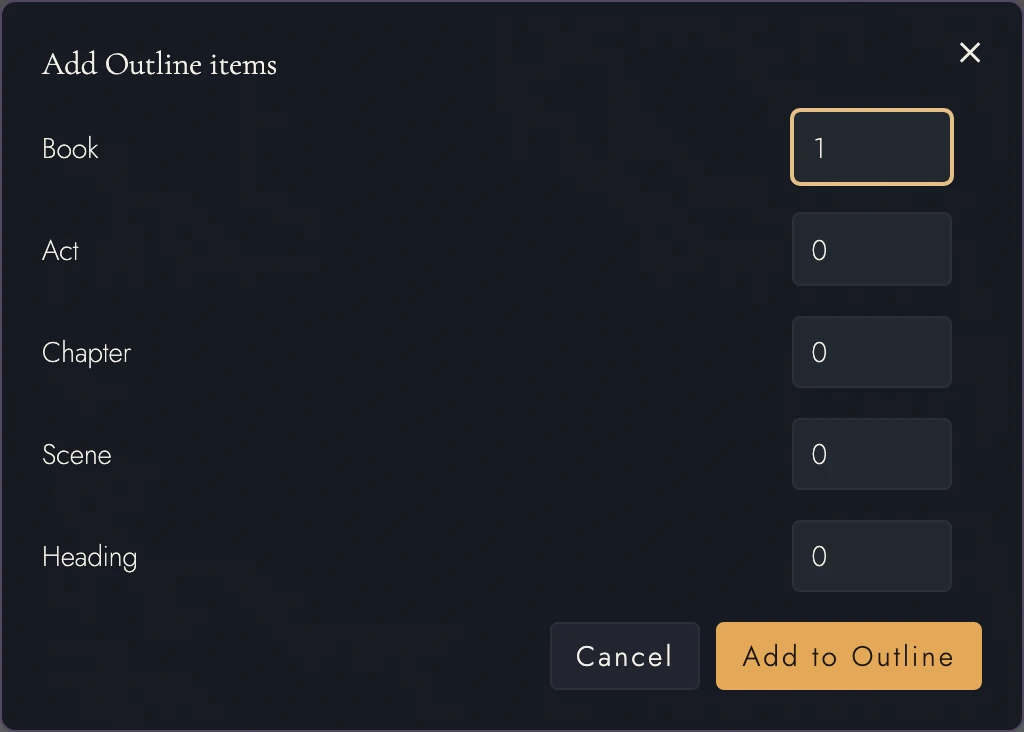
Each lane’s plus button creates several items at once. The Outline offers structural items; Custom Timelines offer Point and Range Anchors. The story shapes guide compares this with other planning methods.
View dark appearance
4. Reading one strand on its own
Pin a Timeline as Working Scope to read only its anchored passages. Counts, Find, and the drawer follow that view. The original text is neither copied nor moved; choose another scope to widen the view again.
The pin is a button at the head of the Timelines tab, reading Use this Timeline as the Working Scope with that timeline open, and Stop using this Timeline as the Working Scope once it is pinned. It selects the scope as well as pinning it, so the canvas closes up as you press it.
The scope stays live while it is pinned. Place another marker on that timeline and its passage joins the scope immediately, without your pinning it a second time.
A draft captured while a timeline is pinned holds exactly the passages its markers point at, which is how a strand becomes something you can revise, share or publish on its own. The published page carries those passages in manuscript order, with what lies between them left out.
5. Continue reading
Try it on your own book
Start a free 14-day evaluation. No card needed.