Sharing your manuscript for review
Invite Readers or Editors and review the feedback they return.
1. Creating an invitation link
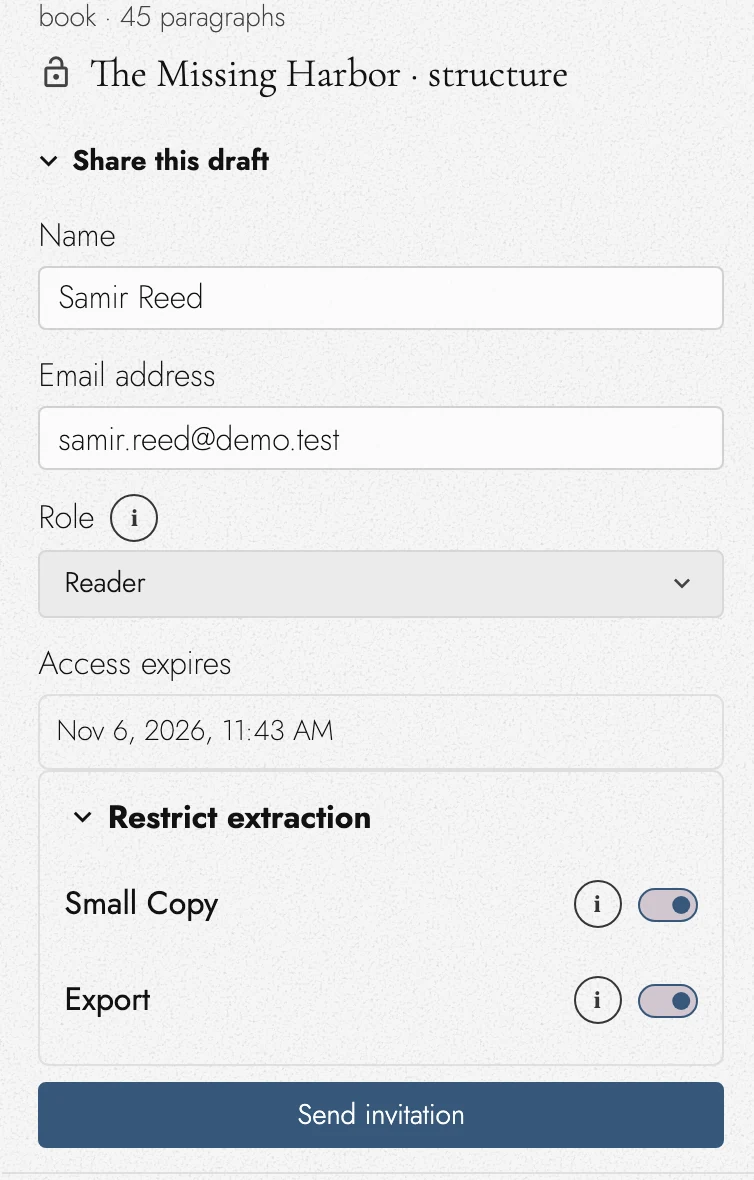
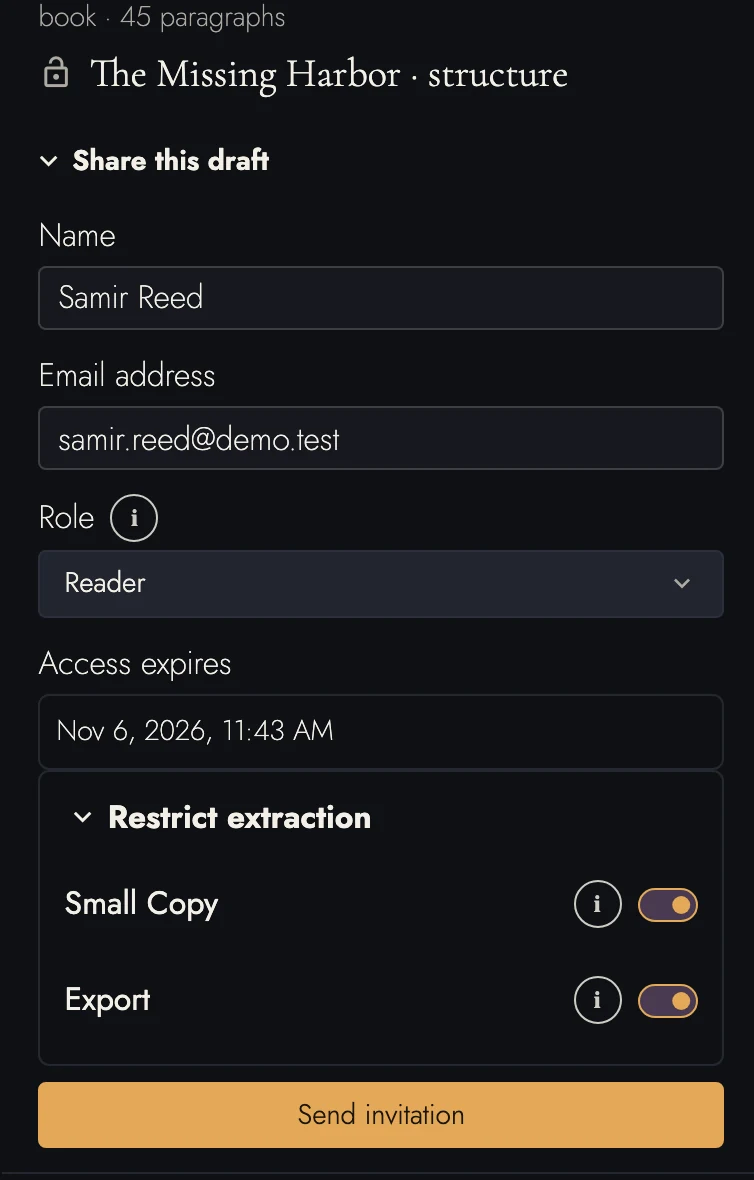
Sharing lives in the right panel under Drafts & Sharing, and requires a Cloud subscription on your account. Your readers do not need one, or any paid plan, to participate fully. Create an invitation and choose:
View dark appearance
- Name and Email address: who it is for. An Editor has to accept with that same address.
- Role: what the recipient can do (below).
- Access expires: when the share ends. Not only for newcomers: an Editor already inside loses access on that date too.
- Restrict extraction: folded shut, with two switches for this Share alone. Small Copy limits copying to three paragraphs in a row, and Export removes the export controls.
Both restrictions discourage lifting the text rather than prevent it. Nothing stops a screenshot or retyping. Send invitation queues the email and shows the private link, with a button to copy it if you would rather send it yourself.
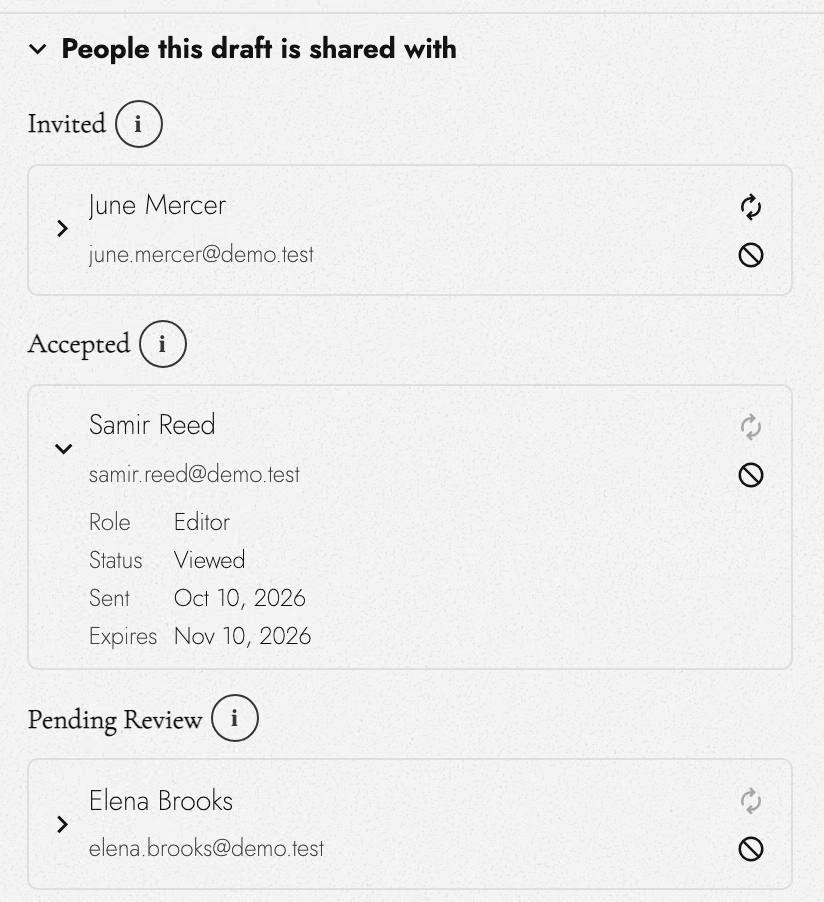
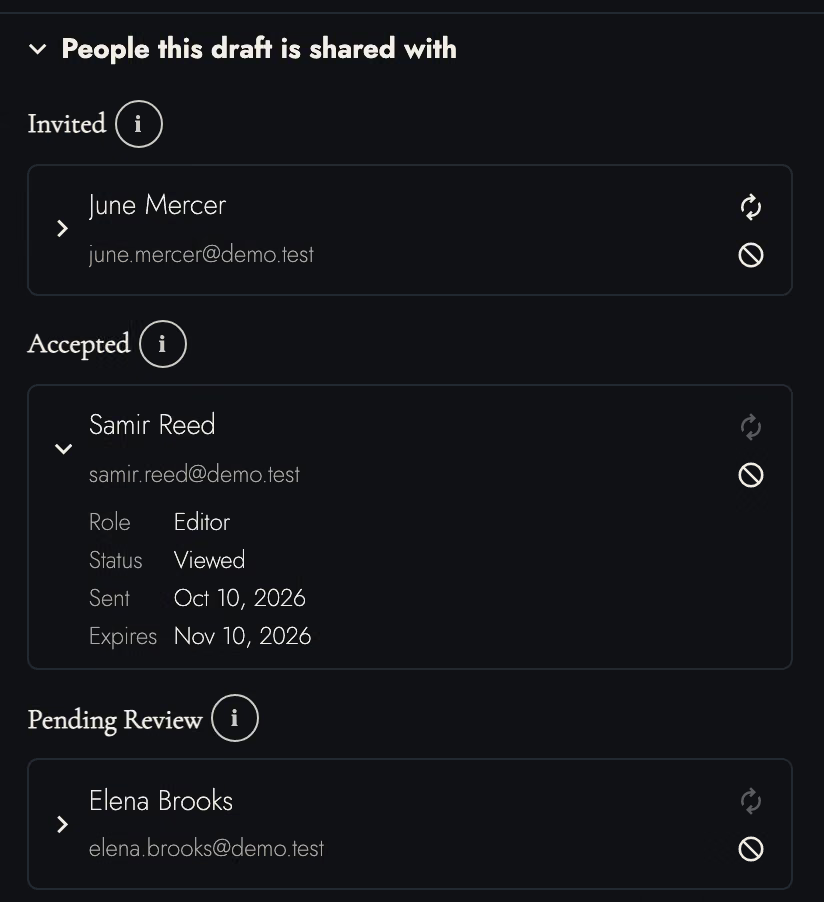
The Sharing view has three sections: Share this draft, People this draft is shared with, and Published page. Invitations move between Invited, Accepted, and Pending Review as recipients respond.
2. Roles
Both explanations are behind the i beside the Role field in the Share panel, so you can compare them at the moment you choose.
Reader
Editor
What the Share panel has no room to say
A Reader invitation uses the draft’s existing published page, if it has one. Update Automatically decides whether it follows new cloud-saved wording.
Shared Access Only requires a signed-in Reader on this draft’s share list. Revoking access closes the page for them. Private Link and Shared Access Only pages are excluded from search indexing and your sitemap; only pages with both off are public.
Shared Access Only pages open on Tabularia’s address so Readers can sign in. A Reader can use Leave this page in the Account menu to remove their access. Their name leaves your share list without emailing you.
An Editor’s lock lasts until every reviewer submits, leaves, or has access revoked, and you cannot unlock the draft in the meantime. You can still end a review early. Archiving the draft closes it and leaves the Editor a copy to read; deleting the draft permanently revokes their access along with it.
To keep writing, use Duplicate or start typing and choose Continue in a new draft. The sent version stays unchanged. Returned comments and proposals appear in Markup.
Author is the project owner’s role, including writing, merging, managing access, and deleting. It is not offered as a Share role. Team Access will support role transfers under the upcoming Team plan.
An Editor without an account can choose Sign up and accept from the invitation, then verify their email. They must use the invited address. If sign-in or verification blocks acceptance, the page explains how to correct it.
For beta readers, Editor is almost always the right choice: their suggestions arrive as proposals you accept or reject, never as silent edits.
3. What your Editors see
Editors open a review workspace for the shared draft. They cannot see your other projects or drafts. They can suggest wording and leave comments, but cannot restructure the Outline, import text, use Sheets, or share onward.
Assets are read-only. Editors cannot place or resize images, Scene Breaks, or Dividers. They may move, wrap, or remove existing image placements, and delete existing Scene Breaks or Dividers.
Reviewing requires a connection. Editing pauses if saving becomes unavailable.
4. Returning a review
As an Editor, your work stays private until you submit it. The Author receives the completed review, not a live stream of your edits.
Open Drafts & Sharing and press Submit to Author on the review draft. It sends your wording and passage comments. Once submitted, the review is closed to further edits. A connection is required.
Pending Reviews stays above scopes and filters, so unfinished or returned reviews remain easy to find.
Once a review is submitted it folds away under Submitted reviews at the foot of the panel, where it stays as a record. Archive this review takes that manuscript out of your active list without giving the record up. If the author shares the same manuscript with you again, it comes back.
Leave this review offers two choices:
- Send what I have, then leave submits a partial review. If sending fails, you remain in the review with your work intact.
- Leave without sending discards your unsent review.
Either choice removes the manuscript from your projects and keeps no private copy.
An author who revokes a share ends the review there: the draft will not open again, and nothing further can be submitted under it. What you had already sent them stays sent.
An author who archives the draft also ends your review, but you keep a copy to read. Copy my comments under Pending Reviews puts every comment you left on it, each with its passage, on the clipboard as plain text, ready for an email or your own notes.

View dark appearance

5. Revoking a share, and sending it again
Revoking access prevents further editing or submission. The collaborator’s project row moves to Archived and shows Access revoked. Other active shares from that project remain usable.
Sharing the same draft again reuses its review workspace. Its reference copy updates to the wording you sent, while the collaborator’s existing work remains. Sharing a different draft creates a separate review.
6. Reading the feedback
A submitted review comes back as a draft of its own, listed under the one you shared and carrying the collaborator's name. Its wording is theirs, so showing it puts their sentences on the page. Turn on Markup for that row and the page shows what they changed against your draft.
None of it touches your own draft yet. Merge on the returned row walks you through the review a difference at a time, and you keep or drop each one, or settle them all at once with Accept All or Reject All. Finishing the merge closes that review. Tabularia never applies a collaborator's change without your decision.
7. Knowing a review has come back
A returned review adds a count to Drafts & Sharing in the header. Press it to open the waiting draft. The Projects row also shows this count.
Editors see counts for reviews they have not submitted. New shares appear in Projects automatically. If that project is already open, Tabularia asks them to reopen it to load the shared drafts.
8. Managing access
Open a person’s row under People this draft is shared with to see their role, progress, invitation date, and expiry. Resend works only before acceptance; Revoke ends access.
People with access lists standing project roles. An unclaimed role offers Withdraw. Expired shares end access for accepted recipients too.
An Editor who leaves after sending a partial review appears on its returned draft, with a change count. Leaving without sending removes them from the list and emails you. The lock lifts when no other reviewer holds it.
9. Continue reading
- Previous: Snapshots and History
- Next: Publishing and reading
- All guide articles
Try it on your own book
Start a free 14-day evaluation. No card needed.