Exporting and printing
Prepare a submission, reading copy, printed Book, or Project archive.
1. Where export lives
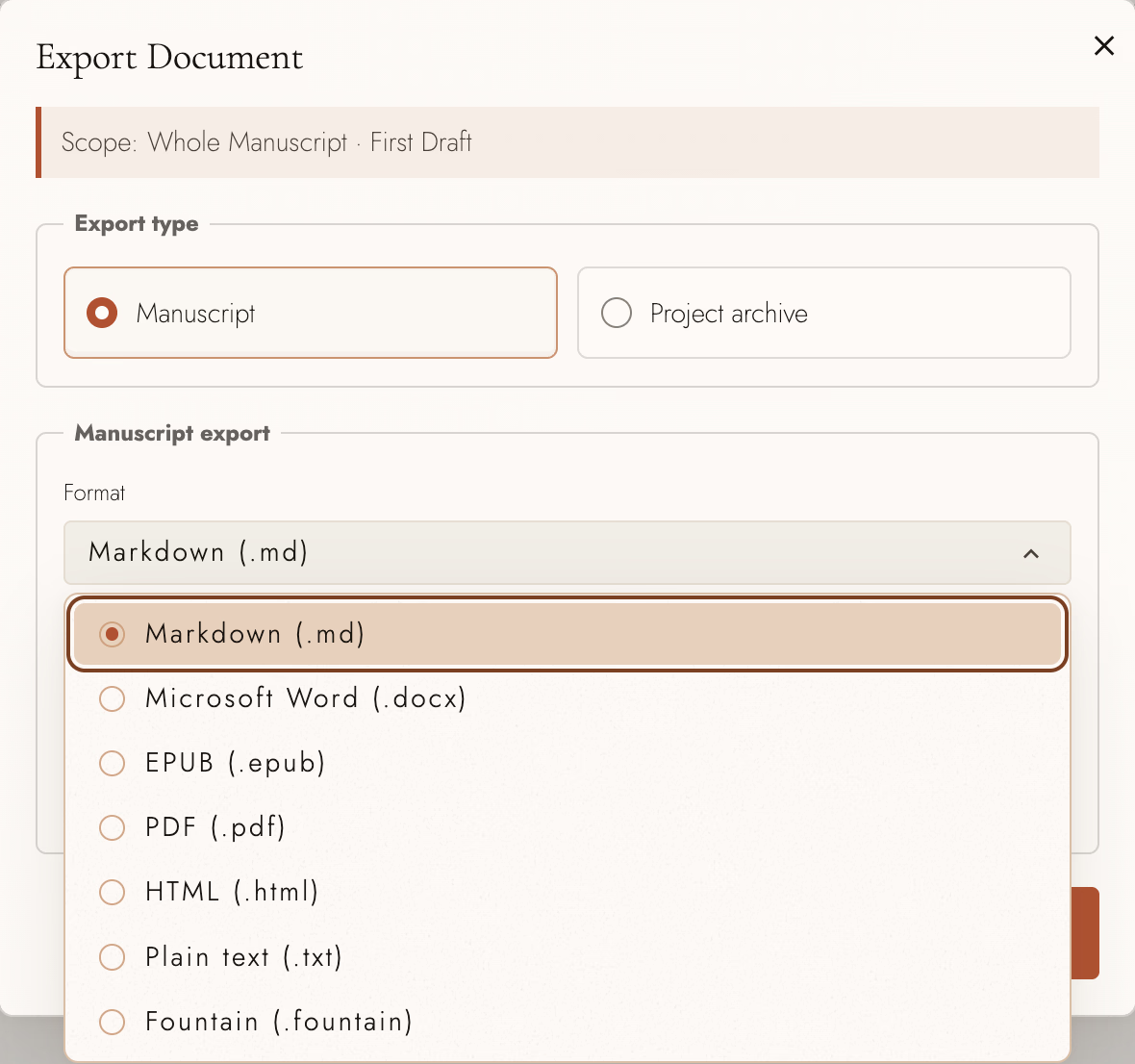
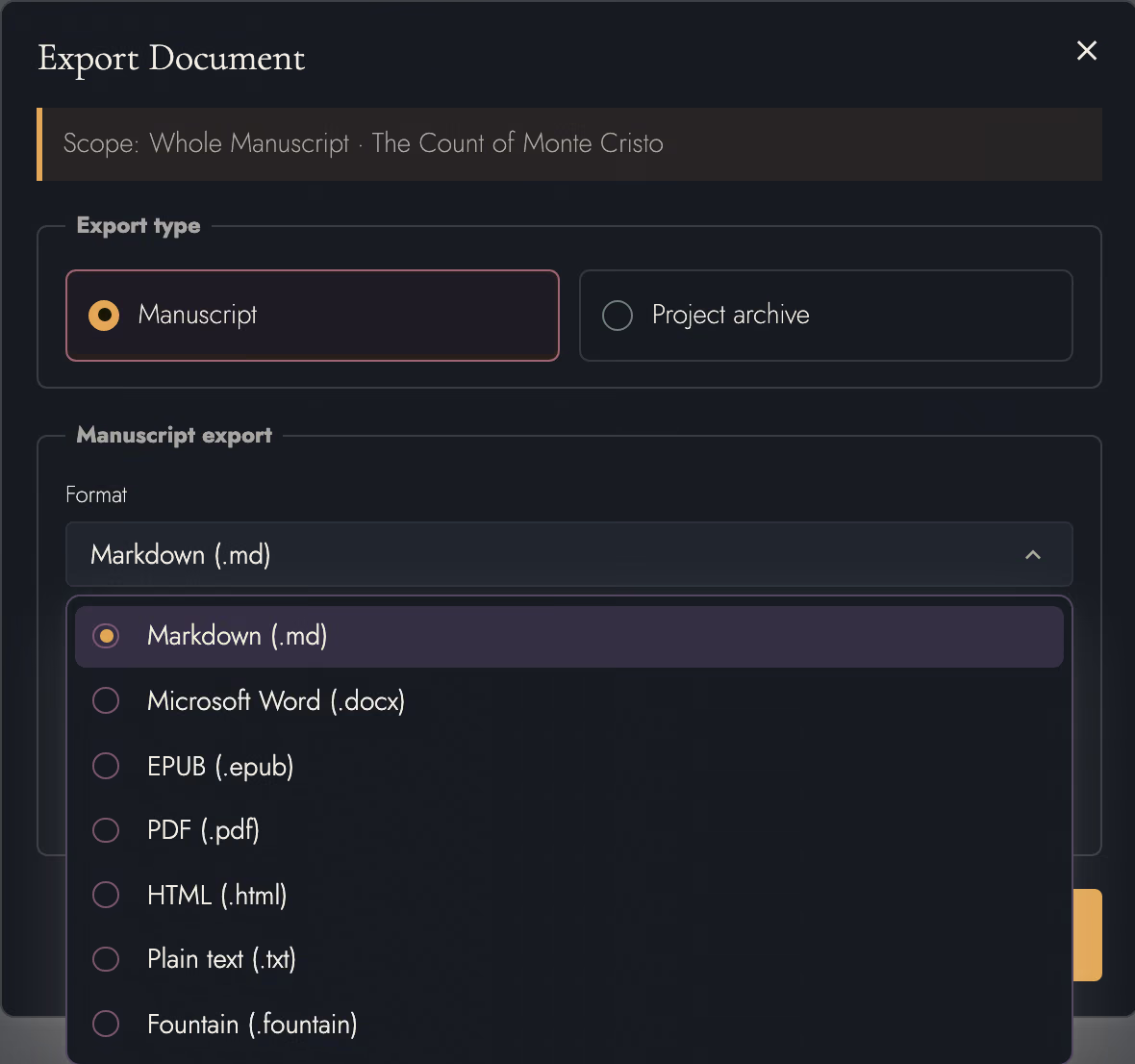
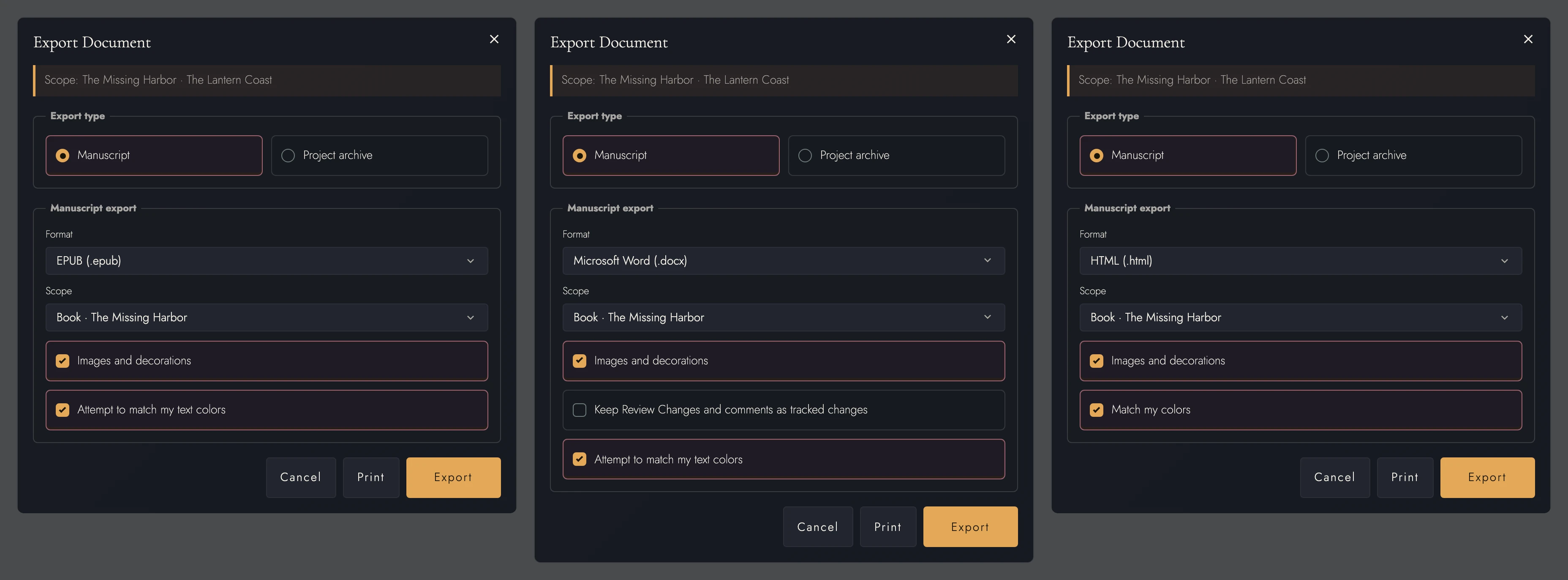
Open Export on a Project row, or on a Draft row to preselect that Draft. Choose Manuscript or Project archive. For a Manuscript, pick a format and Scope.
While you evaluate the Local plan, every format here is open but two, and Print is locked as well. PDF, EPUB, and printing come with a Local license or an active Cloud subscription, so the dialog shows them locked, with a link to buy the Local plan. A complete Project archive is open to every account, whatever its plan.
Someone else's Project answers to its owner's plan, not yours. When the owner's Cloud plan or a Team's plan ends, PDF, EPUB, and printing go with it, while Word, Markdown, and the other file formats still export. On a shared Draft whose Author restricted export, Export and Print are both locked, and the dialog's status line says why.
Scope decides which writing to include:
- The whole Manuscript, any Act, or a Book in a Series.
- Your narrower Working Scope, such as a Chapter or selected story thread.
- Any whole-Manuscript or Scoped Draft, without merging it first.
A pinned Timeline or filtered Outline can export one character’s thread as a separate file. See draft.
2. Pick by destination
- DOCX is for agents, editors, and submission. Use it whenever a person will open your manuscript in a word processor.
- PDF is the designed page, ready to upload for a paperback interior. It is set in your typeface, size, and page format, and it carries every face it uses (see A paperback interior below).
- EPUB gives you a preview for e-readers.
- HTML serves the web, or works as a well-structured interchange copy.
- Markdown / plain text moves prose into text-based tools. With images, Markdown downloads as a zip containing the file and an images folder. Plain text uses placeholders such as [Image: The harbor at dusk].
- Fountain exchanges screenplays with apps that read it. The six screenplay styles supply its line types, and the Book supplies its title page. Dual Dialogue, Shot, and Centered are written the way Fountain marks them. Import the resulting script back when a collaborator returns it.
- Final Draft (.fdx) opens in Final Draft with every element on the paragraph type Final Draft gives it, Dual Dialogue paired, and a title page holding the Book's title, credit, and author. A heading is written as a New Act. Final Draft has no place for pictures or Footnotes, so the file leaves them out, and Review Comments stay in Tabularia.
- Print sends the designed page through your browser's print dialog.
Images travel in PDF, DOCX, EPUB, HTML, and Markdown, and are named in plain text. A screenplay has nowhere to put one, so Fountain and Final Draft leave them out.
A Frontispiece is exported as a page of its own. The PDF and Print draw it exactly as the page shows it. Word fits it to the text area between page breaks, and an EPUB or HTML file sets it ahead of the title page with its picture's title in Assets as the description a screen reader speaks. Its caption prints only when you wrote one.
Links go wherever a format can hold one, and a print PDF is the one kind of PDF that cannot. Links has the format-by-format answer.
Footnotes travel in every format except Final Draft, each in the form that format reads best:
- DOCX uses Word Footnotes. Word updates ordinary and Roman numbering as text changes. Symbols and Chapter-restarted notes use the exact displayed marks instead.
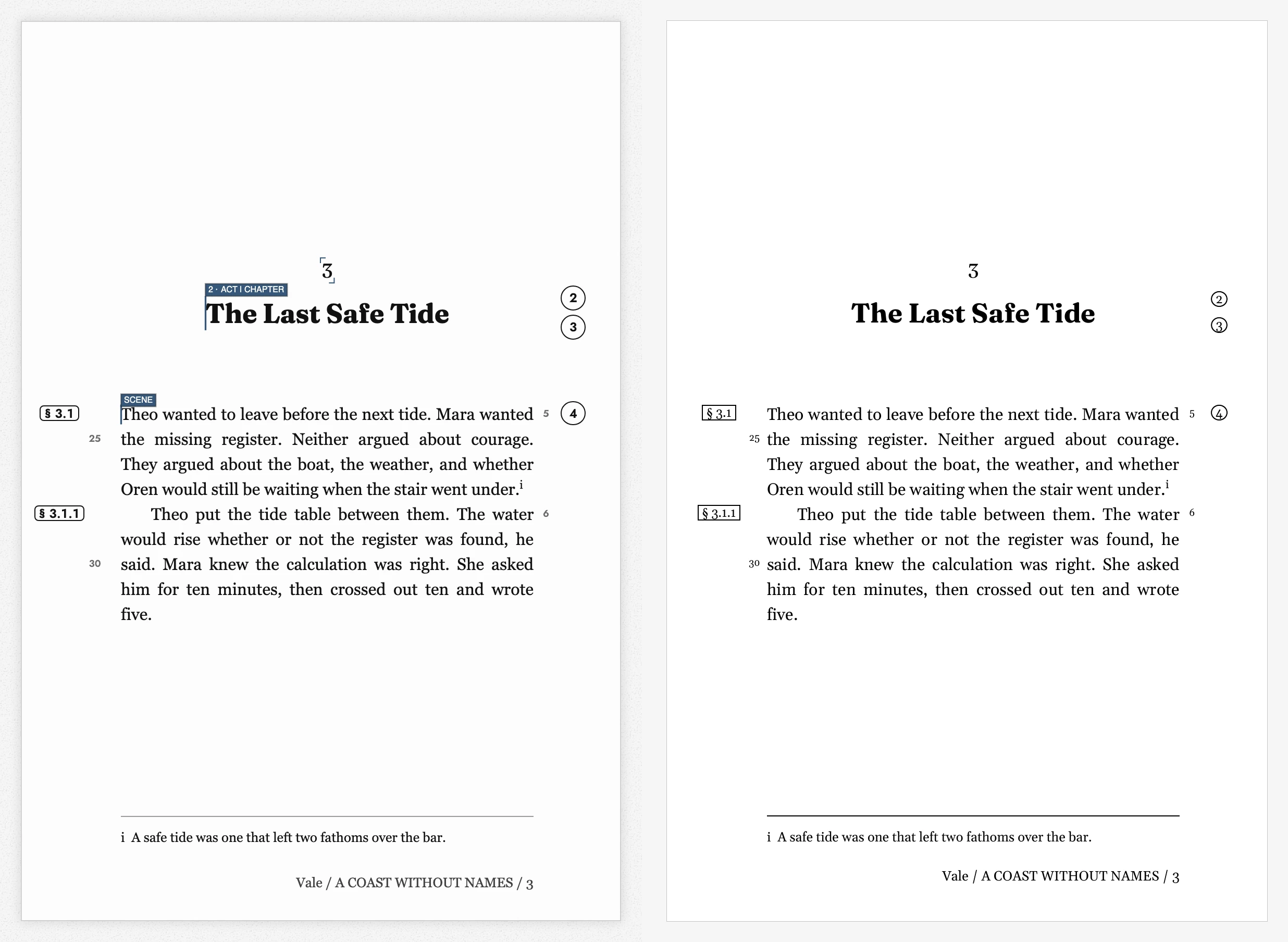
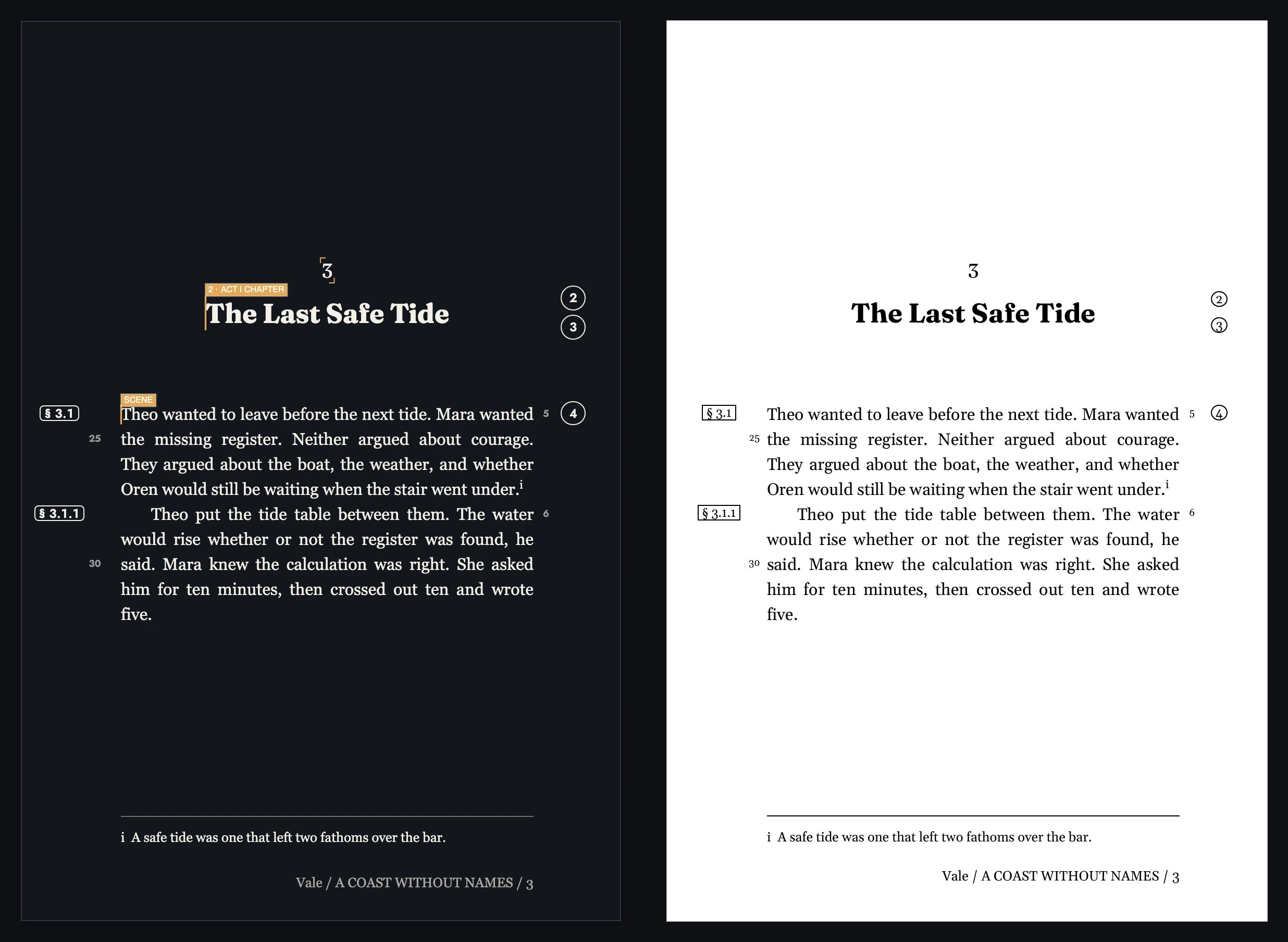
- PDF and Print set each note at the foot of the page that refers to it, above the running foot.
- EPUB and HTML put notes at each Book’s end with reference and return links. Markdown uses HTML for the same result; plain text uses numbered references and notes. See Markdown.
-
Fountain turns a note into a
[[note]]where its reference stood, which is how a script comments on its own lines.
Tabs remain tabs in every format. Designed pages and Word use the Canvas’s half-inch tab stops. Tabs and tab stops explains the other formats.
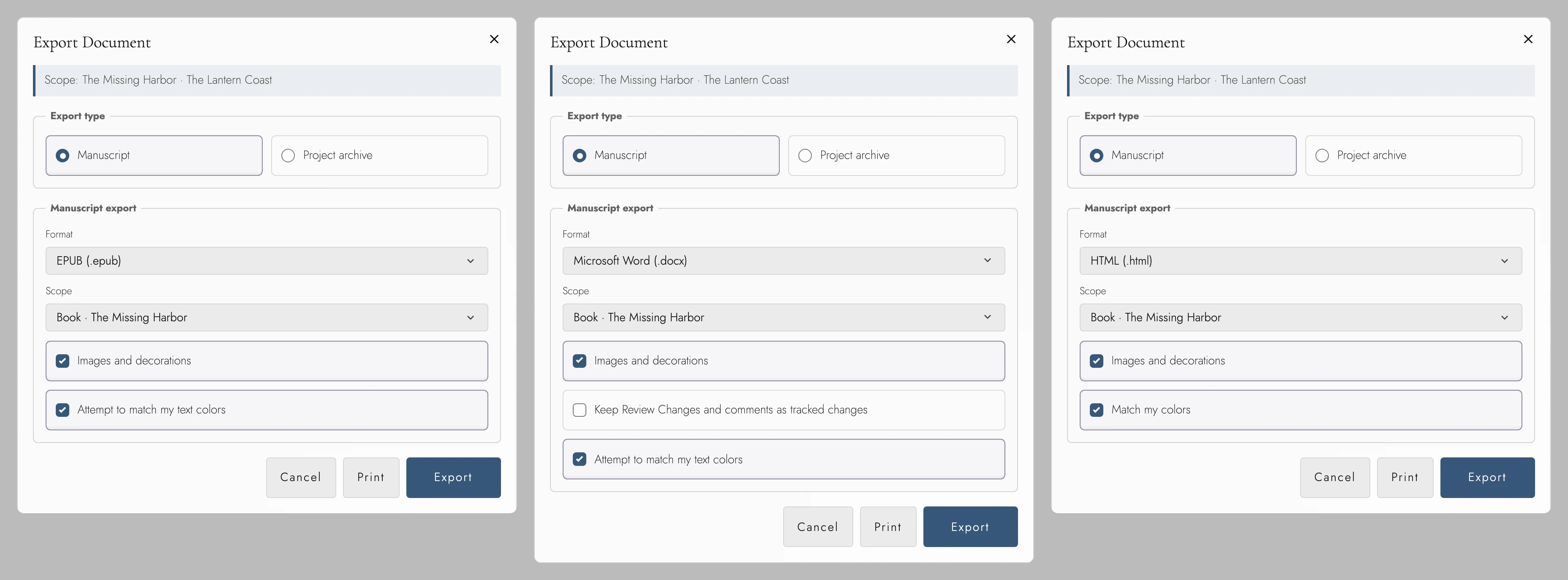
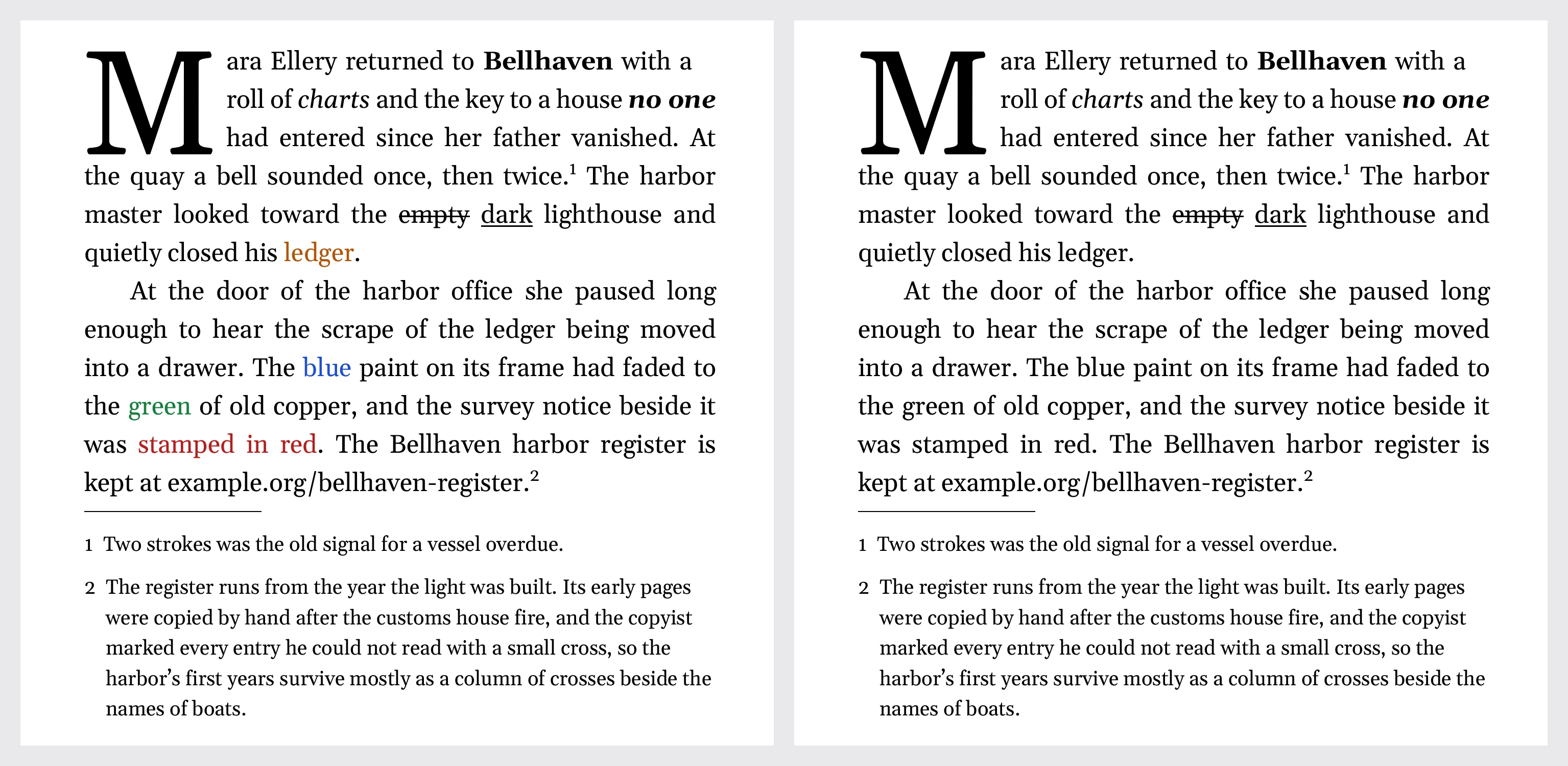
To include text colors, highlights, and underline colors, enable Attempt to match my text colors in PDF, DOCX, or EPUB. HTML offers Match my colors.
PDF and Word darken pale colors enough to read on white paper and report the adjustment. With colors off, text uses plain ink and links use the standard link color. Each format remembers your choice; defaults are:
- checked for a PDF read on screen, a Word file, and HTML
- unchecked for a PDF made for print and for EPUB, whose reading apps bring their own themes
Front and back matter keep their own pages in PDF, DOCX, and HTML. EPUB marks each page by type. Pages unchecked in Book Matter and unfilled sample lines are omitted from exports and print.
A book's Publication details go into the file itself as well as onto its copyright page. An EPUB is identified by its EPUB ISBN, or by an identifier that stays the same from one export to the next, so a store sees a new version of the same book rather than a new book. Its package also declares:
- the subtitle, as a second title a reading app can show beside the first
- the publisher, the copyright holder, and the year
- each contributor, with the role they played
- the series the book belongs to
DOCX and PDF carry the book's description and its language.
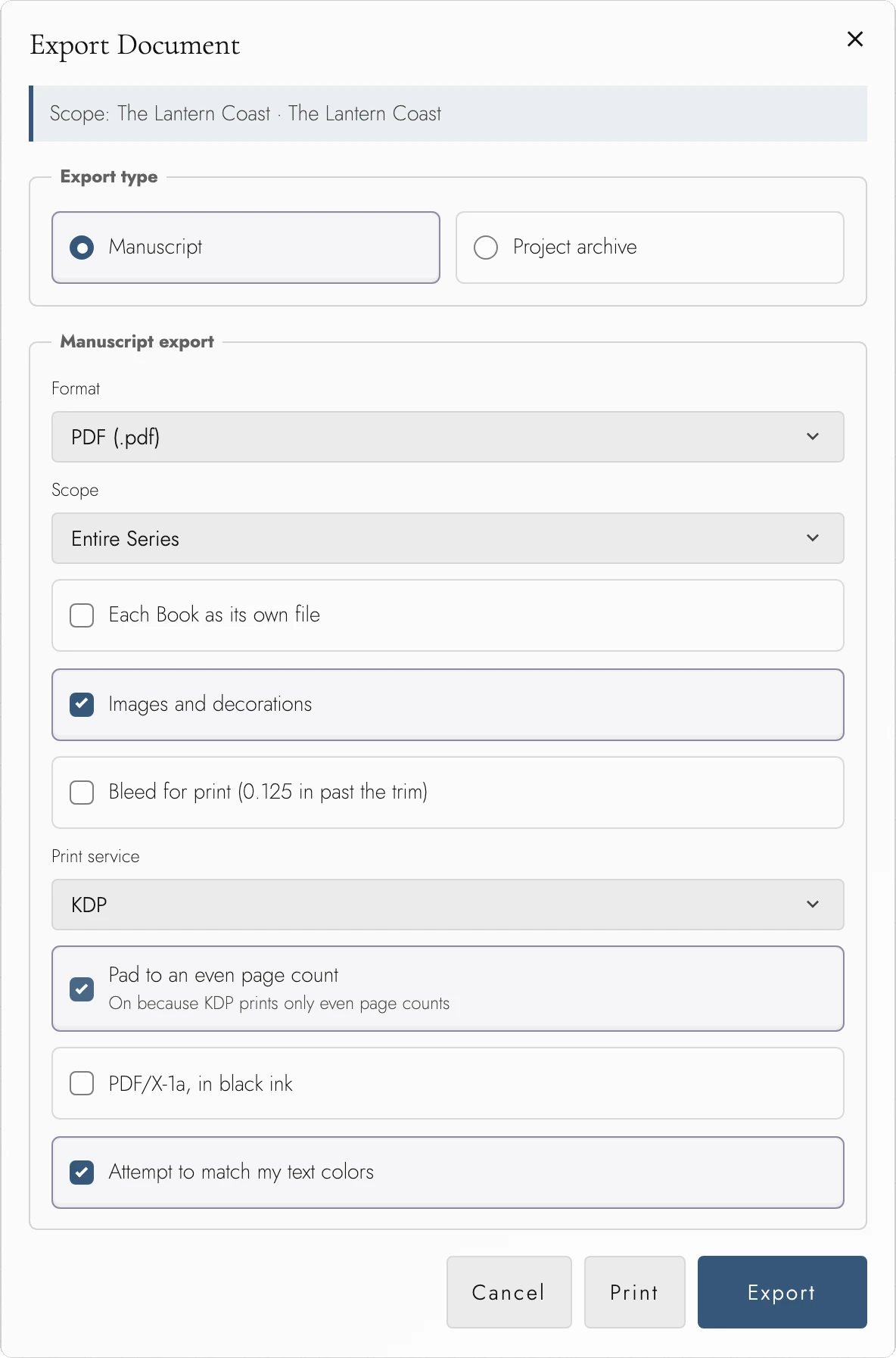
When Scope is a whole Series with more than one Book, the dialog adds Each Book as its own file. It starts checked, and the download is then a zip with one file per Book. Clear it to get the Series as a single file.
Images and decorations starts checked. Clear it to omit placed pictures, Drop Cap frames, and ornaments while keeping text styling and page settings. This can help when preparing a plain submission copy.
DOCX normally exports without review marks. Enable Keep Review Changes and comments as tracked changes to include them.
Word credits suggestions to their authors and adds “(AI)” to assistant names. Comments stay attached to their passages, resolved comments are marked done, and Track Changes is on for the recipient. This option starts unchecked for each export.
Word cannot represent Anchor or picture proposals, or comments without a text range. The Export dialog reports how many were omitted. Exporting a Draft carries no review records from the displayed Manuscript.
View dark appearance
3. Printing the designed page
- Open Export from a Project row, or from the Draft you want to print.
- Choose Manuscript and the Scope to include.
- Press Print, then choose the destination in your browser's print dialog.
Print prepares the designed pages from that scope. Zoom and a phone's writing column do not set the paper size. Check the browser's paper and scaling choices against the Book's page format before sending the job.
Use the browser's Save as PDF destination for a print-dialog copy. For a press interior with bleed, font handling, or service-specific checks, use the PDF export instead.
Ordinary printing works without the experimental Print Preview control. Review the Book design and margin-number output choices before printing.
4. A paperback interior
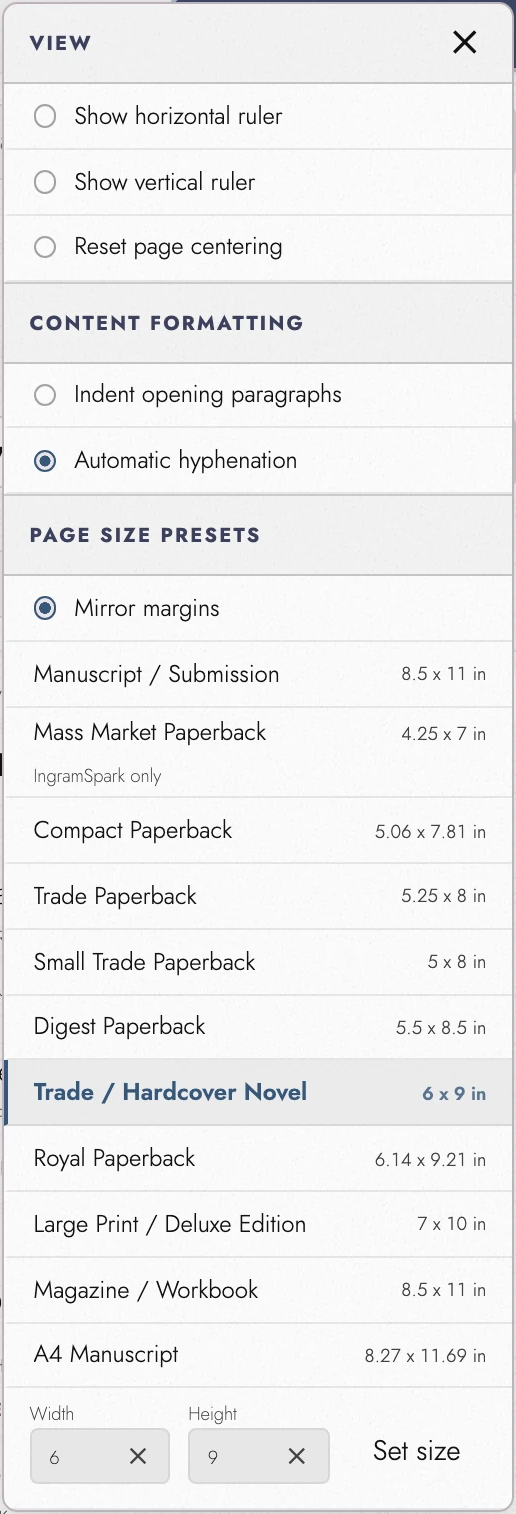
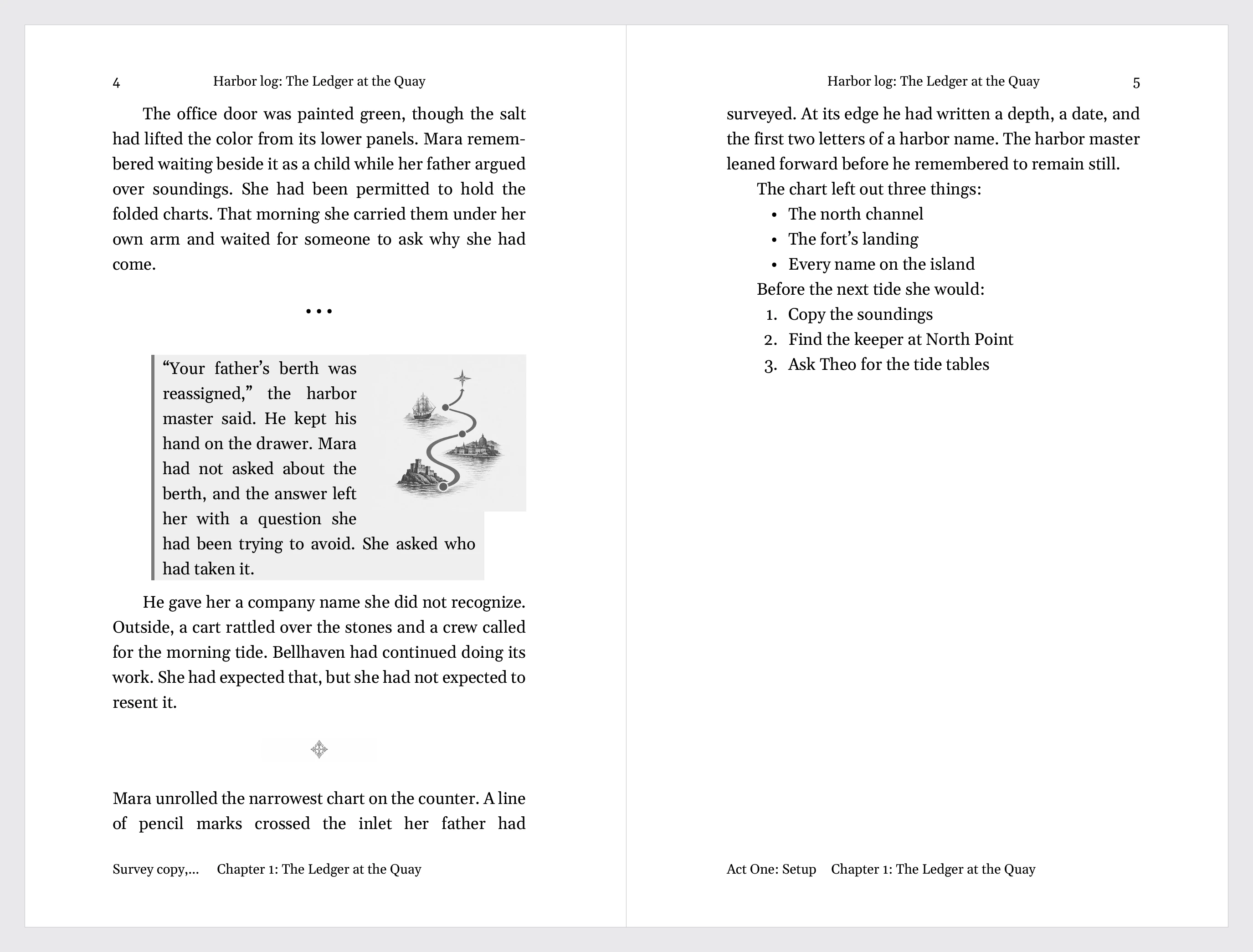
Choose the printer’s trim size before exporting PDF. Presets cover common paperback sizes; Width and Height accept custom inches.
Matter pages omit running headers and footers. Chapter opening pages show only their page number at the bottom. Blank pages used to start a Chapter on the right show neither.
PDF embeds its fonts. An unsupported font installed only on your computer is replaced with Georgia. Courier and Courier New use Courier Prime, preserving screenplay spacing and pagination.
For Georgia and Cambria, Chrome or Edge can ask to use the font files installed on your computer. Allow access to embed them.
If you decline, or use Safari or Firefox, the PDF uses Gelasio or Caladea instead. Their matching widths keep line breaks in place. See Typefaces on every device.
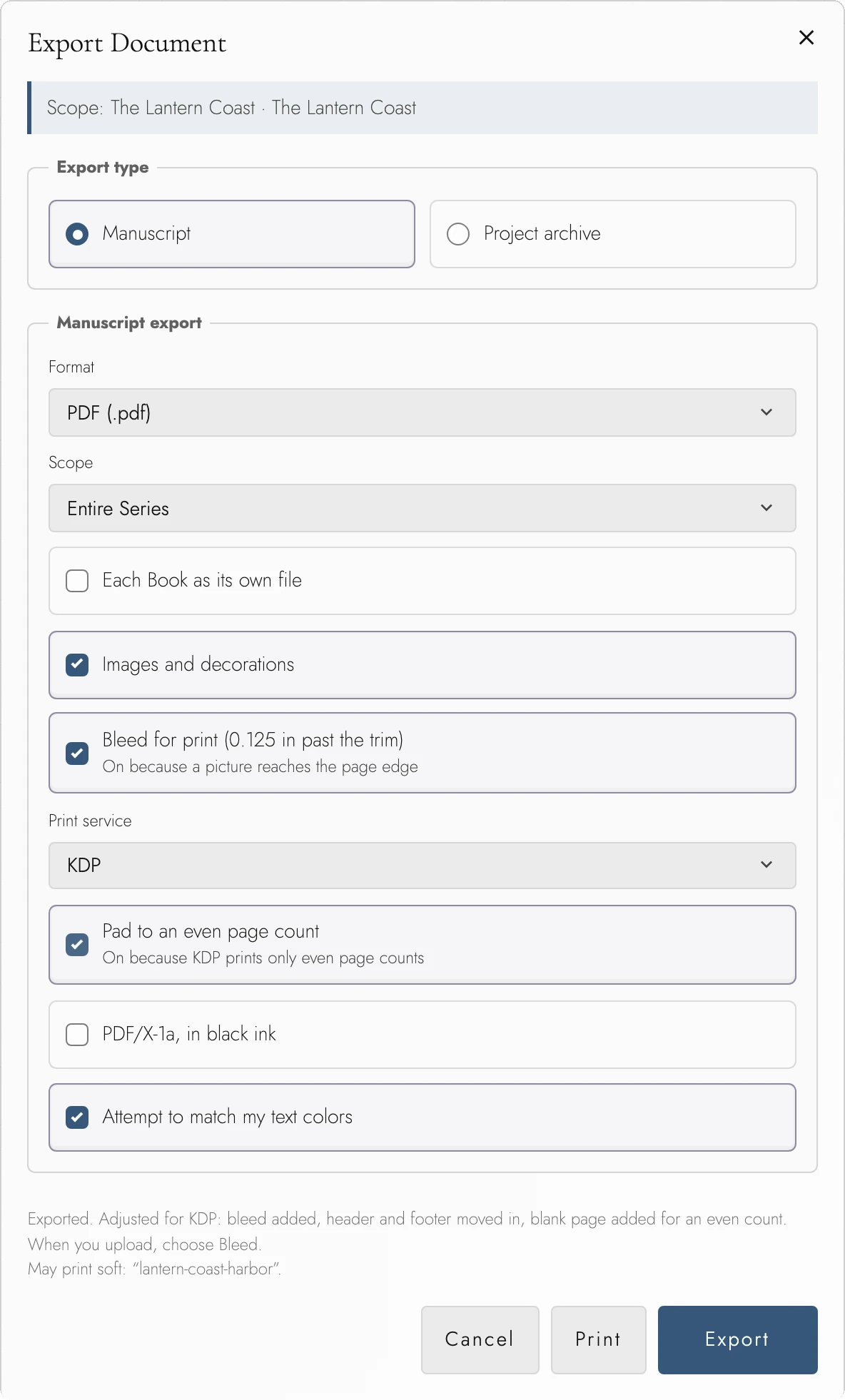
Bleed for print grows each page an eighth of an inch past its trim at the top, the bottom, and the outside edge, and the file marks where the cut falls. You rarely need to check it. When a picture reaches one of those edges, the export turns bleed on by itself and the box shows why. Once the file is saved, the dialog says the one thing left to do with it, such as choosing Bleed when you upload to KDP. Why a picture at the edge needs it, and how the page warns about one that stops just short, is under Pictures at the edge of the page.
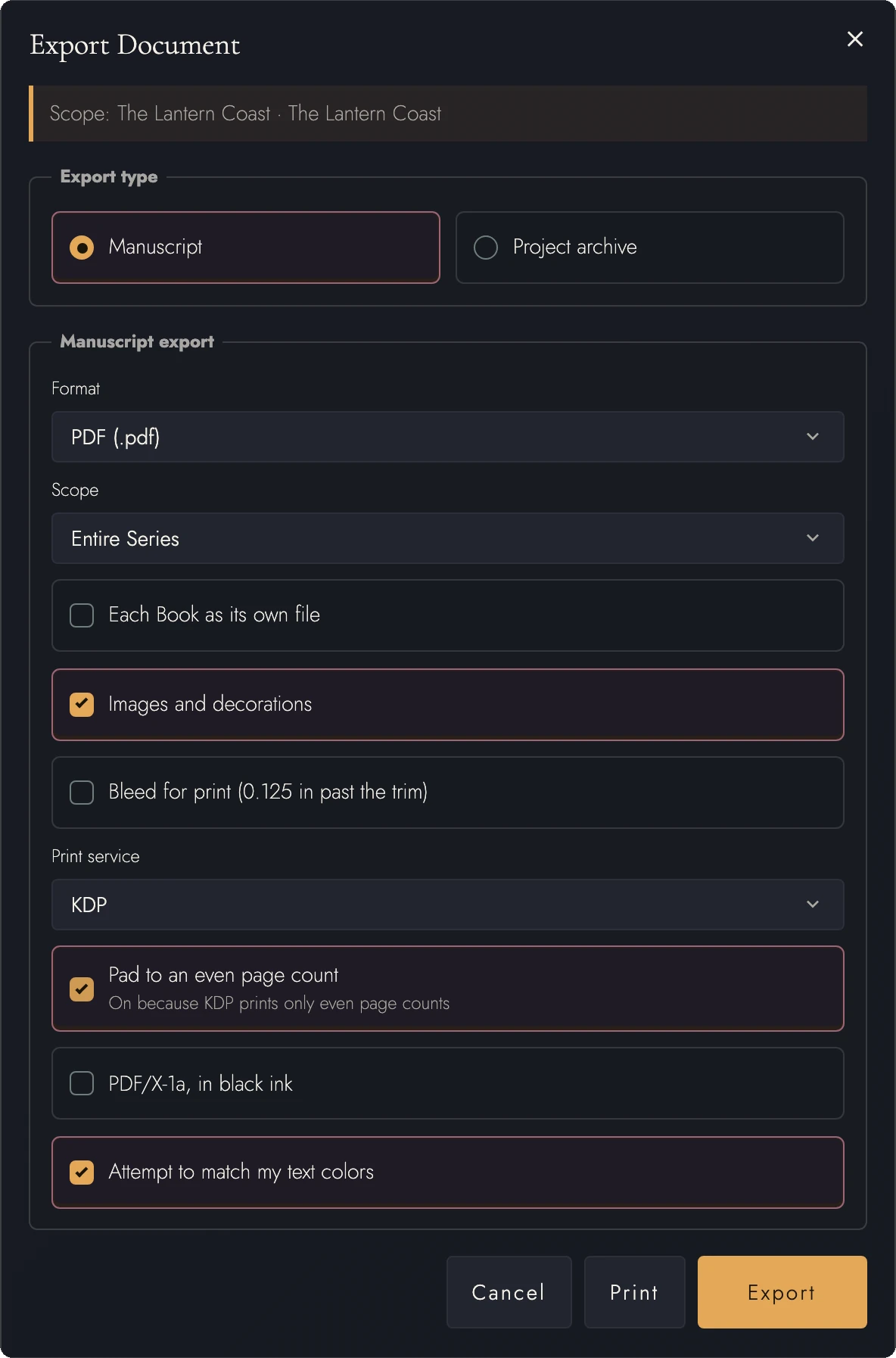
View dark appearance
You never have to reformat a Book to suit a printer. The PDF is laid out on a page the service you chose will take, and your Book and its pages on screen stay exactly as you set them. Where your page falls short, the file alone is changed:
- a page size the service does not print becomes the nearest one it does
- a margin narrower than the service allows is widened to its minimum
- a running head or folio too near the edge is moved in
- a book that would end on an odd page gets a blank one at the end
Because the whole file is laid out on that page, its Contents, running heads, and page numbers all match it. Once it is saved, one quiet line says what was adjusted, such as Adjusted for KDP: 6 × 9 in page, margins widened. A Series gets the same single line for all its Books. A book longer than the service prints is named there too, and a second line lists any picture that may print soft.
On the Canvas itself, the rulers stop every margin and running head a quarter inch from the paper's edge, the nearest any printer goes. Every size in the page size menu prints with both KDP and IngramSpark unless a line under its name says otherwise.
View dark appearance
View dark appearance
5. Choosing a print service
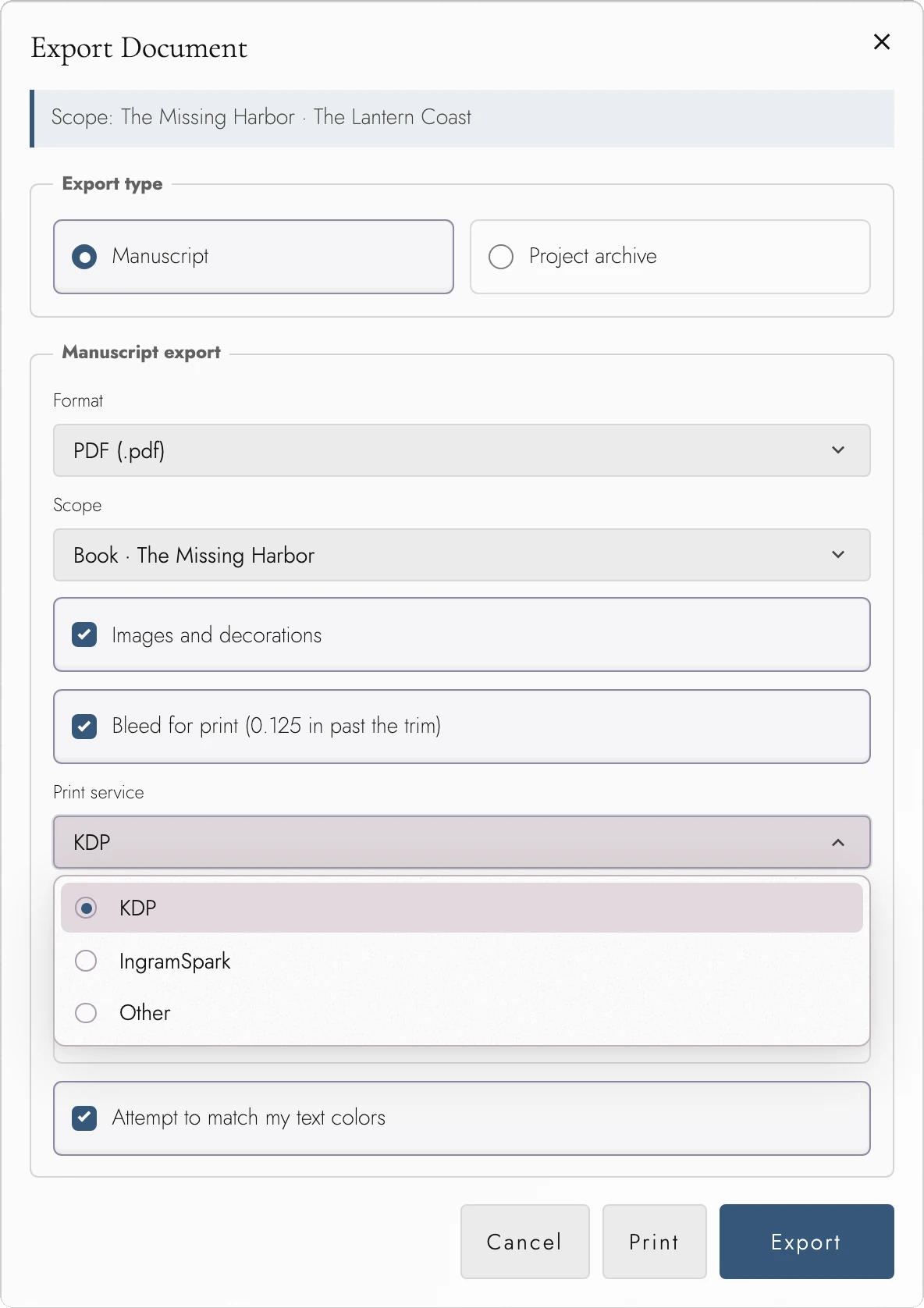
Choose KDP, IngramSpark, or Other in PDF Export. Each printer uses different size and margin rules. The menu starts on the book's own print service, or on Other for a book set to None, and picking another changes this file only, never the book.
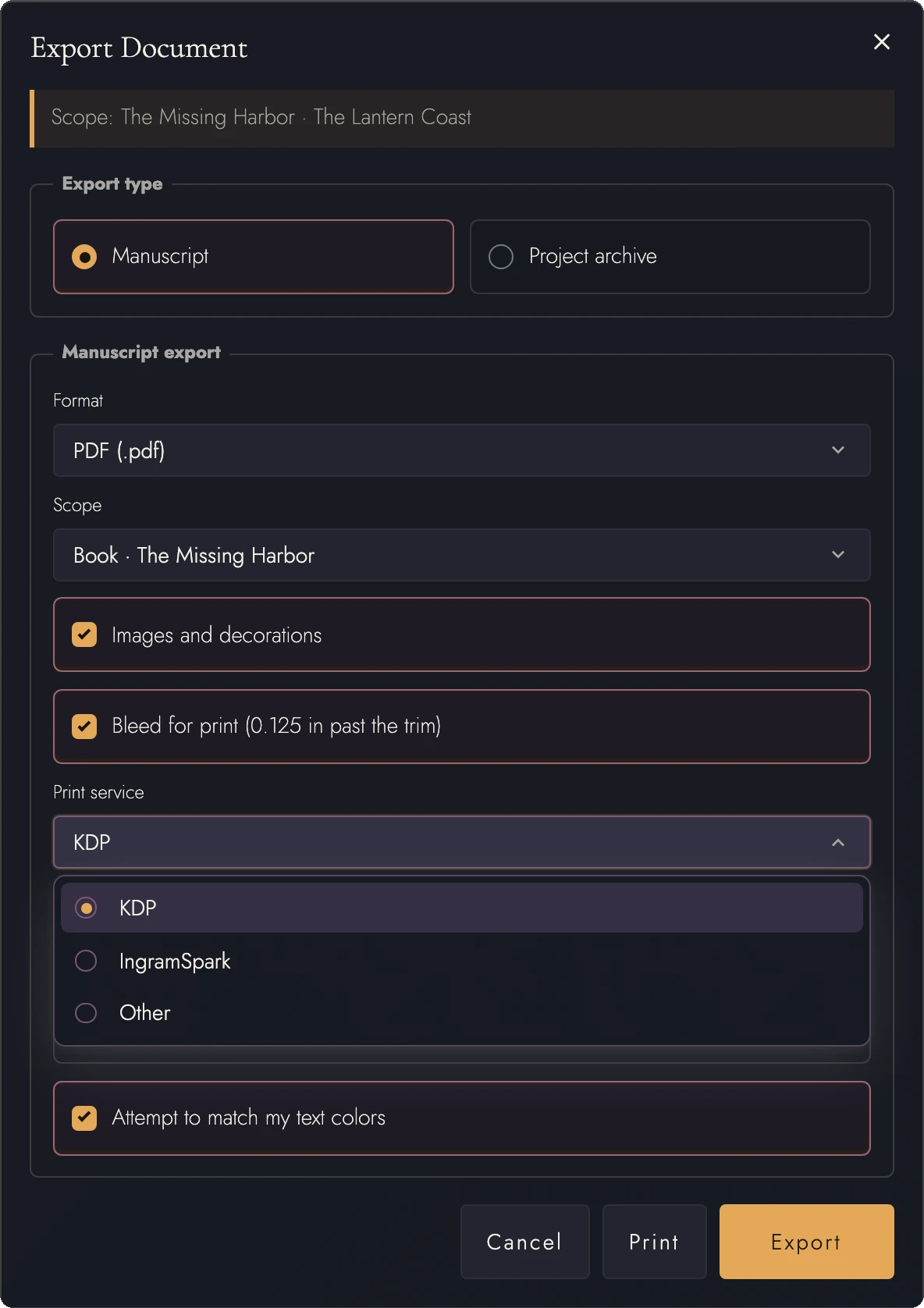
View dark appearance
The rules are the ones each service publishes for a black-and-white interior:
- Trim size. Both services print a fixed set of sizes. A page that is none of them is printed at the nearest size the service does, so a 6.1 x 9 in page comes out at 6 x 9.
- Margins. KDP's inside margin widens as the book gets longer, and its outer margins depend on bleed. IngramSpark asks for half an inch on every side at any length.
- Page count. Both print only an even number of pages, so for either one Pad to an even page count stays on and a book that would end on an odd page gets a blank one at the end.
- Pictures. A placed picture that prints below 300 DPI at the size you gave it is named once the file is saved. Shrinking it on the page, or placing a larger image, sharpens it. A Frontispiece picture is measured the same way, at the size the text area gives it.
Other is for a printer that has handed you its own rules. It takes the more forgiving of the two services on every point, accepts any trim from 4 x 6 in to 8.5 x 11.69 in, and leaves padding to you. A bled file for Other comes with a reminder to tell your printer it carries bleed.
IngramSpark automatically uses PDF/X-1a. For another printer, enable PDF/X-1a, in black ink if required. This makes an opaque grayscale file with trim and bleed marks. Color images become gray, and the dialog lists each conversion.
6. Project archives
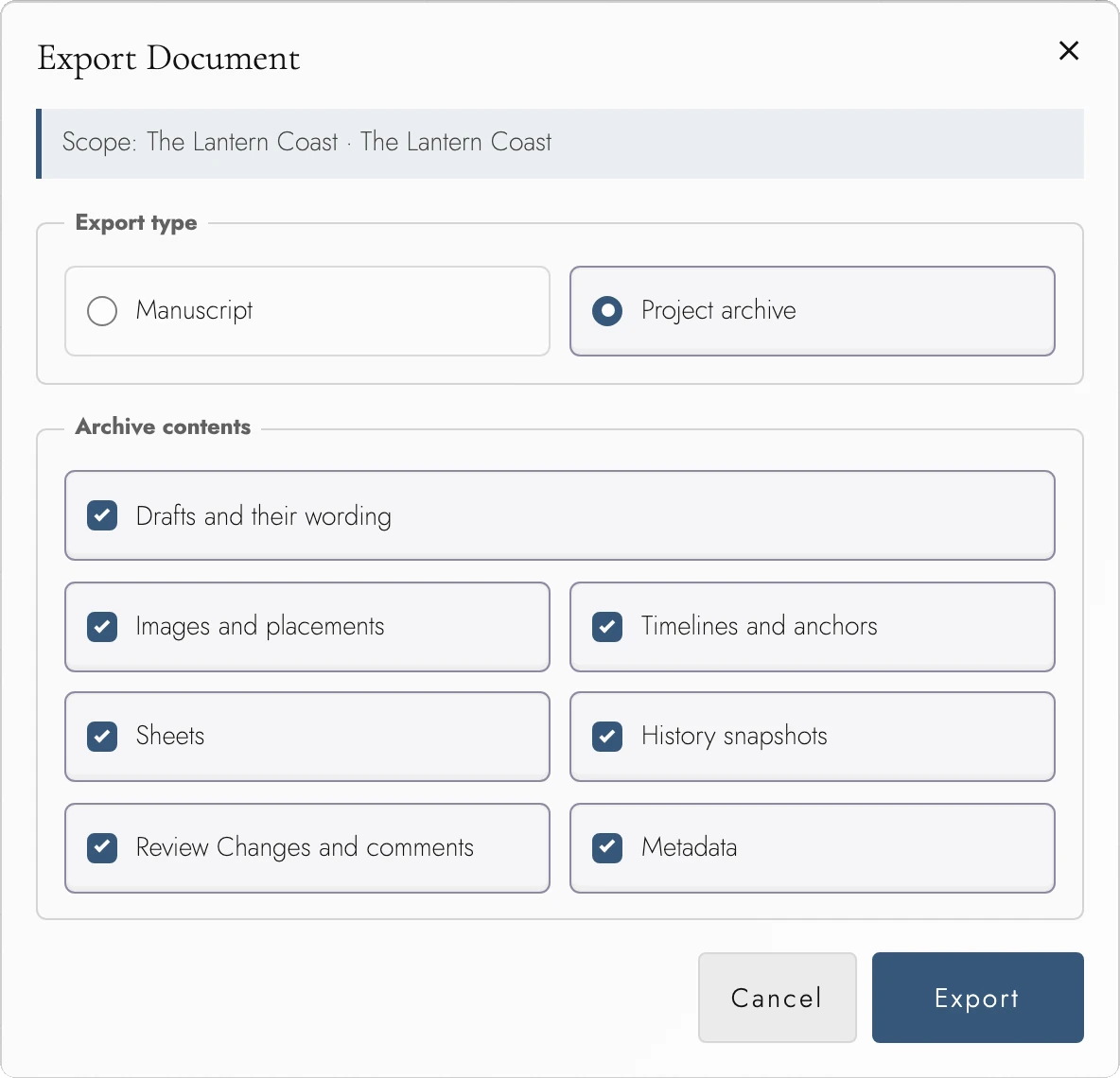
On any plan, you can export a complete project archive
(.tabularia.zip) holding the whole project, for independent backup. It
comes back the same way: unzip it, press New project in the Projects
tab, choose From folder, and pick the .tabularia folder
inside. The project is rebuilt as a new one. See Importing an existing manuscript.
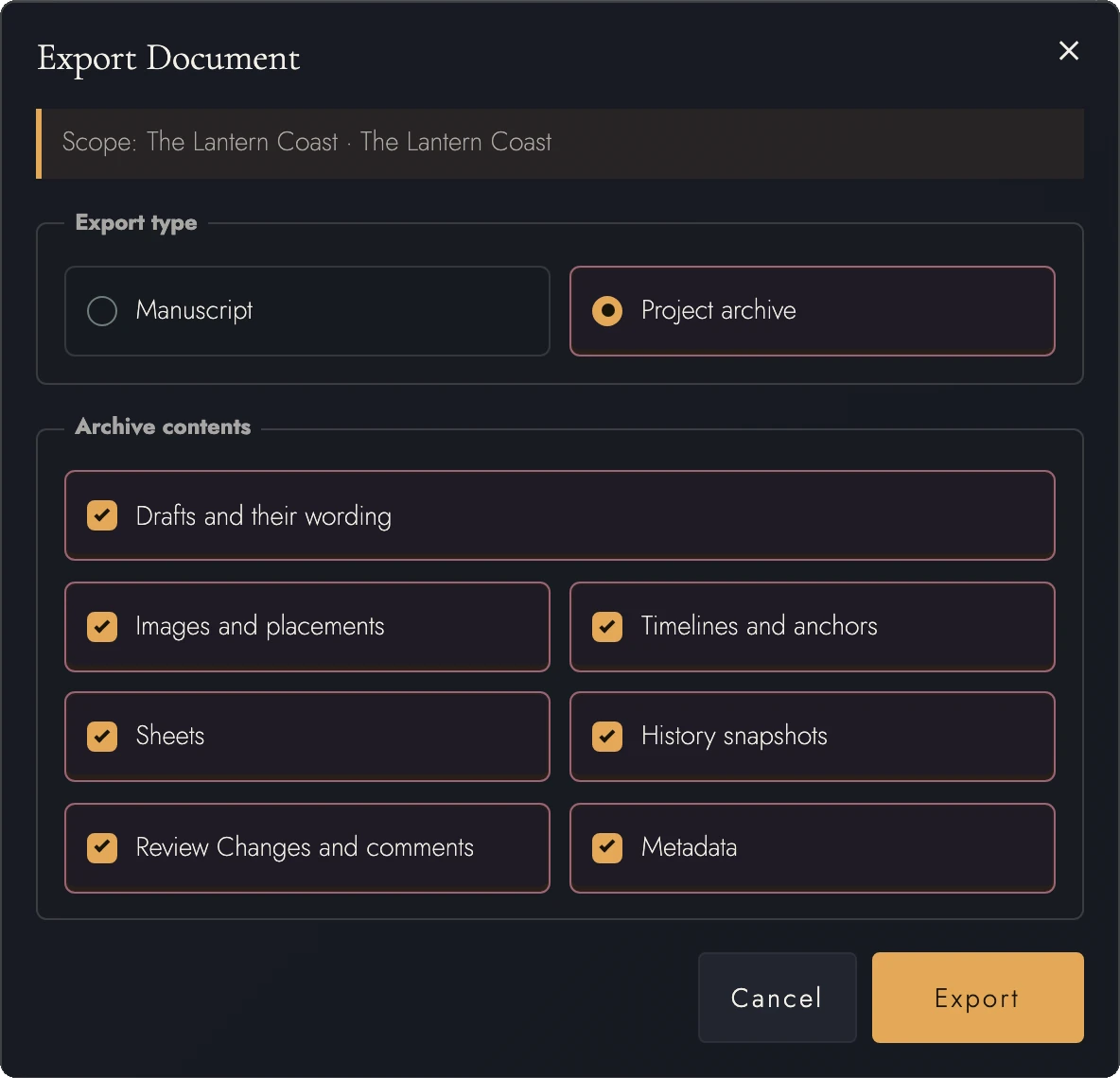
An archive carries far more than the prose, and seven checkboxes decide how much of it travels:
- Drafts and their wording
- Images and placements
- Timelines and anchors
- Sheets
- History snapshots
- Review Changes and comments
- Metadata
All seven start checked, which is what you want for a backup. Unchecking is for handing a project to someone else without your revision history or your readers' comments in it.
Keep History snapshots checked to include the wording needed to preview or restore each Snapshot. An archive that exceeds safe restore limits is refused; older Snapshots are not silently omitted.
7. Exports as backups
Whatever your plan, an occasional export is the backup that depends on no service and no subscription. It is worth the minute at every milestone. See Sync, backup, and offline for the full storage picture.
8. Continue reading
Try it on your own book
Start a free 14-day evaluation. No card needed.