Publishing and reading
Choose what your published page shows and how readers use it.
1. Publishing the version you choose
You can publish from Tabularia while you evaluate it, and on the Local plan or the Cloud plan. Open a draft's Sharing view, then its Published page section. Choose a whole draft or one holding only the passages you want readers to see.
Publishing reads the draft as this device last saved it, so nothing waits on sync. Without the Cloud plan, Tabularia keeps a copy of the published book beside its page, ready for the next update. Take the page down and that copy is kept for 90 days: your Shelf lists it under Recently taken down, with Put it back to publish it again. A Timeline or filtered-Outline scope keeps the chosen passages in reading order and leaves everything between them out.
A page you put up during the evaluation stays online after the evaluation ends. Updating it from Tabularia then needs the Local plan or the Cloud plan.
A card at the top of that section says where the page stands: Not published, Live, or one of the waits below. Choose who can read it under Who can read it, then press Publish.
Once there is a page, the card offers Open page and Copy link, lists when it was first published and last updated, and adds a Locked note while the draft is locked. The button becomes Update the published page, which republishes the current wording. Unpublish, under it, asks before taking the page down; publishing again keeps the address. The section's own heading shows the same status, so you can read it with the section folded.
Before a page first opens to everyone, Tabularia asks you to confirm that you wrote the book or hold the rights to publish it. The card then reads Checking your book, with a spinner, for usually under a minute before the page goes public; you can keep writing, and Open page works once it says Live. Now and then a person looks at a book as well, and the status reads In review until they finish and email you. A page that is already live stays up while a newer version is checked; readers keep the version they had until it clears. Private pages are not checked.
If the check finds passages it wants you to look at first, the card reads Held for you and the page stays private. A report beneath it counts the passages, and Review in Timeline marks each one in your draft so you can step through them and revise in place. Update the page to have it checked again. If you think the check got it wrong, reply to the email about it and a person will look. Nobody else sees the report. When every passage it holds is an explicit scene on a page marked suitable for readers under 18, the report leads with Mark this book for adults: one press clears that box and has the page checked again, with no change to your writing.
Publishing a draft explains the address and scope. The sections below cover page presentation and reader controls.
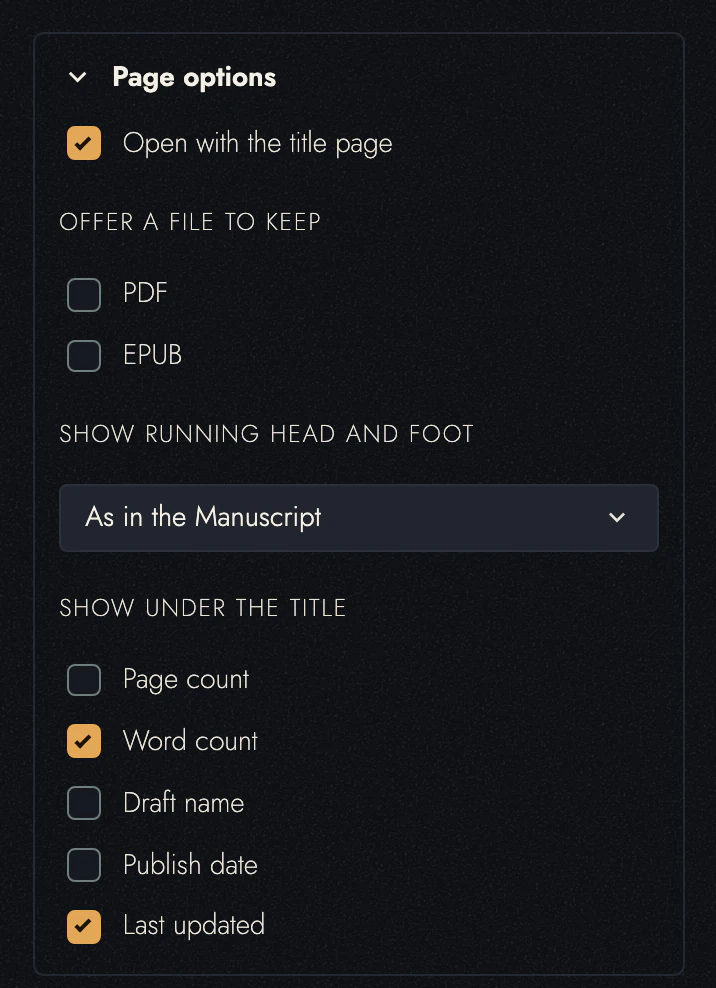
2. Page options
Open Page options in the publishing section. These choices belong to the page you publish, so every reader sees their result. Presentation changes apply separately.
- Open with the title page includes the book's title page. It starts on.
- Show running head and foot offers As in the Manuscript, Page number only, or Nothing. Page number only adds Left, Center, or Right alignment. The starting choice follows the manuscript.
-
Show under the title has a switch for each fact the reader sees under
the title:
- Page count, off at first
- Word count, on at first
- Draft name, off at first
- Publish date, off at first
- Last updated, on at first
A title or count on the reader page does not rename the draft or change its words. Showing a running head there also does not change the manuscript's header settings.
3. Offering a file to keep
- In Page options, open Offer a file to keep.
- Turn on PDF, EPUB, or both. Both start off.
- Publish or update the page to make the offered files.
The reader's Keep a copy menu then lists the files that were made, each with a word on what it suits: the PDF keeps the pages, the EPUB reflows on an e-reader. For a Word file, use Export on the project or draft row instead.
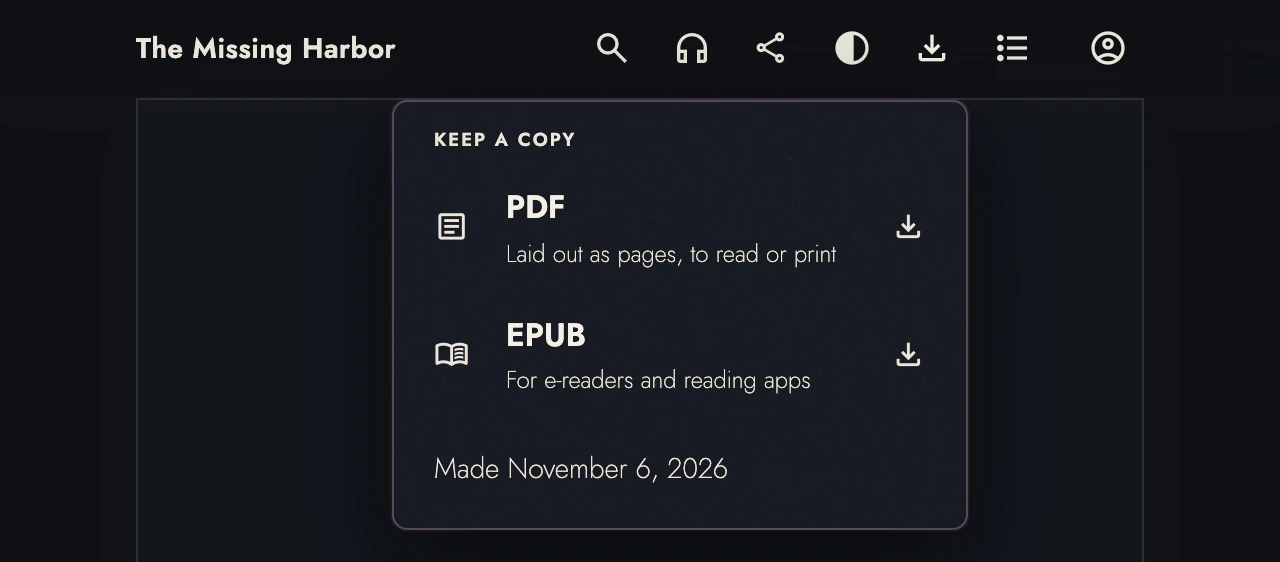
PDF and EPUB downloads are generated when you publish or explicitly update. Automatic page updates can leave these files behind, so the reader menu shows their date. Use Update to regenerate them.
Turn an offer off to remove its download. A Private Link or Shared Access Only page applies the same access requirement to its downloads as to its prose.
4. Updates and who can open the page
With Update Automatically on, a save that changes the published wording updates the page. On the Cloud plan that is the save reaching the Cloud; without it, the save on your device. Off, it holds the last edition you explicitly published or updated.
Who can read it offers three answers, and you can choose one before the first publish:
- Public: anyone can read without an account, and the page can appear in search.
- Private Link: the address carries the access key. Someone can forward that link, but the page is kept out of search and the public sitemap.
- Shared Access Only: the reader must sign in with an account on the draft's share list. Forwarding an address does not give another account access. You can always open your own page, signed in as yourself.
Beside those answers, Suitable for readers under 18 starts ticked. Untick it for a book with explicit sex, violence, or dark themes unsuitable for children. Readers must then confirm they are 18 or older before the page opens. It stays out of search, opens only at your own handle’s address, and is marked For adults on your Shelf.
Show a new link replaces a private link that should no longer open the page. Taking it down stops reading. Publishing that draft again reuses its page identity.
A signed-in Reader on a Shared Access Only page can choose Leave this page from its Account menu and confirm. They leave the share list and lose access. The Writer's other Shares are unaffected.
That Account menu is the person icon that leads the reader bar's controls. Signed out, it offers Create account and Sign in. Signed in, it links to the reader's account page, their own Shelf, and into Tabularia, and signs them out. On a page read at a Writer's own handle address the menu has no Sign out; the reader signs out from their account page.
A public page also has Share in the bar, and the end of each Chapter has one Share button that opens the same menu. Copy link copies the address and goes on saying so. The places to pass the book on follow it. Each opens in a new tab, most of them with the book's address already in a new post for the reader to finish:
- Instagram : copies the link, then opens Instagram to paste it into a post or story.
- Tumblr
- Substack : copies the link, then opens Substack for a note.
- Bluesky
- Threads
- X
- Pinterest : pins the book’s card, drawn from its cover, where the book has one.
- Mastodon : asks which Mastodon server is the reader’s the first time, remembers it in that browser, and opens a post there; Change Mastodon server names another.
Two of them, Instagram and Substack, have no way to take a link from another site, which is why they copy it first. Email opens your own mail app. Nothing is ever posted for the reader. Where the browser has a share sheet of its own, More opens it. A Private Link or Shared Access Only page has no Share.
5. The reader's layout and appearance
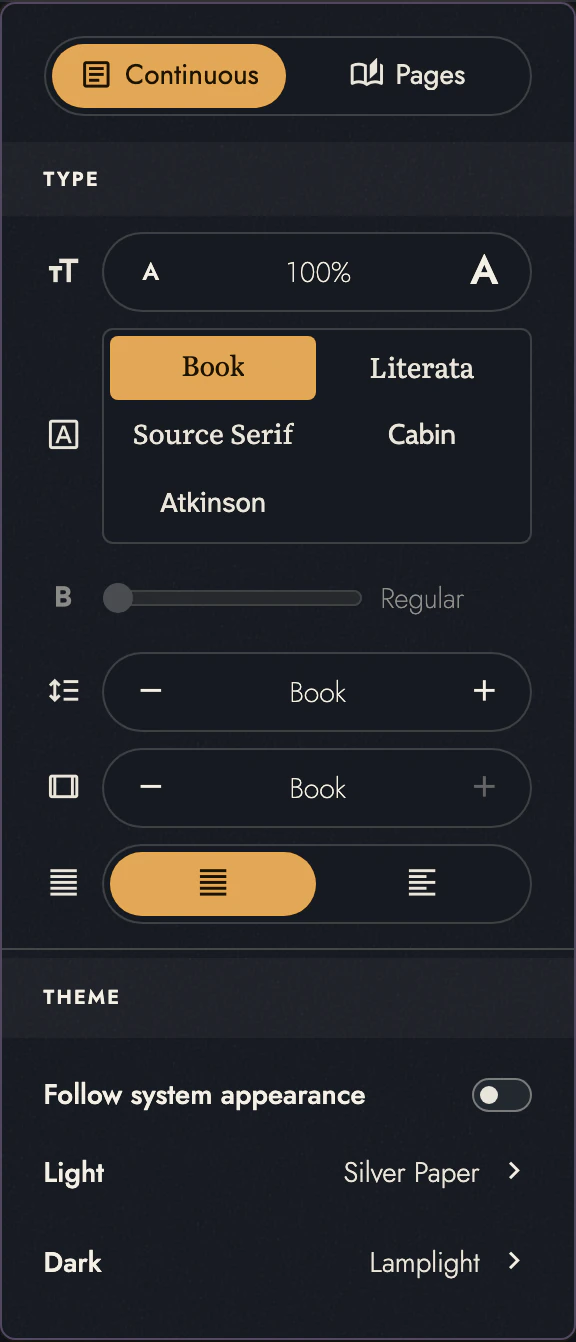
Open Appearance in the reader bar. When the publication has measured pages, it opens on a switch between Continuous and Pages. Continuous is the default.
Continuous shows a scrolling reading flow, with each page's number set in the outer margin where that page begins. Pages shows the measured pages.
Under Type, a reader can reset the text for their own eyes, in either layout:
- Text size, a step at a time either side of the book's own.
- The typeface, which starts as the book's own, listed under its own name. The panel's other faces sit beside it, leaving out any the book is already set in.
- Weight, on a slider, where the typeface draws more than one.
- Line spacing, from Tight through Book to Loose and Looser.
- Page width, a step or two narrower than the book's own, or up to three steps wider where the window has room.
Read as pages with the book's own type, a reader sees your pages exactly as you set them. Once they choose their own, each page keeps the text it held and sets it in their type, growing taller where it needs to; the reset button brings your pages back. Under Theme are Follow system appearance and the same Light and Dark theme shelves Tabularia itself has, from the paper and ink themes to the tinted Pigments and both High Contrast themes.
Reader preferences stay local. They do not change your manuscript or become settings for other readers. A publication without measured pages offers its continuous flow without the Pages choice.

6. Moving through the reading
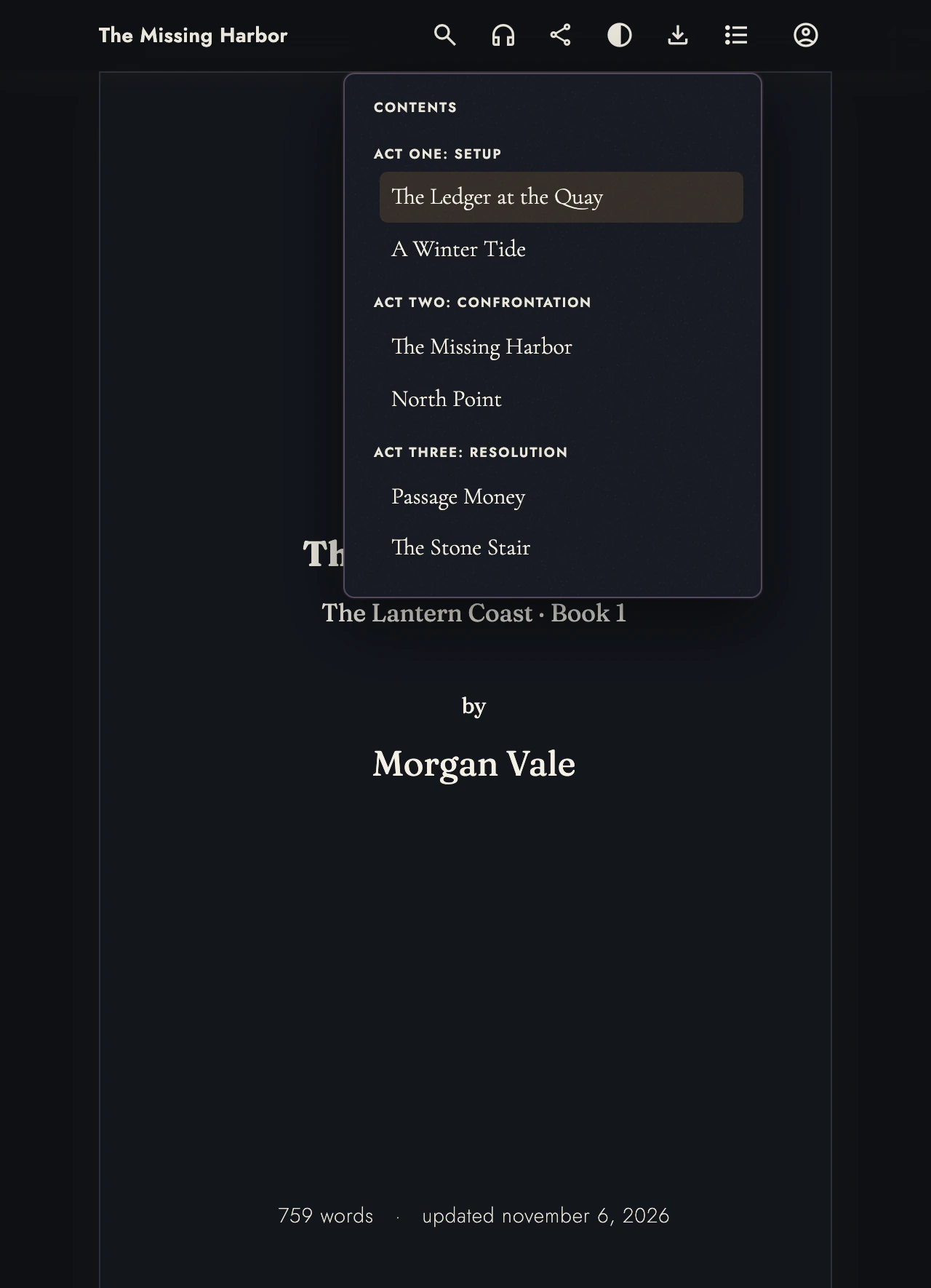
Contents appears when there is more than one entry to visit. Choose one to open that Chapter, or use the Chapter navigation at the foot of the page. The bar names the current Chapter, and Contents marks it. Where the book has measured pages, each entry ends on the number of the page it opens on.
Each level of the list looks like itself. Books and Acts read as small capitals over the Chapters they hold. Scenes and Headings hang smaller beside a rule, under the Chapter that holds them.
A Footnote's reference leads to its note, and its return link brings the reader back to the passage. Web links open separately from the reading; email links open the reader's mail app.
On a keyboard, ← and → turn to the previous or next Chapter when nothing is selected.
Where a work is published in more than one language, the bar gains a Language button. Its menu names each edition in its own language, such as Latina and English, with a check beside the one being read. Choosing another opens the same Chapter there. Where both editions print Section numbers, it opens at the Section that was at the top of the window instead, as far into that paragraph as the reader had read. Only editions that are live, public, and under the same handle are listed, and an English edition comes first.
To link your own books as editions of one work, open a book's settings from its gear on your Shelf and press Add a translation… under Translations. Pick the other book and press Link. Each translation then has its own row there. Open in Tabularia opens its Project, Settings reaches that edition's own cover and sharing, and Unlink separates the two again. Each edition keeps its own address and title, and search engines show readers the edition in their language.
Your Shelf then shows the work once. Its card wears the English edition's cover and title, or the first one published where there is no English. A language button under the title names that edition's language and opens a list of every edition, each linked by the name of its own language. In Tabularia the Projects tab keeps a work's Projects together, and Project Details links to the others: Open the Latin, for instance.
Books with a Year of publication in their details lead your Shelf, the oldest first, so your works stand in the order they came out. The rest follow in their usual order.
Find, the magnifier in the bar, searches every Chapter the reader can open; Ctrl+F or ⌘F opens it too. Words finds exact wording, and Search options narrows it to matching case or whole words, or reads the query as a regular expression. Meaning finds passages by what happens in them and runs when the reader presses Enter. It asks them to sign in, allows a set number of searches a day, and answers only while your Search by meaning setting is on. Results are grouped by Chapter. Choosing one marks it and scrolls to it, opening its Chapter first when it lies elsewhere.
Listen, the headphones in the bar, reads the page aloud in a voice the reader's own browser provides, and it appears only in a browser that can speak. Listen from here starts at the word the reader last clicked, or at the first paragraph in view. Clicking another word moves the reading there. Once it has started, Space pauses and resumes it, and with text selected, ↑ and ↓ select the paragraph either side so the keyboard can point it somewhere new. Voice, at the foot of the menu, lists the voices that browser offers, and the one chosen stays there for next time.
As the reading moves on, the page scrolls to keep the sentence in view. A reader who scrolls away by hand stays there until the next sentence begins, or until they resume after a pause. Follow along, in the same menu, turns the scrolling off for someone who wants to read elsewhere while it goes on.
On a Public page, Listen also offers Your assistant. ChatGPT, Claude, or Sesame then reads the page aloud in its own voice. The reader signs in to Tabularia, and the first time, the panel walks them through connecting that assistant. There is no code to type, because the page connects itself under the reader's account.
Once the assistant is connected, its panel leads with the assistant's mark. A chip under the mark says whether that assistant is paired with this page:
- Connecting: the page is opening its connection.
- Not paired yet, beside an empty ring: the page is ready, and the assistant has not started reading it.
- Paired · Reading, beside a green dot that pulses: the assistant is reading now.
- Paired · Finished or Paired · Stopped, beside a steady green dot: the reading ended or was stopped, and asking again starts it once more.
- Page updated or Not available, in amber: the page can't be read aloud as it stands. Reload page or Try again waits under the chip.
Under the chip, Say to and the assistant's name introduce the sentence to speak, such as “Read aloud the Tabularia page I have open,” with a button that copies it. ChatGPT and Claude add “in voice mode”; Sesame only ever talks. The line beneath says what happens next. Claude keeps the tools it fetched until the app relaunches, so when it holds an older set the panel asks the reader to relaunch Claude.
Each sentence is highlighted as it is spoken, and the page keeps up with it unless Follow along is off. Clicking a word moves the reading there: the panel then says the assistant goes on from that word once the passage it is speaking ends.
While the assistant reads, the Listen menu's play button becomes Stop your assistant, and Stop reading in the assistant's panel ends it too. A reload keeps it going, and the page that loads again picks the reading up at the sentence being spoken. Once the last sentence is read, asking the assistant again starts from the beginning. The Connected switch under Your assistant says whether the assistant may read the page, and turns that off or on again.

A small pill of three buttons rests at the lower right of the page. The upper one hides the header, the lower one hides the footer, and the middle one hides both for reading with nothing else on screen. Press the same button again to bring them back. This browser remembers the arrangement.
The Account menu also holds Help & Info, which links to this Guide, the FAQ, and the rest of Tabularia's own pages. At its foot, Report tells us about a page that breaks the rules.
For feedback rather than a published edition, use Sharing for review. An Editor's returned proposals belong to the review workflow, not to the public reader's appearance settings.

7. Continue reading
- Previous: Sharing your manuscript for review
- Next: AI assistants
- All guide articles
Try it on your own book
Start a free evaluation. No card needed.