Importing an existing manuscript
Bring in existing writing and check what each format preserves.
1. Supported formats
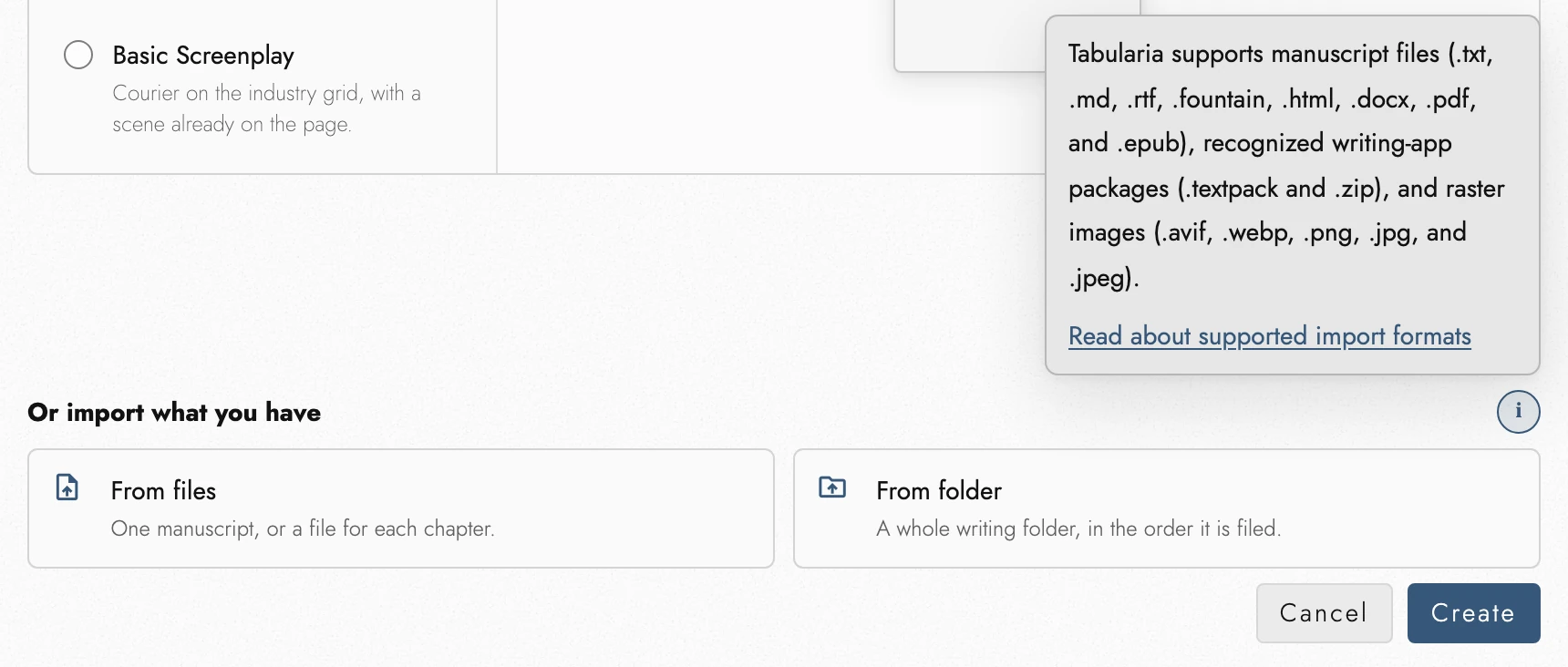
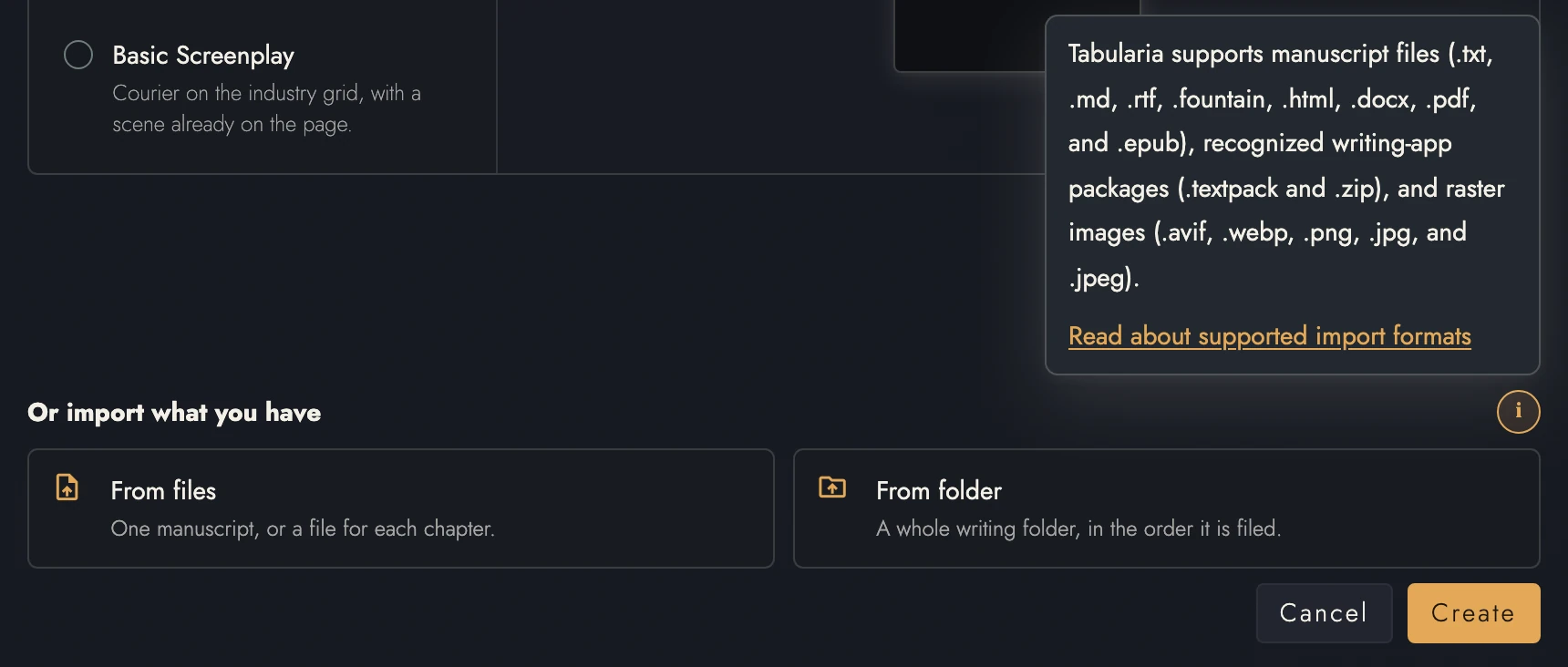
Press New project in the Projects tab. Under Or import what you have, choose From files for these file types, or drop a file onto the Projects tab:
- Plain text (.txt) and Markdown (.md).
- Rich Text Format (.rtf), HTML, and Word (.docx).
- PDF and EPUB.
- Fountain screenplays (.fountain) and Final Draft scripts (.fdx).
To add text to an existing manuscript, use Insert from file… instead. Its supported formats are listed below.
Installed as an app from Chrome or Edge on a computer, Tabularia also shows up under Open With for the manuscript files above, except plain text, HTML, and PDF. Opening one brings Tabularia up and imports it as a new project.
Whole projects come in as folders through From folder, in the same dialog:
- An Obsidian vault.
- A Scrivener
.scrivproject. - A novelWriter project.
- An unzipped Notion export.
- A TextBundle folder.
- Tabularia's own project archive.
Import packed projects such as .textpack or zipped Scrivener, Notion, or
novelWriter projects as files. The format is recognized automatically. That includes
the zip a Markdown export makes when a book has pictures: import it as it is, with no
need to unzip it, and Tabularia reads the manuscript.md inside.
For a .tabularia.zip archive, unzip it first. Then choose
From folder and pick the .tabularia folder inside.
Files are converted on your device. The original is neither uploaded nor kept by Tabularia.
A Tabularia project archive is different: it rebuilds the project data selected when the archive was exported. When History snapshots was included, each Snapshot returns with the saved wording needed to preview and restore it rather than as a label without its revision.
2. When an import needs review
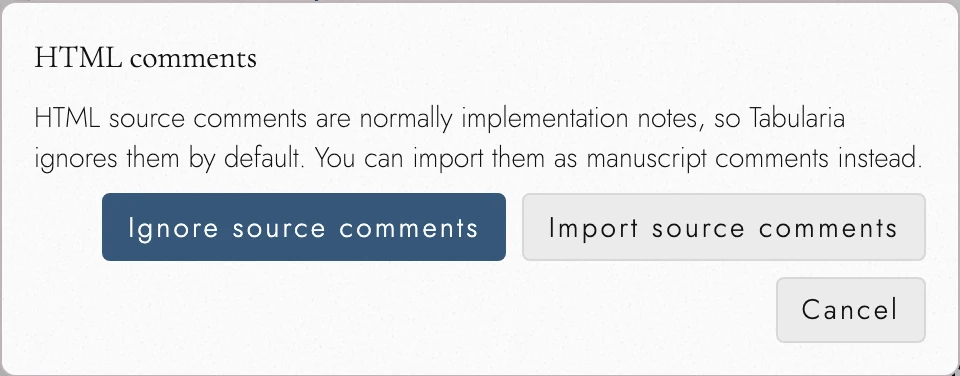
Most imports need only a title. A review appears when the source has editorial annotations or items that cannot be preserved. HTML asks whether to import source comments before reading the file. Recognized folders need no extra format choice.
The review lists skipped items and explains why. Choose Import anyway, or decide between Import with annotations and Import without annotations.
Invisible characters that disrupt search and spelling are removed; characters needed for emoji and words remain. A long import can be canceled without leaving a partial project.
A document that is password-protected, encrypted, malformed, or simply too large is refused with an explanation rather than half-imported. Tabularia does not attempt to get past a protection.
How large is too large depends on the format:
- plain text, Markdown, RTF, Fountain, Final Draft, and HTML: 20 MB a file
- Word and EPUB: 50 MB
- PDF, and a zipped or packed project: 100 MB
- a folder or a set of files: 1,000 files and 100 MB of text in all
An import accepts up to 100 images totaling 250 MB. Additional images are skipped and listed in a notice. The text still imports.
3. What to expect from each format
- DOCX imports final readable wording and reports how tracked changes were resolved. Heading 1 creates Chapters; lower headings remain within them. It preserves supported pictures, website and email links, and clearly anchored comments. Footnotes and endnotes become Footnotes. Tables and unsupported objects are reported as omitted.
- HTML, Markdown: import headings and common formatting. Markdown uses its shallowest repeated heading level for Chapters. HTML captions stay captions. Web and email links survive; other addresses become plain wording. Unsupported nested structures keep their words. Headings deeper than four become Heading 4. See Markdown in Tabularia.
- EPUB uses reading order for Chapters and package metadata for title and author. It skips navigation and empty pages. Supported pictures join Assets, including image-only pages; check their placement afterward. Web links stay linked. Unsupported layout is reported, and missing Chapter files cause refusal.
- PDF extracts text rather than preserving layout. Expect to mark Chapter headings again. Complex page regions may be omitted with a low-confidence warning. Scanned PDFs need OCR, which is unsupported.
-
Plain text imports paragraphs and Scene Breaks. Whatever a book
calls its divisions, a heading word followed by a number that counts up starts a
Chapter, so LETTER I and STAVE ONE work as well as CHAPTER 1, and so do standalone
headings such as PROLOGUE. Named volumes become Books, and so does each novel in a
file whose Chapters start again from one. Several files named as a volume set, such as
01 Clarissa, Volume 1.txt, come in as one Book each, titled from the file name. A contents list at the front is left out. Refine the structure with Block Styles afterward. - RTF imports plain paragraphs and Footnotes, without text styling or Chapter recognition. Tables, hidden text, and metadata are omitted. Export DOCX from the source app when formatting matters.
-
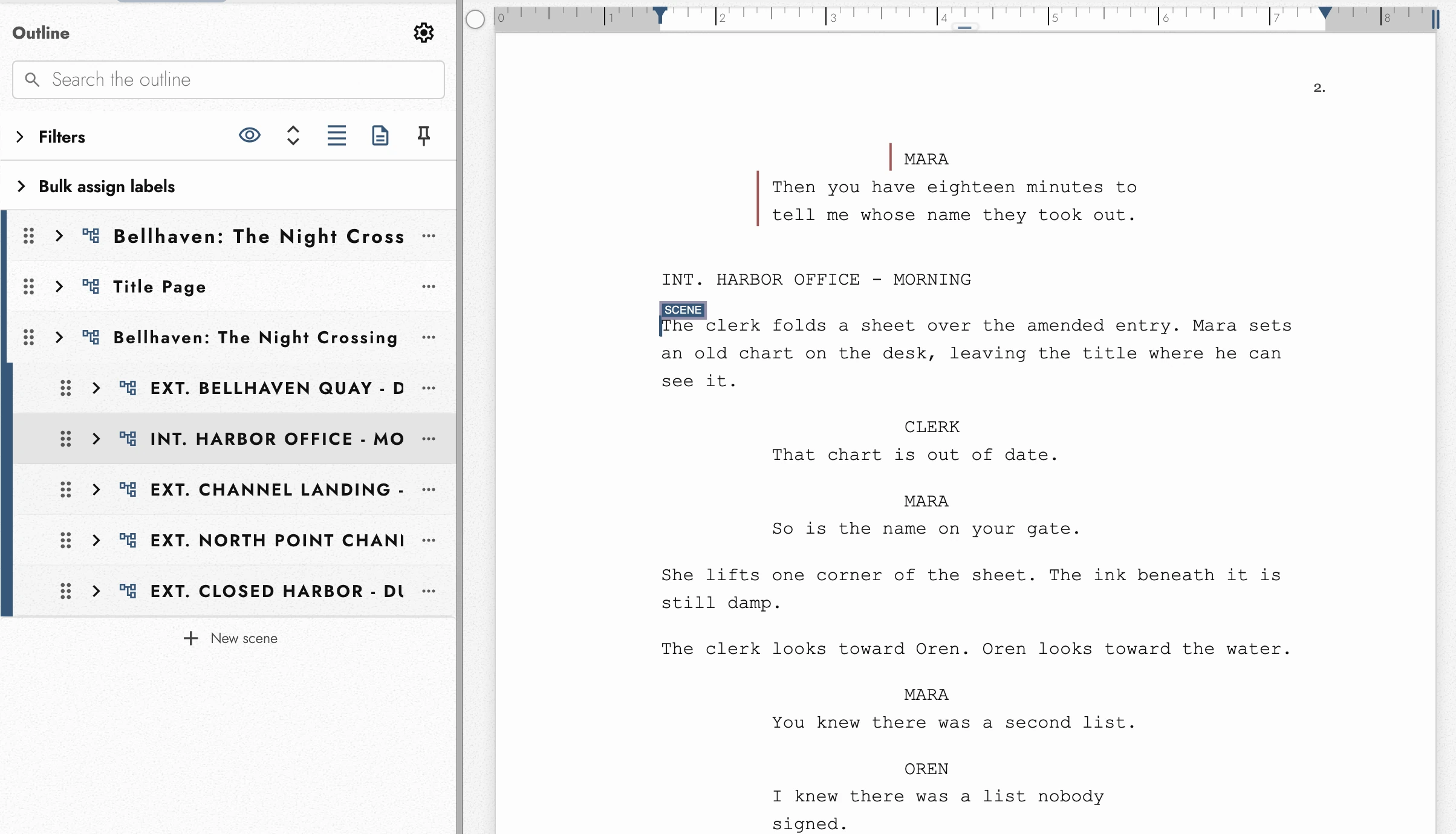
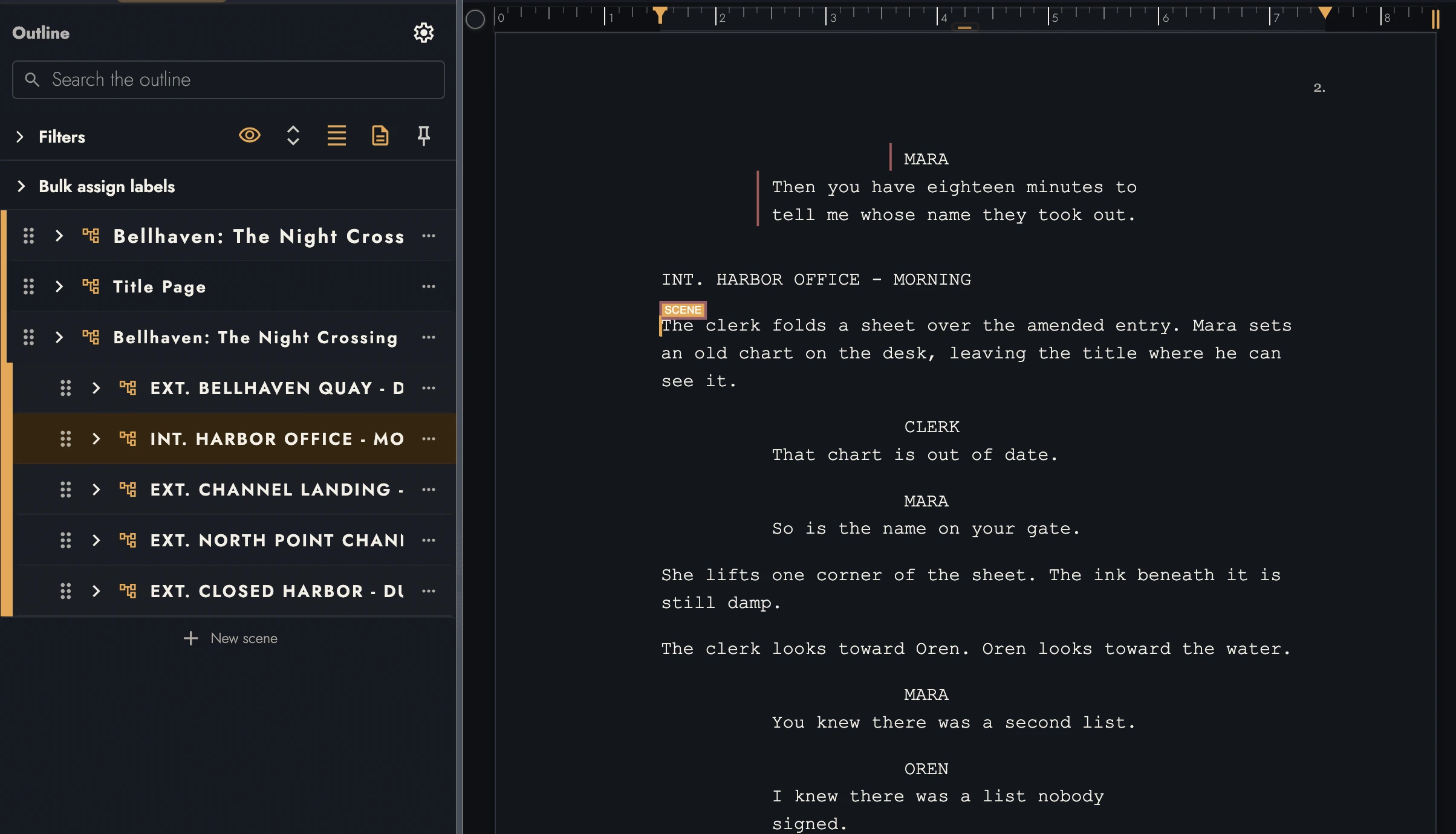
Fountain imports into the screenplay styles automatically. Two
speeches marked with a caret become Dual Dialogue, set side by side, and
> text <becomes Centered. A shouted camera direction such as ANGLE ON or CLOSE ON becomes a Shot. Unsupported element types use the closest style and are reported. Notes and synopses become Review Comments. The title page's Credit, Draft date, and Contact arrive on the Book's title page and details. Forced page breaks, scene numbers, and boneyard text are left out, and the import review lists each one. Fountain export writes every line so it comes back as the same element. - Final Draft (.fdx) imports each paragraph as the element Final Draft named it: Scene Heading, Action, Character, Parenthetical, Dialogue, Transition, and Shot. Dual dialogue stays side by side, and centered Action becomes Centered. The title page gives the Book its title, credit, author, draft date, and contact lines. Scene summaries and script notes become Review Comments on their paragraphs. A paragraph in an element Tabularia has no style for becomes Action and is reported. Tags, revision colors, and forced page breaks are left out and reported.
A link that arrives as a link is one you can edit, open, or remove like any you made yourself. Links shows how.
4. Footnotes and endnotes
Imported notes become Footnotes at their original references, with paragraph formatting and web links preserved. Supported sources are:
- DOCX imports both footnotes and endnotes as Footnotes. Roman and symbol marks are retained. Section-restarted numbering becomes Chapter-restarted numbering; unsupported schemes use the Book’s default and are reported.
-
Markdown has
[^label]references, their definitions, and inline^[notes]. The details are in Importing a Markdown file. - RTF gives footnotes and endnotes as plain text. A Scrivener project's inline footnotes come through its RTF the same way, but the linked footnotes Scrivener keeps beside the text are not read.
- In HTML and EPUB, a note comes from a link marked as a note reference, or one whose note links back to it. In an EPUB the note may live in another chapter file, and a file holding nothing but notes adds no chapter.
-
novelWriter uses
[footnote:key]with its matching%Footnote.key:line.
HTML, EPUB, and Markdown files that Tabularia exported read back the same way, so a book sent out in one of them comes home with its notes attached.
A Footnote in a heading moves to the end of the following paragraph. The review identifies moved references, missing notes, and notes without a reference so you can check the source.
5. Matter pages, Parts, and prologues
A heading alone cannot turn a Chapter into Book Matter. Import needs corroborating evidence, such as an explicit page type in an EPUB or HTML file, or a dedicated Word heading style. Uncertain sections keep their original roles. These rules also respect where each page type may stand in the Book:
- A title, optional subtitle, and byline before the first Chapter can become a title page. Import requires supporting evidence, such as a known author or title-page declaration. A Chapter repeating the Book title is not enough. Confirmed title pages supply the Book’s title details.
- A notice beginning with Copyright or ©, followed by a year and holder, can identify the copyright page. A Copyright heading needs that notice or an explicit source page type. A declared copyright page may also close the Book.
- A heading titled Dedication is not enough. When the source identifies it as that page, it moves to front matter. Unclassified writing above it, such as contact details or a word count, keeps it in the body.
- Explicitly identified Acknowledgments can stand at either end. So can About the Author. Their imported placement is reflected in Book Matter settings, and their text remains editable.
- An Epigraph, Foreword, or Preface among the Chapters that open the Book needs an explicit page type or dedicated heading style. Its name and position do not decide this alone. An Introduction stays a Chapter, because many Books begin their text with one.
- An Appendix, Glossary, or Chronology among the Chapters that close the Book becomes back matter only with source evidence. This also applies to a Reading Group Guide titled that or Reader's Guide. Appendix labels such as Appendix A are supported.
- Declared Praise and Also By pages may open or close the Book. A named heading must match the Book or its known author. Bonus Content belongs at the back and also needs source evidence.
- A confirmed Contents page is rebuilt from the Outline. An explicit source page type confirms it; a formatted list can also do so when at least two different entries match actual Chapter titles. Without an explicit page type, unmatched entries or incidental prose keep the section as imported.
- Two or more Part or Act headings create Acts grouping the following Chapters. Renaming the Act or its opening heading updates both. Lower-level Chapter headings inside those Parts are recognized as Chapters.
- An imported Introduction, Prologue, or Epilogue becomes an unnumbered Chapter of that Type. Later renaming does not change its Type. These opening and closing Chapters stay outside Acts. See chapter count.
Recognized matter pages keep their wording. Contents entries and page numbers are generated from the Outline.
To correct an imported Act, use Unwrap. To turn a matter page back into a Chapter, change its Type as described in Matter pages. Insert from file… does not classify matter pages, and a project archive restores its saved structure.
6. Comments and annotations
Editorial comments are the part of a manuscript most conversions throw away, and they are often the reason you are moving it. Tabularia brings them across wherever it can place them without guessing: a DOCX comment on a deterministic anchor, a PDF annotation with a definite target, and in Markdown both HTML comments and CriticMarkup's comments. A standalone comment becomes a note at that point, and a comment beside a highlighted phrase becomes a note across that phrase. HTML source comments are left out unless you ask for them.
They arrive as plain-text manuscript annotations rather than as live Review Comments from the person who wrote them, because an imported file carries no account to attribute them to. The words survive; the conversation does not resume.
7. Inserting text into a manuscript you already have
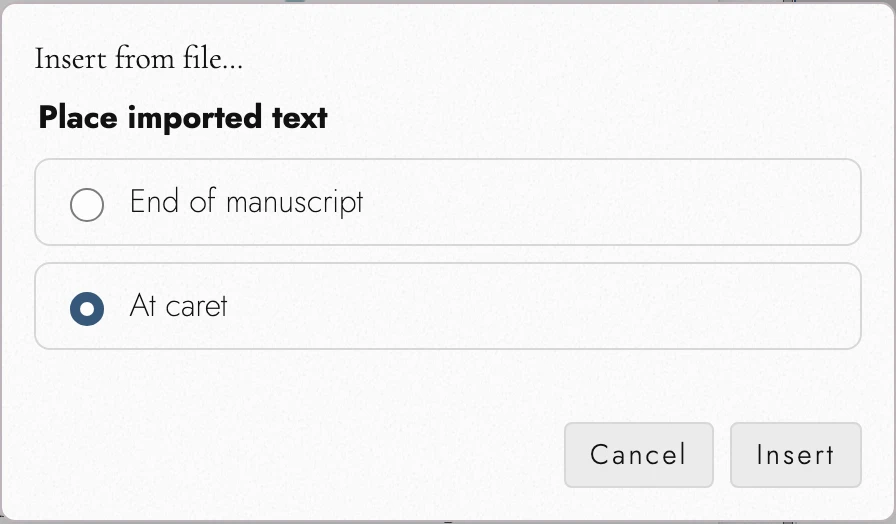
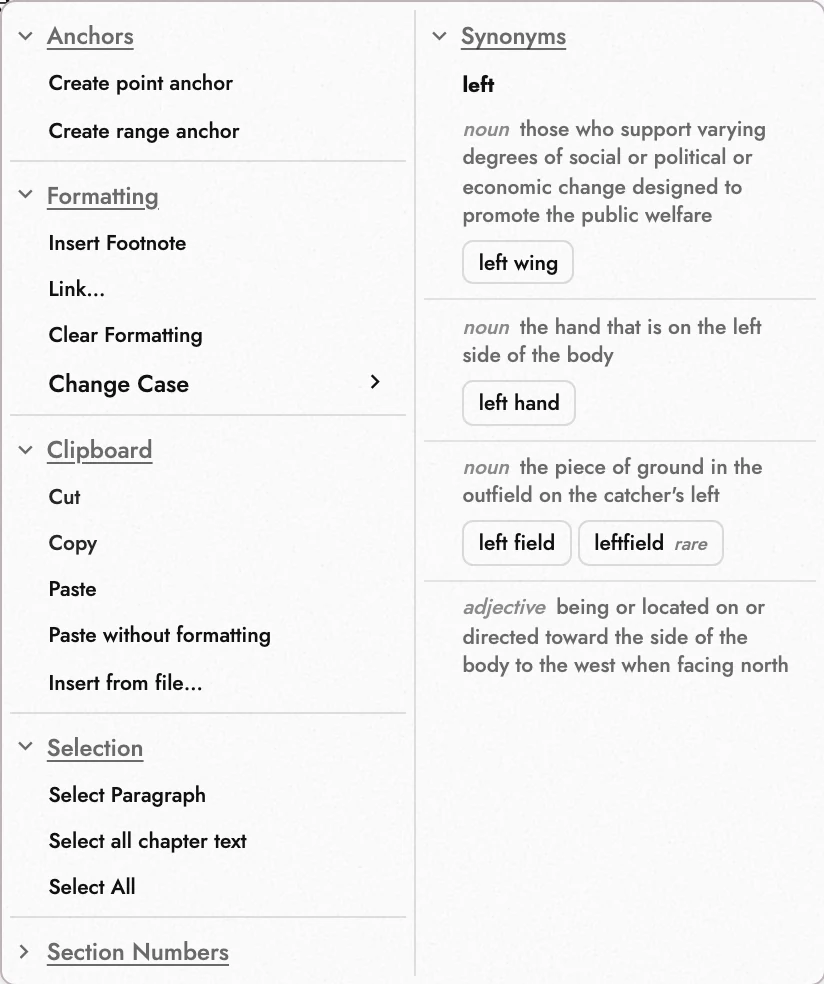
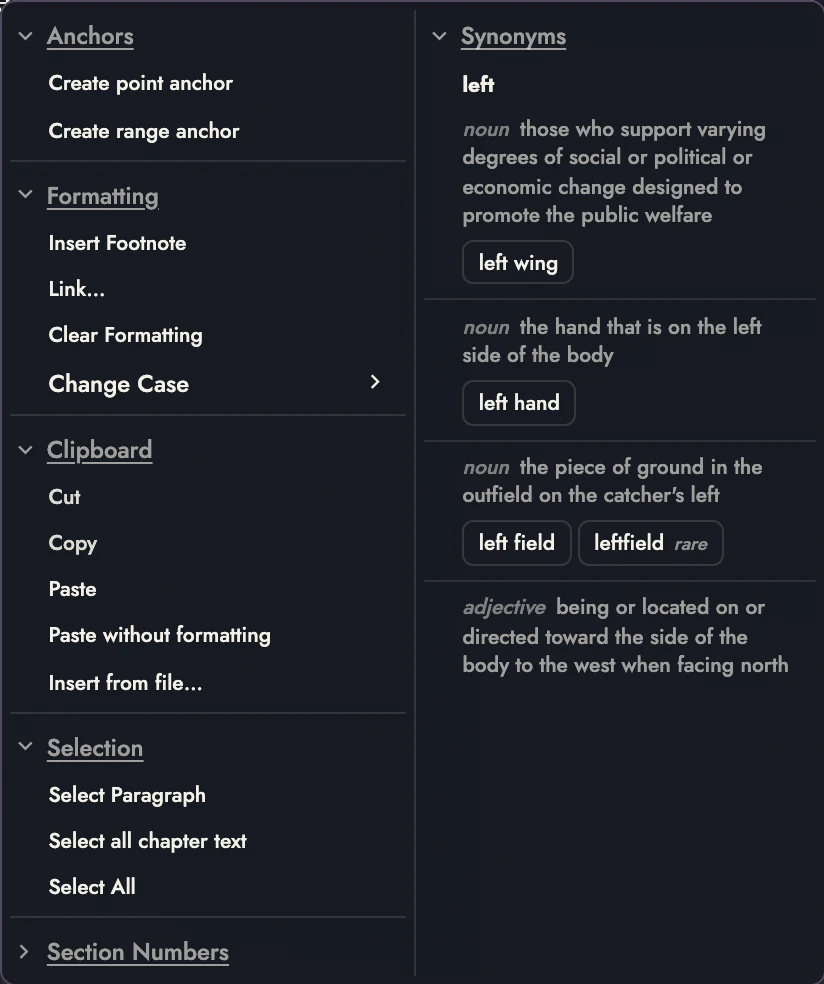
To add text to the open manuscript, choose Insert from file… at its destination, or use the shortcut. It accepts .txt, .md, .rtf, .fountain, and .fdx.
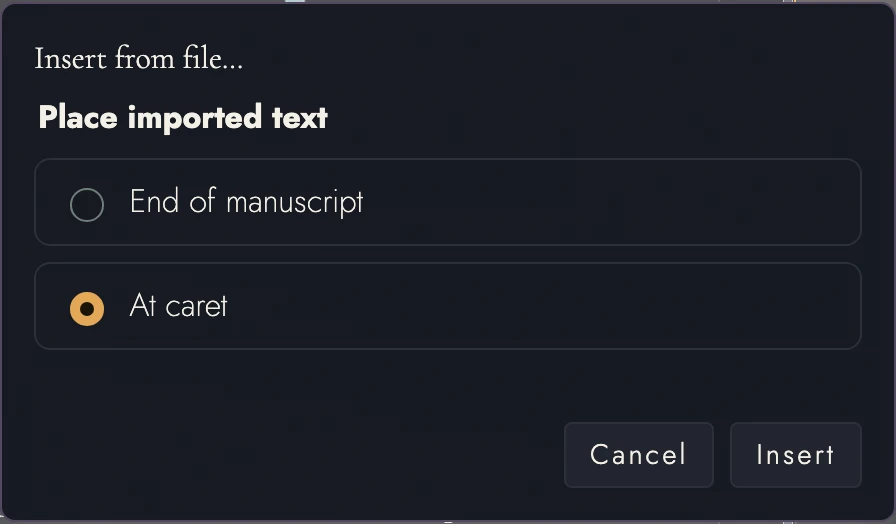
Choose End of manuscript or At caret. Right-click preselects At caret; the shortcut starts at the end. Dropping onto the Canvas inserts text, while dropping onto Projects creates a project.
What the inserted text becomes depends on where it lands:
- Inside a chapter, it becomes a scene of that chapter, named after the file. Headings inside the file stay headings.
- Outside any chapter, including at the end of the manuscript, it starts a new chapter. Each top-level heading in the file starts a chapter of its own, and deeper headings stay headings. A file with no heading of its own is given one, taken from the filename.
- In front or back matter, the text simply joins that section, since a title page or dedication has no chapters. Nothing is promoted and no title is invented.
If a file lands as the wrong kind of thing, you do not have to redo the insert. Change the item's type from its Outline settings.
8. Coming from another writing app
Direct project and package imports
Folder import recognizes these sources:
- Obsidian vaults.
- Scrivener
.scrivpackages. - novelWriter projects.
- Unzipped Notion exports.
- TextBundle folders.
The source hierarchy becomes manuscript structure, and referenced pictures join Assets. Supported packed versions can be imported as a single file.
These project routes are still worth checking book by book. Read the imported outline against the original before settling in, and keep the source project until you have.
Markdown and open-format exports
A Markdown export from Joplin is recognized as its own: Tabularia reads its internal links, its front matter, and the record it leaves at the foot of a note, rather than leaving them in the prose. Either of Joplin's Markdown exports will do: export the notes and import them like any other file.
iA Writer has a profile too, but a narrow one: the file has to carry
iA Writer's table-of-contents marker, one of its content-block lines, and a
+++ page break, all three together, before Tabularia reads it as iA
Writer's. An ordinary export comes in as plain Markdown, which loses nothing. The
profile removes the table-of-contents marker. Content-block lines and page breaks stay
as text for you to tidy.
Bear can move through a Markdown or TextBundle export. Craft, Zettlr, Typora and other writing apps can move through whichever open format they export (usually Markdown, TextBundle, HTML, DOCX, RTF, or plain text). Tabularia imports those exported files but does not read the application's private library or connect to its account.
Apps that need an export first
Google Docs needs one step first: use File → Download → Microsoft Word, then import that file like any other DOCX. Its comments come with it when their anchors are unambiguous, and its footnotes arrive as Footnotes. Tabularia never connects to a Google account, and a link to a document is not something it can import.
Pages and Ulysses also need an export first. Export a DOCX, HTML, Markdown, RTF, plain-text, or TextBundle copy and import that. Every conversion happens on your device, from a file you hand it.
Dabble and Plottr are the same route with a different reason. Export a Word file from either (Plottr's outline export included), and the headings it writes become your chapters and scenes, which is the part a plotting application usually leaves behind when you move.
9. After the import
Three checks put an imported manuscript on solid footing:
- Confirm chapters landed as Chapter Heading blocks: the Outline should list your chapters. Fix any it missed by applying the block style.
- Add scene breaks where the source only had blank lines.
- Take a first Snapshot, since "as imported" is a restore point worth having before revision begins.
A fourth, if the source was typed rather than styled: Remove empty lines between paragraphs in the canvas menu clears the blank lines a typewriter habit leaves behind, so paragraph spacing can do the job instead.
10. Continue reading
- Previous: Drafts, Snapshots, and autosave
- Next: Exporting and printing
- All guide articles
Try it on your own book
Start a free 14-day evaluation. No card needed.