A tour of Tabularia
Find the Canvas, panels, and controls you use while writing.
1. The canvas and toolbar
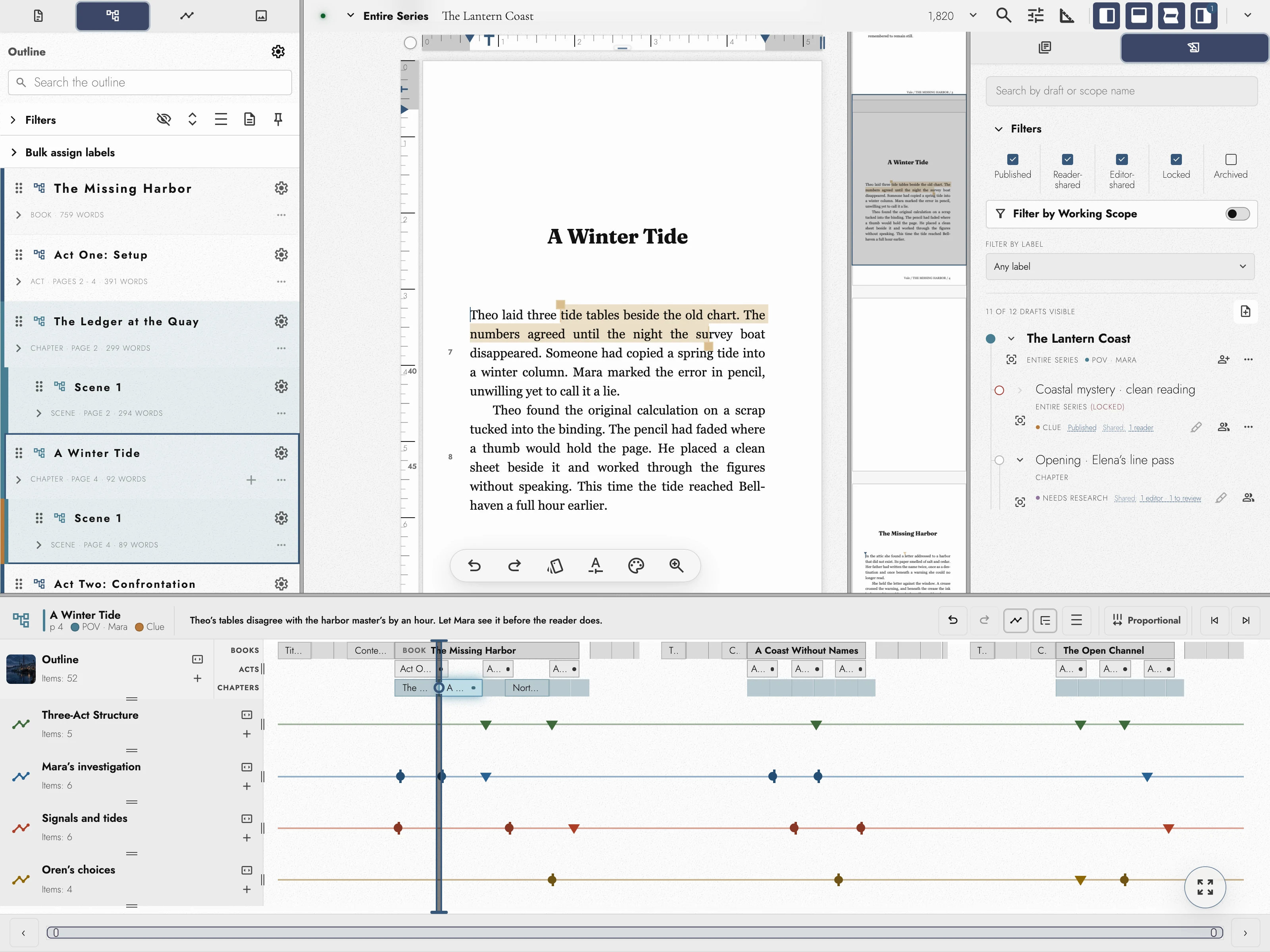
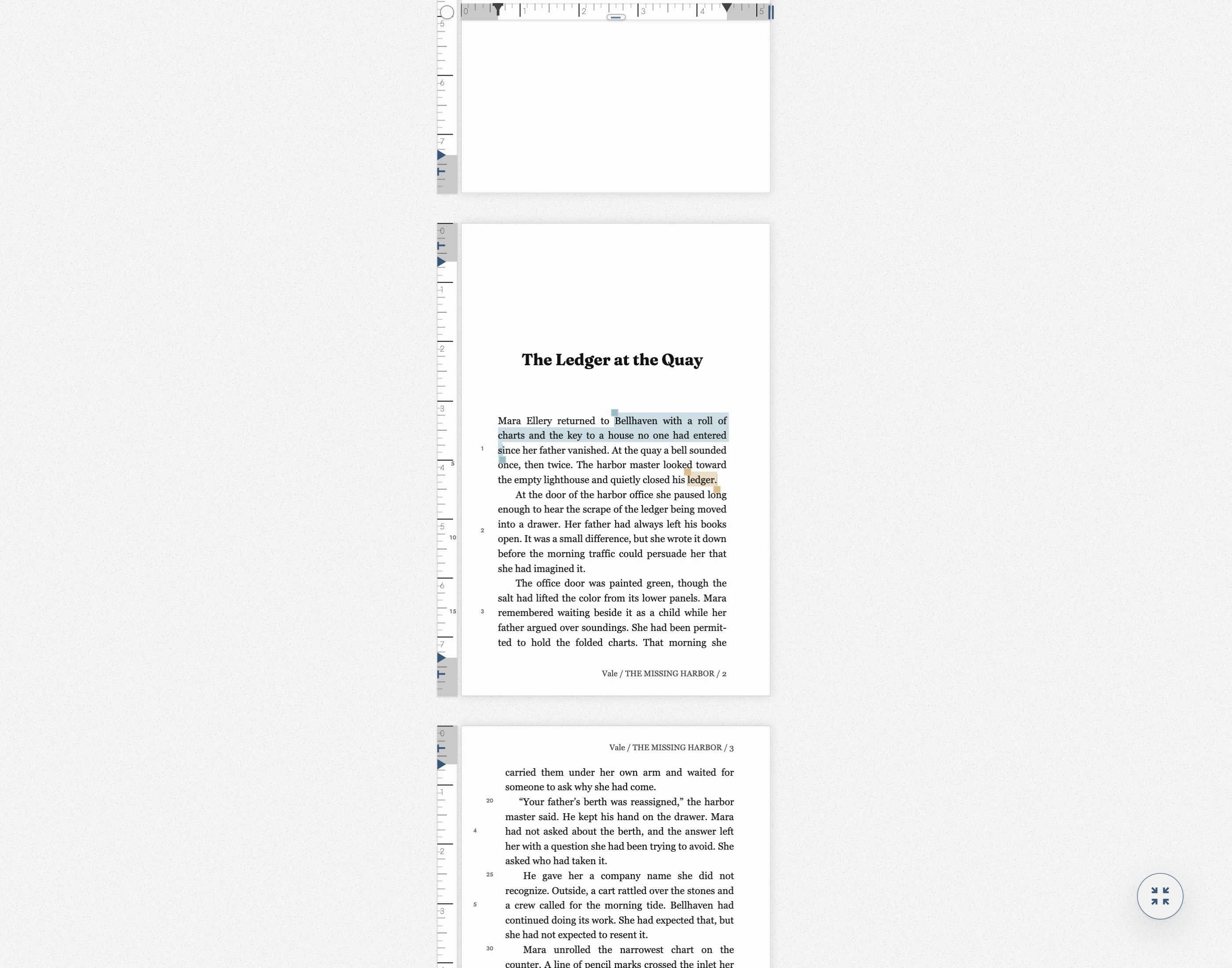
The Canvas shows your manuscript in one continuous scroll. On a computer or wide tablet, it displays designed pages and Rulers. You can move between Chapters without opening separate files.
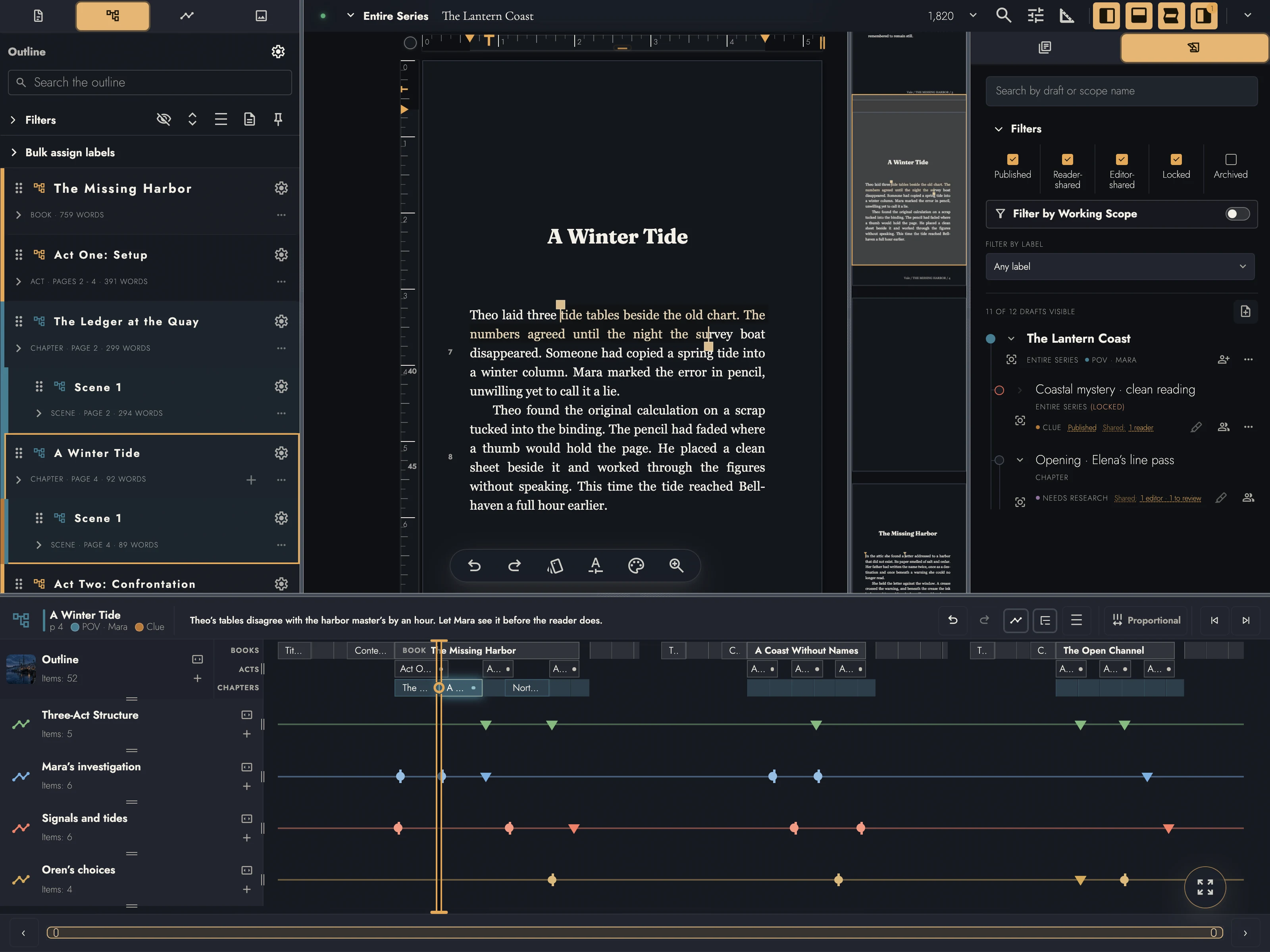
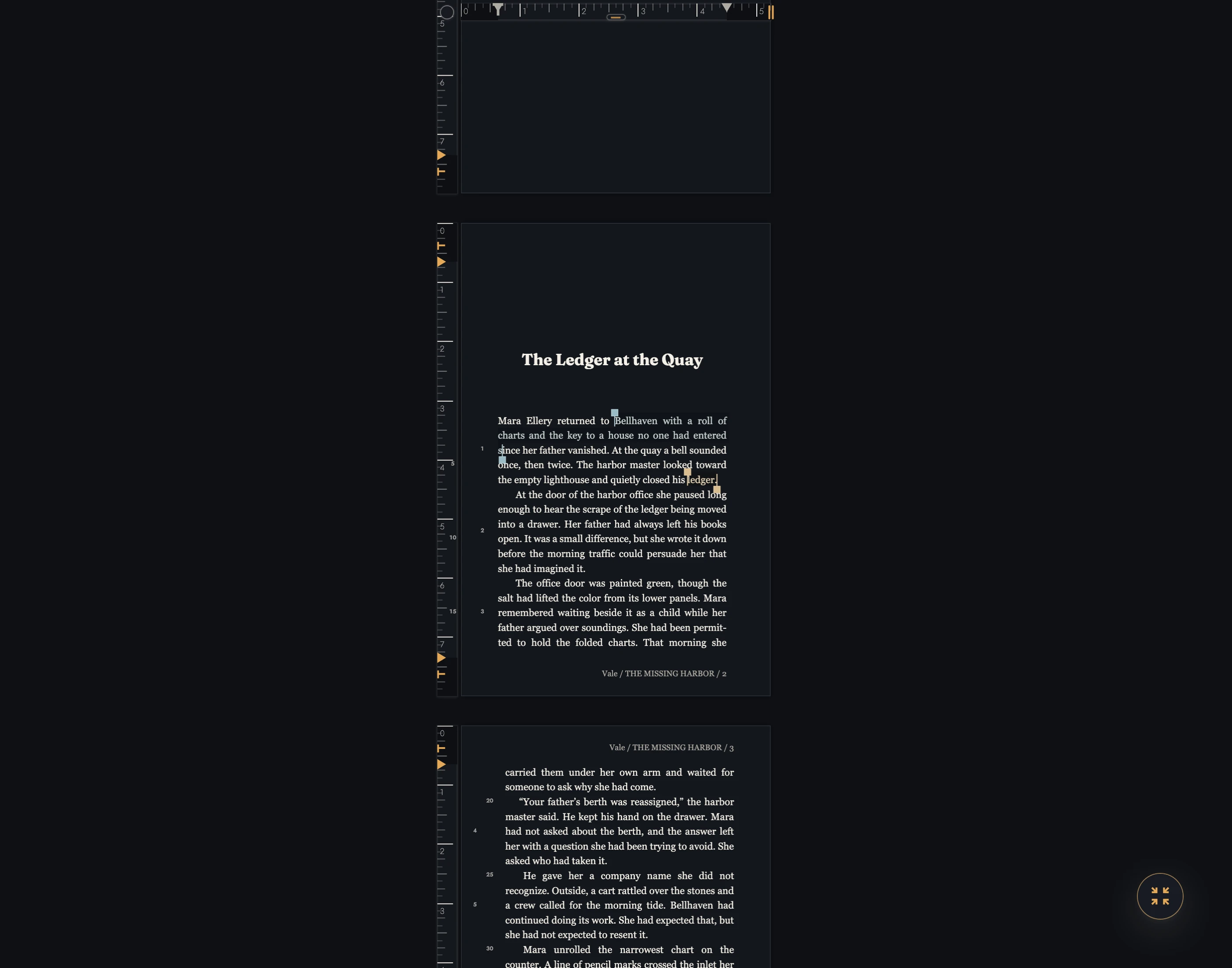
View dark appearance
The floating Canvas toolbar sits near the bottom. Its main menus are:
- Text formatting for Block Styles, alignment, fonts, and insertion actions.
- Typography for size, spacing, and text styling.
- Text colors for text and highlight colors.
- Zoom for display size.
Undo and Redo are beside the menus. Many controls have keyboard shortcuts.
In a Block Quote, the margin button opens Quote settings. Choose a category, borders, background, and an optional Source and Link for attribution. The right-click menu and quote border open the same settings.
Right-clicking the page opens the canvas menu, which is where several commands live that are nowhere else:
- Spelling suggestions and dictionaries.
- Changing the case of a selection.
- The formatting commands: Remove empty lines between paragraphs, and Clear Formatting, which strips local formatting from a selection or returns the paragraph at the caret to its style.
- On a chapter, Chapter Opening. It removes the ornament above or below the title, gives this chapter's opening to every chapter or returns the chapter to the book's design, and leaves a chapter unnumbered or numbers it again.
- On a block quote, a Quote section: Category to choose the quote's category, and Source… and Link… to attribute it.
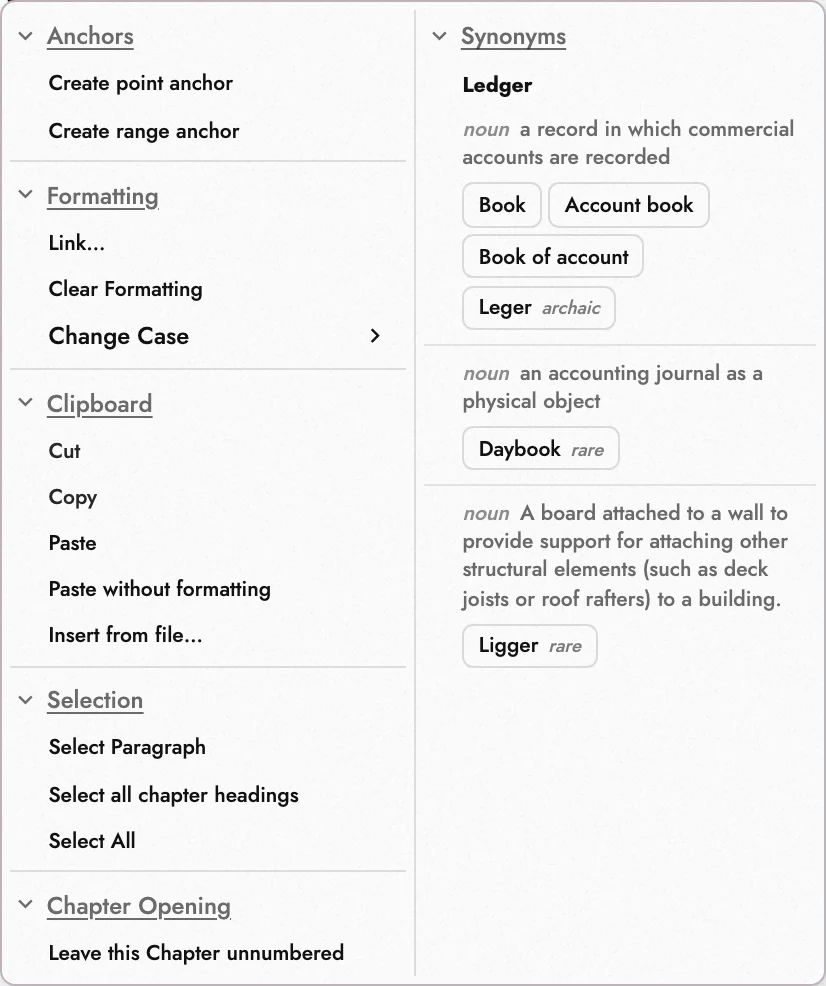
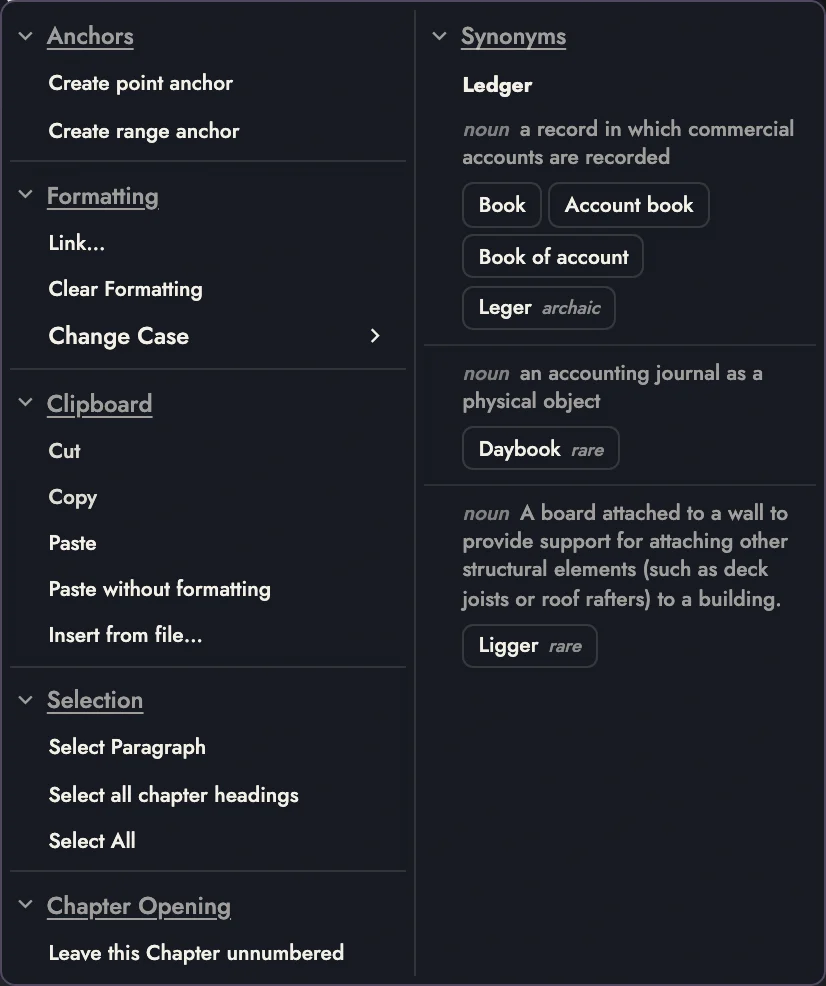
Selecting an ornament and pressing Delete takes it off too, and on a phone a long press over it offers Delete Ornament. On an image or a Review Change it carries the actions for that thing instead. Writing and formatting walks through it.
2. The left sidebar
The left sidebar has four tabs:
- Projects lists every project you have created, with row actions for Settings, Export, and History. This is where projects are created, renamed, and where imports land. Archiving and deleting one are in its Settings, at the foot of Project Details.
- Outline lays out your manuscript's Books, Acts, Chapters, Scenes, and Headings as rows you can rename, reorder, label, and jump from. See How a manuscript is structured.
- Timelines holds the project's own timelines and the markers on them. See Timelines.
- Assets: the images and Book Decorations available to the open project. See Images and Book Decorations.
History is a fifth view of the same sidebar, but it has no tab of its own: it is a management view of one project, reached from that project's row. See Snapshots and History.
3. The right panel
The right panel has two tabs:
- Drafts & Sharing holds alternative drafts of your text, and the sharing controls for inviting Readers and Editors.
- Sheets: structured reference records for the story's people, places, items, and concepts. See Sheets.
4. The minimap
The Minimap shows the writing around your position in miniature. Drag its thumb or click it to move. See Navigating a long manuscript.
5. The timeline drawer
The Timeline Drawer shows Anchors in horizontal lanes. The Overview Navigator below keeps the larger manuscript in view. Click anything in a lane and the page goes there, while the drawer's header names it and holds its comment.
Use Timelines to choose visible lanes and Outline depth to choose structural levels. When a passage gets crowded, switch the layout from Proportional to Structural, which gives each chapter equal room. The drawer needs a window at least 768 pixels wide, so it stays off on a phone.
6. The bar at the top
The document header carries five things:
- The manuscript's title.
- The Working Scope selector, which decides how much of the manuscript you are working on.
- Your counts, goals and the Writing Timer, and the autosave indicator.
- The panel toggles for the sidebar, the drawer, the minimap, and Drafts & Sharing.
- The page controls for Find & Replace, Writing Tools and Page Presets.
The Document menu opens from the chevron in the header:
- Show in header chooses which controls the bar carries.
- Appearance selects themes.
- Settings holds your account, installing and reloading Tabularia, and app updates. It also holds Ask Before Leaving Tabularia. While it is on, as it starts, the browser checks with you before Back, closing the tab, or a reload takes you out of an open project. Help & Info sits at the foot of the menu.
Each switch under Show in header takes one thing off the bar or puts it back:
- Show UI Navigation Controls, the panel toggles. Expand it to keep some and drop others.
- Show Page Controls, with a switch of its own for Find & Replace, Writing Tools, and Page Presets.
- Show Project Stats, the counts and goals.
- Show Working Scope Selector.
- Show Autosave Indicator.
Phones add Mobile view for Writing Statistics and Front & Back Matter. Update, Cloud upgrade, and email-verification prompts appear when relevant.
7. Help beside a control
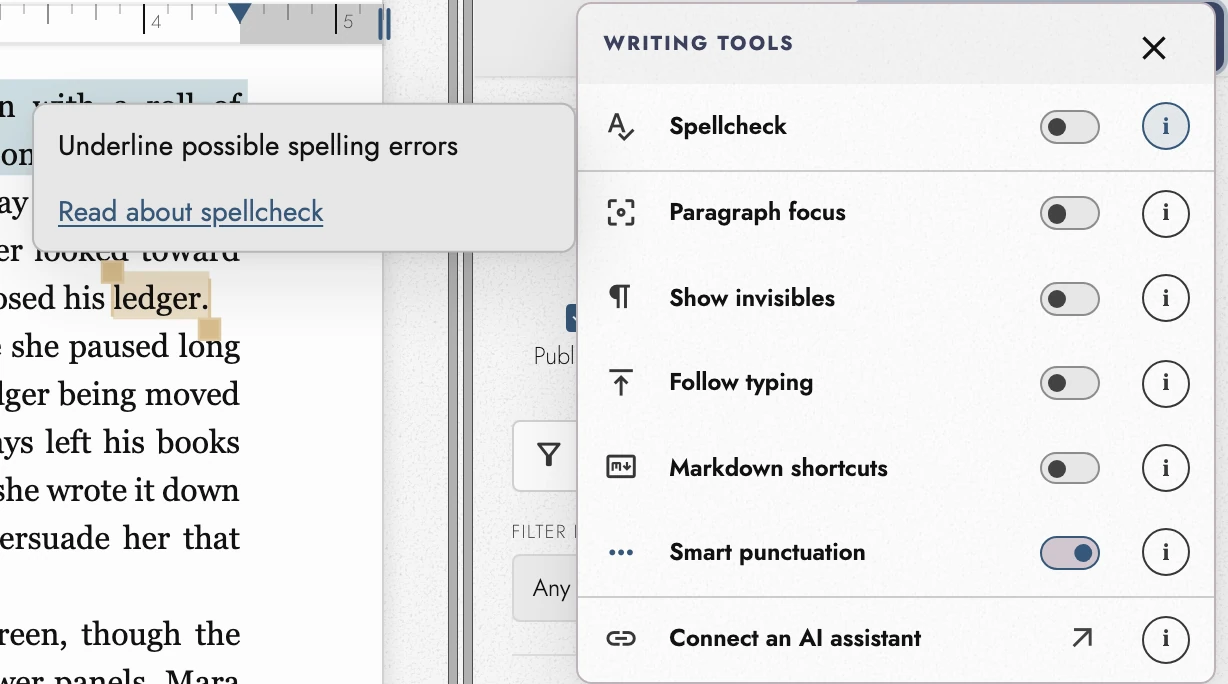
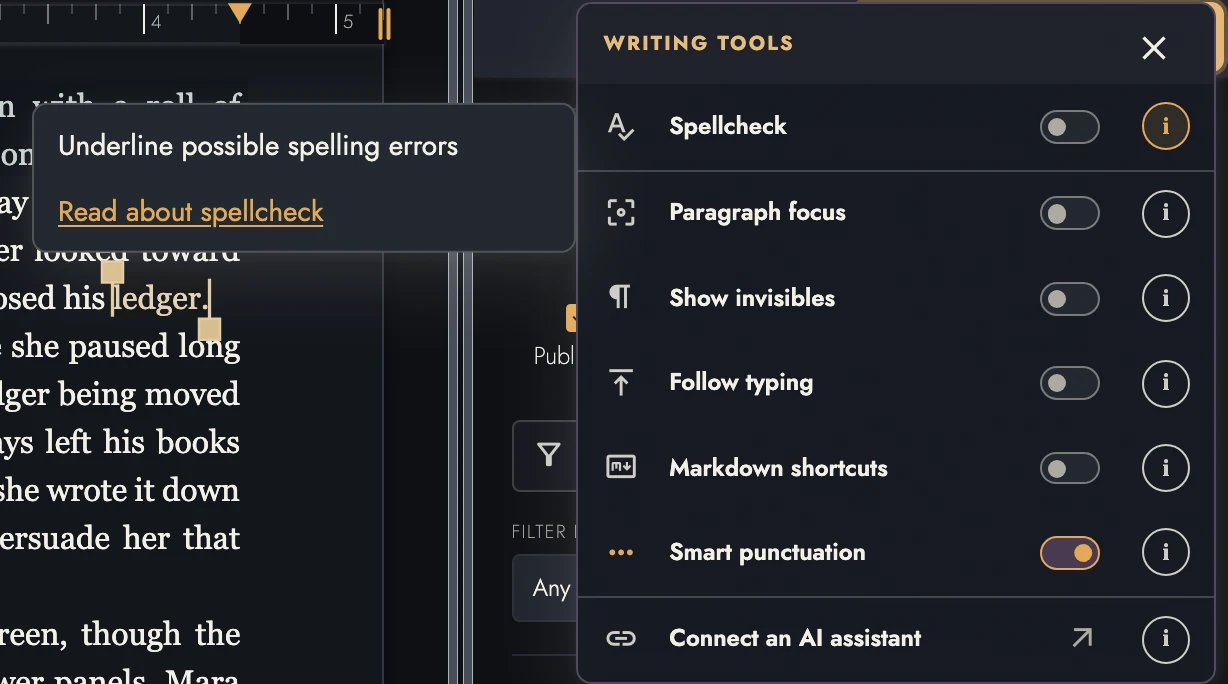
The small i buttons explain the setting beside them. Click or tap one, or focus it with the keyboard and press Enter or Space. Opening help does not change the setting.
Escape dismisses the explanation before its surrounding menu. A Guide link opens the relevant article separately, so you can read the instructions without replacing the writing session.
8. Appearance
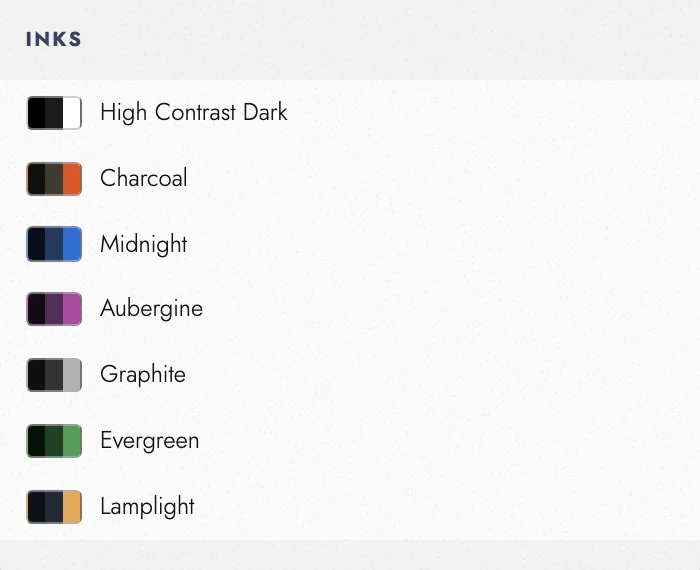
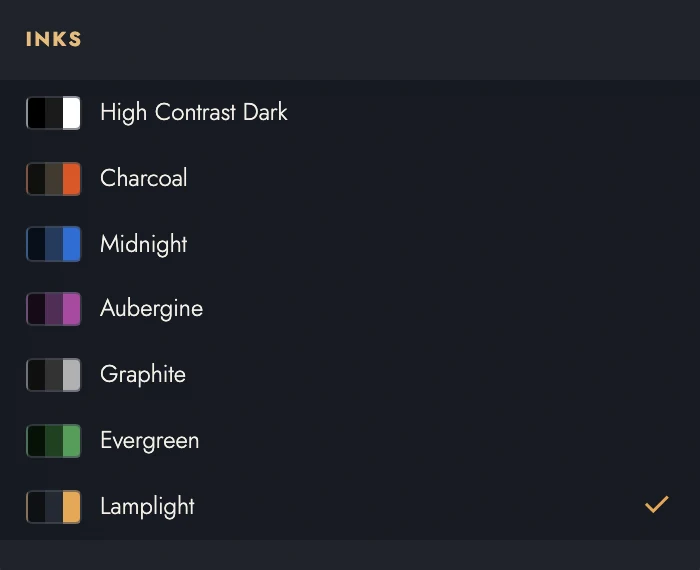
Appearance offers light Papers, dark Inks, and colorful Pigments. High-contrast choices are available too. Pick the treatment that makes the page comfortable to read.
Follow system appearance is on to begin with. While it is, you are choosing a pair — one light theme and one dark — and Tabularia switches between them with your operating system. Turn it off to pin a single theme whatever the hour.
9. Writing Tools and Focus Mode
Writing Tools controls how the page behaves while you draft. Writing and formatting explains the switches. To insert a file’s text, right-click its destination and choose Insert from file….
Once your plan lets you connect an assistant, one more entry appears below the switches. Connect an AI assistant is the way in to connecting one. There is no switch for what it may change. It works in the draft you name, or in one of its own, and your assistant app is where you decide whether it asks before each change.
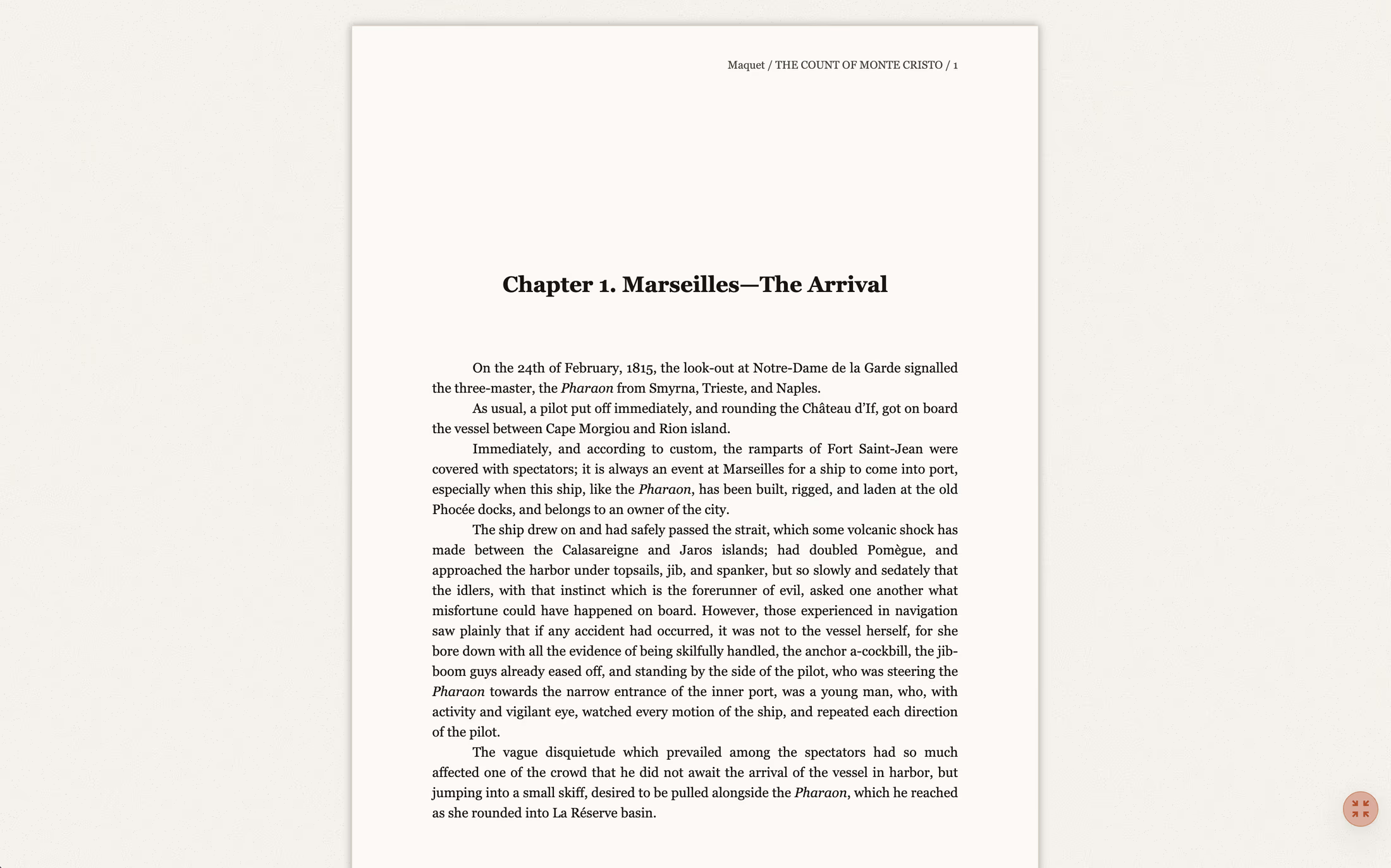
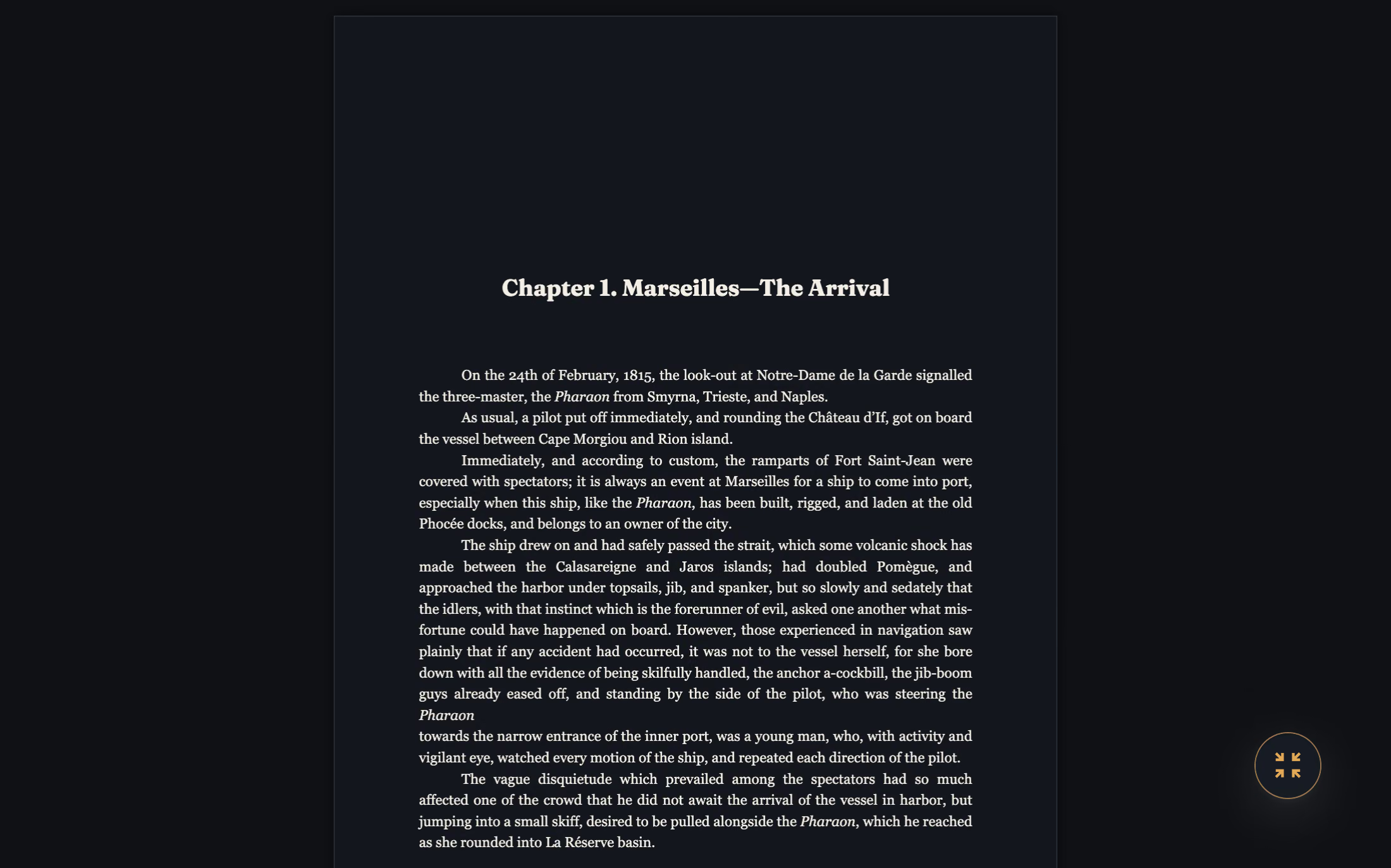
Use the Compass’s center button or the shortcut for Focus Mode. It hides the surrounding controls and leaves the page. Leave Focus Mode to restore your previous arrangement. The Compass arms toggle individual panels.
10. Continue reading
Try it on your own book
Start a free 14-day evaluation. No card needed.