Sheets: People, Places, Items, and Concepts
Keep character and world details beside your writing.
1. What Sheets are
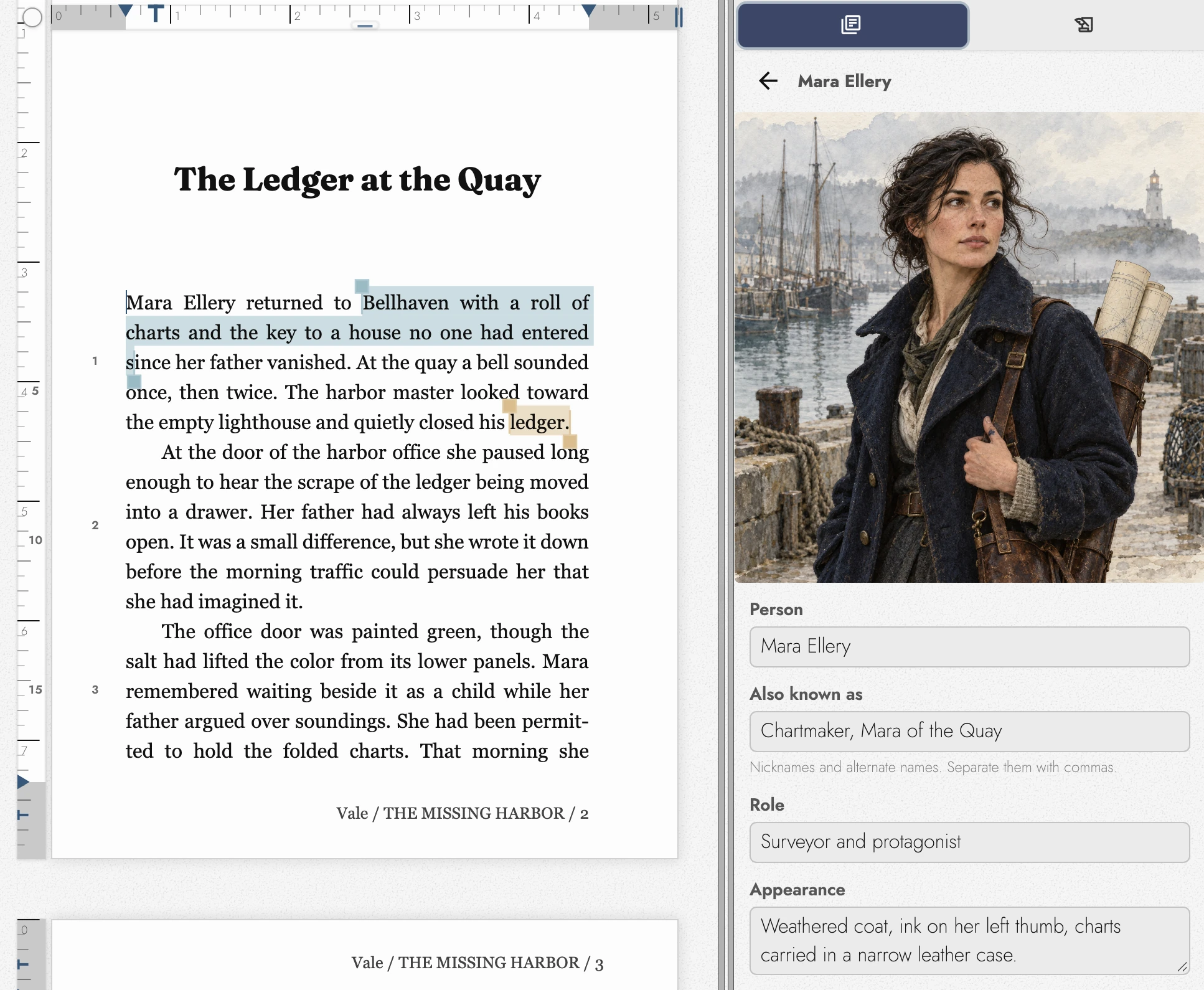
Sheets keep reference facts beside your writing, such as a character’s appearance or a place’s history. Open the Sheets tab in the right panel. Each Project has its own library.

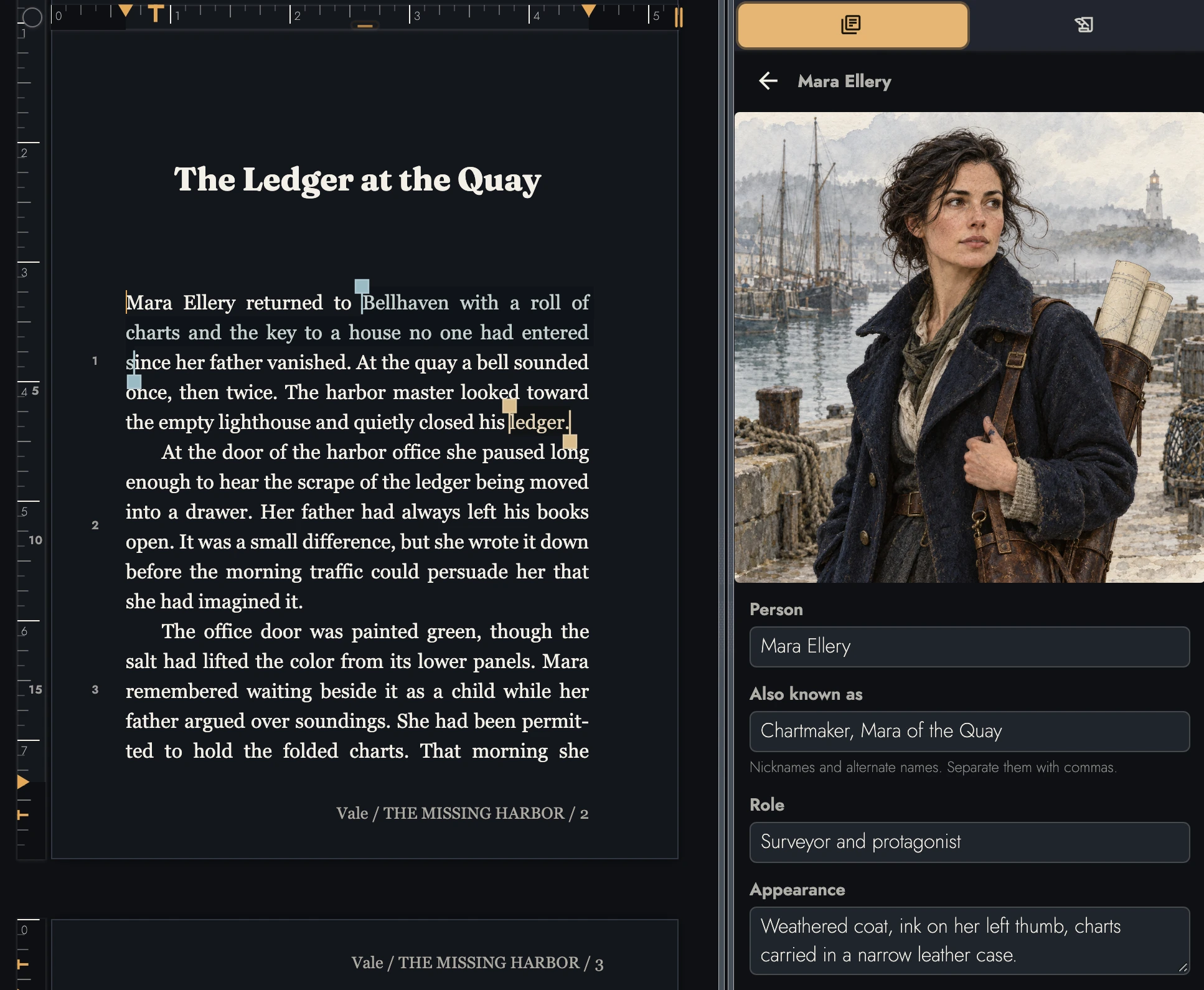
View dark appearance

2. The four templates
- People: role, appearance, personality, goals, and who they are related to.
- Places: location, description, and significance to the story.
- Items: description, origin, significance, and who currently holds them.
- Concepts: definition, rules, and how the thing is used in the story, for the systems, factions, and ideas that have to stay consistent across a draft.
Every template has a name, Also known as, and Notes. Separate nicknames or alternative names with commas; search includes them. Notes holds details without a dedicated field.
Two fields are there to hold those cross-references: a person's Related to and an item's Held by. For now they are yours to fill in as you would a note card. Naming a character in one does not yet link the two records together.
Not sure what to put in them? The free character profile and series bible templates suggest what each field is for.
3. Working the panel
Choose a template using the four icons at the panel’s top. Each shows its count; hover to read the name. New sheet and search apply only to the selected kind.
When the selected kind has no match, the empty list names the kinds that do, as in Found in People (1). Press one to switch to it; your search stays in the field.
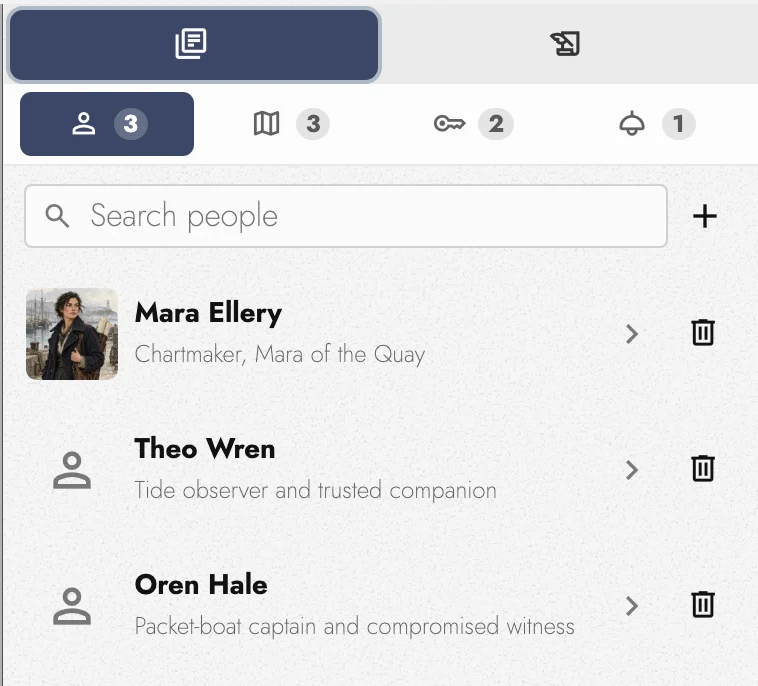
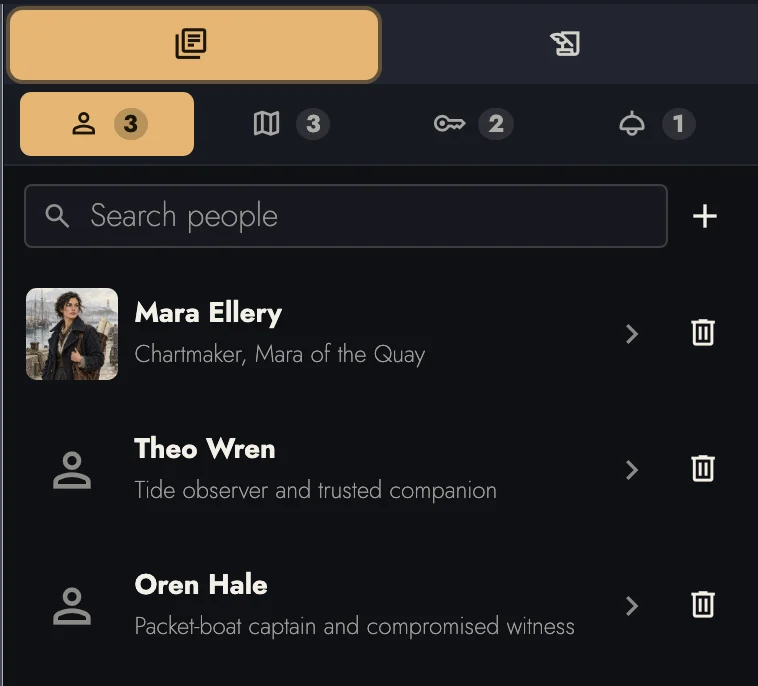
Open a row to edit, then use Back to return. Click its picture to change the image directly. Delete removes the Sheet immediately without confirmation.
Drag a multiline field’s bottom edge to make it taller. The height applies to that field across Sheets of the same kind in this Project and stays in this browser.
A sheet with no name yet reads as Untitled Person, Untitled Place, and so on, so an unfinished record is visible as one rather than blank.
Nothing here has a save button. What you type into a sheet is written as you go, and it is on the row the moment you press Back.
4. Pictures
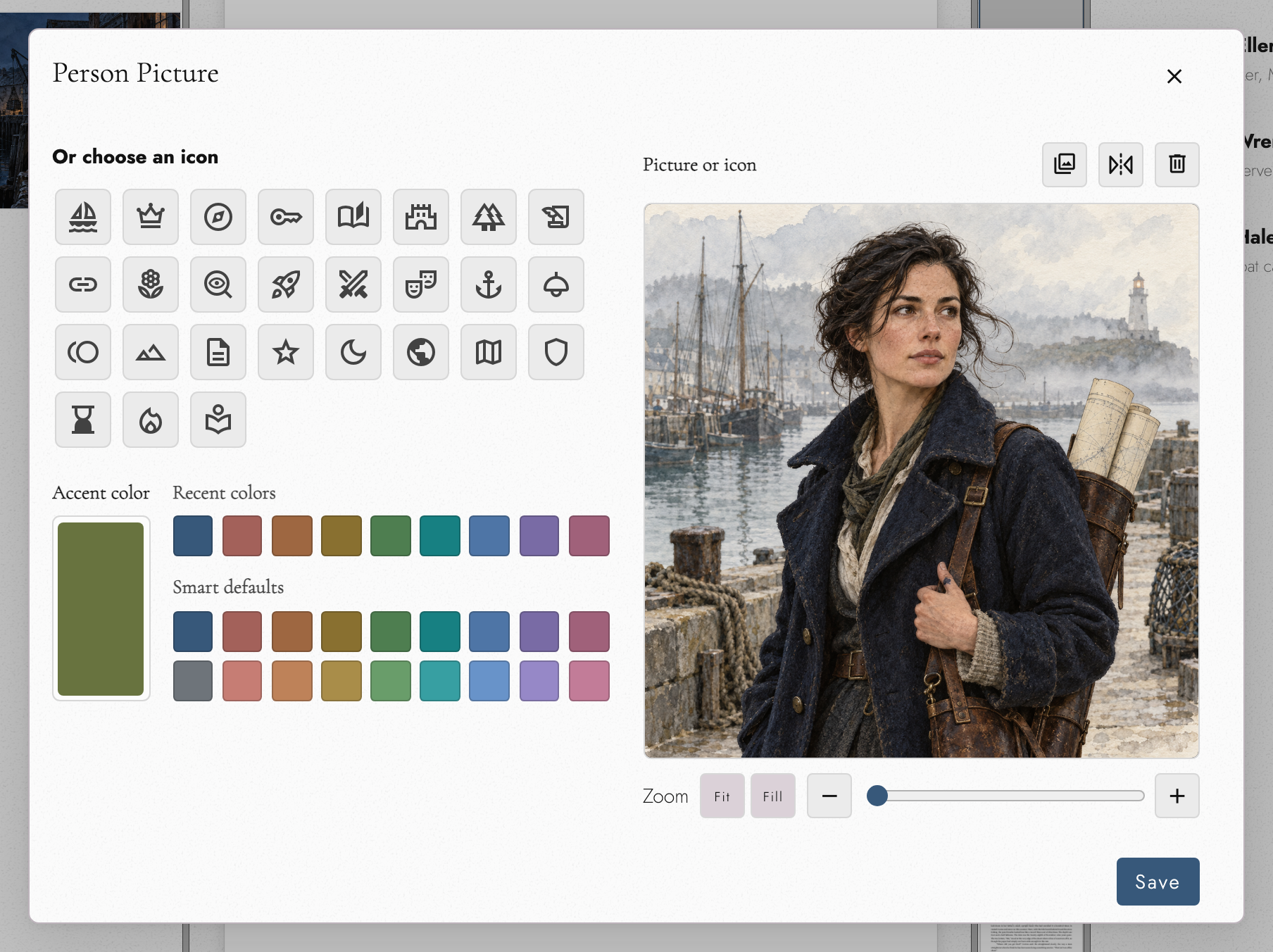
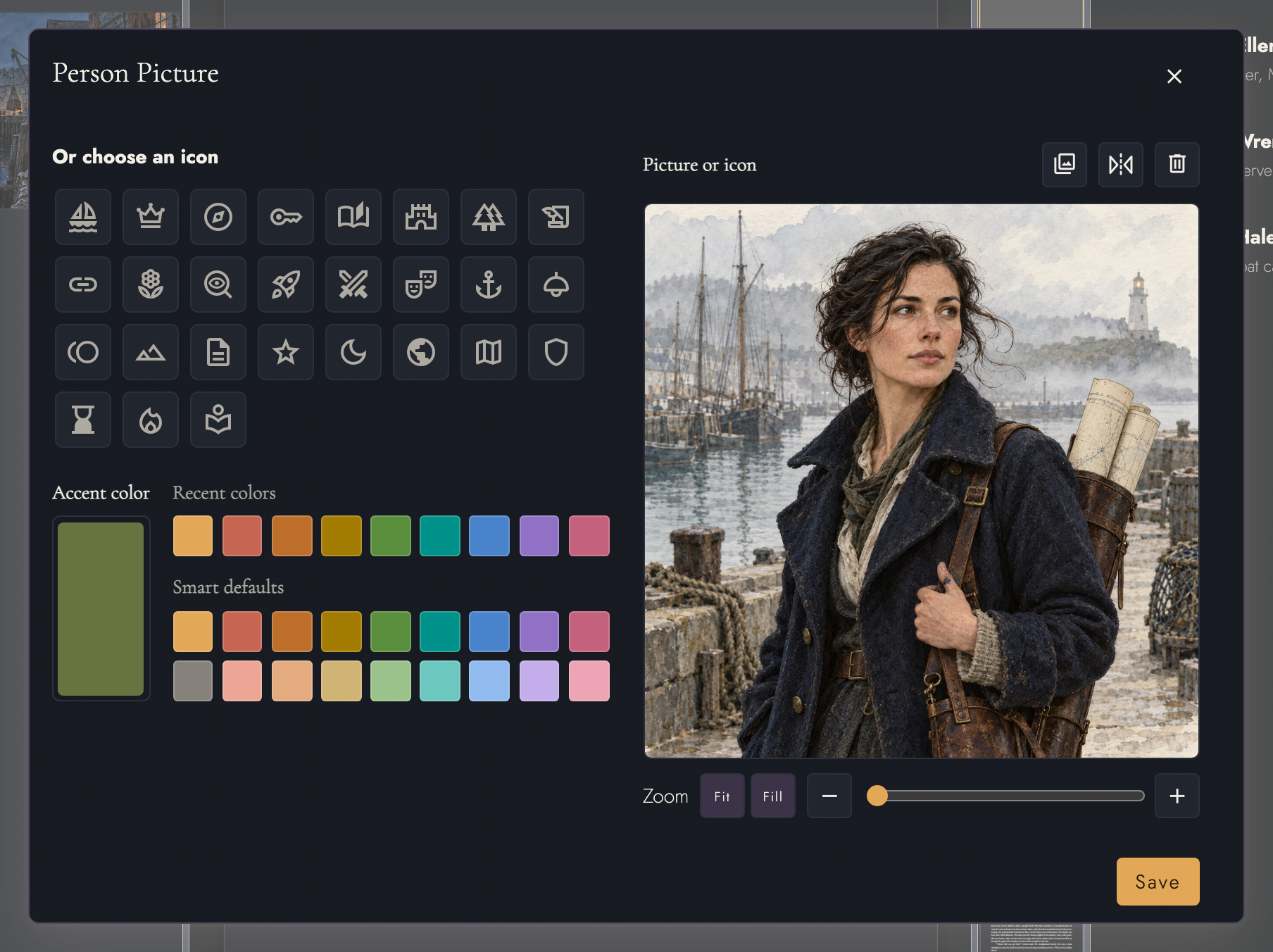
Choose picture…, the photo-library button beside the picture’s heading, opens the picture picker on the Project’s pictures in Assets, with Upload new for one you have not added yet. Next to it, Flip horizontally mirrors the picture and the trash button removes it. Frame it in the preview with the zoom slider, Fit, or Fill. The crop belongs to this Sheet, so the same portrait can be framed differently elsewhere. It appears on both the Sheet and its list row.
You can choose a symbol and accent color instead of a picture. The same editor is used for every Visual Identity.
View dark appearance
5. Using Sheets while writing
Use Sheets for facts you need during revision. Keep entries brief so a detail is easy to find while writing.
A name you invented can become a Sheet without opening the panel. Right-click it where spellcheck underlines it and choose Add to Person Sheet, or the Place, Item, or Concept version. The Sheet opens under that name and the underline clears. Spelling explains how possessives and plurals are trimmed from the name.
A connected assistant can also draft these for you from the book itself, one Sheet per named character if you like. Ask again about someone and it revises their Sheet instead of starting another. See what to ask your assistant for sample requests.
Sheet names and Also known as names are accepted by spellcheck. Renaming a Sheet removes the old name from that list, helping you catch outdated references. See spellchecker.
Cloud sync carries Sheets and their changes between devices, including deletions. With the Local plan, Sheets stay in this browser with the Project. Complete local Project archives can also transfer the complete library. See project archive.
6. Continue reading
- Previous: Writing on a phone or tablet
- Next: Timelines
- All guide articles
Try it on your own book
Start a free 14-day evaluation. No card needed.