Headers and margin numbers
Set page numbers, running headers, and references beside the text.
1. Opening Headers & Margins
Open Settings on the Project's row, then Headers & Margins. The section has three parts: Header & footer, Margin numbers, and Footnotes. Its preview shows your choices on sample pages.
When the Book is set for submission, the section opens on the submission's own running head, page break, and footnote choices instead. Choose Typeset under Settings for to see the three parts.
You can also right-click a page margin and choose Configure margin numbering or Edit this page’s header and footer. Those commands appear outside the prose, where the page's margins and running content live.
2. Page numbers, headers, and footers
In Header & footer, choose a Book. Main text offers ordinary numbers, Roman numerals, or None. Each Book’s body starts at 1.
Number the front matter too shows Roman page numbers on eligible pages. Title pages and dedications count without displaying a number. Back matter always carries on the body’s numbers; an About the Author or an Also By page counts without showing its number.
Keep lines together at page breaks sits above the page numbers, under Page breaks, because it decides where every page of the Book ends. It starts on for a new Book. Page breaks says what it moves.
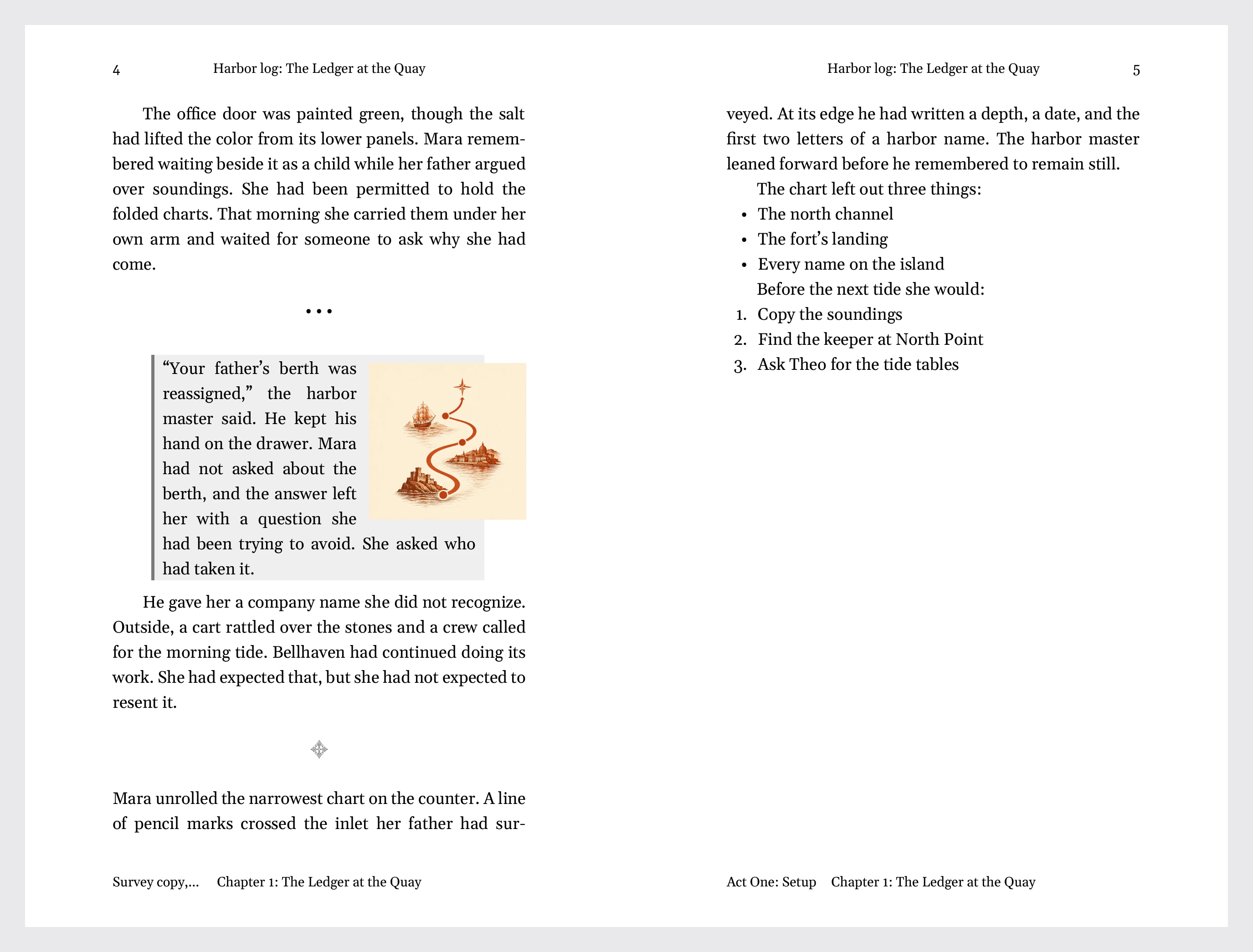
The header and footer belong to the selected Book, just as its folio numbering and Footnotes do. Each has a left, a center, and a right place, and the six are listed in one grid. Choose a place and its Prints menu says what it prints:
- Nothing leaves the place empty.
- Book title sets the Book's title in capitals, as a running head.
- Author name prints the author's surname.
- Page number prints the folio, and nothing at all while Main text is set to None.
- Chapter title and Chapter number change as each Chapter begins.
- Act title and Scene title follow the Act and Scene a page starts in.
- Series title prints the name of the Series.
- Custom text… opens a box for your own words. Its field buttons drop in any of the values above, so one line can read “Chapter 7 · Afterlight” here and “Chapter 8 · Landfall” a few pages on.
The author is the name set for the writing, not your account profile. In a Series Manuscript every Book keeps its own header and footer. Front and back matter omit them, and a page left blank on purpose stays blank. A new Book or Series puts your name and the title in the header and centers the page number in the footer. A new Blank project starts with every place printing nothing.
Below the menu sits the place's look. Set it in bold, italic, or underlined type, in a color of its own, or in another font, size, and letter spacing. Its indents move it in from the edge of the text, or out into the margin. A bold page number is bold on every page and still counts. With mirrored margins the header follows each page's own margins, while left stays left on both pages of a spread. Clear formatting takes the place back to plain words, and what it prints stays.
Any part smaller than the Book can say something different, from an Act down to a Scene, a heading's section, or a single page. Hover over its header or footer on the Canvas and press the small settings button beside it, or right-click it and choose Edit this page’s header and footer. Settings opens with that place chosen, still applying to the whole Book. Pick the part under Applies to, such as This Chapter or This page, and the grid marks each place as the same as the Book or overridden. Override gives the part its own copy of a place, its words and its look; Reset to Book gives it back. The narrowest part wins, so a page's own words beat its Chapter's, and a Chapter's beat the Book's.
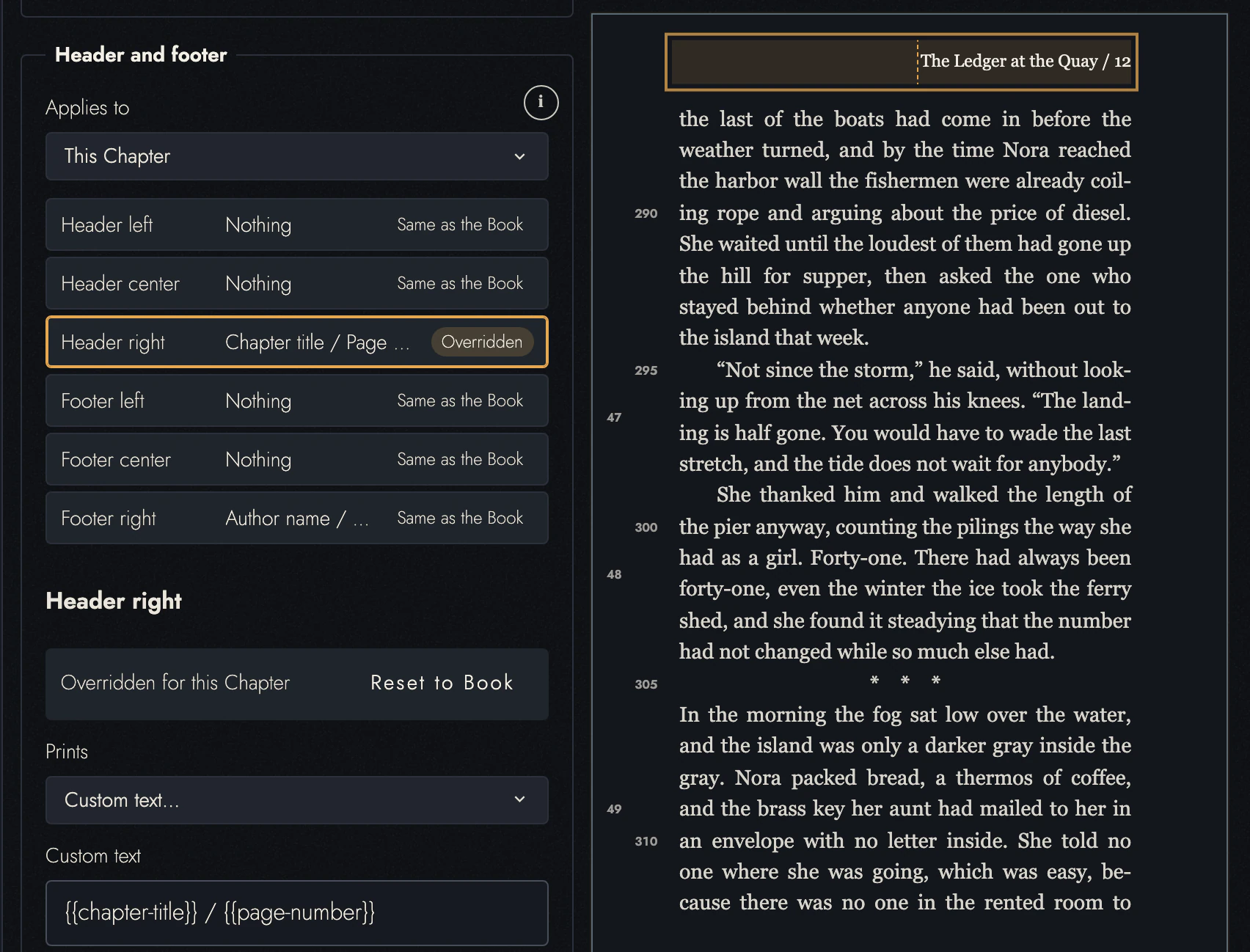
Under the grid, Leave it off has two boxes, and both answer to the part chosen in Applies to. The first page of this part drops the header and footer from its opening page only. Pages left blank on purpose keeps them off the blank pages a right-hand start adds. Pick a single Chapter first and the boxes change that Chapter alone.
You can move a place on the page, too. Click a header or footer and it's selected; the ruler's left and right handles then stand at its indents, and dragging them moves it. The indents in Settings change with them. Drag across a header's words to select them and copy. Press Escape, or click your text, to let it go. Your header prints as you set it, in a PDF, on paper, and on a published page. A submission prints the running head chosen in its own settings.
Set opening-page suppression in Chapter Openings. Hiding a header on the first page of a Chapter does not turn it off on the pages that follow.

3. Section numbers for citing passages
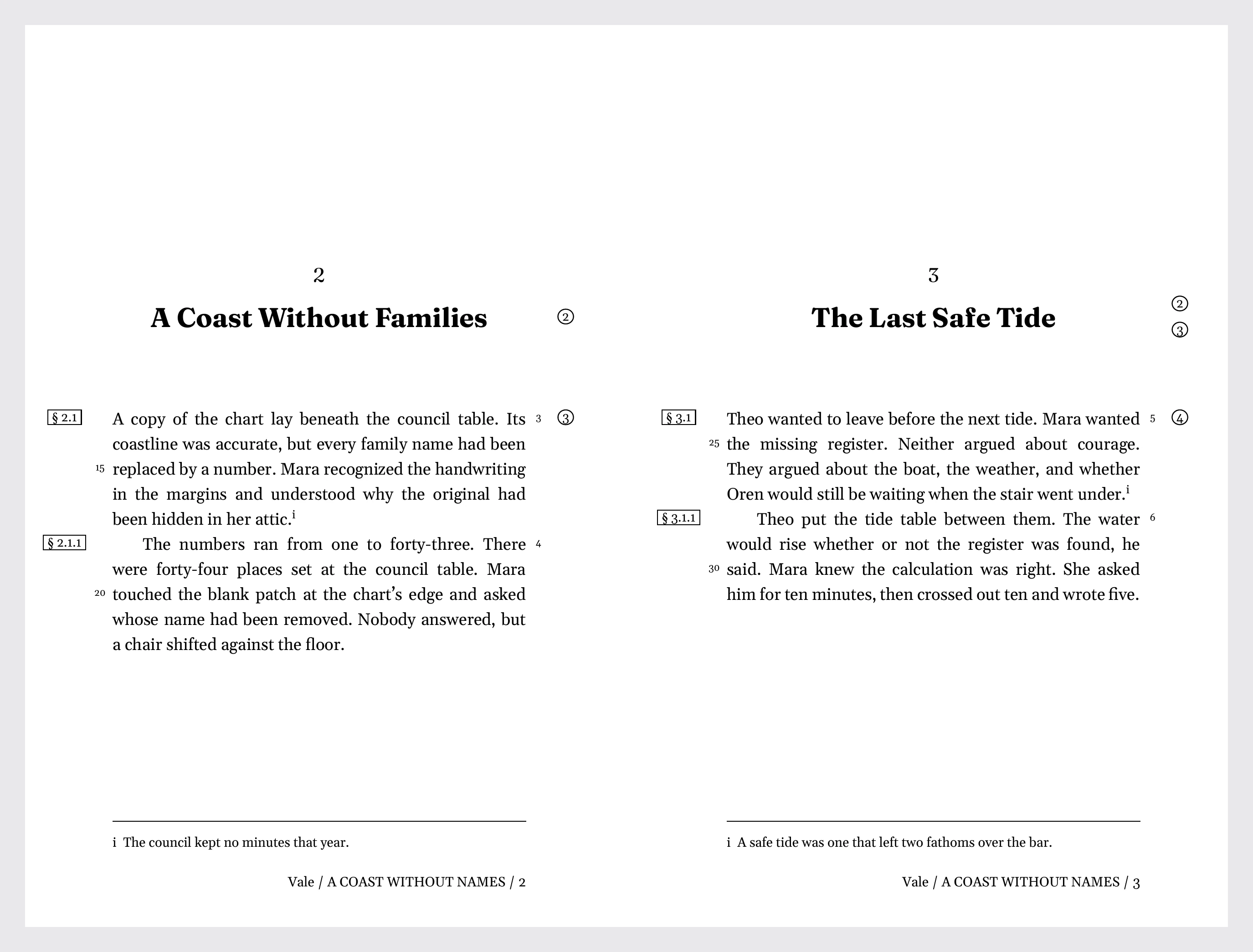
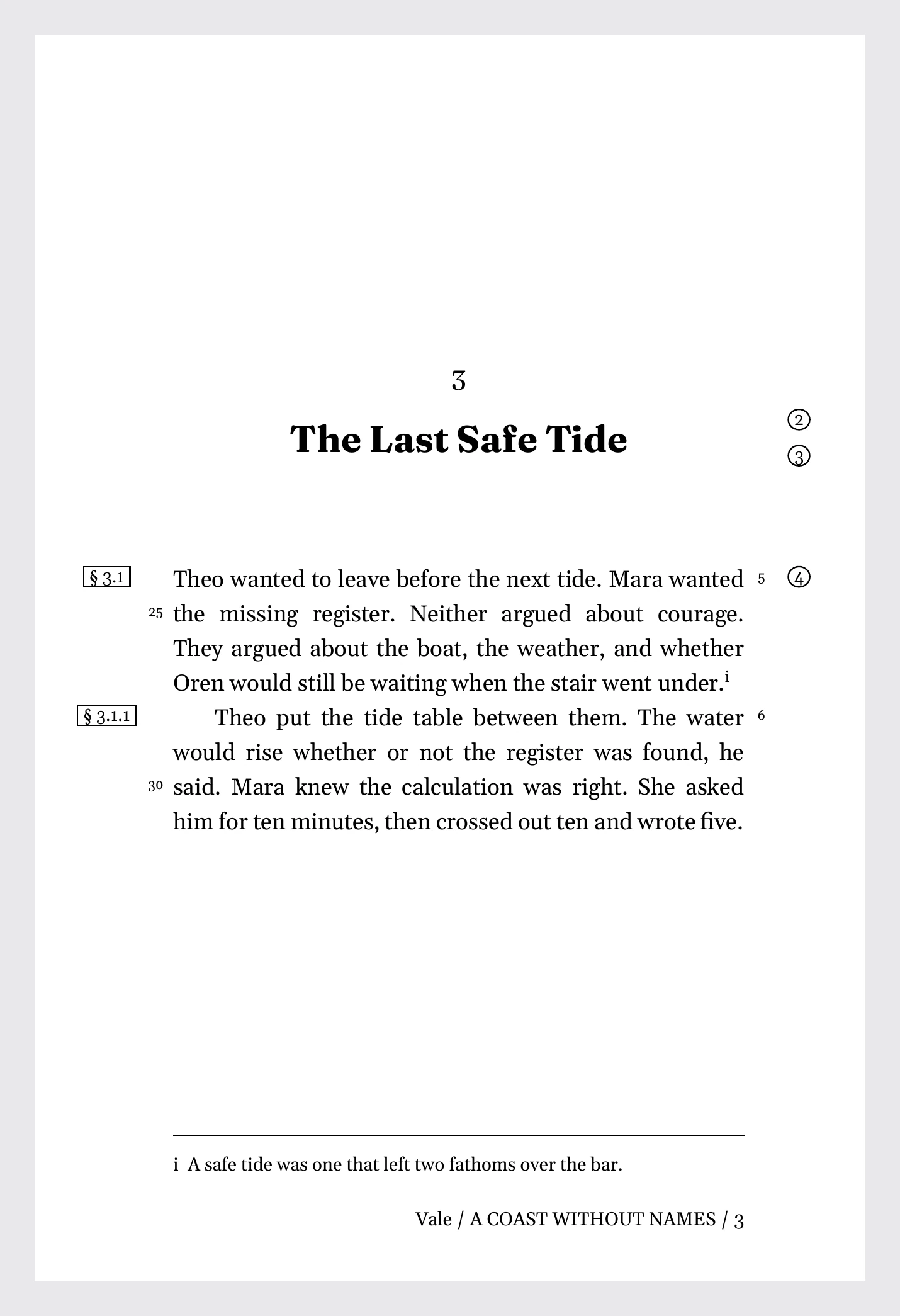
Right-click a paragraph and choose Add section number. This turns on citation numbers throughout the Manuscript, one for each numbered paragraph: § 1, § 2, and so on.
- Remove section number joins that paragraph to the section above it.
- Add subsection makes a nested reference such as § 3.1.
- Remove subsection moves it back up a level.
- Set section number… gives a section or subsection a number of its own. Leave the box empty to count it again.
Select a number for its actions. The numbers are counted from the paragraph marks, so moving or adding prose updates them. A number you set keeps its value, and so does one from a Markdown file; the count runs on from there. A paragraph you add with Return beside a set number joins its section, so no number appears twice. Changing the paragraph's level clears it. Section numbers do not create Outline rows or Contents entries.
In Margin numbers → Section numbers, set:
- Show section numbers, to show or hide the lane without erasing its marks.
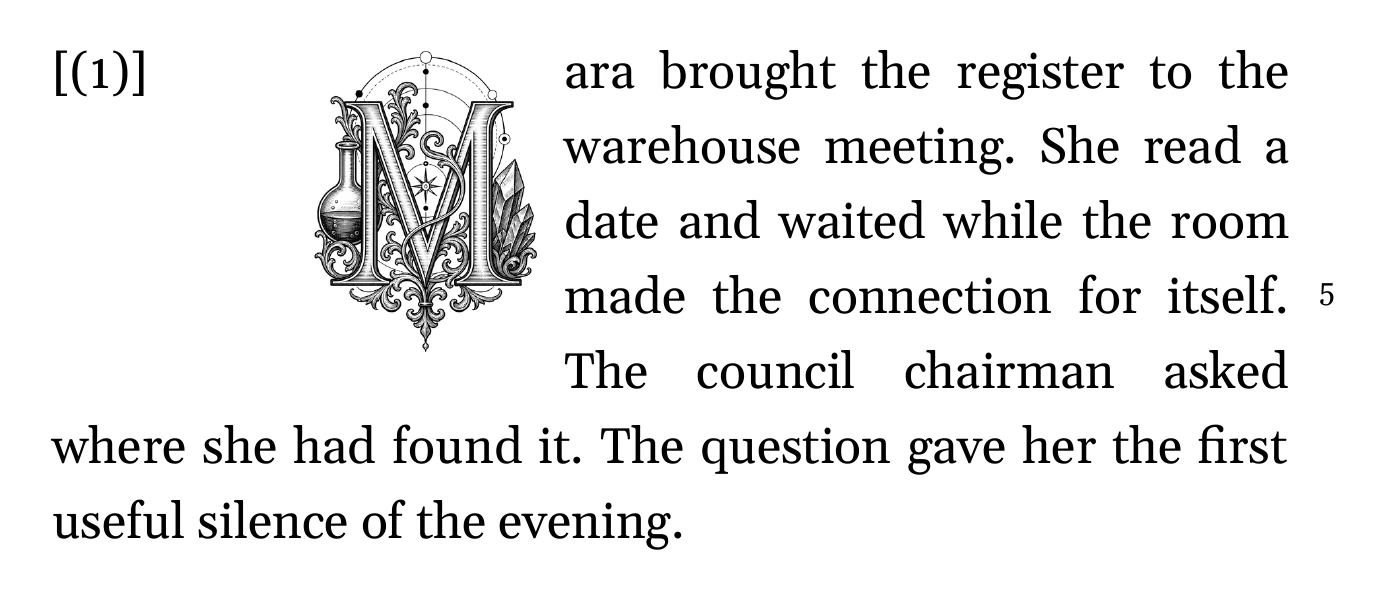
- At the start of each paragraph, to set the number in the text, just before the paragraph's first words, instead of in the margin. Side and Position are disabled while it is on.
- Side, for the left or right margin.
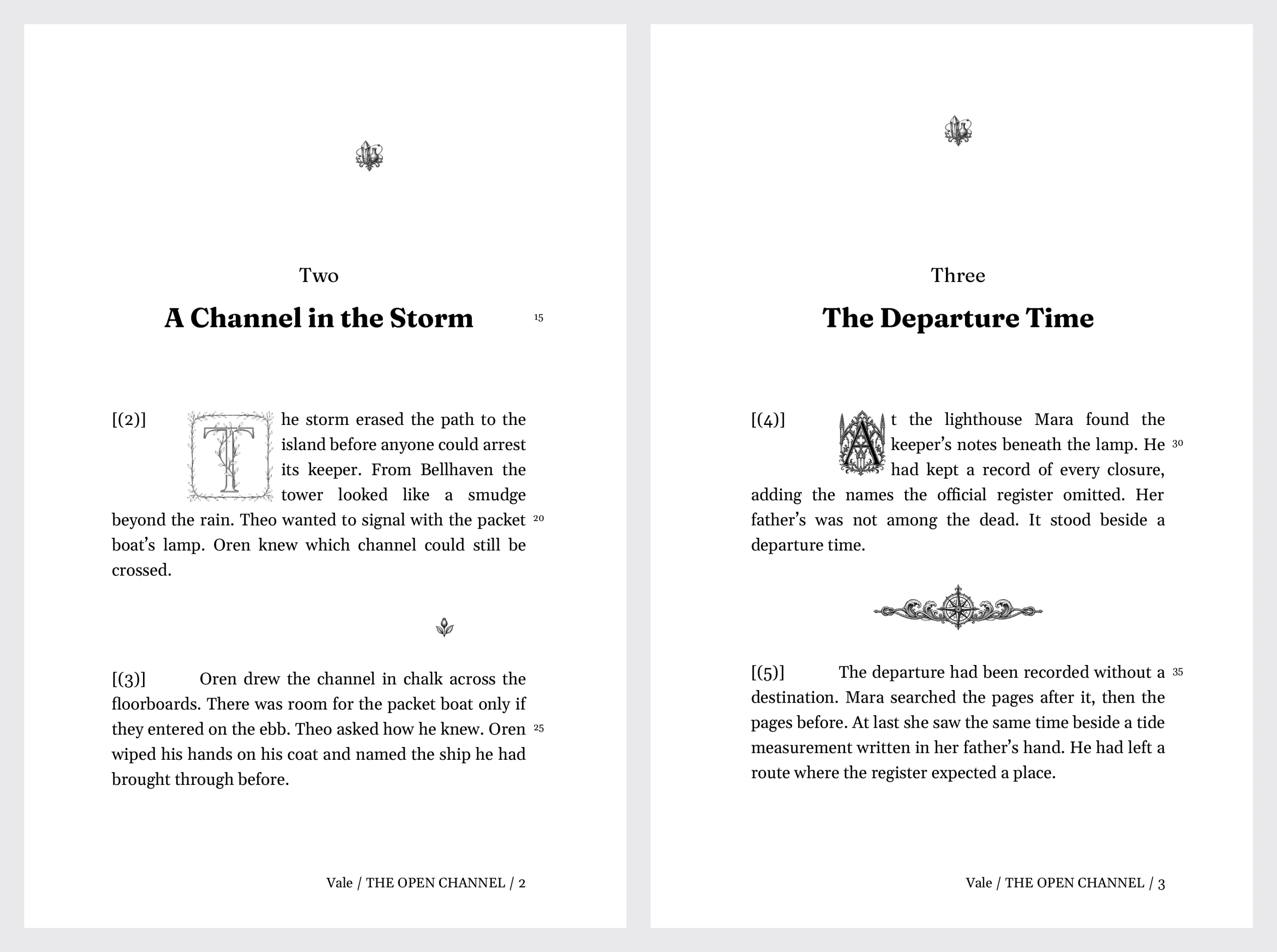
- Position: First line, Middle, or Last line of the paragraph.
- Start again at: Each Chapter, Each Book, or Never.
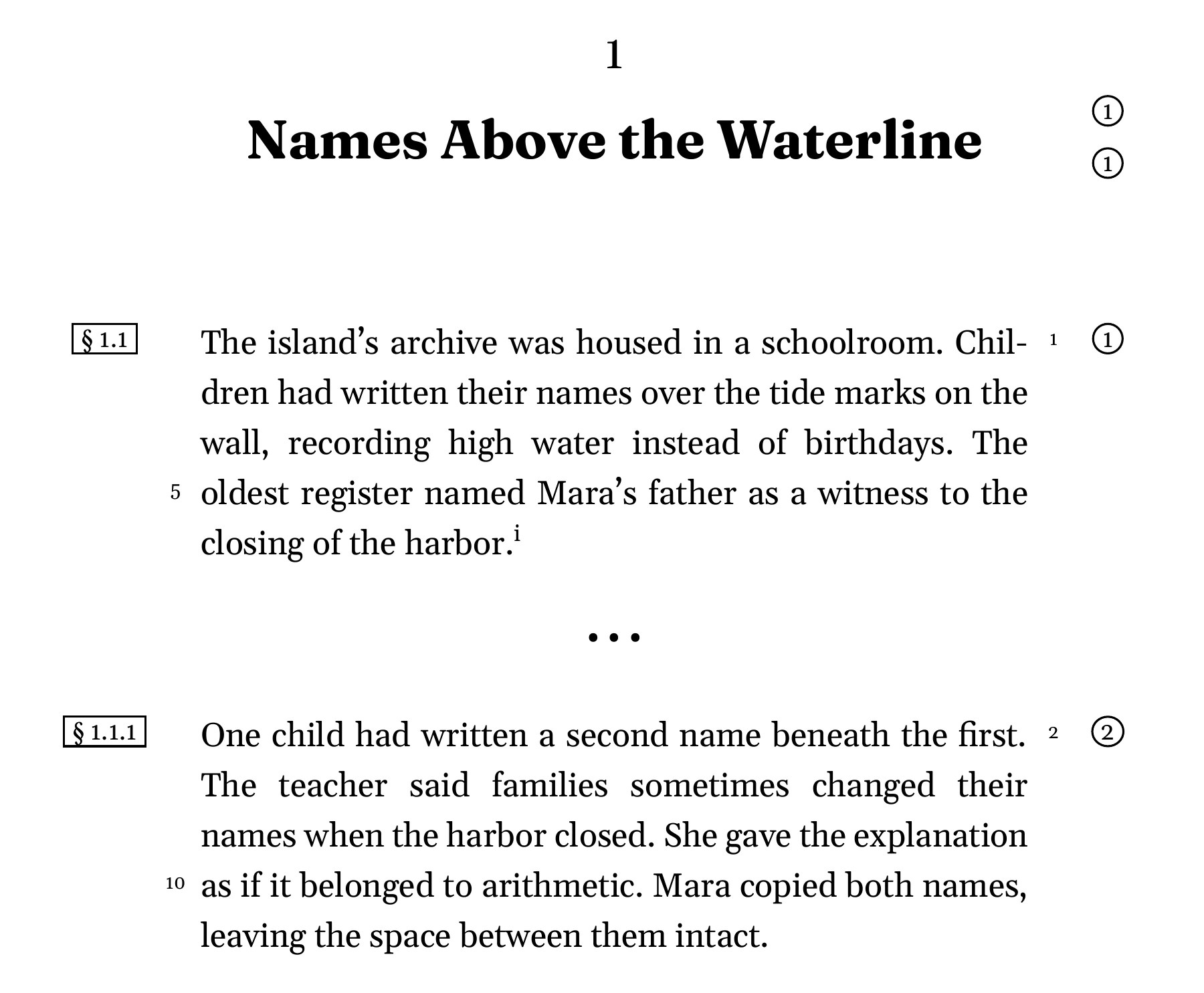
- Style: Plain, Boxed, Bracketed, or Circled.
- Format: § 3, 3, 3., or (3).
- Put the Chapter number first, for a reference such as § 7.3.
- Include in print and PDF, and the lane's color.
Section numbers start in the left margin at the first line, restarting each Chapter. Once enabled, they are included in print, in PDF, and on your published page unless you clear that output choice. Other export formats do not draw this margin lane.
4. Markers beside the structure
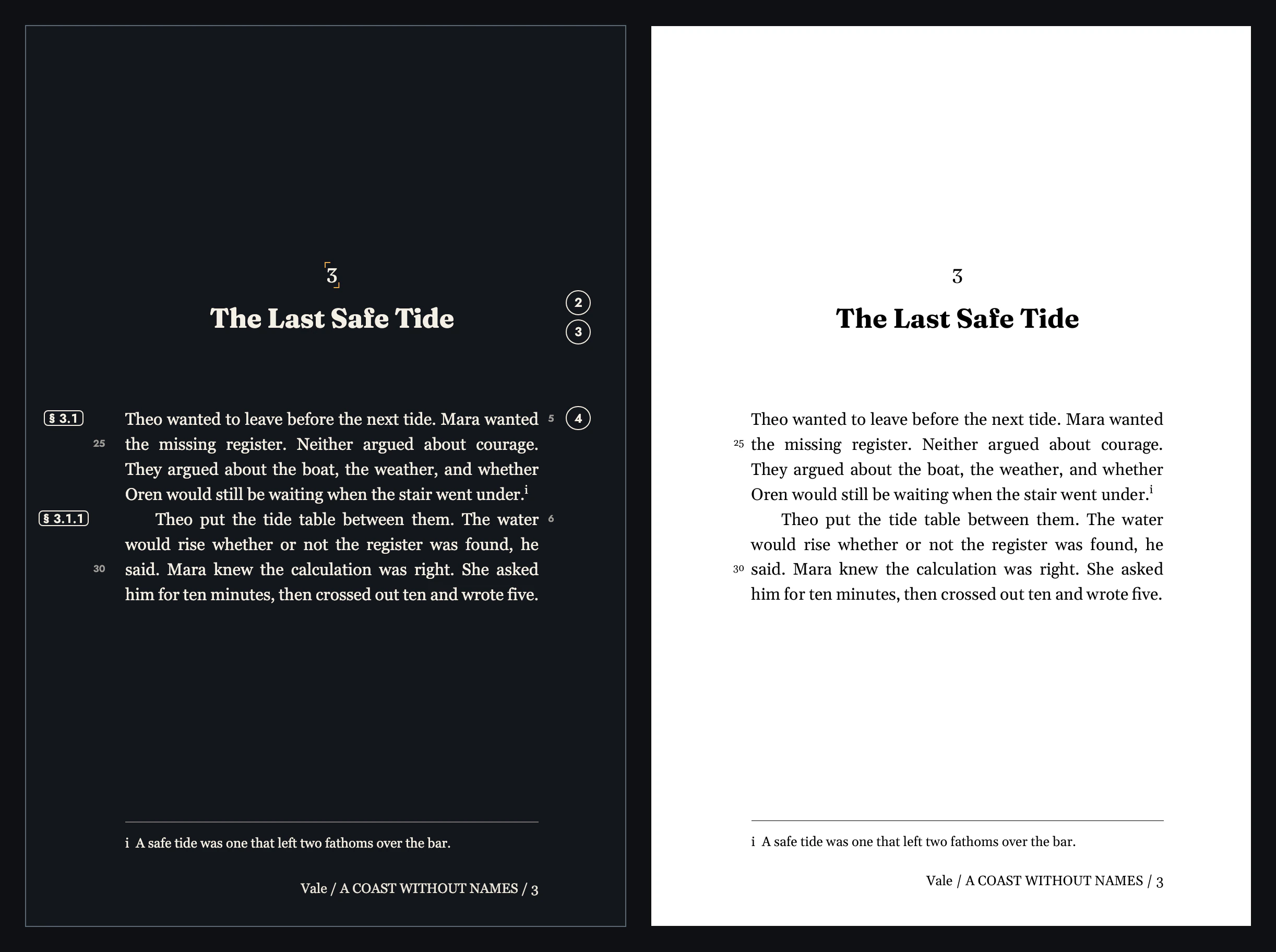
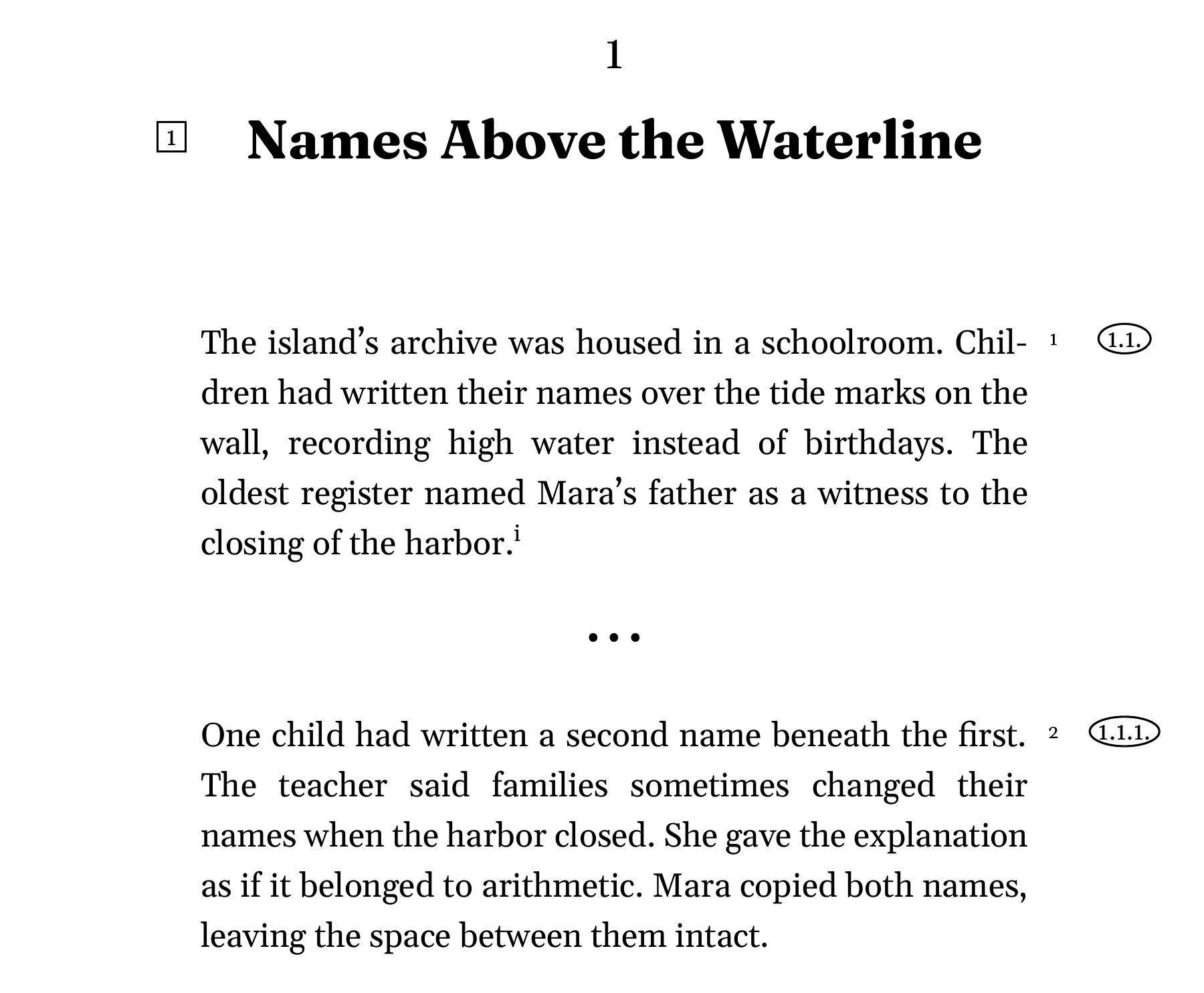
Structure markers marks boundaries. Turn on Show structure markers, then choose the parts whose beginnings a reader should be able to find by number.
- Books
- Acts
- Chapters
- Scenes
- Headings
Choose the Side. Style offers the same four designs as Section numbers, and the color control chooses this lane's ink independently.
Include these markers in print and PDF when the copy should carry the reference points. Otherwise they remain writing aids on the Canvas.
With a marker selected, Move up and Move down change where it sits beside its boundary. Reset puts it back against that boundary. The prose itself does not move.
5. Paragraph and line references
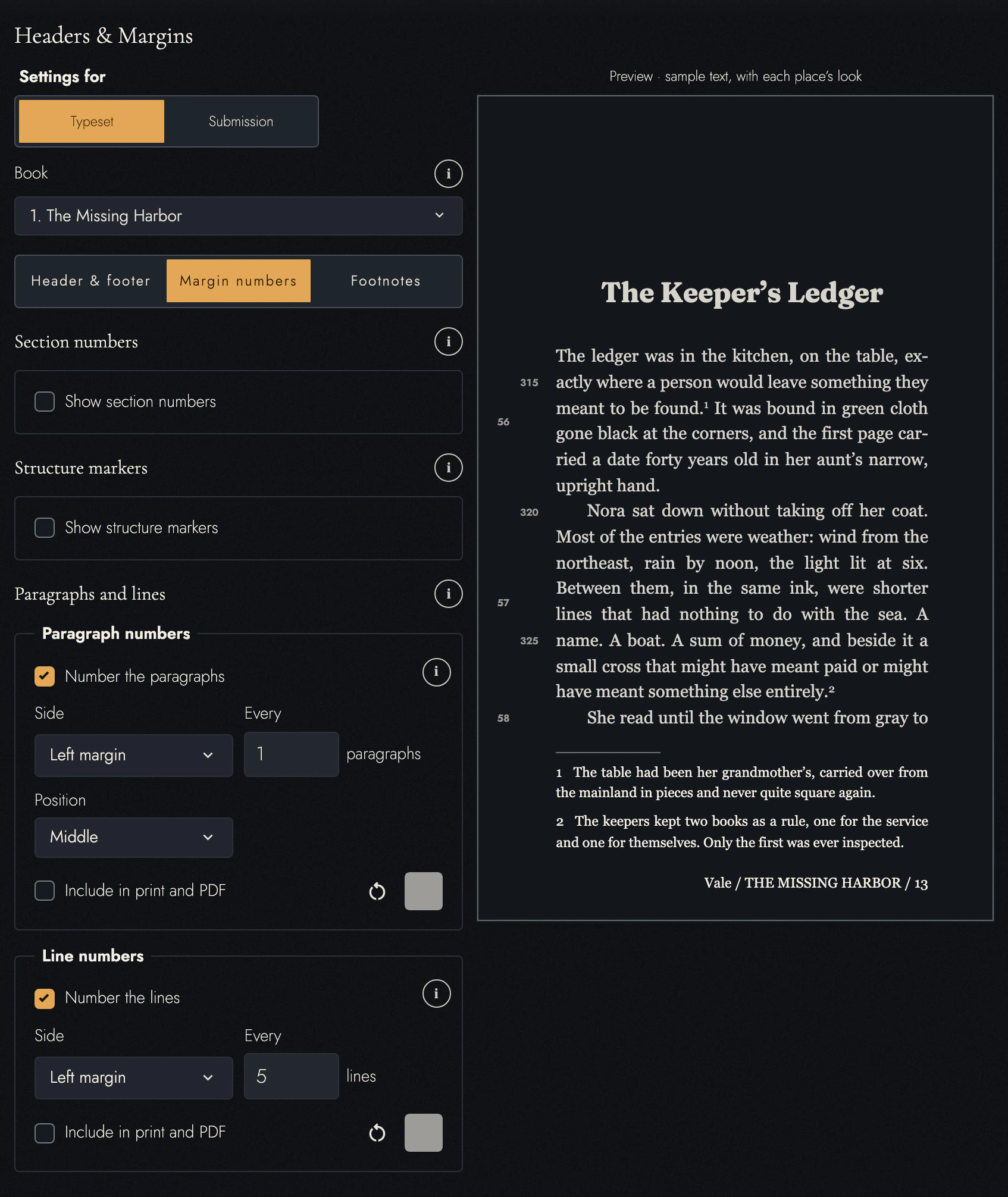
Paragraph numbers counts paragraphs. Line numbers counts laid-out lines, so a long paragraph can hold several references. Each lane has its own controls:
- a switch that shows or hides the lane;
- Side, for its margin;
- Every, the interval, such as every paragraph or every fifth line;
- Position, for paragraph numbers only: First line, Middle, or Last line;
- a color for its ink;
- Include in print and PDF, which lets the numbers leave the Canvas.
Both lanes are excluded from print and PDF to begin with. Check Include in print and PDF for the lane you want on an editor's review copy. These numbers do not become text in the prose.
6. Making room in the margin
Each margin holds at most two number lanes. If a Side choice would add a third, the note explains which lane to move first.
In One Page view, Left and Right name the page's ordinary margins. In Two Page view, Left means the outside edge of each page and Right means the inside edge beside the binding.
Section numbers keep their margin. Other reference lanes may move beyond the page edge when there is too little room; inside lanes on a spread move outward rather than overlap in the gap between pages.
Check placement on the designed page. A desktop or sufficiently wide tablet shows the margins; a phone's writing column has no margin to hold these references. Print and PDF use the saved page format, not that phone column.
7. Footnotes and notes on a single page
Footnote settings are Book-specific. The Footnotes part shares its controls with the note editor; Writing Footnotes explains each choice and the paired reference.
A Page Note is different. It belongs to one page's header or footer: open Headers & Margins from that page and choose This page under Applies to. The note is anchored to the first paragraph or heading that starts on that page, and as the text reflows it moves with that Block. A page that opens partway through a long paragraph, with nothing starting on it, offers no This page. A Footnote, by contrast, hangs from a reference within the prose.
8. Continue reading
- Previous: Designing a Book
- Next: Markdown in Tabularia
- All guide articles
Try it on your own book
Start a free evaluation. No card needed.