Navigating a long manuscript
Move between passages and focus on one part of a long Manuscript.
1. Working Scope: how much you are working on
Working Scope chooses the part of the Manuscript shown on the Canvas. Set it in the top bar. Counts, Find, Minimap, and Timeline Drawer follow that scope. The Outline still lists the whole Manuscript, and its filters can become a pinned scope.

View dark appearance

The choices are the levels of the manuscript, measured from where you are reading:
- Entire Series, or Whole Manuscript when there is only one book and no series name, which is everything.
- Current Book, Current Act, Current Chapter, Current Scene, and Current Heading: show the level containing your reading position. The menu names that passage. Levels absent from the Manuscript may be omitted; levels unavailable at your position are disabled.
- Follow Timeline Selection, which narrows to whichever anchor is selected in the sidebar and keeps following as you select others. It is a mode rather than a place.
- A pinned scope, meaning one of your own timelines or the Outline as its filters currently leave it. The slot reads Nothing pinned until you put something in it.
"Current" means the passage you are reading, not the one you last typed in. The two part company the moment you scroll, and the scope follows your eyes rather than the caret.
Tabularia remembers your Working Scope, reading position, and caret when you reopen a Project. If a paragraph moved on another device, the caret follows it. If it was deleted, the caret waits at the same Manuscript position.
Pin a Timeline to show only its anchored passages, or pin a filtered Outline to show its remaining rows. These views update as you add Anchors or change filters. The underlying writing stays in the Manuscript.
The filtered Outline keeps its tallies honest in the same spirit. A chapter left showing only because a labeled scene sits inside it counts that scene, not the whole chapter, so each row already reads what the header will say once you pin the filter.
Pinning takes three steps, and the first is building the thing you want to read:
- Make a timeline, or filter the Outline. Use New timeline and Anchor Insert Mode to mark passages; Timelines explains placement. Or use the Outline’s Filters band to narrow by level, label, or search.
- Pin it. Press Use this Timeline as the Working Scope or Use the filtered Outline as the Working Scope at the panel’s top. This pins and selects it. The button changes to Stop using.
- Come back to it. The Working Scope menu keeps one named pin. Choose it to return after using another scope. Pinning something new replaces the old pin.
A pinned view joins the selected passages into continuous pages. Dividers report omitted prose, such as · 254 paragraphs hidden ·. Page labels name the source pages, such as 88 · 212.
Counts and Find cover only the displayed passages. Edits still change the original Manuscript; a pinned view is not a copy.
Use a pinned view to read a character’s arc, follow a subplot, or revise Scenes sharing a label.
A pinned scope is worth something beyond reading. A draft captured while it is pinned holds exactly those passages and no others, so one character's chapters become a draft you can revise apart from the book. Publishing that draft puts the same passages on the page, in manuscript order with the prose between them left out. See creating a draft and publishing one as a web page.
2. The minimap
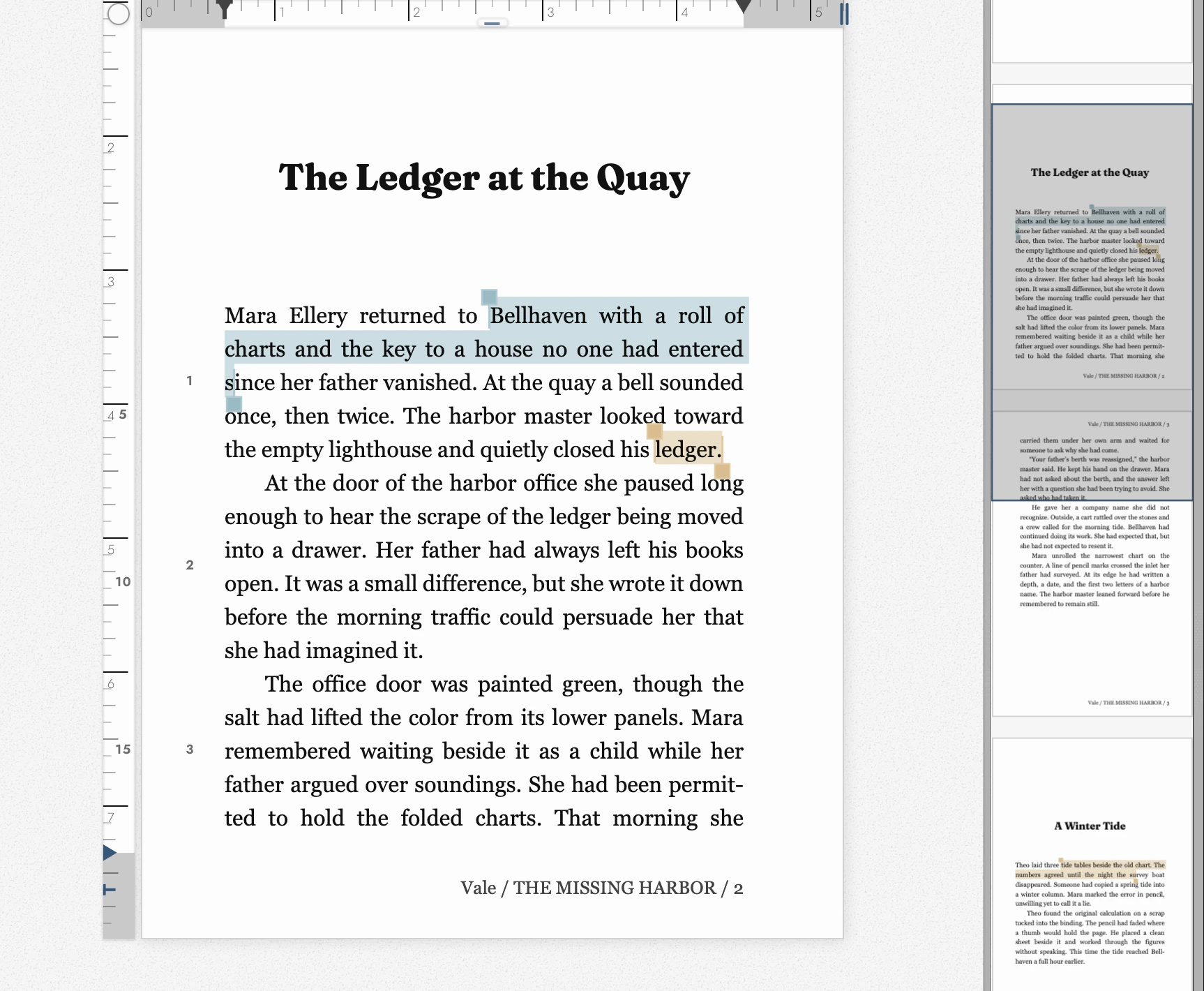
The Minimap shows a miniature view of the writing around your position. Drag its thumb or click the map to move. It follows Working Scope and includes visible images and structure. Toggle Minimap in the top bar or with its shortcut.
Anchors and search matches also appear on the Minimap. You can see whether a phrase is spread through the Manuscript or clustered in one passage.
Phones do not show a Minimap. The Document menu’s switch controls its header button only; it does not add a map to phone view. See Writing on a phone or tablet.
View dark appearance
3. The Outline
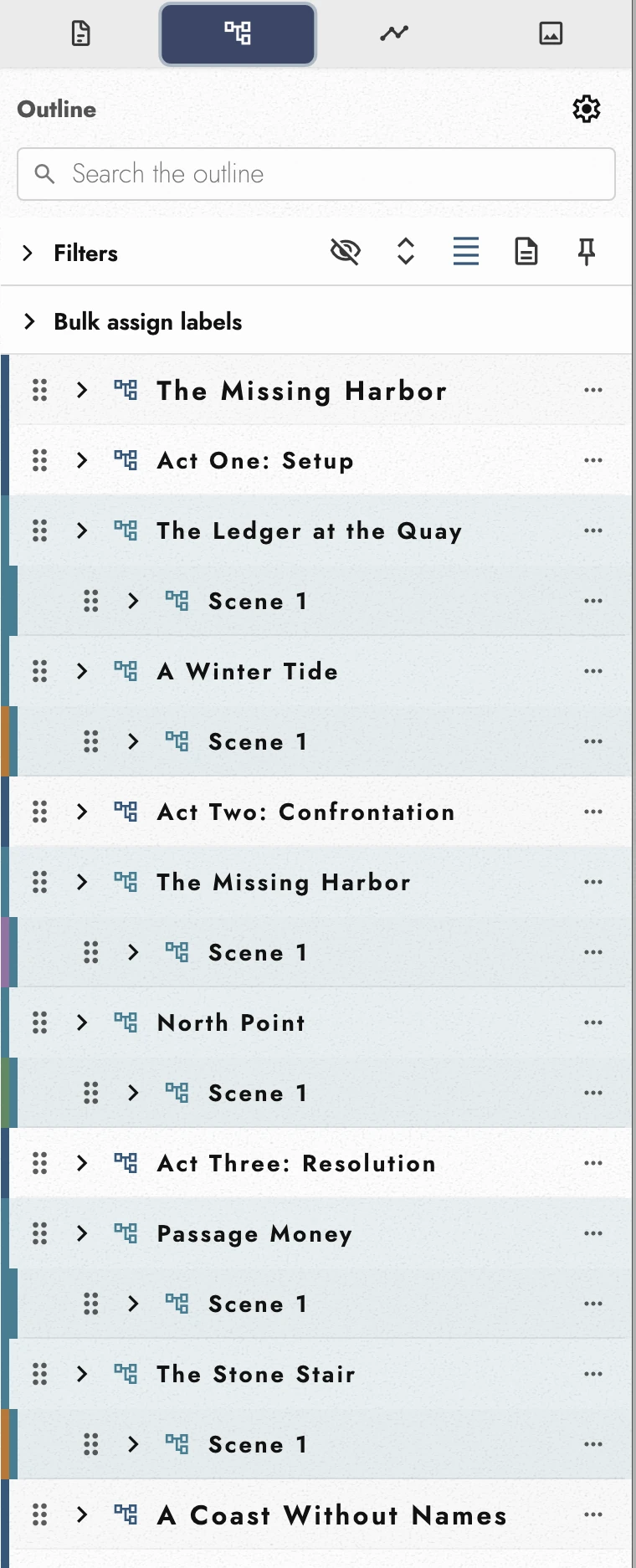
The Outline lists your structure in reading order. Click a row to go there. Its menu creates the next item or a child, depending on the row’s type. To change a Chapter, Scene, or Heading into another type, open its settings.
Drag an Outline row by its handle to reorder it. Its writing moves too. Scenes can move to another Chapter; Books move among Books. The Timeline Drawer’s Outline lane supports the same reordering. See timeline drawer.
The Outline follows structure marks in your writing automatically. You do not need to maintain a separate contents list.
View dark appearance
Search the rows from the field at the top, and switch to compact rows when the list is long. The toolbar above them also opens every row's comment at once, and hides the anchors so only the structure is left.
Create draft in a row’s menu makes a Draft of that item without changing Working Scope.
Delete visible Outline Anchors and their contents deletes everything left by the current filters, including prose. It confirms the count first. Undo restores one row at a time.
4. Labels
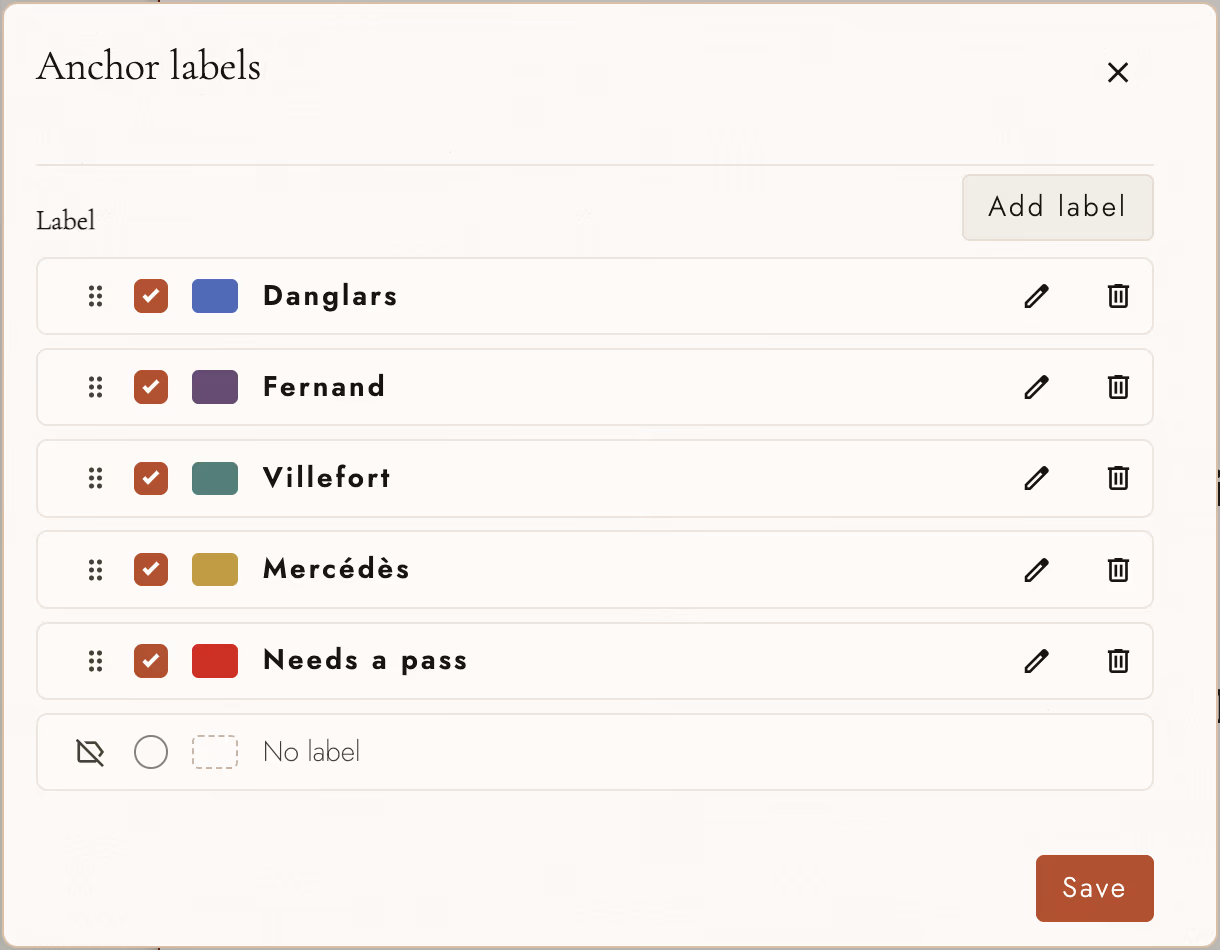
A label is a named color you can put on an Outline row: a point-of-view character, a plot thread, a status like needs a pass. Open a row's settings and add one under Label. The vocabulary belongs to the project, so labels you make once are there for every row afterwards, and can be renamed, recolored, reordered, and deleted from the same place.
Assign several labels to show several colored bands on a row’s rail. Hover to read their names. The row tint uses only the first label. Outline display can show the Accent rail, Tint rows, both, or neither.
View dark appearance
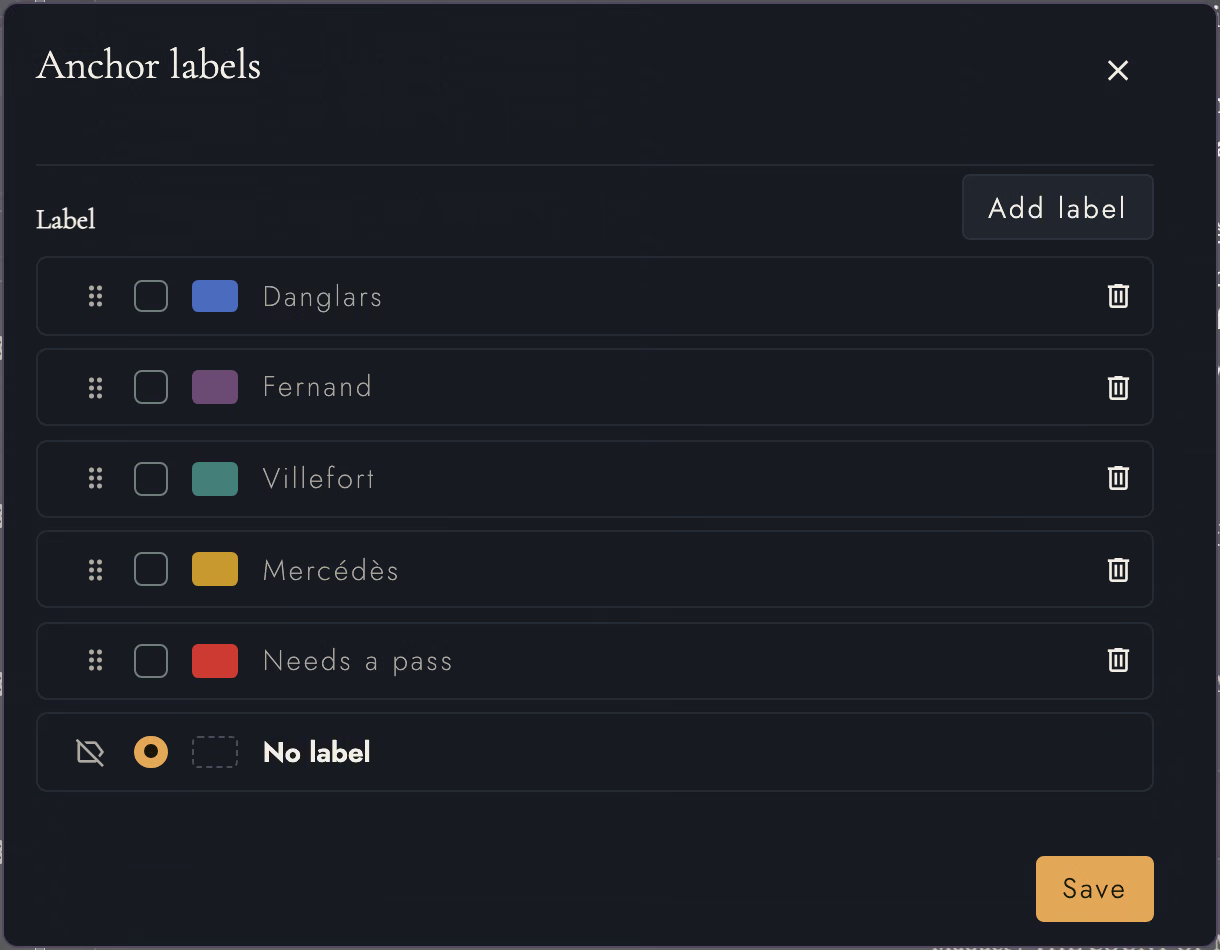
Anchors use the same Project labels. Assign one in Anchor settings, or use Bulk assign labels in Timelines to label several Anchors.
The label filter offers Any label, No label, or a named label. Delete acts on the filtered results, not the whole Timeline.
Labels are what make the Outline filter worth pinning. Filter the rows down to one label, pin that filtered Outline as your Working Scope, and the canvas, the counts, and find all narrow to those passages and nothing else.
5. The timeline drawer
The Timeline Drawer lays your Anchors out in Manuscript order with one horizontal lane per Timeline. Above them, the Outline lane shows the Books, Acts, and Chapters they fall in. Beneath the lanes, the Overview Navigator keeps the whole manuscript in view. Phones omit the drawer; it needs a window at least 768 pixels wide. See Writing on a phone or tablet.
Going to an item
Click an item and you are there. One click selects it everywhere, in the sidebar as well as the drawer, and brings its passage onto the page. Click it again after scrolling away and the page comes back. A Book goes to where its story starts rather than to its title page.
The Playhead, the upright bar with a bar at each end, stands where the page is. Its ring sits on the selected item, in that item's lane. Drag the Playhead and the page travels with it, and the ring drops onto each Anchor the bar crosses so you can see what you are passing.
Pause over an item to read it without leaving your place. The drawer's header shows its title, its pages and labels, and its comment until the pointer moves on; nothing opens over the lanes.
The header
The selected item's name heads the drawer, with its pages under it (p 28–33 for a passage that runs across several) and then its labels, each beside its color. The button before the name wears the item's own icon and color, or its picture. Press it to open the item's settings at its Visual Identity.
The comment sits to the right of the name, always ready to type in. Every keystroke is saved. A long comment ends in an ellipsis while you are elsewhere. Click into it and, if it needs more room, it opens out above and below the line, so the lanes never shift.
The two step buttons at the far end of the controls go to the item before or after the selected one in reading order, whichever lane it is on. The Outline counts too, so stepping walks through Chapters and Anchors alike.
Zooming and framing
Zoom on the Overview Navigator. Its highlighted span is the stretch the lanes show: drag it to move along the manuscript, or drag either end to zoom in or out. Double-click it to see the whole manuscript again. With the span focused, the arrow keys pan and Shift with an arrow zooms.
To frame something exactly, each fit has one way in:
- The Fit button on the Outline lane frames the whole series.
- Double-click a Book, Act, Chapter, or Scene band to frame just that part.
- The Fit button on a Timeline's lane frames that Timeline's Anchors.
- Double-click an Anchor or a cluster to frame it.
Where a passage is crowded, switch the layout from Proportional to Structural.
Back and Forward
Back and Forward in the drawer retrace what you did there: a zoom, a pan, or a trip to an item. Back after a trip returns the page to the line, caret, and Working Scope you left, so looking something up costs you nothing.
The browser's own Back does the same while the drawer is open and has a step to undo, whether you press the toolbar button or swipe on a trackpad. Your mouse's side buttons and the keyboard's Back (⌘[ on a Mac, Alt+Left elsewhere) join in while you are working in the drawer. Once the drawer has nothing left to undo, Back belongs to the browser again.
Points, ranges, and clusters
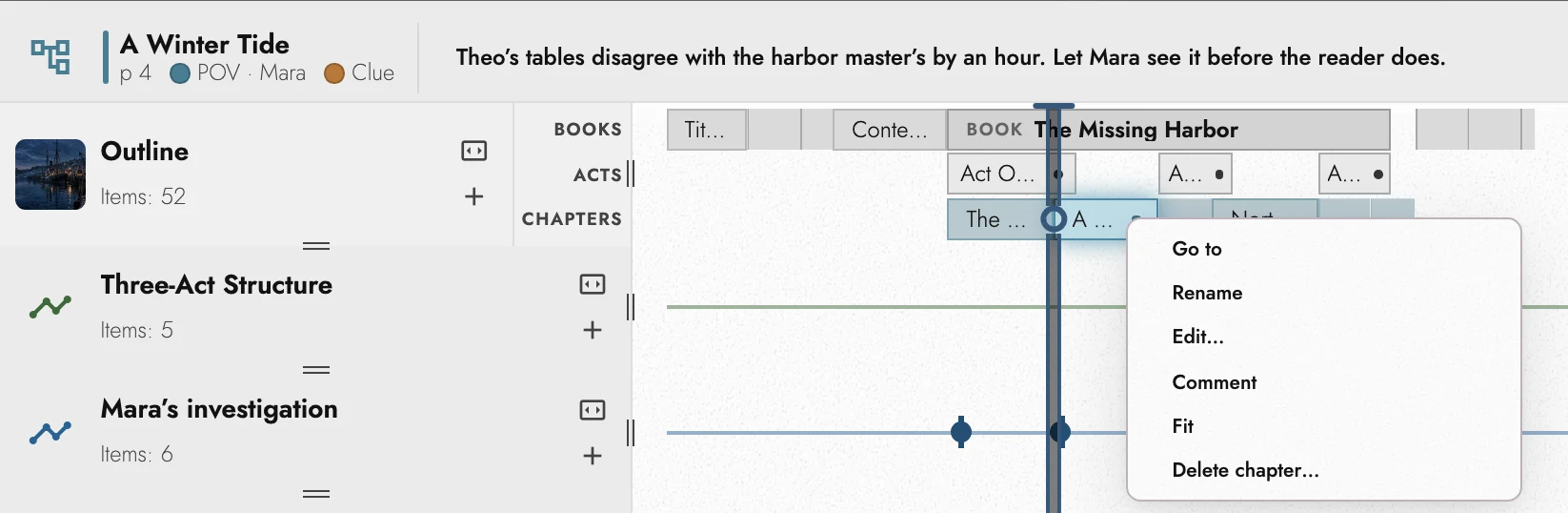
A Point Anchor is a small downward triangle. A Range Anchor is a line with a filled circle where its passage starts and an upright bar where it ends. Only those two ends pick the range, so an Anchor lying under a range's line can still be clicked.
Marks that start within about 20 pixels of each other join a cluster, a numbered badge. Pause over it to see its list. Click it to go to its first Anchor while the list stays open for choosing another, or double-click it to zoom until its Anchors separate.
The right-click menu
Right-click an item, or press Shift+F10 while it has focus, to select it without moving the page and open its menu:
- Go to takes the page there.
- Select text, on a Range Anchor, goes there with its words selected.
- Rename, on an Outline item, edits its title in the header.
- Edit… opens its settings.
- Comment puts the cursor in the header's comment field.
- Fit frames it, as a double-click would.
- Add inside… appears on the Outline item your Working Scope is set to, and opens the Outline lane's add flow for it.
- Delete… removes it.
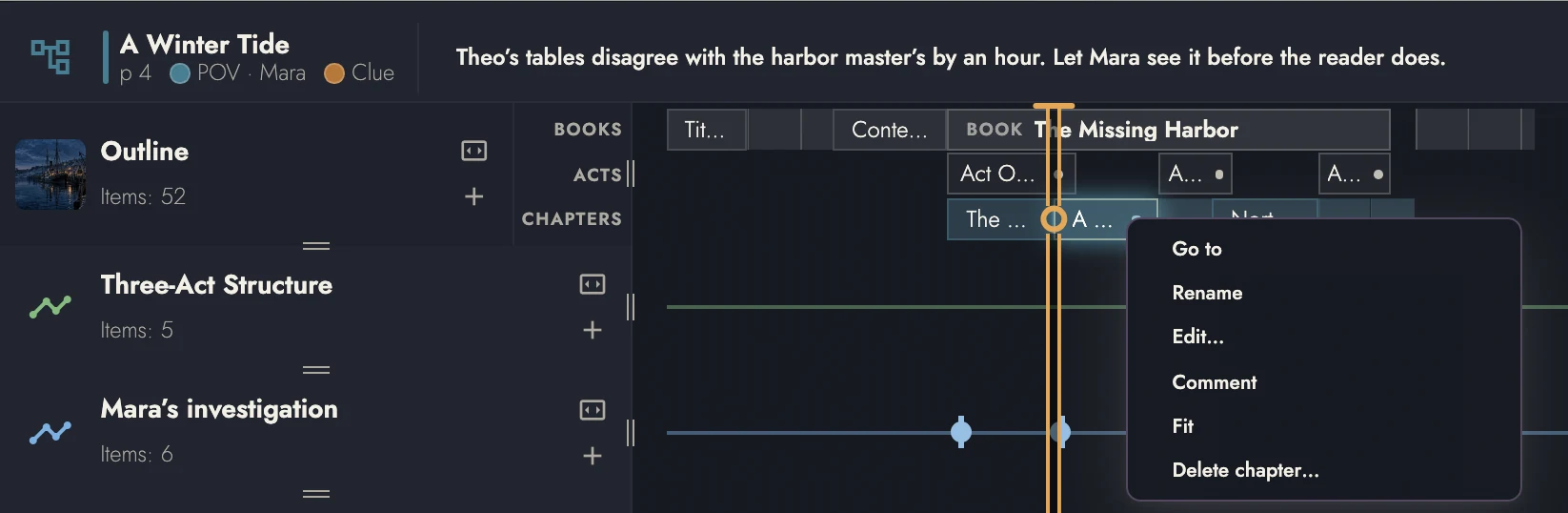
A Point or Range Anchor is deleted at once; the passage it marked stays. An Outline item's entry names what it is, such as Delete chapter…, and asks first when the writing inside would go with it. An Act's reads Unwrap act… and keeps its Chapters. Delete or Backspace on a focused item does the same. Right-clicking a cluster opens its list.
View dark appearance
6. Anchors
A Point Anchor marks a position; a Range Anchor marks a passage. Both follow the writing through edits. Outline Anchors are created automatically for structural items.
Open a Timeline and enable Anchor Insert Mode in the Timelines tab, or use its shortcut. New Anchors belong to that Timeline. See timeline marker.
View dark appearance
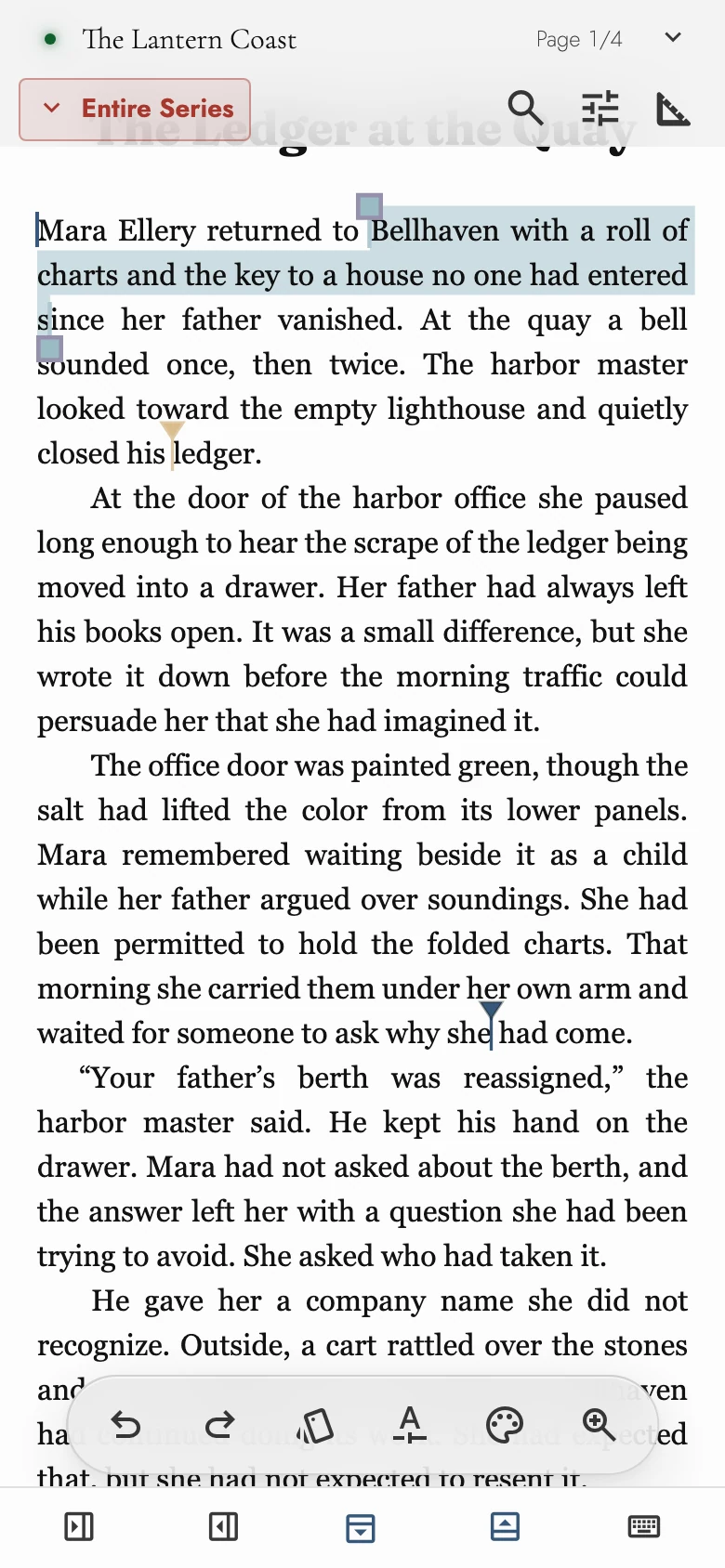
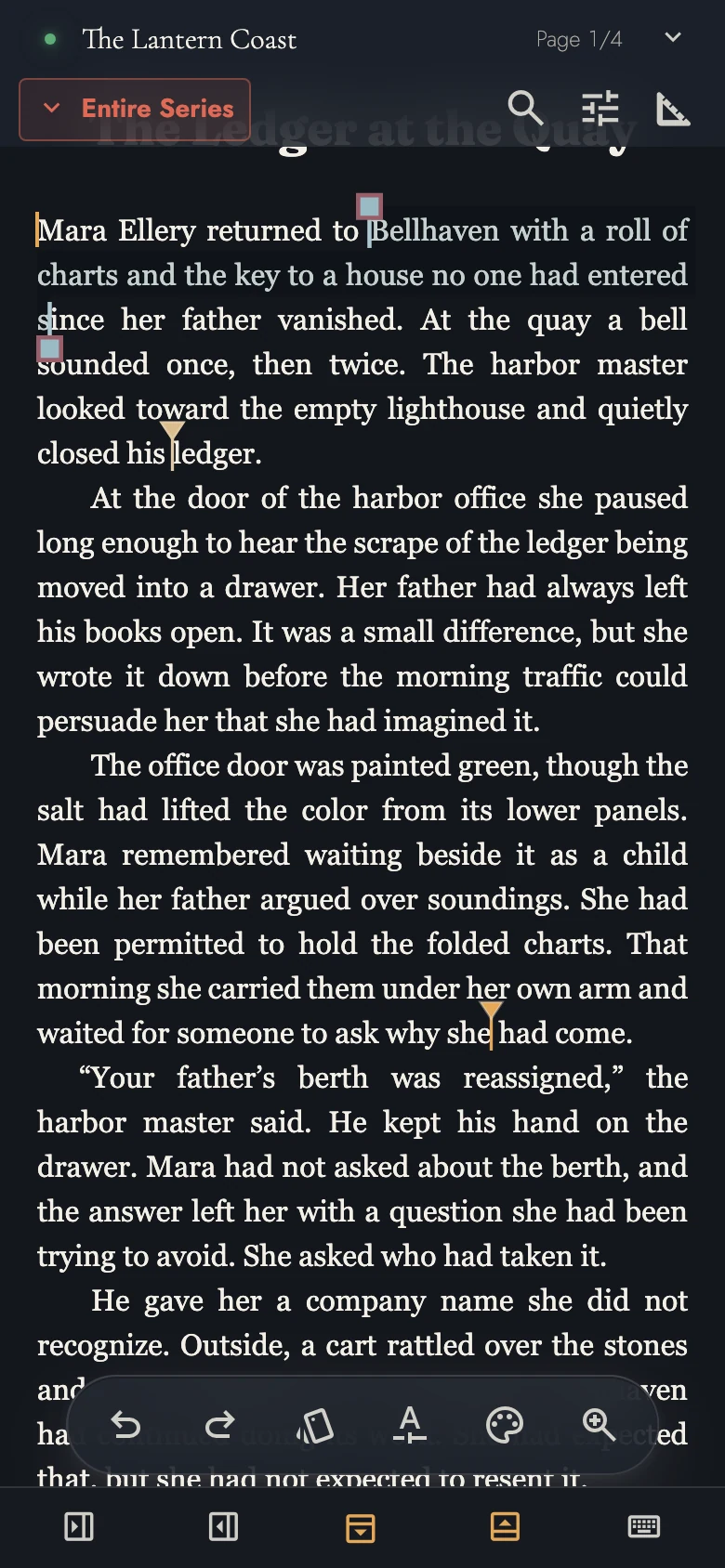
The canvas menu, which right-clicking the page opens, is the other way in. Right-click inside a selection and Create range anchor spans exactly that passage, as the toolbar's Anchor button does. Elsewhere you also get Create point anchor, and the range takes the whole paragraph. On an existing anchor the menu offers Move, Move start, Move end, and Delete.
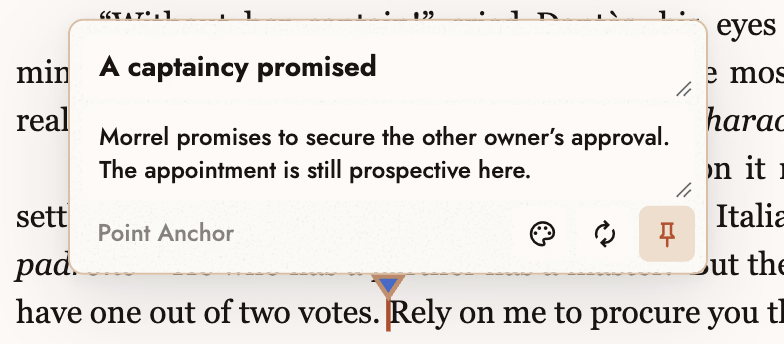
Click an Anchor head to open its card. Edit the name, comment, or color there. Pin the card to keep it open, and drag its corners for more room.
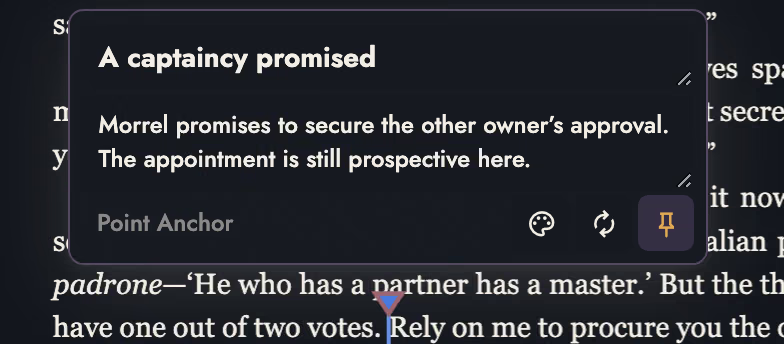
Unnamed Anchors use four words from their passage and update as the text changes. Your own name stays fixed. The circular arrow restores automatic naming. If several Anchors share a position, the card lists them.
Anchors at one position share a head with a count. Hover to choose the one you want. Up to nine may share a position; a tenth placement or move is refused rather than hidden. See story shape.
7. Find, as navigation
Find searches your Working Scope, including only the displayed passages in a pinned view. Step through matches to move the page. The caret stays where you left it until you click a match, so closing Find does not redirect your typing. See minimap.
Match case and Whole word are worth reaching for on a name, which otherwise turns up in lower case and inside longer words, and Regular expression hands the query over to a pattern. Replace is in the same dialog, and Writing and formatting covers it in full.
8. Continue reading
- Previous: Markdown in Tabularia
- Next: Writing goals and statistics
- All guide articles
Try it on your own book
Start a free 14-day evaluation. No card needed.