How a manuscript is structured
Learn how Projects, Books, Chapters, and Scenes fit together.
1. The containment chain
Everything you write in Tabularia lives in one hierarchy: Project → Manuscript → Book → Act → Chapter → Scene. Each level holds the next, and each has one job. You will meet these names everywhere (in the sidebar, the timeline drawer, exports, and these docs), and they always mean the same thing.
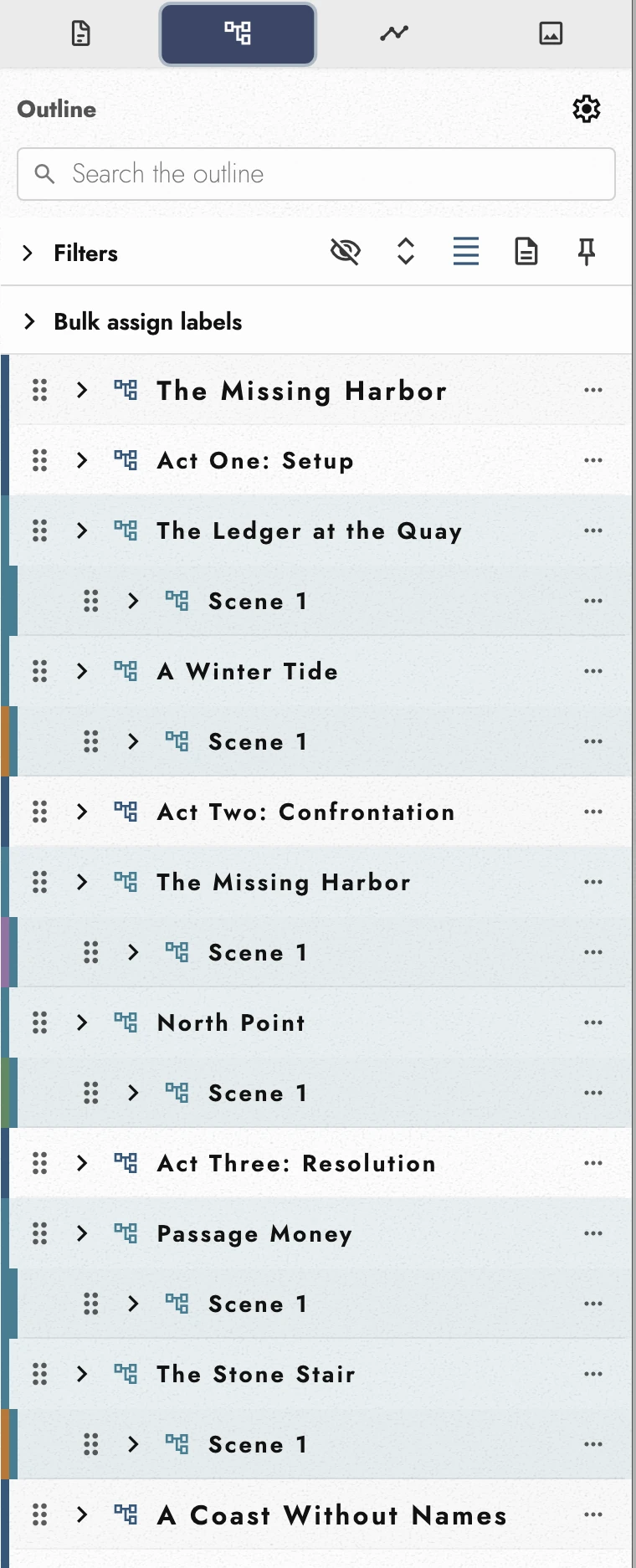
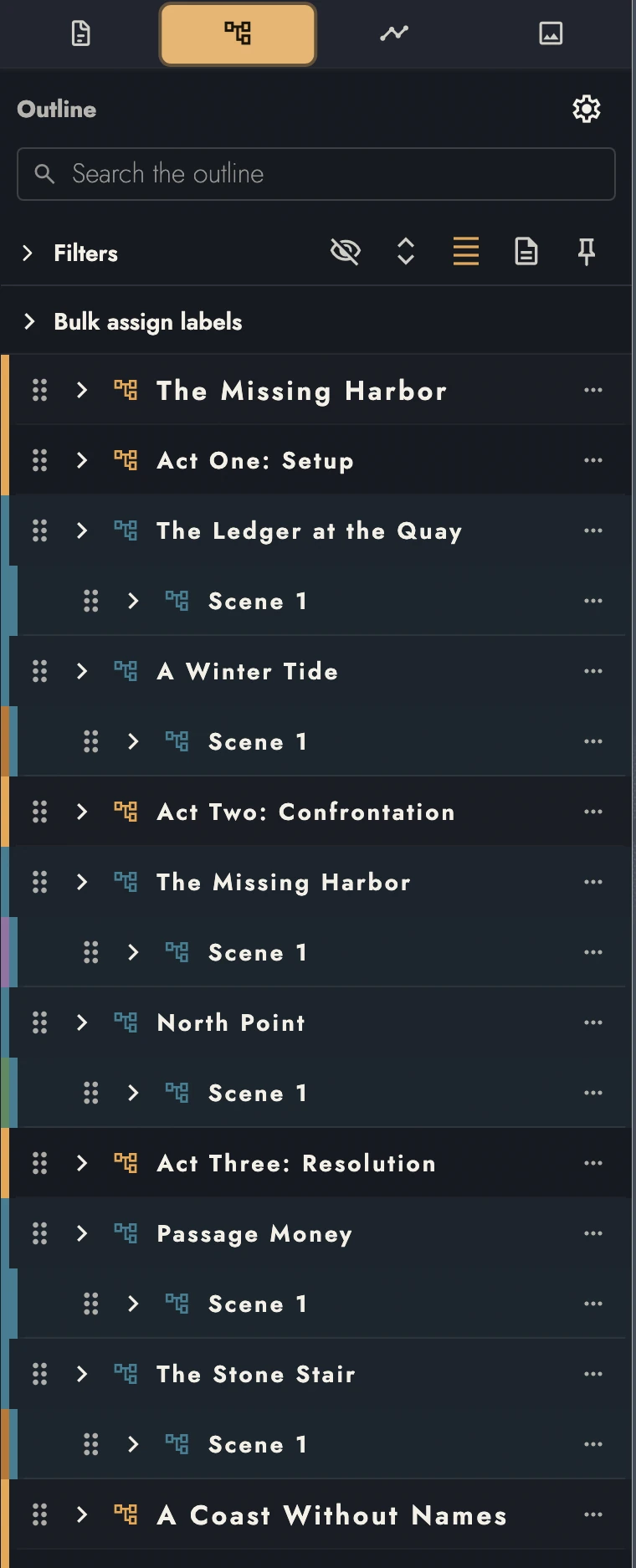
A Book without Chapters holds Scenes directly. Scene Breaks create top-level Scene rows in its Outline. An Act without Chapters can also hold Scenes. In a Book with Chapters, breaks outside Chapters remain Dividers.
View dark appearance
2. Projects and Manuscripts
Create and open Projects in the Projects sidebar. Each Project holds one Manuscript, plus its planning and reference material.
The Manuscript is the continuous writing inside a Project. You can scroll, search, and create Drafts across it without managing separate Chapter files.
Start with Blank, Book, Series, Article, or Basic Screenplay. The choice supplies initial pages and styles; you can change them later. Quick start explains the options.
3. Books and series
A Book is a publishable work inside the Manuscript, with its own matter pages, publication details, and page numbers. A Series Manuscript holds several Books in order. You can still search and navigate across all of them.
Each Book starts its body at page 1. Front matter uses a separate Roman count, beginning at i; back matter is unnumbered.
Narrowing the Working Scope keeps the Book’s original page numbers. A page in a pinned view can name several source pages; see Working Scope.
4. Chapters and Scenes come from block styles
Apply Chapter Heading to start a Chapter, or insert a Scene Break to start a Scene. The Outline follows those marks automatically. Imported Part headings can create Acts; see Importing.
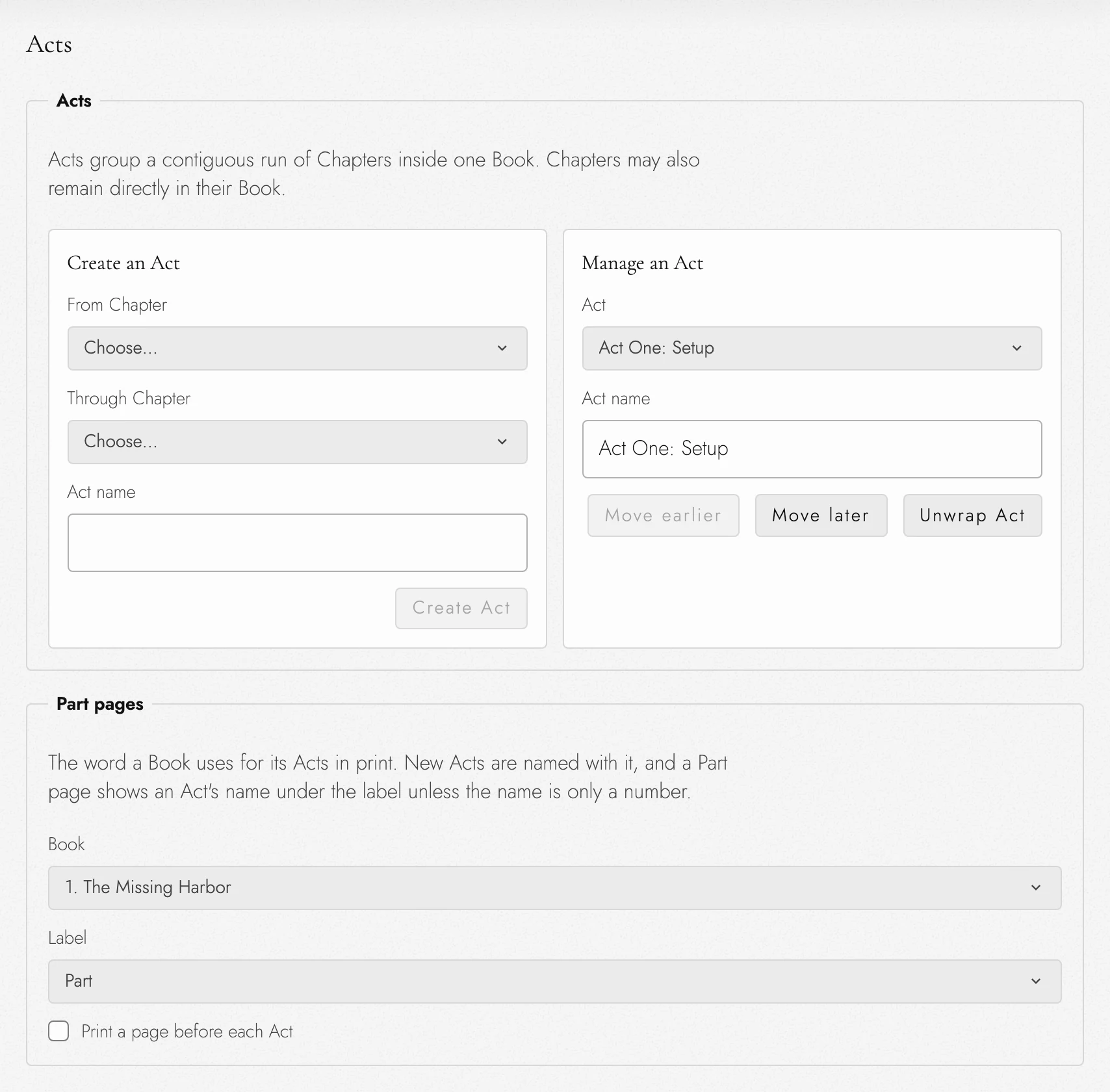
Acts group Chapters, and you can add one straight from the Outline. A Book row's plus button, or Add act in its menu, places an Act in that Book and gathers the Chapters it finds there. An Act row's menu has Add act after and Add chapter. To set which Chapters an Act spans, rename it, or unwrap it, use Project Settings → Acts.
5. Chapter numbers, introductions, prologues, and epilogues
Chapter numbers update when you add, move, or delete Chapters. A Chapter title is separate text: a title such as Chapter Four does not rename itself when moved.
Three kinds of chapter stand outside the count: an Introduction, a Prologue, and an Epilogue. Each belongs to the body of the book rather than to the front matter, so it takes page numbers and running heads, and its words count. It takes no chapter number. The chapter after a prologue is still Chapter One.
The type decides that, not the title. Rename a prologue The Night Before and it stays a prologue: unnumbered, and named as one in the Outline and the Timeline. A chapter you simply title Prologue is an ordinary chapter, and it is numbered.
The Outline adds all three. The menu on a Book's row offers Add introduction, Add prologue, and Add epilogue. An introduction and a prologue go ahead of the Book's first chapter, the introduction first, and an epilogue goes after its last. All of them stand outside every Act. To make one of a chapter you already have, change its Type.
A few other chapters have no type of their own, and for those the title still decides. A chapter whose title begins with one of these words is left out of the count:
- Prelude, before the story starts
- Interlude, between two of its parts
- Coda, Afterword, or Postscript, once it has ended
Unnumbered openings omit the number and its label. If the design shows only a number, the title takes its place. Right-click the heading to choose Leave this Chapter unnumbered or Number this Chapter.
6. Headings, and changing what an item is
Headings are visible lines within the prose, such as dates, locations, or nonfiction section titles. A Scene Break marks a boundary and is named in the Outline. Imported headings may need a Type change to match your intended structure.
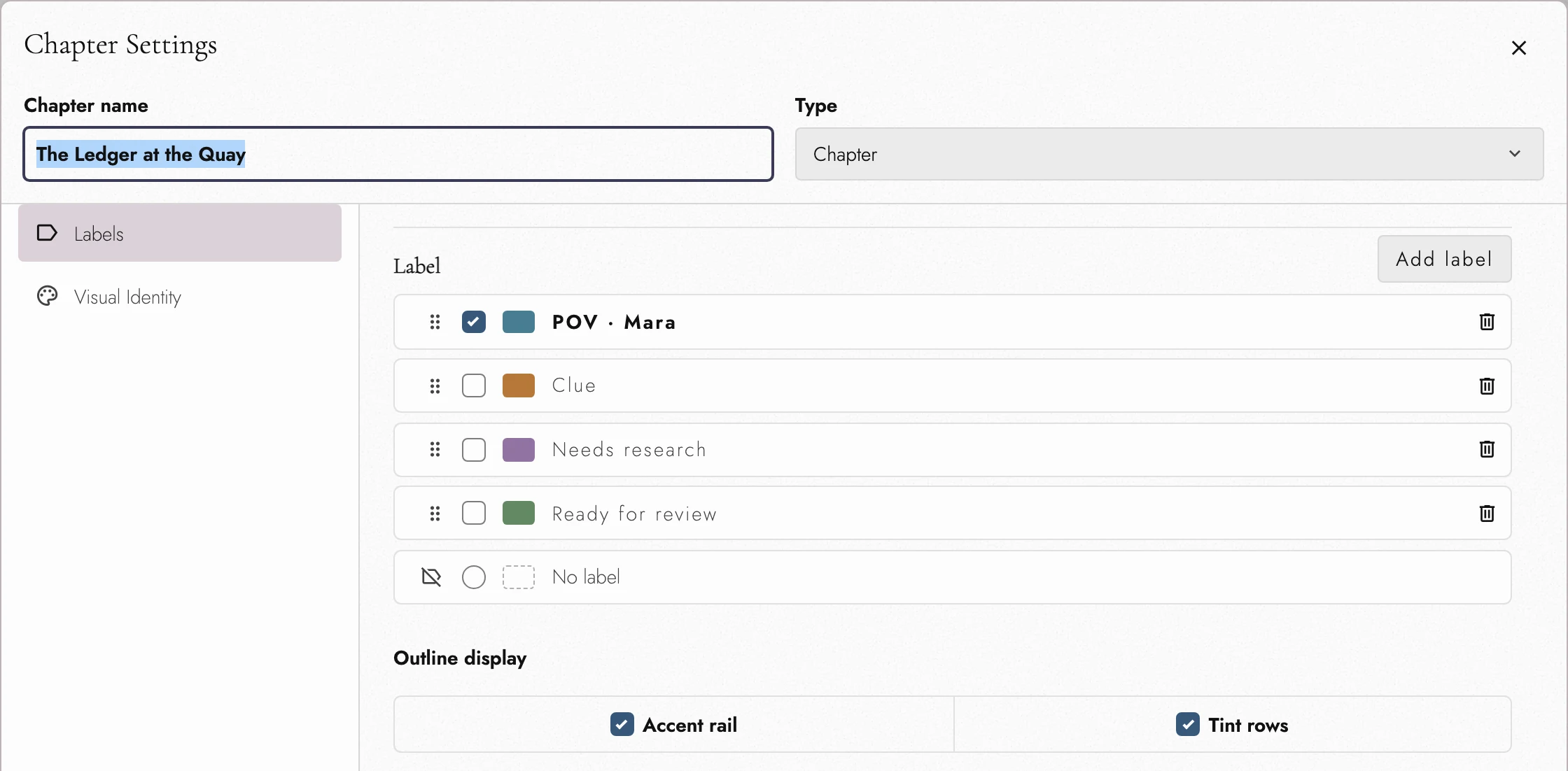
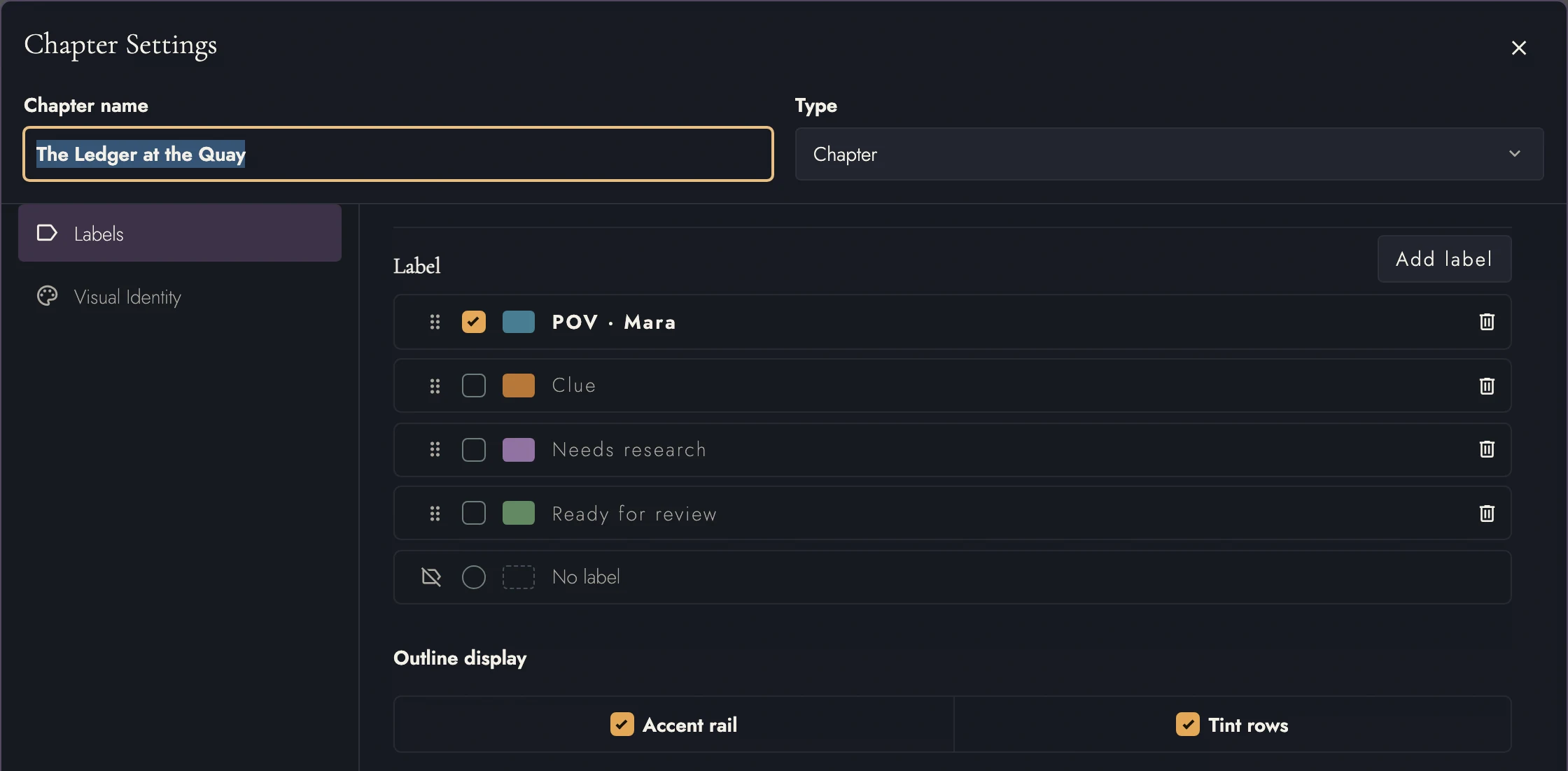
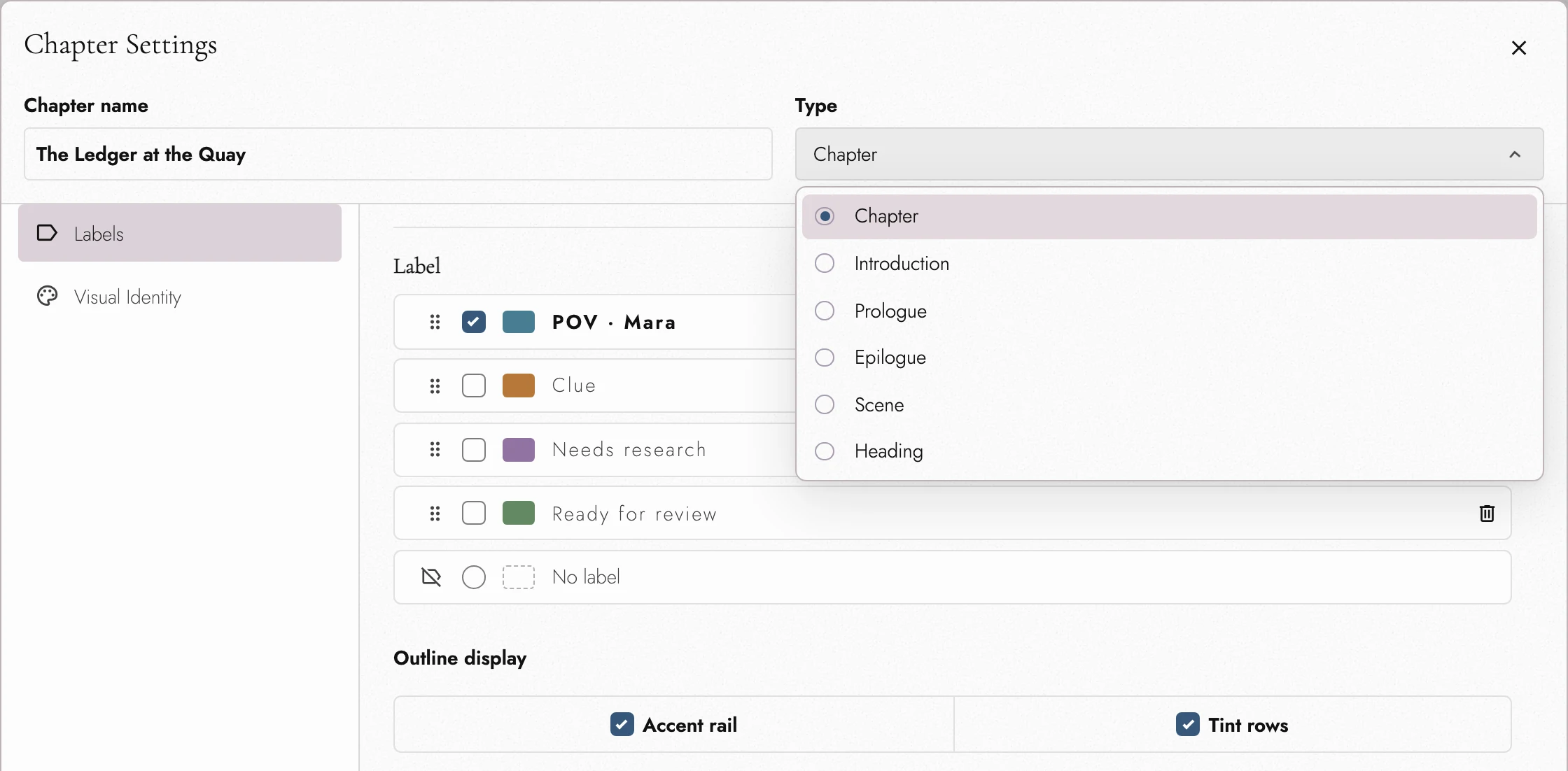
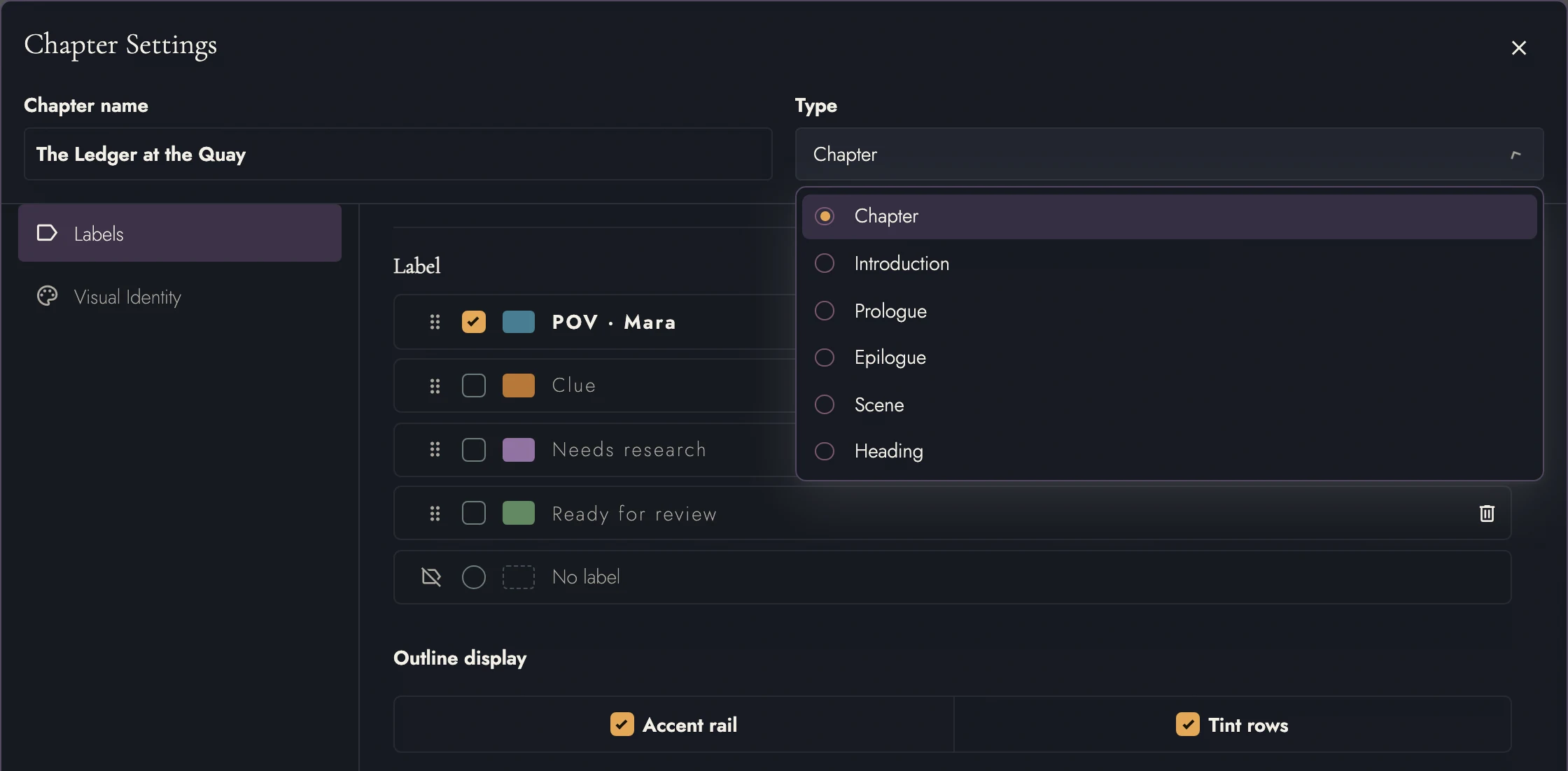
Open an Outline row’s settings and change Type between Chapter, Scene, and Heading. The writing stays in place. A Chapter changed to a Scene joins the Chapter above; a Scene changed to a Chapter starts a new one.
A chapter's Type also lists Introduction, Prologue, and Epilogue. Choosing one moves nothing and renames nothing. The chapter stops being numbered, and choosing Chapter again numbers it.
Two places need a word of warning, because the manuscript has to stay whole:
- Turning the first chapter into a scene leaves its heading in place but untitled, holding the same writing. The title it had becomes the name of the scene beneath it. There is no chapter above it to join, so it becomes the opening scene of its own.
- Turning the first scene of a chapter into a chapter writes a new title directly below that chapter, which you can rewrite or delete. If the chapter above has no title of its own, it takes the scene's name instead of gaining a second heading.
A Heading can become a Scene inside a Chapter, or in a Book’s body that holds Scenes directly. It cannot become one in front or back matter, or before the first Chapter of a Book that has Chapters. Tabularia explains when a change is unavailable.
Because a scene carries its name in the Outline rather than on the page, a chapter turned into a scene keeps its title as the scene's name and the line leaves the prose. Turning it back writes the line again.
7. Matter pages
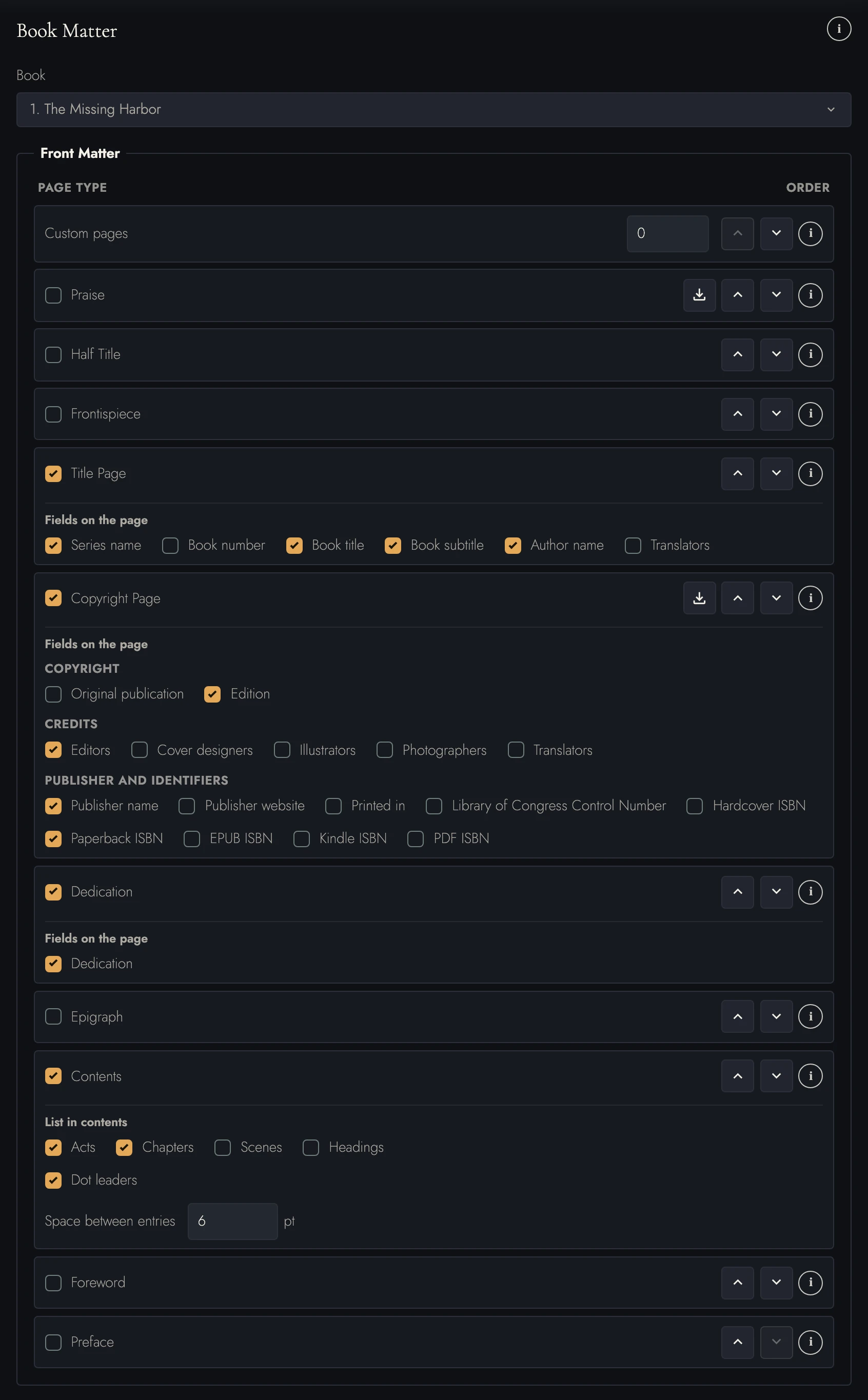
View dark appearance
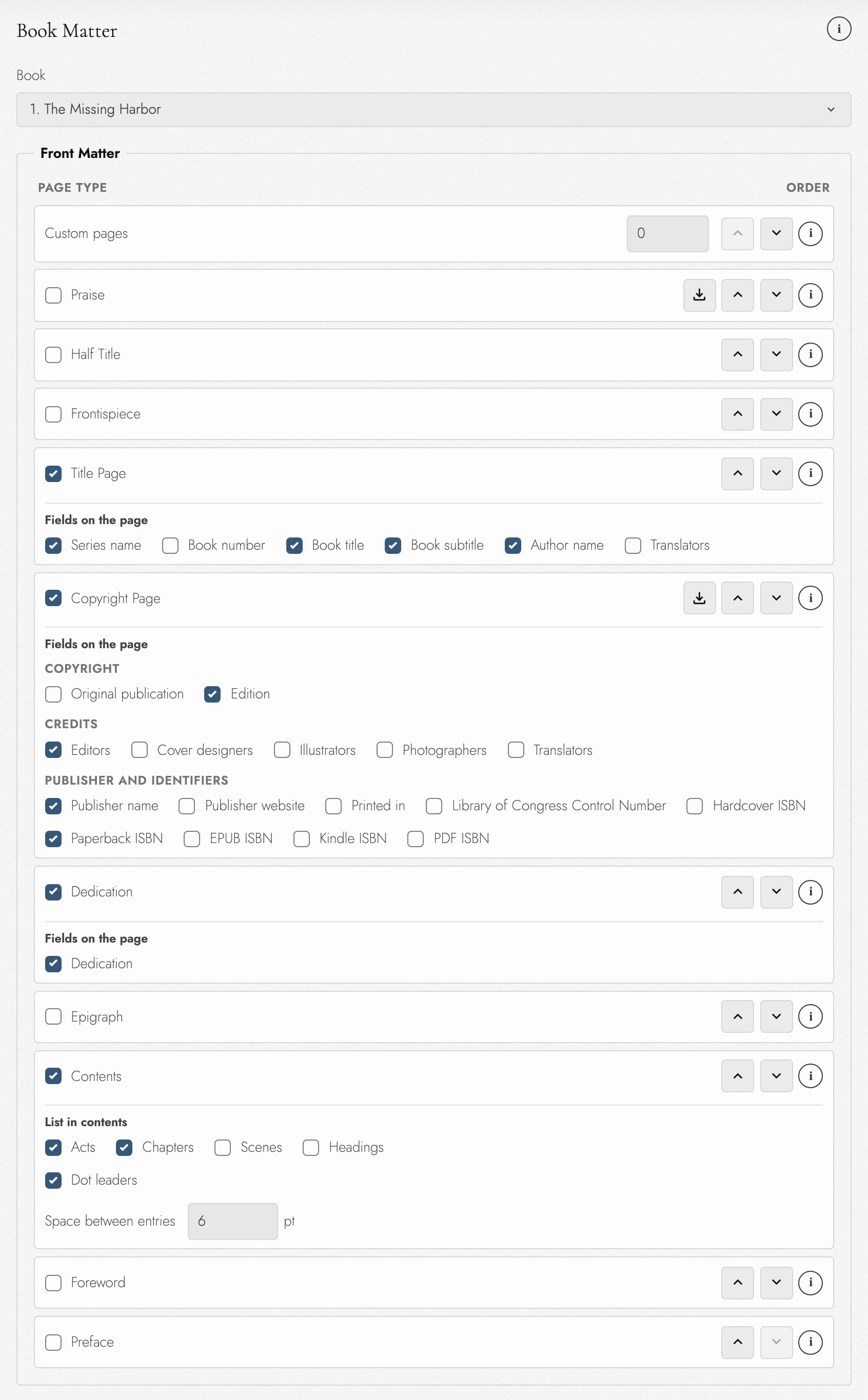
Front & Back Matter, or Book Matter, are the pages around a Book’s story. Each Book owns its own pages, including Books in a Series. The default order before the story is:
- Praise. Quotations from reviews and other authors, for a book that has earned some. Each arrives as a quote over its attribution; repeat that pair for every blurb. It opens most books, and can move to the back.
- Half Title. The title alone, centered on a page of its own, ahead of the full title page. It is a printed-book convention and is often left out of ebooks.
- Frontispiece. A picture on the left-hand page facing the title page, with a caption under it if you want one. Choose the picture from the Project's images in the list under this row; it fills the page, or fits inside the margins if you set it to.
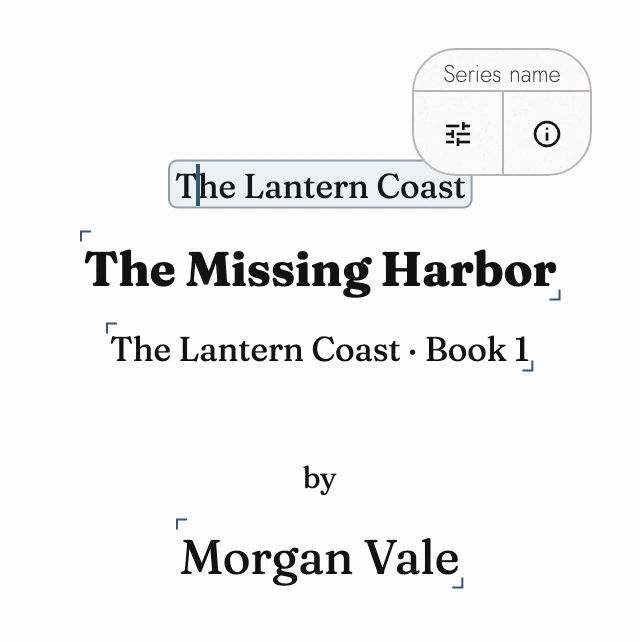
- Title Page. The title, subtitle, author, and translators, taken from the Book's settings, with the series name and the Book's number above the title. Check the ones the page carries in the list under this row; a Project with several Books names its series by default. The series name, title, subtitle, and author change in Project Details and the translators in Publication, and the Book number follows the Book's place in the series. The word by is yours to edit.
- Copyright Page. The legal notice, rights reservation, and fiction disclaimer, set small at the foot of the page. Edit the wording on the page. The lines under it state details from Publication; check which ones the page prints in the list under this row, as many ISBNs as the book has.
- Dedication. A short line to someone, centered in italics on its own page. Replace For… with the name and whatever you want to say.
- Epigraph. A quotation from another writer that sets the tone, centered over its attribution. Replace both lines with the passage and its source.
- Contents. A table of contents built from the Outline, so it stays current as you rename and reorder. Tick it to choose which levels it lists, whether it draws dot leaders, and the space between entries.
- Foreword. An introduction written by someone other than the author, saying why the book matters. It flows like a chapter, under its own heading.
- Preface. The author's own note on how the book came to be, before it begins. It flows like a chapter, under its own heading.
After it:
- Acknowledgements. Thanks to the people who helped the book along. It closes most novels and opens many works of non-fiction, so it can move to the front.
- Appendix. Supporting material that sits outside the story: maps, documents, family trees, notes on sources. It flows like a chapter, under its own heading.
- Glossary. An alphabetical list of the book's invented or specialist terms. Write one term to a line, with what it means after the dash.
- Chronology. A timeline of events in the order they happened, for a story told out of order or over a long span. Write one date to a line.
- Reading Group Guide. Discussion questions for book clubs about the book's themes, characters, and choices. Replace the sample questions with your own, one to a paragraph.
- About the Author. A short biography in the third person: where you live, what else you have written, and where readers can find you. It closes most books, and can move to the front.
- Also By. A list of your other books, one to a line. Ebooks usually put it at the back; print editions often face the title page, so it can move to the front.
- Bonus Content. Extra material for readers who finish the book: a deleted scene, an excerpt from the next one, a short story. Write over the placeholder under its heading.
At either end, Custom pages are the ones you make yourself. Blank pages of your own, each starting a fresh page. Type the count and that many appear ahead of everything else at the front, for anything the supplied types don't cover: a map, a cast of characters, a note on the text. Move them as one row with the arrows.
An introduction is not among them. It is a chapter of the body, so it takes the body's page numbers. A book that kept an Introduction page in its front matter now opens its body with that introduction instead, wording unchanged. Page 1 is the introduction's first page, so every later page number moves up by its length.
An Introduction normally uses body page numbers. To use Roman front-matter numbers, choose With the front matter (i, ii, iii) beside it in Opening and closing chapters. The next Chapter then starts on a new page at 1. Prologues and Epilogues always use body numbering.
In Project Settings → Book Matter, choose the Book and check the pages to include. Use each row’s arrows to reorder pages or move eligible types between front and back matter.
A page whose lines come from the Book's settings lists those settings under its row once the page is checked, each with a checkbox of its own:
- Title Page: the series name and the Book number, then the title, subtitle, author, and translators
- Half Title: the title
- Dedication: the dedication
- Copyright Page: every detail it can print below the legal wording, with a box for each ISBN format
The copyright page has the longest list, so its boxes sit under three headings, in the order the page prints them:
- Copyright: the original publication and the edition
- Credits: a box for each kind of contributor, editors through translators
- Publisher and identifiers: the publisher's name down to the last ISBN
Check a Field and its line goes on the page where the template puts it, gray until the setting has a value. Uncheck it and the line comes off. If you wrote words of your own into that line, they stay, and only the linked setting is taken out of it. ISBNs can all be checked at once; they stack in the usual order, hardcover first and PDF last. A page you never change here keeps the lines it has always had.
Check Frontispiece and a row opens under it with the chosen picture’s thumbnail and name. Choose picture… opens the picture picker on the pictures in Assets, where you can also upload a new one; Remove picture takes it off. A picture you choose fills the page, and Within margins instead scales it to fill as much of the page's text area as it can without changing shape, centered above a caption line you can type into or leave empty. Clicking the empty box on the page opens the picture picker directly, and the picture you choose shows in this row too. An image’s own settings in Assets can also make it the Frontispiece of the Book you are writing in.
Click the picture on the page to take it in hand. Its bar sets the size: Full page, the size a new picture starts at, fills the page to its trimmed edges, cropping the picture so it keeps its shape. On continuous pages it fills the page's stretch of the column. On a full page the caption is set at the page's foot, on a band of paper across the bottom margin, so it reads over any picture. The bar's Caption button shows or hides the caption at either size; a hidden caption keeps its words for when you show it again. Replace on the same bar reopens the picture picker, and Remove clears the picture while the Frontispiece page stays, empty. In a PDF exported with Bleed for print, a full-page picture runs an eighth of an inch past the outside, top, and bottom edges, so the trim cannot leave a white sliver. EPUB, Word, and HTML files flow their text, so they keep the fitted picture and its caption.
A frontispiece faces the title page, which puts it on a left-hand page. When it would fall on a right-hand one, the page before it is left blank, with no page number or running head. Continuous view and ebooks have no left or right, so they turn no blank page. A Frontispiece with no picture, or whose picture you have since deleted from Assets, is left out of every file you export, and it is never listed in Contents.
Translators can be credited twice. On the title page they get a line of their own under the author, Translated by and their names, which appears by itself once Publication lists a translator. The copyright page credits them separately, and each page's Translators box works on its own. Both lines state one setting, so a name corrected on either page changes in Publication and on the other page too.
In a series, each title page names the series above the Book's title in smaller type. A single-Book project leaves that line off until you check Series name. There is one series name for the whole project: retype it on any title page and every Book's title page and running head follows, along with Project Details. Book number starts unchecked. Check it and the page says where this Book falls in the series, Book One, Book Two, on a line just under the series name, or just above the title when the series name is off. Tabularia keeps the number current as Books are added, moved, or deleted, so it can't be typed over.
Custom pages adds up to 100 editable pages at each end. You can also drag matter pages in the Outline, within their own Book and end. Changing ends happens in Settings.
Opening and closing chapters adds or removes an Introduction, Prologue, or Epilogue. Removing one asks for confirmation if it contains writing. Each action can be undone in one step.
- Introduction. An opening chapter that sets out what a reader needs first: background, scope, how to read the book. Tick it to add one at the start of the body, then choose whether its pages are numbered with the body or with the front matter.
- Prologue. An opening chapter that stands outside the main story, often earlier or elsewhere. Tick it to add one at the start of the body, after any Introduction; it takes body page numbers but no chapter number.
- Epilogue. A closing chapter set after the story ends, often some time later. Tick it to add one at the end of the body; it takes body page numbers but no chapter number.
Every row in Book Matter has an i at its right edge. Click or tap it to read what that page is for without leaving Project Settings.
Matter pages include sample wording for you to replace. The title page uses the Book title, subtitle, and author. The copyright page uses Publication details; review its legal wording yourself.
Book and Series projects start with title, copyright, and dedication pages. Screenplays start with a title page. Blank and Article projects start without matter.
Unchecking an untouched sample page removes it. A page containing your writing stays in the Manuscript; the checkbox then controls only whether it is exported.
Matter does not change the body’s start at page 1. Front matter counts from i, including pages without printed numbers. Back matter is unnumbered. Neither contributes to word counts or prints running headers and footers.
Editing stays within the matter page you started in. Select All selects that section, and deleting or pasting cannot run into Chapter One. You can change eligible matter pages into Chapters as described below.
Enable Show Front & Back Matter to see these rows in the Outline. Click a row to navigate, or its gear to change Type.
Changing an eligible page to Chapter moves its wording into the body at the matching end. Title pages and custom pages cannot be converted this way. On smaller devices, matter starts hidden; see Writing on a phone or tablet.
8. Contents and the designed Book
A Contents page lists the structure rather than asking you to type it twice. Turn it on in Book Matter, then choose the listed levels, dot leaders, and entry spacing. A generated Contents page gives the steps.
A Scene's name in the Outline is a planning label and never prints. If a Contents page lists Scenes, choose Title in contents… from the Scene row's menu to give it the line that appears there. Nothing else prints that title. Left blank, the entry uses the Scene's opening words.
9. Linked Fields
A Field states a linked setting on a matter page. Small corner brackets mark it on the canvas. The title page's series name, title, subtitle, and author follow Project Details; publication Fields follow Publication.
Edit a linked Field on the page to update its setting and the Book's other linked copies. Words around it stay yours. If a Book names its own author, editing its author Field changes the page without changing the Project author.
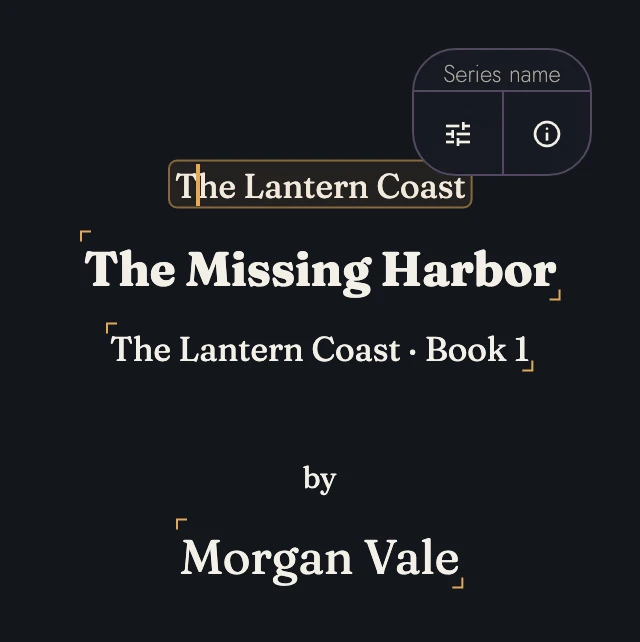
Put the caret in a Field and a small pill appears beside it. The pill names the Field, such as Book title or Chapter number, above two buttons: Settings opens the linked settings, and Info explains where the words come from. On a phone or tablet, tap the Field to show it.
Double-clicking an editable Field selects a word as usual. A Field always stays linked to its setting, and nothing turns it into plain text.
Type beside a Field
Each end of a Field has two caret stops in the same place: one inside the Field and one just outside it. With the caret inside a Field at its end, press the right arrow once to step outside without moving. Anything you type there follows the Field and leaves the setting alone. The left arrow does the same at a Field's start, and pressing an arrow toward the Field steps back in. Clicking the right half of a Field's last letter puts the caret inside; clicking the words after it puts the caret outside.
Clear a Field
On the half title, title page, copyright page, and dedication, a Field stays on the page however its words go. Backspace through every letter, select it and press Delete, or cut it, and its gray placeholder stands in their place, such as Title or For…. The setting empties too, so every other copy of the Field shows its placeholder, and exported files leave the empty line out. Type into the placeholder to fill the setting again. Undo brings back the words and the setting in one step.
Two settings fall back rather than stay empty: the copyright year returns to the current year, and the copyright holder to the author. To take a Field's line off one of these pages, untick it in Book Matter. A Field on any other page, such as one a Manuscript carried over from an earlier version of Tabularia, goes when you delete its words, and its setting keeps the value it had.
Add a Field
Fields come from Book Matter. Check a Field under its page in Fields on the page and its line goes where the template sets it, showing the setting's current value, or its gray placeholder while the setting is empty. A title page can carry its series name, Book number, title, subtitle, author, and translators all at once, in that order from the top.
Fields live only on front and back matter pages, and only on the pages that list them. Other matter pages and custom pages hold words you type yourself. Generated Chapter labels and numbers are separate.
10. Project Settings
Open Settings on a Project row. Changes save automatically; Done closes the dialog. Sections with Book-specific choices have a Book selector at the top.
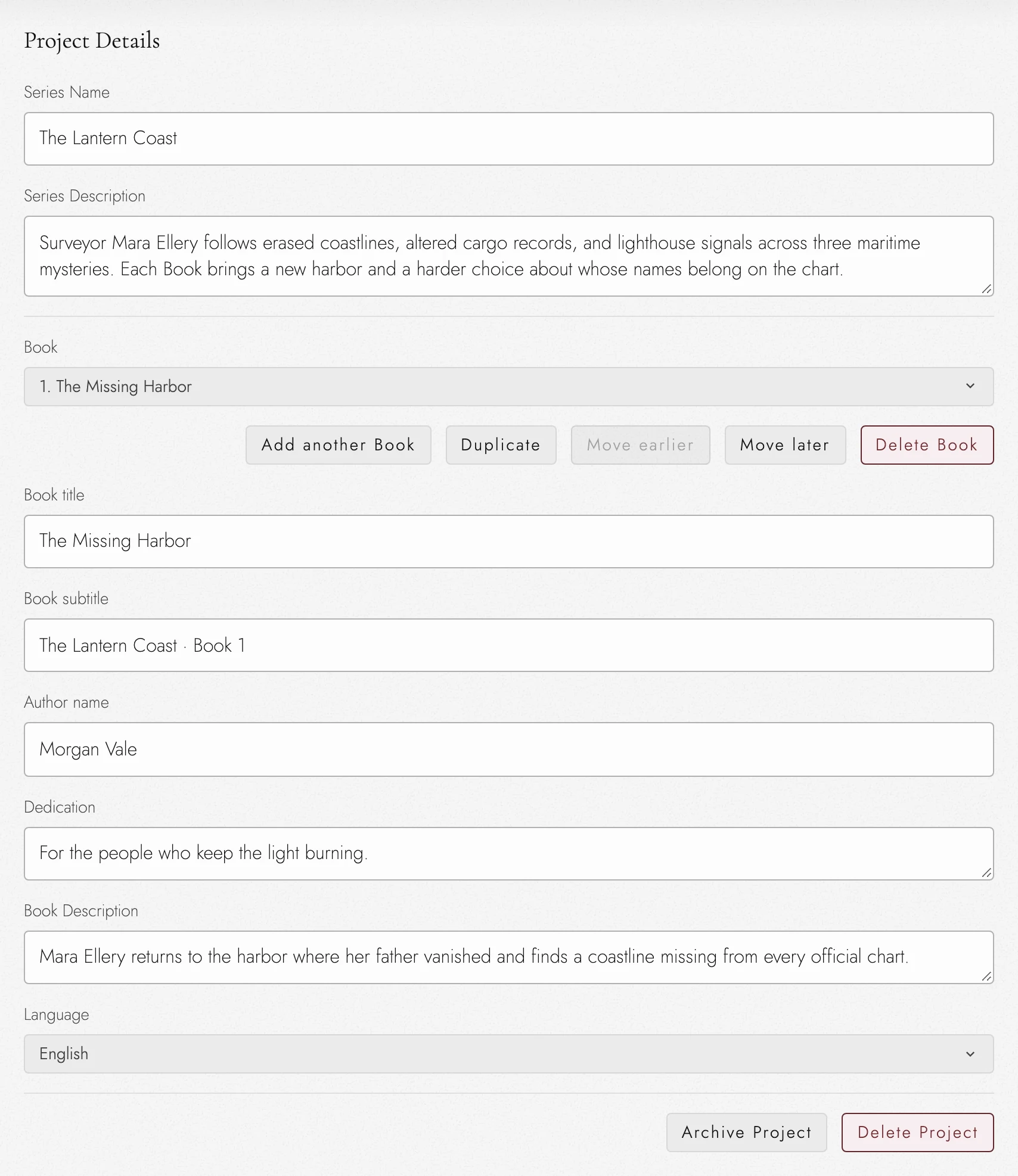
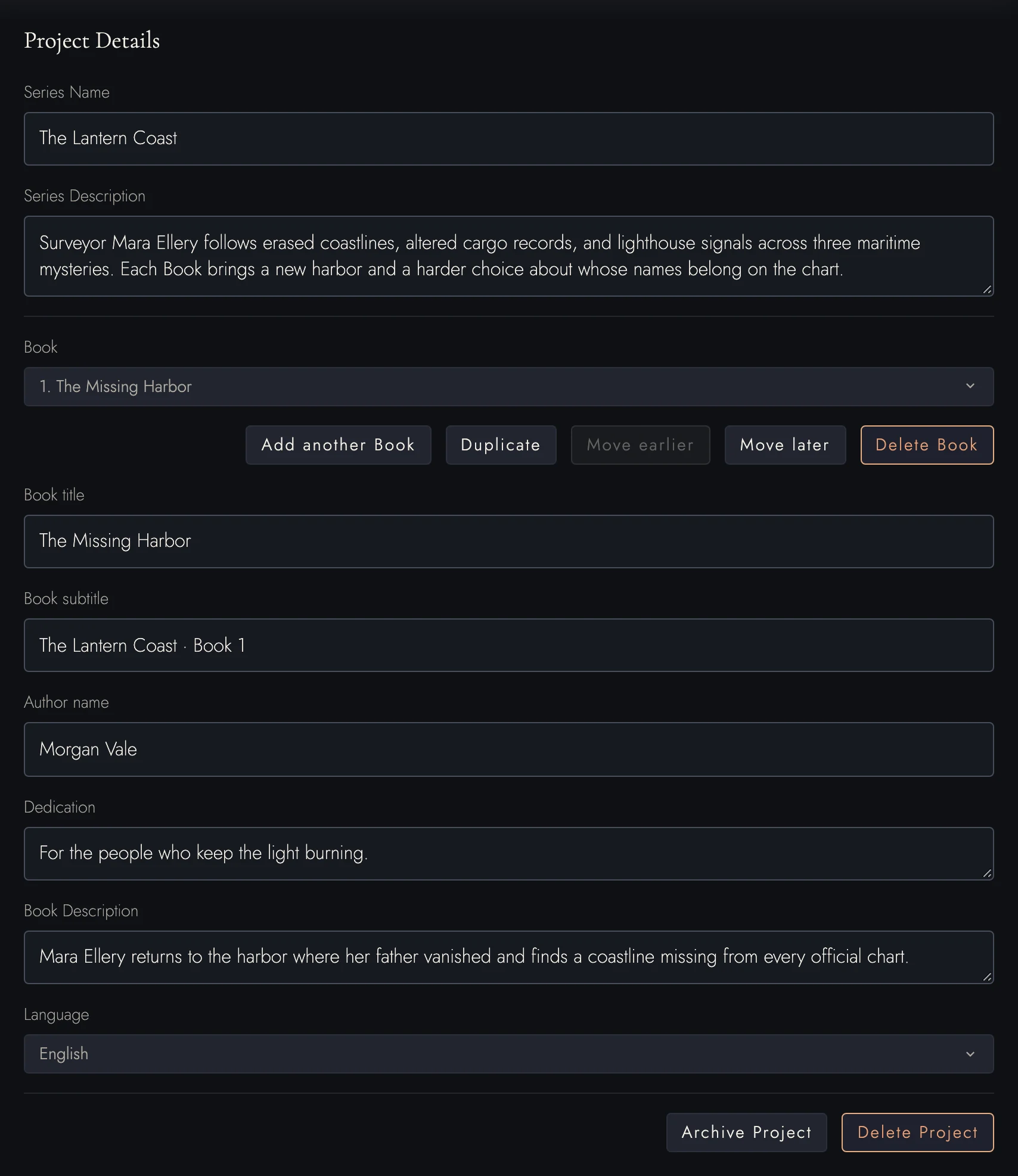
Project Details
Language controls hyphenation, and exported EPUBs and published pages declare it, so a screen reader pronounces the text in the right language. The list holds the languages the manuscript typefaces can draw. Rename the open Project from its sidebar row; other Project names and descriptions are editable here, along with Series details.
Each Book has a title, subtitle, and description. A subtitle appears below its title in the Subtitle style. Its Author name is the name printed in that Book, independent of your account profile, and a Book you add later starts with the author of the last one. A Dedication belongs to one Book as well.
Above those fields, Add another Book, Duplicate, Move earlier, and Move later manage the series. Delete Book first lists the writing and structure it will remove. Archive Project and Delete Project are at the bottom; on an archived Project the first reads Restore Project.
Book Matter
The pages around the body of each book: every page type listed under Matter pages, and custom pages of your own. Matter pages above describes what each one arrives holding and what unticking one does.
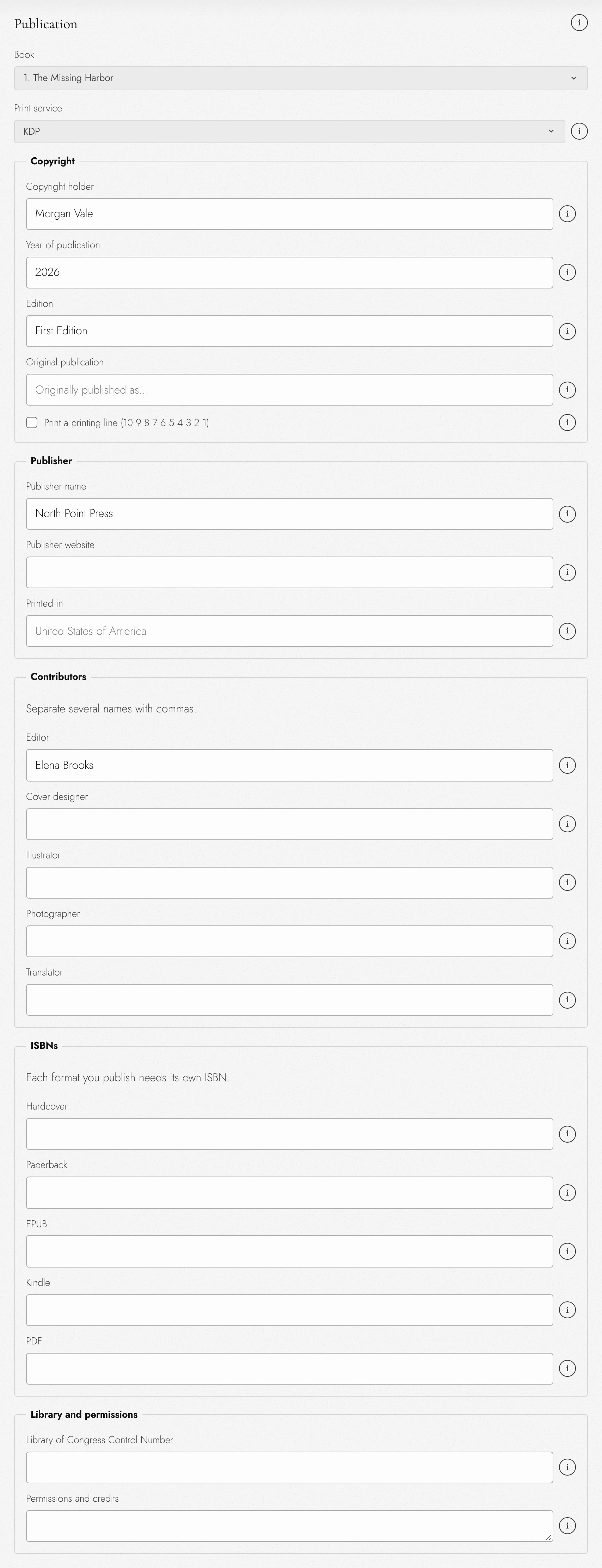
Publication
What a book's copyright page states and what its exported files declare about it. Like Book Matter, it is settled one book at a time, so each book in a series keeps its own ISBNs and its own edition. The fields are:
- Copyright holder, when it is a legal name or a company rather than the author name on the cover
- Year of publication, Edition, and Original publication for a reprint or a translation
- a printing line, the countdown of numbers a printer strikes off
- the Publisher's name and website, and the country it was Printed in
- Contributors, one field for each role from editor to translator, several names to a field
- an ISBN for each format the book is published in
- the Library of Congress Control Number, and Permissions and credits for quoted material, epigraphs, and images
Each setting saves as you leave it and updates its linked words on the copyright page. An ISBN whose check digit is wrong is kept, with a warning beside it. A credit line such as Edited by links its names too, so you can edit them on the page: separate them with commas, and the role's list in Publication follows.
An empty setting prints nothing. A line checked under the copyright page in Book Matter shows a gray placeholder until you fill its setting in, and exported files leave that line out. Out of the box, that is the edition, the publisher, and one ISBN.
Duplicating a Book copies its publisher and credits but not its ISBNs, which belong to exactly one Book.
Print service
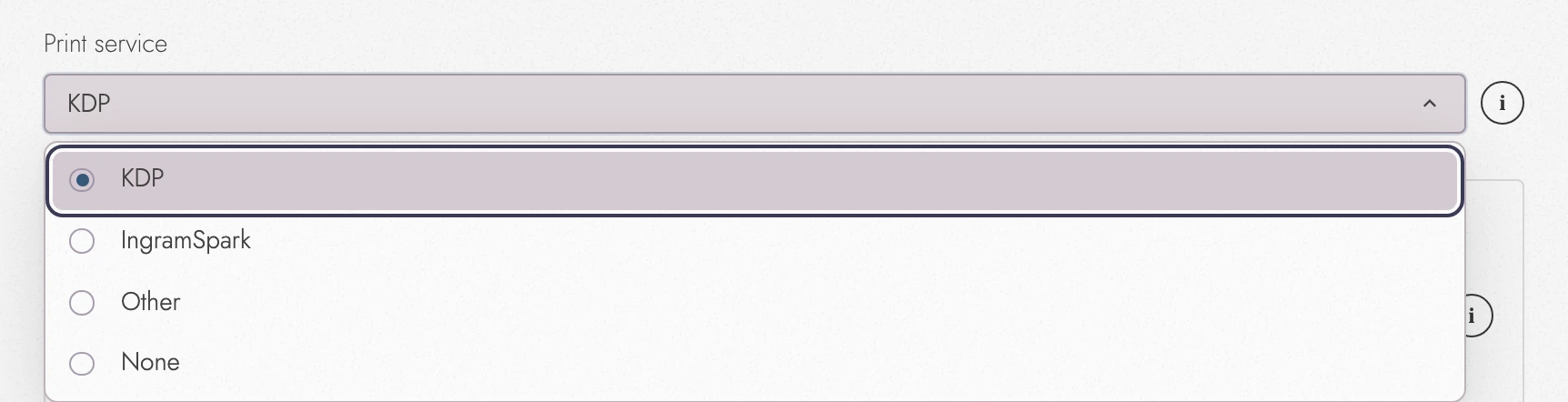
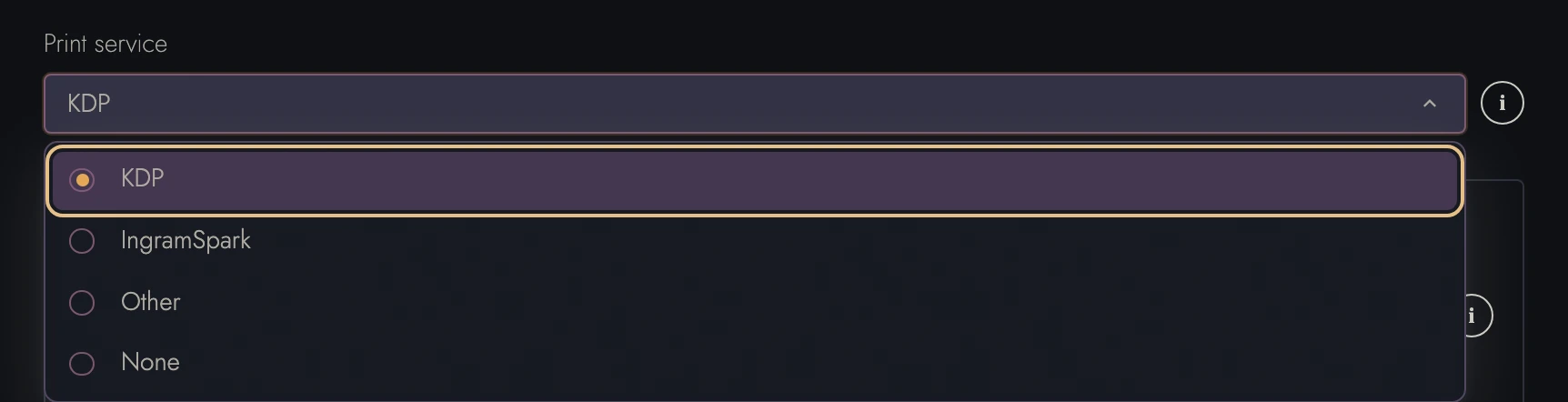
In Publication, Print service names who prints the book: KDP, IngramSpark, Other, or None. Every book starts on KDP. The choice decides how near the cut edge a picture can stand before the page warns about it, and which rules a PDF export starts from. It moves no text, so changing it only redraws the marks around a selected picture. In a series each book keeps its own, and an export can still pick a different service for one file without touching the book.
View dark appearance
Acts
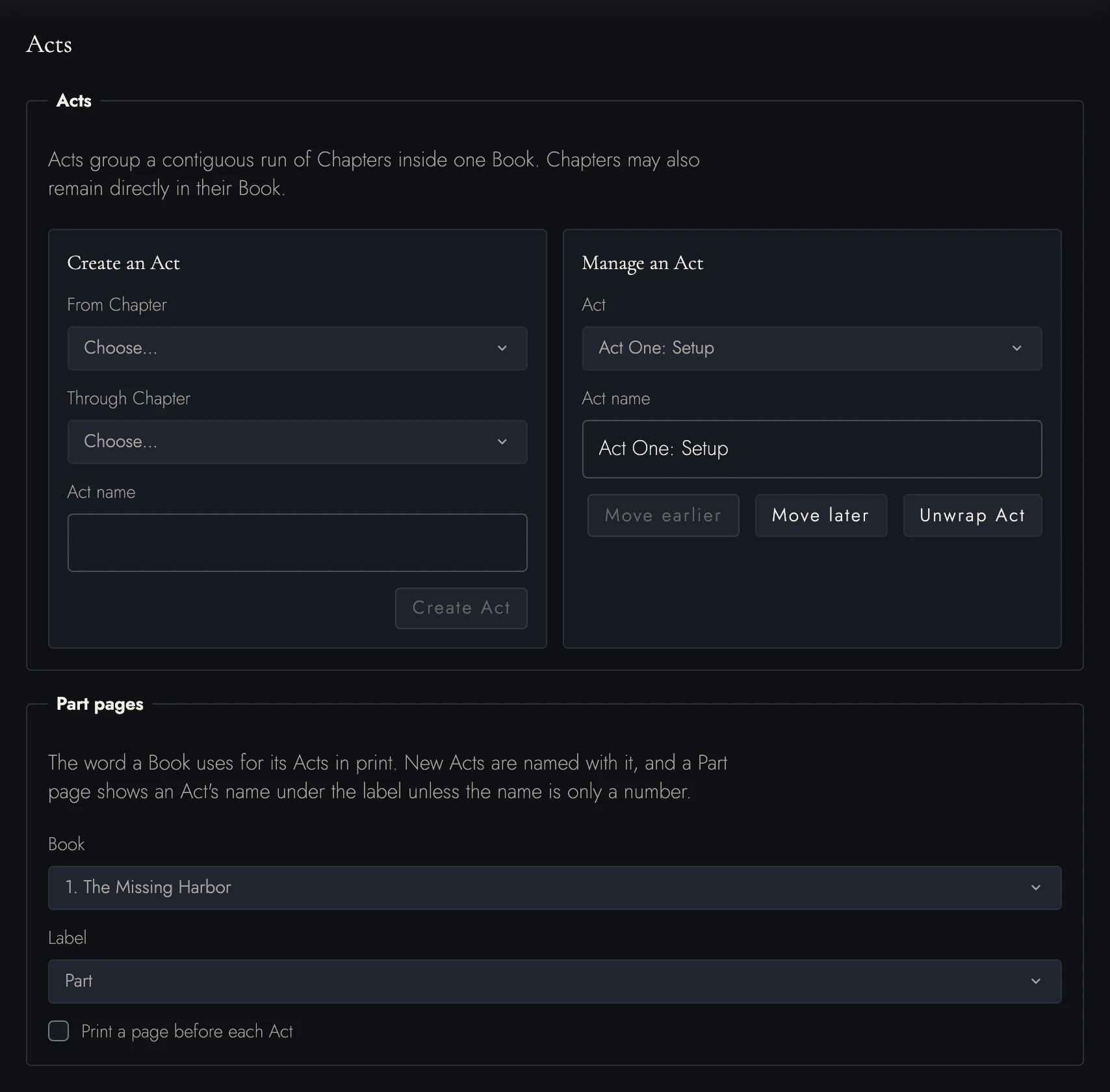
To create an Act, set its name, From Chapter, and Through Chapter, then choose Create Act. You can rename or reorder an Act. Unwrap removes the grouping and keeps its Chapters in place. Acts are optional.
Part pages in Acts chooses the printed label and number format, and can put a page before each Act. Pages before the Acts walks through those choices.
Chapter Openings
Choose which opening lines print, where Chapters start, and whether the first page carries running content. Special Chapter kinds can inherit the same treatment or use their own. See Designing a Book.
Visual Identity
The icon or artwork and the accent color that stand for this project wherever it is listed. The same editor settles a Timeline, an Anchor and a Sheet, so it is described once, under Visual Identity.
Headers & Margins
Choose a Book under Headers & Margins. Main text controls ordinary, Roman, or hidden page numbers. Number the front matter too displays Roman numbers on eligible matter pages; title pages and dedications still count without printing a number.
PDF page labels follow these counts. Word uses separate front-matter and body sections for each Book.
Header and footer apply to the selected Book. Each has a left, a center, and a right place, and each place prints one thing, such as the page number, a Chapter's title, or words of your own.
The Footnotes part decides how the picked Book numbers its notes and how it sets them at the foot of the page. The panel that opens beside a note offers the same choices, and Footnotes in Writing and formatting walks through each.
Margin numbers adds citation Sections, structure markers, and paragraph or line references. Headers and margin numbers explains their positions, restart choices, and print/PDF switches.
Block Styles
In Block Styles, choose Apply to before changing a built-in style. The current Book is selected initially. Choose the whole Manuscript or Series to edit shared defaults.
Set the selected style’s font, spacing, alignment, and margins. A Book with its own version keeps it when shared defaults change. Use this style in every Book removes those Book-specific overrides so they follow the shared default.
For a Book, Reset style returns to the Project default; in the shared scope, it returns to the original style. Custom named styles belong to the Project. Use New style to create one, then rename, update, or delete it here. See styles of your own.
Custom overrides are formatting applied to individual paragraphs. Clear overrides for the selected style, or for all styles, to return those paragraphs to their style defaults.
The sweep follows Apply to: one Book or the whole Manuscript. Both actions ask for confirmation before removing formatting.
Storage & Usage
Storage & Usage shows this Project’s space and storage location, plus your media allowance. Manage my plan opens subscription settings.
One more control appears only on a manuscript somebody has shared with you: Remove from Projects, in the dialog's footer, which takes their manuscript out of your list. It is not a deletion of their work, and it is not available on your own projects.
11. Continue reading
Try it on your own book
Start a free 14-day evaluation. No card needed.