Working with Drafts
Try alternative wording, compare versions, and merge what works.
1. How drafts work
Create a Draft to try different wording without losing the current version. Capture a passage or the whole Manuscript, then edit the copy. You can switch back or compare both before deciding.
A Draft owns only its captured passages. The rest of the Manuscript stays live. Where Drafts nest, the deepest showing Draft supplies the wording; the Base Draft supplies everything else.
View dark appearance
A Draft captures the wording shown when you create it and keeps that parent. Later parent edits do not change its copy. If you widen the scope, newly captured paragraphs use the parent’s current wording.
That project-wide draft is named after the project itself. Rename the project and the name follows, unless you have renamed the draft yourself, in which case your name stands.
What a draft does write outside itself is the redline in Markup Mode. The tick lifts one difference into the draft above, and the cross gives this draft the wording the draft above holds. Both are decisions rather than previews, so read a mark before pressing either side of it.
2. Creating a draft
Open Drafts & Sharing in the right panel and create a draft, giving it a name that says what it is trying, like "quieter opening" or "third act without the storm." A new draft starts with the Working Scope's name, and you can rename it from its row. The create control is the page-with-a-plus button beside the draft count, and it always captures the current Working Scope. Then edit as normal: changes you make while the draft is active belong to it.
The new Draft becomes a child of the nearest showing Draft that covers its scope. Capture Chapter Three while its existing Draft is showing to create a nested alternative. Hide that Draft first to create a sibling from the underlying wording.
Because the scope can be a pinned timeline or a filtered Outline, a draft need not be one continuous passage at all. The next section is about exactly that.
3. A draft of just the parts you choose
Pin a Timeline or filtered Outline as Working Scope, then create a Draft. It captures only those passages in Manuscript order. Show, compare, or merge it like any other Draft. Read timeline or a filtered Outline.
What makes this worth knowing is what the draft does when it leaves your hands. It carries those passages and nothing else, so it is a way of choosing, precisely, what somebody else gets to read.
Sharing it for review
Sharing sends only the Draft’s captured passages, under their Chapter headings. Readers and Editors see the same passages; their roles decide what they can do. See returning a review or Share for details.
Publishing it
Publish the draft to the web and the page carries the same passages and nothing else, with the book's title page put in front. That covers most of the ways a writer puts part of a book out:
- a sample or a beta read: the opening chapters, or a handful chosen from anywhere
- one Book of a series, from a draft captured with the scope on Current Book
- a serial, made by labeling each chapter published as it is ready, pinning the Outline filtered to that label, and choosing Update from Working Scope on the draft before updating its page
- a companion piece (one strand of the story, read as a story of its own)
Update from Working Scope replaces the scope; it does not add to it. For an expanding serial, pin a label that includes every released Chapter. The published address stays the same as its content grows.
4. Switching and comparing
Switch the active draft from the same panel to read the manuscript as each version. The fastest comparison is often simply reading the passage both ways in place, with the full manuscript around it, which is the context a spliced-out comparison never has.
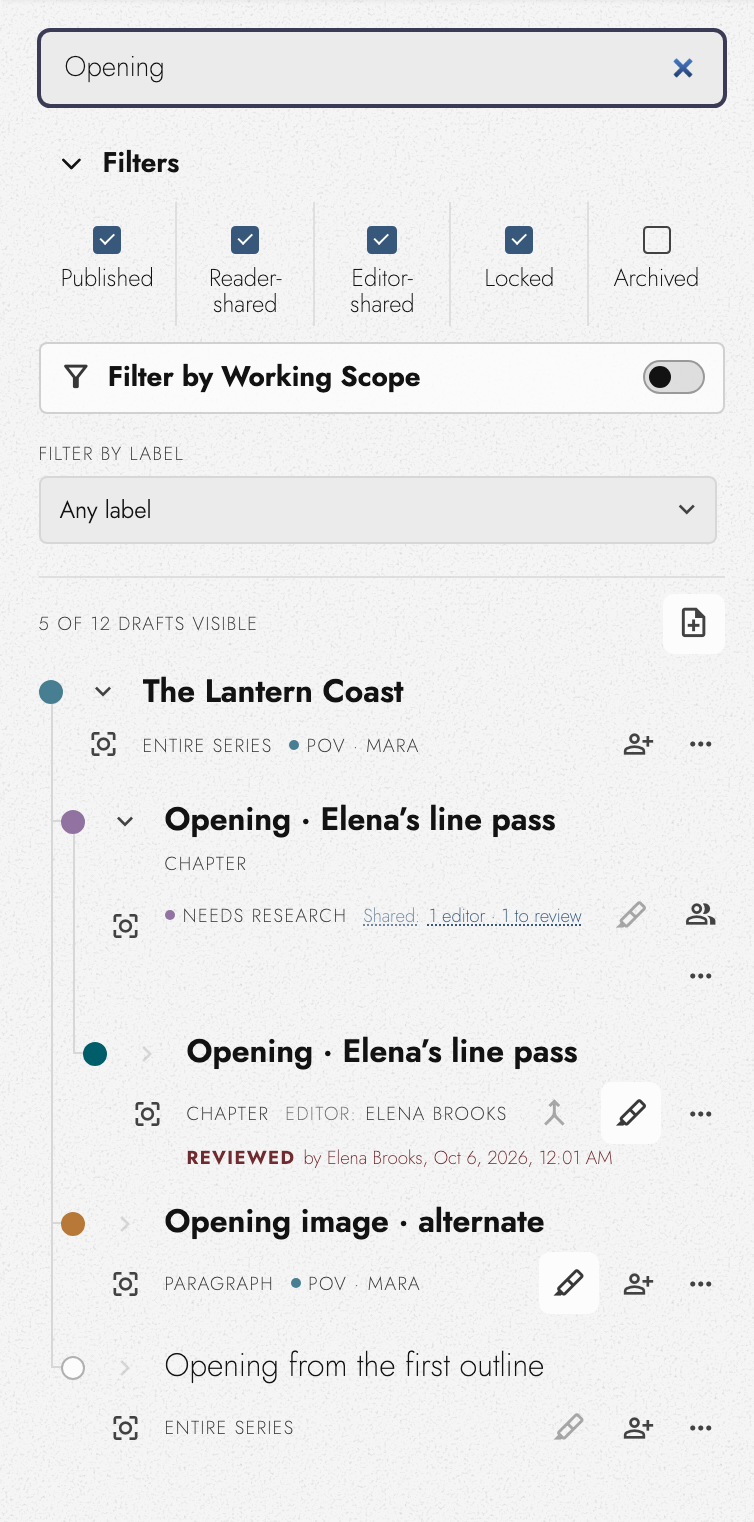
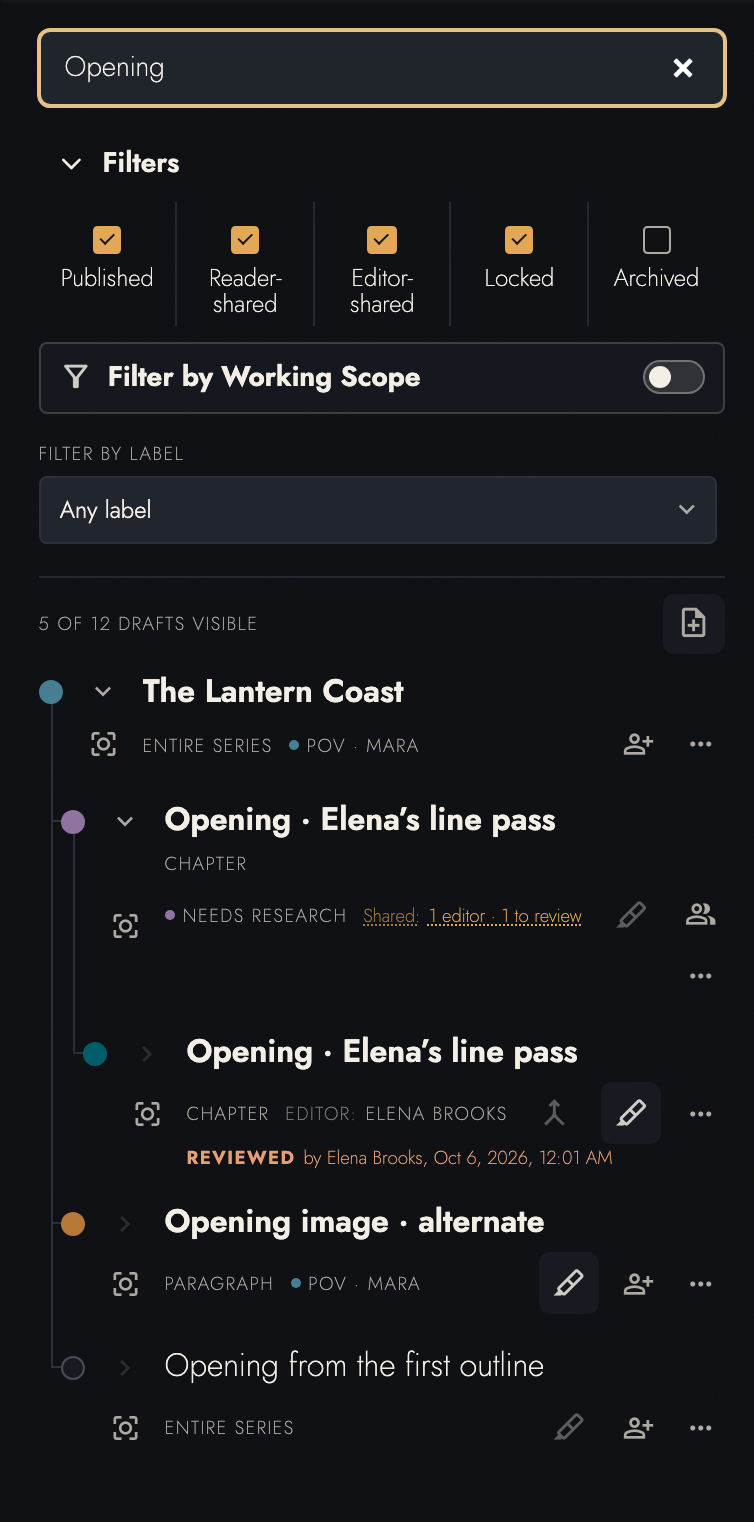
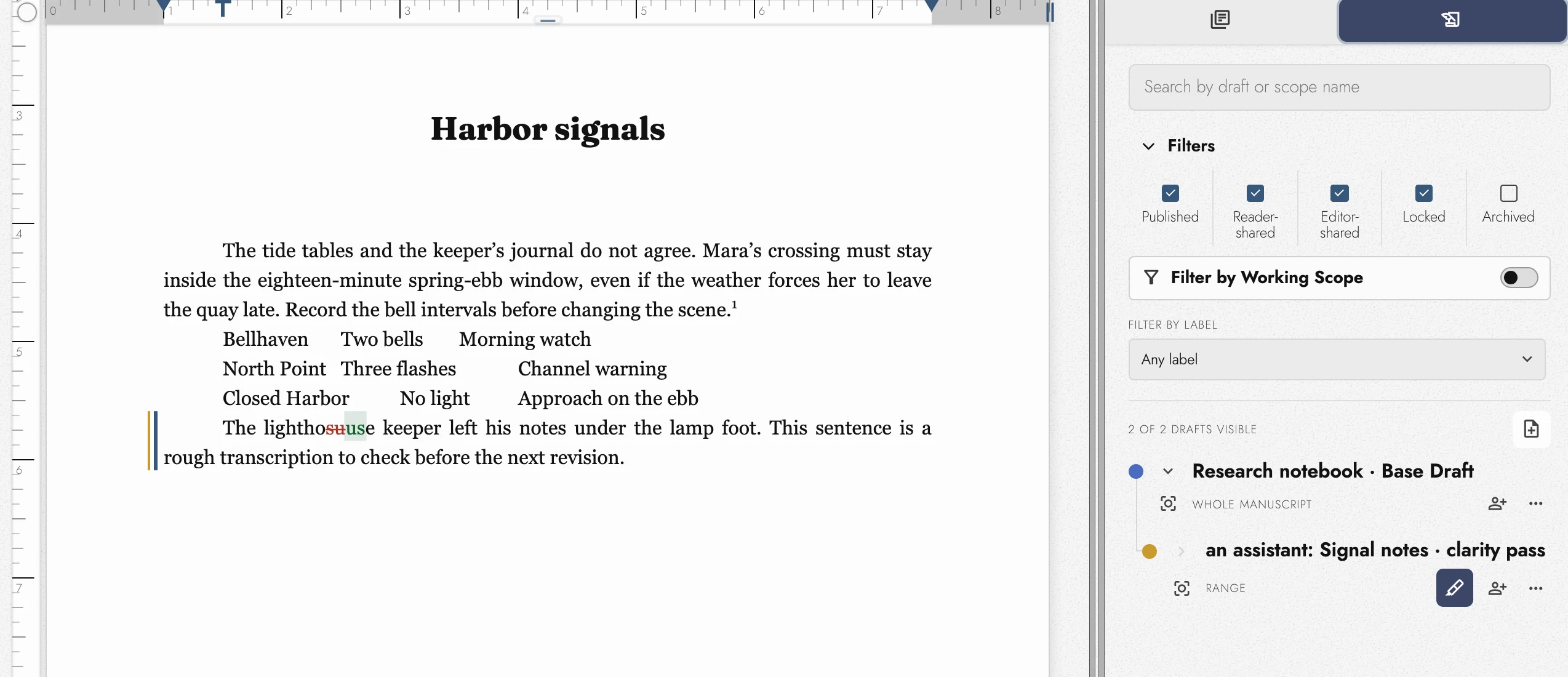
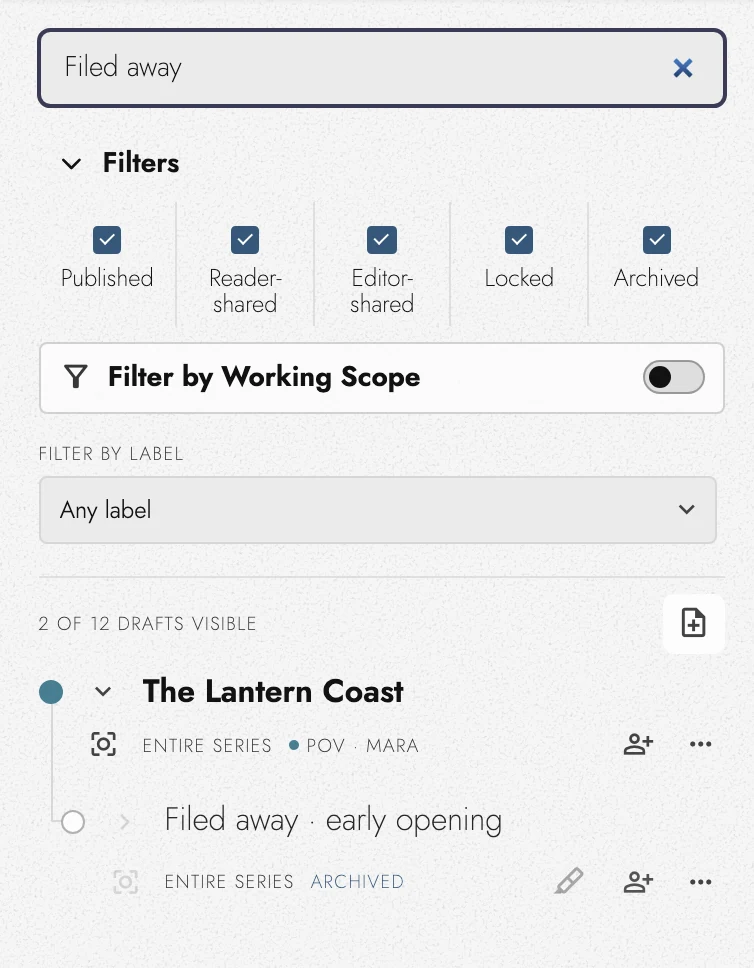
Above the list sit a search box, which matches draft and scope names, and a Filters band you can fold away. The band has one checkbox per kind of draft to include:
- Published
- Reader-shared
- Editor-shared
- Locked
- Archived, the one that starts unchecked
The line under the band counts the drafts still showing, even with the band folded.
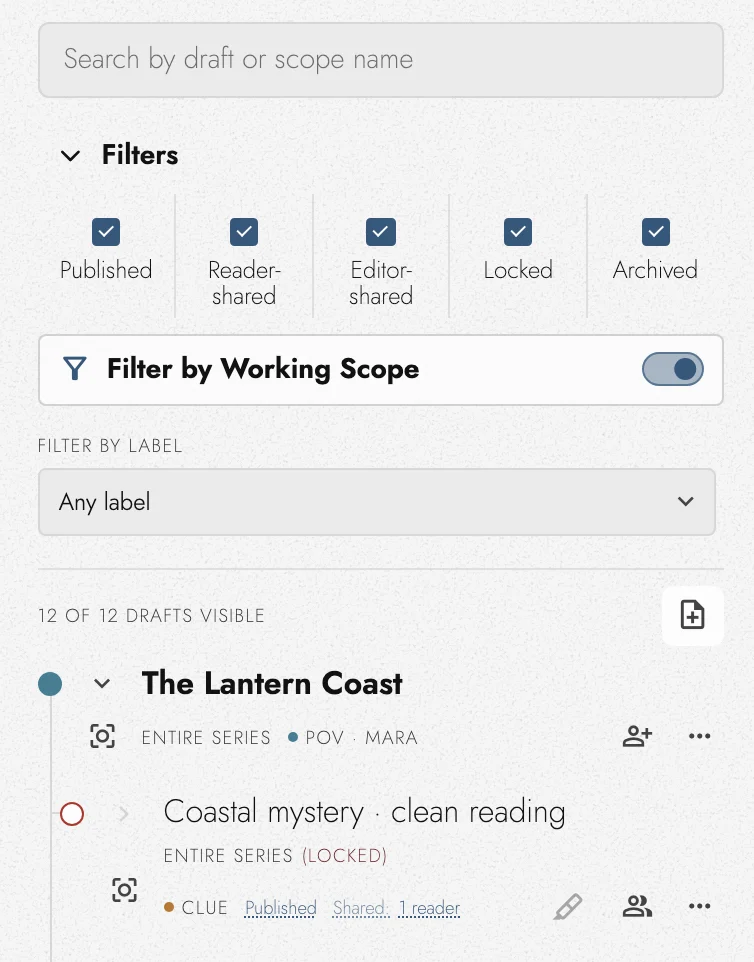
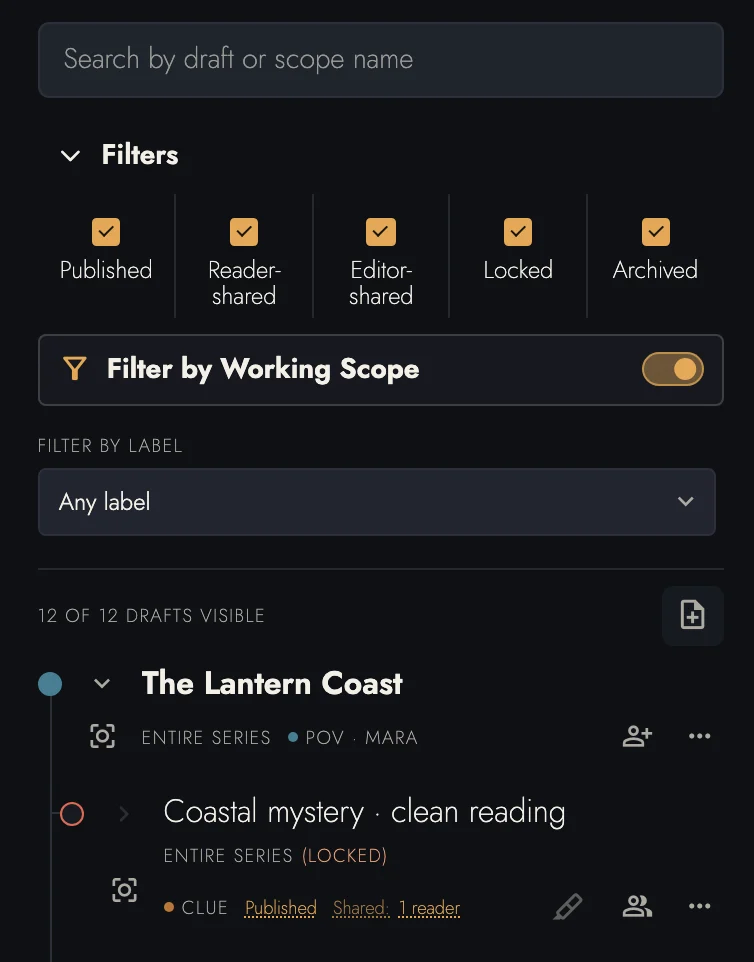
Filter by Working Scope starts off. Enable it to show Drafts overlapping the current scope. Search and status filters work in either view. Search retains parent rows for context, but does not reveal status-filtered Drafts.
Assign existing Scene labels from a Draft’s ⋯ menu, then filter by label. Filter by label appears once the project has labels and takes one at a time, or No label. Chips on the row show its labels. Create and manage the Project’s label vocabulary in the Outline.
Drafts nest, and a row starts open, so a draft you capture inside another one appears where you made it rather than behind a closed row. Close a row you would rather not see and it stays closed.
Showing a nested Draft also shows its parents. Hiding a parent hides its children and their Markup. Their Markup choices are remembered and return when the Drafts are shown and eligible.
Use Scroll to it below a row’s chevron to visit its passage. Double-click the name, or choose Rename, to edit its title. Locked, shared Editor, and archived Drafts cannot be renamed. The dot toggles showing immediately.
Duplicate, just below Rename, makes a second draft with the same wording and scope, filed under the same parent. A lock does not refuse it, so it is how you carry on from a draft you have locked or sent to an Editor.
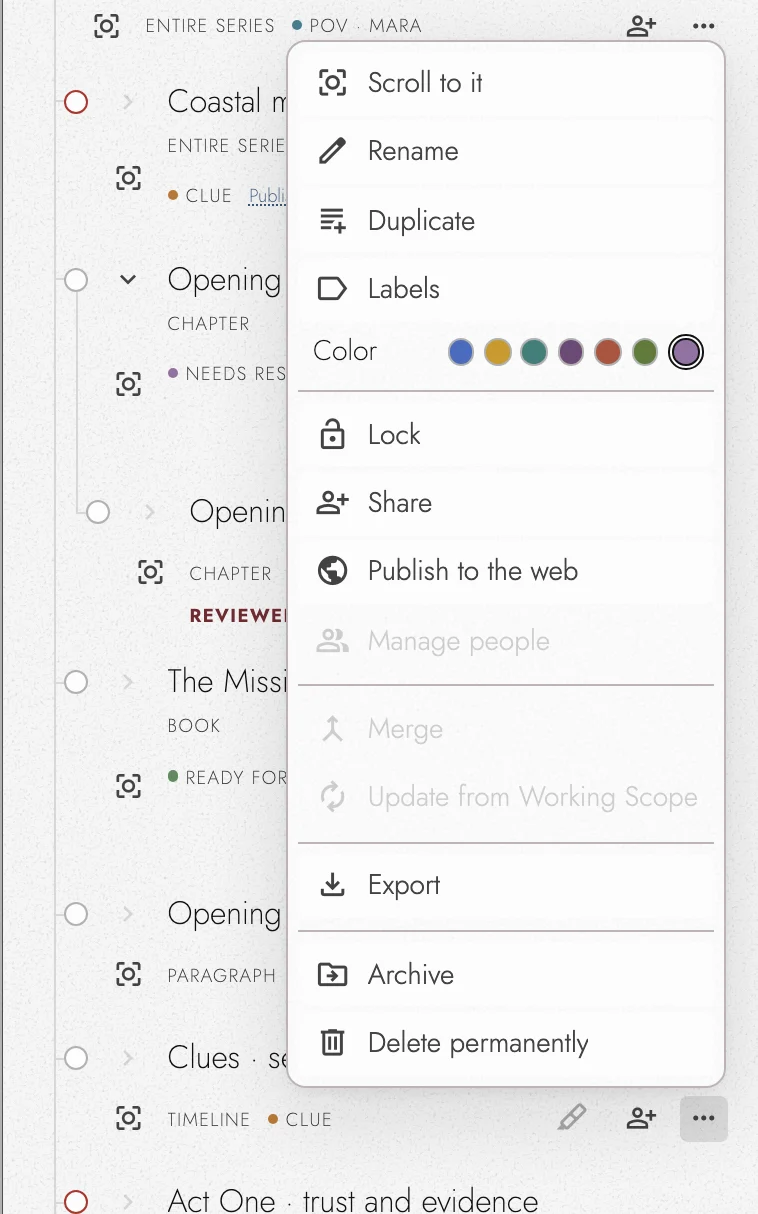
Set the desired Working Scope and choose Update from Working Scope in the row menu or Published page section.
Newly included paragraphs use the parent’s current wording. Removed passages keep their saved wording inside the Draft if later included again. Undo restores the previous scope. Locked and project-wide Drafts cannot be re-scoped.
5. Draft Stacks: two versions in view
A Draft Stack shows overlapping alternatives one after another, in activation order. You can read two versions of a Scene in context with the rest of the Book.
Every row in the panel carries its own switch, and a stack is simply two switches on over the same passage. Two drafts of the same kind over the same paragraphs cannot both show (two Scene drafts of one scene stand each other down, because only one can speak for them), so a stack comes from drafts captured differently. One way to build one:
- Set the Working Scope to Current Chapter and create a draft of the chapter.
- Switch that draft off, set the scope to Current Scene, and create a draft of one scene.
- Switch the chapter draft back on. That scene now reads twice: once as the chapter draft has it, once as the scene draft does.
Standing a draft up still stands down whatever was showing inside it, so the version you asked for reads whole. A draft covering those paragraphs under a different kind of scope is not affected, which is what lets the stack form.
Each Draft has a color. Change it from the strip in its ⋯ menu. Its panel node and paragraph rail use that color, so you can tell which version supplies each passage. The rail sits outside the Markup line. See markup line.
Both copies in a stack accept text edits. Each edit belongs to the Draft supplying that copy, not the other version or the Base. Each also keeps its own Outline markers and Anchors.
Stack copies accept typing, deletion, and selection, but not paragraph breaks, formatting, or structural changes. Creating or re-scoping a Draft is also unavailable while alternatives overlap. Hide all but one to use those commands.
6. Locking a draft
Locking makes a draft read-only: the version is kept, but can no longer drift. Lock the draft you sent to a reader, or the version you want preserved as "the draft of record" while you keep working in another. Sharing a draft with an Editor locks it while that Share is still out: the lock lifts on its own the moment the Editor submits their review, and revoking the Share lifts it too.
7. Publishing a draft as a web page
Press a Draft row’s Sharing button to invite someone or manage existing access. Its icon changes when the Draft is shared.
The ⋯ menu also offers Share, Manage people, and Publish to the web. A live page changes that last label to Published page. Publishing needs the Cloud plan; reading a published page does not.
A Scoped Draft publishes only its captured passages in Manuscript order. The Book’s title page is added in front, even if the scope starts later.
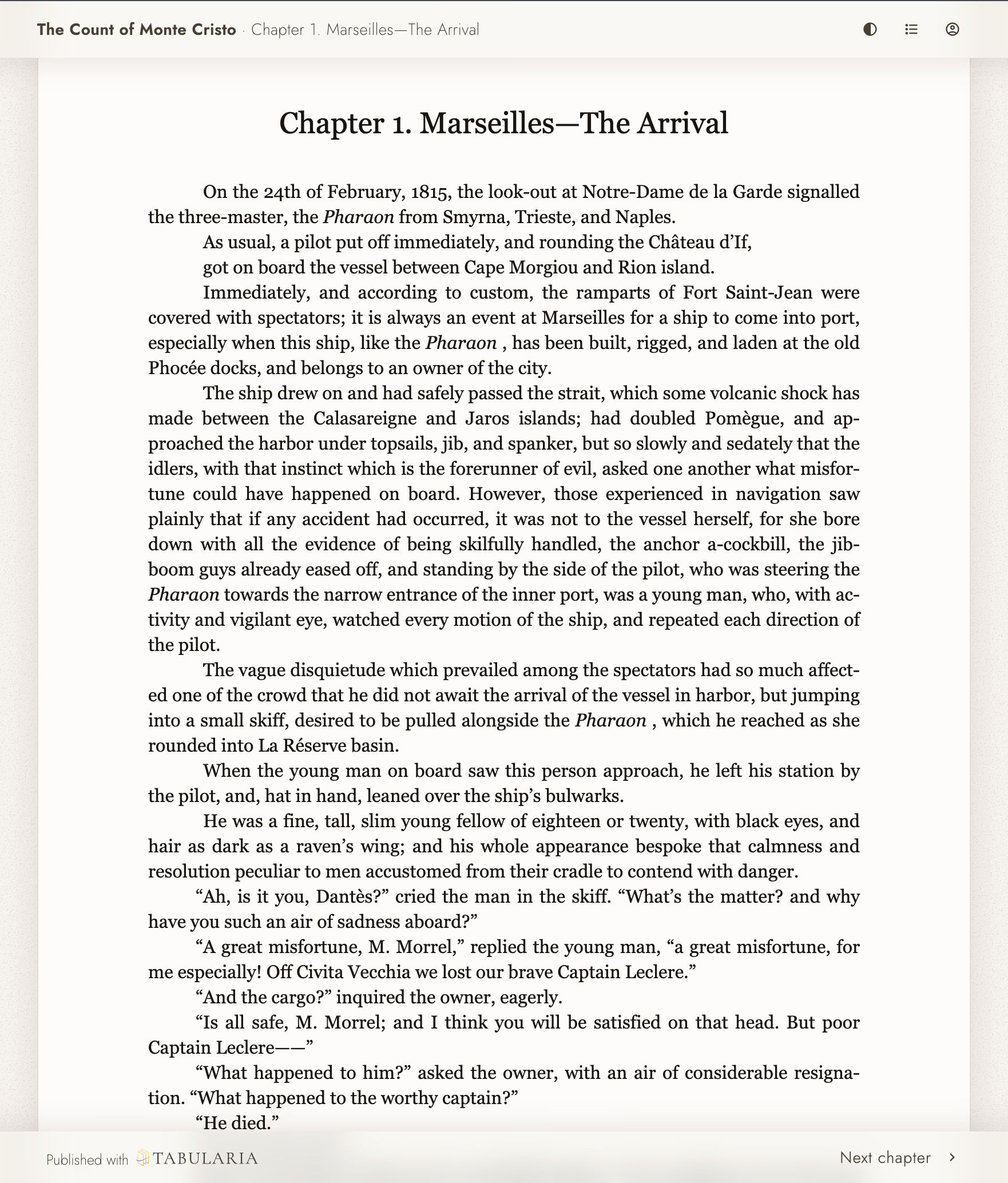
View dark appearance
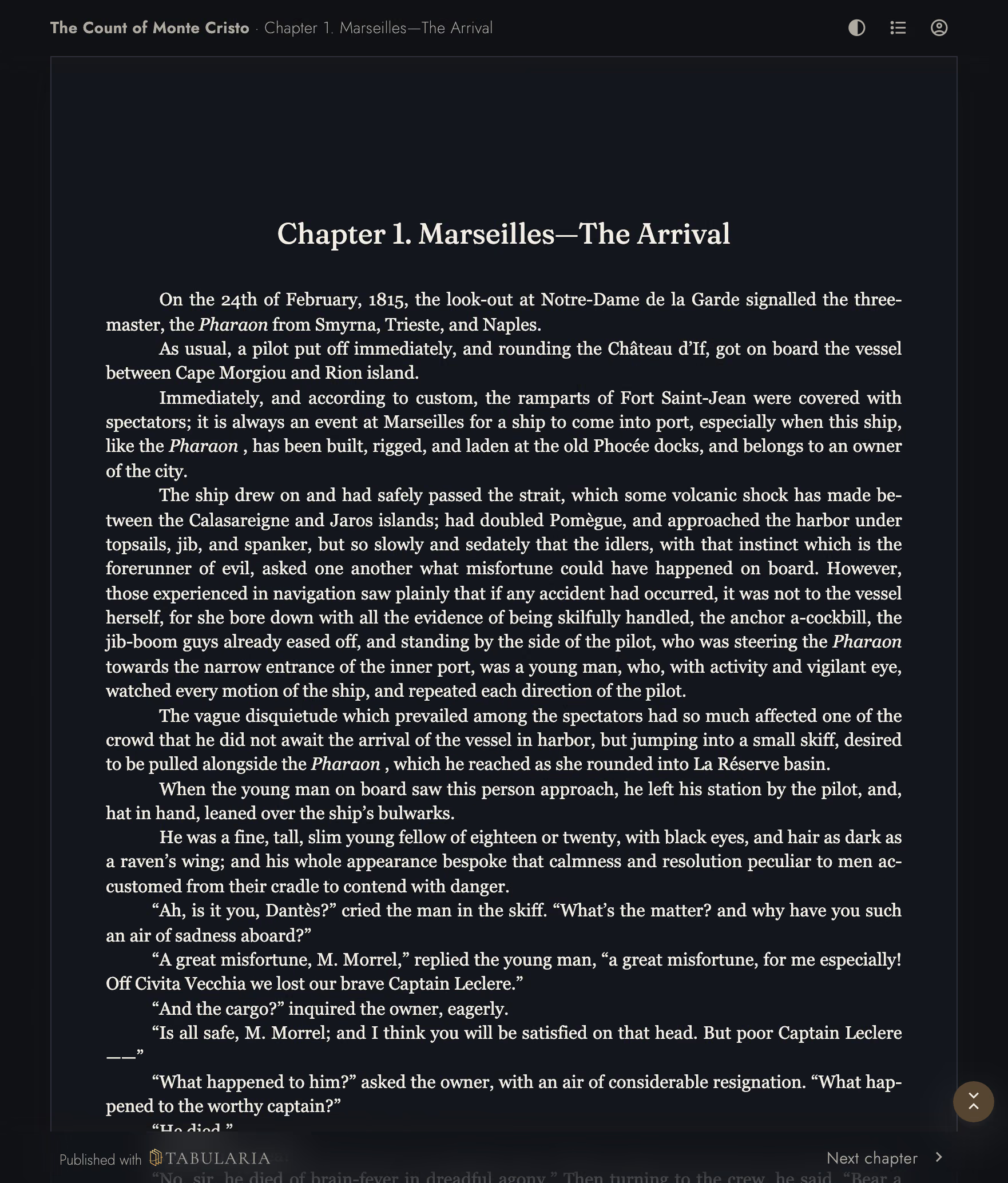
Claim a handle in Published pages on your account page. You can change it only when none of your pages are live. Older published addresses redirect to the new handle.
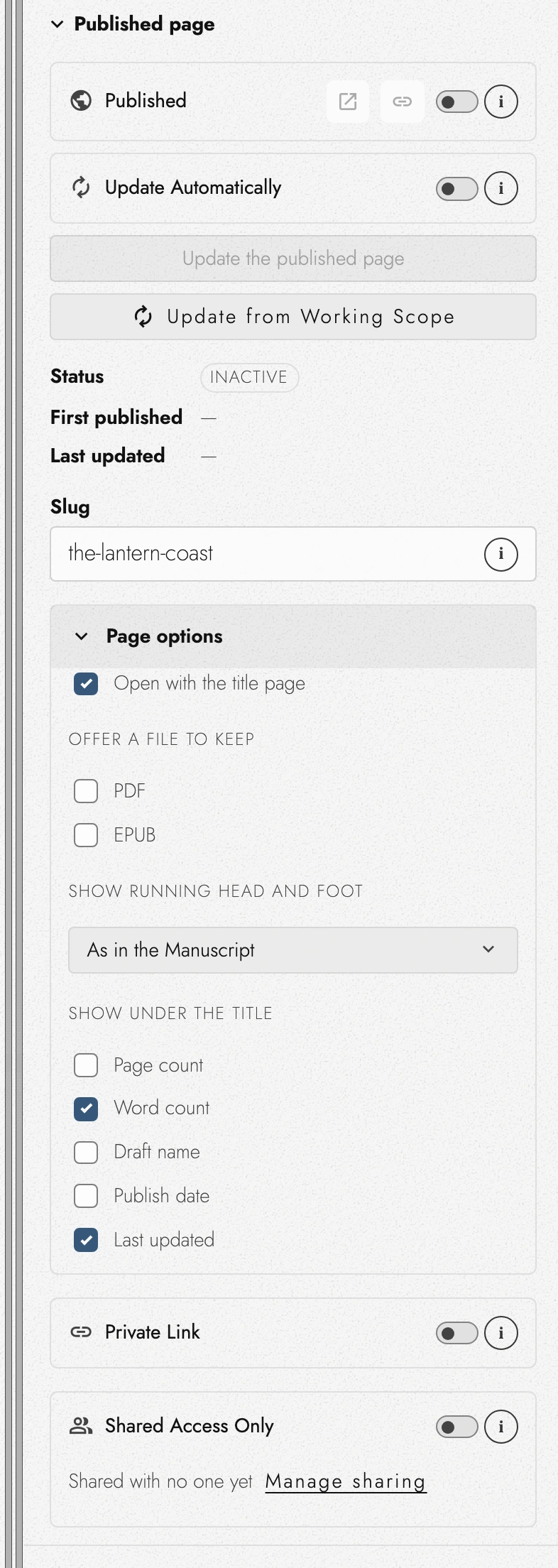
A published address combines the title with a short stable code, such as the-autumn-king-3f9a1c. Renaming and republishing changes the title portion,
while old links still work. Drafts share the title portion but have different codes.
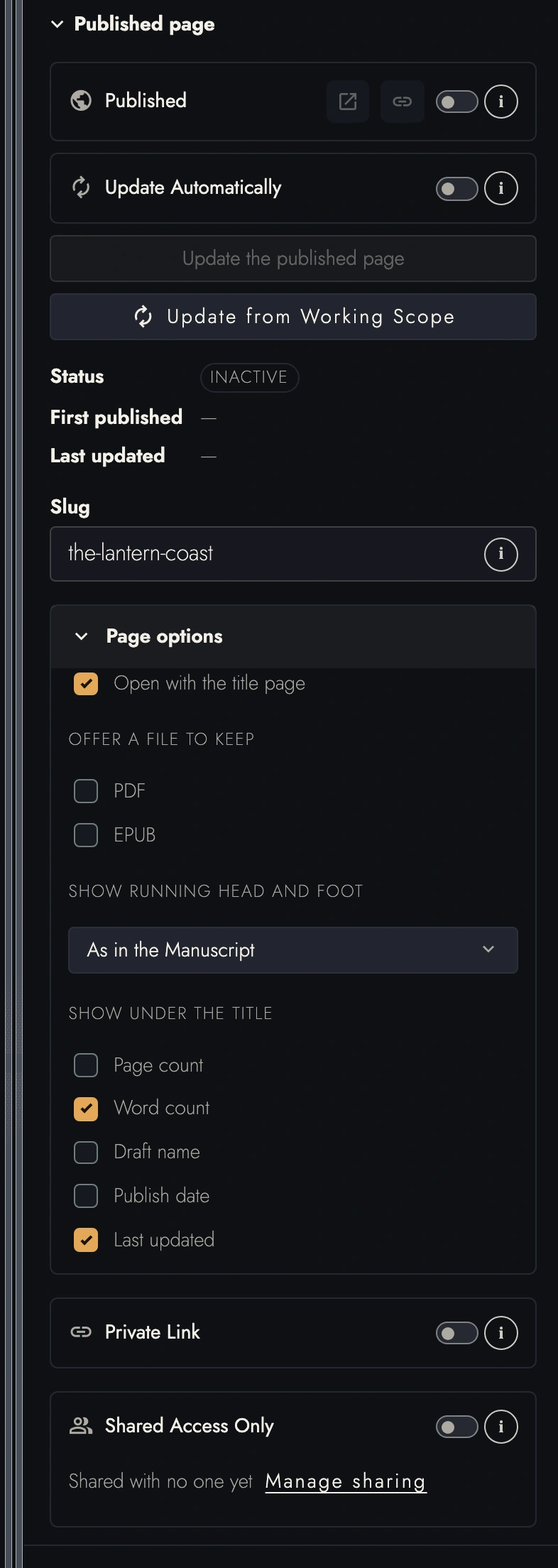
Set Slug to choose different words for the address. Otherwise it follows the Manuscript title. Series pages can each use their own Slug. The stable code keeps earlier links working.
Page options controls the title page, running header and footer, and displayed information. Typography follows the Manuscript.
Footnotes appear at the bottom in Pages view and after each Chapter in Continuous view. Readers choose their own appearance and can navigate by Contents.
Enable Private Link to require a keyed address. Copy link includes the key. Show a new link replaces the key and invalidates old private links. Updates keep the page private. A locked Draft’s publication waits until it is unlocked.
Beside it, Shared Access Only is the stricter answer: the page opens only for the people you have shared the draft with, signed in to their own accounts, rather than for whoever holds a link. A private link can be forwarded; this cannot.
With Update Automatically on, cloud-saved changes republish the page when its wording changes. Off, readers see the version last published explicitly.
8. Choosing the published reading experience
Page options sets the title-page opening, running head and foot, displayed counts and dates, and offered PDF/EPUB files. Readers choose their own appearance and reading layout separately.
Publishing and reading explains each choice, when downloadable files are refreshed, and which preferences stay in a reader's browser. None of those preferences restyles your Manuscript.
9. Merging a draft back
When a Draft wins, merge it into the parent it was captured from. Only the Base Draft has nowhere to merge into. A Draft with children still standing inside it names the ones to resolve first.
Merge or archive those children, then merge the winning Draft. Its differences become paragraph-scoped Review Changes, which you can decide individually while reading the surrounding prose.
Take a Snapshot before a large merge if you want a named point to return to.
Experimental decoration Markup
Separate Markup and merge decisions for Drop Cap and ornament changes are experimental and off by default. A named entry such as Drop cap added appears only when that preview has been explicitly enabled.
A decoration can still appear while its Draft is showing. Its separate object decision is not part of the ordinary text-Markup workflow, so do not expect the standard merge to offer that experimental control.
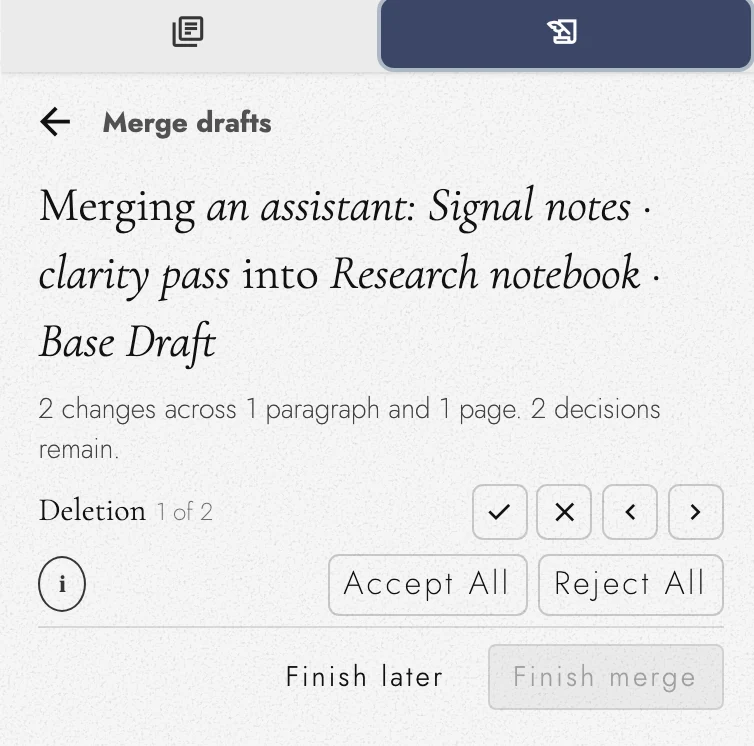
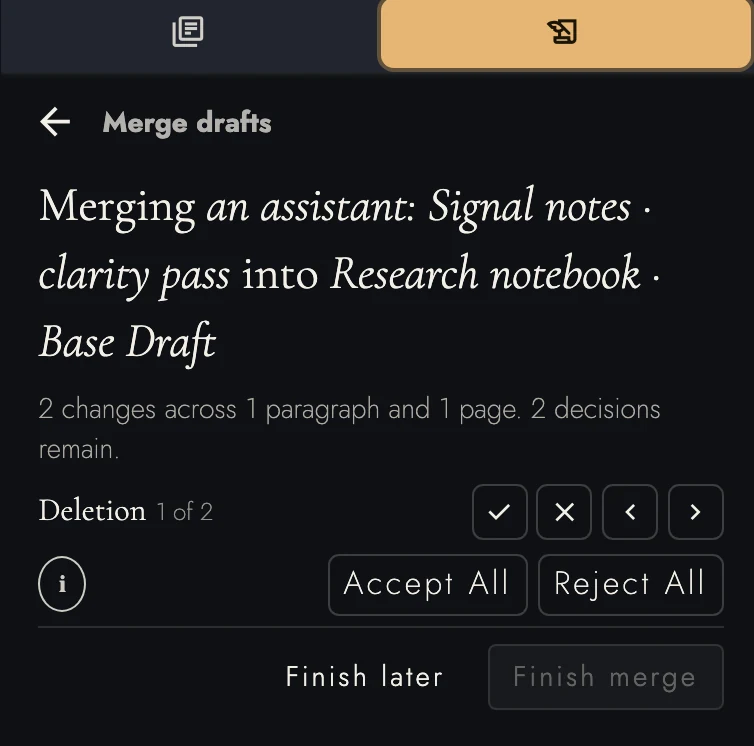
Resolve every change, then choose Finish merge. A returned review has no such button, since it closes on its own once its last change is decided. Finish later saves progress; Continue merging in the Draft’s ⋯ menu resumes it.
Accept All and Reject All each ask for confirmation. One Undo reverses the bulk decision; Redo applies it again.
On a phone there is no merge panel. The merge runs from a row of controls at the foot of the page instead, described under merging on a phone.
Deciding from the keyboard
The merge panel’s shortcuts work while it, or the merge bar, has focus. Opening a merge focuses it unless you are typing. The i button beside Accept All and Reject All shows the same key list:
- ← or ↑ goes to the previous change, → or ↓ to the next.
- Enter or A accepts the change on screen.
- Delete, Backspace, or R rejects it.
- Esc hands the caret back to the text.
Accept All and Reject All have no shortcuts. Holding a key decides only one change. Enter presses a focused button; keys in the comment box type normally.
Coming back to a merge
A merge stays open until you finish it, whether or not its panel is on screen. Close the right panel or switch it to another of its tabs, and a bar appears at the foot of the Canvas, just above the toolbar. It holds the merge's controls, the same ones a phone uses:
- Later, which leaves the merge for later.
- Previous and Next, with a count such as 2/5 between them for the change on screen.
- Reject and Accept, which give way to Finish once every change is decided.
- Open panel, which brings the merge panel back on the change you are at.
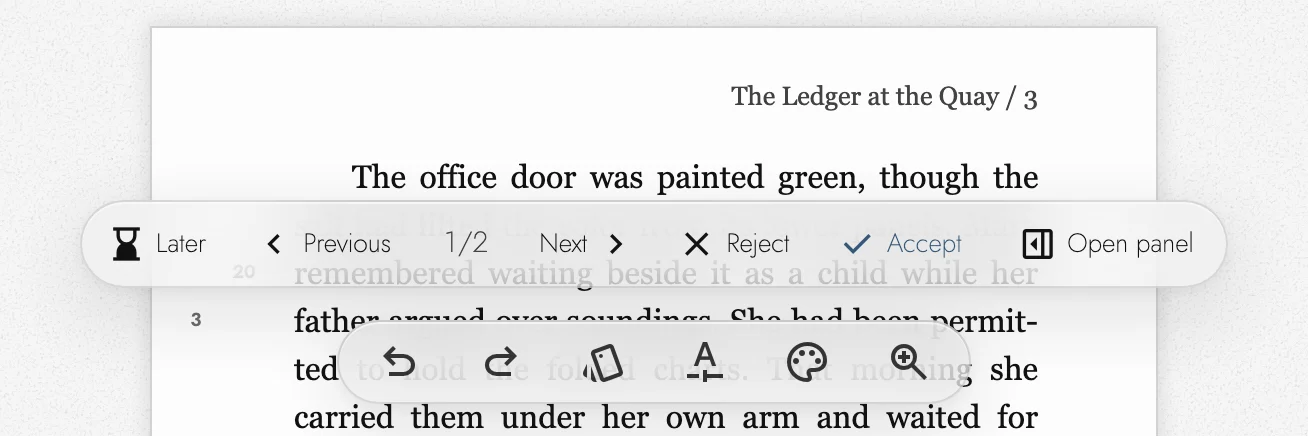
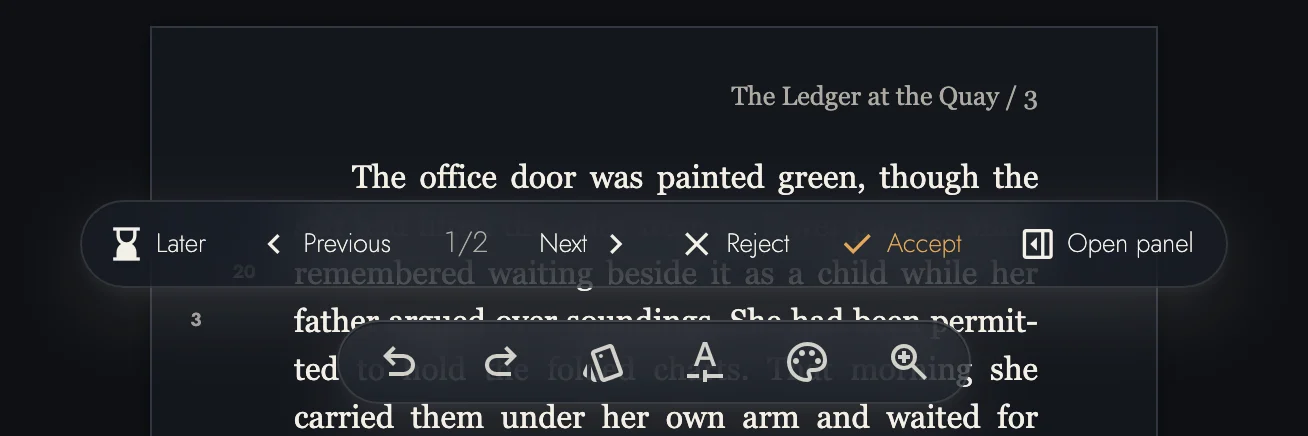
In a narrow column the words go and the icons stay. Hover over the bar for the names of the two drafts. The panel's keys work on the bar too once you have tabbed to it.
Later on the bar and Finish later in the panel pause the merge without losing decisions. Its marks remain, but its controls stay hidden until you choose Continue merging, even after a reload.
Writing while a merge is open
You can edit the destination Draft around pending changes. You cannot type into proposed additions or deletions; settle those with Accept or Reject. If the merge is paused, choose Continue merging first.
Two edge cases go the way you would hope. Typing at the very end of a proposed addition lands after it as your own words. And words typed into a paragraph the merge proposes to join onto its neighbor travel with it if you accept the join, or stay where you typed them if you reject it.
Finishing normally archives and hides the source Draft, with a record of its destination. Some sources stay available:
- A Draft holding a returned review.
- The Draft currently serving as Base.
- A Draft still shared with an Editor.
- A Draft with live children.
Undo reverses the filing. Use Preview under Archived to read an archived source.
When the source was filed away, Merge complete says where it went and offers Back to drafts. A source that had to stay available, or one whose filing you undid, gets Keep draft and Archive draft instead. A returned review ends on Review complete with Back to drafts, and its record remains in the panel.
10. Putting a draft away
A draft you abandon simply never merges, and costs the manuscript nothing. There is no tidying to do, and nothing that follows is a step you have to take.
Archiving
Archive hides a Draft while keeping its wording and comments. Undo restores it while focus is in the panel. Once that Undo is unavailable, archived Drafts can be previewed and copied from, but not edited again.
Archiving a published Draft asks whether to take the page down or keep it published. Taking it down stops its link; publishing again later reuses the address. An archived row can still manage a page kept online.
Archiving or deleting a parent reconnects its live children to the nearest available ancestor. Their Markup and merges then compare against that ancestor.
Archive is refused on two kinds of row, and each says why:
- a draft you have locked
- the draft the manuscript is composed from, when there is no other whole-manuscript draft to hand it to.
An Editor's review does not hold a draft back. Archiving ends that review and leaves the Editor a copy to read; Undo hands the review back to them. The archived row keeps its sharing list, which is where you revoke that leftover copy later.
In an Editor's own review workspace, Archive clears a review's rows without ending the Share, and its archived rows read Unarchive, because that review belongs to a Share the Editor set aside rather than ended.
Previewing an archived draft
Enable Archived and choose Preview to read a Draft alone. A Scoped Draft shows only its captured passages. Preview is read-only but supports Find, copying, and comments.
Use Back to manuscript to restore your prior view and Working Scope. Copying from Preview is how you recover selected archived wording.
Deleting permanently
Delete permanently sits beside Archive on a live row and alone on an archived one. It is the one command in the panel nothing takes back, so it opens a second dialog that says so and lists what goes:
- the draft's wording
- its comments
- its Markup history
- its published page, if it has one, so the link you shared stops working
Copies you exported before, such as a project archive or the backup folder, still contain the draft, and importing one brings it back only as a separate project. Your other devices drop the draft as soon as they sync, and an older copy of the project from another device or from the Cloud plan's synced copy cannot bring it back.
Deleting is refused while the draft is showing, while a merge over it is still open, and while you have locked it. An Editor's review is no obstacle. The dialog lists each Editor who loses access, asks you for a reason, and revokes their Shares as part of the delete. A Reader's share does not lock anything either: deleting that draft takes its published page down with it.
11. Continue reading
- Previous: Free writer tools
- Next: Markup Mode and Review Changes
- All guide articles
Try it on your own book
Start a free 14-day evaluation. No card needed.